Ng2-pdf-viewer: Fit PDF with height of the container
I am trying to fit the PDF within the height of the container from weeks without any luck. Have tried to use fit-to-page with other settings as per suggested in the documentation. I have googled a lot, used the core PDFJS extension in my application to get page-fit work, but got nothing.
I have opened question at StackOverflow. It is not yet answered.
I would like to have very same config, like we can have by selecting Page Fit from Zoom option dropdown in PDFJS official example (link to example):
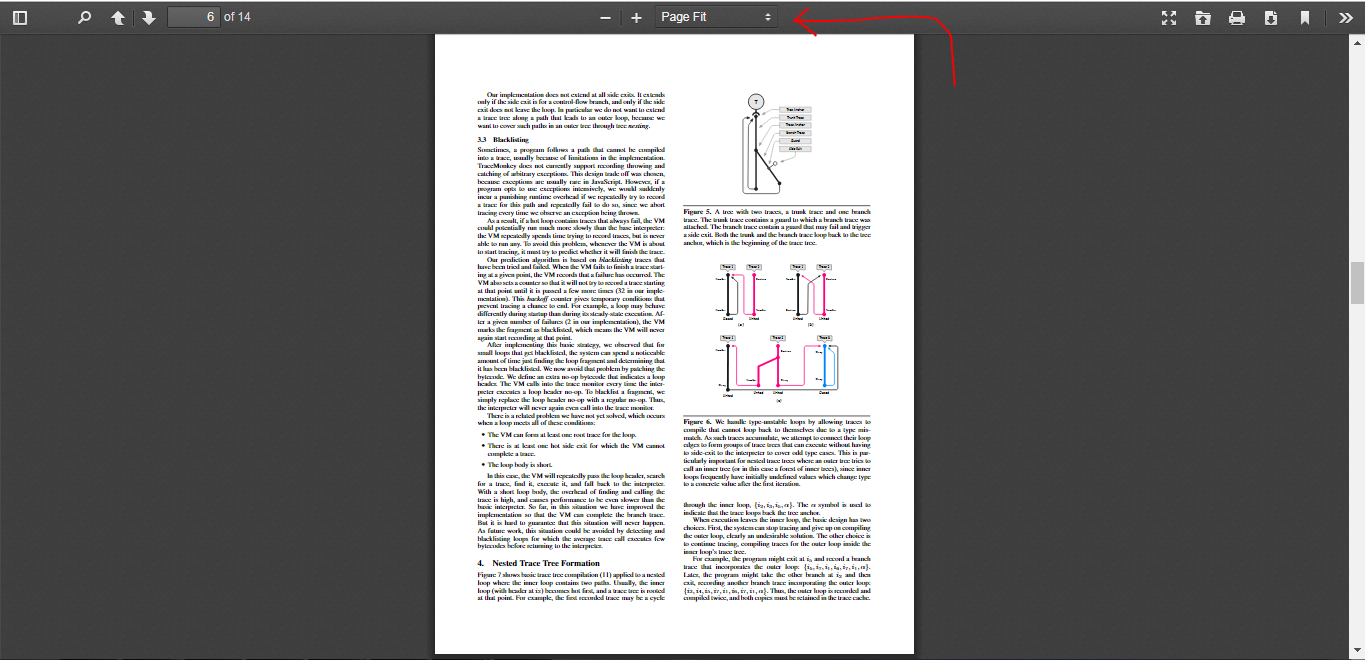
I have used fit-to-page with certain other configs. But every time it fits with the width. I like to fit the PDF with the height, so whole PDF page can be viewed without scrolling in the container.
Here is what, I have got right now:
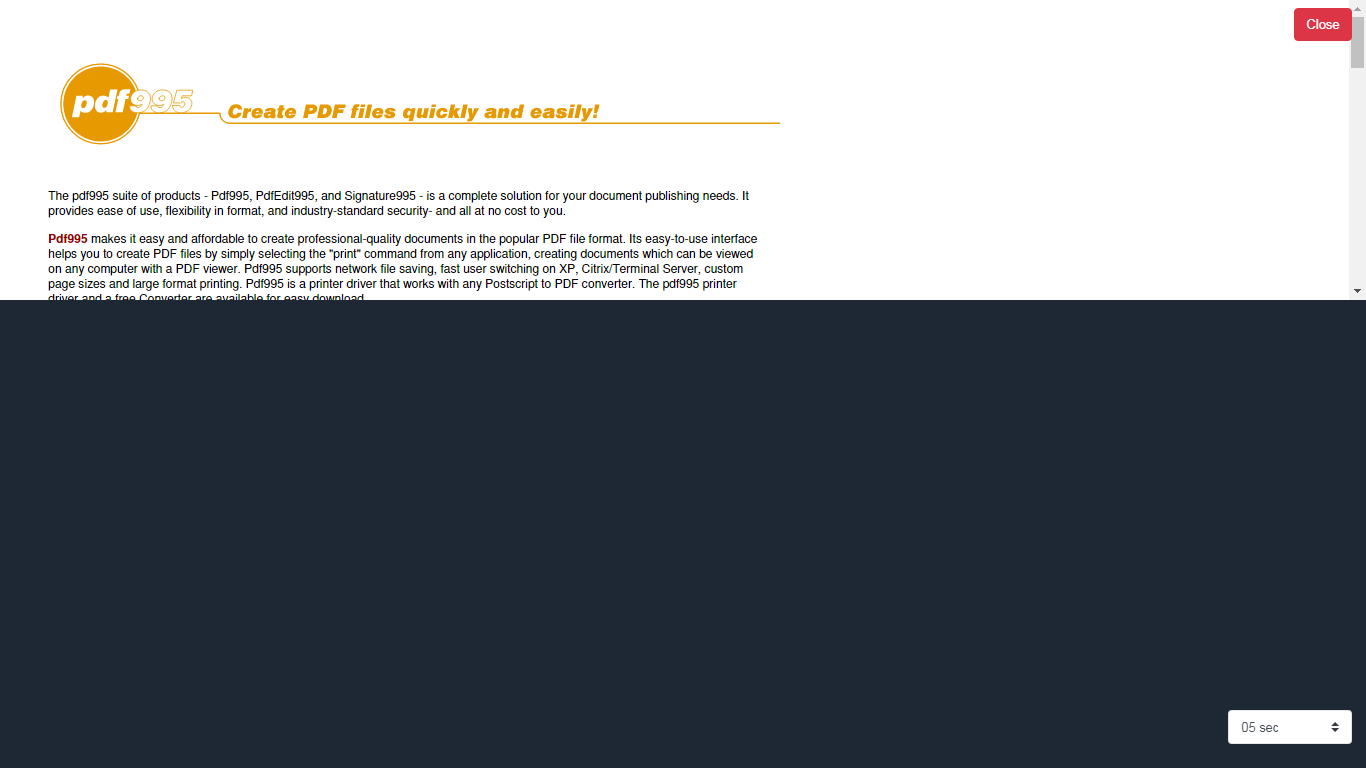
My code snippet is as follows:
            <div id="pdfContainerDiv" style='height: 300px;'>
              <pdf-viewer
              [src]='"./assets/images/userFiles/" + file.fileName'
              ([page])=1
              [render-text]='false'
              [original-size]='true'
              [fit-to-page]='true'
              style="display: block; height: 300px;"
              (after-load-complete)='afterLoadComplete($event)'
              (page-rendered)='pageRendered($event)'
              (pageChange)='pageChange($event)'

              ></pdf-viewer>
           </div>
Let me know how can I show full page with complete height in that 300px container.
 RahmatAliMalik5
All 5 comments
You have to configure your CSS so that the pdf-viewer container is taking the entire height of the container like you want it.
 VadimDez
on 28 Jul 2019
VadimDez
on 28 Jul 2019
After a lot of efforts and a css clue from VadimDez, I have found a way for making PDFs stretch to the height of container. I don't know whether it is good approach or not, but it is working great in my scenario.
- Add following
cssin your mainstyle.scssorstyle.css:
.ng2-pdf-viewer-container {
  overflow: hidden;
  position: absolute;
  top: 0;
  right: 0;
  bottom: 0;
  left: 0;
}
- Get
ng2-pdf-viewercomponent into your component like this:
// other imports
import { PdfViewerComponent } from 'ng2-pdf-viewer';


export class YourComponent{

  @ViewChild(PdfViewerComponent, {static: false})
  private pdfComponent: PdfViewerComponent;

// other code
}
- Then use
(page-rendered)event function to edit thecurrentScaleValueof thepdfViewer. Please check code below:
In html file:
<div style='position: relative; height: 100%;'>

            <pdf-viewer [src]='"./assets/images/userFiles/" + file.fileName'
            [show-all]="false"
            [autoresize]="true"
            [original-size]='true'
            [fit-to-page]='true'
            [render-text]='false'
            (page-rendered)="pageRendered()"
            ></pdf-viewer>
</div>
In your component file:
  // called after pdf page is rendered
  pageRendered() {
    this.pdfComponent.pdfViewer.currentScaleValue = 'page-fit';
  }
That's it. Please note, you will notice a flicker or glitch when pdf is updated or browser screen is resized. It is because, ng2-pdf-viewer changing the height according the it's settings and then when pdf page is rendered, we change it to the page-fit. I hide the pdf for a while when it updates and then show after it loads the settings to the page-fit.
Definitely, there are some other good approaches to do this. But, this is the only one, I have found after a search of months.
RahmatAliMalik5
on 11 Aug 2019
Using @RahmatAliMalik5 solution unfortunately messes up the ability to zoom.
As an extension of his answer, if you'd like to be able to use the zoom you can calculate initial zoom and set it on page render.
In your html:
        <pdf-viewer
            [show-all]="false"
            [autoresize]="true"
            [original-size]="true"
            [fit-to-page]="true"
            [render-text]="false"
            [page]="page$ | async"
            [zoom]="zoom$ | async"
            (page-rendered)="pageRendered($event)"
            [src]="src"
        ></pdf-viewer>
In your component:
    pageRendered(ev) {
        if (this.initialZoomSet) {
            return;
        }

        this.initialZoomSet = true;
        const width = ev.source.div.clientWidth;
        const height = ev.source.div.clientHeight;
        const ratio = width / height;
        const targetHeight = 384;
        const requiredWidth = ratio * targetHeight;
        const scale = requiredWidth / width;
        this.setState('zoom', scale);
    }
I use the initialScaleSet variable to prevent the initial zoom to be set several times. The target height is the desired height.
 Istanful
on 12 Dec 2019
Istanful
on 12 Dec 2019
@RahmatAliMalik5 . Can you suggest a way to hide it for a while and show after it loads. Please
 arunkg16021986
on 18 Dec 2020
arunkg16021986
on 18 Dec 2020
@arunkg16021986 I worked on that project year before and now have no, how I have done it before. I think the preferred way will be to use a boolean variable initialized by false and then use it on the pdf-viewer to hide and then show the pdf when rendered with page-fit style. Please check the example below, but please keep in mind, I have not tested this code. It is just to share in which way you should think to achieve it:
Your Component:
// other imports
import { PdfViewerComponent } from 'ng2-pdf-viewer';


export class YourComponent {

  @ViewChild(PdfViewerComponent, {static: false})
  private pdfComponent: PdfViewerComponent;

  hidePdf = true;       // <----- here variable is initialized


  pageRendered() {
    this.pdfComponent.pdfViewer.currentScaleValue = 'page-fit';

    setTimeout(() => { hidePdf = false;  } , 100 ); // <----- here we are going to show pdf
  }
}
Your HTML:
<div style='position: relative; height: 100%;'>

            <pdf-viewer
            [hidden]="hidePdf"
            [src]='"./assets/images/userFiles/" + file.fileName'
            [show-all]="false"
            [autoresize]="true"
            [original-size]='true'
            [fit-to-page]='true'
            [render-text]='false'
            (page-rendered)="pageRendered()"
            ></pdf-viewer>
</div>
==============================================
I have set the hidePdf to true in setTimeout() because it will take some milliseconds to update the pdf to page-fit. You check it in your code if it works fine without setTimeout() or by increasing the time in setTimeout() to a bigger value.
RahmatAliMalik5
on 19 Dec 2020
Related issues
 UlricW
·
3Comments
UlricW
·
3Comments
 kevinariasf
·
6Comments
kevinariasf
·
6Comments
 ShayShaked
·
5Comments
ShayShaked
·
5Comments
 Vigneshjana
·
3Comments
VadimDez
·
5Comments
Vigneshjana
·
3Comments
VadimDez
·
5Comments
Most helpful comment
After a lot of efforts and a
cssclue from VadimDez, I have found a way for making PDFs stretch to the height of container. I don't know whether it is good approach or not, but it is working great in my scenario.cssin your mainstyle.scssorstyle.css:ng2-pdf-viewercomponent into your component like this:(page-rendered)event function to edit thecurrentScaleValueof thepdfViewer. Please check code below:In html file:
In your component file:
That's it. Please note, you will notice a flicker or glitch when pdf is updated or browser screen is resized. It is because,
ng2-pdf-viewerchanging the height according the it's settings and then when pdf page is rendered, we change it to thepage-fit. I hide the pdf for a while when it updates and then show after it loads the settings to thepage-fit.Definitely, there are some other good approaches to do this. But, this is the only one, I have found after a search of months.