Nativescript-ui-feedback: Android keyboard overlay when RadSideDrawer is used as a root
Please take a minute to read our NativeScript Code of Conduct before proceeding with posting issues or discussing. The purpose of this guide is to make communication and cooperation within our forums a pleasure for you and the other members.
Please, provide the details below:
Did you verify this is a real problem by searching the NativeScript Forum?
Yes
Below a thread on this problem:
https://discourse.nativescript.org/t/android-keyboard-overlay-tns-4-1-3/6778
Tell us about the problem
_Please, ensure your title is less than 63 characters long and starts with a capital
letter._
Keyboard overlays the inputs on Android.
Which platform(s) does your issue occur on?
_iOS/Android/Both (if applicable tell us the specific version of the platform)_
I tested on Android
Please provide the following version numbers that your issue occurs with:
  "@angular/animations": "~6.0.6",
    "@angular/common": "~6.0.6",
    "@angular/compiler": "~6.0.6",
    "@angular/core": "~6.0.6",
    "@angular/forms": "~6.0.6",
    "@angular/http": "~6.0.6",
    "@angular/platform-browser": "~6.0.6",
    "@angular/platform-browser-dynamic": "~6.0.6",
    "@angular/router": "~6.0.6",
    "nativescript-angular": "~6.0.6",
    "nativescript-theme-core": "~1.0.4",
    "nativescript-ui-dataform": "^3.6.1",
    "nativescript-ui-sidedrawer": "~4.1.0",
    "reflect-metadata": "~0.1.10",
    "rxjs": "~6.1.0",
    "tns-core-modules": "4.1.0",
    "zone.js": "~0.8.18"
Please tell us how to recreate the issue in as much detail as possible.
1) I created a project using “Angular Drawer Navigation Template” from:
https://github.com/NativeScript/template-drawer-navigation-ng
2) Then I updated “settings.components.html” as per below:
<TextField id=“customer-lastname” [(ngModel)]=“customer.lastname” class=“input”> <TextField [(ngModel)]=“customer.firstname” class=“input”> <TextField [(ngModel)]=“customer.phone” keyboardType=“phone” class=“input”> <TextField [(ngModel)]=“customer.email” keyboardType=“email” autocorrect=“false” autocapitalizationType=“none” class=“input”> <TextField id=“customer-lastname” [(ngModel)]=“customer.lastname” class=“input”> <TextField [(ngModel)]=“customer.firstname” class=“input”> <TextView [(ngModel)]=“customer.notes” maxLength=“130” borderWidth=“1” returnKeyType=“send” class=“input input-border”>
Is there code involved? If so, please share the minimal amount of code needed to recreate the problem.
 ematechno
All 28 comments
same problem if you use webview
<WebView id="webview" src="http://m-dg.oreyw.com/"></WebView>
Please check attached sample project
 jibon57
on 12 Jul 2018
jibon57
on 12 Jul 2018
@tsonevn any work around so far?
jibon57
on 18 Jul 2018
This issue is very critical for us since it's blocking our APP upgrade from Nativescript 3.4 -> 4.1 :(
Any work-around?
Any idea about resolution-date?
ematechno
on 22 Jul 2018
Would you try to set in your AndroidManifest.xml the following value of 'windowSoftInputMode' property?
android:windowSoftInputMode="adjustPan"
Then remove your 'platforms' folder and rebuild. This should keep the input item on focus visible.
 zbranzov
on 25 Jul 2018
zbranzov
on 25 Jul 2018
android:windowSoftInputMode="adjustPan" >>> I have already tried this solution - it works, but I cannot use for my APP, since there is a button (-> SAVE) on toolbar that is pushed out from screen and not anymore visible to the user
ematechno
on 25 Jul 2018
Hi @ematechno @jibon57 , the way to go in your case seems to be to use: android:windowSoftInputMode="adjustResize" in your AndroidManifest.xml.
NOTE: this setting might not work alone. If so, try setting fitsSystemWindows to the page, where you show the keyboard:
import { Page } from "tns-core-modules/ui/page";
...
constructor(private _page: Page) {
_page.on("loaded", (args) => {
if (this._page.android) {
this._page.android.setFitsSystemWindows(true);
}
});
}
...
 tbozhikov
on 26 Jul 2018
tbozhikov
on 26 Jul 2018
@tbozhikov thank you so much 💯 .. Your solution has solved my webview problem https://github.com/telerik/nativescript-ui-feedback/issues/730#issuecomment-404496709
jibon57
on 26 Jul 2018
This solution solved RadSideDrawer issue too :), but there is a little unwanted/side effect: the APP page is pushed down and a little gray box appears on top (highlighted by red rectangle in below picture)
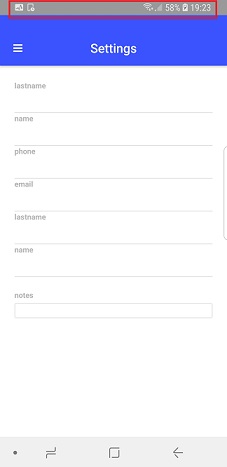
Any way to avoid this effect?
ematechno
on 27 Jul 2018
Hi @ematechno,
I've played a bit with the scenario and here is a possible solution (a bit hacky, but might do the job) :
import { Page } from "tns-core-modules/ui/page";
...
constructor(private _page: Page) {
_page.on("loaded", (args) => {
if (this._page.android) {
this._page.android.setFitsSystemWindows(true);
const listener = new android.view.ViewTreeObserver.OnGlobalLayoutListener({
onGlobalLayout: () => {
// the following lines check if keyboard is shown
// code taken from https://github.com/NathanaelA/nativescript-keyboardshowing/blob/master/index.js
const rect = new android.graphics.Rect();
const window = _page._context.getWindow();
_page.android.getWindowVisibleDisplayFrame(rect);
const rootView = _page.android.getRootView();
const screenHeight = rootView.getHeight();
const missingSize = screenHeight - rect.bottom;
if (missingSize > (screenHeight * 0.15)) { // if keyboard is shown
// the following lines get the statusBarHeight
// code taken from https://stackoverflow.com/questions/3407256/height-of-status-bar-in-android
const rectangle = new android.graphics.Rect();
window.getDecorView().getWindowVisibleDisplayFrame(rectangle);
const statusBarHeight = rectangle.top;
this._page.marginTop = - statusBarHeight / _page._context.getResources().getDisplayMetrics().density;
// remove the listener so that it does not leak
const viewTreeObserver = rootView.getViewTreeObserver();
viewTreeObserver.removeOnGlobalLayoutListener(listener);
}
}
});
_page.android.getViewTreeObserver().addOnGlobalLayoutListener(listener);
}
});
}
...
I have used ideas from the following resources:
- https://github.com/NathanaelA/nativescript-keyboardshowing/blob/master/index.js - check when keyboard is shown or not
- https://stackoverflow.com/questions/3407256/height-of-status-bar-in-android - get the height of the status bar in Android
The idea behind it is to find the height of the status bar and set it as negative margin to the page (move the page up, so that it goes under the grey status bar). Hope this helps.
tbozhikov
on 31 Jul 2018
I'm closing this due to inactivity, feel free to write back if needed
tbozhikov
on 24 Aug 2018
Hey @tbozhikov I have had success with this:
this.page.backgroundColor = '#000000';
this.page.backgroundSpanUnderStatusBar = true;
page.on("loaded", (args) => {
      if (this.page.android) {
        this.page.android.setFitsSystemWindows(true);
      }
});
and setting:
android:windowSoftInputMode="adjustResize"
 nuvoPoint
on 19 Sep 2018
nuvoPoint
on 19 Sep 2018
Is this solved in Nativescript 5.0? It's such a basic functionality...
 OskrLrba
on 19 Oct 2018
OskrLrba
on 19 Oct 2018
+1
 nericode
on 16 Nov 2018
nericode
on 16 Nov 2018
@tbozhikov Thanks for presenting a solution, but in angular it does not correctly detect the size of the action bar, and apparently it makes a delay effect when raising the action bar again
nericode
on 16 Nov 2018
it worked for me in the ngOnInit not in the constructor, thanks @tbozhikov
 bnelsonu
on 19 Nov 2018
bnelsonu
on 19 Nov 2018
Any solution this?
nericode
on 26 Aug 2019
Hi @NeriCodec,
Check out the provided solution above.
 tsonevn
on 27 Aug 2019
tsonevn
on 27 Aug 2019
Hi Guys....
I have finally solved this to my satisfaction without having any additional code functions. After at least 2 days messing about. What did it for me was as follows.
In Styles.xml - I put this in LaunchScreenThemeBase.
<item name="android:fitsSystemWindows">true</item>
This causes the grey status bar to be shown all the time and the extra space at the top of the actionbar regardless of keyboard shown or not.
In Styles.xml - I put this in AppThemeBase
<item name="android:windowBackground">@color/ns_primary</item>
This causes the Status bar to return to the correct colour.
In _app-common.scss
.action-bar {
  margin-top:-22;
}
This gets rid of the extra space at the top of the actionbar.
Cheers
Martin
 mturneruk
on 26 Oct 2019
mturneruk
on 26 Oct 2019
Even though my previous solution solves the problem, when you save your code and the project live reloads on your device or emulator, the ActionBar will jump under the statusbar. Once the keyboard has been displayed it will go back to the right place. So Annoying!
mturneruk
on 5 Nov 2019
@tbozhikov Could this get re-opened? This solution is hardly a solution at all, the bug is still present till this day.
 mfik
on 7 Nov 2019
mfik
on 7 Nov 2019
I tried the above provided workaround but none of them worked. Can you let us know if this is in the plan for any near future builds? Or if you can provide an ETA?
 mhtsharma948
on 2 May 2020
mhtsharma948
on 2 May 2020
Hi Guys....
I have finally solved this to my satisfaction without having any additional code functions. After at least 2 days messing about. What did it for me was as follows.
In Styles.xml - I put this in LaunchScreenThemeBase.
<item name="android:fitsSystemWindows">true</item>
This causes the grey status bar to be shown all the time and the extra space at the top of the actionbar regardless of keyboard shown or not.In Styles.xml - I put this in AppThemeBase
<item name="android:windowBackground">@color/ns_primary</item>
This causes the Status bar to return to the correct colour.In _app-common.scss
.action-bar {
  margin-top:-22;
}
This gets rid of the extra space at the top of the actionbar.
Cheers
Martin
@mhtsharma948
The solution described here should work.
Don't forget to delete the platforms folders, so they can get rebuild with the new manifest.xml.
Also I needed to set the ActionBar-style to
ActionBar { margin-top:-22}
@mturneruk
Did you find a solution for the jumping ActionBar when using live reloading?
@tbozhikov @tsonevn
Can we reopen this? The issue still persists.
 ishiharas
on 4 Aug 2020
ishiharas
on 4 Aug 2020
hello, using the above solution, unfortunately I can't get rid of the gray bar on the top that obscures the actionbar ...
any other ideas?
 wontroba666
on 28 Sep 2020
wontroba666
on 28 Sep 2020
i got problem with gray bar too, looks like colors wont apply
 PavelSuk98
on 2 Oct 2020
PavelSuk98
on 2 Oct 2020
For anyone who's still looking for a nicer solution.
I ended up implementing overscroll padding on android.
The Layout structure was:
<RadSideDrawer>
<!-- ... -->
<page-router-outlet>
<!-- In an individual view -->
  <ScrollView orientation="vertical">
    <AbsoluteLayout width="100%" height="100%">
      <!-- We have a fixed-position status bar, so the absolute layout holds the status bar then the page content in a flexboxlayout -->
      <FlexBoxLayout top="0" left="0" width="100%" height="100%">
              <!-- My form -->

      </FlexBoxLayout>
    </AbsoluteLayout>
  </ScrollView>
</page-router-outlet>
</RadSideDrawer
The issue I was having was the keyboard would overlay the content (using adjustPad). I wanted similar functionality to nativescript-iqkeyboardmanager. When the keyboard is open the remaining content should be scrollable, without redrawing the layout.
I ended up using @bigin/ns-soft-keyboard to get the height of the keyboard on android. And Screen.mainScreen.heightDIPs to get the height of the screen. I then added the two and made the height of the AbsoluteLayout the result. And finally made the inner FlexBoxLayout the screen height (rather than 100% as it was previously).
If anyone wants a demo or better example I'm happy to provide it. Mention me in a reply and I'll knock one out.
 jamescodesthings
on 13 Oct 2020
jamescodesthings
on 13 Oct 2020
hi @jamescodesthings
can you provide any demo ?
wontroba666
on 13 Oct 2020
Yep, watch this space I'll mention when I've thrown together a repo, by the end of day today =]
jamescodesthings
on 19 Oct 2020
Hey @wontroba666 see here: https://github.com/jamescodesthings/ns-demo-android-keyboard
jamescodesthings
on 19 Oct 2020
Related issues
 marcelomiranda90
·
3Comments
tsonevn
·
4Comments
tsonevn
·
3Comments
marcelomiranda90
·
3Comments
tsonevn
·
4Comments
tsonevn
·
3Comments
 spmamidi
·
3Comments
spmamidi
·
3Comments
 Cacus3
·
4Comments
Cacus3
·
4Comments
Most helpful comment
Hey @tbozhikov I have had success with this:
and setting:
android:windowSoftInputMode="adjustResize"