Nativebase: Picker - iosIcon doesn't show when width is defined
I have gone through these following points
- [x] Check latest documentation: https://docs.nativebase.io/
- [x] Check for existing open/closed issues for a possible duplicate before creating a new issue: https://github.com/GeekyAnts/NativeBase/issues
- [x] Use the latest NativeBase release: https://github.com/GeekyAnts/NativeBase/releases
- [x] Check examples from NativeBase KitchenSink https://github.com/GeekyAnts/NativeBase-KitchenSink
- [x] For discussion purpose make use of NativeBase Slack: http://slack.nativebase.io/
- [x] For queries related to theme, check Theme Variables from Docs and live NativeBase Theme Editor http://nativebase.io/customizer/
Issue Description
node, npm, react-native, react and native-base version, expo version if used, xcode version
  Node: 10.15.1 - /usr/local/bin/node
  Yarn: 1.13.0 - /usr/local/bin/yarn
  npm: 6.4.1 - /usr/local/bin/npm
  Android Studio: 3.3 AI-182.5107.16.33.5264788
  Xcode: 10.1/10B61 - /usr/bin/xcodebuild
  expo: 32.0.0 => 32.0.0
  react: 16.5.0 => 16.5.0
  react-native: https://github.com/expo/react-native/archive/sdk-32.0.0.tar.gz => 0.57.1
  native-base => 2.12.1
Expected behaviour
This is the Picker version 2.12.0. It's expected that iosIcon appears like that.

Actual behaviour
After upgrade to 2.12.1 the Picker iosIcon doesn't show.

Steps to reproduce
It's simple, just use Picker with any width because if you use the width as undefined then it appears.
Is the bug present in both iOS and Android or in any one of them?
iOS
 andresmtz98
All 19 comments
Works fine

 SupriyaKalghatgi
on 14 Mar 2019
SupriyaKalghatgi
on 14 Mar 2019
I'm seeing the same behaviour.
Downgrading to 1.12.0 displays the icon, 1.12.1 does not with the same code.
I've upgraded from a previous nativebase version and use a custom theme. Is there anything extra I can look at to narrow down the cause?
 wadtech
on 14 Mar 2019
wadtech
on 14 Mar 2019
Works fine
Is it possible that using width as '100' the Picker fill the screen's width 😲 😲 ? Alright, no problem, i'll be using 2.12.0 better. Thanks for your quick response :). And thanks for this amazing library.
andresmtz98
on 14 Mar 2019
Is it possible that using width as '100' the Picker fill the screen's width
Screenshot shows that its iPhoneX simulator
I hope this simulator does not have width of 100
SupriyaKalghatgi
on 14 Mar 2019
@wadtech
Downgrading to 1.12.0 displays the icon, 1.12.1 does not with the same code.
What versions are you talking about?
SupriyaKalghatgi
on 15 Mar 2019
Sorry! NativeBase 2.12.0 works, 2.12.1 doesn't.
wadtech
on 15 Mar 2019
https://github.com/GeekyAnts/NativeBase/issues/2630#issuecomment-472819765
Tested with 2.12.1
SupriyaKalghatgi
on 15 Mar 2019
I am getting the same behavior with 2.12.1. It works with 2.12.0.
Also, I noticed the default width is changed. Before it would fit within the view the picker is in. Now it stretches. 2.12.0 -> 2.12.1 is a breaking change for Native-Base Picker, I think.
 Makar8000
on 15 Mar 2019
Makar8000
on 15 Mar 2019
After experimenting a bit more, the issue happens when the container view does not extend to the full width of the device. There are two ways to reproduce this:
- If there is additional content to the left of the Picker, the icon gets shifted to the right of the screen.
- If the width for the Picker's _container view_ is defined, then the icon is not shown since it gets "clipped" (even if you define a width for the Picker as well)
The width of the picker, including the iOS Icon, is set to be the width of the screen - 50, and a defined width causes that space to be clipped rather than trying to fit the icon in the container.
@SupriyaKalghatgi Can you re-open this issue? I think it's pretty clear there is in-fact an issue here for version 2.12.1.
Makar8000
on 15 Mar 2019
@Makar8000 Share code snippet with output and package.json
Descriptive issues do not help
SupriyaKalghatgi
on 18 Mar 2019
Hey @SupriyaKalghatgi , Unfortunately I cannot share a code snippet since I do not have the time, but you can follow any of the points I listed above and you can replicate. Maybe @andresmtz98 can share their code as well.
Also, the issue seems to be because of your change here as removing this hard setting seems to fix the issue.
Related comments that seem to be the same issue as this one can be found here and here
Makar8000
on 18 Mar 2019
@SupriyaKalghatgi Here are some example snippets made using small adjustments to the sample code on the official docs.
- If there is additional content to the left of the Picker, the icon gets shifted to the right of the screen.
<Content>
<Form style={{
marginLeft: 100,
}}>
<Picker
mode="dropdown"
iosHeader="Select your SIM"
iosIcon={<Icon name="arrow-down" />}
style={{ width: undefined }}
selectedValue={this.state.selected}
onValueChange={this.onValueChange.bind(this)}
>
<Picker.Item label="Wallet" value="key0" />
<Picker.Item label="ATM Card" value="key1" />
<Picker.Item label="Debit Card" value="key2" />
<Picker.Item label="Credit Card" value="key3" />
<Picker.Item label="Net Banking" value="key4" />
</Picker>
</Form>
</Content>
- If the width for the Picker's _container view_ is defined, then the icon is not shown since it gets "clipped" (even if you define a width for the Picker as well)
<Content>
<View style={{
display: "flex",
flexDirection: "row",
alignItems: "center",
}}>
<Picker
mode="dropdown"
iosHeader="Select your SIM"
iosIcon={<Icon name="arrow-down" />}
style={{ width: 150 }}
selectedValue={this.state.selected}
onValueChange={this.onValueChange.bind(this)}
>
<Picker.Item label="Wallet" value="key0" />
<Picker.Item label="ATM Card" value="key1" />
<Picker.Item label="Debit Card" value="key2" />
<Picker.Item label="Credit Card" value="key3" />
<Picker.Item label="Net Banking" value="key4" />
</Picker>
<View style={{
backgroundColor: "lightblue",
flex: 1,
}}>
<Text>{"Hello World"}</Text>
</View>
</View>
</Content>
React Native v0.59.0
Native Base v2.12.1
Makar8000
on 22 Mar 2019
This is still an issue on iOS, I believe due to https://github.com/GeekyAnts/NativeBase/commit/e1400842a2e0d766ccb8cfb23b13f9423c737a36#diff-8602732503a3c852faa052bb8a650185R133
as it uses the window dimensions to compute placeholder / text container sizes
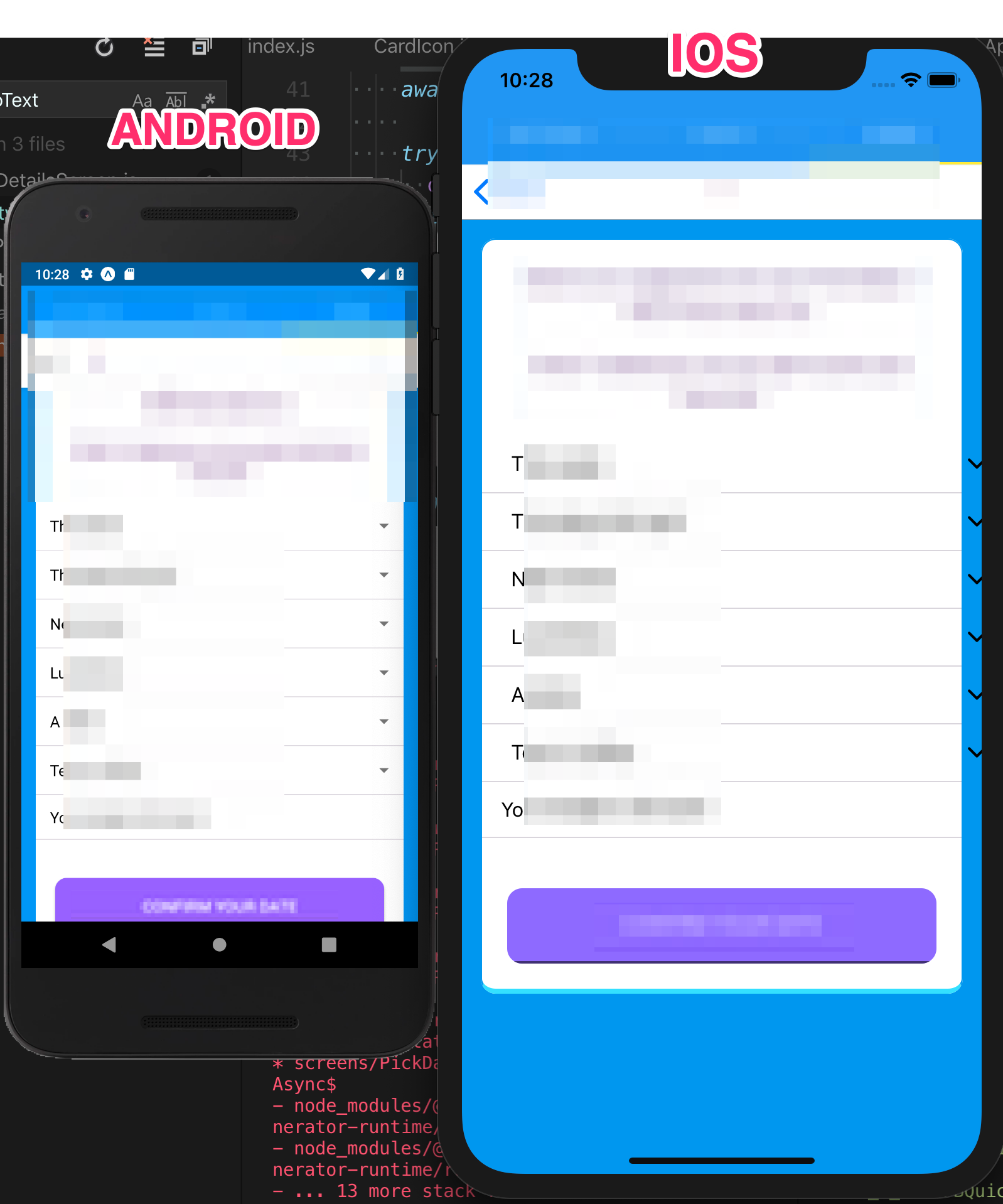
A rough fix is to set a width for the picker and maxWidths for the placeholder and text, like
          style={{ width: '80%' }}
          placeholderStyle={{ maxWidth: '100%' }}
          textStyle={{ maxWidth: '100%' }}
Which results in
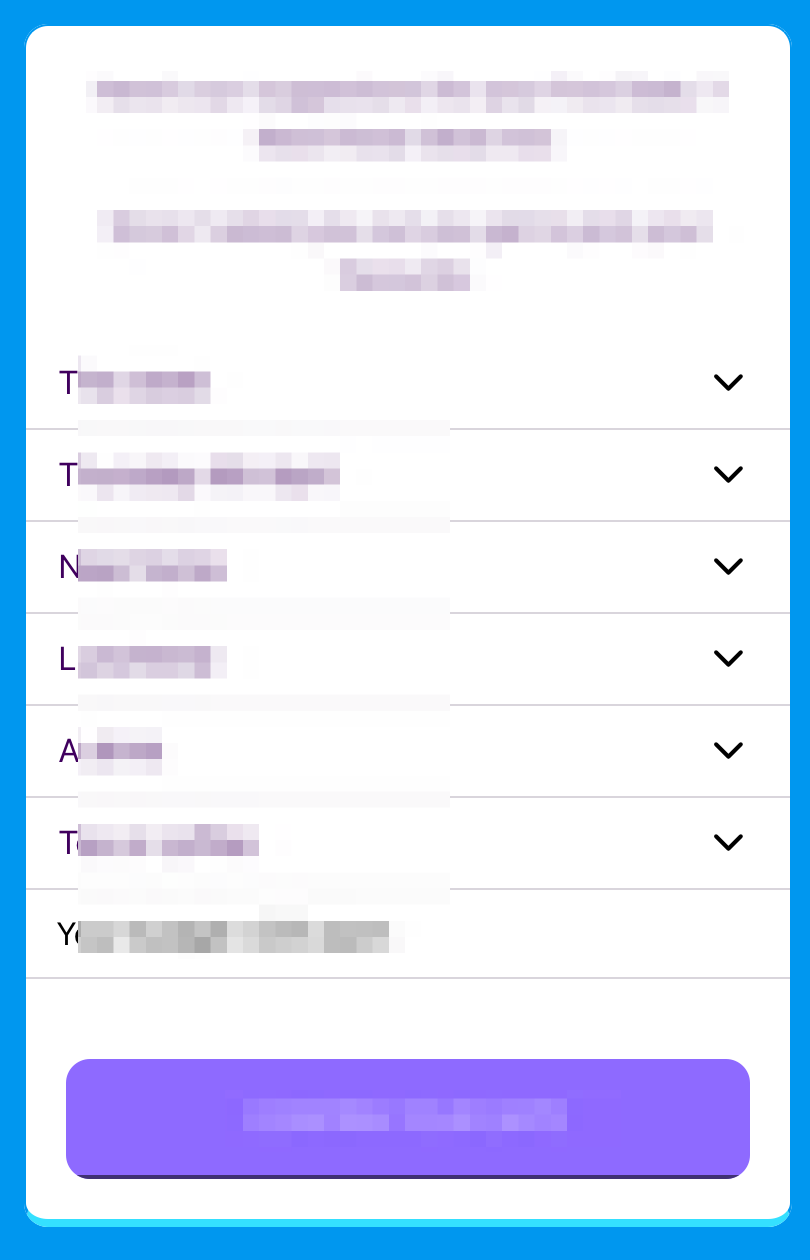
But this doesn't fix the underlying issue that the picker container size might not be the same as the device width
 deioo
on 4 Apr 2019
deioo
on 4 Apr 2019
Yeah, I encountered the same issue when I added padding to my container. Adjust style width accordingly
 jponc
on 11 Jul 2019
jponc
on 11 Jul 2019
My solution is using position property for the icon.
Here is how I fixed it:
<Picker
    placeholder="text"
    placeholderStyle={{ color: '#000' }}
    style={{ backgroundColor: '#FFF', width: '100%' }}
    iosIcon={
        <Icon name="arrow-down" style={{ color: '#000', position: 'absolute', right: 0 }} />
    }
>
    <Picker.Item label="0" key="0" value={0} />
    <Picker.Item label="1" key="1" value={1} />
    <Picker.Item label="2" key="2" value={2} />
    <Picker.Item label="3" key="3" value={3} />
</Picker>
 duong755
on 9 Aug 2019
duong755
on 9 Aug 2019
style={{ color: '#000', position: 'absolute', right: 0 }}it worked,thanks
 tunshiyu
on 22 Oct 2019
tunshiyu
on 22 Oct 2019
Any update on this? I tried this method and end up it just stick beside of my picker but not taking up the full width.
My solution is using position property for the icon.
Here is how I fixed it:<Picker placeholder="text" placeholderStyle={{ color: '#000' }} style={{ backgroundColor: '#FFF', width: '100%' }} iosIcon={ <Icon name="arrow-down" style={{ color: '#000', position: 'absolute', right: 0 }} /> } > <Picker.Item label="0" key="0" value={0} /> <Picker.Item label="1" key="1" value={1} /> <Picker.Item label="2" key="2" value={2} /> <Picker.Item label="3" key="3" value={3} /> </Picker>
 FlashLim
on 23 Dec 2019
FlashLim
on 23 Dec 2019
Can try setting width for iosIcon & textStyle
<Picker
    placeholder="text"
    placeholderStyle={{ color: '#000' }}
    style={{ backgroundColor: '#FFF' }}
    iosIcon={
        <Icon name="arrow-down" style={{ width: '10%' }} />
    }
textStyle={{ width: '90%'}}
>
    <Picker.Item label="0" key="0" value={0} />
    <Picker.Item label="1" key="1" value={1} />
    <Picker.Item label="2" key="2" value={2} />
    <Picker.Item label="3" key="3" value={3} />
</Picker>
 shalonteoh
on 23 Jul 2020
shalonteoh
on 23 Jul 2020
It doesn't work when the width set is on "80". above then '80' it's work fine
 USAMABARLAS
on 29 Jul 2020
USAMABARLAS
on 29 Jul 2020
Related issues
 Cotel
·
3Comments
Cotel
·
3Comments
 agersoncgps
·
3Comments
agersoncgps
·
3Comments
 nschurmann
·
3Comments
nschurmann
·
3Comments
 sihemhssine
·
3Comments
sihemhssine
·
3Comments
 omerdn1
·
3Comments
omerdn1
·
3Comments
Most helpful comment
This is still an issue on iOS, I believe due to https://github.com/GeekyAnts/NativeBase/commit/e1400842a2e0d766ccb8cfb23b13f9423c737a36#diff-8602732503a3c852faa052bb8a650185R133
as it uses the window dimensions to compute placeholder / text container sizes
A rough fix is to set a width for the picker and maxWidths for the placeholder and text, like
Which results in

But this doesn't fix the underlying issue that the picker container size might not be the same as the device width