If I add a Header with just one button (left or right) the title isn't centered anymore based on the screen.. Its center based on the "rest width"..
Current behaviour

Expected behaviour (Im using here the same icon and text but with the same background color)

<Header>
  <Button transparent>
    <Icon size={30} name="ios-arrow-back" />
    Back
  </Button>
  <Title>Login</Title>
</Header>
Am I missing something?
 andrejunges
All 19 comments
I experienced this issues as well, my solution was to drop an empty button on the right of the Title... obviously non-ideal but it works.
<Header>
<Button transparent>
<Icon size={30} name="ios-arrow-back" />
Back
</Button>
<Title>My Super Cool Title</Title>
<Button transparent> </Button>
</Header>
 zzimbler
on 27 Jul 2016
zzimbler
on 27 Jul 2016
Updated to master. Will publish later this week. Thanks @zzimbler for the quick solution.
 sankhadeeproy007
on 27 Jul 2016
sankhadeeproy007
on 27 Jul 2016
Jumping on this, another issue is when you put multiple buttons (more than 2), they all default to the right side and you can't move them anywhere else on the header.

 ErkanSensei
on 30 Jul 2016
ErkanSensei
on 30 Jul 2016
@ErkanSen14 I did go through the design guidelines of both Google and Apples, and although it wasn't clearly mentioned any where. All the examples/screenshots had just 1 button to the left of the title and the remaining were aligned to the right. Is there any example anywhere which has more buttons to the left. We'd then look into it.
sankhadeeproy007
on 30 Jul 2016
@sanketsahusoft Does this mean the issue is fixed? I don't see it in master or in the most recent release.
 ronaldheft
on 1 Aug 2016
ronaldheft
on 1 Aug 2016
@ronaldheft Could you please post snippets/screenshots of your code and the resultant UI? Do I need to reopen this?
sankhadeeproy007
on 1 Aug 2016
@sankhadeeproy007 My apologies, the issue is indeed fixed. Thanks!
ronaldheft
on 2 Aug 2016
I am still seeing this issue. I'm new to React Native so that may be an issue, so bear with me:
"native-base": "^2.3.1"
<Header>
<Button transparent onPress={() => Actions.pop()}>
<Icon size={30} name={this.state.IOS ? 'ios-arrow-back' : 'arrow-back'} />
<Text>Alerts</Text>
</Button>
<Body>
<Title>Details</Title>
</Body>
</Header>
Results in:

I would love some help :)
 btrautmann
on 7 Aug 2017
btrautmann
on 7 Aug 2017
```
``
try this out.
ImportRight` from native-base
sankhadeeproy007
on 7 Aug 2017
Thanks for the quick response! Unfortunately that helped _slightly_ but it's still not centered.

I also tried placing it inside the Header tag but that moved the title over way too much.

btrautmann
on 7 Aug 2017
Put the Button inside Left
sankhadeeproy007
on 7 Aug 2017
Awesome! That works for iOS.
Do you generally recommend people make different Headers for the two platforms? With the same setup above, Android now looks like this:
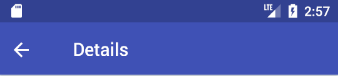
The title is too far _right_ :(
Although, only slightly: see below image compared to native android app

btrautmann
on 7 Aug 2017
Well that is because the guidelines on Android (material design) suggest that the Header title be slightly aligned to the left.
sankhadeeproy007
on 7 Aug 2017
Yeah, I know it should be to the left (I'm an Android developer actually, just jumping into RN recently)... But what I'm saying is with native-base, it's too far to the right (towards center). The light blue bar above is from the Messenger app, and it's the standard distance from left. The native-base (purple) is too far to the right/center.
btrautmann
on 7 Aug 2017
Oh you can always add a negative margin to the title to fix that.
sankhadeeproy007
on 7 Aug 2017
Gotcha, thanks for your help!
btrautmann
on 7 Aug 2017
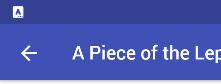
To fix this problem, I applied this style to the <Left> component:
headerLeft: {
flex: 0,
paddingLeft: 6,
width: 62
}
According to the material design guidelines, the leftmost icon is spaced 16dp from left, and the title 72dp. Since the <Header> already has 10 units of horizontal padding, the resulting <Left> paddingLeft is 6 (16-10) and the width of the is 62 (72-10)
This is the result:
 lopespm
on 2 Jan 2018
lopespm
on 2 Jan 2018
Thanks @lopespm this is realy helpfull :)
 hjJunior
on 14 Feb 2018
hjJunior
on 14 Feb 2018
i tested this issue with this trick
worked for me in Android emulator and IOS simulator and real devices(&roid,IOS)

<Header>
  <Left>
    <Button transparent    >
      <Icon name="arrow-back" onPress={() => this.props.navigation.goBack()}/>
    </Button>
  </Left>
  <Body style={{alignItems:'flex-end',backgroundColor:'yellow'}}>
    <Title style={{textAlign:'left',backgroundColor:'red'}}>دیوار</Title>
  </Body>
  <Right>
    <Button transparent onPress={() => this.props.navigation.navigate("DrawerOpen")}>
      <Icon name="menu" />
    </Button>
  </Right>
</Header>
or you can just assing
 <Header>
    <Left style={{flex:1}}>
        <Button transparent    >
          <Icon name="arrow-back" onPress={() => this.props.navigation.goBack()}/>
        </Button>
    </Left>
    <Body style={{flex:1,alignItems:'center'}}>
        <Title style={{textAlign:'left'}}>   3دیوار</Title>
    </Body>
    <Right style={{flex:1}}>
       <Button transparent onPress={() => this.props.navigation.navigate("DrawerOpen")}>
          <Icon name="menu" />
     </Button>
    </Right>
</Header>
 Arshiamidos
on 13 Mar 2018
Arshiamidos
on 13 Mar 2018
Related issues
 Cotel
·
3Comments
Cotel
·
3Comments
 Bundas
·
3Comments
Bundas
·
3Comments
 natashache
·
3Comments
natashache
·
3Comments
 georgemickael-b
·
3Comments
georgemickael-b
·
3Comments
 inv2004
·
3Comments
inv2004
·
3Comments
Most helpful comment
i tested this issue with this trick

worked for me in Android emulator and IOS simulator and real devices(&roid,IOS)
or you can just assing