Motioneyeos: PI Zero W : unable to connect to WIFI
Hi,
I have Motion Eye OS installed and working as a charm on a Raspberry PI Zero connected to my WIFI.
I bought a PI Zero W and installed the latest build of Motion Eye OS on it. Still to work with my WIFI.
It's not working for the following reason : Starting wpa_supplicant : failed (brcmfmac)" (see attached file)
The file is well there with the right information to connect to my WIFI;
To be sure the PI Zero W is working well i used another sd card with Raspbian and the WIFI is connecting without any problem.
Any idea what could be the issue ?
Thanks a lot for your help,
Best regards,

 bre75
bre75
All 37 comments
https://github.com/ccrisan/motioneyeos/issues/804#issuecomment-286071303
This worked for me and I had the same issue.
Good luck
 rc999985
on 7 Apr 2017
rc999985
on 7 Apr 2017
Also looks like there's a pre release
https://github.com/ccrisan/motioneyeos/releases/tag/20170326
rc999985
on 7 Apr 2017
Have you checked this troubleshooting article: https://github.com/ccrisan/motioneyeos/wiki/Troubleshooting#wireless-connection-problems?
 ccrisan
on 7 Apr 2017
ccrisan
on 7 Apr 2017
Hi,
Yes i checked everything.
Strange.
This morning I did 3 full install from scratch.
Without changing anything in the way i installed (with writeimage.sh on my Ubuntu).
I used the exactly same command line and the same sd card every time (that i format between each installation).
At the 3rd install ... It worked and i succeed to connect to my wifi.
bre75
on 7 Apr 2017
@bre75 then it might be related to power issues.
ccrisan
on 7 Apr 2017
Power issues ?
From the Raspberry ?
bre75
on 7 Apr 2017
I think I found out what the problem to this is, as it happened to me. It appears that you need to setup wpa_supplicant.conf on the first boot. If for some reason your first boot doesn't include the wpa_supplicant.conf, MotionEyeOS defaults to Ethernet, which it cannot find. This makes every subsequent boot fail, as it never looks again for the WiFi config, and just reboots because Ethernet is unavailable.
I think the best solution would be to search for a WiFi config file everytime Ethernet is unavailable on boot.
This was tested on my Raspberry Pi Zero W.
 RawBOT
on 7 Apr 2017
RawBOT
on 7 Apr 2017
Yes note steps 3 and 4 here https://github.com/ccrisan/motioneyeos/issues/804#issuecomment-286071303
rc999985
on 7 Apr 2017
It's driving me crazy ..
Did a full fresh installation on an other new Raspberry Pi Zero W, with a new SD Card.
On a Windows computer this time.
And exactly the same issue.
bre75
on 7 Apr 2017
@bre75, have you tried replacing the power supply with a more powerful one with shorter or thicker cables?
ccrisan
on 7 Apr 2017
Ah yes i forgot to mention it.
It's also another an new power supply.
Official Raspberry one
bre75
on 7 Apr 2017
On a Windows computer this time.
Make sure you don't use Notepad and use a text editor that lets you use Unix EOL (LF).
Some people were saying that they needed to make wpa_supplicant.conf on Raspbian for it to work, and I think this might be the reason, as Notepad forces Windows EOL (CRLF).
RawBOT
on 8 Apr 2017
I used Notepad++ and made sure it was set to "Linux" style line breaks (it tells you in the status bar bottom right).
You have make sure the file is correct. Otherwise you may need to re-write the SD card and start from scratch.
Working fine on a Pi Zero W.
 RPiSpy
on 8 Apr 2017
RPiSpy
on 8 Apr 2017
Has there been any progress on determining the cause of the wifi failure indicated in the original post (#876)? I had the exact same failure using the most recent release motioneyeos-raspberrypi-20170329. Including the same output as shown in the screenshot in the original post with the same error "Starting wpa_supplicant : failed (brcmfmac)". This was from a fresh write to the SD card.
I am curious to the significance of the "(brcmfmac)" portion of the error and what it is trying to indicate. I do understand that it is the Broadcom driver for the wifi. But what is the significance of indicating that as part of the fail error.
Thanks
 farangdude
on 18 May 2017
farangdude
on 18 May 2017
I experienced all of the issues associated to "Starting wpa_supplicant : failed (brcmfmac)"...
Solved this way for me...
Immediately after running the install script...
Reinsert sdcard
Open wpasupplicant.conf
Remove the blank lines after the } with a text editor....
Save...
Eject...
SUCCESS !!!
 efetzer
on 29 May 2017
efetzer
on 29 May 2017
I have tried everything above, still get the "starting wpa_supplicant: failed (brcmfmac)"
this is SO frustrating. any one have a real solution to this?
 plankton99
on 13 Oct 2017
plankton99
on 13 Oct 2017
@plankton99 does your board's WiFi connection work well with Raspbian?
ccrisan
on 13 Oct 2017
Yes both pi3 and zero w connect fine w raspbian
plankton99
on 13 Oct 2017
@plankton99 do you use exactly the same wpa_supplicant.conf file in all the cases?
ccrisan
on 13 Oct 2017
@ccrisan i used the raspbian pi jesse desktop and i can connect to the wifi via the desktop wifi set up. but i cannot do that with the motionEYE os
plankton99
on 13 Oct 2017
@plankton99 please try using the exact wpa_supplicant.conf file and see if it works. If it doesn't, try identifying the differences between Rasbpian's generated wpa_supplicant.conf and yours.
ccrisan
on 14 Oct 2017
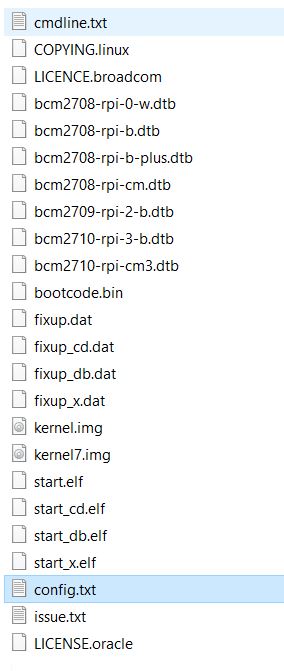
@ccrisan on the RASPBIAN STRETCH WITH DESKTOP which i can connect to the internet with on the PI3 board, in the root directory on the SD card there is no file "wpa_supplicant.conf" below are the files in the boot director of the PI3 with ASPBIAN STRETCH WITH DESKTOP that can connect to the wifi.
plankton99
on 14 Oct 2017
@ccrisan maybe you could send me your wpa_supplicant.conf (with key inf xxx out) and I can try that one.?
plankton99
on 14 Oct 2017
@plankton99 This try wpa_supplicant.conf file. You'll need to:
- Extract it from the ZIP file.
- Change the country code.
- Change the wifi SSID.
- Change the wifi password.
 jasaw
on 16 Oct 2017
jasaw
on 16 Oct 2017
Thank you @RawBOT - I had a slight mis-type in my .conf file on the first boot, and although I fixed it before the second boot nothing I did would make it work. Spent ages trying different editors, setting UNIX mode etc and nothing worked. So frustrating. Re-flashed the uSD card, saved the same .conf file, and it worked first time. Why this OS doesn't re-read the .conf each boot is bizarre!
 adrianrb101
on 26 Oct 2017
adrianrb101
on 26 Oct 2017
@adrianrb101 because motionEyeOS will only read the wpa_supplicant.conf file from the boot partition once, at first boot. Then it will use the one on the data partition.
ccrisan
on 26 Oct 2017
Sorry if this is thread necromancy, I'm new here, and I'll cheerfully withdraw/move/etc.
I have the same problem. "Starting wpa_supplicant: failed (brcmfmac)"
- with brand new pi 0 w, SD Card, Canakit Power Source (1A), Pi NoIR Camera V2
- 20180101 OS Image, utilizing jasaw's example wpa_supplicant.conf file and changes to ssid/password where necessary In Atom (with LF end of line), reimaging with each attempt to ensure changes for each first boot.
- after checking the process and troubleshooting in #804 , and the troubleshooting guide,
- Raspian Stretch with Desktop OS (Kernel 4.9) was able to connect through GUI.
- router was restarted, and other devices were able to connect no problem.
This seems like an amazing program, I'd really like to get it working.
edit: included hardware specifics, spelling error
 CapnWuwei
on 6 Feb 2018
CapnWuwei
on 6 Feb 2018
@CapnWuwei What's your SSID? Does it contain unicode? Are you able to attach your wpa_supplicant.conf file here, but change the sensitive information a little bit?
I presume you've read the wifi preconfiguration page as well. Make sure your wpa_supplicant.conf is placed in the correct directory.
If you are using hexadecimal wifi password, do not put quotes around the psk field, e.g. psk=aabbccddeeff
If you are using text wifi password, make sure you have quotes around the psk field, e.g. psk="this_is_my_wifi_password"
jasaw
on 7 Feb 2018
edited at 8:17pm from previous response due to reasons below
@jasaw sure! Thank you for your help. When pasting and re-imaging to give you the carbon copy of my .conf file, i noticed there was one lowercase letter in the password where it should have been capitalized. In the several boots and reimages, I had never noticed.
@ccrisan This is pretty fantastic stuff. These might make great baby monitors for some expectant Maker couples. Thank you much.
CapnWuwei
on 7 Feb 2018
All; I have pricked about with this for several hrs following all of the above, loaded this, loaded that and conclude it is £40 down the drain, Total Crap, obviously insufficient instructions, rubbish product. Fortunately I will use the PI Zero for something else ... (may be one more try when I am in a better mood but I wouldn't hold your breath)
 wiggaworm
on 26 Feb 2018
wiggaworm
on 26 Feb 2018
@wiggaworm If you describe your problem, someone might be able to help you.
jasaw
on 26 Feb 2018
jasaw; thankyou for your prompt reply. My problem is exactly as bre75 commented on Apr 6 2017, top of this thread, I have done/checked everything here, Observed the first boot rule (doesn't help matters) blahblahblah, unix format and everything spelt correctly. Done this dozens of times. No Joy. I have lots of PI's so its not as if I am new to this game, but on this one I give up.
wiggaworm
on 26 Feb 2018
OK peeps, I had another several goes; it seems \etc version of wpa_supplicant.conf (after first boot) does not contain same details as wpa_supplicant.conf file as left in "boot directory", its missing ssid and psk details and presumably it should have these. I am probably on the right tracks now and could edit this back in on another PI platform but enough is enough, I really cant be bothered anymore ... all in all a poor show, with dreadful instructions its time to move on.
wiggaworm
on 1 Mar 2018
@ccrisan I'm wondering if we could improve the user experience by copying /boot/wpa_supplicant.conf file to /data/etc/wpa_supplicant.conf on each boot, provided source file exists. This would remove the need to reflash the SD card each time. I find myself running into this reflashing problem all the time during development/testing because I forgot to copy wpa_supplicant.conf before first boot.
I think the best user experience is to bring up a wifi access point if the wifi is not configured. Users can then configure the wifi via its web interface. Maybe let users disable wifi AP mode via web interface if user prefers ethernet interface.
@wiggaworm I'm interested in seeing what the differences are between your original /boot/wpa_supplicant.conf and /data/etc/wpa_supplicant.conf. Can you please attach both files here so we can debug the problem? Please change any sensitive information like SSID and psk before attaching the files.
jasaw
on 2 Mar 2018
@jasaw I've been meaning to do something about this initial config on boot partition issue. The problem is that those config files are often modified afterwards by motionEye or other utilities. Copying the boot variant over and over again at each boot would generate even more frustration.
A complex but viable solution would be to keep a hash of the boot variant and therefore be able to tell when it has changed. If the boot variant has changed, we use it to overwrite the data variant. And this mechanism could/should be applied for all config files that support "boot provisioning".
What do you think?
ccrisan
on 3 Mar 2018
@ccrisan That's a good idea. Just have to be careful with a few scenarios:
- Initial boot - copy wifi config from boot and save hash.
- Wifi config changed via web interface - hash stays the same, do not copy from boot.
- Updated wifi config in boot partition - hash is different, copy wifi config from boot and save hash.
In addition to your hash suggestion, what do you think about bringing up a wifi access point if wpa_supplicant.conf is not present in /data/etc and boot?
jasaw
on 4 Mar 2018
@jasaw the AP stuff is still experimental and unreliable. I don't think automatically enabling it is a good idea, at least for now. Let's see how things go and we might think in the future of a whitelist (combination of board/wifi adapter) where this can be done, if wpa_supplicant.conf is not provided.
ccrisan
on 4 Mar 2018
Related issues
 SuneBielefeldt
·
4Comments
SuneBielefeldt
·
4Comments
 leehonan
·
7Comments
leehonan
·
7Comments
 jl2008
·
5Comments
jl2008
·
5Comments
 Zach0331
·
3Comments
Zach0331
·
3Comments
 kmckmc01
·
7Comments
kmckmc01
·
7Comments
Most helpful comment
I think I found out what the problem to this is, as it happened to me. It appears that you need to setup wpa_supplicant.conf on the first boot. If for some reason your first boot doesn't include the wpa_supplicant.conf, MotionEyeOS defaults to Ethernet, which it cannot find. This makes every subsequent boot fail, as it never looks again for the WiFi config, and just reboots because Ethernet is unavailable.
I think the best solution would be to search for a WiFi config file everytime Ethernet is unavailable on boot.
This was tested on my Raspberry Pi Zero W.