Monogame: Draw origin is incorrect on Android
When drawing using the SpriteBatch on an Android device, positioning seems to be off.
This screenshot is a white rectangle drawn as follows:
        protected override void Draw(GameTime gameTime) {
            GraphicsDevice.Clear(Color.CornflowerBlue);
            this._spriteBatch.Begin();
            this._spriteBatch.Draw(this.texture, new Rectangle(0, 0, 50, 50), Color.White);
            this._spriteBatch.End();
            base.Draw(gameTime);
        }
As you can see, there are no transformations applied, yet the rectangle renders as follows in portrait and landscape modes:


I'm just using the Android template provided by the dotnet templates with no modification other than the texture loading and drawing code.
Am I supposed to add some sort of screen size code that I'm missing?
What version of MonoGame does the bug occur on:
- MonoGame 3.7.1.189
What operating system are you using:
- Windows to build
What MonoGame platform are you using:
- Android
 Ellpeck
All 8 comments
@Ellpeck What resolution is the device?
I'm experiencing what appears to be the same or a similar issue on some devices only (i.e. problems on a device with a 2231x1042 screen, no problem on a device with a 1920x1080 screen.)
Doing the following leaves slithers of red at the top and/or bottom of a landscape screen:
GraphicsDevice.Clear(Color.Red);
_spriteBatch.Begin();
_spriteBatch.Draw(_texture, _graphics.GraphicsDevice.Viewport.Bounds, Color.Blue);
_spriteBatch.End();
 svallis
on 8 May 2020
svallis
on 8 May 2020
My phone has a resolution of 2160x1080.
Ellpeck
on 8 May 2020
@Ellpeck Are you able to test your app on a device (or emulator) with a 16:9 aspect ratio screen? If, like I'm finding, it works fine there it may perhaps help diagnose our issue.
svallis
on 8 May 2020
I have just tested this again on an emulator with the resolution set to 2231x1042 and there are no issues there, so it's not simply an aspect ratio problem.
My next thought is that the problem is occurring on devices with a screen-based navigation bar, instead of physical buttons. I don't know of any way to test this with my emulator (BlueStacks) to confirm. The presence of the navigation buttons in the screenshots @Ellpeck originally posted seems to add weight to this.
svallis
on 11 May 2020
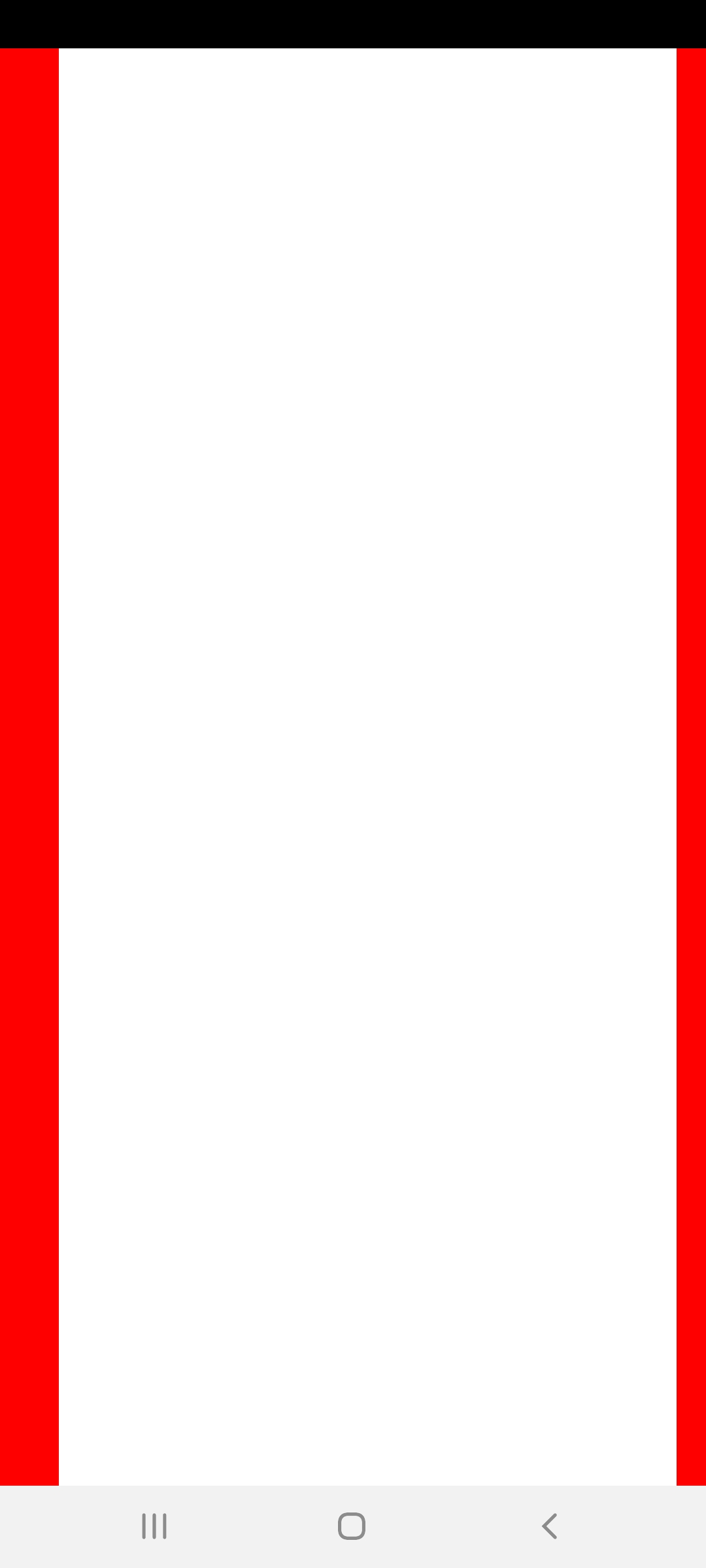
I've carried out some additional testing on this which perhaps gives some hint on what's going on. On a Samsung S20 Ultra with a 2400x1080 screen, MonoGame's viewport is reporting as 2326x1046. The screenshot below is of an app which simply clears the screen to red:
GraphicsDevice.Clear(Color.Red);
And then draws a white rectangle across the entire screen over the top:
_spriteBatch.Begin();
_spriteBatch.Draw(_rect, _graphics.GraphicsDevice.Viewport.Bounds, Color.White);
_spriteBatch.End();

On an old Samsung S7 Edge this simply shows a white rectangle across the entire screen as expected. The screenshot above shows both a red section (cleared by GraphicsDevice, but apparently inaccessible to _spriteBatch), and a black section on the left (inaccessible to either GraphicsDevice or _spriteBatch).
Please let me know if there is anything else I can do to help diagnose this issue. I can happily put together a test repo to reproduce the issue if that will help, but all you really need is to dotnet new mgandroid and add the two code sections above.
svallis
on 12 May 2020
More testing. I created a new project to eliminate anything from my larger projects with dotnet new mgandroid and modified Game1.cs to the following:
public class Game1 : Game
{
    private GraphicsDeviceManager _graphics;
    private SpriteBatch _spriteBatch;
    private Texture2D _rect;

    public Game1()
    {
        _graphics = new GraphicsDeviceManager(this);
    }

    protected override void Initialize()
    {
        base.Initialize();
    }

    protected override void LoadContent()
    {
        _spriteBatch = new SpriteBatch(GraphicsDevice);

        _rect = new Texture2D(GraphicsDevice, 1, 1);
        _rect.SetData(new[] { Color.White.PackedValue });
    }

    protected override void Update(GameTime gameTime)
    {
        base.Update(gameTime);
    }

    protected override void Draw(GameTime gameTime)
    {
        GraphicsDevice.Clear(Color.Red);

        _spriteBatch.Begin();
        _spriteBatch.Draw(_rect, GraphicsDevice.Viewport.Bounds, Color.White);
        _spriteBatch.End();

        base.Draw(gameTime);
    }
}
Interestingly this creates what I believe to be unexpected behaviour even on a device with hardware navigation buttons. Running in landscape and portrait on a Galaxy S7 gives the following results:


Is this expected behaviour? It appears that, due to the status bar being present, the screen can be cleared to red but the Viewport has retained the 16:9 aspect ratio and thus created borders. I would expect the Viewport to be the full addressable screen size, regardless of the aspect ratio?
This particular issue can be resolved on a device with hardware buttons by adding _graphics.IsFullScreen = true; to the end of the Game1 constructor, which produces the following (fairly redundant image, but including anyway for completeness!):

I have yet to test this on a device with software navigation buttons as I don't have one to hand, but will report back later with the results there.
Edit - Below is the same program running on an S20 Ultra (with the _graphics.IsFullScreen = true;):
svallis
on 13 May 2020
Eventually solved all issues after getting some development time with a device. Turns out a number of things can eat into the screen and cause the viewport to end up sized incorrectly. I'm not sure if any of the above behaviour is considered correct or a bug, but it can be resolved by forcing the app to render a "real" full screen with the following three things:
- Remove the status bar by adding the following to the constructor of your
Gameclass:
_graphics.IsFullScreen = true;
- Render under any notches by adding the following to the
OnCreate()of yourActivityclass:
if (Build.VERSION.SdkInt >= BuildVersionCodes.P)
{
  Window.Attributes.LayoutInDisplayCutoutMode = LayoutInDisplayCutoutMode.ShortEdges;
}
- Hide any software navigation buttons by running the following in both
OnCreate()andOnWindowFocusChanged()of yourActivityclass:
_view.SystemUiVisibility = (StatusBarVisibility)(SystemUiFlags.LayoutStable | SystemUiFlags.LayoutHideNavigation | SystemUiFlags.LayoutFullscreen | SystemUiFlags.HideNavigation | SystemUiFlags.Fullscreen | SystemUiFlags.ImmersiveSticky);
Thanks for the investigation into this, @svallis! Those changes did indeed fix the issue for my case as well.
Is there something here that can be modified within MonoGame to make this process more obvious for users? I think it would be great if some of the changes @svallis listed (like the ones in the Activity class) could be added to the Android project template.
Ellpeck
on 13 May 2020
Related issues
 MichaelDePiazzi
·
4Comments
MichaelDePiazzi
·
4Comments
 Jjagg
·
5Comments
Jjagg
·
5Comments
 MontyHimself
·
5Comments
MontyHimself
·
5Comments
 tomspilman
·
4Comments
tomspilman
·
4Comments
 Ellesent
·
5Comments
Ellesent
·
5Comments
Most helpful comment
Thanks for the investigation into this, @svallis! Those changes did indeed fix the issue for my case as well.
Is there something here that can be modified within MonoGame to make this process more obvious for users? I think it would be great if some of the changes @svallis listed (like the ones in the
Activityclass) could be added to the Android project template.