Mixedrealitytoolkit-unity: How to deploy a IL2CPP Unity 2018.2 build ?
Overview
I did a build with Unity 2018.2 with IL2CPP (because it says that .Net is deprecated)
I don't have the "device" button in the "Start" button in Visual Studio 2017

Expected Behavior
Have the "Device" button to deploy on the hololens
Actual Behavior
There is only a "Start"
Unity Editor Version
2018.2.0b11
Mixed Reality Toolkit Release Version
May 2018
 ghost
ghost
All 20 comments
Do it via the build menu? This is not an issue with this repo, but rather an issue with usage of Visual Studio, close the issue.
 isurfraz
on 10 Jul 2018
isurfraz
on 10 Jul 2018
@isurfraz how can I deploy a project in the build menu direct to the hololens ?? There is of course a Deploy Button but it installs the App on my computer, not on the hololens.
ghost
on 10 Jul 2018
@ThomasAstrakhan this is all covered in the basics of the hololens tutorial: https://docs.microsoft.com/en-us/windows/mixed-reality/holograms-101
Further more, building and deploying from visual studio is one of the most basic skills you use when developing apps and it appears you have not done any tutorials if you do not know this yet. I recommend starting with more basic tutorials before starting on hololens development.
isurfraz
on 10 Jul 2018
@isurfraz I already built and deployed many hololens app with Unity 2018.1.0 with .Net
and the tutorial says "click the dropdown and chose Device" which work when building with .net but not with IL2CPP
My concerns are about deploying when building with IL2CPP. Did you try with Unity 2018.2 ?
ghost
on 10 Jul 2018
@ThomasAstrakhan Sorry to be pain but could you at least read the link I posted before commenting?
From the first couple of pages:
"Using the top toolbar in Visual Studio, change the target from Debug to Release and from ARM to X86.
Click on the arrow next to the Device button, and select Remote Machine to deploy over Wi-Fi.
Set the Address to the name or IP address of your HoloLens. If you do not know your device IP address, look in Settings > Network & Internet > Advanced Options or ask Cortana "Hey Cortana, What's my IP address?"
If the HoloLens is attached over USB, you may instead select Device to deploy over USB.
Leave the Authentication Mode set to Universal.
Click Select
Click Debug > Start Without debugging or press Ctrl + F5. If this is the first time deploying to your device, you will need to pair it with Visual Studio.
The Origami project will now build, deploy to your HoloLens, and then run.
Put on your HoloLens and look around to see your new holograms."
If you had gone through any of the tutorials you would have worked this out. I really dont understand why one would come and file an issue on here without attempting even the basic tutorials.
I hope this has helped you, but either way your issue is not that the software does not work properly but that you do not know how to use visual studio properly, so I recommend closing this issue so it does not complicate things for the developers, and instead invest some time in some basic visual studio building + deploying tutorials.
I recommend starting with: https://msdn.microsoft.com/en-us/library/cyz1h6zd.aspx
If you have further issues regarding this, it would be better to post them on unity forums, stack overflow or something similar rather than filing a bug report immediatly.
isurfraz
on 10 Jul 2018
@ThomasAstrakhan You can also do Build > Build Solution and thenBuild > Deploy solution. this will build with the chosen settings. deploy will deploy the build to the connected device by cable or wifi depending on what is selected.
You can go to debug > options at the bottom and then select the second option "debugging", on there there will be a field "machine name", enter your IP address in there and select remote machine and it will set it to go over wifi.
Good luck, If this is not clear enough then I am sorry but you are in need of a full beginners visual studio tutorial and this is not the place for it.
isurfraz
on 10 Jul 2018
Thank you.
I can't do this :
Using the top toolbar in Visual Studio, change the target from Debug to Release and from ARM to X86.
Click on the arrow next to the Device button, and select Remote Machine to deploy over Wi-Fi.
Because if you check my screenshot, there is no arrow next to de device button.
But I will try this :
You can go to debug > options at the bottom and then select the second option "debugging", on there there will be a field "machine name", enter your IP address in there and select remote machine and it will set it to go over wifi.
ghost
on 11 Jul 2018
Reply back on here if you still have issues and I will try and guide you
through it, good luck!
On Wed, Jul 11, 2018 at 2:12 PM, Thomas Astrakhan notifications@github.com
wrote:
Thank you.
I can't do this :Using the top toolbar in Visual Studio, change the target from Debug to
Release and from ARM to X86.
Click on the arrow next to the Device button, and select Remote Machine to
deploy over Wi-Fi.Because if you check my screenshot, there is no arrow next to de device
button.But I will try this :
You can go to debug > options at the bottom and then select the second
option "debugging", on there there will be a field "machine name", enter
your IP address in there and select remote machine and it will set it to go
over wifi.—
You are receiving this because you were mentioned.
Reply to this email directly, view it on GitHub
https://github.com/Microsoft/MixedRealityToolkit-Unity/issues/2419#issuecomment-404163605,
or mute the thread
https://github.com/notifications/unsubscribe-auth/AJZrKSxz4y3ER-LXlWqmlV7kmMeTPy8Jks5uFfm1gaJpZM4VHVpH
.
isurfraz
on 11 Jul 2018
I'm unable to repro this in the latest 2018.2. Can you try deleting your built solution and rebuilding from scratch?
Built IL2CPP in Unity 2018.2.0f2
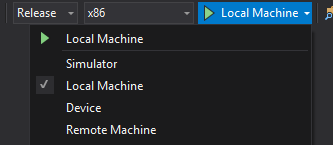
 keveleigh
on 12 Jul 2018
keveleigh
on 12 Jul 2018
Not related to the MRTK, going to close this issue. You guys may carry on and discuss as needed.
 StephenHodgson
on 12 Jul 2018
StephenHodgson
on 12 Jul 2018
i need help too doesn't work please help please
 dbr4389
on 4 Oct 2018
dbr4389
on 4 Oct 2018
Maybe you are trying to run the wrong project, change the default project
in the Solution Explorer.
El jue., 4 oct. 2018 a las 15:20, dbr4389 (notifications@github.com)
escribió:
i need help to doesn't work please help please
—
You are receiving this because you are subscribed to this thread.
Reply to this email directly, view it on GitHub
https://github.com/Microsoft/MixedRealityToolkit-Unity/issues/2419#issuecomment-427015701,
or mute the thread
https://github.com/notifications/unsubscribe-auth/AAvkSeDey1DDTWq3zYEWjJogpSmpGodAks5uhgsegaJpZM4VHVpH
.
 MRCalderon3D
on 5 Oct 2018
MRCalderon3D
on 5 Oct 2018
You could also be missing components in visual studio, (although, vs is pretty good about installing missing stuff)
StephenHodgson
on 5 Oct 2018
Sorry for the lack of information i was giving. But I found a workaround.
When I build using IL2CPP and use Remote Connection there is no popup where I can put in the ip-address from the hololens.

When I build using .NET and click on Remote Connection there is this popup to put in the ip.

I've always used .NET with remote connection to build but now it's being deprecated and I wanted to switch to IL2CPP.
the workaround is very easy I found out you can also connect your hololens to the pc with a wire and switch to Device.
dbr4389
on 12 Oct 2018
You should still be able to open the project properties and manually add the remote machine address. Likely this is a bug with vs.
StephenHodgson
on 12 Oct 2018
I was having the same problem, and the suggestion by @MRCalderon3D worked for me.
It seems Unity set the wrong startup project, Il2CppOutputProject.
I had to change to my main project and then the options to build to Device etc appeared again.
EDIT: I know the issue was closed already but posting it for others who might find this thread.
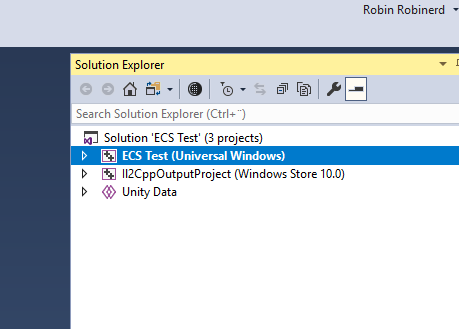
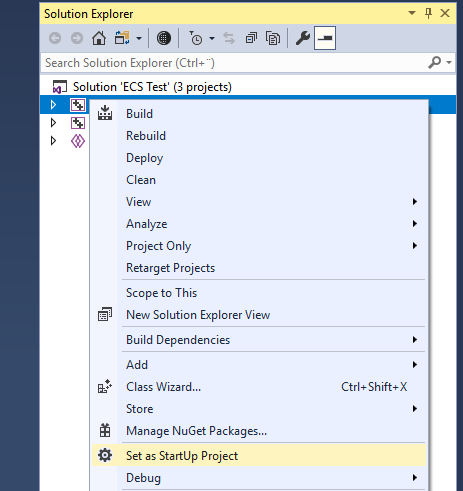
(added pictures for clarity)
 robinerd
on 8 Jan 2019
robinerd
on 8 Jan 2019
@ThomasAstrakhan Did you ever resolve the issue where you couldn't find the "device" button in the "Start" button in Visual Studio 2017?
I am following the Microsoft Hololens Academy tutorials, and I am running into the same issue as you.
Thank you in advance for your help!
 IzzyGomezThree
on 31 Jan 2019
IzzyGomezThree
on 31 Jan 2019
@IzzyGomezThree did you try the @robinerd solution ?
ghost
on 4 Feb 2019
Could it be that you're running the Visual Studio studio in the main directory and not the one in the actual build folder?
After building in Unity, when the window pops up, be sure to go into the actual folder (the one you named upon build) and run the Visual Studio solution located there.
 B-e-n-j-a-m-i-n-S-a-v-a-g-e
on 30 May 2019
B-e-n-j-a-m-i-n-S-a-v-a-g-e
on 30 May 2019
Hi
I'm getting this error while deploying. It's building sucessfully but fails to deploy.

I'm using Visual Studio 2017, unity 2018.4
 amit7010
on 3 Jun 2019
amit7010
on 3 Jun 2019
Related issues
 overedge
·
3Comments
overedge
·
3Comments
 matatabi-ux
·
3Comments
matatabi-ux
·
3Comments
 brean
·
3Comments
brean
·
3Comments
 dustin2711
·
3Comments
dustin2711
·
3Comments
 MatteoFantasy
·
3Comments
MatteoFantasy
·
3Comments
Most helpful comment
I was having the same problem, and the suggestion by @MRCalderon3D worked for me.
It seems Unity set the wrong startup project, Il2CppOutputProject.
I had to change to my main project and then the options to build to Device etc appeared again.
EDIT: I know the issue was closed already but posting it for others who might find this thread.
(added pictures for clarity)