Microk8s: Know Token Kubernetes Dashboard
Hello,
How can I get the token to access the dashboard?
Thank you
 SpyrosKptanopulos
All 11 comments
You can login using the token found in /snap/microk8s/current/known_token.csv
 theophanous
on 23 Jan 2019
theophanous
on 23 Jan 2019
I can not find the file or the route.
movigoo@movigooapp:~$ ll snap/
total 12
drwxr-xr-x 3 movigoo movigoo 4096 Jan 23 20:29 ./
drwxr-xr-x 7 movigoo movigoo 4096 Jan 23 20:53 ../
drwxr-xr-x 4 movigoo movigoo 4096 Jan 23 20:29 microk8s/
movigoo@movigooapp:~$ ll snap/microk8s/
total 16
drwxr-xr-x 4 movigoo movigoo 4096 Jan 23 20:29 ./
drwxr-xr-x 3 movigoo movigoo 4096 Jan 23 20:29 ../
drwxr-xr-x 3 movigoo movigoo 4096 Jan 23 20:31 383/
drwxr-xr-x 2 movigoo movigoo 4096 Jan 23 20:29 common/
lrwxrwxrwx 1 movigoo movigoo 3 Jan 23 20:29 current -> 383/
movigoo@movigooapp:~$ ll snap/microk8s/current
lrwxrwxrwx 1 movigoo movigoo 3 Jan 23 20:29 snap/microk8s/current -> 383/
or
root@movigooapp:/var/snap/microk8s/current# ll
total 32
drwxr-xr-x 5 root root 4096 Jan 23 20:32 ./
drwxr-xr-x 4 root root 4096 Jan 23 20:29 ../
drwxr-xr-x 2 root root 4096 Jan 23 20:31 args/
drwxr-xr-x 2 root root 4096 Jan 23 20:29 certs/
srw-rw---- 1 root docker 0 Jan 23 20:32 docker.sock=
srwxr-xr-x 1 root root 0 Jan 23 20:29 etcd.socket:2379=
-rw-r--r-- 1 root root 13 Jan 23 20:29 external_ip.txt
-rw-r--r-- 1 root root 2177 Jan 23 20:29 kubelet.crt
-rw------- 1 root root 1675 Jan 23 20:29 kubelet.key
drwxr-xr-x 3 root root 4096 Jan 23 20:29 var/
I think you are looking under /var/snap whereas you should be looking under /snap/.
The file is here:
> ls -al /snap/microk8s/current/known_token.csv
-rw-r--r-- 1 root root 209 Jan 24 14:34 /snap/microk8s/current/known_token.csv
 ktsakalozos
on 24 Jan 2019
ktsakalozos
on 24 Jan 2019
I can pull out the tokens fine with this command:
$ cat /snap/microk8s/current/known_token.csv
xxxxxxxxxxxxxxxxxxxxxxxxxx,system:kube-proxy,kube-proxy
xxxxxxxxxxxxxxxxxxxxxxxxxx,admin,admin,"system:masters"
xxxxxxxxxxxxxxxxxxxxxxxxxx,system:node:ip-192-168-1-130,kubelet-0,"system:nodes"
But when I paste in the number and letters for the token to admin,admin,"system:masters" and click 'sign in', the web dashboard doesn't doe anything.
We're talking about this page here, right?
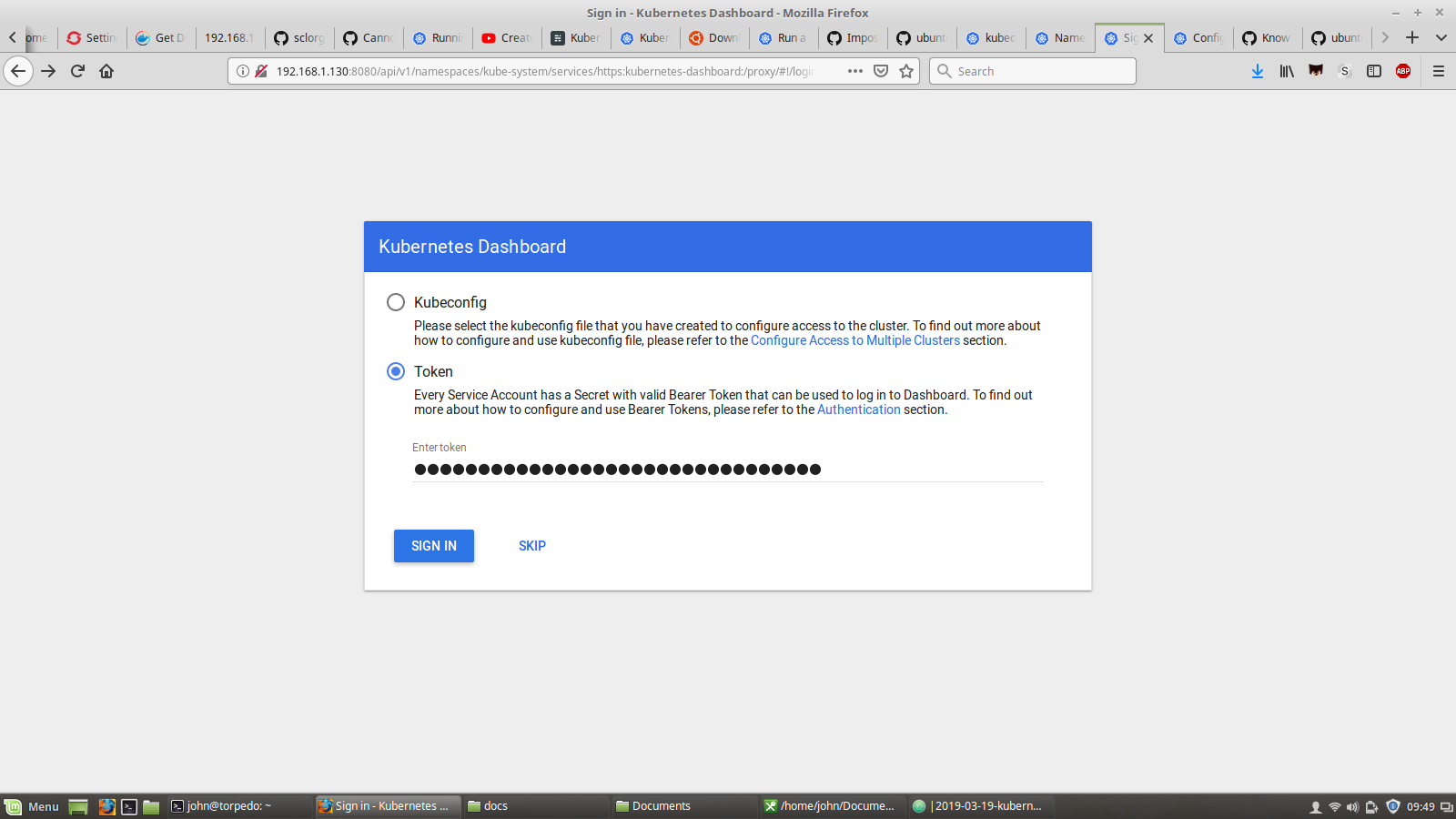
As a note, I don't have the Ubuntu UI setup on that server so am using some fancy port forwarding tricks to expose the proxy to my dev laptop, not sure if this might be breaking it...
[SOLVED]
Thanks for anyone who helped look into this, I could feel your positive energy helping me along! As it would turn out, it had something to do with the IP address I used to access the dashboard. It wanted me to use it's docker container networks address before it would work (eg 10.152.183.142).
Also, other ways of getting tokens may involve looking up all your secrets with
kubectl -n kube-system get secret
And describing important ones, such as...
kubectl -n kube-system describe secret default-token-ljlvp
 TheNotary
on 20 Mar 2019
TheNotary
on 20 Mar 2019
@TheNotary worked, thanks!
microk8s.kubectl -n kube-system get secret
microk8s.kubectl -n kube-system describe secret default-token-{xxxxx}
 ArmandoHerra
on 26 Mar 2019
ArmandoHerra
on 26 Mar 2019
if you want to disable this, use this command for edit
microk8s.kubectl edit deployment/kubernetes-dashboard --namespace=kube-system
and add enable-skip-login as below:
spec:
      containers:
      - args:
        - --auto-generate-certificates
        - --enable-skip-login
        image: k8s.gcr.io/kubernetes-dashboard-amd64:v1.10.1
"/tmp/kubectl-edit-snu9z.yaml" 102L, 4077C
 filipefelice
on 14 May 2019
filipefelice
on 14 May 2019
Ouch... and if you use microk8s on macOS via multipass, then you cannot access dashboard because Nothing will happen after clicking Sign in button on login page.
 develar
on 22 Jun 2019
develar
on 22 Jun 2019
@develar I am not sure I get the problem from the link you provided. Here is what I do to access the dashboard when MicroK8s is on a VM.
First expose the dashboard in one of the VM's ports with:
microk8s.kubectl expose -n kube-system deployment.apps/kubernetes-dashboard --type NodePort --name ds-np
This will select a random port eg:
kube-system service/ds-np NodePort 10.152.183.103 <none> 8443:32348/TCP 45s
Then grab the token:
token=$(microk8s.kubectl -n kube-system get secret | grep default-token | cut -d " " -f1)
microk8s.kubectl -n kube-system describe secret $token
Get the VM's IP with multipass list. In my case it was
> multipass list
Name                    State             IPv4             Image
bionic                  Running           10.141.241.104   Ubuntu 18.04 LTS
Point my browser to https://[VM-IP]:[port]. Which in my case it was https://10.141.241.104:32348 and use the token (retrieved above) to login.
ktsakalozos
on 24 Jun 2019
@ktsakalozos Thanks a lot. I missed fact, that it is possible to expose dashboard not via kubectl proxy, but just as a service, and restriction "For domains other than localhost and 127.0.0.1 it will not be possible to sign in." will be overcome. It works now.
develar
on 24 Jun 2019
Ouch... and if you use microk8s on macOS via multipass, then you cannot access dashboard because Nothing will happen after clicking Sign in button on login page.
yep, I meet the same issue.
 zecoo
on 21 Apr 2020
zecoo
on 21 Apr 2020
@develar I am not sure I get the problem from the link you provided. Here is what I do to access the dashboard when MicroK8s is on a VM.
First expose the dashboard in one of the VM's ports with:
microk8s.kubectl expose -n kube-system deployment.apps/kubernetes-dashboard --type NodePort --name ds-npThis will select a random port eg:
kube-system service/ds-np NodePort 10.152.183.103 <none> 8443:32348/TCP 45sThen grab the token:
token=$(microk8s.kubectl -n kube-system get secret | grep default-token | cut -d " " -f1)
microk8s.kubectl -n kube-system describe secret $token
Get the VM's IP with
multipass list. In my case it was> multipass list Name State IPv4 Image bionic Running 10.141.241.104 Ubuntu 18.04 LTSPoint my browser to
https://[VM-IP]:[port]. Which in my case it washttps://10.141.241.104:32348and use the token (retrieved above) to login.
Hi @ktsakalozos ,
I do use the same as you, but visit this https server was banned both in chrome and safari browser...
 cytown
on 9 Sep 2020
cytown
on 9 Sep 2020
Related issues
 toxsick
·
4Comments
toxsick
·
4Comments
 carmine
·
4Comments
carmine
·
4Comments
 linxuyalun
·
3Comments
linxuyalun
·
3Comments
 devbharat
·
3Comments
devbharat
·
3Comments
 mthaddon
·
5Comments
mthaddon
·
5Comments
Most helpful comment
if you want to disable this, use this command for edit
microk8s.kubectl edit deployment/kubernetes-dashboard --namespace=kube-systemand add enable-skip-login as below: