Material-table: How to adjust the width of the Material Table and how do I make the icons show up?
Right now my icons are now showing up as shown in screenshot below:

would the code simply be:
<MaterialTable
     icons={
                { Search, NextPage }
                }
     columns={[....]}
 />
I tried doing so, but I got this error:
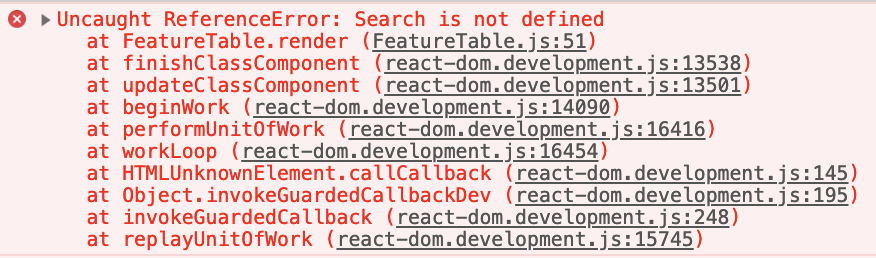
In addition, is there a way to adjust the size of Material Table itself? I don't see a width/height prop.
Thank you so much in advance!
 brittanywang
All 16 comments
Is there also a way to disable displaying:

brittanywang
on 27 Feb 2019
I also have a similar question. Is there a way to adjust the width of both the table itself and respective columns of the table?
 vinceliu21
on 28 Feb 2019
vinceliu21
on 28 Feb 2019
@brittanywang for your question about displaying the Rows per page:
<MaterialTable
  options={{ paging: false }}
/>
That did it for me.
 JWLangford
on 1 Mar 2019
JWLangford
on 1 Mar 2019
@JWLangford thank you!
brittanywang
on 1 Mar 2019
To set width of columns use both cellStyle and headerStyle:
{ title: 'Name', field: 'name',
cellStyle: {
width: 20,
maxWidth: 20
},
headerStyle: {
width:20,
maxWidth: 20
}
},
 mbrn
on 3 Mar 2019
mbrn
on 3 Mar 2019
for table width you can cover table with a div that has its own width
mbrn
on 3 Mar 2019
@mbrn thank you for your comments! I am still unable to display the icons. Do you have any suggestions? Do I have to import MaterialUI? Currently I'm using:
<MaterialTable
icons={
{ Search, NextPage }
}
columns={[....]}
/>
Thank you for your time!
brittanywang
on 3 Mar 2019
@brittanywang How did you import icons Search and NextPage
mbrn
on 4 Mar 2019
@mbrn forgot to close this, resolved in (#93). Many thanks again!
brittanywang
on 4 Mar 2019
when i set data table in container, it exceeds than container, how i fix this issue
 indraneelpradhan
on 15 Oct 2019
indraneelpradhan
on 15 Oct 2019
I had the same problem, but I solved as
cellStyle: {
width: 300,
minWidth: 300
},
headerStyle: {
width: 300,
minWidth: 300
},
...
If you want to down size use maxWidth, but if you want to up size use minWidth
 juliosilvacwb
on 6 Mar 2020
juliosilvacwb
on 6 Mar 2020
Is there also a way to disable displaying:
in the options you can disable the pagination by using paging: false
```
options = {{
paging: false
}}
 royliu007
on 29 May 2020
royliu007
on 29 May 2020
but if you want to up size use minWidth
it's not working...
 jaggaer-npasic
on 9 Oct 2020
jaggaer-npasic
on 9 Oct 2020
but if you want to up size use minWidth
it's not working...
It's true, it doesn't work, but this does: Put width: 120 (or whatever value you need) as an attribute of the column, just like you do with title: "my title", width: 50, ... etc
https://material-table.com/#/docs/features/fixed-columns
 Henao
on 20 Nov 2020
Henao
on 20 Nov 2020
This works for me.
With Gson in backend as json.
JsonDataKeys: simple enum to store names.
public static JsonObject getKeyCell() {
JsonObject key = new JsonObject();
key.addProperty(JsonDataKeys.title.name(), "Key");
key.addProperty(JsonDataKeys.field.name(), JsonDataKeys.key.name());
key.addProperty(JsonDataKeys.editable.name(), "never");
JsonObject keyCellStyle = new JsonObject();
keyCellStyle.addProperty("maxWidth", "200px");
key.add("cellStyle", keyCellStyle);
key.add("headerStyle", keyCellStyle);
key.addProperty("width", "200px");
return key;
}
 Strauteka
on 16 Dec 2020
Strauteka
on 16 Dec 2020
It looks like the min value is 100.
I tried
cellStyle: {
backgroundColor: '#bfbfbf',
color: '#000000',
width: 100,
maxWidth: 100
},
headerStyle: {
backgroundColor: '#bfbfbf',
color: '#000000',
width: 100,
maxWidth: 100
}
It only works for number above 100. Cannot go any lower.
 RoosterH
on 3 Jan 2021
RoosterH
on 3 Jan 2021
Related issues
 Likurg2010
·
3Comments
Likurg2010
·
3Comments
 victorwvieira
·
3Comments
victorwvieira
·
3Comments
 revskill10
·
3Comments
revskill10
·
3Comments
 terapepo
·
3Comments
terapepo
·
3Comments
 balibou
·
3Comments
balibou
·
3Comments
Most helpful comment
@brittanywang for your question about displaying the Rows per page:
<MaterialTable
  options={{ paging: false }}
/>
That did it for me.