Material-table: Nested MaterialTable
Is it possible to create a Multiple Detail Panel in a MaterialTable that shows MaterialTable? I want to display a monthly sales summary that can show a detail panel table with a table of sales transactions.
 cybermizrach
All 7 comments
You can. return a new table with detailPanel. https://mbrn.github.io/material-table/#/docz-examples-11-example-detail-panel
But you can try to use grouping feature: https://mbrn.github.io/material-table/#/docz-examples-12-example-grouping
 mbrn
on 11 Feb 2019
mbrn
on 11 Feb 2019
Thanks @mbrn !
cybermizrach
on 11 Feb 2019
Hey @cybermizrach, as @mbrn suggested, I have managed to render a nested table by returning it from a function I'm passing to the detailPanel prop.
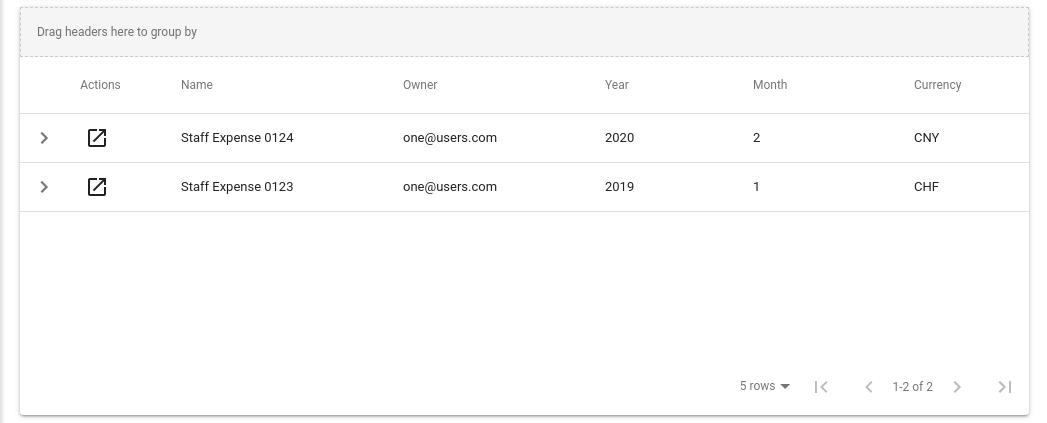
However, I'm currently struggling with some styling issues when it comes to rendering the nested table and making it fill the detailPanel container, matching the parent table width, if that makes sense. See the following image:
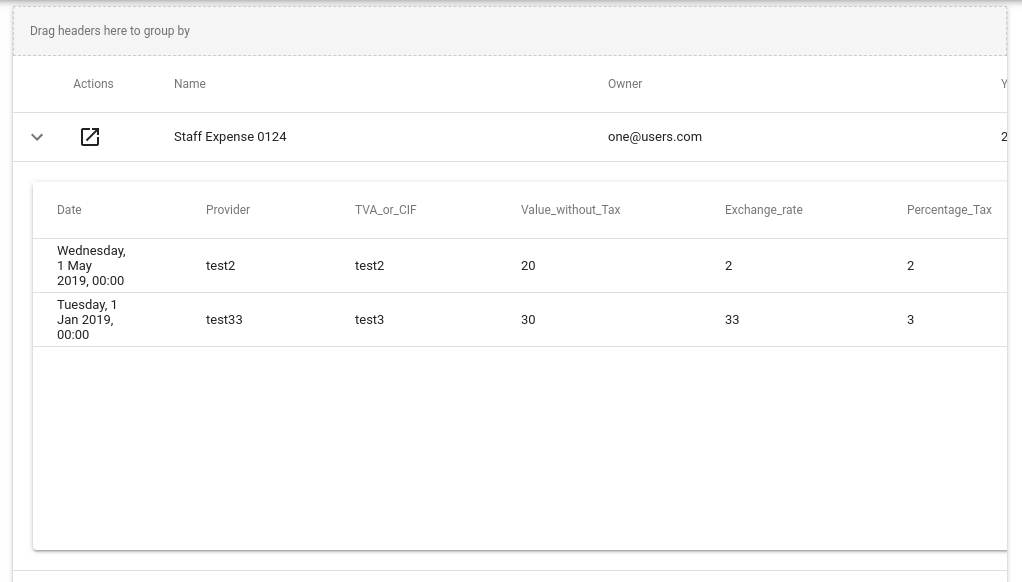
This is what it should look like (I had to zoom out almost 50% to get the result I'm looking for):
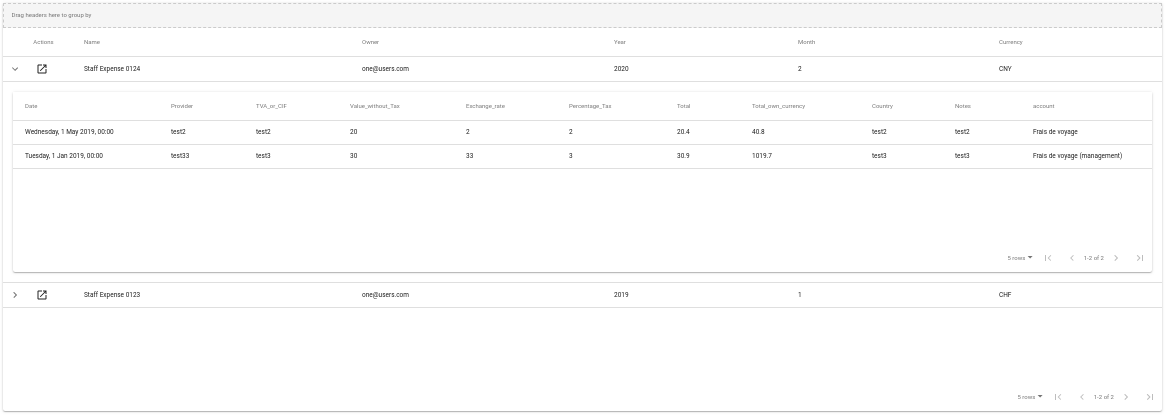
Notice the parent column names row. How can I keep the nested table from expanding and rendering with a wider width than the parent? That been said, I'd like the parent to keep its original width, not adapt its rows to the child component.
I've been messing around with flex and position properties, and absolute dimensions:
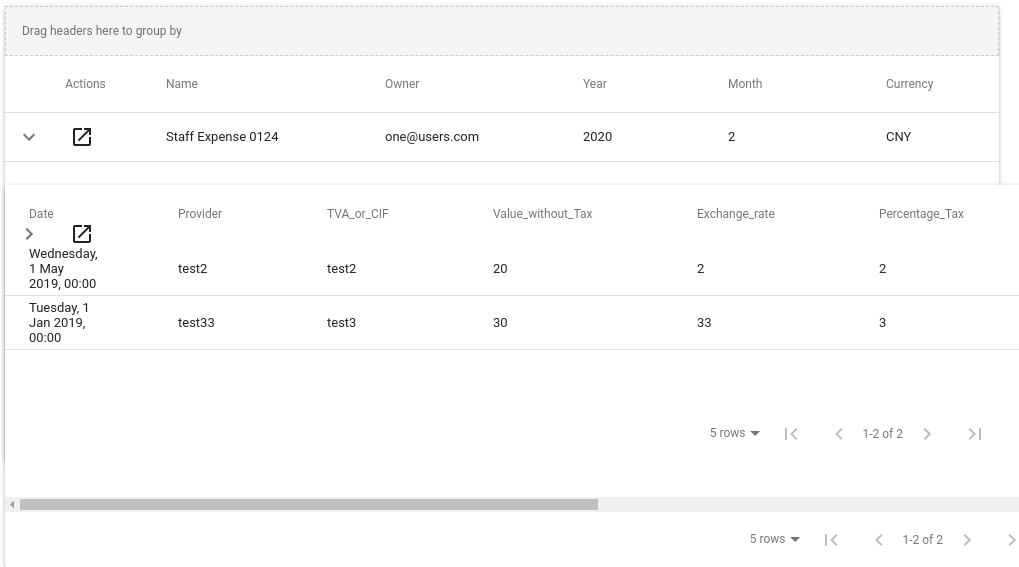
This is what I have achieved so far:
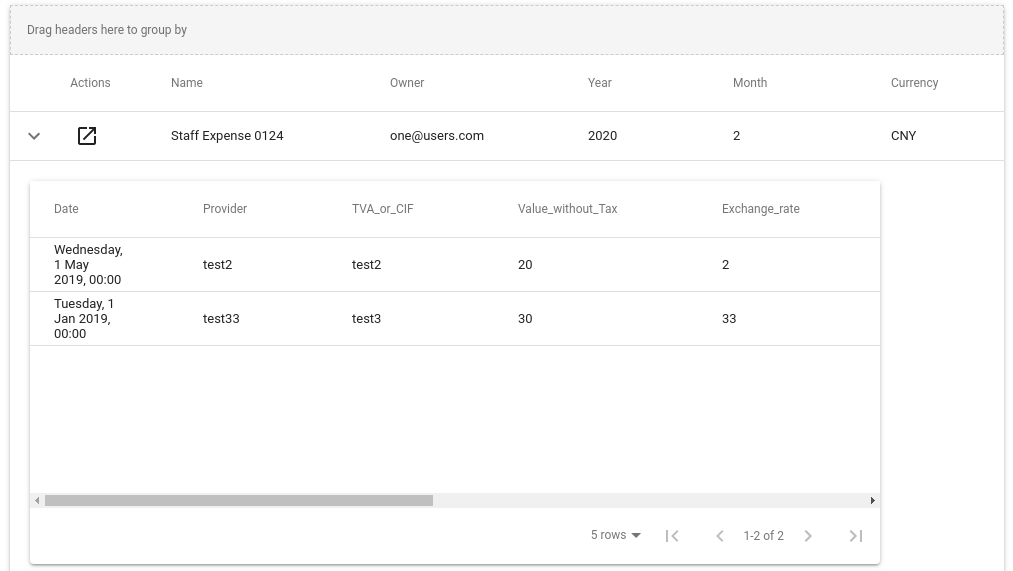
But still, not a proper solution, as I need this screen to be as responsive as possible.
return (
      <div style={{ padding: 20, width: 850 }}>
        <MaterialTable
          columns={tableColumns}
          title={capitalizeFirstLetter(key)}
          data={tableData}
...</div>)
Could you guys provide some guidelines on how to fix this with the right style properties; or a workaround to get the result I need?
I'm using the version 1.36.4 of material-table, along with react 16.6.3.
Thank you all in advance!
 HenryTux
on 27 May 2019
HenryTux
on 27 May 2019
Hi @HenryTux
I tried case but could not reproduce bug that you mentioned. This is my code:
<MaterialTable
                  columns={this.state.columns}
                  data={this.state.data}
                  title="Demo Title"
                  detailPanel={rowData => (
                    <div style={{padding: 10, backgroundColor: '#ddd'}}>
                      <MaterialTable
                        ...
                       />
                    </div>
/>
If you create a sandbox i can look at it again.
mbrn
on 27 May 2019
Hi @HenryTux
I tried case but could not reproduce bug that you mentioned. This is my code:
<MaterialTable
                  columns={this.state.columns}
                  data={this.state.data}
                  title="Demo Title"
                  detailPanel={rowData => (
                    <div style={{padding: 10, backgroundColor: '#ddd'}}>
                      <MaterialTable
                        ...
                       />
                    </div>
/>
If you create a sandbox i can look at it again.
Hey @mbrn, thank you so much for the early response!
I just created a basic React project in codesandbox.io as you suggested. Here is the link
https://codesandbox.io/s/blue-sea-y5plw
If that link happens to be broken, here is the project y5plw.zip
Anyhow, I still come across with the issue. Check out the sandbox editor preview:
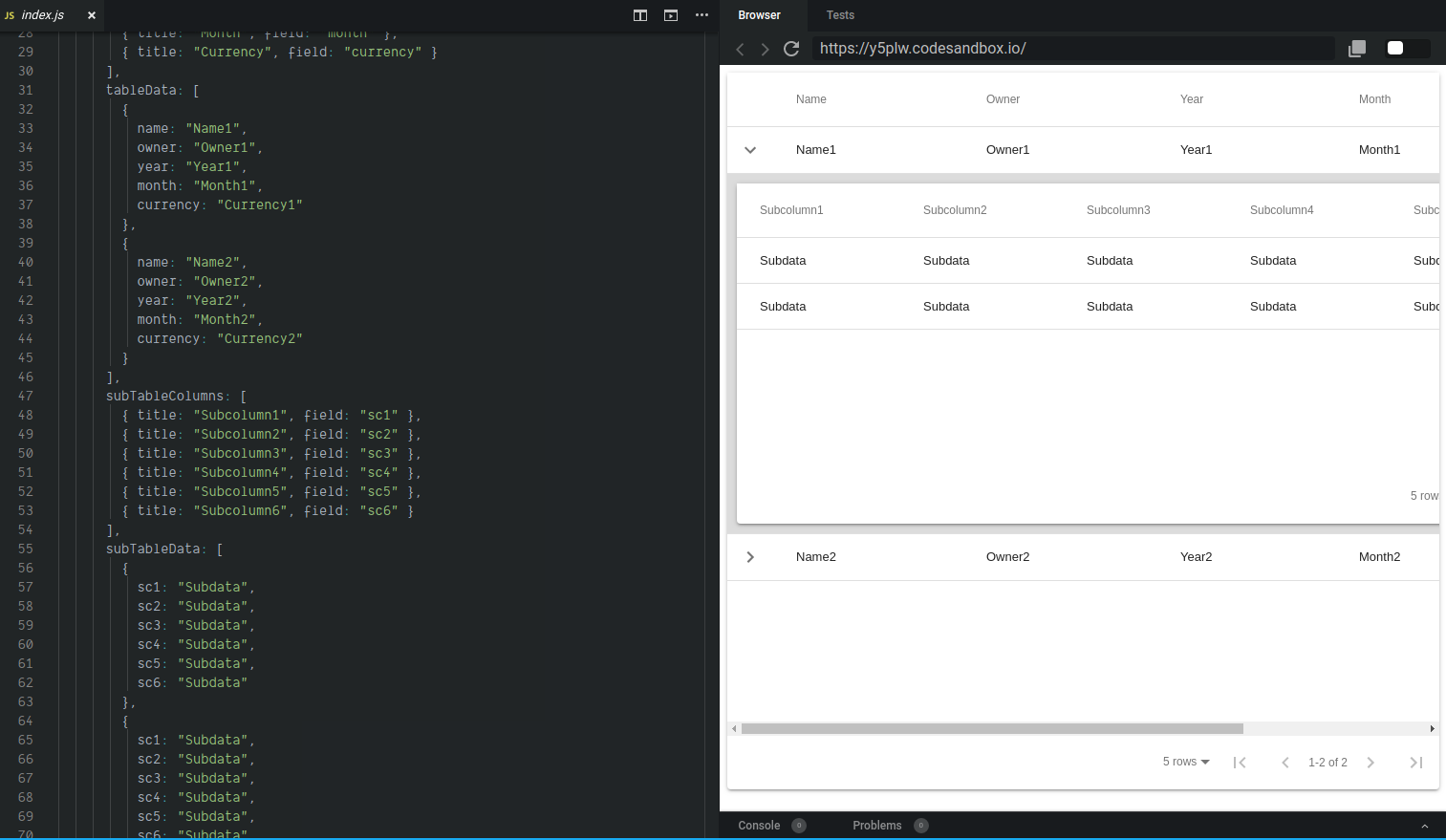
Notice that if you open the preview in a new tab (almost full screen), the table renders matching the parent width as you said:
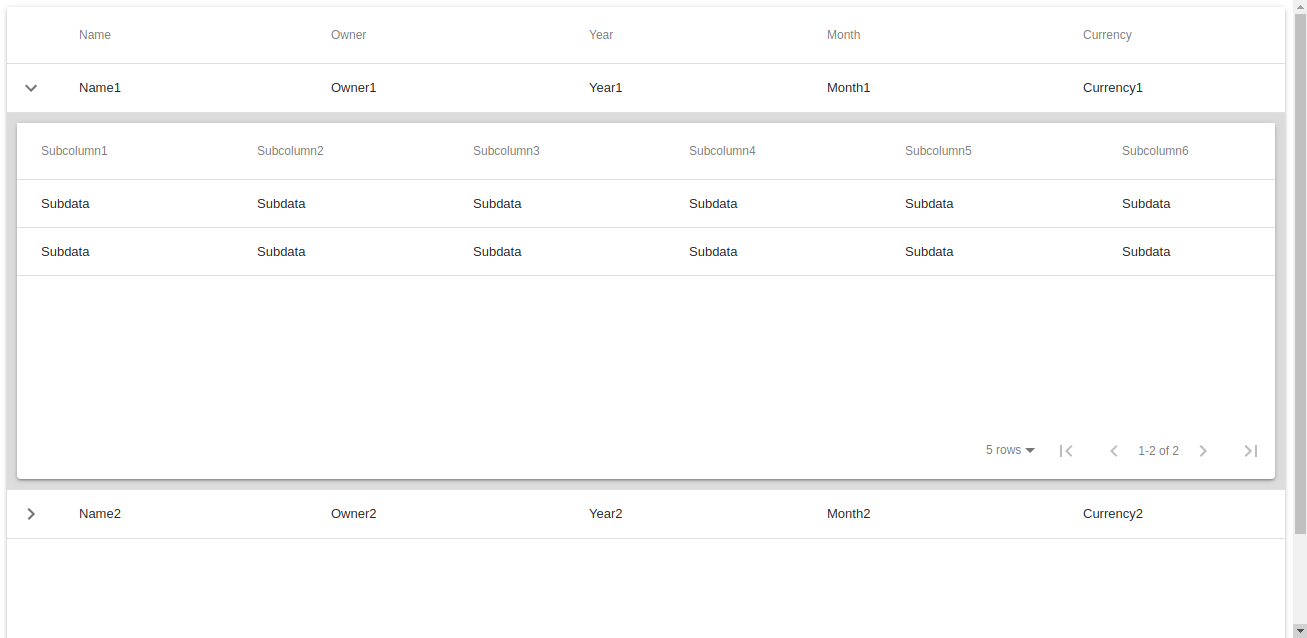
I used your div styles as you can see in the screenshot.
Do you think it has to do with some sort of react rendering issue?
Let me know your thoughts on this, whenever you can :) I wouldn't consider this a critical issue tho
HenryTux
on 28 May 2019
Try this:
renderSubTable() {
    const { subTableData, subTableColumns } = this.state;
    return (
      <div style={{ padding: 10, backgroundColor: "#ddd" }}>
        <MaterialTable
          components={{
            Container: props => (
              <Paper {...props} style={{ maxWidth: "100%", display: "grid" }} />
            )
          }}
          columns={subTableColumns}
          data={subTableData}
          icons={{
            Check,
            DetailPanel: ChevronRight,
            Export: SaveAlt,
            Filter: FilterList,
            FirstPage,
            LastPage,
            NextPage: ChevronRight,
            PreviousPage: ChevronLeft,
            Search,
            ThirdStateCheck: Remove,
            ViewColumn,
            SortArrow: ArrowUpward
          }}
          options={{
            toolbar: false,
            search: false,
            grouping: false
          }}
        />
      </div>
    );
  }
Worked like a charm, thanks a lot for your help @mbrn. Keep up the good work :)
P.S. Consider posting and including this (no longer) issue/example under Features in the website
HenryTux
on 29 May 2019
Related issues
 VipinJoshi
·
3Comments
VipinJoshi
·
3Comments
 lazeebee
·
3Comments
lazeebee
·
3Comments
 balibou
·
3Comments
balibou
·
3Comments
 slevy85
·
3Comments
slevy85
·
3Comments
 diegosps
·
3Comments
diegosps
·
3Comments