Hi everybody! I hope everyone is staying safe and staying well during the age of COVID−19 that we're all in. With all of us having more time on our hands, I thought I'd post my latest .ini file settings, my customized "Microsoft Sans Serif" font which I've used to replace both Tahoma & micross (Microsoft Sans Serif). My customized font is a duplicate of my glyph-customized SegoeUI font with widths and heights of U&lc being tweaked to provide a more eye-pleasing display on surfaces in the UI that default to Tahoma or micross. The result is a more unified experience across the UI.
My latest tweaks to the .ini file have proven so pleasing across so many different parts of the UI, that I haven't made any changes to it since February 21, 2020 (which is a long time relative to prior attempts). I have a series of steps I go through after each install of the Windows Insiders Fast Ring updates, and so far MacType continues to provide fantastic results (current Windows Insider Build is 19603.1000 released 2020.04.08). These steps are:
(1) Install my customized fonts for SegoeUI and Microsoft Sans Serif in particular.
(2) Run MacWiz to reset the Mode used to "Registry" (I still find this mode to be the best overall way to load and use MacType in my experience, and since it continues to work, I will continue to use it). I also reload/reselect my desired .ini profile (although this appears to be unnecessary since it seems to persist build to build).
(3) Load my customized font substitutions into the Registry at:
HKEY_LOCAL_MACHINE\SOFTWARE\Microsoft\Windows NT\CurrentVersion\FontSubstitutes
I exported a registry file with my custom settings a while back, so now after each build I just run that registry file to update Font Substituions more quickly.
Thorn Custom Registry Font Subs.zip
(4) I double-check my scaling options in Windows Settings —
Settings > Display > Scaling and layout = 100% (this setting persists build to build)
Settings > Ease of Access > Make text bigger = 113% (this setting also persists build to build).
I've found that these scaling settings work really well for a number of reasons. First off the 100% scaling makes older .exe apps continue to function properly (case in point is Microsoft Keyboard Layout Creator, which I use to change my keyboard layout to accomodate my customized glyphs. If the scaling is set to anything other than 100% this app no longer displays properly and becomes unusable). The 113% "Make text bigger" setting enlarge most of the Directwrite renderings in the UI (at least I think it's Directwrite, that all gets so confusing to me), including the Taskbar Jumplists, Action Center flyout, the Start Menu, UWP apps, Chromium Edge Canary and others).
(5) I use WinAero Tweaker to change the default font size of Icons from 9pt to 10pt (which also changes the sizes of all filename text displays in File Explorer). 10pt scaling of the Icons and filenames nearly matches perfectly the 113% scaling produced by the Ease of Access setting, thus providing a very uniform overall look and feel within the UI. Here's a link to WinAero for the download (scroll down past the adds for the download link) — Note: When you install WinAero Tweaker Windows will pop up a security warning that it's 'dangerous.' It is not. I have been using Tweaker for over five years with no problems. Sergey Tkachenko is the sole programmer with a small operation. The software is safe and reliable. https://winaero.com/download.php?view.1796
Here is the install files for WinAero Tweaker:
(6) I make sure my monitor is adjusted and calibrated properly. — This one is important. It makes a HUGE difference in overall font display quality if monitor gamma, brightness, and contrast are improperly set. This took a little trial and error; but using calibration software (and my own eye) to adjust the overall look I was able to come up with very pleasing results. I imagine these settings would differ from monitor to monitor and brand to brand. For me these monitor settings are (input through the onboard settings of the monitor itself): Brightness=85; Contrast=75; Gamma=Medium. I also adjust the Nvidia Control Panel settings to a vibrancy level of 60%. All of these display/monitor settings have a big impact on display ultimately.
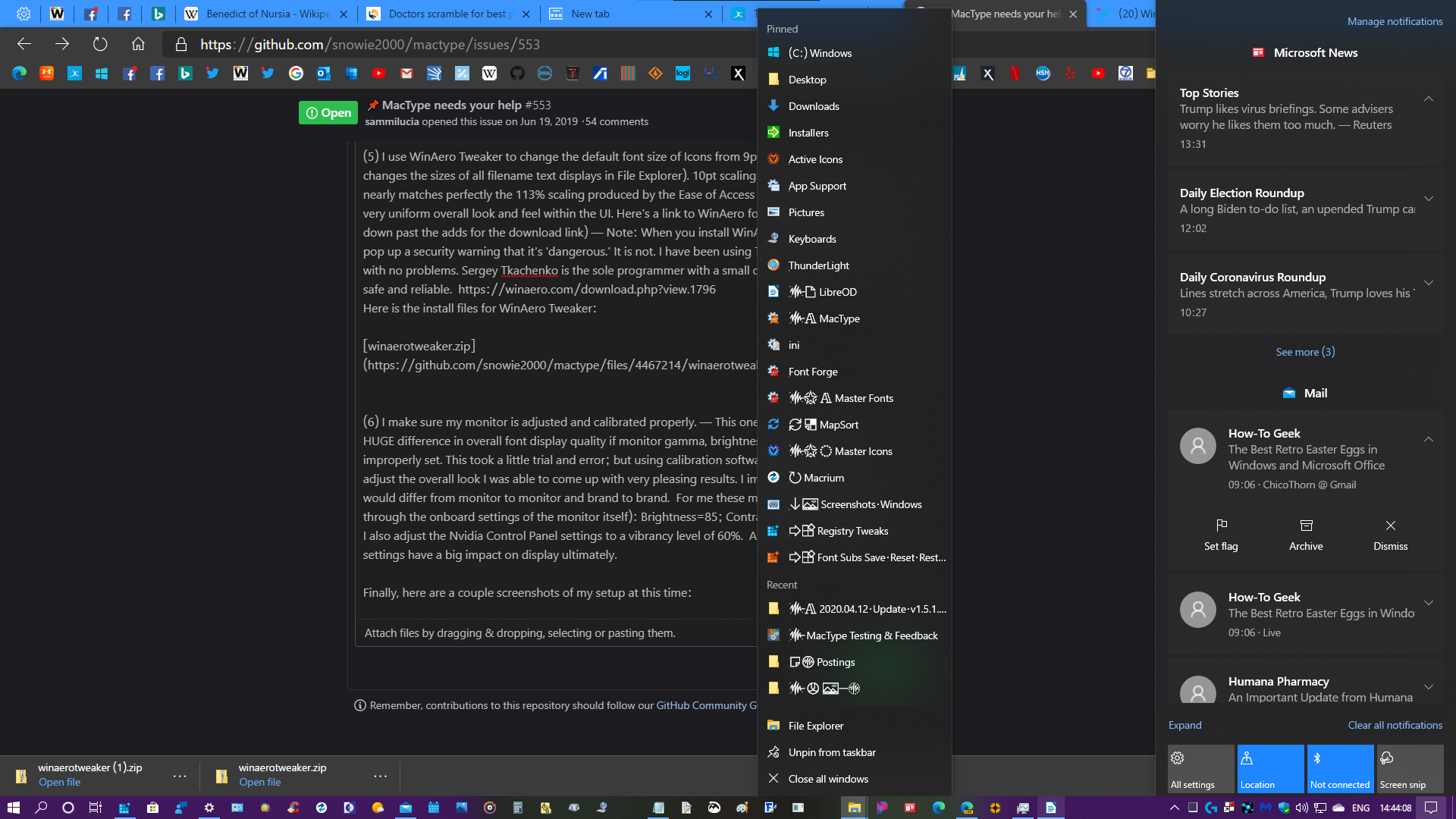
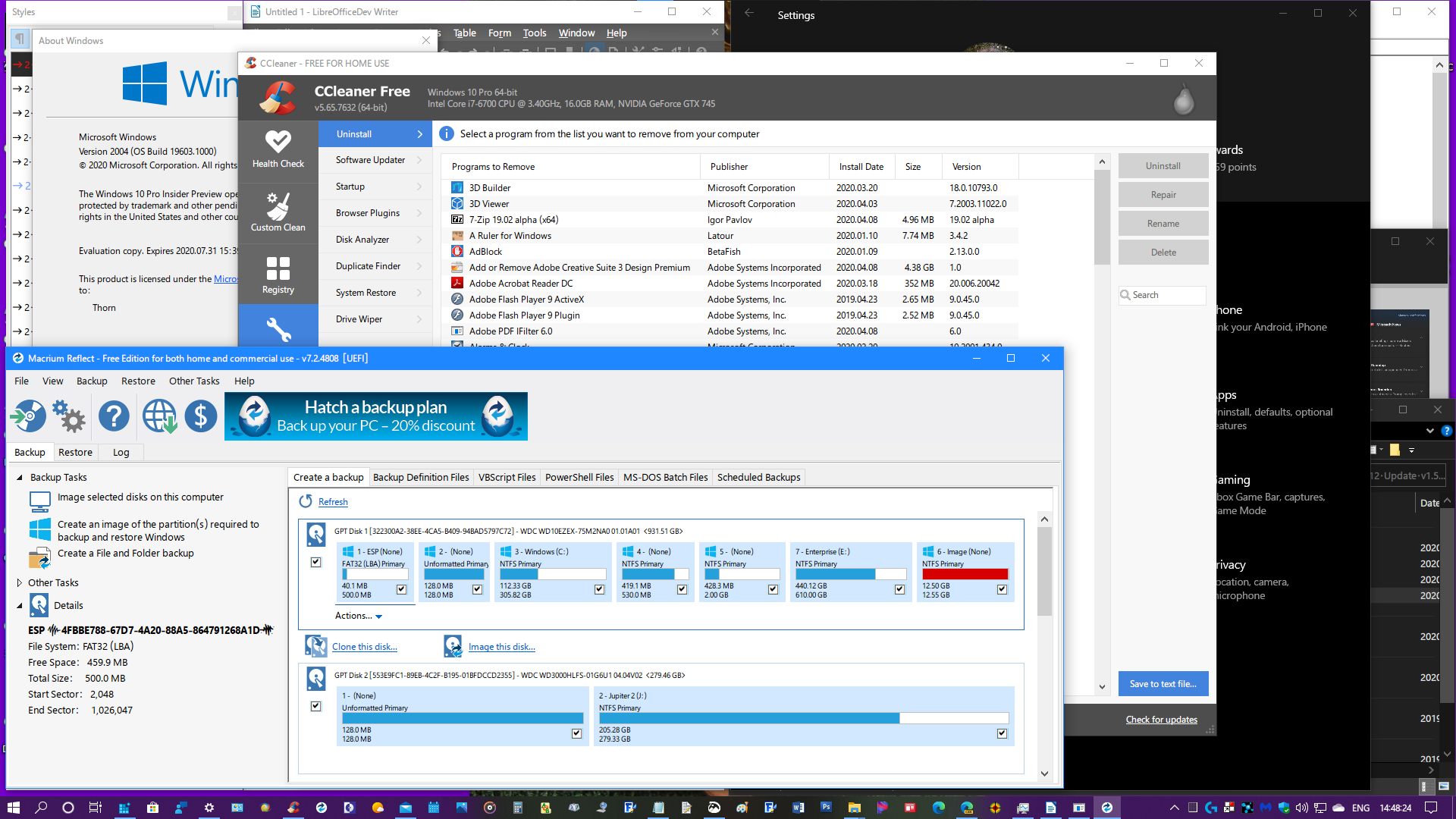
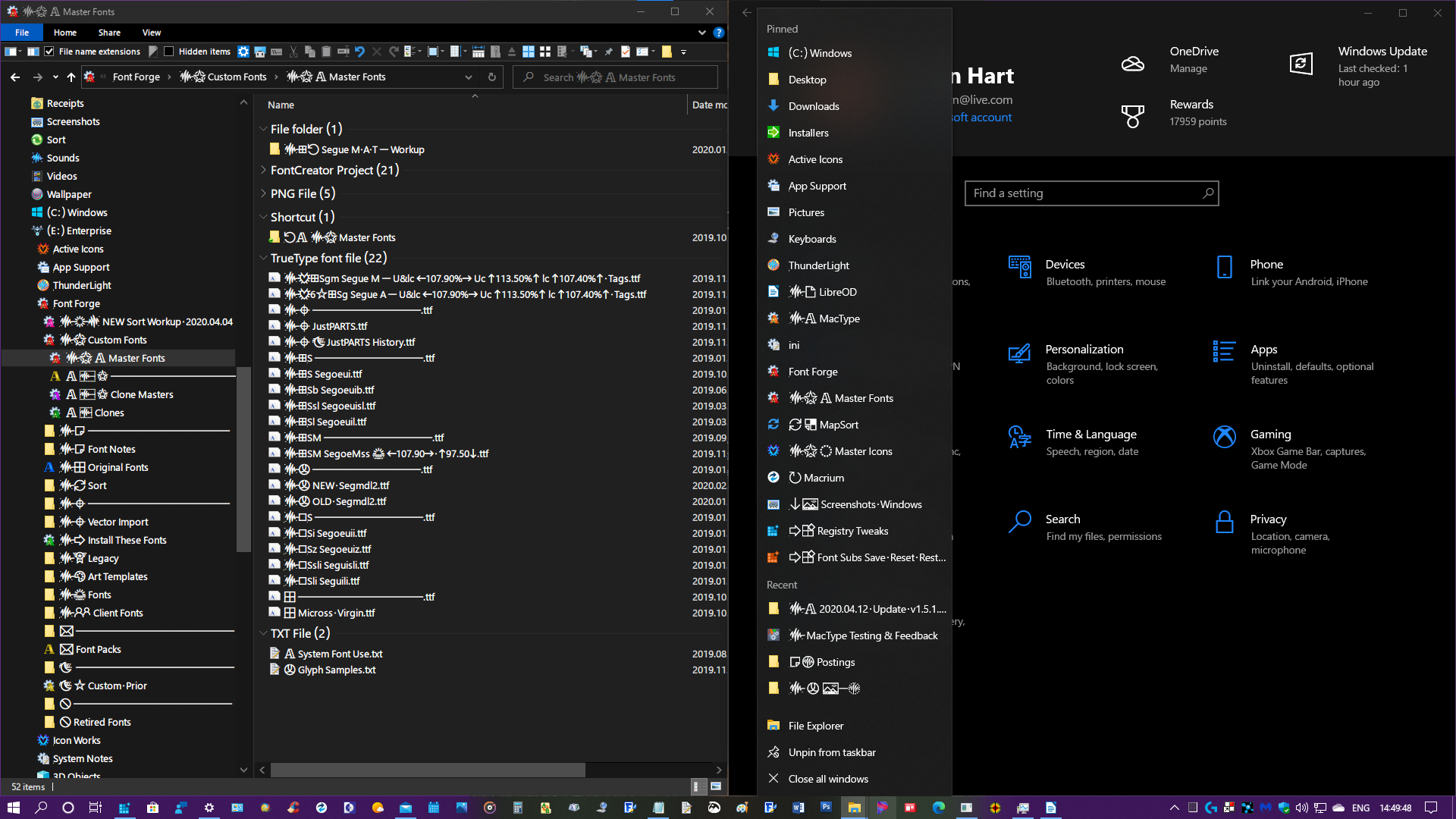
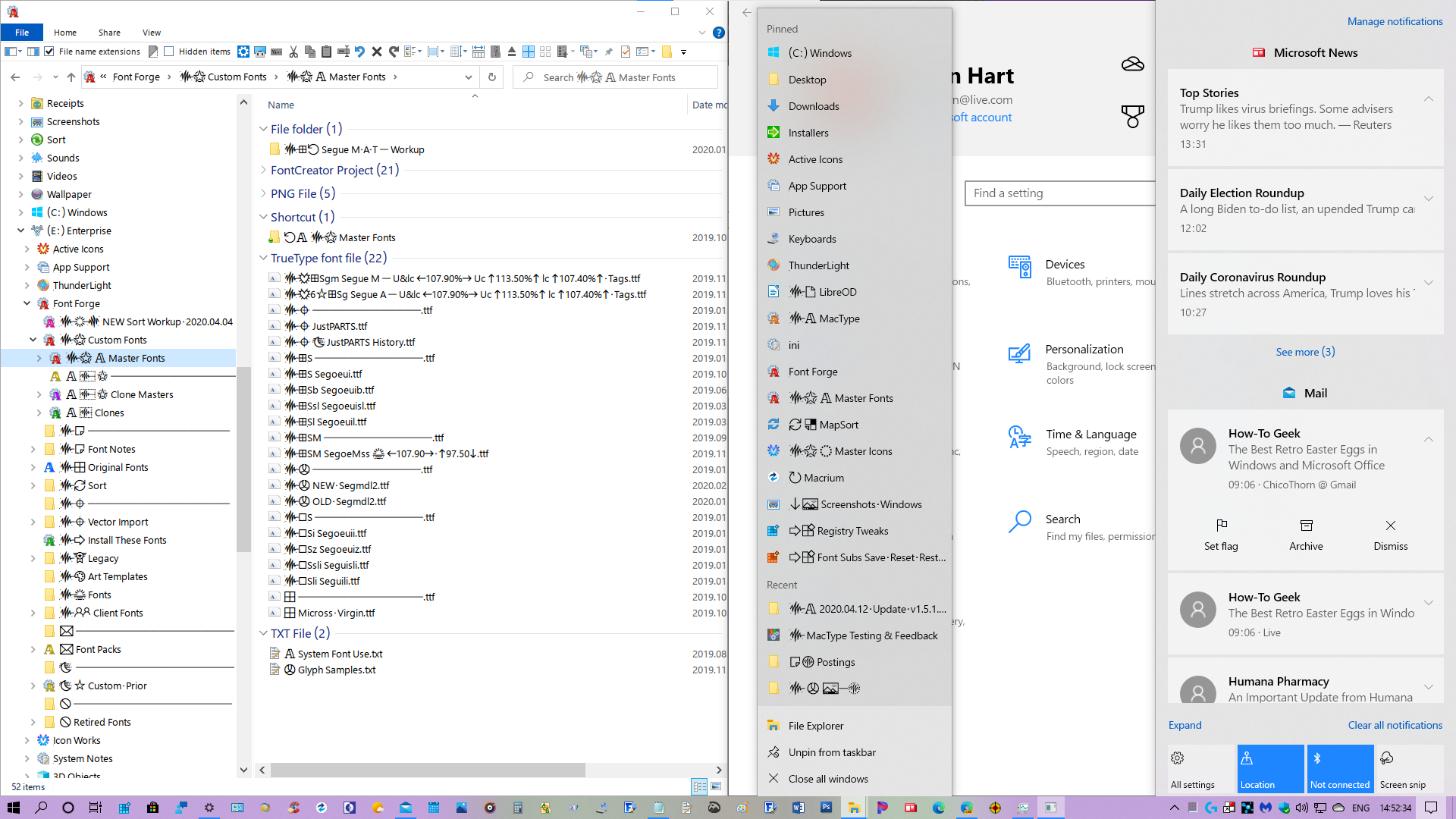
Finally, here are a few screenshots of my current setup at this time:
Edge Canary, Taskbar Jumplist, Action Center sample:
Custom MS Sans Serif Font UI samples:

File Explorer, Taskbar Jumplist, Settings samples:
Light Mode samples:

Thanks for all your hard work on MacType @snowie2000 and @sammilucia ! MacType continues to be the most important add-on to my PC and makes my everyday work so much more pleasurable and tolerable. I'm looking forward to helping out in the future as you develop new versions! Stay well everyone! 😊
_Originally posted by @ChicoThorn in https://github.com/snowie2000/mactype/issues/553#issuecomment-612683662_
 sammilucia
All 154 comments
@ChicoThorn I've moved this into a new thread because I think it's going to be better for both the dev AND ini discussions, being both fairly active.
I think ChicoThorn's ini seems to be the most tuned and balanced to my eyes and is probably the best introduction to MacType for new users for the roman fonts. And probably also a good starting point for new users to tune to their own preferences.
However, there are so many MacType users using Japanese/Chinese/Korean/etc ... how does it perform for those. Can anyone comment?
sammilucia
on 13 Apr 2020
However, there are so many MacType users using Japanese/Chinese/Korean/etc ... how does it perform for those. Can anyone comment?
The config did not display very well on my system. Microsoft Yahei, the default system font on Chinese system, has terrible hintings. With that turned on, some characters will appear taller than others. I prefer using _No Hinting_ (HintingMode=1).
And sub-pixel rendering will cause my eyes. I have to turn it off. (AntiAliasMode=1)
Having changed that, the config appeared better. I am comparing it with my own, which had been used for about years.
 wmjordan
on 14 Apr 2020
wmjordan
on 14 Apr 2020
@wmjordan thanks! how does it look with those changes? (and the rest of @ChicoThorn's recommendations?)
sammilucia
on 15 Apr 2020
@sammilucia
After some more minutes' experience with @ChicoThorn's configuration, I found that the font SimSun (a font used to be the default font in Chinese version of Windows) was rendered too thin, so were some fonts named MingLiU (default font used in Hong Kong). I also copied the [Individual] settings from the default.ini to his config.
I had not yet rebooted my computer to apply the 113% settings.
I will post some screenshots after doing so.
wmjordan
on 16 Apr 2020
I use LibreOfficeDev and discovered something interesting so I thought I'd share it. I don't know exactly how OpenGL works nor Skia — but these settings in LibreOfficeDev really have a huge effect on how text is rendered. Interestingly, it affects all the dialog boxes as well, which is why I used the setting dialog for the comparison screenshots:
With both OpenGL and Skia turned OFF

With Only OpenGL turned ON

With Only Skia turned ON

With Both OpenGL and Skia turned ON

OpenGL when on, produces light and sketchy text rendering. Skia when on (either alone or combined with OpenGL), produces excessively heavy and dark rendering. It's pretty obvious that OpenGL and Skia must be turned off in order to produce the best text rendering with MacType. Is this something unique to LibreOffice? Or does OpenGL and Skia cause text rendering to behave this way when and wherever it's used? — Thorn
 ChicoThorn
on 16 Apr 2020
ChicoThorn
on 16 Apr 2020
After rebooting with the 100% scaling & 113% Make text bigger setting, I found that most text on my laptop with a 14-inch monitor 1920*1080 resolution was too small (icons were so small in many application windows). Therefore, I reverted to use a tool which had been there for years to adjust the entire system resolution to 113% and tried to see whether it was good or OK--previously I was using 125% scaling.
Here is how it looks on my computer now.

Document font: SimSun
Menu bar: Microsoft Yahei + Segeo UI - the official one
Tab bar: Times New Roman
Folder and File list: FZKai (it looked a little blur and pale)

System font: Microsoft Yahei + Segeo UI

The dot on the "i" looked quite weird in the command console. The "i" was displayed correctly with the same font in other applications.
Modified settings were listed below:
````
HintingMode=1
AntiAliasMode=1
[Individual]
宋体=,,30,,,
新宋体=,,30,,,
Batang=,,30,,,
MingLiU=,,30,,,
PMingLiU=,,30,,,
PMingLiU_HKSCS=,,30,,,
MingLiU_ExtB=,,30,,,
PMingLiU_ExtB=,,30,,,
PMingLiU_HKSCS_ExtB=,,30,,,
MS Mincho=,,30,,,
MS PMincho=,,30,,,
````
Note: The tool which I used to adjust the DPI setting was called _XPExplorer - Windows 10 DPI Fix_.

wmjordan
on 16 Apr 2020
@ChicoThorn hmm, i really really prefer the first one (With both OpenGL and Skia turned OFF)! ... the second one the hinting is all crazy. Third looks like hinting crazy and weight too heavy. Fourth hinting looks fine but weight is too heavy?
sammilucia
on 16 Apr 2020
@wmjordan Explorer looks really nice to me with those settings, but I can't read Chinese so I can't comment as to legibility?
sammilucia
on 16 Apr 2020
Third looks like hinting crazy and weight too heavy. Fourth hinting looks fine but weight is too heavy?
You must have been gotten tricked. :-P
I pasted the 3rd and the 4th into an image processor and subtracted one with the other. The only difference was the check box and the background surrounding the dialog.

wmjordan
on 16 Apr 2020
Explorer looks really nice to me with those settings, but I can't read Chinese so I can't comment as to legibility?
I compared this configuration with my own. For this configuration, the legibility was good and strokes were clean, nevertheless, it looked a little bit lacking of contrast that the black characters appeared to be dark gray. Perhaps it is a shortcoming of gray scale rendition compared with sub-pixel rendition--the former is usually a bit lighter than the latter. However, my eyes are too susceptible to colorful pixels and consequently I can't live with sub-pixel rendition. While I worked with documents with a lot of characters for a while, I felt my eyes a bit tired. I think that the configuration needs more tuning for me.
wmjordan
on 16 Apr 2020
You must have been gotten tricked. :-P
I thought the 3rd and 4th looked the same too... Not sure why, but OpenGL and Skia don't play nice with MacType, at least not in LibreOffice... 😉
I'm really curious also to see what you come up with for tweaking ChicoThorn-v1.5.1.0.8.ini to work better in Chinese.
ChicoThorn
on 16 Apr 2020
@wmjordan oh wow! isn't that interesting!
i'm an audio engineer (one of my gigs lol), and what i find most interesting about the ears is they're not at all like microphones ... we talk about "psychoacoustics" because it's very easy to 'trick' the ears into hearing what you want ... Any number 1 pop song - they use that extensively to keep you engaged for 3:20 minutes.
It's the same with the eyes... Which is why we need tools like subtraction! Good one! 😜
sammilucia
on 16 Apr 2020
However, my eyes are too susceptible to colorful pixels and consequently I can't live with sub-pixel rendition
I get that... could you give us a screenshot of your normal INI?
sammilucia
on 16 Apr 2020
Hi @ChicoThorn
I thought the 3rd and 4th looked the same too
OMG. I read the same line in both screenshots: _GL is currently disabled_. They already told us that :)
I'm really curious also to see what you come up with for tweaking ChicoThorn-v1.5.1.0.8.ini to work better in Chinese.
Thank you for sharing your configuration which has demonstrated a better legibility over my existing one. I afterwards began to compare it against and tweaked mine, and compared again and again. I will post my experience later when I am finished.
give us a screenshot of your normal INI?
The specific items for the configuration that I have been using for years are listed below
````
HintingMode=1
AntiAliasMode=1
NormalWeight=16
ItalicSlant=-2
Contrast=1.7
RenderWeight=1.4
; and some Chinese font specific configurations
````
Its rendition was deep enough for me. But it did not have the legibility as @ChicoThorn's. Some strokes were stuck together.
Here are some screenshots taken with ChicoThorn's original configuration (I reverted my screen resolution scale from 113% to 125% since it was too small for my laptop).

ChicoThorn's original configuration, with Hinting and SubPixel turned on
The strokes are cleanly separated from each other

The problem of hintings in Microsoft Yahei is that it does provide good legibility but quite a few characters are higher/taller than others, and some are lower/shorter than others--characters do not line up aligned to each other. I enlarged part of the screenshot of Explorer and put two red horizontal lines around the characters to indicate that. The correct rendition by the same font with 59 pixels height was placed below, in dark red.
The color spots around characters by sub-pixel rendition were also obvious when the screenshot was enlarged (my eyes could spot them without enlarging, thus I always try to avoid any sub pixel rendition).
I tried to specify an individual setting for Microsoft Yahei by adding the following lines under [Individual]. Quite unfortunately, it did not work.
微软雅黑=1,,,,,
Microsoft Yahei=1,,,,,
Gotta go. I will post more later.
wmjordan
on 17 Apr 2020
@sammilucia
From the aspect of "a good starting point for new users to tune to their own preferences", let's define the goal of the ini in our discussion. And then we will try to achieve this by tweaking the configurations.
- Universal
- It should provide decent display enhancement for ordinary users, most of who just install and run the application.
- It should work well for most widely used characters in the world.
- It should work well with the most popular system fonts (those installed with Windows), it does not need to install customized fonts to work.
- It should work well in most popular applications.
- It may work well in different screen resolutions and DPI settings. If it does not work well on all resolutions, it should work well enough on mainstream screen resolutions nowadays (1366768, 19201080, 2560x1440).
- Legible
- It provides high enough contrast for reading with ease.
- It looks pretty, like printed material as much as possible.
- Display defects such as characters being partially clipped should be avoided.
- Stable
- It does not use unstable features, such as font substitution, which may lead to system hanging or application crash.
- Performant
- It does not use fancy effects to slow down the computer.
- It balances well between memory usage and speed.
Please add your comments.
wmjordan
on 19 Apr 2020
@wmjordan wow, yes this is perfect and very well thought out!
It would also be good if DW and GDI are of similar weight/legibility. I.e. consistency between legacy and new rendering.
I don't think it's a problem if we end up with two starter INIs ... one for Character fonts and one for Roman... but it would be amazing if it's possible to have one.
Perhaps we could even provide it in a few weights (3?) to suit people's preferences and screen, then they can tune from there? I'm really just thinking out loud at this point...
sammilucia
on 19 Apr 2020
@sammilucia
It would also be good if DW and GDI are of similar weight/legibility
I have taken some experiments recently among various setting conbinations. I am afraid at this moment it is not so possible.
The HintingMode value is the most important element for legibility of CJK ideograph characters, for most of those characters have quite a few strokes.
I found the default Chinese system font (Microsoft Yahei) was rendered the best when HintingMode=2 (or 3), but unfortunately that settings did not work in DW applications such as Chrome based web browsers, the hinting mode of that font just fell back to as if it was HintingMode=0. I guessed it was the limitation of DW nowadays since HintingMode=2 or 3 was based on FreeType.
Is it possible for MacType to apply some kind of DW-specific individual settings for fonts?
If so, I'd love to apply HintingMode=1 for Microsoft Yahei in DW applications but using 2 for that value in GDI applications.
I don't think it's a problem if we end up with two starter INIs...but it would be amazing if it's possible to have one.
I agree. I think it is possible to have one, if the above issue for hinting modes could be mitigated.
Perhaps we could even provide it in a few weights (3?) to suit people's preferences and screen, then they can tune from there?
I agree. Different monitor screens do need different weights. As @ChicoThorn had mentioned above, the brightness and gamma mattered a lot. I had observed obvious difference after I copied a config which was great (for me) from a Lenovo ThinkPad with a 12-inches TN monitor to an unbranded desktop PC with an IPS screen, on which the config looked too heavy.
wmjordan
on 20 Apr 2020
Test suite of characters
In order to examine the appearances of the rendered characters in various settings, I used a set of characters, including:
- all visible ASCII characters (code between 33 and 126),
- the full-width counterparts for the above ASCII characters and Chinese punctuation marks,
- the most frequently used 2500 Chinese characters sorted by strokes (actually we don't need so many, we could select some them, but I could not predict Microsoft Yahei's weird hinting, thus I used all of them initially). They are used to examine the overall appearance and legibility of the renditions.
For people using Traditional Chinese, Japanese or Korean, they can populate a similar array of characters to experiment their settings.
After some days of experiment, I found that HintingMode=2 for Microsoft Yahei could still render characters taller or shorter than their original shapes, and HintingMode=0 or HintingMode=2 for SimSun (another popular font in Chinese system) could cause square brackets missing their heads at certain sizes. Hereby I'd like to stick to HintingMode=1 for both GDI and DW modes.
Here's the sample character array
The problem of this type of testing is that although it has quite comprehensive character coverage, the sample character array is not alike the typical character sequences we read on the web pages or code editors, among which have punctuation marks and white spaces between lines and paragraphs. We may need a better set of test characters.
wmjordan
on 24 Apr 2020
MacType actually was delivered with the GDIBench and a well-covering test file with it.
 snowie2000
on 26 Apr 2020
snowie2000
on 26 Apr 2020
MacType actually was delivered with the GDIBench
The GDIBench crashed every time I launched it.
Anyway, after days of experiments, I settled down to my own settings (download at the end of this post). I dropped the idea of making a universal configuration since various monitors do differ a lot each other. I tuned my settings against a poor laptop computer with a very modest TN screen.
Here's a screenshot of it, with Windows Explorer, Command Console, my favorite notepad and the Vivaldi browser (using direct write) at the back.

The configuration began with HintingMode=1 (NoHinting).
Considerations:
- the weird hinting of Microsoft Yahei, which caused some characters taller and some shorter, some thicker and others thinner, thus I completely disabled hinting.
- Another system font on Chinese system, SimSun, could get cropped at a certain font sizes with some characters (specifically, the square bracket pairs), when hinting was applied.
- The default display settings of macOS and iOS appear NOT using hinting very much, by my observation. And nowadays more monitors are having relatively higher resolutions (1920*1080 up) than those in ten years before when GDI++ was invented. The needs to use hinting can get less and less.
Then I stuck to use AntiAliasMode=0 (Gray scale).
Considerations:
- My personal experience. I tried various settings which used colorful sub-pixel rendition, provided by other users and also the default settings that came with MacType. My eyes got tired quickly until I got back to gray scale anti-alias mode.
- I magnified the screenshots and watched screens of a iPad and a MacBook Pro. Neither of them seemed to be using colorful sub-pixel rendition.
NormalWeight=16, Contrast=2, RenderWeight=2, TextTuning=9
Consideration:
- The poor contrast of my monitor.
- More and more web pages today are using dark gray instead of black to display contents. Pure black over white is scarcely seen.
- I had to read tens of thousands of words a day. Higher contrast of content and background did help me.
- The
Contrastvalue andRenderWeightwere a bit higher than default ones. To compensate it, using a higherTextTuningvalue could make the surrounding pixels of every characters lighter. As a result, the black characters over white background like many web pages are now using deeper colors yet legibility is improved. - Even though, the legibility is not yet as high as hinting mode turned on. Here I made a trade-off between legibility and beauty.
ItalicSlant=-2
Consideration: The default italic angle did not look good to me. Thanks to this setting, -2 or -3 could be a nice one.
[DirectWrite]
GammaValue=1, Contrast=1.4, ClearTypeLevel=0
Consideration:
- I found that in DirectWrite mode, a higher contrast value could help make the characters deeper. I felt better in Visual Studio after tuning
ContrastandGammerValue. - No hinting and no colorful sub-pixel rendition required
ClearTypeLevel = 0.
[Individual]
The NormalWeight of SimSun was made 30 (a pretty high value) since that font was very thin on the screen. Maybe 28 or a bit lower were also good.
Download of Deep Gray No Hinting ini
wmjordan
on 13 May 2020
Hi @sammilucia, @snowie2000 !
I hope everyone is continuing to stay well during these most bizarre times. I did my part to help stimulate the economy recently by spending my stimulus check on a new Computer! WooHoo! 😁 It's so much fun and way faster than my old one. It's a Dell XPS 8930 with a 9th Generation Intel i7, Nvidia GeForce GTX 1660ti graphics card, and an SSD system drive. It's been a blast setting it up! Going through this whole process again gave me a few moments to revisit my ChicoThorn ini file. I made a couple small tweaks to it and am sending it along with some screenshots.
Primarily I wanted to thin-out and tone down the stroke widths a bit and to see if I could get it to work better in both light and dark modes. I only changed the [General] settings, leaving the [DirectWrite] settings as I had them before. Specifically, I changed the GammaValue from 1.8 to 1.77 and the RenderWeight from 1.3 to 1.27. Small changes, I know but the difference they made visually to my eye seemed significant enough for me to share them with you. 😊


ChicoThorn
on 20 Jun 2020
@ChicoThorn Nice to see you back, sir. You may also try various combinations of NormalWeight, Contrast, RenderWeight, TextTuningR/G/B values and see some funny effects. I experimented them and found a better configuration for my own.
I guess Snowie is fine since she's in China.
I also planned to upgrade my laptop to a 13 inch one with a 2K resolution IPS monitor, so I can try to see whether the configurations we developed above work well on nicer and higher DPI monitors.
wmjordan
on 20 Jun 2020
I experimented them and found a better configuration for my own.
Hi @wmjordan! I'd be curious to see what you came up with in your experiments, always trying to find that 'just right' combo you know, lol! 😉 I've got a 1920 x 1080 IPS monitor (HP Pavilion 27 xi), I love it! Viewing angles are fantastic, and the clarity is amazing. I've not seen any 2K monitors, but I looked into 4K monitors, and found out that very little would be gained since Windows doesn't really support them very well. Problems with scaling and legacy programs and such. So I'm sticking with my 1920 x 1080 for now. Looking forward to seeing some of your settings and giving them a go on my monitor! 😃
ChicoThorn
on 20 Jun 2020
While adjusting my new computer's monitor settings using the Nvidia Control Panel (NCP),* it suddenly dawned on me that I could use this tool as an easy way to determine visual gamma for text rendering. The slider is dynamic, with the entire screen's appearance changing in real time. It shows you directly how dramatic an effect even a change as small as 0.01 in the gamma setting can have on how rendered text appears onscreen. I opened the Task Manager window on the left of my screen, and the Settings Home page window in Dark Mode on the right. Then using NCP I started at a baseline of 1.00 and moved the slider back or forward 1 tick at a time, all the while observing what affect it had on the black text on white background in Task Manager, and the white text on black background in the Settings Home screen. This provided clues as to where I needed to either increase or decrease the .ini file's gamma, contrast, and/or render weight settings. I reset NCP to its original default settings and closed it. I experimented a bit with my .ini file settings and what I came up with comes closer, I think, to my goal of having all text rendering beautifully on all UI surfaces, in both Dark and Light Modes. I'm really happy with the results! Give this experiment a try on your computer, I'd be curious if it helps in your own fine-tuning. 🙂
——————————
*My system has an Nvidia Graphics card, hence the Nvidia Control Panel... I'm guessing that other graphics cards vendors provide similar adjustment software that would work for this as well.
Screenshot of how I did the adjustment with Nvidia Control Panel:

Dark Mode — ChicoThorn - v1.5.1.1.1

Light Mode — (ChicoThorn - v1.5.1.1.1)

Zip files with screenshots and the ChicoThorn - v1.5.1.1.1.ini file
2020.06.20 - Screenshots - v1.5.1.1.1.zip
ChicoThorn
on 21 Jun 2020
Good.
I prefer to lower the Gamma value to 0.85 on cheap TN monitors to make it look a little better. For IPS monitors, I think Gamma = 1 is OK. While tweaking MacType, I usually do not change the gamma of the video card since it not only changes the text but also the background of the text and other things. Therefore I go directly to modify the values in the ini file.
Be bold to try various values. Make larger range of value changes won't harm. You can always revert them if they do not serve you well. The bold moves can show you some interesting results.
Have you ever compared the rendered results of apps using DirectWrite (like the Windows Settings dialog) with those using GDI (like the Windows Explorer)? If you zoom the above screenshot into a larger proportion, you will see that the Windows Settings dialog is anti-aliased with Gray Scale and the Explorer is done with colorful sub-pixel rendering. How do you feel about those two kinds of anti-alias algorithms?
Also watch out for #653 while you are tweaking the ini files otherwise your CPU could get choked after a few experiments.
wmjordan
on 21 Jun 2020
I usually do not change the gamma of the video card
Ditto! I don't change the video card gamma either, except when I experiment with the gamma slider as I mentioned above. I don't save any of the changes I made during my experimenting, reverting all the video card settings back to their original values.
ChicoThorn
on 21 Jun 2020
Hi Everybody! This is my latest effort. I've been experimenting with creating settings that will work both in Dark and Light Mode and at a variety of scaling options. I think these .ini settings come pretty close to that goal. It works at 100%, 113%, 117%, and 123%. Lately I've been liking using the larger scaling of 123%. The text matches more closely in size to much of the newer DirectWrite rendering sizes that are being used more frequently both on the web and in UWP apps (plus it's a bit easier on my old eyes!). These latest settings produce a crisper, clearer look for the rendered fonts, rather than a softer more fuzzy look. Check it out with your system and see if it works for you. I'm especially curious how it looks with the Chinese or other Asian fonts.
Samples below are at 123% in both Dark and Light Modes. I've also included the screenshots in the zip so you can view them in Paint on your own computer which will give you the true rendering results (rather than the fuzzy results we see when just viewing them online).


2020.07.26 - Dark & Light Samples - v1.5.1.2.1.zip
ChicoThorn ini - t123% - v1.5.1.2.1.zip
Thanks everyone, and I hope you're all continuing to stay well and safe! 😊
ChicoThorn
on 27 Jul 2020
okay, that looks freaking amazing. and the DW is matching the Freetype perfectly. great work!
sammilucia
on 27 Jul 2020
@sammilucia @snowie2000 — Happy Autumn everybody! Hope everyone is staying safe and well! Just a quick update, I did some fine tuning on the .ini settings I shared with you last time and came up with a variant I like even better (GammaValue=1.72 - Contrast=1.61 - RenderWeight=1.4. No changes to DW). I upped the gamma a bit and sharpened the contrast slightly. I've tried it in both Dark and Light modes. These new settings work much better in Light Mode; there isn't as much fade out and sketchiness particularly with gray text as seen on the Settings Home page. Dark mode is even better; cleaner and sharper. I've tested it on scaling resolutions from 100% through 125% and it seems to work well in all the different sizes! I'm confident that these settings will pretty much work with any scaling size a User may choose to use. 😊— Give it a try and let me know what you think. 😀


ChicoThorn
on 8 Oct 2020
Hey @ChicoThorn this looks really nice! Best yet. For some reason your screenshots remind me of Amiga days 😂.
I'm sorry I haven't been around much lately, I've been focused on getting licorice.io released, but I've been following along... I badly need to clean up old issues here.
sammilucia
on 8 Oct 2020
@sammilucia , I added the default lcd filter from Linux Freetype (beveled 5 tap) to chicothorn.ini and it looks good, wondering your thoughts? This is supposed to be a general purpose default filter that works for most people and looks excellent on Linux.
you have to add LcdFilterWeight=8,77,86,77,8 to the .ini, or do it by adjusting the sliders in the advanced GUI.
Also, @ChicoThorn what is the logic behind the 113% 117% and 123% scaling? At first glance these seem odd values to choose
 taprobane99
on 15 Oct 2020
taprobane99
on 15 Oct 2020
Also, @ChicoThorn what is the logic behind the 113% 117% and 123% scaling? At first glance these seem odd values to choose
Hi @taprobane99! They do seem to be odd ducks these values. When I first started testing scaling and which sizes rendered best with MacType, these were the values at the time that seemed to work best for fitting a glyph's strokes properly with onscreen-pixels without under- or over-bleed. However, since those early experiments I've settled on newer .ini settings that seem to work in all scaling sizes. Give my latest .ini a try... it's attached below.
ChicoThorn - v1.5.1.2.3 - MS Fonts.zip
Interested to try the LcdFilterWeight you suggested. I'll let you know how it goes! 😊
ChicoThorn
on 17 Oct 2020
you have to add LcdFilterWeight=8,77,86,77,8 to the .ini,
@taprobane99 I tried this, but I'm not really sure what difference it's supposed to make... I did a cursory visual check of glyph formation and rendering and am not really seeing a difference... perhaps I'm not looking for the right change? Please let me know what it is I should be looking for. Thanks! 😊
ChicoThorn
on 18 Oct 2020
On closer inspection, perhaps the LCDFilterWeight I mentioned is identical to the baked-in one on Optimizations 1 and 2 (both of which appear identical). You can always check by zooming in using a magnifier until you see the sub pixel bands. This would make sense as it is the Freetype default filter.
I attach an image showing Freetype rendering on Linux (top) vs Mactype (bottom), as you can see they are very similar. I set Weight, Gamma, and Contrast to 1. Font properties all 0. Text tuning 0, Freetype auto-hinting on, LCD Filter as above.

I have explored the sliders a lot using your latest .ini in Windows. Finally I came to the conclusion that W/G/C of 1, Font properties of 0, Text tuning 0, LCD Filter weight as above, Hinting set to no hinting was perfect (Windows scaling of 125%).
I appreciate the work you put into your settings, but perhaps they are better suited for low quality or non-IPS monitors? It seems, at least to me, that default Freetype is now matured enough to make sensible rendering choices without tweeking.
taprobane99
on 18 Oct 2020
hi @taprobane99
I think this is a really worthwhile exercise... the font rendering on most mature Linux distros is excellent, and I think what we should be trying to replicate as a default. after all, embedding Freetype into Windows is kinda what started GDI++ etc. in the first place 😊
with that said, if I invert the colours of the two examples you've provided above and average them, I get this:

the two fonts are rendered at slightly different sizes, however we can see there are quite a few of differences.
it's also possible that even though Freetype works "out of the box", its settings are tuned on Gnome etc. if so, I wonder what settings they use?
sammilucia
on 19 Oct 2020
@sammilucia Subjectively the rendering still looks better on Linux, so the average image you made does make sense. Some of the difference could be due to the size difference.
The Linux distro that text is rendered on is Manjaro KDE Plasma. In fact, very shortly, it will be updated to Freetype 2.10.3 which enables Cleartype without patching. I did find that there are various internal parameters like QPlatformIntegration::FontSmoothingGamma, so I will investigate further. It is definitely the case that on several different monitors the "out of the box" config works perfectly.
One thing I am not clear about is that in Linux you can set Hinting to 'slight' which is defined as "Use native vertical-grid-only-snapping if driver and font supports it and vertical-grid-only auto-hinter otherwise" i.e. "use internal hinting, if not then use auto-hinter only vertically". What is the equivalent setting in Mactype?
taprobane99
on 19 Oct 2020
I appreciate the work you put into your settings, but perhaps they are better suited for low quality or non-IPS monitors?
Thanks @taprobane99 it's great to hear how others are handling these issues! It provides an opportunity to learn some new tricks! 😀— As for my system setup, I'm using an HP Pavillion 27xi IPS monitor (1920 x 1080), a Dell XPS 8930, 9th Generation Intel i7, with an Nvidia GeForce GTX 1660 Ti graphics card, running Windows 10 Insider Preview Build 20236 (released 2020.10.14). The text rendering results on my screen are pretty much spot-on; but then again I've literally spent months fine-tuning the ChicoThorn .ini file to work with my screen. There are so many factors that eventually influence and affect text rendering (on-board monitor settings, Windows UI settings and build differences, on-board GPU drivers and settings, and of course the many MacType settings themselves)... I'm pretty much convinced that a person starting with one of the supplied .ini profiles will need to do some tweaking, trial-and-error testing, and some fine-tuning in order to achieve optimal results on their own monitors. For the most part I've made my adjustments by editing the .ini file directly, bypassing the MacType Tuner. Your method of comparing results by enlarging the text and comparing pixel values is exactly one of the tests I put my own settings through, and it works really well! But being an Artist what matters most to me is how the rendering looks to my eye in real time... and therein lies the rub: we all perceive color and clarity a bit differently, hence the need for individual fine-tuning. 😊
ChicoThorn
on 19 Oct 2020
Actually, my above comments were made using a virtual machine. Since returning to Windows on a physical computer I find that ChicoThorn's latest profile is the best I have seen on Windows, I only had to change the normal weight from 12 to 14.
But obviously this is a very different profile to the default on Linux, and the end result is not as good. I can easily compare by unplugging the monitor and taking it over to a Linux desktop.
taprobane99
on 19 Oct 2020
@taprobane99 just be aware I've found some settings that don't get saved correctly using Mactype Tuner. I really need to document these for Snowie.
I agree that @ChicoThorn's ini looks great in windows and is a good place to start for new users. it would be good to have an ini that emulates Linux "in general" though, too, because I think a lot of people like its don't rendering.
there's a few interesting ini's included with Mactype now for us font rendering needs, I feel like a Linux emu would complete it.
sammilucia
on 19 Oct 2020
Does anyone have an answer to this?
_One thing I am not clear about is that in Linux you can set Hinting to 'slight' which is defined as "Use native vertical-grid-only-snapping if driver and font supports it and vertical-grid-only auto-hinter otherwise" i.e. "use internal hinting, if not then use auto-hinter only vertically". What is the equivalent setting in Mactype?_
For example, I know that the Segoe UI font has been extensively hand hinted at many sizes by Microsoft, which is why it looks best with internal-hinting on, however other fonts, especially more modern ones, don't have any hinting instructions so would benefit from light i.e. vertical auto-hinting.
taprobane99
on 19 Oct 2020
yes... I'm against hinting in general, but I think that's more because I'm
really into paper-based typography, typesetting, graphic design etc
On Mon, Oct 19, 2020, 16:22 taprobane99 notifications@github.com wrote:
Does anyone have an answer to this?
One thing I am not clear about is that in Linux you can set Hinting to
'slight' which is defined as "Use native vertical-grid-only-snapping if
driver and font supports it and vertical-grid-only auto-hinter otherwise"
i.e. "use internal hinting, if not then use auto-hinter only vertically".
What is the equivalent setting in Mactype?For example, I know that the Segoe UI font has been extensively hand
hinted at many sizes by Microsoft, which is why it looks best with
internal-hinting on, however other fonts, especially more modern ones,
don't have any hinting instructions so would benefit from light i.e.
vertical auto-hinting.—
You are receiving this because you were mentioned.
Reply to this email directly, view it on GitHub
https://github.com/snowie2000/mactype/issues/651#issuecomment-712449751,
or unsubscribe
https://github.com/notifications/unsubscribe-auth/AAZEQNSTVJQ5VH6WVANY7I3SLSUYFANCNFSM4MHDYY6A
.
sammilucia
on 19 Oct 2020
ChicoThorn's latest profile is the best I have seen on Windows, I only had to change the normal weight from 12 to 14.
Hi @taprobane99 — I gave your Normal Weight setting change to 14 a try, and I like it! After living with it for a while I found that modifying the Contrast setting slightly helped to crisp it up a bit. Overall I like how the text is rendered darker and fuller. It works equally well in Dark and Light modes and at various scaling sizes (I like 125% myself). — 😊
Here are my latest screenshot samples and the new ChicoThorn - v1.5.1.2.5 .ini profile:


ChicoThorn
on 20 Oct 2020
@sammilucia Subjectively the rendering still looks better on Linux, so the average image you made does make sense. Some of the difference could be due to the size difference.
The Linux distro that text is rendered on is Manjaro KDE Plasma. In fact, very shortly, it will be updated to Freetype 2.10.3 which enables Cleartype without patching. I did find that there are various internal parameters like QPlatformIntegration::FontSmoothingGamma, so I will investigate further. It is definitely the case that on several different monitors the "out of the box" config works perfectly.
One thing I am not clear about is that in Linux you can set Hinting to 'slight' which is defined as "Use native vertical-grid-only-snapping if driver and font supports it and vertical-grid-only auto-hinter otherwise" i.e. "use internal hinting, if not then use auto-hinter only vertically". What is the equivalent setting in Mactype?
The 'slight' hinting mode in Linux is corresponding to the FT_LOAD_TARGET_LIGHT mode in FreeType while the full hinting mode corresponds to FT_LOAD_TARGET_LCD.
Due to a bug in MacType, there is actually no light+LCD mode (ft.cpp, line 2391 overrides the light mode with LCD mode). I fixed the bug and tested again only to find out that the only difference between the light mode and the LCD mode now is that the light mode always forces the FT autohinter while the LCD mode will use the embedded hinting if available and autohinter otherwise.
snowie2000
on 20 Oct 2020
@snowie2000 , I'm not sure that is correct. When I try Segoe UI in the tuner, "internal hinting" "no hinting" and "auto freetype hinting" all give different results in the preview. Unless you are saying that setting "internal hinting" will fallback to the autohinter if none found?
taprobane99
on 20 Oct 2020
@snowie2000 , I'm not sure that is correct. When I try Segoe UI in the tuner, "internal hinting" "no hinting" and "auto freetype hinting" all give different results in the preview. Unless you are saying that setting "internal hinting" will fallback to the autohinter if none found?
That's the problem. With light mode on, the internal hinting should be omitted, and the autohinter is enforced.
Doc: https://freetype-py.readthedocs.io/en/latest/ft_load_targets.html
FT_LOAD_TARGET_LIGHT
A lighter hinting algorithm for non-monochrome modes. Many generated glyphs are more fuzzy but better resemble its original shape. A bit like rendering on Mac OS X.As a special exception, this target implies
FT_LOAD_FORCE_AUTOHINT.
snowie2000
on 21 Oct 2020
And this is what the slight hinting really is in Cairo:
https://github.com/andrenatal/gecko-dev/blob/c8bccb5451b4caf53a90a9579cd7f6bbffbff534/gfx/cairo/cairo/src/cairo-ft-font.c#L1882
as Cairo is the default backend of gnome.
snowie2000
on 21 Oct 2020
Ok, but the normal mode behaves in the same way, so it seems that there is no setting in Mactype which has the behaviour "use internal hinting, fallback to auto vertical-only if none available"?
taprobane99
on 21 Oct 2020
Ok, but the normal mode behaves in the same way, so it seems that there is no setting in Mactype which has the behaviour "use internal hinting, fallback to auto vertical-only if none available"?
No, there is no such option. If no hinting is embedded in a font, possible results are:
AA mode | hinting mode|result
------|----|---
gray/LCD| use native| unhinted
gray/LCD|autohint|autohinted
light/light+LCD|both|autohinted
Note that there is scarcely any difference of hinting between LCD+autohint and light+autohint, because
FT_LOAD_TARGET_LCD | A variant of FT_LOAD_TARGET_LIGHT optimized for horizontally decimated LCD displays.
They are basically the same thing when used in horizontal texts.
If you test with gray and light, the FreeType ttfautohinter will give you a clearly different result.

PS: Linux disabled subpixel rendering of FreeType by default because of patent concerns.
snowie2000
on 22 Oct 2020
Hi @taprobane99 — I gave your Normal Weight setting change to 14 a try, and I like it!
I've been using the ChicoThorn.ini version that has the Normal Weight set to 14 and after careful (and very subjective) consideration I think I like the 12 weight better. On my monitor (and with my eyes) the 12 weight just appears better overall; crisper, cleaner with more well defined glyph-strokes. Here are some samples and the new ini file below. 🙂


ChicoThorn
on 3 Nov 2020
@ChicoThorn I think you've done it (for me anyway)! I've actually switched from my Clean Dark INI to your new lighter stroke weight, and I prefer it. I've disabled Font Substitutions because I prefer my own - I think when we bundle this with the next build of MacType we should probably disable them too, as a lot of people use MacType very differently—but this can be discussed.
Anyway, this is a screenshot at 100% scaling, as I run at pretty high res for design work, and it's perfect for me. I still feel like it's missing some of that "Linux smoothness", but I always seem to feel that with FreeType on Windows. Yet to me this is very, very pretty 😊. Great work!

sammilucia
on 21 Nov 2020
@snowie2000 this is using the latest MacType64.Core.dll and MacType64.dll you posted several weeks ago - I've had no problem with either 😊
sammilucia
on 21 Nov 2020
I've disabled Font Substitutions because I prefer my own - I think when we bundle this with the next build of MacType we should probably disable them too
Hi @sammilucia ! That's great to hear! I am honored! 😊 Your screenshot looks fantastic! — Yes, I agree the font subs should be stripped out (or disabled) for the release to general users. I'm working on some more fine-tuning but it's so close between one and the other sometimes it's hard to tell which is which, lol! I will upload those soon if any of them pan out. But so far I think this latest one (that you're using, ChicoThorn· v1.5.1.2.5) is the best! You mentioned the "Linux smoothness" — I don't run Linux, but if you could send me a 100% screenshot of a sample of what their text looks like maybe I can tweak an ini file that matches it! 😀 It'd definitely be worth a try!
ChicoThorn
on 24 Nov 2020
I am happy to post some Linux screenshots if you give me a list of fonts and font sizes you want.
taprobane99
on 24 Nov 2020
I am happy to post some Linux screenshots if you give me a list of fonts and font sizes you want.
Thanks @taprobane99! That'd be great! I doubt if Linux uses Segoe UI, but if that's available that'd be nice... Or Helvetica, or any other standard Sans Serif Linux makes use of. Since I'm not really familiar with that OS, how about I leave any other standard-type fonts up to your discretion. Probably be good to include a fairly common serif font as well. Sizes: 9pt, 10pt, 11pt, 12pt in particular. Please be sure to upload a .zip file of all the screenshots, just posting them here on github alters their clarity and I can't get a good "read" on the fonts if the screenshot is not 100% crisp and clear. — Thanks! 😀
ChicoThorn
on 24 Nov 2020
I attach a zip of Segoe UI 15 pt, Lato 15 pt, and Constantia 17 pt from a Firefox page. I have cleartype RGB-ordered subpixel AA with light (vertical) hinting and the default 5-tap beveled filter enabled, and also sub-pixel positioning turned on. This is basically the out-of-the-box experience with Freetype 2.10.4.
(the Heading word 'History' is in Georgia font in all 3 screenshots)
Obviously, if you zoom in to about 600% you can see how it has chosen the individual pixel colors.
Constantia:

Lato:

Segoe UI:

taprobane99
on 25 Nov 2020
Hi Everybody!
Hope everyone's hanging in there! I've had more time with the latest round of Covid lockdowns so I've been doing some experimenting with my ini file and discovered something new (at least to me!). I 'discovered' the Text Tuning RGB settings! I had pretty much just ignored them before, but this time those settings caught my eye. So I started experimenting... To see what effect it might have on the rendering I set each of the RGB values first to zero (=0). The result was glyph rendering that was muddy and thick. Next, I set the RGB values to ten (=10). The result this time was extremely thin glyph rendering. I realized I had found another way to affect the clarity of the type. I set out to see how manipulating these values in conjunction with the gamma, contrast, and weight values would affect the overall rendering. I pretty much started from scratch, so some of the settings are quite different from what I’ve done before. I'm really amazed at how much sharper the glyph rendering is now! In Light Mode the text is darker, crisper, more robust. In Dark Mode the text is much crisper and bright, yet still with well defined glyphs and not too much fuzziness. To compliment these new settings I also tweaked the DirectWrite parameters a bit to better match. Overall, I think these new settings work best in all the various UI situations so far to date! 😊
I've attached a .zip file with the following ini files:
ChicoThorn Clear UI =   Version 1.6.0.0.0   The newest version. Renders best across all UI environments
ChicoThorn Clear UI+FS  =   Version 1.6.0.0.0   Identical to above except it contains all my custom Font Substitutes
ChicoThorn Clean    =   Version 1.5.1.2.7   The last .ini I uploaded a few weeks ago
ChicoThorn Soft     =   Version 1.0     The original ChicoThorn ini from 2019.06.21 - MacType beta6
Let me know how the newest ini (either of the two v1.6.0.0.0 ini's) works for you in your own desktop environment! 😀
Also attached are several screenshots in both Dark and Light Modes.
Stay well everybody, and HAPPY HOLIDAYS! ✨❤
—Thorn


ChicoThorn
on 10 Dec 2020
Hi,
Looks better with 1.6. Previously I did not really notice that much with your changes in versions, but this seems to be a step up. I feel like it is just the right side of everything being too dark and contrasty. However, still:
- Inconsistent, some applications look better than others. Probably down to the mix of rendering technologies used in Windows.
- "Spidery" at small font sizes
- Legability comes at cost of loss of style of individual fonts i.e. all fonts are readable but end up looking very similar
Probably, most of this is down to the limitations of Windows. In Linux you can really tell the difference in "character" between various fonts, and I will often download ones I come across that look especially nice on a new website. For example, compare Gentium Book Basic (https://fonts.google.com/specimen/Gentium+Book+Basic) to your standard Serif fonts (Times, Constantia). On Linux they look very different, on Windows they look very similar!
Also, does anyone know if there is a toggle for forcing sub-pixel positioning in Windows? This is distinct from sub-pixel anti-aliasing, and basically means that the spacing between letters is calculated at a sub-pixel resolution. So, for example, the word "Application" has even spacing between letters rather than "Ap.plic.ati.on". Look at the version properties dialog for Notepad for a good example of this artifact.
taprobane99
on 11 Dec 2020
Hi Everybody! Well, I just can't leave it alone — I dove into the DirectWrite settings this time... I just wasn't happy with how sketchy the gray text on the Settings page was rendering. What I discovered is that the higher the contrast number the darker Light Mode rendering gets. After some experimentation I discovered that in light mode the contrast setting shows a measurable difference between increments, 0.8 and 0.9 for example; but in Dark Mode those same values show no measurable difference. I thought that was a bit odd, but in a way it made it easier to just go for the best look in Light Mode knowing that Dark Mode would remain the same. The only change then, is the DirectWrite contrast setting, which I set to 1. I experimented with several DirectWrite gamma settings as well, but found 1.9 to still be the best overall. I've made this edit in the two versions named ChicoThorn Clear UI. The 'Clean' and 'Soft' versions are as they were before. Attached are new screenshots (particularly check out the Light Mode, especially the Jumplist and the Settings page), and the updated ChicoThorn ini files. 😀
Also, does anyone know if there is a toggle for forcing sub-pixel positioning in Windows?
Hi @taprobane99 — I don't know if this will help, but FontCreator has a Smoothing dialog where one can customize values and select from a combination of several smoothing schemes available in Windows. I've attached a screenshot.

- "Spidery" at small font sizes
I've been using these settings with a System scaling set at 125%, but check it out, File Explorer's ribbon uses smaller text than elsewhere on its windows and as you can see from the screenshots even those smaller sizes render well. But the big tell is in Photoshop (CS3) where the pallets, dialogs use a very small type. You'll notice that even at that small size it's crisp and clear.


Here are some of the Screenshots from my updated ini settings —


That's it! Let me know what you think and how it works on your PC! 😊
ChicoThorn
on 14 Dec 2020
Hi,
I managed to solve the letter spacing issue and some of the "spideryness" by one simple change to the latest Clear UI. I turned off font hinting (and hinting below 9pt). I think that cleartype does do sub-pixel spacing but hinting takes priority if on.
The problem is that very few fonts are internally hinted, as this requires a lot of manual effort. To my knowledge only Segoe UI, Verdana, and Tahoma are hand hinted to a high quality. Also, that effort was made for very low resolution CRTs and early LCDs. Using a modern LCD with >90 dpi, and 125% scaling, so effectively >110 dpi it is not necessary.
Also, from a previous question I asked to the author of this program, any fonts with no internal hints are in fact auto-hinted when using the "internal hinting" setting. Therefore that setting is quite disastrous for any modern fonts, such as Google web fonts, which are used all over the web. Most news websites have their own font for example.
With font hinting completely off, everything looks better to me, and I am also not using any font substitutions, as modern fonts look great too.
So I would suggest creating a preset that is tuned with hinting off, as that will be more flexible for most users. You could still substitute any pre-cleartype era fonts such as Times New Roman, Arial, maybe Helvetica, as there are better modern alternatives.
taprobane99
on 14 Dec 2020
I'm going to have to add a significant caveat to the above comment. Whilst turning off hinting looks amazing in modern WPF apps, it gives ugly spacing issues in older GDI apps because they always relied on hinting as a hack to get the spacing fairly even.
This is a shame, and needs investigating further. There must be some combination of hinting settings that doesn't destroy the character of fonts, or requires us to use SEGOE UI everywhere!
Look at the sub-pixel positioning section here for more info:
(are we allowed to make GDI-only settings in the ini?)
taprobane99
on 15 Dec 2020
This is a shame, and needs investigating further. There must be some combination of hinting settings that doesn't destroy the character of fonts, or requires us to use SEGOE UI everywhere!
I know what you mean @taprobane99. I've always wondered why Microsoft hasn't either just fixed the spacing on the older fonts still in use in the UI (Tahoma, Microsoft Sans Serif, and Arial), or just consolidated all of them so only one font is used, Segoe UI. I personally like Segoe UI, and as a publication designer I've always thought a unified font throughout is the most pleasing to the eye. — To circumvent Microsoft's use of old outdated, poorly spaced fonts I hacked my own version of Segoe UI using FontCreator. Basically I studied the parameters of Tahoma and Arial and stretched and altered a copy of Segoe UI to match that appearance through much time-consuming trial and error. Then I merely changed the internal font name of my hacked font to Microsoft Sans Serif, but renamed the Explorer filename to "Segue MS" (the filename could be anything really just so long as its different from any of the default font filenames). Then I setup my Font Substitutions accordingly both in the registry with RegEdit and in MacType. My font hacking attempt is probably about 90% on the mark, but there's some more tweaking I can do to make it even better. But even still it looks way better IMHO than those poorly spaced, poorly rendered fonts Microsoft still insists on using. One of these days I'll get to finishing that up. It's also my goal to create a Segue MS version that has the default character set (without my Custom symbol glyphs I added in), so others can use it too. When I do I'll be sure to post a copy here.😉
ChicoThorn
on 15 Dec 2020
So my previous post was a bit of a false alarm. The one app which has spacing issues is actually independent of any settings in Mactype. I think it's using java to render or some odd thing like that. Everything else looks great. Can you test how everything looks on your system with hinting off?
The thing is that the font world has also moved on from Segoe and the cleartype family (Calibri etc.). Don't forget that was the era when1024x768 pixels was standard! Nowadays modern fonts like Roboto, Lato, Noto look best on most modern displays with no hinting.
taprobane99
on 15 Dec 2020
Can you test how everything looks on your system with hinting off?
Yes! I did check that out right after I saw your post... When I turned off both of the hinting schemes in MacType all my text looked out of phase; out of alignment with the pixel grid. I guess that makes sense since that's what hinting is supposed to help correct. Also the ascender of tall glyphs, caps, and numerals were blurry/fuzzy. So I switched my settings back so hinting was turned on, and it was all good again. I'm sort'a guessing that this kind of fine tuning (experimenting with what works best in our own PC environment) is par for the course, and will differ somewhat from user to user. 🙂
ChicoThorn
on 15 Dec 2020
I think I recall somewhere that you use a 27 inch 1080p screen? That's only 80 dpi which is actually low by modern standards and would explain why hinting benefits you.
Personally I use 24 inch 1080p and 1440p screens which are 94 dpi and 122 dpi respectively. The general rule of thumb is that hinting is not needed > 100 dpi, however 125% scaling buys you a bit more sharpness then your physical pixel density. Certainly, for me, fonts look better without on both of my monitors.
taprobane99
on 15 Dec 2020
GDI can't do any subpixel positioning as demonstrated below:
GDI:

DirectWrite:

Any GDI API call only gives you integer values of glyph width and position and others. It's meaningless to use information from freetype to position the glyphs because once you select any texts, the selection part is redrawn from its left border which is also an integer value, and there is no way to correctly retrieve its previously assigned subpixel position.
The long-exist spacing problem still exists when font hinting is off. It's just less noticeable.
snowie2000
on 16 Dec 2020
@snowie2000 So if I read your comment correctly, in GDI apps hinting makes the font spacing problem worse?
Here are some screenshots of the GDI? app with poor spacing (regardless of mactype settings):


And here is some beautiful evenly spaced text in Notepad (WPF?) with hinting and kerning off (Consolas font):

taprobane99
on 16 Dec 2020
@ChicoThorn, which Web Browser do you use and with which settings? Your preset seems to strike the right balance on all the UI elements and programs like Notepad, but I find that with browsers in GDI mode everything renders too thick/constrasty, and those in Directwrite mode too thin.
taprobane99
on 20 Dec 2020
@snowie2000 So if I read your comment correctly, in GDI apps hinting makes the font spacing problem worse?
Here are some screenshots of the GDI? app with poor spacing (regardless of mactype settings):
And here is some beautiful evenly spaced text in Notepad (WPF?) with hinting and kerning off (Consolas font):
If you look at the first pixels of every character, they are all in red, meaning there is no subpixel positioning happened in your case.
The reason why the second one looks so much better is that the consolas font you're using is a monospace font, which means every character has the same width, they will never overlap or even close to each other.
snowie2000
on 22 Dec 2020
I should have spotted that! When I change notepad to a non-fixed space font at small pt size the uneven spacing appears again.
On the topic of web browsers I finally found settings for beautiful fonts:
1) Use Opera. I tried various chrome-based browsers and firefox, with many different flags and reg settings but could never get text as good as Opera. The only flag I have set on Opera is Accelerated 2D canvas disabled, but this could be skipped if you have a good GPU.
2) Use directwrite rendering mode = 6 in Mactype. This is defined by Microsoft as:
_For rendering at large sizes, an application developer might prefer to render by using the font outline rather than by rasterizing into a bitmap. The application sets the renderingMode parameter to DWRITE_RENDERING_MODE_OUTLINE to specify that rendering should bypass the rasterizer and use the outlines directly._
It seems the less you allow directwrite to manipulate the glyphs the nicer they look!
3) Use the Stylus extension and add this subtle emboldening as a new .css script:
html, body {
-webkit-text-stroke-width: 0.005em !important;
}
Now, text is still not perfect because I think chromium-based browsers have a fixed gamma value which is slightly too light. But it's getting close to the quality on Linux. Also I suspect that Opera is compiled to allow directwrite mode 6, whereas other chromium-based browsers don't allow it.
taprobane99
on 22 Dec 2020
which Web Browser do you use and with which settings?
@taprobane99 — I use Edge Canary — the "nightly" build of the new Microsoft Chromium Edge — Version 89.0.742.0 (Official build) canary (64-bit) as of 2020.12.22. — In Canary settings I have all the sans-serif fonts set to Segoe UI, the serif font set to DejuVu Serif, and the monospaced font set to DejuVu Sans Mono. See the screenshot below.

UPDATE on newest ini: I've been working on coming up with ini settings tuned for three popular text scaling sizes, 100%, 115%, and 125%. I used the settings from the last 1.6 settings I posted a few days ago and tweaked them just a bit for improved appearance at the specified scaling. I'm not quite ready to post all of them yet though, still fine-tuning... although I'm really happy with the settings for 125% (even clearer and better than earlier versions) and include it here for you try.
2020.12.22 - s125% - Screenshots.zip
You're right about my monitor resolution being coarse at smaller scale settings. At 100% I've gotten it nearly perfect in the Sys32 ClearType settings, but the DirectWrite settings look blotchy and uneven with my monitor. At 115% text scaling (which is really 113%) DirectWrite is better, but still uneven. I'm guessing 100% & 115% would look much better on a higher resolution monitor. @taprobane99 which brand monitors are you using? And do you recommend any 2K or even 4K PC monitors?
P.S. I'm leaving the build number of my new ChicoThorn Clear UI ini files at 1.6.0.0.0 because I want to nail down this new approach to that version number for inclusion with the MacType release download. However, you can easily tell which 1.6 you're using by looking at by the date in the header of the ini. 😊


ChicoThorn
on 22 Dec 2020
2. Use directwrite rendering mode = 6 in Mactype.
This is interesting! I'll check it out , thanks! 🙂
ChicoThorn
on 22 Dec 2020
So I gave it a go and found that with the rendering mode set to 6 all my DirectWrite text (within the browser as well) becomes fuzzy, sketchy, and poorly rendered. Here are a couple screenshots to show you what I mean...


ChicoThorn
on 22 Dec 2020
I suspect that's your monitor. The various gridfitting techniques do work well on lower dpi screens.
I strongly recommend the Dell P2421D which is 2K and 122dpi. I am still waiting for 4K monitors to develop as many of the current ones have poor contrast ratios or are too large. I find 24 inches the ideal size to use without rotating my head.
I am not the first person to use rendering mode 6. In fact, the Mactype default .ini also uses it. I believe it is also good for Chinese fonts as no glyph distortion is even more important there.
taprobane99
on 22 Dec 2020
I strongly recommend the Dell P2421D which is 2K and 122dpi
I'll check it out! Thank you! 🙂
ChicoThorn
on 22 Dec 2020
I'm using the latest preset (1.6) with my Frankenstein pc(old TN 18.5 Samsung monitor, AMD VSR 1080p to 768p, and a active HDMI to VGA converter) and fonts looks so good now at 125% scaling! Even with small fonts i can read those much better now. Thanks!!!
 MarkDraconian
on 30 Dec 2020
MarkDraconian
on 30 Dec 2020
i can read those much better now. Thanks!!!
Thanks @MarkDraconian ! I've been tinkering some more and have recently come up with these settings. I think they're even more robust both in Dark and Light modes! Give it a try and let me know what you think! 😊
2020.12.30 - UPDATE: I've included all of the ChicoThorn ini's in this updated zip file. I also changed the date-stamp to 2020.12.30.
The ChicoThorn Clear UI settings are truly my best yet. I've been using it now for a few days and with very few exceptions it looks really clear and crisp (especially at 125%) across the entire UI and on the web. Occasionally I'll see a dialog or window with extremely thin scratchy-looking rendering, but it's been so rare, I can't even remember which window I caught that in. I've also included some updated screenshots. 😄
Hope everyone enjoyed the Holidays, and that you all have a wonderful New Year!! 🎇✨🎇
2020.12.30 - ChicoThorn Ini's.zip
2020.12.30 - Screenshots s125%.zip


ChicoThorn
on 30 Dec 2020
I've included all of the ChicoThorn ini's in this updated zip file. I also changed the date-stamp to 2020.12.30.
Hello! What do you think about such additions to one of your .ini?
ChicoThorn Clear UI+FS_v2.zip
I also want to note that in some applications, font substitutions change the actual glyph size, and in this regard, you can use other metric-compatible [external] fonts:


 VladWinner
on 3 Jan 2021
VladWinner
on 3 Jan 2021
you can use other metric-compatible [external] fonts:
That's awesome! I've experimented around in the past with alternate fonts with some measure of luck... but I finally just created my own font which I use in place of Arial and Tahoma (my font is a metrically altered version of SegoeUI). But I like what you're showing there! I'm going to give it go and see how it looks! 😊
ChicoThorn
on 5 Jan 2021
But I like what you're showing there! I'm going to give it go and see how it looks! 😊
@ChicoThorn Great! I use a modified version of the Inter font (with alternative ligatures for high readability/legibility /ss01,ss02,ss03/ by default + glyphs size is reduced by 5% manually) to replace Arial in web browsers.
Inter modified (InterAlt).zip
Unfortunately, replacing this font with modified Inter (I named it as InterAlt) via MacType does not work everywhere as it should (there are problems in Microsoft Edge, for example).

At the same time, the replacement with Segoe UI occurs without problems, so maybe the reason is the incorrect font modification. However, on my Android smartphone, "InterAlt" globally replaces the stock Roboto font family and does not create problems in any mobile apps.
VladWinner
on 5 Jan 2021
Sorry I find this need for metrically-compatible fonts puzzling. Most of them are used on Linux to get around various copyright issues in distribution, or for purists who don't want any Microsoft products on their system. Having tried some of them, they are almost all poor copies of the original. I don't get why they would be useful on Windows.
The one exception is Gelasio, metric compatible with Georgia. Better than Georgia in my opinion. But even the designer of that admits he has been constrained by the glyph matching.
Why not check out Microsoft fonts like Arial Nova, Verdana Pro, Georgia Pro, which are improved versions of the originals with better kerning, spacing etc? I have subbed Arial for Arial Nova and it looks nice with Mactype. It works well on the Google homepage. Most other fonts I go for something entirely different and have never had any issues (e.g. Raleway for Verdana).
taprobane99
on 6 Jan 2021
I don't get why they would be useful on Windows.
The main problem is that such fonts still have poor-quality Cyrillic glyphs (or do not contain Cyrillic glyphs at all). Gelasio font from your example also doesn't contain this character set. In addition, in most of these fonts, there is even no Ruble sign and adequate arrangement of acute accent over Cyrillic vowels, although visually most of this letters looks pretty similar to Latin alphabet.

Also, current situation with legal prohibitions and licensing in Russia does not allow you to legally embed Microsoft fonts in documents, according to news reports. We already have fallback option with metrically compatible with Times New Roman font (PT Astra Serif), which looks more modern than Microsoft's TNR and offers a better Cyrillic alphabet. Although we need in new state standards with modern TNR analogues like PT Serif (which does not try to repeat TNR font metrics).
I prefer such alternatives to popular fonts:
- Adobe Utopia → Lingua Franca or LinguisticsPro
- Bitstream Charter → XCharter
- Times NR → PT Astra Serif or Spectral
- Courier Final Draft → Courier Prime
- Cambria Math (when used together with TNR) → STIX Two Math
- Avenir → Lato
- Schoolbook → Alice (Display) + Literata (Print)
- Futura → Jost*
- Garamond → EB Garamond (Print) + Cormorant (Display)
- Georgia → Lora + Vollkorn for Italic
- Gotham → Raleway
- Roboto → PT Root UI or Golos UI VF etc.
VladWinner
on 6 Jan 2021
Hi everybody! The quest continues for the 'one true ini' to rule them all, lol! 😜😂 Once again I spent some time in DirectWrite adjusting, readjusting, over- and under-adjusting... I found that my 2020.12.30 DirectWrite attempt worked in most environments, but was a bit thick and overly klunky in some UWP dialogs (such as the UAC approval dialog), and in some others it was thin and sketchy (as in the Settings page on Edge Canary browser).
The DirectWrite settings have always been a bit of challenge to get right. I've found that for the same ini to work well in both Dark and Light modes the contrast has to be high enough so in Light Mode the gray subtext on the Windows Settings home page appears fully formed and not broken up or sketchy, but low enough so that in Dark Mode the same text doesn't get blown out. But the higher the contrast also means a higher gamma setting as well. Throw into the mix the various different ways DW is rendered in different parts of the UI and it really becomes a balancing act. — So my goal was to create 'middle-ground' DW settings that would satisfy both modes across the many rendering surfaces. I think this latest version does just that. It's clean and clear in the Taskbar Jumplists, the UWP apps (Settings, Start, Calendar, etc.), Edge Canary (even the settings page!), the desktop context menu, dialogs, and all other UI surfaces I've tested so far.
I've also tweaked the Sys32 ClearType ini settings a bit more as well. Changes: NormalWeight=14 ; BoldWeight=4 ; TextTuning (RGB all)=5. —— 'ChicoThorn Soft' & 'ChicoThorn Clean' were not changed, but are included in the .zip anyway.
I've included the updated ini's and some screen samples of this latest endeavor in the .zip files below (ChicoThorn Clear UI date stamp: 2021.01.05-14Û30) 😊
ChicoThorn ini's - 2021.01.05-14Û30.zip
ChicoThorn Screenshots· 2021.01.05-14Û30.zip


ChicoThorn
on 6 Jan 2021
This last one looks really good even in my native resolution and 100% scaling. Thanks!
MarkDraconian
on 6 Jan 2021
For me, the one from 14th December is the best.
taprobane99
on 6 Jan 2021
Also, perhaps it is an idea not to use the Windows Settings page to optimise fonts. I have to be honest, on my system, it has looked terrible under every single .ini I have tried. It must use some strange rendering technique.
On the other hand, Libreoffice 7 with Skia off looks amazing with the Dec Chicothorn preset.
taprobane99
on 6 Jan 2021
Also, perhaps it is an idea not to use the Windows Settings page to optimise fonts. I have to be honest, on my system, it has looked terrible under every single .ini I have tried. It must use some strange rendering technique.
On the other hand, Libreoffice 7 with Skia off looks amazing with the Dec ChicoThorn preset.
I agree! My settings page always looked bad too, but this last time I noticed it was a lot better, lol! So I thought I'd toss it into the samples. And yes! LibreOffice 7 is great with Skia off! 🙂
ChicoThorn
on 6 Jan 2021
I made two versions of my latest ini... one has the RGB settings at 5 (thinner look) and the other at 4 (a bit heavier). I like 'em both, but I think the RGB set to 4 more closely matches the other rendering weights used in DirectWrite and elsewhere. 🙂
ChicoThorn
on 6 Jan 2021
What are good programs to test the DirectWrite gamma, contrast, and cleartype level?
On my internet browser (Opera) these have no effect. Only the DW mode can be changed.
taprobane99
on 7 Jan 2021
What are good programs to test the DirectWrite gamma, contrast, and cleartype level?
I don't know that they are any. one of the problems with DW is that any software can configure it differently, so many applications look different. this is a horrible design decision from MS.
i don't actually know if MacType can force the same settings in all apps? @snowie2000 ?
sammilucia
on 7 Jan 2021
oopsies hit wrong button 😜
sammilucia
on 7 Jan 2021
So I played around quite a lot with Snip&Sketch, Calculator, Word 2016, and the Settings page. It seems:
DWR
Gamma Level: Start at 2.2 and then lower until text starts looking too bold. 1.9 was great for me.
Cleartype Level: Seems to have no effect!
Contrast: This is the parameter I like the least. Anywhere above 1 distorts the font glyphs in quite bad and uneven ways.
This is probably why ChicoThorn's Dec 14th preset with 1.9 and 1 (Gamma/Contrast) was best for me.
Also, there is a possibility that each windows update is altering the way DW behaves. I am running build 20H2.
taprobane99
on 7 Jan 2021
Cleartype Level: Seems to have no effect!
Contrast: This is the parameter I like the least. Anywhere above 1 distorts the font glyphs in quite bad and uneven ways.This is probably why ChicoThorn's Dec 14th preset with 1.9 and 1 (Gamma/Contrast) was best for me.
@taprobane99 I had pretty much the same experience and came to similar conclusions in my experimentation as well. Cleartype level doesn't do anything by my measurements. Contrast is problematic and inconsistent, although there seems to be some correlation between it and the gamma settings. I've been able to produce almost exactly the same result using completely different settings. I've attached a couple here for you to check out. One set (Dark and Light Modes) is with DirectWrite set to gamma=2, contrast=1.4. The other is set to gamma=1.9, contrast is disabled (;contrast=0). The results are very similar to each other.
ChicoThorn ClearUI-v1.6 Contrast Comparison.zip
This suggested to me that there is some dynamic relationship between the gamma and contrast settings that can be tweaked either at a high range or a low range and still get very similar results. To test that I tried some extreme settings, gamma=4, contrast =3 and I was surprised how with just a bit of tweaking I could get them to a reasonable level of okayness. Although after quite a few tests I found that using as low a setting as possible seemed to provide the best overall results... which I think is what you were pointing out @taprobane99 about the lower gamma and contrast settings (1.9 and 1) working so well for you. I've been using the version with the gamma at 1.9 and contrast disabled (;contrast=0) settings all day, and it really renders well! 😊 Here's the two ChicoThorn Clear UI ini's with those settings:
ChicoThorn Clear UI ini's - 2021.01.07-20Û40.zip
Also, there is a possibility that each windows update is altering the way DW behaves. I am running build 20H2.
I'm a Windows Insider in the development branch and usually get a new build update about once a week. Right now we're working on the first build (21227) in what will eventually be 21H1. And I've often noticed a change in the text rendering after a build update. It's so subtle that I've often thought it was just my eyes. But it's interesting you've noticed something too, so maybe there is something to that? 🤷
one of the problems with DW is that any software can configure it differently, so many applications look different.
I wondered about that too! That's crazy! I wonder why Microsoft would do that? I like your idea @sammilucia of possibly giving MacType the ability to override and force its own settings. I was wondering too if there is a way to add more settings that will allow us to be able to fine-tune DirectWrite settings better.


ChicoThorn
on 8 Jan 2021
I found DW contrast of 0 noticeably worse than 1. Played around again but didn't find anything better than gamma 1.9, contrast 1.
I would be interested to know if the contrast values are a Mactype invention or if they actually correspond to any control that Microsoft use. Surely it must be documented somewhere what the effect of this parameter is?
I kind of get the impression that DW can't be pushed very much away from its defaults before getting artifacts, which is a shame.
taprobane99
on 10 Jan 2021
I wonder if some of the difference is just hardware? We talked about this a bit earlier, and it wouldn't surprise me. Going off of your suggestion about gamma 1.9 and contrast 1, I experimented around and now found a setting I like even better (at least on my rig). For me I'm getting really good results with DirectWrite set to gamma 1.9 and contrast at 1.3. — I also decided on using an RGB Tuning value of 4 in the ClearType section for the extra little thickness it provides to the strokes. I don't know, sometimes I think I'm going to see it different every single day and will end up tinkering with it forever... lol! Here's my latest effort:
ChicoThorn ini's - 2021.01.09-13Û20.zip
ChicoThorn ClearUI-v1.6 Screenshots - 2021.01.09-13Û20.zip


ChicoThorn
on 10 Jan 2021
@ChicoThorn
Hi Chico, thanks for your ini's and screens, very helpful. I couldn't help but notice that your titlebars are properly rendered by MacType -- this is something I'm trying to achieve as well, I had it set up as such in the past but I'm not sure what I did that changed it.
I opened another thread about the issue a while ago, unfortunately have yet to find a way to get those sweet rendered titlebars. I'm hoping you might have some ideas? :)
 Jessamynn
on 13 Jan 2021
Jessamynn
on 13 Jan 2021
hoping you might have some ideas? :)
@Jessamynn Have you tried starting over with a clean ini file that you haven't customized yet? I'd recommend giving that a shot. Start over with one of my ChicoThorn ini's (such as the newest ChicoThorn Clear UI). Use the Registry mode (that's what I always use). Before you do any customizing to it though, run it just as it is and see if you get clearer Titlebars. Another thing to check would be any font substitutions you made in the Windows Registry at HKEY_LOCAL_MACHINE\SOFTWARE\Microsoft\Windows NT\CurrentVersion\FontSubstitutes . Double check those to be sure they're set properly. 🙂
ChicoThorn
on 13 Jan 2021
@ChicoThorn Thanks for your reply! Yes, I've certainly tried most of the typical troubleshooting methods, and just in case I tried both your "Soft" and "Clean" presets. They look great of course, but unfortunately no rendered titlebars :/
Afterwards, I checked the registry as per your suggestion — but I've honestly never looked at this key before so I have no idea if anything's wrong; it looks okay to my eyes. Here's a screenshot:

This shot is actually a good example, you can clearly see the titlebar font is a mess compared to the rest of the fonts being shown. I use Segoe UI system wide (Windows 10 default). I've also removed all mentions of excluded processes. I'm stumped!
Now, here's an old screenshot showing perfectly rendered titlebars that look good! So, I know that it worked in the past, I just have no idea what I may have changed :(

Jessamynn
on 14 Jan 2021
Hi everybody! So I made the leap and am now using a 2K monitor (HP X27i 27" 2K QHD IPS Gaming Monitor)! The difference in clarity is astounding! When I first unboxed it and ran it for the first time I used the most recent ChicoThorn Clear UI ini I had uploaded (date stamp: 2021.01.09-13Û20). OMG! I honestly can't believe what a HUGE difference 2K makes in how spectacular MacType renders!
I changed my Windows scaling from 125% to 150% to accommodate the higher resolution. I also made some tweaks to the ini file. They're in the zip below. I'm curious how these new settings will look at 1080p (I no longer have the 1080p monitor for testing). If any of you have a 2K monitor I'd also love to hear your feedback on how these new settings work for you.
ChicoThorn Clear UI 2K ini's.zip
ChicoThorn ClearUI-v1.6-2K Screenshots.zip


ChicoThorn
on 25 Jan 2021
I'm curious how these new settings will look at 1080p (I no longer have the 1080p monitor for testing).
@ChicoThorn 100% Windows scaling, 1080p monitor.
ChicoThorn ClearUI-v1.6-2K Comparison 1K.zip
1 — Disabled
vs
2 — Version 1.6.0.0.0 – 2021.01.07-20Û40
vs
3 — 2K – Version 1.6 – 2021.01.22-07Û30
P.S. Notepad++ works in DirectWrite mode.
VladWinner
on 25 Jan 2021
For me the General settings are an improvement, but the DirectWrite are worse.
DW: 1.9 Gamma, 1.3 Contrast from your previous presets is the best so far. What programs do you mostly use for DW?
Testing on a 1080p 24 inch. (I do have a 2K monitor but that's only for Linux)
taprobane99
on 25 Jan 2021
For me the General settings are an improvement, but the DirectWrite are worse.
DW: 1.9 Gamma, 1.3 Contrast from your previous presets is the best so far. What programs do you mostly use for DW?
@taprobane99 I use the Taskbar Jumplists and the Settings Home page as my go-to test areas for DW. Once I get that the way I like it I check how several DWP apps look, and how the Notifications flyout looks as well. I'm still trying to find the sweet spot myself with DW. I've been keeping in mind what you've said in the past about using lower values rather than higher ones as I test. The settings you mentioned, gamma 1.9 and contrast 1.3 are awesome in Dark Mode; but seem a bit thin in Light Mode, particularly with the Settings Home page gray subtext. Also tossed into consideration now that I have 2K is a desire to make the glyph shapes more true to their actual design so I'm going for sharp edges and crisp well-defined strokes. My latest attempt works well in Light Mode but there's still a bit of coarseness in the Jumplists (those buggers are hard to get right!) and it seems it's a bit heavy on some other DW areas, especially with bold type. So the search goes on... Personally I think the last 1080p versions I uploaded were my best for that resolution (ChicoThorn ini's - 2021.01.09-13Û20.zip). Now I'm trying to find that balance for 2K. And the journey continues! 😊
ChicoThorn
on 25 Jan 2021
ChicoThorn ClearUI-v1.6-2K Comparison 1K
@VladWinner thanks for the comparisons and the feedback! I appreciate it! 🙂
ChicoThorn
on 25 Jan 2021
@ChicoThorn , also suggest trying to see how things look without any hinting now you're on 2K.
taprobane99
on 26 Jan 2021
@taprobane99
@ChicoThorn , also suggest trying to see how things look without any hinting now you're on 2K.
I gave it a try, but for my eyes with my monitor I really prefer hinting on. I notice that the strokes are a bit clearer and crisper. For me when I have it turned off there's a shadow on the top edge of each character.
Here's my latest 2K ini effort; give these a try and let me know what you think. 🙂
ChicoThorn Clear UI 2K ini's (D g1.83 c1.9 ct0).zip
ChicoThorn ClearUI-v1.6-2K (D g1.83 c1.9 ct0) Screenshots.zip


ChicoThorn
on 27 Jan 2021
UPDATE: 2021.02.07 — Even more fine-tuning on my ChicoThorn Clear UI ini. I've been using these settings for a few days now, and so far I'm really pleased with the results! Perhaps these will work well on your rig too. 🙂
ChicoThorn Clear UI 2K ini's· 2021.02.06-1140.zip
ChicoThorn ClearUI-D-v1.6-2K· 2021.02.06-1140 Screenshots.zip


ChicoThorn
on 5 Feb 2021
Because there will never be an end to this, lol — here is my latest effort. Tried some entirely different strategies this time. You'll notice some of the gamma levels set much lower than before, which in turn allowed contrast and other settings to change as well. I'm particularly happy with how the taskbar jumplists render in this one. Those jumplists are my acid test. If I get those right all the other DW surfaces seem to be fine. Check 'em out and let me know what you think. I'm curious how these settings work on a 1080p monitor also. Thanks! 😊
ChicoThorn Clear UI 2K Ini's - 2021.02.12-0200.zip
ChicoThorn ClearUI-D&L-v1.6-2K· 2021.02.12-0200.zip


ChicoThorn
on 12 Feb 2021
Going on day four using this newest iteration of my ChicoThorn Clear UI ini. I bumped it up to Version 1.7 because I took a fresh approach with the rendering settings and also cleaned up the Font Subs list, both here in the ini file, and also in Windows Font Substitutions in Regedit at HKEY_LOCAL_MACHINE\SOFTWARE\Microsoft\Windows NT\CurrentVersion\FontSubstitutes
Check it out in both Dark and Light Modes. It renders great in both of them! These settings rock on my new 2K monitor. Hopefully they will work well on a 1080p as well.
ChicoThorn Clear UI - 2K v1.7 ini's.zip
ChicoThorn ClearUI-D-v1.6-2K· 2021.02.20-1330 Screenshots.zip


ChicoThorn
on 24 Feb 2021
Hi everybody! Hope all are well! — Once again I was reminded how key monitor settings are not only for correct color representation, but also for getting the most out of MacType as well. I went online and did some research and learned a few things about various monitor features and settings (i.e., Dynamic Contrast, FreeSync, Gamma, Response Time, etc.). So armed with new info I recalibrated my new 2K monitor for a much better overall experience. These changes were significant enough that I had to retweak my MacType ini settings a bit. Just a few ticks one way or another on your monitor's Brightness, Contrast, Gamma, and Sharpness settings have a significant impact on how everything is displayed, including MacType's font rendering. This once again reminded me that every monitor is different, and every pair of eyes is different, and what will work on one may not work so well on another. I've attached my OSD monitor settings in the Screenshots.zip for reference. These settings might not work for you exactly, but perhaps they could serve as a jumping off point from which to experiment. 😀
ChicoThorn Clear UI - 2K v1.7· 2021.02.27-1600 - ini's.zip
ChicoThorn ClearUI-D-v1.6-2K· 2021.02.27-1600 - Screenshots.zip


ChicoThorn
on 28 Feb 2021
Been trying out Open Sans as the default UI font replacing Segoe UI, Tahoma, Arial, and Microsoft Sans Serif. The results are great! It renders well and performs perfectly as a substitute for all of the default system fonts on all UI surfaces I've tested so far... Screenshots to come... ☺
ChicoThorn
on 7 Mar 2021
Be sure to grab the latest version from source: https://github.com/googlefonts/opensans/tree/main/fonts/ttf
Sometimes the google fonts version can be out of date.
taprobane99
on 7 Mar 2021
Be sure to grab the latest version from source:
Thanks @taprobane99 ! That's great! I had been looking for the latest version! 😊
ChicoThorn
on 7 Mar 2021
I do find Opens Sans kind of generic and ugly as a UI font. There must be a modern replacement for Segoe UI out there, but I don't think that's it.
taprobane99
on 10 Mar 2021
I do find Opens Sans kind of generic and ugly
It is plain and simple. l like it because it's clear, easy to read, and works on all of the many different surfaces on the PC and web. Also I like the proportions of the lowercase letters relative to the Upper Case ones. They're larger and easier to read. The only thing about it 'out of the box' that I didn't like was the 'g'. It uses one of those double loop textbook-style g's. So I used FontCreator to change it to a standard sans serif g as found in Segoe UI. —— It took a little finagling to get the system to recognize it as the new font everywhere, but I worked that all out. —— Please share if you do find a better font! I've been looking and have tested about 15 different fonts so far and none of them have met all the parameters for all the surfaces. But if you find a better one I'd love to know! 😉
ChicoThorn
on 10 Mar 2021
My experiment with Open Sans replacing Segoe UI was kind of a bust. I liked the font at first, but I realized over the past couple days using it that I just couldn't live with it day in and day out. So I worked out a compromise. My goal had been to replace Tahoma, Arial, and Microsoft Sans Serif with Segoe UI. This doesn't work too well directly though because when used on the standard dialog boxes (such as 'Properties' and 'Folder Options' the text is extremely small. That's one of the things I liked about Open Sans, it has larger glyphs on the same line spacing. But I think I've worked it out so I wound up with the best of both worlds. I restored Segoe UI as the default system font and because I like the type a bit larger than the standard 9pt I used these Windows display settings: Settings > System > Display > Scale and Layout > Dropdown menu > 150%
and Settings > Easy Access > Display > Make Text Bigger > Drag slider to > 110% . Then I set my font substitutes (both in the MacType ini file and also in the Registry) to replace Tahoma, Microsoft Sans Serif, MS Shell Dlg, MS Shell Dlg2, with Open Sans. It scales well in the dialog boxes and compliments Segoe UI much better than Tahoma and the others (at least to my eye).
@sammilucia you may recall quite awhile back I used FontCreator to make my own version of Segoe UI with enlarged glyphs that I called 'SegueMS'. But it had my custom glyphs in it which made it impractical for others to use. Open Sans solves all that having the standard character set. Thanks to @taprobane99 for the link to the most recent Open Sans fonts for downloads: https://github.com/googlefonts/opensans/tree/main/fonts/ttf
Here's the latest ChicoThorn Clear UI ini files and some screenshots. You'll notice that the .ini file in the screen shot has 6pt type! And it renders beautifully!
ChicoThorn Clear UI - 2K v1.7 - Ini's.zip
ChicoThorn ClearUI-D1-v1.7-2K - 2021.03.11-2145 - Screenshots.zip


ChicoThorn
on 12 Mar 2021
Will check it out!
Also worth noting, some Linux distros use Noto Sans, Nunito Sans, or Inter for their UI font. I wonder how those 3 would look on Windows..
taprobane99
on 12 Mar 2021
Yep, just give a chance for Inter font :3
Upd: It is better not to use internal font hinting
VladWinner
on 13 Mar 2021
Source Sans all the way!!!
On Fri, Mar 12, 2021, 17:24 VladWinner @.*> wrote:
Yep, just give a chance for Inter font :3
—
You are receiving this because you were mentioned.
Reply to this email directly, view it on GitHub
https://github.com/snowie2000/mactype/issues/651#issuecomment-797810871,
or unsubscribe
https://github.com/notifications/unsubscribe-auth/AAZEQNSYPS7MZSFMWB27GTLTDKPCBANCNFSM4MHDYY6A
.
sammilucia
on 13 Mar 2021
Source Sans all the way!!!
Hi @sammilucia! —— I love Source Sans Pro, but it doesn't work in the standard color picker RGB fields on my computer. I'm assuming you don't have this difficulty on yours... I'd be curious to know how you worked that out, or if it behaved that way on yours at all.
But as you can see in the screen shot below, the text insertion cursor is half-way covering the numeral '0' of the highlighted value '170'. When I try to enter a new value it will only allow 2 numerals to be entered, not three. The third numeral causes an error beep and is not entered. I tried to figure out why this was so, but didn't have any success. I just moved on to the next font to test. Out of the dozen or so fonts I tested about three of them had this issue. Any insights or comments you might have would be greatly appreciated! 😊

ChicoThorn
on 16 Mar 2021
hey @ChicoThorn 😊. yes I'm not using it as a system-wide font replacement, only for the fonts you can change thru WinAero 😢. I'll keep an eye out for other fonts though 😊
sammilucia
on 16 Mar 2021
Give this iteration a try if you like... It renders a bit darker and a bit crisper in Light Mode, and crisper with better contrast in Dark Mode. I opted to go with Segoe UI for all but a couple font substitutions and changed my scaling factor back to 150% with no additional scaling of the text through Ease of Access. The Segoe UI renders great as a substitute for MS Shell Dlg & MS Shell Dlg 2, although the text size is a bit small (8 pt rather than 9pt). But on my 2K monitor I can live with that. No truncated descenders or out of bounds lines of text either 😊
~ChicoThorn Clear UI - 2K v1.7 - 2021.03.31-1600.zip
ChicoThorn ClearUI-D1-v1.7-2K - 2021.04.01-0022 - Screenshots.zip
~ChicoThorn Clear UI - 2K v1.7 - 2021.03.31-1600.zip


ChicoThorn
on 1 Apr 2021
[Preview]
Font=Sarasa Gothic HC
Color=$000000
Text=A technically and visually correct gamma for sRGB or Rec709 displays by extratype 01234567890!@#$%^&*
Size=10
[General]
;【字體微調】
;0:Normal 1:NoHinting 2:AutoHinting 3:Light+AutoHinting
HintingMode=0
;【抗鋸齒方式】
;-1:Disable 0:Normal 1:Light 2:LCD(RGB) 3:LCD(GBR) 4:Light-LCD(RGB) 5:Light-LCD(GBR)
AntiAliasMode=2
;【常規體調整】
;-32:+32
NormalWeight=0
;【粗體字的調整】
;-16:+16
BoldWeight=0
;【斜體字的傾斜角度微調】
;-16:+16
ItalicSlant=0
EnableKerning=1
;【Gamma模式開關】
;-1:關閉;0:使用設置的Gamma值(GammaValue);1:使用sRGB的Gamma值;2:不明
GammaMode=0
;【液晶顯示器的優化配置】
;[0:None] 1:Default 2:Light 16:Legacy
LcdFilter=1
;【字體加粗模式】
;對NormalWeight和BoldWeight有效
;0:Weight值大時橫向加粗,值小時雙向加粗,主要是避免Weight值過大時,模式3中在小字號時加粗過度出現斬頭的現象;
;1:總是橫向加粗;
;2:總是雙向加粗,也就是freetype本身的粗體渲染。
;注意:通過加大GammaValue、TextTuning的值,可以減少Weight值過大的造成的效果問題,即可以在BolderMode=2時也可以避免轉接頭
BolderMode=2
;【文字边界设置】
;数字越大越强调背景(类似文字边界被侵蚀的感觉),强调背景会有中字体锐利的感觉。适当降低对比度,提高TextTuning,可以使文字周围的颜色看起来“淡一点”
;再加上RenderWeight,把这三个设置的微妙平衡调节好的话,能得到不输给Mac的效果
;取值范围:0~12
;AntiAliasMode=1時,通過TextTuning份量來調節
TextTuning=7
;AntiAliasMode=2時,通過TextTuning的RGB份量來調節
TextTuningR=7
TextTuningG=7
TextTuningB=7
;【Gamma值】
;GammaMode=0的時候此項設置才有效
;sRGB ≒ 2.2 CT-Default = 1.4
;windows的cleartype的Gamma值是1.4
GammaValue=1.2
;【對比度】
;數字越大越銳利,數字越小越發虛
Contrast=1.0
;【字體輪廓】
;數字越大字體就越粗越黑
RenderWeight=1.3
;【字體鏈接】
;當FontLoader=0時
;0:什麼都不做;
;1:使用註冊表裡的字體鏈接設置,通過FreeType的字符表進行查找
;2:使用註冊表裡的字體鏈接設置,使用Windows的轉換函數直接查找
;當FontLoader=1時
;會保持啟用的狀態,但是所有字體鏈接的處理會交由WIN32API完成。
FontLink=1
;【自動掛鉤子進程】
;[0:Disable] 1:Enable
HookChildProcesses=1
;【字體的載入方法】
;(注意是載入方法,不是渲染方法)
;0:用freetype載入字體
;1:用windows的繪圖核心載入字體
;很多freetype的設置需要此項選0才能生效
FontLoader=0
;【字體替代】
;當FontLoader=0時
;0:什麼都不做;
;1:安全替換方案(兼容性較好),根據以下FontSubstitutes的配置進行替換;
;2:完全替換方案(效果較全面,如替換後出現亂碼,請嘗試使用1),根據以下FontSubstitutes的配置進行替換;
;當FontLoader=1時
;會保持啟用的狀態,但是所有字體替代的處理會交由WIN32API完成
FontSubstitutes=2
;【微调LcdFilterWeight】
;LcdFilter>0,且AntiAliasMode>-1时,该微调才生效
;这5个值分别代表文字笔划中从左到右的笔划浓度,最小为0,最大为255
;注释掉这个参数则恢复使用
;当LcdFilter=1,默认值为“16,64,112,64,16”
;当LcdFilter=2,默认值为“0,85,86,85,0”
;【陰影設置】
;格式:水平偏移,垂直偏移,陰影深度(值越大,越淺)
Shadow=0,0,0,0x0,0,0x0
;【优先使用点阵】
;小于指定字号的文字将优先使用内嵌点阵
MaxBitmap=12
;【对硬件加速的渲染支持】
;对使用DirectWrite作为硬件加速技术的软件(如IE和firefox的硬件加速)提供渲染支持开关
;0:关闭,1:开启。默认开启
DirectWrite=1
;【强制对小字体使用Hinting】
;对9号以下字体自动施加Hinting,使小字体更清晰
;此参数仅在AntiAliasMode=1、4、5时有效
;0:关闭,1:开启。默认开启
HintSmallFont=0
;【字体缓存、内存的设置】
CacheMaxFaces=256
CacheMaxSizes=12554432
CacheMaxBytes=12108864
Name=WIN10
;【除外的字体】
[exclude]
;【字体替代】
;系统在调用“=”前面的字体时会忽视“=”前面的字体,而去直接调用“=”后面的字体
[FontSubstitutes]
@Arial Unicode MS=@Sarasa Gothic HC
@Microsoft JhengHei UI=@Sarasa Gothic HC
@Microsoft YaHei=@Sarasa Gothic HC
@Microsoft YaHei UI=@Sarasa Gothic HC
@MS Gothic=@Sarasa Gothic HC
@MS PGothic=@Sarasa Gothic HC
@MS UI Gothic=@Sarasa Gothic HC
@NSimSun=@Sarasa Gothic HC
@Segoe UI=@Sarasa Gothic HC
@SimSun=@Sarasa Gothic HC
@SimSun-ExtB=@Sarasa Gothic HC
@細明體=@Sarasa Gothic HC
@細明體_HKSCS=@Sarasa Gothic HC
@細明體_HKSCS-ExtB=@Sarasa Gothic HC
@細明體-ExtB=@Sarasa Gothic HC
Arial=Sarasa Gothic HC
Arial Black=Sarasa Gothic HC
Arial Narrow=Sarasa Gothic HC
Arial Unicode MS=Sarasa Gothic HC
Consolas=Sarasa Gothic HC
Courier New=Sarasa Gothic HC
Fixedsys=Sarasa Gothic HC
Google Sans=Sarasa Gothic HC
Lucida Console=Sarasa Gothic HC
Microsoft JhengHei UI=Sarasa Gothic HC
Microsoft Sans Serif=Sarasa Gothic HC
Microsoft Serif=Sarasa Gothic HC
Microsoft Tai Le=Sarasa Gothic HC
Microsoft YaHei=Sarasa Gothic HC
Microsoft YaHei UI=Sarasa Gothic HC
monospace=Sarasa Gothic HC
MS Gothic=Sarasa Gothic HC
MS PGothic=Sarasa Gothic HC
MS UI Gothic=Sarasa Gothic HC
NSimSun=Sarasa Gothic HC
SansSerif=Sarasa Gothic HC
Segoe UI=Sarasa Gothic HC
Segoe UI Black=Sarasa Gothic HC
SimSun=Sarasa Gothic HC
SimSun-ExtB=Sarasa Gothic HC
Tahoma=Sarasa Gothic HC
Times New Roman=Sarasa Gothic HC
Yu Gothic=Sarasa Gothic HC
Yu Gothic UI=Sarasa Gothic HC
細明體=Sarasa Gothic HC
細明體_HKSCS=Sarasa Gothic HC
細明體_HKSCS-ExtB=Sarasa Gothic HC
細明體-ExtB=Sarasa Gothic HC
微軟正黑體=Sarasa Gothic HC
新細明體=Sarasa Gothic HC
新細明體-ExtB=Sarasa Gothic HC
標楷體=Sarasa Gothic HC
;【单独设置的字体】
;格式=Hinting, AAMode, NormalWeight, BoldWeight, ItalicSlant, Kerning
[Individual]
@Sarasa Gothic HC=,,7,,,
Sarasa Gothic HC=,,7,,,
[DirectWrite]
;渲染模式,0=默认,1=锯齿,2=经典,3=经典自然,4=自然,5=自然对称,6=字体原型
RenderingMode=0
;Gamma值,不写则根据上面的GammaValue自动计算
GammaValue=2.2
;对比度,默认为1,0.0625-10
Contrast=0.8
;抗锯齿程度,默认1,0-1
ClearTypeLevel=0
[Experimental]
ColorFont=1
[[email protected]]
; Make color fonts appear correctly in Chrome
InvertColor=1
[[email protected]]
; Workaround for IDEA/JAVA font rendering unverified as of 2018/10/19
clipboxfix=1
 wai148GitHub
on 1 Apr 2021
wai148GitHub
on 1 Apr 2021
FONT : sarasa-gothic-ttc-unhinted-0.20.2
wai148GitHub
on 1 Apr 2021
cleartype for mactype UnloadDll
[HKEY_CURRENT_USER\Software\Microsoft\Avalon.Graphics\DISPLAY1]
"ClearTypeLevel"=dword:00000000
"EnhancedContrastLevel"=dword:000000c8
GammaLevel=00000898
"GrayscaleEnhancedContrastLevel"=dword:000000c8
PixelStructure=00000001
"TextContrastLevel"=dword:00000001
[HKEY_LOCAL_MACHINE\SOFTWARE\Microsoft\Avalon.Graphics\DISPLAY1]
"PixelStructure"=dword:00000001
"GammaLevel"=dword:00000898
[HKEY_CURRENT_USER\Control Panel\Desktop]
"FontSmoothing"="2"
"FontSmoothingGamma"=dword:000004b0
"FontSmoothingOrientation"=dword:00000001
"FontSmoothingType"=dword:00000002
wai148GitHub
on 1 Apr 2021
change font ; noMeiryoUI
wai148GitHub
on 1 Apr 2021

wai148GitHub
on 1 Apr 2021
Another shot at perfection! — 😄 — Did more refining. In this version (ChicoThorn Clear UI - 2K v1.7 - 2021.04.08-1400) I tried a whole different approach. I changed the Normal Weight to '0' and the RGB Tuning values to '2'. Overall this had the effect of 'de-fuzzying' the glyphs, particularly those with closed spaces like 'e' 'o' 'a' , etc. The result is a thinner crisper character stroke with a more solid and sharp overall appearance in both Light or Dark Mode throughout the UI. I also changed the DirectWrite settings slightly (increased gamma a tad)... I'm trying to match the rendering of the Taskbar Jumplists and the smaller text on the Settings home page to the standard File Explorer rendering and to the Edge Chromium text rendering online and in UWP apps. This version renders the smaller text in dialog boxes (MS Shell Dlg & MS Shell Dlg 2) much better as well. Give it try if you like! 😎
ChicoThorn Clear UI - 2K v1.7 - 2021.04.08-1400 - ini's.zip
ChicoThorn ClearUI-D1-v1.7-2K - 2021.04.08-1400 - Screenshots.zip


ChicoThorn
on 7 Apr 2021
Microsoft is up to their old tricks again. As of Build 21343 Notepad was taken out of the 'bundled' Windows Accessories folder and made into a Microsoft Store app. Then a week later Build 21354 they removed Paint from the Accessories folder and made that one a Store app as well. What's the big deal, you may ask? For whatever reason, when they do this with 'Sys32' apps somehow they mess up the text rendering something awful. The result is all text is very light and sketchy looking. Here's a screenshot showing the difference in Paint's text rendering.
@sammilucia @snowie2000 — Do you think there may be a way to add some sort of new settings to MacType that will handle this 'new' scheme for font rendering they're using? My guess is they're going to be switching more of the old-school Sys32 apps to Store apps and it'd be great to have a way to render them with MacType.
Classic Paint vs Store Paint.zip

ChicoThorn
on 8 Apr 2021
I really like Montserrat font, it might be an interesting one to try for Windows. I'm not sure about full Unicode/character set support. It strikes me as a newer take on Proxima Nova and Gotham.
Averta is another interesting one, though possibly might look too formal.
sammilucia
on 9 Apr 2021
Another new start. — I've ditched the version numbers on my ini files, it just got too confusing — even for me! 😆 So now I'm just including the Date & Time stamp in the filename which will serve as the version number. This change is reflected in the names of the ChicoThorn ini's I've worked on over the past couple years (ChicoThorn Soft, ChicoThorn Clean, ChicoThorn Clear). You'll find them as well as the newest incarnations (ChicoThorn Sharp) in the attached ini zip file.
I've backed way off from the more extreme high-number settings I was experimenting with and took everything back to basics. In the [General] settings I set the Normal Weight and Bold Weight both to zero and am now only using the RenderWeight plus the RGB TextTuning settings to enhance the font's appearance. The result is a strikingly sharp rendering throughout most of the Windows' UI that's not rendered by DirectWrite or any of the other odd Windows' rendering schemes.
In DirectWrite I started over at zero, literally. — Surprisingly a setting of Gamma=0 and Contrast=0 produces really nice results without the coarseness I was beginning to see in some of my more recent high-value settings I tried. Personally though, I like the rendered text in DirectWrite to be a bit clearer and less soft and fuzzy, so I upped the Contrast setting to 0.6. This still produces excellent text in Light Mode as well as in Dark.
Speaking of Light and Dark Modes, here's a tip I learned recently: Make your initial adjustments and tests while in Light Mode — it's the tougher one to get just right (especially in DirectWrite). Once you've got it set where you like it, then switch over to Dark Mode and check it. I think you'll find that Dark Mode will almost always render well if you've set the Light Mode first.
Give the new ChicoThorn Sharp settings a try. I'd like to hear how they work out for you! 😊
ChicoThorn ini's - 2021.04.25.zip
ChicoThorn-2021.04.25-1725-Screenshots.zip


ChicoThorn
on 26 Apr 2021
@ChicoThorn Substituting Arial breaks some of the icons in VS Code, Typora, etc.


 maaldheefee
on 12 May 2021
maaldheefee
on 12 May 2021
@maaldheefee this is because the Arial don't doesn't have a complete Unicode at of characters, which is where VS Code will be getting those icons.
@snowie2000 I wonder if it's possible to have a fallback font character ranges for fonts that don't have a complete set.
sammilucia
on 12 May 2021
slightly off topic, but in case anyone is looking for a coding font, this one looks beautiful using MacType!
taprobane99
on 12 May 2021
Microsoft is up to their old tricks again. As of Build 21343 Notepad was taken out of the 'bundled' Windows Accessories folder and made into a Microsoft Store app. Then a week later Build 21354 they removed Paint from the Accessories folder and made that one a Store app as well.
(from #553 @snowie2000 Sept. 8, 2019) — The reason it "seems" to work in service and tray mode is that the tray application/service works as a process monitor, it detects newly created process and applies mactype to them. The affected application should refresh its interface automatically by design, but for some reason, this auto-refresh method doesn't work in service mode, you have to hover your mouse to the interface to trigger a repaint.
(from #553 @sammilucia Aug. 30, 2019) — Technically Service and Tray modes are the OS friendly ways to implement the kind of integration MacType does. (But yes as you say - not quite as complete.)
(from #553 @sammilucia Aug. 21, 2019) — I think Microsoft's CEO Satya Nadella will move towards Metro for everything, and eventually deprecate the old systems in Windows (and other products). It makes sense from a business point of view
Hmmm... So the answer to this was right in front of me all along... 😉
And as you know Microsoft has indeed moved many of the Sys32 apps to the Store now... so I've revisited my Mode setting in MacType and have switched over to MacTray Standalone Mode as you suggested earlier. It works great even on those new converted 'old' apps. I'm still annoyed with the need to hover sometimes first for the rendering to kick in, but on the other hand it's a lot better than not having it render at all as is the case in Registry Mode on those particular apps. Thanks again @snowie2000 and @sammilucia for the insight you provided on this in 2019... it just took me awhile to come to the party! 😊
ChicoThorn
on 29 May 2021
I'm still annoyed with the need to hover sometimes first for the rendering to kick in
After switching to MacTray (Admin) mode I decided to turn on 'Secure Boot' once more in my BIOS settings. But when I did that all of the Titlebars on all apps no longer rendered with MacType. This annoyed me more than the issues I encountered with Registry Mode... So I went back into the BIOS and turned 'Secure Boot' off again. Thinking that MacTray wasn't going to work as I expected I switched back to Registry Mode. But I wanted to experiment some more so I switched back to MacTray Mode again. This time all Titlebars were rendered by MacType, just like they are in Registry Mode! Even apps and windows that I had to either hover over or minimize then restore to activate MacType rendering no longer required these gymnastics (Task Manager & other apps)! They rendered great without having to hover or be minimized first. This seemed quite curious to me, so I retested it, repeating all my steps. What I've discovered is that it seems if Secure Boot is off, and you first set MacType to Registry Mode, restart, then set it to MacTray Admin mode it works great! Restarting or shutting down your computer doesn't 'undo' this; MacType continues to render the Titlebars and problematic apps and windows properly! The only exception to this I've experienced so far is the new Store version of Notepad. It still requires the hover over or minimize/restore for MacType rendering to kick in, but even it has the properly rendered Titlebars. I haven't a clue why this works, maybe @sammilucia or @snowie2000 can explain it, but so far I've had really good luck with it.
I've also been fine-tuning and trying new ini settings (as I am wont to do, lol!). Here then is my latest ini file settings. Give them a try if you'd like. 😀
EDIT: Just saw the news about the new upcoming release! WooHoo!! 😄
My most recent ini files. @sammilucia , @snowie2000 — Would it be possible to add this latest ini to the new 2021 release? That'd be awesome if you could! 😀 It's my best effort yet. The name could be 'ChicoThorn Sharp' .
I've attached both variations:
(ChicoThorn Sharp+FS-2021.06.02-0835 — contains all my current font substitutions
ChicoThorn Sharp-2021.06.02-0835 — contains a much smaller font substitution list
Other than the font substitution list the ini files are identical. Perhaps the one with the smaller font sub list would be the best for release? — Also I've tested these ini files with many different point sizes, so there's no need to classify it only for scaled up displays. They also render beautifully in both Dark and Light Modes.
Also, please let me know how I can help troubleshoot the new pre-release. I just downloaded it and will install it shortly! Excited to see how well it works! — Thanks @snowie2000 for all your hard work! 😊
ChicoThorn Sharp INIs-2021.06.02-0835.zip
ChicoThorn Sharp-Screenshots-2021.06.02-0835.zip


ChicoThorn
on 1 Jun 2021
Just installed the new MacType 2021.1-rc1... Wow! It really renders well! I used the same ini file I uploaded above (ChicoThorn Sharp-2021.06.02-0835) and compared Screenshots from 2021.1-rc1 with Screenshots from MacType beta6· 2019.06.21 and there is a subtle difference between the two. The new version seems to render sharper, crisper, and clearer than before; it's truly a remarkable difference! I really like it! I'm going to experiment with the new ArmBreaker setting and will be updating my ini file soon to reflect that change.
Here are the new Screenshots from 2021.1-rc1:
ChicoThorn Sharp-Screenshots-NEW MacType 2021.1-rc1-2021.06.02-0835.zip
ChicoThorn Sharp INIs-2021.06.02-0835.zip


😀😊
ChicoThorn
on 2 Jun 2021
With this new incarnation of MacType I switched over to the Service Mode. It feels a lot like the old Registry Mode to me, which is what I had preferred before so I think this is a good fit. 😊
It's great to have a new tool with the ArmBreaker setting! One of my pet peeves has been the need to hover over text or minimize an app window in order for MacType to kick in. With ArmBreaker set at "1" I still experienced the hover issue with Task Manager and some other apps, so I changed ArmBreaker to "2", restarted my computer and found that right after restart Task Manager opened perfectly with no need to hover or minimize first! This seemed to be the case with some other apps as well, but when I opened RegEdit, it did require me to minimize first then restore in order for MacType to render properly. — I then tested how the WinAero Tweaker window behaved, and it was the most bizarre! Please see the comments embedded in the screenshots below for what happened. In total I relaunched Winaero Tweaker six consecutive times and got different rendering results pretty much each time... It just gets curiouser and curiouser!... 🤔
On the plus side I noticed that the 2021 version renders the thinner, lighter text (I think it's just basic ClearType text?) much better than the 2019 version. I noticed that app windows' Titlebars display in this thinner rendering, but interestingly File Explorer Titlebars are rendered properly and match the rest of the text in the window. With 2021 those areas that display this thinner rendering is much clearer, crisper and really quite pleasing to the eye! — When I was using Registry Mode with MacType 2019 I never had to worry about this thinner text issue, since it rendered pretty much everything the same and quite well (with the exception of those ported Sys32 to Store apps). Frankly, I miss having the option of using Registry Mode in MacWizard and am looking forward to your Wiki on how to make it work again. 😉
Overall I'm really impressed with 2021.1-rc1! — I'll report more as I dig deeper. — Thanks again @snowie2000 ! 💕❤️
Here are my updated ini files (ChicoThorn Sharp-2021.06.02-1640) with the new ArmBreaker settings. All of the other settings remain the same from my last upload (ChicoThorn Sharp-2021.06.02-0835):
ChicoThorn Sharp-INIs MT 2021.1-2021.06.02-1640.zip
ChicoThorn Sharp-Screenshots-MT 2021.1- 2021.06.02-1640.zip


These are the results of my launch tests with Task Manager, RegEdit, and Winaero Tweaker:


ChicoThorn
on 3 Jun 2021
You can't hook into regedit on its startup because it's a special app that requires administrator privilege and it's in the Windows whitelist! So you don't see any UAC pop-ups interrupting you and ask you for permission, but all the UAC thing is still going under the table. MacType yet has had no way to penetrate through the UAC (nor should it have right?), it just has to wait for it to fully startup and hook into it.
Registry mode works great when it works... Setting it up is not as complicated as you may think, just a couple of clicks, but removing it from wizard should be enough to stop a lot of new users from enabling it blindly without knowing what they are doing.
As for the Winaero Tweaker, I downloaded one the installed it, and so far so good on my system... weird.
Did you notice that your task manager doesn't restart itself on close anymore~ It was a bug in easyhook and it was fixed in rc1!
snowie2000
on 3 Jun 2021
How do I re-enable registry mode in MacType? And why was it disabled in this new version? Or is service mode now better/the same as registry mode?
Also, how do I enable ArmBreaker? I haven't worked with the config files before and have only used the wizard/program menus.
 CrossbowDemon
on 3 Jun 2021
CrossbowDemon
on 3 Jun 2021
The reason it was disabled is that it causes more trouble in Windows 10, and now we have a better service mode now which works equivalently good but stabler. We have a discussion here #729. In fact, the wizard still allows you to enable registry mode if it is running in Windows 7 and 8.
The armbreaker option is introduced with RC1, and it allows mactype to "break" through the Windows security system a bit so that more programs work with it. A more detailed usage can be found on the wiki page https://github.com/snowie2000/mactype/wiki/ArmBreaker
The guide to re-enable registry mode is not yet available. It will be there ASAP.
snowie2000
on 3 Jun 2021
A guide on how to set up the registry mode is published. Check it out if you really wish to do it.
snowie2000
on 3 Jun 2021
Setting it up is not as complicated as you may think, just a couple of clicks, but removing it from wizard should be enough to stop a lot of new users from enabling it blindly without knowing what they are doing.
As for the Winaero Tweaker, I downloaded one the installed it, and so far so good on my system... weird.
Did you notice that your task manager doesn't restart itself on close anymore~ It was a bug in easyhook and it was fixed in rc1!
Thank you @snowie2000 for the wiki on the Registry Mode! I'm going to give it a try, I'll let you know how it goes! 😃 — That is weird about Winaero Tweaker! I'll try uninstalling it and reinstalling from a fresh download... — Yes, I did notice that Task Manager seems to behave better, well done! 😊
ChicoThorn
on 4 Jun 2021
Hi @snowie2000 ... I gave the manual setup for Registry Mode a try and I ran into a really weird roadblock. When I opened AppInit_DLLs in RegEdit to edit the string value I was shocked to see already there a huge long list that repeats itself over and over... Please see the screenshot below. I'm pretty sure it's not supposed to be like that. I've never edited this portion of the registry before and am not aware of anything I might have done earlier that would have caused this... Should I delete all that stuff and then enter 'mactype64.dll' as the only value... or... ??? 🤷

ChicoThorn
on 4 Jun 2021
That was shocking🤯
I recalled that there was a release where I chose to write the whole absolute path of mactype.dll into the registry instead of just writing the filename and let the system path do the finding. And because of the way the AppInitDll works, it has to be a path without any space in it. That should be where the problem comes from.
So you're right, replace all of them with mactype64.dll/mactype.dll respectively.
snowie2000
on 4 Jun 2021
replace all of them with mactype64.dll/mactype.dll respectively.
Got it! Thank you @snowie2000 ! — I just gave it a go and so far it seems to work well... When I reopened MacWizard to check which Mode would now be displayed it still showed Manual Mode as the selected mode rather than Registry Mode... Is that how it's supposed to appear? If I were to select a different mode would it automatically 'undo' what I did manually to set Registry Mode? And if that's true, then I suppose if a I wanted to then switch back to Registry I would need to repeat the manual steps? Not that I plan to switch back and forth, just curious how that would work is all. 🙂

ChicoThorn
on 4 Jun 2021
It should be able to detect if you're on registry mode whatever way you set it up.
It's a very thorough check. It checks for both x86 and x64 keys, if any of them is missing, it reports the mode as manual.
snowie2000
on 4 Jun 2021
https://mspoweruser.com/microsoft-edge-on-windows-font-rendering/
not massive change but text looks a bit darker compared to other chrome-based browsers. still not as nice as GDI rendered text.
i wonder if mactype can hook into something here, if it's now reading the system cleartype settings.
taprobane99
on 4 Jun 2021
but text looks a bit darker compared to other chrome-based browsers
Thanks for the link @taprobane99 ! It looks a lot clearer to my eye in Edge Canary Dark Mode. 😀
ChicoThorn
on 4 Jun 2021
Well @snowie2000, I think it's time I just abandon the notion of Registry Mode. It doesn't seem to work the same as it did in the 2019 version. The screenshot below shows the best example of what I'm running into. All three panels are from the app 'Flexible Renamer' — In MacType 2019 Flexible Renamer always rendered perfectly in Registry Mode. But as you can see in the 2021 version it doesn't use MacType rendering at all. I tried MacTray Admin Mode next. It rendered Flexible Renamer beautifully and without having to first hover or minimize. Lastly I tried Service Mode and it too rendered Flexible Renamer without any problems. — I'm going to go with either MacTray or Service Mode from this point forward I think. 😉

ChicoThorn
on 4 Jun 2021
Discovered something interesting @snowie2000 ... while in MacTray Admin Mode I was experimenting with RegEdit. If you launch the 'standard' RegEdit (the one at the base level of the Windows folder) MacType won't render it until you minimize/restore. But if you launch the RegEdit in the SysWOW64 folder MacType DOES render the window on opening; it just takes it about one or two seconds to click in. I've tested it several times and it works! A workaround! 😀
ChicoThorn
on 4 Jun 2021
I have a problem with the new 2021 version that whatever mode I run it in, and with ArmBreaker on 1 or 2, the titlebars of programs like Notepad are never rendered with Mactype, whereas they always were before.
taprobane99
on 5 Jun 2021
I have a problem with the new 2021 version that whatever mode I run it in, and with ArmBreaker on 1 or 2, the titlebars of programs like Notepad are never rendered with Mactype, whereas they always were before.
Yes, I've noticed that too! File Explorer windows' Titlebars render fine, but Titlebars on apps do not... it'd be great to see those Titlebars render properly again if possible.
ChicoThorn
on 5 Jun 2021
By the way, has anyone tried using Ubuntu as a UI font? It feels really great in my opinion, and has excellent manual hinting too. It feels like a better Segoe UI - works everywhere, has a certain character to it, but more modern and smoothly rendered than Segoe.
It was actually designed by a top font studio, so not surprising it feels great.
taprobane99
on 6 Jun 2021
I have a problem with the new 2021 version that whatever mode I run it in, and with ArmBreaker on 1 or 2, the titlebars of programs like Notepad are never rendered with Mactype, whereas they always were before.
Yes, I've noticed that too! File Explorer windows' Titlebars render fine, but Titlebars on apps do not... it'd be great to see those Titlebars render properly again if possible.
I never know that there was one time the titlebar can be rendered...
If that's can be done with v2019.1 it can be done with 2021.1 with no doubt.
snowie2000
on 7 Jun 2021
@taprobane99 @ChicoThorn @snowie2000
I have a problem with the new 2021 version that whatever mode I run it in, and with ArmBreaker on 1 or 2, the titlebars of programs like Notepad are never rendered with Mactype, whereas they always were before.
Regarding titlebars, in my testing, I found that it's critical that the MacType.dll found from release "v2019.1" is used, and not any other .dll file that Snowie might have released (such as test .dll you can find in some other comment threads). I've tested them all and I've found that swapping out those .dlls causes titlebars to fail to render with MacType.
I haven't tried the new 2021.1 release yet b/c my MacType config is working exactly the way I want, so I can't speak to that—but if the .dll file from the new release is the same, it should work. Would going back to the old .dll be possible while still having the new features?
edit: I just read up on ArmBreaker, I wasn't aware this was a new thing so please dis-regard this comment if it's not relevant. Apologies!
Jessamynn
on 7 Jun 2021
Related issues
 denysonique
·
7Comments
denysonique
·
7Comments
 aridzephyr
·
5Comments
aridzephyr
·
5Comments
 iAndyPC
·
3Comments
iAndyPC
·
3Comments
 l19980623
·
5Comments
l19980623
·
5Comments
 11igors11
·
6Comments
11igors11
·
6Comments
Most helpful comment
Yep, just give a chance for Inter font :3
Upd: It is better not to use internal font hinting