Keepassxc: High DPI screen with non-high DPI resolution causes enlarged application
Expected Behavior
Easily readable text on FHD screen, not enlarged text on HiDPI screen
Current Behavior
HiDPI screen is readable and okay, but I normally move the database window to my FHD screen, now the FHD screen has tiny text and it is hard to read.
Possible Solution
Allow alternative display settings for screens with different DPI profiles/settings?
Allow turning off of HiDPI settings when database window is on non HiDPI screen (even if the other screen is HiDPI).
Automatically adjust HiDPI setting depending on the screen that the window is open on (or moved to) to suit.
Steps to Reproduce
Need two screens, one with very high resolution and the other with FHD or lower.
Open app, move displayed window between screens, see the differences, difficulty in using the lesser resolution screen.
Context
Can't easily use the FHD screen for my database now, it's too difficult to read.
Debug Info
KeePassXC - Version 2.4.0
Revision: c51752d
Distribution: AppImage
Libraries:
- Qt 5.10.1
- libgcrypt 1.8.1
Operating system: Devuan GNU/Linux ascii
CPU architecture: x86_64
Kernel: linux 4.9.0-6-amd64
Enabled extensions:
- Auto-Type
- Browser Integration
- SSH Agent
- KeeShare (only unsigned sharing)
- YubiKey
 affinityv
All 68 comments
Duplicate of #2808?
 stucki
on 22 Mar 2019
stucki
on 22 Mar 2019
I think it is different, but related to the DPI changes. We need DPI to be relevant to the display that the application's window is being displayed on. Or be able to turn on or off the special DPI settings as a preference if it can't be done automatically and dynamically when you move the window from screen to screen.
affinityv
on 22 Mar 2019
I just upgraded to 2.4.0 from 2.3.4 ... GUI is basicly not useable. I have FHD screen. Everything was ok until this upgrade. UI is not huge but terribly small. Ubuntu 18.04.
Dropdown menus open somewhere on the screen in correct size, but whole window has basically totally wrong DPI.
Any ideas how to fix this?
Thanks
 dok18
on 22 Mar 2019
dok18
on 22 Mar 2019

dok18
on 22 Mar 2019
This screenshot shows the current situation
dok18
on 22 Mar 2019
Update: switching back to 2.3.4 did not help, GUI is still terribly small.
But following is working with 2.3.4 and it fixes everything:
SCALE_FACTOR=1 QT_AUTO_SCREEN_SCALE_FACTOR=0.8 ./KeePassXC-2.3.4-x86_64.AppImage
but it does not work for 2.4.0.
dok18
on 22 Mar 2019
QT_AUTO_SCREEN_SCALE_FACTOR is a boolean 1 or 0 variable. @affinityv this is what you want to support different DPI per monitor. QT made this opt-in unfortunately, you have to setup your environment on Linux.
 droidmonkey
on 22 Mar 2019
droidmonkey
on 22 Mar 2019
QT_AUTO_SCREEN_SCALE_FACTOR is a boolean 1 or 0 variable. @affinityv this is what you want to support different DPI per monitor. QT made this opt-in unfortunately, you have to setup your environment on Linux.
Okay, thanks that helps.
This link seems to help with more information:
https://www.enpass.io/support/enpass-looks-too-small-or-big-on-my-display-how-can-i-fix-it/
And these are the entries I added to my .profile:
export QT_AUTO_SCREEN_SCALE_FACTOR=0
export QT_SCREEN_SCALE_FACTORS='1.5;1'
So, you are effectively telling QT to NOT scale automatically and you are setting the scaling for each screen as above. Then dragging the application window between monitors is good for both of my screens.
That works nicely, thanks again.
affinityv
on 22 Mar 2019
Great, glad that works
droidmonkey
on 22 Mar 2019
Other info that might help others is here:
https://doc.qt.io/qt-5/highdpi.html
affinityv
on 22 Mar 2019
This should totally work without the need for setting environment variables. Windows is smart enough for it, but apparently X fails us again and yet again. But I guess that just happens if you cling to 30-year old software and refuse to adopt something more modern that actually works.
 phoerious
on 25 Mar 2019
phoerious
on 25 Mar 2019
I have this same problem in Windows. I'm using different scaling values on the monitors which I assume is causing the issue. Setting the env variables helps.
 lespea
on 5 Apr 2019
lespea
on 5 Apr 2019
@droidmonkey Why did you close the issue? Is there a fix for it?
stucki
on 11 Apr 2019
I see that there were lots of duplicates to this issue: #434 #2808 #2815 #2981
Not sure which one to reopen, but there should be one.
IMO the issue is not solved. Prior to KeePassXC 2.4.0, the font size was ok and no change was needed. After 2.4.0 it seems like a environment variable needs to be set for having a normal font size.
(Besides this, the problem does not only affect the AppImage. It also happens on my Ubuntu 18.04 using the official snap package. Unfortunately, even the workaround mentioned above does not help here...)
stucki
on 11 Apr 2019
This is not an issue with KeePassXC. This is a Qt issue. We added support for High DPI in 2.4.0, see my comment in the other thread: https://github.com/keepassxreboot/keepassxc/issues/2808#issuecomment-482125813
droidmonkey
on 11 Apr 2019
Am I wrong or does the High DPI support broke other systems? I see issues with Windows and Linux in all those threads. Seems this feature is only working correctly on Apple OS's.
So the suggestion is that all affected people should adjust the Qt environment variables to fix something that wasn't an issue before High DPI support was activated?
I'm not really into Qt development and I don't know what are the benefits of the High DPI support nor do I know how to fix it. But this solution feels bad, IMHO.
 ledermueller
on 15 Apr 2019
ledermueller
on 15 Apr 2019
@droidmonkey The point is that you changed something in 2.4.0 which breaks many systems now while it worked fine before. I think you can't blame Qt for this.
stucki
on 15 Apr 2019
@stucki, the change made was to enable Qt's support for hidpi. So yes, I can blame them. It was literally one line of code. It would already, and is documented, that Qt is not properly detecting a hidpi monitor / setup which necessitates the environment variables.
We can just as easily disable support for hidpi and receive complaints from those users that want support for it.
droidmonkey
on 15 Apr 2019
Whoever is to blame... Thing is, the workaround mentioned above didn't work for me while using the official snap package. Instead, I had to edit the file /var/lib/snapd/desktop/applications/keepassxc_keepassxc.desktop which contains the command that is executed for running keepassxc:
--- keepassxc_keepassxc.desktop
+++ keepassxc_keepassxc.desktop
@@ -7,7 +7,7 @@
 GenericName[fr]=Gestionnaire de mot de passe
 GenericName[ru]=менеджер паролей
 Comment=Community-driven port of the Windows application “KeePass Password Safe”
-Exec=env BAMF_DESKTOP_FILE_HINT=/var/lib/snapd/desktop/applications/keepassxc_keepassxc.desktop /snap/bin/keepassxc %U
+Exec=env BAMF_DESKTOP_FILE_HINT=/var/lib/snapd/desktop/applications/keepassxc_keepassxc.desktop QT_AUTO_SCREEN_SCALE_FACTOR=0 QT_SCREEN_SCALE_FACTORS='1.5;1' /snap/bin/keepassxc %U
 Icon=/snap/keepassxc/267/usr/share/icons/hicolor/256x256/apps/keepassxc.png
 StartupWMClass=keepassxc
 StartupNotify=true
Also notice that I had to set QT_SCREEN_SCALE_FACTORS='1' in order to get human readable fonts back. However, it's finally working for me. :-)
stucki
on 15 Apr 2019
@droidmonkey No offence, but I don't understand that decision.
I think if a feature of a framework isn't working correctly on all supported platforms it should not be activated or at least you/we should try to find a better solution/workaround instead of breaking the experience of other users.
I get that most of the people here are experienced enough to set some environment variables but what about all the other users that don't come here to check for issues regarding a huge interface? I'm not sure if they even bother searching for a solution if they encounter the huge UI issue.
ledermueller
on 15 Apr 2019
We ran a 3 month beta period with the feature enabled and did not receive complaints. It's unfortunate but until you release to a wide audience some issues are not readily apparent. I am preparing a PR that will add a setting to disable HiDPI support so you dont have to setup the env vars. You must understand though that ANY Qt based application that enables HiDPI support will require you to setup your env vars. It is not unique to KeePassXC. Perhaps we are slightly unique in enabling the option in the first place.
droidmonkey
on 15 Apr 2019
Thanks for sharing more details on that issue and for providing a really superb cross-platform password manager :smiley:
A setting to enable/disable HiDPI sounds great :+1:
Maybe consider to disable HiDPI per default depending on which scenario (huge UI, extremely small UI?) is more likely to put of off new users.
ledermueller
on 15 Apr 2019
Some consolidated information for this issue:
- Env var QT_AUTO_SCREEN_SCALE_FACTOR=1 is equivalent to setting AA_EnableHighDpiScaling
- When auto screen scale factor is enabled, it might be necessary to setup QT_SCREEN_SCALE_FACTORS in multi-monitor setups to properly scale the application for each monitor
- Qt evaluates the pixel density of the monitor itself. This means a small screen that is 1080p may be considered "HiDPI" and be enlarged accordingly.
- I believe that Qt scales too aggressively causing this many complaints
- I believe that certain monitors, certain OS's, and certain window managers all conspire against properly setting the scale factors
My ultimate opinion: We should revert the change to add AA_EnableHighDpiScaling at application startup. Instead, users that WANT hidpi support can just set the env var QT_AUTO_SCREEN_SCALE_FACTOR=1 on their own. We could also support setting that env var for them as an option.
Since AA_EnableHighDpiScaling needs to be set (or unset) before the application object is created, we cannot make this a configuration setting. It happens way too early in the startup process.
droidmonkey
on 15 Apr 2019
This sounds reasonable to me. We should possibly add a FAQ entry which explains how to enable HiDPI support for those that want it, it it is not possible to set it via settings (was to good to be true :) )
ledermueller
on 15 Apr 2019
@droidmonkey Thanks for the detailed feedback, I fully understand the dilemma with lack of feedback for non-stable versions.
FAQ entry sounds good because that was the first place where I searched for this problem. I guess many others would do the same...
After all I think that this problem needs to be fixed by the framework (Qt as it seems) and not per application. Just wondering, how are other Qt based applications dealing with this...?
stucki
on 16 Apr 2019
I don't like any of this. It's pretty much the same as the "happy birthday, Linux" meme where you get a bunch of eggs, flour, butter, and sugar and then get to compile your birthday cake yourself. There must be a solution for this that's not 1980's "computers ain't no toy" style. Not every Linux user has a beard like RMS.
phoerious
on 17 Apr 2019
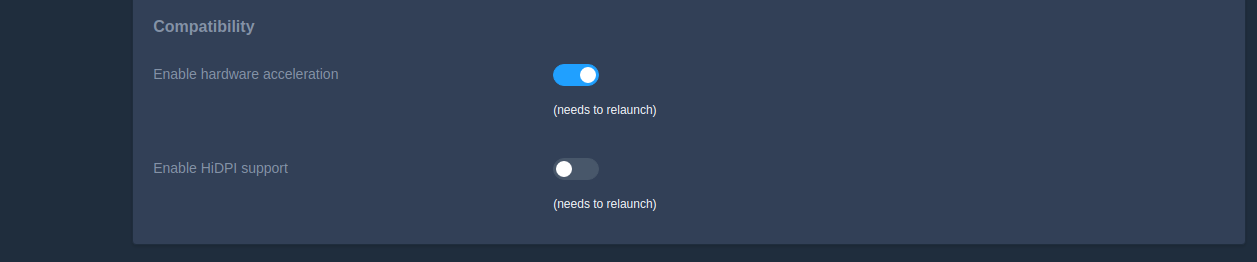
@droidmonkey Yesterday I thought about the configuration setting again. You said you cannot make it a configuration within the application because this option has to be read on startup.
I know other application that have such config options too. They inform the user that if they change such setting they have to restart the application. Wouldn't that be a possible solution here too?
ledermueller
on 18 Apr 2019
I feel like this is no longer an issue. There seemed to be a bad combination of Linux Qt versions and our release of Hi DPI that has since resolved itself (mostly). The only report I have seen of this is on a multi-monitor setup running Mint 19.04.
droidmonkey
on 16 Oct 2019
Oh, you are right. I switched to Manjaro some time ago and got the same issue there and had to disable scaling with QT_AUTO_SCREEN_SCALE_FACTOR=0. But now it seems to work without that. Thanks for that information :)
ledermueller
on 16 Oct 2019
I'm using the snap release 2.4.3 rev 550 with Ubuntu 18.04 and the issue still exists.
stucki
on 16 Oct 2019
still as wrong as it always was for me on arch, qt seems to be assuming 43" 4k is "hidpi" even though I'm running X at 1x, not keepass's fault though
 DuBistKomisch
on 17 Oct 2019
DuBistKomisch
on 17 Oct 2019
We have 43" 4k at work and it's working fine for me. I had to manually define a correct cursor size in KDE, though.
phoerious
on 17 Oct 2019
I am running Kali 2019.4 and experience huge fonts in KeepassXC. All other Qt applications are doing fine. KeepassXC version is 2.4.3. Tried changing the scaling, but that made everything look bad. I have a laptop with a 4K monitor attached via HDMI.
 militantdk
on 1 Jan 2020
militantdk
on 1 Jan 2020
Please upgrade to 2.5.1.
phoerious
on 1 Jan 2020
Please upgrade to 2.5.1.
2.5.1 is not in debian repositories, so I guess that is out of the question for now: https://packages.debian.org/sid/keepassxc
I downloaded the appimage, set it to check for updates on startup.
Thank you
militantdk
on 2 Jan 2020
Just updated to 2.5.2 and the issue still exists. Fonts are way too small unlike any other of my desktop apps. I'm using the snap package on Ubuntu 18.04.
As a workaround, I need to apply the following modification after every update:
--- /var/lib/snapd/desktop/applications/keepassxc_keepassxc.desktop.orig
+++ /var/lib/snapd/desktop/applications/keepassxc_keepassxc.desktop
@@ -9,7 +9,7 @@
 GenericName[ru]=менеджер паролей
 Comment=Community-driven port of the Windows application “KeePass Password Safe”
 Comment[da]=Fællesskabsdrevet port af Windows-programmet “KeePass Password Safe”
-Exec=env BAMF_DESKTOP_FILE_HINT=/var/lib/snapd/desktop/applications/keepassxc_keepassxc.desktop /snap/bin/keepassxc %U
+Exec=env BAMF_DESKTOP_FILE_HINT=/var/lib/snapd/desktop/applications/keepassxc_keepassxc.desktop QT_AUTO_SCREEN_SCALE_FACTOR=0 QT_SCREEN_SCALE_FACTORS='1' /snap/bin/keepassxc %U
 Icon=/snap/keepassxc/625/usr/share/icons/hicolor/256x256/apps/keepassxc.png
 StartupWMClass=keepassxc
 StartupNotify=true
@stucki I also face the same problem with keepassxc 2.5.2 but in my case it is sufficient to only set QT_SCREEN_SCALE_FACTORS=2 to fix the scaling.
 klingtnet
on 7 Jan 2020
klingtnet
on 7 Jan 2020
Hello, I meet the same kind of problem in Win 10 with two different monitors. Tiny font on the "little" monitor.
 Li-An
on 7 Apr 2020
Li-An
on 7 Apr 2020
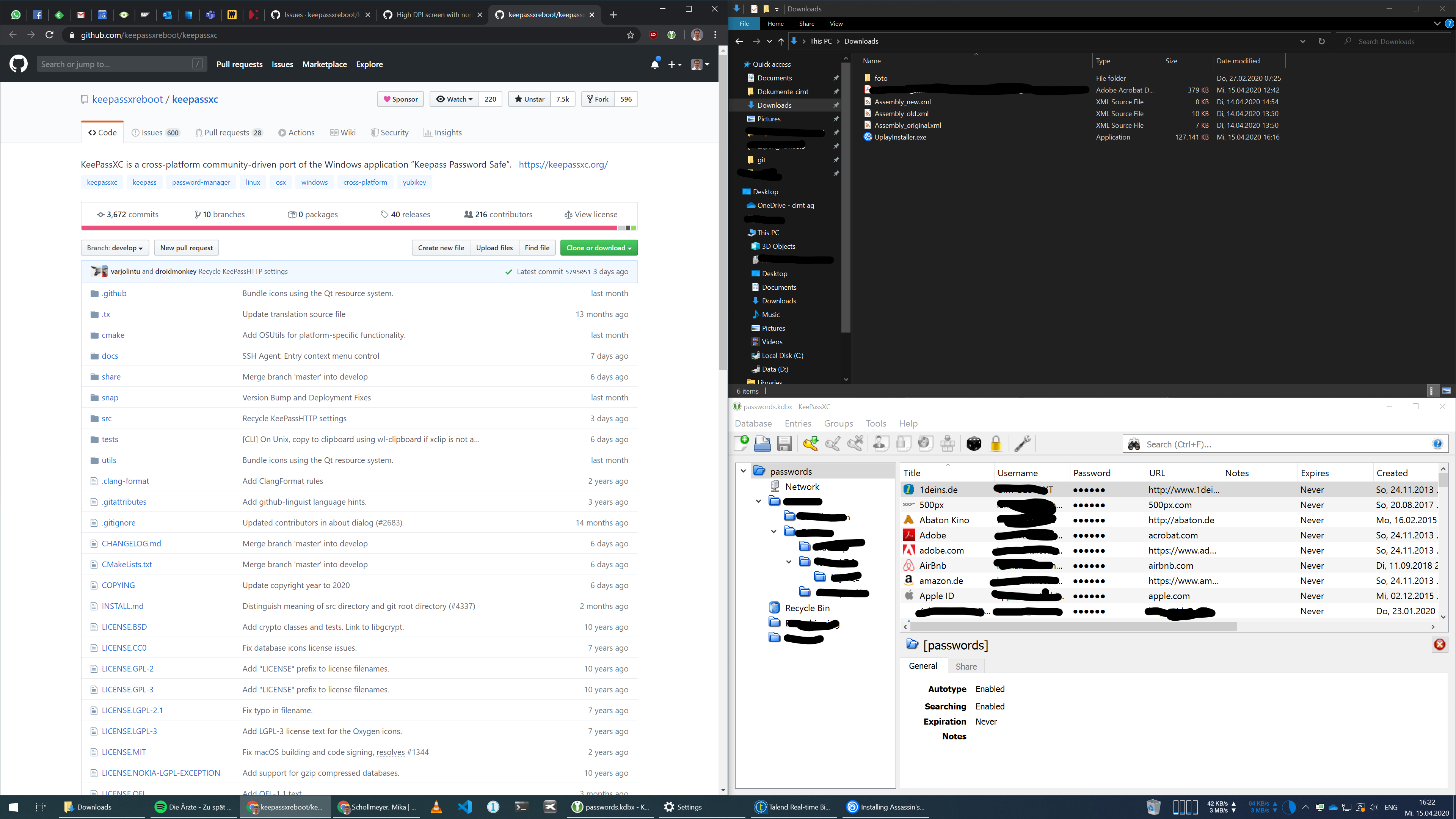
I have the same issue since KeePassXC 2.5.4. Before everything was fine, now the whole tool is twice the size!
 thinking-aloud
on 15 Apr 2020
thinking-aloud
on 15 Apr 2020
Uh looks perfect to me
droidmonkey
on 15 Apr 2020
Just upgraded to v2.5.4 and I now have the same issue as @thinking-aloud
Running on Windows 10 with a 4K monitor at 150% scaling. It's as if the scaling got applied twice.
 XA21X
on 3 May 2020
XA21X
on 3 May 2020
Can confirm @droidmonkey and @XA21X. Scaling on Windows 10 is just huge, double the size as usual.
Edit: I've managed to get the display kinda "normal" with the passed argument -platform windows:dpiawareness=0 and overriding the DPI scaling setttings to System
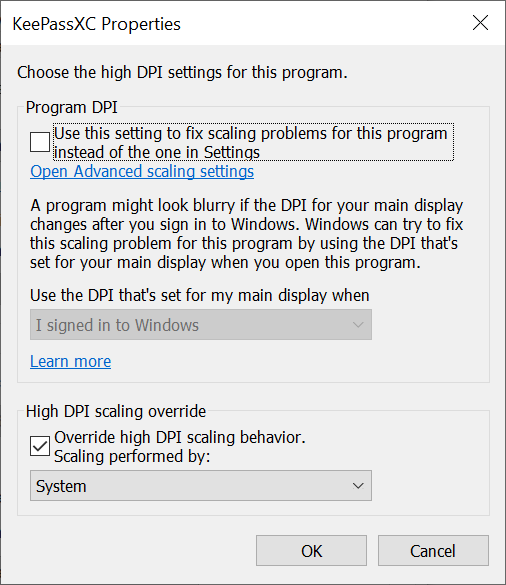
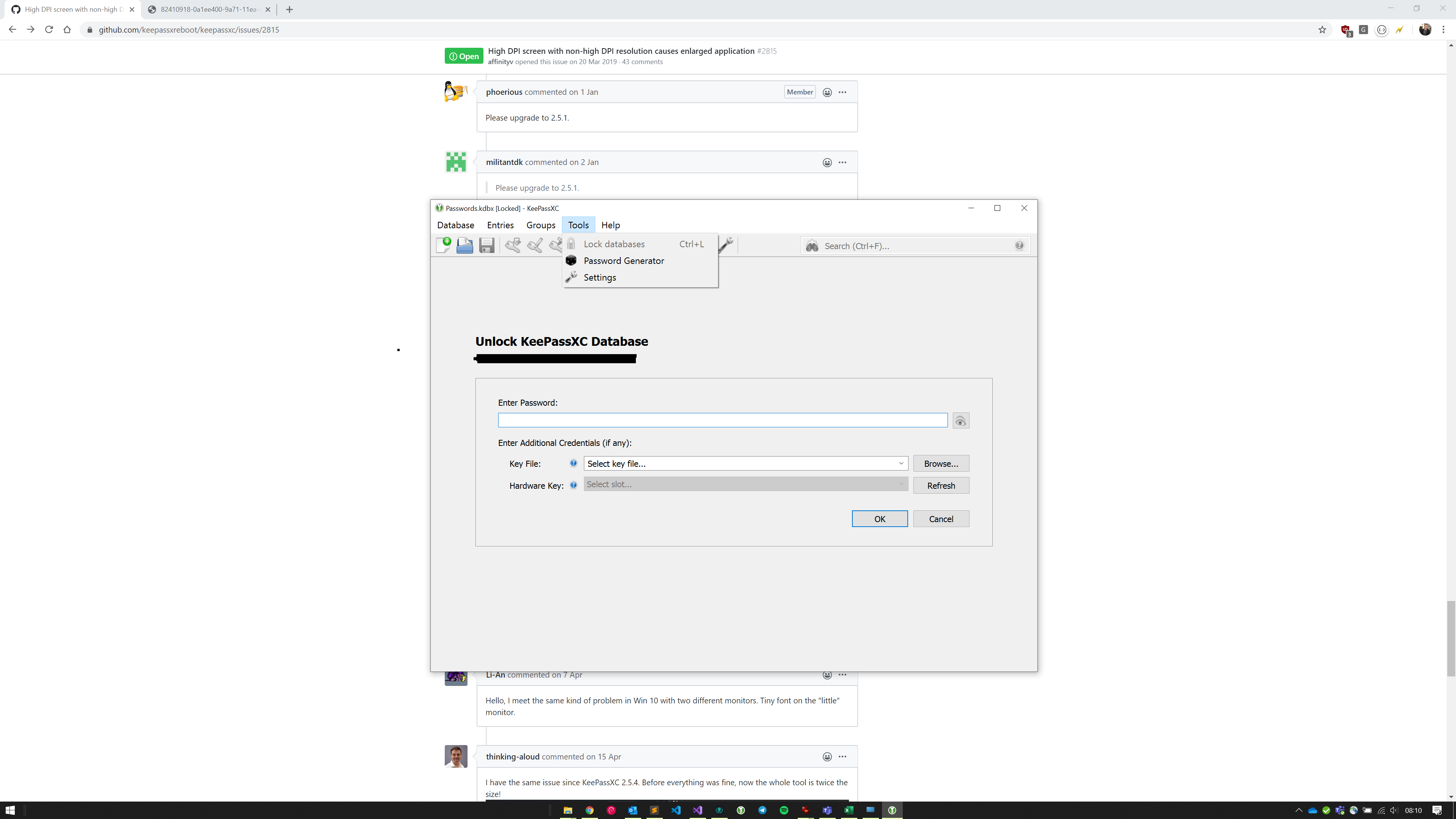
Without these changes, it looks originally like this:
 d4kine
on 20 May 2020
d4kine
on 20 May 2020
Screenshots please (use a dummy database, dont show your actual data).
phoerious
on 20 May 2020
This is first ref to font I found on search & issue still open so posting here.
Image below of KeePassXC w/o scaling fixes. Not as obvious with Settings, but the font is huge and app takes up the whole screen on Windows 10 3200x1800 resolution (250% scaling).
Environment var QT_ENABLE_HIGHDPI_SCALING=1 turns on automatic scaling to display at proper scale like other apps. https://doc.qt.io/qt-5/highdpi.html
Could Qt::AA_EnableHighDpiScaling application attribute be used so we don't have to set environ vars like we're in DOS? https://doc.qt.io/archives/qt-5.6/qtlabscontrols-highdpi.html
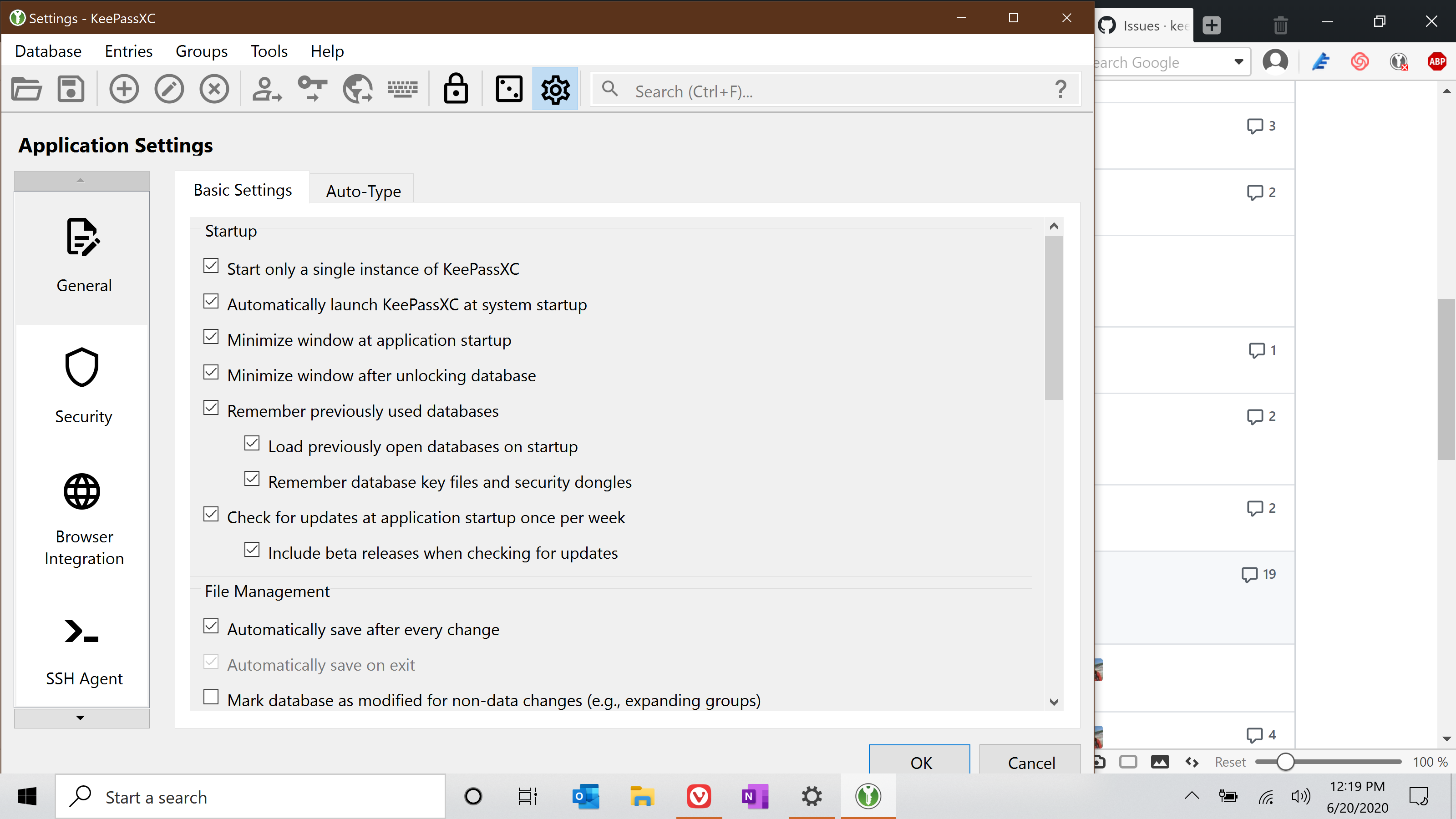
Windows 10
KeePassXC 2.6.0-beta1
 eturk1
on 20 Jun 2020
eturk1
on 20 Jun 2020
Scaled at 250%? It looks perfectly appropriate based on your settings. You are scaling your display way too much. Anything over 200% is actually making your display "smaller" than a non-4K display.
We already enable that Qt flag.
droidmonkey
on 20 Jun 2020
Scaled at 250%? It looks perfectly appropriate based on your settings. You are scaling your display way too much. Anything over 200% is actually making your display "smaller" than a non-4K display.
We already enable that Qt flag.
I didn't want to show all my logins so I used the settings page, so yes, I admit it's hard to tell how larger the text/icons are.
- Notice that the text is larger than the text for the time/clock in tray & the browser text behind the window (to the right. Note too the size of the toolbar buttons compared to the program icons in tray. It that how KeePassXC was designed to look?
- When I set
QT_ENABLE_HIGHDPI_SCALING=1it corrects the scale. The icons & list shrink to a normal size matching browsers & other apps. Why would that be?
eturk1
on 21 Jun 2020
Check your eyes please, the text in KeePassXC is quite literally the same size as Google Chrome and your start menu:

I just moved the text next to the settings text and added a border, absolutely no other changes were made. The clock text is smaller on Windows then anything else.
droidmonkey
on 21 Jun 2020
Check your eyes please, the text in KeePassXC is quite literally the same size as Google Chrome and your start menu:
Seriously, PLEASE find a HiDPI display and test KeePassXC on it. You won't know the pain unless you experience it yourself.
Scaled at 250%? It looks perfectly appropriate based on your settings. You are scaling your display way too much. Anything over 200% is actually making your display "smaller" than a non-4K display.
On my 15.6' laptop with a 4K display, 250% is the most appropriate scaling factor. And KeePassXC's UI looks WAY TOO LARGE on it.
 database64128
on 22 Jun 2020
database64128
on 22 Jun 2020
I have a 4k display... 15.6" laptop.... Scaled to 175%
droidmonkey
on 22 Jun 2020
I have a 4k display... 15.6" laptop.... Scaled to 175%
- Are you running Windows? This is a Windows-only Qt issue.
- 200% would be the lowest acceptable scaling factor. Anything below 200% would be way too small.
- Screenshot of KeePassXC with a 250% scaling factor on Windows.

As you can see, KeePassXC's interface is significantly larger than other applications.
database64128
on 22 Jun 2020
More pics to better describe.
Here's before & after switching Win 10 from application scaling to systemscaling "High DPI override" on my 28" 4K desktop.
Application: (window is 1K of screen to read many lines, huge tool icons relative to Word. Font much larger than menu fonts in Photoshop, Chrome, etc.)

System (Window nice small size as a simple tool showing same number in list. Fonts match all other app fonts)

eturk1
on 22 Jun 2020
Please try a 2.6 snapshot build. 2.5 will see no further updates and 2.6 has some font fixes.
phoerious
on 23 Jun 2020
@database64128 welcome to KeePassXC! I am a lead developer along with @phoerious. I am well versed in how KeePassXC runs on ALL platforms.
As for scaling... couple notes:
- A scale factor of 200% means that High DPI aware applications multiply everything by a factor of 2. 12pt fonts become 24pt fonts (its based on font, but for sake of example). 2px features become 4px features.
- In effect, a 4K display at 200% scaling would result in a UI that is the same size as a comparable 2K (FHD) display.
- Using a scale factor > 200% actually results in an effectively SMALLER usable display area than a Full-HD display.
- Using the Compatibility Override settings is not appropriate, and results in invalid results, since we are High DPI aware.
Using KeePassXC 2.6.0 with your comparison of the Task Manager results in the same font size (note our font is bolder):
175% Scale

250% Scale

droidmonkey
on 23 Jun 2020
Please try a 2.6 snapshot build. 2.5 will see no further updates and 2.6 has some font fixes.
Tried 2.6.0-beta1 and it's the same. The layout and texts are still larger than how they should be.
First off, _database64128_ welcome to KeePassXC! I am a lead developer along with _phoerious_. Your downvotes are most appreciated. I am well versed in how KeePassXC runs on ALL platforms.
I'm aware that you and phoerious are the lead developers of this project. And I really do appreciate your hard work! 👍
That being said, I did and still do find some of your comments ignorant and arrogant, and a little offensive 😥, such as
Check your eyes please
Uh looks perfect to me
You are scaling your display way too much. Anything over 200% is actually making your display "smaller" than a non-4K display.
These are mostly opinion-based and not constructive comments.
Anyways, I have thought about this for a while. And I feel it doesn't really justify my downvotes. Downvoting opinions from the project maintainers is disrespectful and it really hurts feelings. Maintaining a project like this is not easy. So I'm taking back by downvotes. And I apologize for that. 🥺
Here's another comparison.
Default scaling behavior. The interface is larger than expected. Window size 2404x1874.

Run with
-platform windows:dpiawareness=0. The size of the interface is now normal. Window size 2004x1580.

database64128
on 24 Jun 2020
True, I'm a tad salty but this is a fun topic.
As for your experiment, the second image is very blurry (compared to the first). This is actually because your window is being rendered at 100% scale and Windows is "upscaling" it a bit so it looks "OK". In reality nothing is OK and the application is actually misbehaving. You can see this blurriness in eturk1 screenshot of the System scale compatibility override.
Basically what you want is a scale factor of 200%. I encourage you to give it a try.
droidmonkey
on 24 Jun 2020
In reality nothing is OK and the application is actually misbehaving. You can see this blurriness in eturk1 screenshot of the System scale compatibility override.
Let's just ignore the blurriness and focus on the size of the UI elements. The UI elements in the 2nd picture are in their designed/expected size. In the first screenshot they are 1.2x of its expected size. That makes KeePassXC look out of line among other applications.
Basically what you want is a scale factor of 200%. I encourage you to give it a try.
I already tried it a few times. It makes a lot of stuff too small on my 15.6' laptop display. 😅
database64128
on 24 Jun 2020
Granted I do think 2.6.0 has a little too much padding in various areas, but the font size and face is literally the same as the windows desktop. If you have suggestions on where the UI can be nipped and tucked I'd like to hear em.
droidmonkey
on 24 Jun 2020
Looking at the screenshots above, I want to point out that the original issue that was reported here is about a much different font size, and it still exists!
Just look at this screenshot to see how my keepassxc looks right after being installed:

What I need to do after every new release is to patch the .desktop file as follows:
# see https://github.com/keepassxreboot/keepassxc/issues/2815
--- /var/lib/snapd/desktop/applications/keepassxc_keepassxc.desktop.orig    2019-11-12 15:21:54.200929705 +0100
+++ /var/lib/snapd/desktop/applications/keepassxc_keepassxc.desktop 2019-11-12 15:22:03.720670979 +0100
@@ -9,7 +9,7 @@
 GenericName[ru]=менеджер паролей
 Comment=Community-driven port of the Windows application “KeePass Password Safe”
 Comment[da]=Fællesskabsdrevet port af Windows-programmet “KeePass Password Safe”
-Exec=env BAMF_DESKTOP_FILE_HINT=/var/lib/snapd/desktop/applications/keepassxc_keepassxc.desktop /snap/bin/keepassxc %f
+Exec=env BAMF_DESKTOP_FILE_HINT=/var/lib/snapd/desktop/applications/keepassxc_keepassxc.desktop QT_AUTO_SCREEN_SCALE_FACTOR=0 QT_SCREEN_SCALE_FACTORS='1' /snap/bin/keepassxc %f
 Icon=/snap/keepassxc/625/usr/share/icons/hicolor/256x256/apps/keepassxc.png
 StartupWMClass=keepassxc
 StartupNotify=true
With this patch applied, the font size looks ok to me:

stucki
on 24 Jun 2020
That is actually a snap issue
droidmonkey
on 24 Jun 2020
Thanks for clarifying! Should I create a PR for this change?
stucki
on 24 Jun 2020
No, what I meant was its an issue with snaps in general, not something we can fix per say.
droidmonkey
on 24 Jun 2020
Hmm but the fix solves the problem, no? Does it have any negative implications for other users? If not then it should be added in keepassxc nevertheless.
After all the issue here is that users who install keepassxc via snap will have a weird display size of keepassxc whereas other applications (even if installed via snap) work fine. I can solve the problem for myself using the patch above, but we should find a fix which works out of the box. Agree?
stucki
on 25 Jun 2020
The correct values for these environment variables depend on your monitor configuration. We cannot simply hard-code something we know will break some people's setup only to fix that of some others.
phoerious
on 25 Jun 2020
Hmm ok. However, doesn't look as if this is going to be fixed soon.
I did some research to see if the issue is reported anywhere else:
- This looks like it's the same bugreport for snappy (the snap software): https://bugs.launchpad.net/snappy/+bug/1834061
- Flatpak (snap alternative) seems to have a similar problem: https://github.com/flatpak/flatpak/issues/2980
- VLC is just another application like keepassxc which needs a custom workaround until this is fixed: https://unix.stackexchange.com/questions/557181/how-to-increase-dpi-for-vlc-media-player-in-cinnamon-on-uhd-display
I still think that it may be useful to make the HiDPI feature configurable in the settings so that users have an easy way to fix this without having to edit files in /var/lib/snapd as root...
stucki
on 25 Jun 2020
This change should help all you who want a "smaller" application: https://github.com/keepassxreboot/keepassxc/pull/4910
droidmonkey
on 28 Jun 2020
Just realized what the problem actually is: Qt defaults to rounding the scale factor up for .5 and above on desktop. That's why on my 250% Display the UI is 1.2x the size it should be: 2.5 * 1.2 == 3.
As per https://doc.qt.io/qt-5/highdpi.html:
The
QT_SCALE_FACTOR_ROUNDING_POLICYenvironment variable andQGuiApplication::highDpiScaleFactorRoundingPolicyAPI, introduced in Qt 5.14, makes it possible to control if and how the device pixel ratio should be rounded to the nearest integer. This is relevant for configurations like Windows at 150% scale. Possible values areRound,Ceil,Floor,RoundPreferFloor,PassThrough. See theQt::HighDpiScaleFactorRoundingPolicyenum documentation for a full description of the options.
So the workaround would be to set the QT_SCALE_FACTOR_ROUNDING_POLICY environment variable to PassThrough. The fix would be to call the QGuiApplication::setHighDpiScaleFactorRoundingPolicy function before creating the application object.
Without QT_SCALE_FACTOR_ROUNDING_POLICY set:

Window size 2404x1874. It's actually running in 300% scale factor due to the rounding policy.
With QT_SCALE_FACTOR_ROUNDING_POLICY set to PassThrough:

Window size 2004x1574. This is the correct size.
database64128
on 29 Jun 2020
Wow didn't know they introduced that option! Will add that to 2.6.0
droidmonkey
on 29 Jun 2020
Mind blown...
phoerious
on 29 Jun 2020
Related issues
 mstarke
·
3Comments
mstarke
·
3Comments
 2tbwXj46BDbdNBRV79DS
·
3Comments
2tbwXj46BDbdNBRV79DS
·
3Comments
 clementlesne
·
3Comments
clementlesne
·
3Comments
 guihkx
·
3Comments
guihkx
·
3Comments
 nfnty
·
3Comments
nfnty
·
3Comments
Most helpful comment
Some consolidated information for this issue:
My ultimate opinion: We should revert the change to add AA_EnableHighDpiScaling at application startup. Instead, users that WANT hidpi support can just set the env var QT_AUTO_SCREEN_SCALE_FACTOR=1 on their own. We could also support setting that env var for them as an option.
Since AA_EnableHighDpiScaling needs to be set (or unset) before the application object is created, we cannot make this a configuration setting. It happens way too early in the startup process.