Keepassxc: Display problems when launching keepassxc with a HiDPI monitor
Hi everybody!
Expected Behavior
I would like to read title of buttons normally... Like this:
https://user-images.githubusercontent.com/2216211/31314644-ade1b0a2-ac05-11e7-93d6-dc028743b543.png
Current Behavior
But the display is the following...
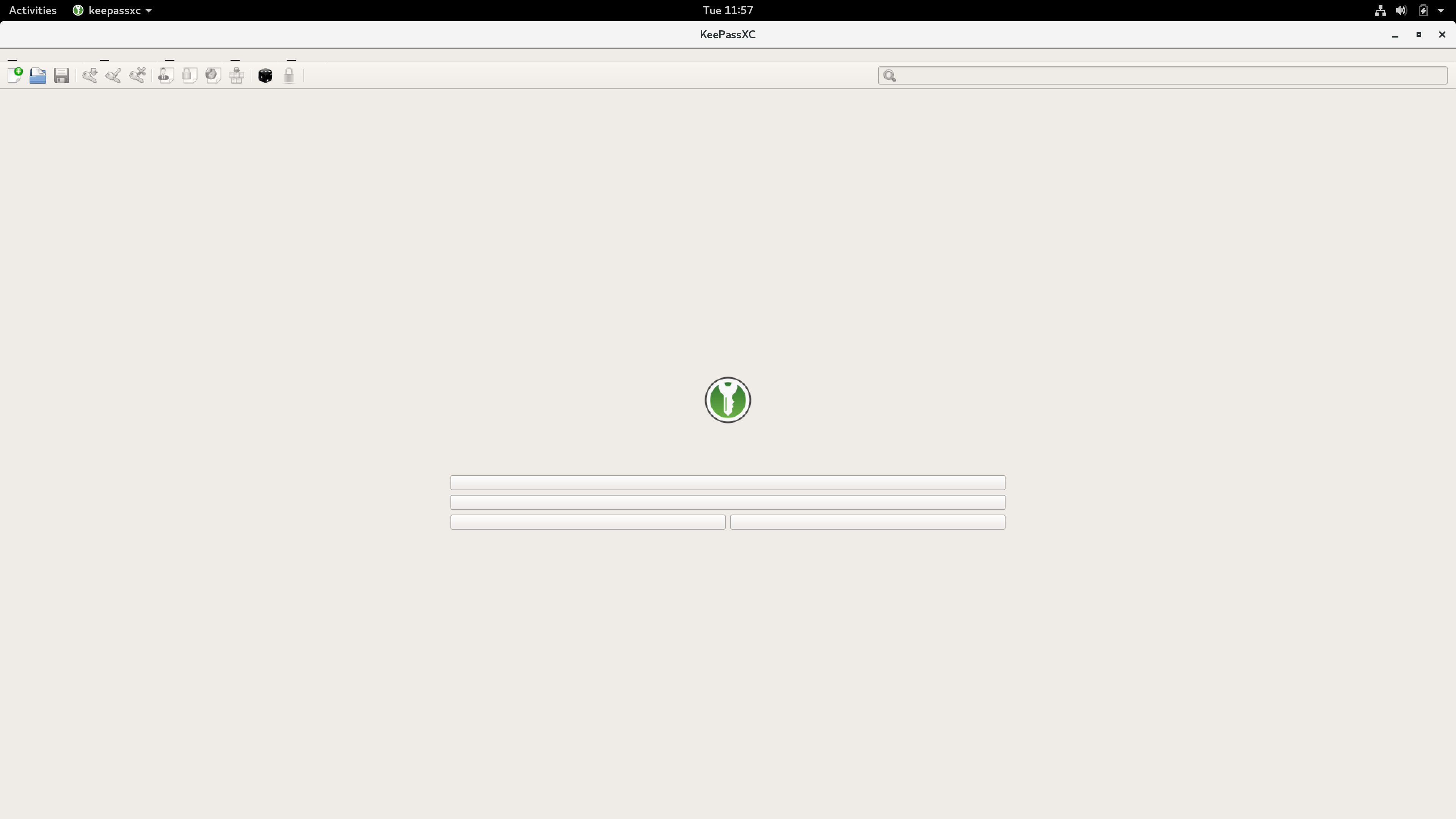
Steps to Reproduce (for bugs)
- sudo snap install keepassxc
- sudo snap run keepassxc
Context
I also tried the following command but it's still not working (icons are just bigger but titles of buttons are not displayed):
QT_SCALE_FACTOR=1 QT_AUTO_SCREEN_SCALE_FACTOR=0 QT_SCREEN_SCALE_FACTORS=2 snap run keepassxc
Debug Info
KeePassXC - 2.3.1
Revision: 37
Operating system: Debian GNU/Linux 9 (stretch) 64-bit - Gnome 3.22.2
CPU architecture: Intel Core i7
Kernel: 4.9.0-6-amd64
 Pieber
All 26 comments
I can confirm that the app has some limitations on a High-Resolution display. At least, the icons are very small and the tree in the left panel doesn't look like on the pictures on your website.


 jo-so
on 15 May 2018
jo-so
on 15 May 2018
High-dpi has been an issue for quite a while. Most of the time, it's because people are using monitors with different DPI settings. Qt5 doesn't seem to handle High-DPI too well in these (and perhaps some other cases). Most of our attempts to fix that problem have failed, unfortunately.
 phoerious
on 16 May 2018
phoerious
on 16 May 2018
The issue occurs on my laptop aswell which only has one monitor with one fixed DPI size.
XPS 13 @ Windows 10 RS4 with an UHD 13" Monitor.
 nshtg
on 28 May 2018
nshtg
on 28 May 2018
Setting QT_AUTO_SCREEN_SCALE_FACTOR to 1 fixed the issue in Windows 10 for me on my 4K monitor. We need 2x icons though.
With QT_AUTO_SCREEN_SCALE_FACTOR=1:

Standard environment:

KeePassXC - Version 2.3.1
Revision: 2fcaeea
Libraries:
- Qt 5.10.1
- libgcrypt 1.8.2
Operating system: Windows 10 (10.0)
CPU architecture: x86_64
Kernel: winnt 10.0.17134
Enabled extensions:
- Auto-Type
- Browser Integration
- Legacy Browser Integration (KeePassHTTP)
- SSH Agent
- YubiKey
 ghost
on 29 May 2018
ghost
on 29 May 2018
I can confirm that setting QT_AUTO_SCREEN_SCALE_FACTOR to 1 fixes the scaling problems. The top row of icons looks blurry though.
Consider setting the var by default?
qputenv("QT_AUTO_SCREEN_SCALE_FACTOR", "1");
No. We tried it and it fixes the problem for some people, but makes things worse for a lot of other people.
phoerious
on 31 May 2018
It could be a setting. Its a real shame that qt does not handle this gracefully
 droidmonkey
on 31 May 2018
droidmonkey
on 31 May 2018
QT_AUTO_SCREEN_SCALE_FACTOR=1 fixes the layout of the password dialog at me and the whole application (incl. tree on the left side) looks a lot better.


jo-so
on 31 May 2018
For me it makes everything twice bigger than it should. What systems are you on, did you setup HiDPI system-wide?
 ArchangeGabriel
on 31 May 2018
ArchangeGabriel
on 31 May 2018
I'm using Debian Linux unstable. My whole display is a high-res display, the panel of my laptop.
jo-so
on 1 Jun 2018
My question was, how did you configure HiDPI on your system. Do you start X.org with -dpi 192, do you solely resort on GDK_SCALE=2 (eventually through GNOME Settings for instance)?
ArchangeGabriel
on 1 Jun 2018
I start my X server without the dpi Option and use xrandr --dpi in ~/.xsession. I set GDK_SCALE=3 and GDK_DPI_SCALE=0.33333 to scale Gtk applications properly. My window manager is awesome.
jo-so
on 1 Jun 2018
Unfortunately, using QT_AUTO_SCREEN_SCALE_FACTOR when QT_QPA_PLATFORMTHEME is set to gtk2, some elements are way too big. Not a keepassxc issue, but thought it worth mentioning.
 beanaroo
on 4 Jun 2018
beanaroo
on 4 Jun 2018
Can confirm the issue exist on Windows with 27" UHD Monitor (Asus PB287Q).
The Menu and Treeview are OK and also regard the Systems Font Scaling of 150%,
but the Icons are really small - would be good to have them double sized...
Icons actually fill 22x22 pixels only.
Also, the font and Icon in the search bar are very small....
The Icons on the Background are for reference and a little large for XC actually.
Half way between them would be nice, maybe configurable by an option.
Also, maybe, average Font-Size could be configurable too, but that is not
hard hitting on Windows.
KeePassXC - Version 2.3.4
Revision: 6fe821c
Libs: - Qt 5.11.1 - libgcrypt 1.8.3
Windows 7 SP 1 (6.1), CPU-Architektur: x86_64, Kernel: winnt 6.1.7601

 datenheim
on 12 Sep 2018
datenheim
on 12 Sep 2018
High-dpi has been an issue for quite a while. Most of the time, it's because people are using monitors with different DPI settings. Qt5 doesn't seem to handle High-DPI too well in these (and perhaps some other cases). Most of our attempts to fix that problem have failed, unfortunately.
@phoerious this is just one data point, but I have these issues and I'm not using a monitor. I'm on a 13" Dell XPS, Ubuntu 18.04, UHD 3840x2160 screen.
 ianchanning
on 21 Sep 2018
ianchanning
on 21 Sep 2018
I'll be getting a Dell XPS soon and will be able to test it.
phoerious
on 21 Sep 2018
Same problem here with Windows 10 64bit on a surface book.
 Chris2011
on 26 Sep 2018
Chris2011
on 26 Sep 2018
I'm using the latest KDE (5.13.5) with Qt (5.11.2) under Xorg in Arch Linux (Kernel 4.18.8). I'm not using any of the dpi options for Xorg but rely on the KDE setting (System Settings > Display > Scale Display) and have set a scale factor of 1.5 there:
QT_AUTO_SCREEN_SCALE_FACTOR = 0
QT_SCREEN_SCALE_FACTORS = DP1=1.5;DP1=1.5;DP2=1.5;HDMI1=1.5;HDMI2=1.5;VIRTUAL1=1.5;
Everything seems to work nicely except the icons in the main menu bar:

I guess a good idea would be to use vector graphics like SVG for the icons instead of raster graphics so that icons could be scaled arbitrarily. This might resolve the problem for a lot of users already. The icons to the left in the "Add entry" dialogue are working flawlessly already (KDE native icons).
Also it would be nice to be able to choose the icon size when right clicking on the menu like it is possible in most KDE applications. I'm not sure if this is a KDE specific feature though.
 grubersjoe
on 6 Oct 2018
grubersjoe
on 6 Oct 2018
Same problem here with Windows 10 64bit on a surface book.
Setting the environment variable QT_AUTO_SCREEN_SCALE_FACTOR to 1 fixed the issue for me on Windows 10 64bit Surface Book (needed to restart after setting the env variable)
KeepassXC 2.3.4
QT 5.11.1
cc @Chris2011
 AmrEldib
on 14 Oct 2018
AmrEldib
on 14 Oct 2018
Thx @AmrEldib will try it :)
Chris2011
on 14 Oct 2018
Same issue here with a 192 dpi screen and latest Gnome version. Keepassxc icons are too small and setting the QT_AUTO_SCREEN_SCALE_FACTOR=1 does not help!
ghost
on 15 Oct 2018
@AmrEldib Thx it helped me :)
Chris2011
on 15 Oct 2018
I'm on Ubuntu 18.04 (GNOME), XPS 13" 9370, 4K screen. At first I set QT_AUTO_SCREEN_SCALE_FACTOR=1 and all I got is bigger icons (blurry yet bigger) but the text remained too small. Then I created ~/.Xresources with the following content:
Xft.dpi: 220
Xft.autohint: 0
Xft.lcdfilter:  lcddefault
Xft.hintstyle:  hintfull
Xft.hinting: 1
Xft.antialias: 1
Xft.rgba: rgb
After xrdb -merge ~/.Xresources it fixed the scaling issues for keepassxc and other Qt5 applications. Though the images are still blurry because there are no hidpi images AFAIK, yet the text and all other UI elements look good.
 jardev
on 16 Oct 2018
jardev
on 16 Oct 2018
I can reproduce the problems on my XPS. A workaround for Windows is to right-click the application icon and then go to Properties / Compatibility / Change high DPI settings. There enable the checkbox for "Override high DPI scaling behaviour" and select "System (enhanced)".
phoerious
on 18 Oct 2018
I'm on Ubuntu 18.04 (GNOME), XPS 13" 9370, 4K screen. At first I set
QT_AUTO_SCREEN_SCALE_FACTOR=1and all I got is bigger icons (blurry yet bigger) but the text remained too small. Then I created~/.Xresourceswith the following content:Xft.dpi: 220 Xft.autohint: 0 Xft.lcdfilter: lcddefault Xft.hintstyle: hintfull Xft.hinting: 1 Xft.antialias: 1 Xft.rgba: rgbAfter
xrdb -merge ~/.Xresourcesit fixed the scaling issues for keepassxc and other Qt5 applications. Though the images are still blurry because there are no hidpi images AFAIK, yet the text and all other UI elements look good.
This fixed the problem for me. Thanks! (I have Xubuntu 18.04, installed KeePassXC as a snap, and my external monitor is Samsung PU24WS 1920×1080 pixels.)
 leisti
on 17 Oct 2019
leisti
on 17 Oct 2019
Just an FYI (also for future people looking for help), I just had this issue with the latest versions of Manjaro XFCE and KeepassXC. I fixed it by running:
QT_AUTO_SCREEN_SCALE_FACTOR=1 QT_SCREEN_SCALE_FACTORS=2 keepassxc
or for the launcher button on the panel/taskbar:
bash -c "QT_AUTO_SCREEN_SCALE_FACTOR=1 QT_SCREEN_SCALE_FACTORS=2 keepassxc %f"
(I tested, and both environment variables were necessary for me.)
Update: It seems like this happens for all Qt applications, not just KeepassXC. I'll leave this here anyway in case it helps someone.
 quark6789
on 4 Apr 2020
quark6789
on 4 Apr 2020
Related issues
 guihkx
·
3Comments
guihkx
·
3Comments
guihkx
·
3Comments
guihkx
·
3Comments
 lostfictions
·
3Comments
lostfictions
·
3Comments
 Throne3d
·
3Comments
Throne3d
·
3Comments
 rugk
·
3Comments
rugk
·
3Comments
Most helpful comment
Setting QT_AUTO_SCREEN_SCALE_FACTOR to 1 fixed the issue in Windows 10 for me on my 4K monitor. We need 2x icons though.
With QT_AUTO_SCREEN_SCALE_FACTOR=1:

Standard environment:

KeePassXC - Version 2.3.1
Revision: 2fcaeea
Libraries:
Operating system: Windows 10 (10.0)
CPU architecture: x86_64
Kernel: winnt 10.0.17134
Enabled extensions: