Kap: Provide option to save source file (to avoid export for long videos being extremely slow)
Steps to reproduce
Record long 30min video and attempt WebM export
Problem
I was exporting a 30min recording and had to eventually abort the WebM export after a couple of hours. Using the inspector I checked the progress bar percentage which appeared to be stuck at 15%.
Attempting mp4 export was slightly better: I could see progress being made but still slowly.
Workaround
While looking around to find an exiting issue I noticed that aperture.js stores temporary files in /var/folders/ and was able to find the video and copy it to my Kaptures folder instantly. Perhaps because this was on APFS?
Feature request
- Could you provide an instant export option which just copies the recorded video to the target directory?
Could you provide more of a hint of expected export duration, or potentially a warning to avoid WebM export on long captures.See: https://github.com/wulkano/kap/issues/437
Platform
Mac OS: 10.13.3 (17D47)
Kernel: Darwin 17.4.0 Darwin Kernel Version 17.4.0: Sun Dec 17 09:19:54 PST 2017; root:xnu-4570.41.2~1/RELEASE_X86_64 x86_64
Kap Version: 2.0.0 (2.0.0.681)
 Jamedjo
All 11 comments
While looking around to find an exiting issue I noticed that aperture.js stores temporary files in /var/folders/
This is the source file, it's not possible to export this file directly from Kap, when you choose "MP4" export, we still convert the file trough ffmpeg - even if there are no settings changed.
So your point 1 would allow this 👍
 albinekb
on 19 Mar 2018
albinekb
on 19 Mar 2018
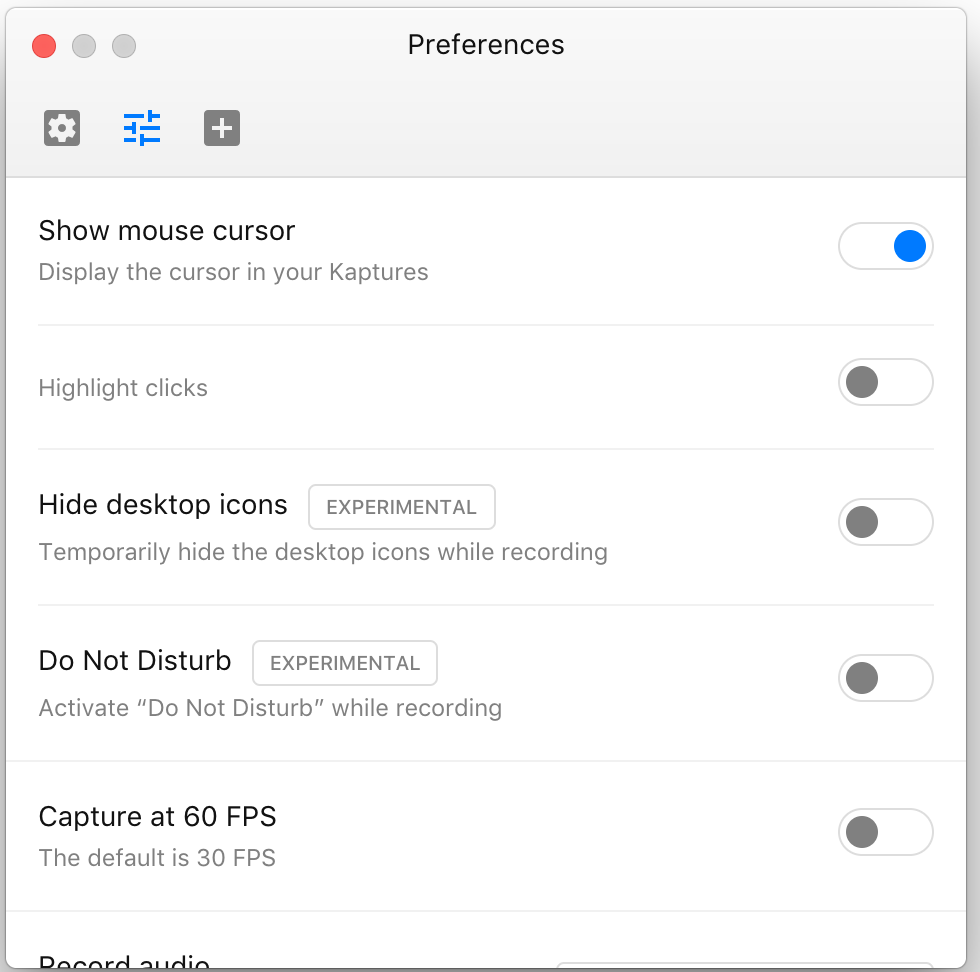
What FPS are you capturing at @Jamedjo? You can check your capture frame rate in preferences.
 skllcrn
on 20 Mar 2018
skllcrn
on 20 Mar 2018
1. is easy and it'd be very nice, indeed, to have it. 2. is very tricky and I'm not sure it's possible to implement it 😕
 matheuss
on 20 Mar 2018
matheuss
on 20 Mar 2018
What FPS are you capturing at @Jamedjo?
@skllcrn I'm not entirely sure, but the preference toggle is set to off. Presumable that means it is using the default of 30 FPS rather than the bolded 60 FPS?
Jamedjo
on 25 Mar 2018
- is very tricky and I'm not sure it's possible to implement it 😕
@matheuss Would it be possible to parse ffmpeg's output or pass in a progress option to determine how many frames or seconds of video have been processed?
Edit: There is a progress bar already, of course! Could we just calculate the start time, percentage complete and use the two to provide an extrapolation?
Alternatively could we have a cut off where we show a warning if sending more than X mins of video to ffmpeg?
Should I open a second issue for this so this one can focus on instant export?
Jamedjo
on 25 Mar 2018
- is easy and it'd be very nice, indeed, to have it.
How should this look in the UI?
We could add an extra button labelled Original:

Jamedjo
on 25 Mar 2018
To clarify this seems to be 2 different issues:
- One issue regarding processing time for WebM in particular.
- A feature request to access the original recording.
In the original issue you were attempting to export to WebM, which has a very different set of qualities compared to MP4 and will take longer to process. Exporting to another format isn't really a workaround for the processing time, as you'd lose out to the unique benefits of WebM. There's always trade-offs.
Adding "Original" as an export option is confusing as it appears in a list of formats, and is itself an MP4 file. The last thing we want is analysis paralysis when picking the format for your Kapture and where to export it.
If possible a better solution would be to check if there are any settings changes to the original file when exporting to MP4, and skipping the processing if there are none.
I also did an unscientific test with a 2015 15" MacBook Pro:
Exporting a 27 minute long recording to WebM took ~5 minutes, while exporting to MP4 takes less than half of that. Exporting to both formats the progress bar stops at ~20% before jumping at completion.
skllcrn
on 25 Mar 2018
@skllcrn Yes, two issues:
- Wanting instant access to the original mp4 to avoid unbearable processing times
- Wanting some kind of warning or time estimate when export will take hours
I'll open a second issue for the the warning/estimate feature request now.
For long videos I think the best default is to keep the recorded encoding. Container format isn't too relevant to this, as I think ffmpeg can change container format quite quickly if it doesn't have to re-encode. Since the original is an H264 encoded mp4 I think using the actual file is perfect. Especially on APFS where copying the file is a free operation.
Exporting to another format isn't really a workaround for the processing time, as you'd lose out to the unique benefits of WebM.
I initially chose WebM out of habit since it is perfect for embedding online, but in this case container wasn't too important. Speed was, but neither format was taking a sane amount of time to export.
Jamedjo
on 25 Mar 2018
Perhaps the new option should be labeled instant to emphasise that it is a quicker option:

I do like that "Original" could help with https://github.com/wulkano/kap/issues/399 though. Saving with instant/original might prevent the "Are you sure that you want to discard this recording?" dialog, or could be provided as an option in that dialog.
Jamedjo
on 25 Mar 2018
If possible a better solution would be to check if there are any settings changes to the original file when exporting to MP4, and skipping the processing if there are none.
I missed this before...
Makes sense, and avoids the extra button 👍
Exporting a 27 minute long recording to WebM took ~5 minutes, while exporting to MP4 takes less than half of that. Exporting to both formats the progress bar stops at ~20% before jumping at completion.
Hmmm... something must have gone wrong for mine. Early 2015 13" but WebM export at 15% after two hours would mean around 13 hours to export. Even with a stuck progress bar, 2h is a long way from 5mins. It looks like the FPS defaults to 15 on export, maybe that had an impact? Also, it was a near full screen recording.
Adding "Original" as an export option is confusing as it appears in a list of formats
I think that confusion can be reduced by grouping it separately. While it does still add an extra button it avoids having to check FPS in two places to get a quick export, so a difficult trade off:

Edit: How about having Save Original in the OS menu bar instead? The export options could also be added there but the editor window would only show export options. Choosing either would prevent the "discard this recording" warning.
Jamedjo
on 25 Mar 2018
We're aiming to add this option to the "File" menu when viewing a recording in the Editor in our next release. The option is technically the same as exporting an MP4 without changes, skipping ffmpeg.
skllcrn
on 21 May 2018
Related issues
 danielbachhuber
·
3Comments
danielbachhuber
·
3Comments
 pedromassango
·
3Comments
pedromassango
·
3Comments
 petetnt
·
4Comments
petetnt
·
4Comments
 Qix-
·
3Comments
Qix-
·
3Comments
 xenio
·
4Comments
xenio
·
4Comments
Most helpful comment
We're aiming to add this option to the "File" menu when viewing a recording in the Editor in our next release. The option is technically the same as exporting an MP4 without changes, skipping
ffmpeg.