Describe the bug
Trying to play to Chromecast from Android results in nothing actually happening.
To Reproduce
- Click Chromecast icon, choose a Chromecast to cast to
- Click on media file
Expected behaviour
Should play the media to the Chromecast. It doesn't. The mobile app screen doesn't change when play icon is pressed other than a translucent blue circle drawn around the play icon.
Logs
There are none. There is nothing added to the log when the media item's play icon is pressed.
System (please complete the following information):
- OS: Android 8.0
- Browser: Chrome
- Jellyfin Version: 10.3.3
- Reverse proxy: no
 brianjmurrell
All 110 comments
On Chrome on Linux, the Chromecast button doesn't even see my Chromecasts. I am able to cast any arbitrary tab in Chrome and Netflix in the same Chrome is able to see my Chromecasts, so this seems to be another bug of the Jellyfin Chromecast.
brianjmurrell
on 21 May 2019
@brianjmurrell Chrome on a desktop will not allow a page to cast unless it is secured (HTTPS/SSL). Netflix does have SSL, so that works. Tab casting also works, because it’s not the website, but the application.
Do you have HTTPS set up for Jellyfin?
 anthonylavado
on 21 May 2019
anthonylavado
on 21 May 2019
I should note - the App should work whether or not you have HTTPS, I’m just trying to determine if there is an actual web/server error, or if this issue belongs with the Android app.
anthonylavado
on 21 May 2019
@brianjmurrell Chrome on a desktop will not allow a page to cast unless it is secured (HTTPS/SSL).
Ooops. Yes. I was not on the HTTPS port. Using the HTTPS port from my Linux/Chrome I see the same "nothing happens when you try to play to Chromecast" behaviour. It's as if I just didn't even click the Play icon.
brianjmurrell
on 21 May 2019
To be clear, I am not using any dedicated Android app but just using the web-app in a Chrome tab. TBH, I don't really see the point of a dedicated app when the web-app works just as well and (almost?) identically to a dedicated app.
brianjmurrell
on 21 May 2019
TBH, I don't really see the point of a dedicated app when the web-app works just as well and (almost?) identically to a dedicated app.
There is working going on now to add better video players to the Android app, so soon it will be able to handle more formats than just the web app alone can. More format support means less transcoding, means easier experience :-)
...Using the HTTPS port from my Linux/Chrome I see the same "nothing happens when you try to play to Chromecast" behaviour. It's as if I just didn't even click the Play icon.
Try having the DevTools open during this, and see if there are any errors that appear in the console. That should give us a start to help track it down :-)
anthonylavado
on 21 May 2019
Nothing new appears in either the Network tab nor the Console tab when I press Play. If I don't have Chromecast enabled, it plays in the browser fine.
brianjmurrell
on 21 May 2019
Hrm... Try this in order:
- Open new Tab
- Open DevTools to Console. Make sure the log levels are set to "Default levels"
- Load Jellyfin home page, login as needed
You should see the following messages after everything loads up on screen:

anthonylavado
on 22 May 2019
I've been playing around with this too - same issue with http/https initially. I run a reverse proxy for https and if the ssl certificate was missing / invalid the web ui would connect to the chromecast but refused to cast with random or no messages. As soon as there was a valid SSL certificate casting worked fine.
 bensweet86
on 25 May 2019
bensweet86
on 25 May 2019
@anthonylavado So, doing as you requested, I do see the lines you refer to. I then go on to play a media file and this is added to the messages:

But nothing correspondingly is added to the jellyfin log to indicate that it's gotten the request or is fulfilling it.
brianjmurrell
on 27 May 2019
Okay, so the other lines are mainly when the user clicks away, and then back on the web app, so those are normal.
So it’s definitely seeing the Chromecast is available...
I don’t think we covered this earlier, but does the Chromecast show the Jellyfin “Ready to cast” page when you connect to it?
anthonylavado
on 28 May 2019
does the Chromecast show the Jellyfin “Ready to cast” page when you connect to it?
Yes, and a clock on the top right at some point, while on the Jellyfin "Ready to cast" page.
brianjmurrell
on 28 May 2019
im seing the same happening for me. Both webapp and android app connect to the chromecast and it shows the jellyfin page but im then not able to play anything.
the jellyfin server is secured by https.
 maxaudron
on 5 Jun 2019
maxaudron
on 5 Jun 2019
Sorry folks, I have no idea where to proceed further from here. Paging @jellyfin/support for any ideas.
anthonylavado
on 5 Jun 2019
For me it was not automaticly detecting the correct WAN IP by itself as it is behind a reverse proxy. After setting them myself in the advanced settings it now works.
maxaudron
on 6 Jun 2019
Does the solution maxaudron found work for you @brianjmurrell ? This is a bizarre issue and one we are having trouble finding solid info on.
 sparky8251
on 25 Jun 2019
sparky8251
on 25 Jun 2019
My Jellyfin is not behind a reverse proxy and I am accessing it from the local network it's on. Is the WAN address even relevant here?
In the dashboard it has http://_my_domain_:8096 for the WAN address. _my_domain_ does not resolve to an IP address.
brianjmurrell
on 25 Jun 2019
It's possible that could be breaking it. Incorrect WAN detection broke the Kodi addon before. It shouldn't care about the WAN IP but it did...
Make sure its resolvable, even if only internally (like set it to a local IP address) and see if it helps. If it is WAN detection, that means we have 2 clients we need to fix to rip that section out of the web ui like we've been meaning to.
sparky8251
on 26 Jun 2019
Where is it getting that value (of the WAN address) from? Why is it using my domain and the LAN address is using an IP address?
What if I don't want to have my domain resolve to an IP address to force clients to use host+domain name nomenclature?
brianjmurrell
on 26 Jun 2019
As far as I know, there should never be a domain name in that field. I didn't even know it was possible.
It gets the value in that field from ipv4.icanhazip.com, and that should only return IPs. That said, I think maxaudron found some way to set it manually based on his comments here. Worst case, you might be able to set it by hand in one of the xml files JF uses to store conf data. Just try to avoid loading pages in the web UI, I think every page loaded writes a new value to that file... You can check by curling the /emby/system/info/public API I believe. That returns the current set value.
Frankly, this is just troubleshooting/working around an issue for now. the end result should be a proper client that doesn't need to know what the WAN address is, IP, domain, or other. Just want to see if we can track down the cause of your suffering specifically, then we can work on fixing it right.
sparky8251
on 26 Jun 2019
I'm facing this exact issue.
Using the Android app, just a blue highlight colour on the button, and nothing else happens.
I'm not using SSL on the server or a reverse-proxy, and am just using the linuxserver.io docker image.
My actual, internal IP address (shown with ip a) is 192.168.0.34.
Jellyfin shows:
My LAN address is 172.19.x.x : 8096 - Which is the docker containers IP address I believe.
My WAN address is < SNIP > : 8096 - Which is correct (but I'm not sharing my server with the internet, it's only local)
Looking at the logs, when I push the play button after connecting to my Chromecast, it says:
`[2019-06-27 17:39:18.403 +01:00] [INF] Profile: "Unknown Profile", Path: "/data/tvshows/< SNIP >.mkv", isEligibleForDirectPlay: True, isEligibleForDirectStream: True
And nothing else... Not sure if it's relevant or not... Just seemed weird it say's Unknown Profile.
 flatline-studios
on 27 Jun 2019
flatline-studios
on 27 Jun 2019
you can set the wan ip in the advanced settings page.
maxaudron
on 28 Jun 2019
@maxaudron Where? I don't see anywhere on the Advanced page to set the WAN IP.
brianjmurrell
on 28 Jun 2019
Nope, can't see it there.
Is what shows.... Which one are you suggesting should be updated?
EDIT: Looking at the Emby/MediaBrowser github wiki:
It looks like there is a section to enter a WAN address, but in my version of Jellyfin - 10.3.5 - the options are pretty different.
flatline-studios
on 28 Jun 2019
A bit lower the Public ip ports and the external domain in a sense sets the WAN IP.
These options could probably be named a bit more consistent and clearly.

maxaudron
on 28 Jun 2019
External domain? That is nowhere near intuitive. That field reads like it is to match the name of the site with an SSL certificate so if you were to put an IP address in there you'd expect to get SSL errors.
brianjmurrell
on 28 Jun 2019
Mine doesn't have that there... The screenshot I posted is all the options available under Advanced -> Hosting.
flatline-studios
on 29 Jun 2019
I'm assuming my issue stems from the LAN address being the docker containers IP address, as opposed to the machines IP address, so it's on a different subnet and is therefore unresolvable from my phone.
I'll try switching the container to a host based network (which isn't a permanent or ideal solution), and see if it works... If it does, it'll probably be ideal if the "LAN address" displayed on the administration dashboard could be editable. I took a quick look at the source, but couldn't find a suitable place to insert the IP address, however, I'm not at all familiar with the code base, and there's a lot of it!
flatline-studios
on 1 Jul 2019
I'm having the same issues with an almost identical setup as flatline-studios.
I'm running the JF official docker images. Using host networking already. Local IP shows docker network IP 172,18.0.1 . JF is not accessible from the internet.
JF Android can see my chromecast, and I can get the CC app displaying on the TV. But nothing plays.
 SenorSmartyPants
on 7 Jul 2019
SenorSmartyPants
on 7 Jul 2019
Docker host networking should not be needed. A simple port bind is enough. AFAIK whatever "Local IP" is reported anywhere does not matter for apps like chromecast etc.
It simply is the IP jellyfin is bound to. Which in docker means the containers IP.
Chromecast's and the like query jellyfin for it's address and will always use the WAN Address as reported by jellyfin and visible in the dashboard.
So to get these to work in a docker context where due to host binding, reverse proxies or whatever it can't query the correct IP, set it to whatever IP jellyfin is reachable at.
For a purely local setup this means the Local IP of the physical host jellyfin is bound to.
If jellyfin is reachable from external address of course set it to that.
Whatever this is an IP or a domain does only matter if you use SSL as there it needs the domain to validate the certificate.
@SenorSmartyPants @flatline-studios please try this and report back
maxaudron
on 8 Jul 2019
This has nothing to do with docker networking. I have this issue and run jellyfin on the host O/S. No docker involved in any way, shape or form.
brianjmurrell
on 8 Jul 2019
I just used docker as an example. The WAN IP could be set wrong for a myriad of reasons. Be it docker, the world ending or god himself.
Point is: does the WAN IP in the dashboard report something that is reachable? Good. If not set it to something reachable.
maxaudron
on 8 Jul 2019
@maxaudron I set my "external domain" to my LAN IP for JF. Chromecast now connects and plays.
SenorSmartyPants
on 8 Jul 2019
@SenorSmartyPants - OMG! That solved it!
Something for the todo list maybe:
- Add meaningful message when Chromecast is unable to locate the server through it's WAN address, and point the user to where to make the correction (i.e., "External Domain", after ticking the "Allow remote connections to this Jellyfin Server" checkbox).
Even better would be if a watchdog service can check to see if the currently listed WAN address is accessible, and if it's not (as was my issue), then display a warning label with some more info.
flatline-studios
on 9 Jul 2019
does the WAN IP in the dashboard
What WAN IP? There is no WAN IP address field in my settings. All I have is _External domain_ (a domain is NOT an IP address!) which the help text indicates has to do with SSL certificates and connecting remotely.
But in fact my Jellyfin server has no WAN IP. It's not accessible _remotely_ (whatever that ambiguous term is supposed to mean) or connected, forwarded, tunnelled or otherwise exposed to any WAN in any way and is available solely in the LAN, albeit on an SSL port with an SSL certificate to keep Chromecast happy with the SSL certificate using my _External domain_ name.
So frankly, I don't want any sort of WAN IP address in that field.
How exactly is this related to Chromecasting? Doesn't the chromecast jellyfin app loaded on the chromecast take care of figuring out everything it needs to figure out on it's own without me having to put things into Jellyfin that really shouldn't be there? I don't have to do this for Netflix.
And what happens if one's WAN IP address changes frequently? Is one supposed to go update Jellyfin every time that happens?
brianjmurrell
on 10 Jul 2019
Netflix is hosted online (and thus has IPs routable on the public internet) and are you telling me that you see these two things as one and the same? And you want to achieve the same without a publicly routable IPv4 address on your Jellyfin instance? Since well there is a contradiction on there somewhere. Chromecast just really wants a publicly hosted everything, add to that a bunch of arcane javascript magic, well it stops working.
And on the dashboard (That is the first page that openes when you click Server Dashboard) it will list your WAN ip (or at least the IP the reflection service that is used responds with). It's not a setting.
 EraYaN
on 10 Jul 2019
EraYaN
on 10 Jul 2019
External Domain = WAN Address --- This should be written in gigantic letters somewhere. Even under the "Help" button next to it, there's no mention on how to change it.
Change one, and it's reflected in the other... The issue arises from Chromecast being a rubbish device I guess. Wish I never bought it all those years ago... @EraYaN 's point (_Chromecast just really wants a publicly hosted everything_) is proven even more by the fact that if you connect it to a router that doesn't have internet access, the Chromecast simply won't work, for anything, even local streaming.
I agree that some of the naming and descriptions seem to be a bit off, but that's not really true. It's Chromecast's fault for being awkward. It's looking for a WAN address on the network (be it actually private or public), and unless it's given correctly (as the WAN address / External Domain), then it's not going to connect to the socket correctly.
flatline-studios
on 10 Jul 2019
Just to clear up any misconceptions, the server address used by the Chromecast for Jellyfin is decided by the following function https://github.com/jellyfin/jellyfin-web/blob/master/src/components/chromecast/chromecasthelpers.js#L174-L203. It has nothing to do with CC itself.
The Chromecast is a dumb device with limited memory, that fetches its app list from the internet, where the url for any app is whatever the publisher (in this case the Jellyfin org) put into Google Cast SDK Developer Console. That also means it requires an internet connection. I'm unsure whether it still requires internet connection after the initial setup.
As an example, Emby's app is hosted http://mediabrowser.github.io/Emby.Chromecast/
 cvium
on 10 Jul 2019
cvium
on 10 Jul 2019
So, if _External domain_ really is supposed to be the WAN IP, am I expected to notice and update that field every time my ISP changes my IP address?
And what if I actually don't to _Allow remote connections to [my] Jellyfin Server_? It seems I need to enable this even when I don't want to just to have working Chromecast?
brianjmurrell
on 10 Jul 2019
So, if _External domain_ really is supposed to be the WAN IP, am I expected to notice and update that field every time my ISP changes my IP address?
No.
The intended use is to set up Dynamic DNS, and to provide a SSL certificate that is valid for this domain name.

I do not have a Chromecast, so I don't know how it interacts with self-signed certificates.
Browsers tend to throw a ugly warning for self-signed certificates, but this is only a security issue if you don't expect it.
And what if I actually don't to _Allow remote connections to [my] Jellyfin Server_? It seems I need to enable this even when I don't want to just to have working Chromecast?
Disable UPnP port forwarding, and don't forward the port.
You can set up DNS records only visible on your LAN. You may be able to do this in your router directly, depending on software support.
In OpenWRT's LuCi, you can find this under Network -> Hostnames.

Then set up a self-signed certificate for this domain and install it in Jellyfin.

If Chromecast works with self-signed certificates, you should now be good to go.
If Chromecast does NOT work with self-signed certificates, you can set up a Let's Encrypt certificate and use Split-horizon DNS to have a proper domain name resolve to your connection, while it points to the Jellyfin server locally. Then have Certbot handle the http connection from the internet to be able to set up certificates, and use those generated certificates locally with Jellyfin.
I won't go into detail of how to set this up, as it is a little involved. But once set up properly, with automatic renewals, it should just work from there on out.
 oddstr13
on 10 Jul 2019
oddstr13
on 10 Jul 2019
You can set up DNS records only visible on your LAN.
Actually chromecasts do not respect your internal DNS offered by DHCP, they only use 8.8.8.8 (Googles DNS).
Even if you've got internet access, if you block 8.8.8.8, your chromecast won't function.
I've setup jellyfin on my server using a letsencrypt cert which works perfectly for external chromecasts, but not for the chromecast on my lan, I assume because jellyfin server is saying "oh, this is on the LAN, send the chromecast instructions to use 10.0.0.3 not jellyfin.myexternaldomain.com" and my chromecast just sits there with the jellyfin logo onscreen.
 Mountaineer1024
on 17 Jul 2019
Mountaineer1024
on 17 Jul 2019
Some more reference here, posting for posterity: https://emby.media/community/index.php?/topic/56771-chromecast-address/page-1
anthonylavado
on 24 Jul 2019
I've just realised I was hitting bug #1148, because I disabled hardware acceleration and media is now playing on my chromecast.
I don't understand how this was working for external chromecasts but not my lan one, but I do not believe I have changed anything else settings wise.
Mountaineer1024
on 26 Jul 2019
TL;DR - Moving from Plex to JF due to Plex issues, but found it difficult to use Chromecast with Emby. Even working through the issues, found that Chromecast won't work at all with SSL enabled on JF.
Skip to "ISSUES" below if you don't want the background.
I just wanted to chime in with my experience setting up and tinkering with JF for the past couple days. I have been all around the forums and bug reports and this bug seems most germane to post my experiences in. Let me preface this by saying this isn't a condemnation of JF or any of the development decisions made thus far, although I do disagree a bit with some of the statements made within this thread. As will be seen I have kind of a perfect storm of limitations that is preventing JF from functioning optimally for me, but I don't think I am alone here. I am hoping an explanation of my woes (and my current solutions) will both help others who visit this thread as well as give the developers additional motivation for perhaps providing more flexibility in the future.
Quick background on my setup: I was (am) a Plex user (on Windows Server), casting video to Roku devices and audio (and video audio streams) to Google Mini (Nest) devices. Things were working pretty optimally until Google decided to start pushing out beta ("preview") firmware to customers that were not even enrolled in the Preview Program. This firmware broke my Google Minis (first 2 and then 3 of them). I am not alone in this, and Plex has been slow to respond to fixing this issue. For anyone interested, the thread on that is here. In any event, I basically couldn't use Plex at all with my Google devices, so I came to JF looking for a temporary solution as well as to try it out for a possible long term switch.
I'm pleased to say that I do have some of my cast functionality back, but it hasn't been intuitive and is a bit cumbersome to work with. Additionally, I don't believe I can get all the functionality I want without installing some additional services (more on that below).
ISSUES:
I encountered many of the issues discussed in this bug report, so let me detail how my path has unfolded.
1) Set up JF and was able to see and chromecast to my Google Devices. However I realized that I was only able to do this when accessing http://localhost:8096 on the system JF was on and on one Android Phone running Chrome 61.0.3163.98. It would not function on my Android devices or PCs running Chrome 76.0.3809.132.
2) Research showed that the reason for this was a change to Chrome (somewhere between 72 and 73 I think?) that would not allow Chromecasting from non-secure (SSL) sites.
3) No big deal - I would go ahead and enable SSL on my JF install. I was able to reuse the self-signed cert I created for Plex and so this only took a couple of minutes. After doing this I was able to see the Chromecast option from all my browsers. I thought I had solved the issues.
4) Realized later in the day when I actually tried to cast that casting was not working at all. Additional research has shown that apparently Google devices will refuse to accept an SSL connection that is using a self-signed certificate. This basically is a catch-22 situation when using Chrome to cast to Google devices, as you need to secure the site for Chrome to cast, but the Google device won't accept the cast if it is secured with a self-signed. (Point of interest: The Google Devices don't _require_ the site casting to be SSL - that is a Chrome requirement. But, if they are SSL it must not be self-signed). Specifically, what happens when you try to cast is absolutely nothing. It is as if you click on the play button and nothing happens. In some cases I would also get an pop-up error from JF saying MessageChromecastConnectionError.
5) Unfortunately, I am unable to apply a 3rd party certificate to my site. This is where my specific situation comes into play. I cannot use Let's Encrypt because my ISP (Cox Communications) blocks incoming port 80 and thus I am unable to apply for a certificate. While I have a registered domain name (mydomain.com) I use my DNS provider to redirect requests for hosts on that domain to a dynamic DNS service (mydomain.ddns.net:PORT). This way I am able to easily access my services by using something like "http://jellyfin.mydomain.com" and have those DNS URL redirected to "https://mydomain.ddns.net:8920". Because I am forced to use DDNS (no static IP available), I am unable to purchase a 3rd party certificate from any of the leading cert authorities as they will not issue to the ddns hosts. I or course also cannot use the DNS option of Let's Encrypt since I don't manage that DNS.
6) This means that the only way I am able to Chromecast via Chrome is by accessing the http://localhost:8096 address. This is only because Chrome has a built-in exception for localhost and doesn't really have to do with anything else involving the infrastructure of the setup.
ADDITIONAL SOLUTIONS
This is to describe some other ways to make casting available for others experiencing this issue. For me it is cumbersome to remote into my JF server only to open Chrome as localhost to cast. I would much rather do this from my laptop browser or from my Android phone.
One way to do this on the Android phone is to simply use the JF app available in the Play store. This does not have the same limitation as Chrome and so you are able to configure it to access your non-SSL JF install.
You can use port forwarding, either via SSH or through iptables/netsh (whatever local routing your system uses). For instance on my Windows 10 system, the following will route http://localhost:8096 to actually access my remote JF server (running on 10.10.10.102):
netsh interface portproxy add v4tov4 listenport=8096 listenaddress=127.0.0.1 connectport=8096 connectaddress=10.10.10.102
You can view and delete setup forwards like this:
netsh interface portproxy show all
netsh interface portproxy delete v4tov4 listenport=8096 listenaddress=127.0.0.1
With the above I am able to use Chrome on a remote windows PC and "trick" Chrome into believing it is accessing localhost and thus bypass the non-secure cast subscriptions.
I used a similar idea with SSH tunnels on my phone back through my router to the local server before I realized the JF Android app would work. Technically you could do the same on a PC using ssh/Putty tunnels though I believe the netsh commands are less cumbersome as it keeps all the port forwards local and direct.
At this point I am able to cast to my local Google Devices from all of my phone/PC interfaces. However I have found that in order for this to work I cannot have SSL enabled at all on my JF server. This means that if I have the "Secure connection mode" set to anything but "Disabled", casting refuses to work. Specifically I can still the option to Chromecast, but the server won't do anything when I try (as described above). This is true even when I am accessing the JF server over it's non-secure connection.
This removes all possible remote functionality for me, as it would not be recommended to access the server via forwards over http only. I wanted to provide access to my server remotely to allow some family members the "download" option, but now I have found that even having SSL enabled totally breaks my local casting even when using http locally. I believe this is a separate bug and I plan to file it immediately after this one. Will reference when done.
ADDED here
Hope some of my experience at least helps others in a similar predicament understand the limitations. If I've got something wrong or the dev team has anything to add, I would definitely appreciate it!.
 bengalih
on 9 Sep 2019
bengalih
on 9 Sep 2019
You should be able to setup a reverse proxy so you own domain directly accesses your Jellyfin instance (so no redirect), this would allow you to get a DNS LE certificate. And you can also let Jellyfin be without SSL.
EraYaN
on 9 Sep 2019
You should be able to setup a reverse proxy so you own domain directly accesses your Jellyfin instance (so no redirect), this would allow you to get a DNS LE certificate. And you can also let Jellyfin be without SSL.
I realize my post was a bit lengthy, but perhaps you missed some of what I wrote? :)
1) My ISP blocks port 80 so I don't see how it is at all possible for me to obtain an LE certificate. If I am wrong here let me know but everything I have seen about their process requires me being able to accept their verification over port 80.
2) I don't see how running a reverse proxy would allow my own domain to directly access jellyfin. The issue is still that of DNS (i.e. being able to locate my IP address) and that happens externally to my whole configuration. Again, perhaps you can explain why you think this would solve any issue?
bengalih
on 9 Sep 2019
Dynu supports TXT records https://community.letsencrypt.org/t/failed-authorization-procedure-the-server-could-not-connect-to-the-client-to-verify-the-domain/60656/4
If you have a proper domain, the procedure is the same more or less.
cvium
on 9 Sep 2019
@bengalih Specifically they mean the domain you mention here:
I have a registered domain name (mydomain.com) I use my DNS provider to redirect requests for hosts on that domain to a dynamic DNS service...
Another DDNS provider that could be used the same way is DuckDNS. It’s very widely used by many people with Home Assistant for the same reason.
anthonylavado
on 9 Sep 2019
Most domain providers also support ddns, so the redirect isn't necessary.
cvium
on 9 Sep 2019
Most domain providers also support ddns, so the redirect isn't necessary.
So I think you just made my life a lot easier! I use NameCheap and I never realized before I could do DDNS with them. I have gone ahead and registered myhost.mydomain.com as a dynamic host with them. I am still using URL redirects within Namecheap, but now instead of:
jellyfin.mydomain.com --> mydomain.ddns.net:1111
I simply do:
jellyfin.mydomain.com --> server.mydomain.com:1111
I believe I can now do the following:
1) Since I now use solely mydomain.com and have control of my DNS via Namecheap, I should have no issue getting a LE cert using the DNS option, right?
2) If I setup a reverse proxy (considering nginx running on my asuswrt-merlin as I am a Windows user and don't want to setup another linux box). I should also be able to accept all requests over a single port and have nginx direct appropriately? So for instance:
https://jellyfin.mydomain.com > goes to NGINX server over port 443, which translates it internally to > 192.168.100.100:8096
whereas a different hostname can be mapped differently via nginx like:
https://myservice.mydomain.com > goes to NGINX server over port 443, which translates it internally to > 192.168.100.100:9001
Is this how the reverse proxy usually identifies, based on incoming hostname?
I am wondering though, once the reverse proxy is configured for external SSL, it appears in JF I set the secured options to "secured by reverse proxy." Doing this appears to only advertise a WAN address on the Dashboard page. I would like to know internally within JF how are requests handled differently both on the WAN/LAN then simply setting the secured options to disabled.
bengalih
on 9 Sep 2019
Just wanted to add that I have setup nginx and have a working configuration. However, there seem to be a couple pieces of misinformation regarding setup of this.
- Google devices appear to work fine using self-signed certificates.
- Configuring JF to use "reverse-proxy" for the secure authentication mode seems to break it. I could only get it working by totally disabling SSL ("disabled") and just telling nginx what to do.
I posted more about this in a different bug I filed here (https://github.com/jellyfin/jellyfin/issues/1725). Not sure if these things should get merged or not, or how much you want to consider them bugs, but somewhere some documentation needs to be updated to explain the correct setup for this stuff and what works/doesn't.
thanks.
bengalih
on 13 Sep 2019
@bengalih I think "Handled by Reverse Proxy" causes the url that is used to have the jf secure port (8920) appended to it - which in turn likely breaks any reverse proxy.
https://jellyfin.yyy.com:8920
my expectation for "Handled by Reverse Proxy" would be:
https://jellyfin.yyy.com or https://jellyfin.yyy.com:443
 PrplHaz4
on 16 Sep 2019
PrplHaz4
on 16 Sep 2019
@bengalih I think "Handled by Reverse Proxy" causes the url that is used to have the jf secure port (8920) appended to it - which in turn likely breaks any reverse proxy.
https://jellyfin.yyy.com:8920my expectation for "Handled by Reverse Proxy" would be:
https://jellyfin.yyy.comorhttps://jellyfin.yyy.com:443
So I'm not crazy then in my understanding that as currently implemented, choosing "Reverse Proxy" actually breaks reverse proxy? Am I correct that the recommended way to set it up with a reverse proxy then would be to choose "disabled"?
bengalih
on 17 Sep 2019
You need to set the jellyfin secure / https port to the correct port then
maxaudron
on 18 Sep 2019
You need to set the jellyfin secure / https port to the correct port then
Nope. That doesn't work either.
Setting the public https port to 443 (which is what nginx listens on) does result in the Dashboard showing:
LAN Address:
https://10.10.10.102:8920
WAN Address:
https://jellyfin.mydomain.com:443
However things continue to not function as described in #1725.
For the record, if I change the local https port to 443 as well it also doesn't work.
bengalih
on 18 Sep 2019
Uggg... came back from vacation and my media system was a disaster.
Here is what I did...
Router - NetGear Nighthawk r7800 / OpenWrt 18.06.1
Wifi - 5 ghz radio / Mode AC / Channel 44 / 20 mhz / 23 dbm power setting
Chromecast 2 - Firmware 1.42.172094
Jellyfin - 10.3.0 statically set in my podman start script / Transcoding thread count 3
I'm good to go... Crissake it took me about 4 hours to get these setting just right.
 mazzystr
on 24 Sep 2019
mazzystr
on 24 Sep 2019
This is super long thread and I'm not going to read it all, sorry guys, but I decided that I'd get my 5 cents with today's experience.
JF: 10.3.7
I have https w/ Let's Encrypt
Web from Chrome: Doesn't see Chromecast
App from GPlay: Works perfectly
 TiraelSedai
on 6 Oct 2019
TiraelSedai
on 6 Oct 2019
App from GPlay will always work with or without HTTPS, as for web, yeah that requires it. I’m not sure what to say.
anthonylavado
on 6 Oct 2019
@jellyfin/core - we should really have a page on this and/or a new issue, right? There is a lot of history here and it’s getting hard to keep track of what works and what doesn’t
anthonylavado
on 6 Oct 2019
@jellyfin/core - we should really have a page on this and/or a new issue, right? There is a lot of history here and it’s getting hard to keep track of what works and what doesn’t
I don't know if you accept end-user assistance, but I could assist by gathering the relevant data from here and starting off some sort of new page. I'd need to know what format to follow.
Additionally, the issues I bring up here and in #1725 I think need to be properly addressed/answered before providing some proper documentation page.
Namely:
1) Self-signed certificates DO work with Google devices. I can switch my nginx proxy server between my self-signed and LE certs for testing in a matter of seconds and can confirm that I get the same functionality out of either configuration. The only caveat here is that if you are using self-signed certs you need to be sure that your CA is a trusted CA on mobile (i.e. android) or the app won't connect to the server.
2) The "Handled by reverse proxy" option doesn't seem to function as I discuss in #1725. When using a reverse proxy it actually breaks casting functionality and only using "Secure connection mode" set to "disabled" will allow things to work properly. This doesn't seem to make any sense based on the available (lack of) documentation as the option "Handled by reverse proxy" would be the logical setting if using a reverse proxy for SSL.
thanks
bengalih
on 7 Oct 2019
@bengalih I had a lot of trouble reading your issues as there are simply too much text in it. However, in the #1725 you've mentioned that your port is setting to 8920 when you are choosing "handled by reverse proxy", which should be eliminated by specifying correct public HTTPS port.
P.S. I have fully functional ngnix-based jellyfin setup, so your notion of this option "simply not working" isn't true
TiraelSedai
on 7 Oct 2019
@bengalih I had a lot of trouble reading your issues as there are simply too much text in it.
Sorry, not sure how I am supposed to provide detailed information on the issue without, you know...providing detailed information on the issue :)
However, in the #1725 you've mentioned that your port is setting to 8920 when you are choosing "handled by reverse proxy", which should be eliminated by specifying correct public HTTPS port.
I believe what you are saying is what was stated above, which I also replied on that it doesn't work.
https://github.com/jellyfin/jellyfin/issues/1396#issuecomment-532650500
P.S. I have fully functional ngnix-based jellyfin setup, so your notion of this option "simply not working" isn't true
Again, I guess you actually need to read my issue to understand my issue. I am not claiming it doesn't work. It works (as good as I can expect) with nginx if I set the Secure connection method to "disabled." As far as nginx is concerned, I'm pretty sure it has no idea what the setting in JF does, so nginx handles the https proxy perfectly fine, the same way it does with any number of back-end apps I am using it with that are oblivious to the fact that they are being proxied.
The issue is that if you set the secure connection method to "secured by reverse proxy" then it does NOT work.
Without any documentation to the otherwise, it seems logical that the option of "secured by reverse proxy" should be chosen when you are securing with a reverse proxy like nginx, but when it is set to that it fails.
So, I continue to ask the question: why?
What does the "secured by reverse proxy" function actually do in the JF client that is different than "disabled" since, in both cases JF should technically not be utilizing https traffic and leave that up to nginx.
I welcome more suggestions, but setting the public https port to 443 (what nginx is looking on) only seems to make a cosmetic change in the dashboard and does not make "secured by reverse proxy" function.
bengalih
on 7 Oct 2019
If I am not mistaken, "handled by reverse proxy" was Emby idea of being clever and re-inventing the wheel instead of re-using industry-standard headers to detect the presence of reverse proxy.
In my opinion, this particular option in that dropdown box should be burnt out of existence as all that ever did was confuse the hell out of users.
 JustAMan
on 8 Oct 2019
JustAMan
on 8 Oct 2019
Seeking while casting doesn't seem to work. It seems to cause the video stream to freeze, and the remote control to reset to the beginning. The audio continues playing at the point that the user selected.
 viggy96
on 24 Nov 2019
viggy96
on 24 Nov 2019
@viggy96 this is most likely a separate issue. Please search for existing one and, if there is no similar, submit it.
JustAMan
on 25 Nov 2019
I had a working setup with emby:
- chromecast on 192.168.1.11/24
- reverse proxy
traefikwith ip 192.168.1.12/24 which is routing http://emby.example.com:80 to the emby-service:8096. - port-forward the emby-service:8096 to 192.168.1.12:8096 (since emby publishes its url to local clients always on the local port 8096)
- 'local address' in emby-dashboard-advanced set to 192.168.1.12 (since emby publishes its url to local clients always on local ip-address which has to be the ip of the reverse-proxy and luckily works with emby)
With this setup the dashboard showed a local-address of http://192.168.1.12:8096 which in fact routes to the emby-service.
Unfortunately this is not working in jellyfin because when i set the local address to the ip of the reverse-proxy jellyfin refuses to start.
IMHO there should be a field "External Host" or so in which i have to fill in the scheme://host:port values which are published to chromecast and the website-urls in order to reach the jellyfin-service. Defaults should be the local-address and the local-port. SSL is out of scope and should be done by the network-administrator.
 smoebody
on 26 Nov 2019
smoebody
on 26 Nov 2019
@JustAMan False alarm, I don't have that issue anymore.
viggy96
on 26 Nov 2019
@smoebody from first glance your setup looks convoluted because of how Emby re-invented some networking wheels. Please try hopping into our Matrix channels, there should be users who know networking and traefik well (I can help with nginx but not traefik).
JustAMan
on 27 Nov 2019
I can test if Chromecast is workinkg in my setup with traefik when I'm back at home. (Not until tomorrow evening)
But her is how my setup looks like:
Http --> Https redirect + internal and external access via https://jellyfin.#######.de
traefik.toml:
defaultEntryPoints = ["http", "https"]

[entryPoints]
  [entryPoints.http]
  address = ":80"
  [entryPoints.http.redirect]
    entryPoint = "https"
  [entryPoints.https]
  address = ":443"
  compress = true
    [entryPoints.https.tls]
    minVersion = "VersionTLS12"
    sniStrict = true
    cipherSuites = [
      "TLS_ECDHE_ECDSA_WITH_AES_256_GCM_SHA384",
      "TLS_ECDHE_RSA_WITH_AES_256_GCM_SHA384",
      "TLS_ECDHE_ECDSA_WITH_CHACHA20_POLY1305",
      "TLS_ECDHE_RSA_WITH_CHACHA20_POLY1305",
      "TLS_ECDHE_ECDSA_WITH_AES_128_GCM_SHA256",
      "TLS_ECDHE_RSA_WITH_AES_128_GCM_SHA256",
      "TLS_ECDHE_ECDSA_WITH_AES_128_CBC_SHA256",
      "TLS_ECDHE_RSA_WITH_AES_128_CBC_SHA256"
    ]

[acme]
email = "nikl######eth@#####.de"
storage = "/etc/traefik/acme/acme.json"
entryPoint = "https"
onHostRule = true
[acme.httpChallenge]
  entryPoint = "http"

[api]

[file]
  filename = "etc/traefik/rules.toml"
  watch = true
rules.toml:
[file]

[backends]
  [backends.seafapp]
    [backends.seafapp.servers.primary]
      url = "http://192.168.1.5:8000"
      weight = 1
  [backends.seafhttp]
    [backends.seafhttp.servers.primary]
      url = "http://192.168.1.5:8082"
      weight = 1
  [backends.emby]
    [backends.emby.servers.primary]
      url = "http://192.168.1.5:8096"
      weight = 1
  [backends.embystat]
    [backends.embystat.servers.primary]
      url = "http://192.168.1.5:6555"
      weight = 1
  [backends.jellyfin]
    [backends.jellyfin.servers.primary]
      url = "http://192.168.1.5:8097"
      weight = 1
  [backends.test]
    [backends.test.servers.primary]
      url = "http://192.168.1.5:8098"
      weight = 1
  [backends.thinfinity]
    [backends.thinfinity.servers.primary]
      url = "http://192.168.1.5:8081"
      weight = 1
  [backends.portainer]
    [backends.portainer.servers.primary]
      url = "http://192.168.1.5:9000"
      weight = 1
  [backends.heimdall]
    [backends.heimdall.servers.primary]
      url = "http://192.168.1.5:180"
      weight = 1

[frontends]
   [frontends.seafapp]
     backend = "seafapp"
     [frontends.seafapp.routes]
       [frontends.seafapp.routes.primary]
         rule = "Host:sea#########.de"
   [frontends.seafhttp]
     backend = "seafhttp"
     [frontends.seafhttp.routes]
       [frontends.seafhttp.routes.primary]
         rule = "Host:seafile########.de;PathPrefixStrip:/seafhttp"
   [frontends.emby]
     backend = "emby"
     [frontends.emby.routes]
       [frontends.emby.routes.primary]
         rule = "Host:em#######.de"
   [frontends.embystat]
     backend = "embystat"
     [frontends.embystat.routes]
       [frontends.embystat.routes.primary]
         rule = "Host:em########.de;PathPrefixStrip:/embystat"
   [frontends.embyold]
     backend = "emby"
     [frontends.embyold.routes]
       [frontends.embyold.routes.primary]
         rule = "Host:######.org"
   [frontends.jellyfin]
     backend = "jellyfin"
     [frontends.jellyfin.routes]
       [frontends.jellyfin.routes.primary]
         rule = "Host:jelly#########.de"
   [frontends.test]
     backend = "test"
     [frontends.test.routes]
       [frontends.test.routes.primary]
         rule = "Host:te########.de"
   [frontends.thinfinity]
     backend = "thinfinity"
     [frontends.thinfinity.routes]
       [frontends.thinfinity.routes.primary]
         rule = "Host:ho#######.de;PathPrefixStrip:/webrdp"
   [frontends.portainer]
     backend = "portainer"
     [frontends.portainer.routes]
       [frontends.portainer.routes.primary]
         rule = "Host:ho########.de;PathPrefixStrip:/portainer"
    [frontends.heimdall]
     backend = "heimdall"
     [frontends.heimdall.routes]
       [frontends.heimdall.routes.primary]
         rule = "Host:###########.de"
 Nickbert7
on 27 Nov 2019
Nickbert7
on 27 Nov 2019
Maybe I should have mentioned that i am also using an internal dns-server which resolves public domain-names first internally if they are available in my local network.
The problem was that the chromecast-device will not use the dns given by the dhcp-server when 8.8.8.8 is reachable. Therefore the internal ip-address was not resolved and chromecast could not reach jellyfin.
as soon as i blocked 8.8.8.8 for the chromecast streaming works like a charm.
smoebody
on 27 Nov 2019
as soon as i blocked 8.8.8.8 for the chromecast streaming works like a charm.
THIS! Like a million times!
I had to do exactly this just this past weekend. It's friggin' hideous that Google circumvents local network policy to do "what it thinks is best".
On a more general note, I'd probably suggest that this is going to happen more often and that simply blocking all outbound DNS not coming from your network's own resolvers is the best policy. Sites that use DNS as a malware detection tool most assuredly do this already.
We are going to have to start doing this with the well-known DoH servers that are coming online to further circumvent local name service policy.
brianjmurrell
on 27 Nov 2019
So I presume this issue can be closed then?
JustAMan
on 28 Nov 2019
I'm having a similar issue where I seem to be able to occasionally cast things to the Chromecast, but other times I get the behavior described above. I can edit this post to provide more logs or description later if someone points me in the right direction for what would be useful. I'm using the current official docker install, with a reverse https proxy setup with a let's encrypt cert and Apache. Never any problems with the Android app.
 rayvoelker
on 28 Nov 2019
rayvoelker
on 28 Nov 2019
So a little update: I redid my jellyfin setup and deployed version 10.4.3, set the external port, but lo and behold chromecast did not work. This time it didn't even connect.
After downgrading to 10.3.7 and doing as described above chromecasting worked again as expected, even after upgrading back to 10.4.3.
maxaudron
on 26 Dec 2019
So I presume this issue can be closed then?
Well the issue (at least for me) is just DNS, and I was able to get around this by adding the server by IP address instead of hostname in the Jellyfin Android app. But this seems like something that would be trivial to fix on Jellyfin's end - Just resolve the hostname to an IP address and send that to the Chromecast instead. Maybe there's some complication I don't know about but it sounds in theory like it should be a simple change.
 JonnyHaystack
on 28 Dec 2019
JonnyHaystack
on 28 Dec 2019
This seemed to be the issue for me. If jellyfin could add an option to add a WAN DDNS address that would solve this.
 travisboss
on 29 Dec 2019
travisboss
on 29 Dec 2019
It seems pretty stupid that it forces it to use Google DNS instead of using your DNS settings from DHCP like everything else but at least it's easy to work around it.
Another issue I have found is that Google Home doesn't seem to have the playback status properly synced to it, so I can't control playback from the Google Home app or by voice control using Google Assistant (which I usually often use).
Also, the Chromecast stream breaks very easily. Even if I just turn off my phone's screen with the Jellyfin app open, if I pick up my phone a few minutes later the Jellyfin app is no longer open and somehow it has been killed (this does not happen with any other app I use). This results in the Jellyfin app losing its connection to the Chromecast so you can't control the playback anymore. I should be able to reconnect to the Chromecast in the Jellyfin app at this point and thus regain control, but doing this doesn't work at all.
Seeking back and forth also breaks the stream most of the time.
The "skip forward 30 seconds" and "rewind 10 seconds" buttons are also missing when casting which is annoying because using the slider to seek is a pain to use and the more I use it the more I risk breaking the stream.
JonnyHaystack
on 31 Dec 2019
If you have Secure Connection Mode set to "Disabled" your Chromecast should work fine. If you use another mode please try this workaround using Apache and mod_substitute. Add the following to your reverse proxy.
````
ServerName jellyfin.example.com
# Important for Substitute
RequestHeader unset Accept-Encoding
SSLEngine on
... other SSL settings go here ...
    <Location "/">
    ProxyPass "http://jellyfin.example.com:8096/"
    ProxyPassReverse "http://jellyfin.example.com:8096/"
    AddOutputFilterByType SUBSTITUTE application/json
    Substitute s|"LocalAddress":"(.*?)"|"LocalAddress":"https://jellyfin.example.com"|i
    </Location>
````
The Chromecast properly connects to the HTTPS host address using DNS.
Current 10.4 behavior:
- Secure connection mode set to "Disabled" publishes "LocalAddress":"http://[WAN IP address]:8096" - works fine with a Chromecast on a local network or if you port forward 8096 - but this is unencrypted traffic.
- Secure connection mode set to "Handled by reverse proxy" publishes "LocalAddress":"https://[LAN IP address]:8920" -- which will NEVER work. Chromecasts only trust global CA signed certs.
A proper fix would involve sending the correct DNS address and NOT the IP address in the https://jellyfin.example.com/System/Info/Public JSON response. A toggle to switch DNS address on/off may be desired if users don't have a public DNS host name.
 mooninite
on 3 Jan 2020
mooninite
on 3 Jan 2020
- Secure connection mode set to "Handled by reverse proxy" publishes "LocalAddress":"https://[LAN IP address]:8920" -- which will NEVER work. Chromecasts only trust global CA signed certs.
While I can't take the time to comment on the entire post right now, this statement about certs is
actually untrue. Please see:
https://github.com/jellyfin/jellyfin/issues/1396#issuecomment-531336807
And the linked bug which at first seems to agree but if you read through you will see that I have a perfectly functioning NGINX configuration using a self-signed cert. I've actually moved over to LE now, but can toggle back my self signed with a couple of keystrokes and it works the same.
It may be true that self signed certs won't work without a reverse proxy in the picture, but it's pretty clear that JF is abysmal an SSL configuration on it own regardless of the certs used. You really need a proxy in the mix.
There may also be issues using a self signed cert if you don't have the proper root authorities installed on your device (e.g. I can't get the Android app to work with a self signed if my cert authority isn't installed on the device...i.e. if you can't validate the chain).
But, the fact that I have it working is clear that it isn't the Chromecast (in my case actually a Google Mini/Nest, but there is all evidence to believe all Google cast devices will follow the same path here) that has the issue with self signed certs.
You're not the first to mention this and I went into my setup with this "truth" on hand, but it is apparent there is a lot of FUD obscuring what works and what doesn't and we aren't really getting any straight answers from the development team on how this is supposed to work and/or how they believe/confirm it actually works.
bengalih
on 3 Jan 2020
While I can't take the time to comment on the entire post right now, this statement about certs is
actually untrue. Please see:
My comment explains why you see it working.
I'll state it again for clarity.
- Secure connection mode set to 'Disabled' exposes this URL to the Chromecast: http://[Jellyfin WAN IP]:8096 - This is the unecrypted, non-SSL port to Jellyfin. Your Chromecast will always connect and work.
- Secure connection mode set to anything else exposes this URL to the Chromecast: https://[Jellyfin LAN IP]:8920 - This is the encrypted, SSL port to Jellyfin. Your Chromecast will attempt to connect via SSL only in these modes. Using a self-signed or a private CA signed cert will fail -- I have tested this extensively and I can provide screenshots, tcpdumps, and videos to show you.
It does not matter what URL you use in your browser or app you use on your phone or computer. The URL in your browser or app is not passed to the Chromecast.
When you click on the "Cast" button and then on "Chromecast" your browser issues a "GET" command to the Jellyfin /System/Info/Public API endpoint and that returns a JSON data block that contains the URL that is passed to your Chromecast.
mooninite
on 4 Jan 2020
My comment explains why you see it working.
Actually, it doesn't...but we are more or less discussing the same thing - so let's just reset so we can hopefully get something actionable for the devs maybe to take a look at.
I was mostly referring to your statement:
Chromecasts only trust global CA signed certs.
I'm still not sure what your intent with this statement was, but I'm giving you the benefit of the doubt that you actually read through the rest of the thread I referenced before your reply. If that's the case I'll assume you mean to say "Chromecast will only trust global CA signed certs..._when communicating with Jellyfin over SSL directly_."
This is an important distinction (more on that in a second). The rest of what you wrote I agree with - as these are basically the exact same issues I described in my posts in this thread back in September. You provided a few more data points along with an additional corroboration which is great.
When I did my tests direct to JF (no reverse proxy), I had not yet got my LE certs working, so I only was able to test with self-signed. I came to the same conclusions you did and yet I was also guided by the statements others have made of the general "Chromecasts don't work with self-signed certs" (again, the generalization, not the specific statement I amend to above).
Once I got nginx setup (with JF set to "disabled" SSL as you re-iterate), I found that my self-signed certificates worked just as well as my LE ones did. (I never went back to test my LE certs without nginx - direct to JF - so I don't have all the same data points you do there, but I trust they are accurate).
So coming back to it, this is why I think it is extremely important to make this distinction! For one, anyone who wants to use SSL with JF should almost certainly setup a reverse proxy. It is clear that SSL isn't mature/documented well enough in JF itself to have it reliably work. And, while most people shouldn't have an issue getting an LE cert, I just want to state for the record that you don't need one! If using nginx for your proxy, a self-signed cert will work just find (assuming you've implemented it correctly).
But, most importantly, it is clear (again) that JF needs to fix it's stand-alone SSL implementation. The fact that Chromecast works with self-signed certs using NGINX, but not using JF shows that _Chromecast not accepting self-signed certs with JF is JF's problem - not Chromecast's_.
Hope we're on the same page :)
bengalih
on 4 Jan 2020
We're not on the same page. You think you are communicating with your Chromecast through NGINX -- but you are NOT. The URL that Jellyfin sends to your Chromecast is NOT through your reverse proxy.
My proposed workaround - and you could do the same in NGINX - is to send the Chromecast through the reverse proxy; like you think you are doing.
mooninite
on 4 Jan 2020
We're not on the same page. You think you are communicating with your Chromecast through NGINX -- but you are NOT. The URL that Jellyfin sends to your Chromecast is NOT through your reverse proxy.
My proposed workaround - and you could do the same in NGINX - is to send the Chromecast through the reverse proxy; like you think you are doing.
Interesting. I understand your statements now and hadn't thought of this based on my usage scenario. I may however have found an easier (or at least alternative) way to configure this than using your rewrite rules (more on that below).
Up until now I was only concerned with playing to:
a) My android phone/web player while REMOTE from my network.
b) My Chromecast device on my LOCAL network.
Based upon your observations, my configuration should not work if I try to cast to a Chromecast device outside the local JF network. I actually had the opportunity to test this over the holiday as I took one of my Google Minis to my in-laws house so that I could cast my kid's audio collection. This worked for me, however I was using Plex for this task, as I have not fully converted over to JF yet. I didn't think to test JF casting to my mini (though I did confirm that simple playback from my phone worked.)
To test your prior statements I just moved one of my Google Mini devices over to my guest WiFi, which has no local access to my JF server. I was able to connect to JF using my phone (on the same guest network, out and back in over public IP/DNS) and I was able to choose my Mini as a cast device on the guest network. However, when I tried to cast nothing would happen.
I did some additional tests with various JF network settings and testing both my self-signed and LE certificates and it would seem that you are correct - Chromecast does not seem to want to work over SSL with a self-signed certificate. Whether this is truly a limitation of Chromecast or some compatibility issue with how these certificates are crafted/delivered I can't say, but it really isn't relevant anymore to the conversation about JF. For purposes of JF configuration your statements would seem to be accurate: No SSL using self-signed.
As far as my configuration. This was my setup _beforehand_:
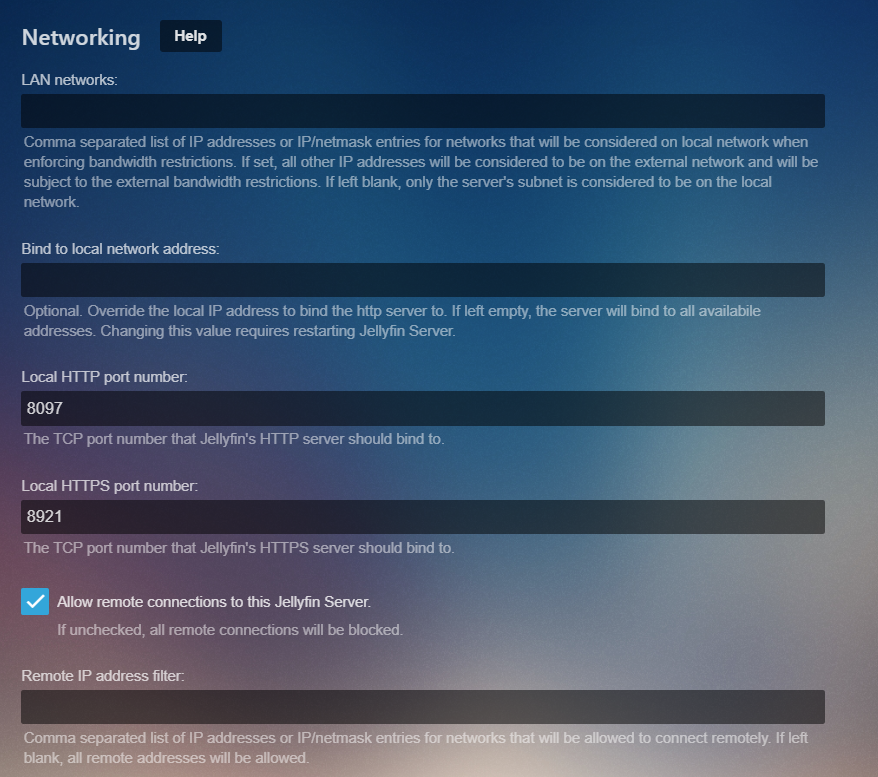
In JF _Advanced > Networking_:
Local HTTP port number: 8096
Local HTTPS port number: 8920
Public HTTP port number: 8096
Public HTTPS port number: 8920
Secure Connection Mode: Disabled
On my NGINX configuration I was simply forwarding 443 to 8096 with my SSL certs configured there.
To reiterate, using this configuration, I could connect both locally and remotely using android/web apps. I could also cast to my local Chromecast. This however as you state would have apparently been over http://x:8096. Again, when testing on a Chromecast device on an external network I was unable to cast. These results were the same when using either self-signed or LE certs.
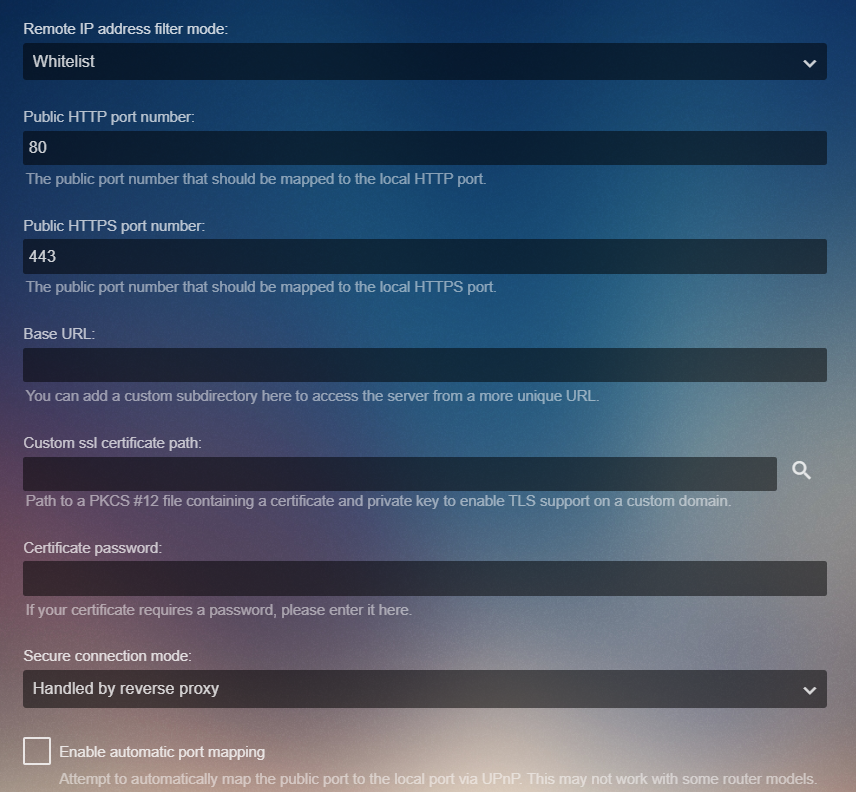
What I have done is changed my JF configuration to this:
In JF _Advanced > Networking_:
Local HTTP port number: 8096
Local HTTPS port number: 8920
Public HTTP port number: 8096
Public HTTPS port number: 443
Secure Connection Mode: Handled by Reverse Proxy
I have made no other changes, nor have I changed my NGINX configuration.
With this setup it appears I am able to now cast to a _remote_ Chromecast devices as well, _if using LE (global signed) certificates_.
Thanks for bringing this to my attention as I probably would eventually have found myself in a situation where I wanted to cast to a remote device and would have realized to late my configuration wouldn't work. I'm unsure if my setup will work for others as it appears to work for me, and I'm not sure what advantages/disadvantages my configuration has from your rewrite code. Clearly mine was simpler to configure, but then again it might not work in all configs and may have some other unintended consequence I haven't yet discovered.
bengalih
on 4 Jan 2020
I encounter this issue too.
I use a registered domain with a Gandi certificate.
I use PIHole with OpenDNS and DNS Forwarder to be able to resolve this domain as my LAN IP.
When I connect to JellyFin using https://domain:8920 with Chrome, I can see that my certificate is valid and provided by Gandi Standard SSL CA 2
Connected to my chromecast, play button has no effect.
Same behaviour using JellyFin with Android, play button does nothing.
EDIT
Ok, smoebody's post did the trick, thanks man, you are my hero, just block 8.8.8.8 with your firewall
 0rsa
on 28 Jan 2020
0rsa
on 28 Jan 2020
I know it's a old issue, but if i can help some one. I have similar case like below.
Cast with my local IP OK
Cast on a other CC (my brother) in a external network with my domain adress OK
Cast from my local network with my domain: Jellyfin logo start but nothing else (no play function)
i have a reverse proxy with letsandscript on docker, like jellyfin
after many test the only thing that work it's to fill your local jellyfin server adress in this blank: "Bind to local network address:" --->192.168.1.50
After this modify i can cast in my local network with chrome et jellyfin app on android
 gaelalso
on 2 May 2020
gaelalso
on 2 May 2020
@gaelalso what's the output of dig <domain name> @8.8.8.8 from within the network that it isn't working in, and using the domain name that wasn't working for you
JonnyHaystack
on 2 May 2020
@gaelalso what's the output of
dig <domain name> @8.8.8.8from within the network that it isn't working in, and using the domain name that wasn't working for you
Can you tell me how to do this test. Sorry I'm a beginner
gaelalso
on 4 May 2020
@gaelalso Just run that command on a Linux machine. The command is in the bind-tools package (on Arch at least) so make sure that's installed.
JonnyHaystack
on 4 May 2020
I'm running the linuxserver docker image in combination with the letsencrypt + nginx and I do have the same issues. Local casts work fine, but if I connect over nginx chromecast just does not start.
 TobiasB91
on 17 May 2020
TobiasB91
on 17 May 2020
For me setting "secure connection mode" in "networking" to "handled by reverse proxy" fixed my casting not working at all.
I use caddy as a reverse proxy.
 lu4p
on 19 May 2020
lu4p
on 19 May 2020
dig
I use traefik2 and docker container for jellyfin.
I have a valid letsencrypt certificate.
Blocking google DNS is still the only option? That is not really a solution :(
 huuub
on 27 May 2020
huuub
on 27 May 2020
Chromecast Ultra / Chromecast protocol works for me and I probably have the funkiest set up in the community, Lol!
DNS external: domain.com / afraid.net / mydomain.co -> 1.2.3.4 (Server)
SSL: Let's Encrypt cert for mydomain.co
Network & Firewall: Linksys Nighthawk r7800 / OpenWRT
DNS internal: dnsmasq (on OpenWRT) / mydomain.co -> 192.168.0.10 (Server)
Server: Core i7-4770k / 16 gig mem, CephFS (36 tb)
App: HAproxy (containerized) -> Jellyfin 10.5.0 (containerized with host networking because dlna). Jellyfin configured with Secure Mode: disabled and BaseUrl: /jellyfin
mazzystr
on 27 May 2020
I too have no issues with Chromecast working without blocking 8.8.8.8.
I host NGINX on my Asus-Merlin router which serves DNS internally and is configured to use Cloudflare's DNS (1.1.1.1, 1.0.0.1) externally.
All internal hosts are pointed to the router for resolution, however I redirect all external domain (mydomain.com) to resolve to the router itself. For example in my dnsmasq I have:
server=/mydomain.local/10.10.10.100
server=/10.10.10.in-addr.arpa/10.10.10.100
address=/mydomain.com/10.10.10.1
This causes all requests to my internal .local domain to be forwarded to my internal AD DNS (10.10.10.100) so domain communications function properly. And all requests to my external domain go straight to the NGINX server on the router (internally). It does however work without this second redirection, but I believe this has better tolerance against internet down issues, as well as allows all requests to be local. If your router has issues with loopback this might also help.
Other relevant info may be that I use a subdomain not folder (i.e. jellyfin.mydomain.com) and LE certs. My external DNS is hosted by Cloudflare, but that is mostly irrelevant - however this works with CF proxy enabled or not.
My JF configuration is pretty standard however - simply running as a service on a Windows server with no additional abstraction of internal networking. Secure mode is "handled by reverse proxy" and does not work properly if configured otherwise.
Note my only Chromecasting happens to a Mini/Nest device (i.e. audio only) but it works fine internally as well as if I am casting to a Mini device located outside my network.
It is well known that google devices are hardcoded to 8.8.8.8 unless they are blocked. However I don't believe blocking it is the only solution for your issues as I believe there are many not blocking this that have functionality. My guess is something strange is configured with your external DNS. There is no reason that what google can resolve for you external DNS should be different than what the authoritative name server...or any other name server should provide. If you are depending on an internal DNS server to provide split-DNS then blocking an external DNS shouldn't be a big deal. After all, if you don't want Google's DNS to provide the info, then why worry about blocking it?
You should be able to selectively restrict your Chromecast devices using firewall rules.
bengalih
on 27 May 2020
As it turns out my issue isn't DNS but rather hardware transcoding ( #1882 ).
TobiasB91
on 28 May 2020
Do I need to have an internal DNS server for that? I still don't understand the issue we are having? Could it be that the link that the link that is used by chromecast is not received by traefik and forwarded?
huuub
on 28 May 2020
I'm still having this problem.
Using the jellyfin/jellyfin docker image, version 10.5.5, installed on Ubuntu server 18
- Playing on Android and Web devices works fine.
- I am using Traefik as a reverse proxy server.
- ALL DNS queries including those to 8.8.8.8 and 8.8.4.4 are re-routed to my local DNS server
- Local DNS server has the Traefik server LOCAL IP added for the jellyfin server domain (as well as many others)
- Traefik server is correctly giving out LE certificates that show as valid in Firefox and Chrome.
- Domain is a subdomain, so jellyfin.mydomain.com
- Uses https over 443 via traefik
- http over port 80 redirects to https over port 443 via traefik
To try to fix this I have tried:
- Public ports set to 80 and 443
- Secure connection mode set to handled by reverse proxy
- even changed local https port to 443
- added correct LAN network range
Each change was made one by one, restarting the JF server every time and closing all apps just to be sure. No changes in behaviour were observed whatsoever.
JF logs show absoluely nothing when clicking play on any title while connected to the cromecast, either from Adroid of Chrome browser.
Chrome browser verbose console logs show the correct URL being requested by the JS. Console logs also show:
chromecastplayer.js?v=10.5.5:380 Message was sent to receiver ok.
The basic JF logo and "Ready to cast" is continuously displayed on the TV with no change either. Also there are no background images shown, only a black background.
 tsdragon
on 31 May 2020
tsdragon
on 31 May 2020
* ALL DNS queries including those to 8.8.8.8 and 8.8.4.4 are re-routed to my local DNS server
* Local DNS server has the Traefik server LOCAL IP added for the jellyfin server domain (as well as many others)
* Traefik server is correctly giving out LE certificates that show as valid in Firefox and Chrome.
* Domain is a subdomain, so jellyfin.mydomain.com
* Uses https over 443 via traefik
* http over port 80 redirects to https over port 443 via traefik
@tsdragon, my setup was basically the same as this, and I had the exact same issue. After doing packet capture, I found that the http redirects weren't being honored. To work around this, I changed the android app server setting to "https://jellyfin.mydomain.com" (where I had originally used "jellyfin.mydomain.com").
 programmer8922
on 14 Jun 2020
programmer8922
on 14 Jun 2020
@programmer8922 I just tried you fix and experience no change.
It seems to work if I allow the chromecast to use the remote IP (cloudflare) instead of local but this is unideal
tsdragon
on 15 Jun 2020
I have solved my problem. It seems to be related to how I had the networking done. For some reason redirecting DNS from anything hard-coded (ie, Chromecasts) directly to my Local DNS was what was causing the issue. Redirecting instead back to my router, then letting the router handle forwarding to the DNS server solved my problem. My issue was not related to the Jellyfin software.
tsdragon
on 16 Jun 2020
Could you explain this a bit more?
For some reason redirecting DNS from anything hard-coded (ie, Chromecasts) directly to my Local DNS was what was causing the issue. -> Not sure what you mean here?
huuub
on 30 Jun 2020
In case anyone is looking for a somewhat elegant fix to chromecast's hardcoded DNS with a openwrt/tomatousb/linux router it's possible to setup mac address specific firewall rules that redirect dns to the local one like this:
iptables -t nat -A PREROUTING -m mac --mac-source <chromecast mac> -p udp --dport 53 -j DNAT --to-destination <dns ip>
iptables -t nat -A PREROUTING -m mac --mac-source <chromecast mac> -p tcp --dport 53 -j DNAT --to-destination <dns ip>
I've personally added it to the firewall script section on my tomatousb router.
 Zagitta
on 7 Jul 2020
Zagitta
on 7 Jul 2020
@Zagitta Why limit it to Chromecast devices? Should any device in your network be able to subvert your authority over what IP addresse(s) a given name resolves to in the perspective of your own network?
Surely in 99.99% of the cases, it will be what any other external resolver would answer, but why not reserve yourself the right to decide that?
RP zones (for ad and tracker blocking for example) are great use-case for this.
DNS queries can also be the canary in the coal mine to machines in your network that have become infected with viruses, or are botnet zombies. Forcing them to using your own DNS can help you track down that kind of shenanigans.
DNS queries are also a potential privacy leak. Why let some DNS resolver operator know all of the websites you use?
Ultimately, IMHO, if I'm responsible for the network, then I shall be who answers name queries for you, not anyone else.
brianjmurrell
on 7 Jul 2020
Ultimately, IMHO, if I'm responsible for the network, then I shall be who answers name queries for you, not anyone else.
Which is why no device should be allowed outbound 53 at all with the exception of your DNS server.
That is really "best practice" and I believe if configured that way this wouldn't be an issue. Since in that scenario the Chromecast devices wouldn't be able to communicate with their preferred Google servers, they should fall back to what you have assigned as your internal DNS server.
bengalih
on 7 Jul 2020
Which is why no device should be allowed outbound 53 _at all_ with the exception of your DNS server.
Right. Just what I am saying. Sadly, there is DoH and DoT to deal with. :-(
brianjmurrell
on 7 Jul 2020
@brianjmurrell I was simply offering a tip for people like myself that might not be iptable rule wizzards, I don't care how you or anyone else runs their network :-)
Furthermore there are lots of scenarios where it doesn't make sense to redirect all DNS trafik, for example in my case I run Traefik + letsencrypt with DNS challenge which simply doesn't work with internal dhcpd.
Zagitta
on 7 Jul 2020
Ok, so this doens't solve the problem when you take your chromecast on another home network. What is jellyfin doing different?
huuub
on 9 Jul 2020
This issue has gone 120 days without comment. To avoid abandoned issues, it will be closed in 21 days if there are no new comments.
If you're the original submitter of this issue, please comment confirming if this issue still affects you in the latest release or nightlies, or close the issue if it has been fixed. If you're another user also affected by this bug, please comment confirming so. Either action will remove the stale label.
This bot exists to prevent issues from becoming stale and forgotten. Jellyfin is always moving forward, and bugs are often fixed as side effects of other changes. We therefore ask that bug report authors remain vigilant about their issues to ensure they are closed if fixed, or re-confirmed - perhaps with fresh logs or reproduction examples - regularly. If you have any questions you can reach us on Matrix or Social Media.
![stale[bot] picture](https://avatars3.githubusercontent.com/in/1724?v=4&s=40) stale[bot]
on 7 Nov 2020
stale[bot]
on 7 Nov 2020
Well it is not solved...
huuub
on 7 Nov 2020
Correct. This and issue #3712 are duplicates. See the other issue for a workaround using Apache or nginx filtering/substitution of the JSON data returned from the /system/info/public API endpoint. FYI - Emby fixed this by changing their Chromecast code to no longer use the /system/info/public API endpoint during Chromecast setup so Emby does not have this problem anymore.
mooninite
on 9 Nov 2020
This is a call for testing for anyone that is available: jellyfin/jellyfin-web#2085
 YouKnowBlom
on 20 Nov 2020
YouKnowBlom
on 20 Nov 2020
Related issues
 gerroon
·
3Comments
gerroon
·
3Comments
gerroon
·
3Comments
gerroon
·
3Comments
 PoepiePeppie
·
3Comments
PoepiePeppie
·
3Comments
 PlayxPE
·
3Comments
PlayxPE
·
3Comments
 mcarlton00
·
3Comments
mcarlton00
·
3Comments
Most helpful comment
Maybe I should have mentioned that i am also using an internal dns-server which resolves public domain-names first internally if they are available in my local network.
The problem was that the chromecast-device will not use the dns given by the dhcp-server when 8.8.8.8 is reachable. Therefore the internal ip-address was not resolved and chromecast could not reach jellyfin.
as soon as i blocked 8.8.8.8 for the chromecast streaming works like a charm.