Jellyfin-android: Unable to connect to the server
I have Jellyfin server running behind reverse proxy on https://673706cc013b.sn.mynetname.net:4444/jellyfin/ with a self-signed certificate. Web UI works fine, but I am unable to connect to the server from the mobile.
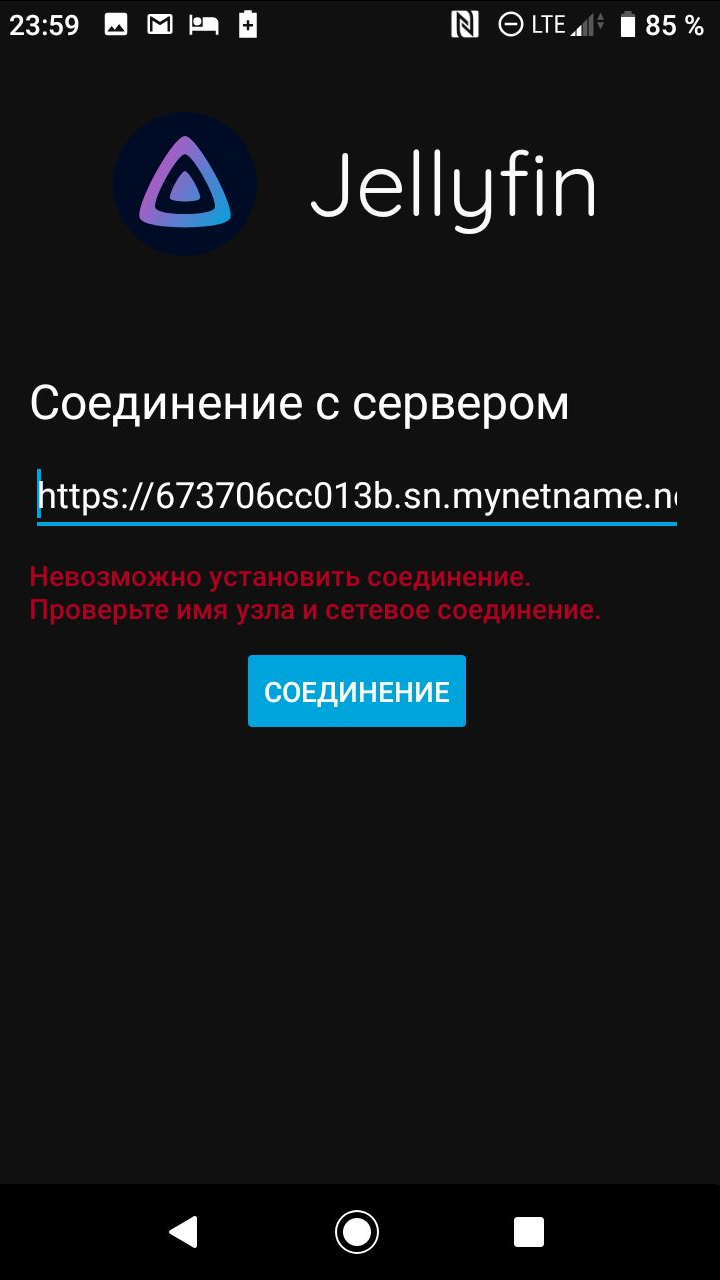
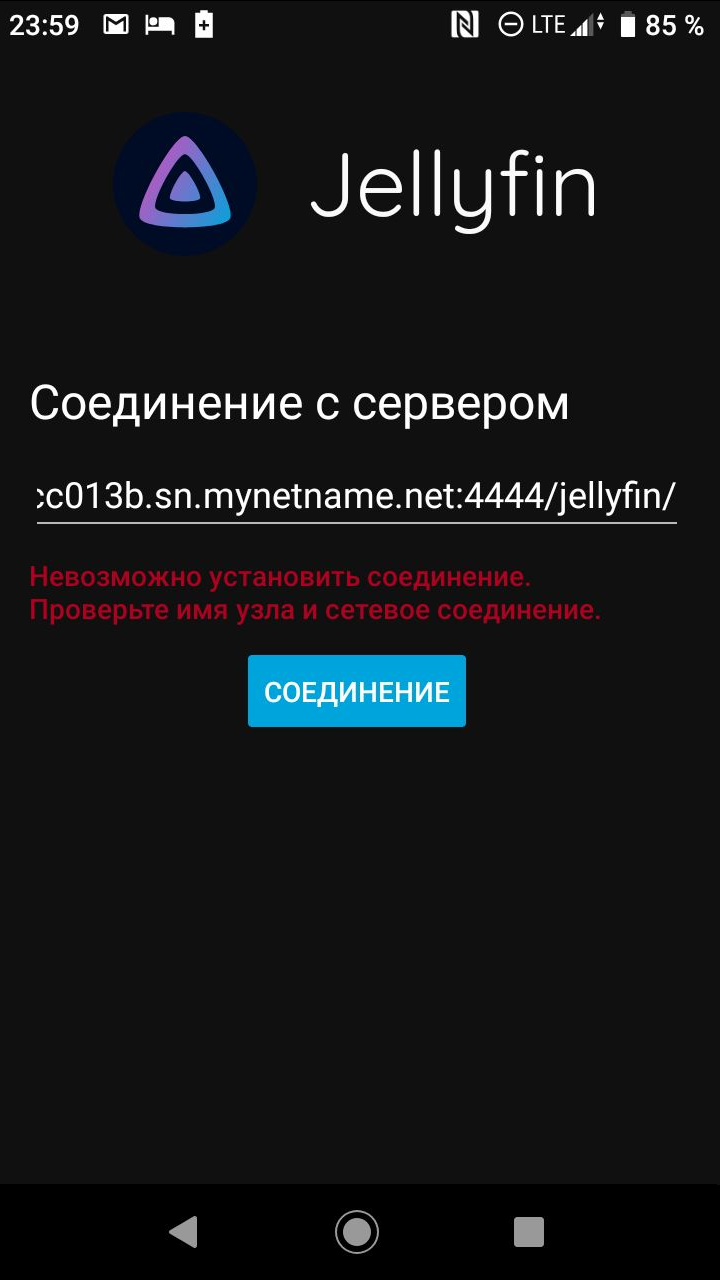
I see no log entries on the server, mobile app simply says "Unable to connect, check URL or internet connection parameters".
I've tried all possible URL combinations with no luck. I am able to connect with the mobile app on http port (from local network). Perhaps something wrong with authentication when certificate is self-signed.
System (please complete the following information):
- App version: 2.0.1
- Android version: Android 9
- Device manufacturer and model: Sony XZ1 Compact
- Jellyfin server version: 10.6.4
 sanyarnd
All 13 comments
Self-signed certs should be supported since 2.0.1, so this might also be related to #172?
Could you add some screenshots and logs?
 Maxr1998
on 11 Oct 2020
Maxr1998
on 11 Oct 2020
Where can I get mobile logs? By the way, the server is open, you can test connection yourself.
Screenshots:
sanyarnd
on 11 Oct 2020
Could you try without the /jellyfin at the end?
Maxr1998
on 11 Oct 2020
Same thing.
But it shouldn't work anyway, because Jellyfin's context path is set to /jellyfin on the server.
sanyarnd
on 11 Oct 2020
Where can I get mobile logs?
See https://wiki.lineageos.org/logcat
By the way, the server is open, you can test connection yourself.
Can you also share your self-signed certificate for Android?
This maybe has something to do with how the api client handle internally the address with context path /jellyfin
https://673706cc013b.sn.mynetname.net:4444/jellyfin/System/Info/Public?format=json -- 200 OK
https://673706cc013b.sn.mynetname.net:4444/jellyfin//System/Info/Public?format=json -- 200 OK
https://673706cc013b.sn.mynetname.net:4444//jellyfin/System/Info/Public?format=json -- 404 Not Found
 CarlosOlivo
on 12 Oct 2020
CarlosOlivo
on 12 Oct 2020
Can you also share your self-signed certificate for Android?
@CarlosOlivo What do you mean? There is a .crt file available on https endpoint, so I don't think I get it.
sanyarnd
on 12 Oct 2020
Your self-signed certificate is invalid, is missing the subjectAlternativeName extension
@CarlosOlivo What do you mean? There is a
.crtfile available on https endpoint, so I don't think I get it.
Also, you need to install your certificate locally to be allowed in Android, do you do that?
From How to create and import Self Signed Certificate to Android Device
- Put the CA.der.crt onto the SD Card of your Android device (usually to internal one). It should be in the root directory.
- Go to Settings / Security / Credential storage and select “Install from device storage”.
- The .crt file will be detected and you will be prompted to enter a certificate name.
- After importing the certificate, you will find it in Settings / Security / Credential storage / Trusted credentials / User.
CarlosOlivo
on 12 Oct 2020
@CarlosOlivo I've regenerated my SSL certificate, installed it on Android, but still no luck.
Certificate parameters:
# openssl req -x509 -days 3650 -nodes -config cert-config.txt -keyout certs/traefik.key -out certs/traefik.crt
[req]
default_bits = 4096
encrypt_key = no
default_md = sha256
prompt = no
utf8 = yes
distinguished_name = req_traefik
req_extensions = v3_req
[req_traefik]
C = RU
ST = RU
L = Moscow
O = Home
CN = 673706cc013b.sn.mynetname.net
[v3_req]
keyUsage = critical, digitalSignature, keyEncipherment
extendedKeyUsage = clientAuth, serverAuth
subjectAltName = @alt_names
[alt_names]
DNS.1 = 673706cc013b.sn.mynetname.net
@CarlosOlivo I've regenerated my SSL certificate, installed it on Android, but still no luck.
Now you forgot to add basicConstraints=CA:true
See https://www.openssl.org/docs/man1.0.2/man5/x509v3_config.html#Basic-Constraints
CarlosOlivo
on 13 Oct 2020
Regenerated with
[v3_req]
basicConstraints=CA:true
Still no changes
sanyarnd
on 13 Oct 2020
Your new certificate is missing all the X509v3 Extensions
Old certificate - Missing subjectAltName extension but valid
Certificate:
Data:
Version: 3 (0x2)
Serial Number:
[REDACTED]
Signature Algorithm: sha256WithRSAEncryption
Issuer: C = RU, ST = Some-State, L = [REDACTED], O = [REDACTED], CN = 673706cc013b.sn.mynetname.net, emailAddress = [REDACTED]
Validity
Not Before: Jul 12 11:32:21 2020 GMT
Not After : Jul 10 11:32:21 2030 GMT
Subject: C = RU, ST = Some-State, L = [REDACTED], O = [REDACTED], CN = 673706cc013b.sn.mynetname.net, emailAddress = [REDACTED]
Subject Public Key Info:
Public Key Algorithm: rsaEncryption
RSA Public-Key: (4096 bit)
Modulus:
[REDACTED]
Exponent: [REDACTED]
X509v3 extensions:
X509v3 Subject Key Identifier:
[REDACTED]
X509v3 Authority Key Identifier:
keyid:[REDACTED]
X509v3 Basic Constraints: critical
CA:TRUE
Signature Algorithm: sha256WithRSAEncryption
[REDACTED]
New certificate - Missing all X509v3 extensions
Certificate:
Data:
Version: 1 (0x0)
Serial Number:
[REDACTED]
Signature Algorithm: sha256WithRSAEncryption
Issuer: C = RU, ST = RU, L = Moscow, O = Home, CN = 673706cc013b.sn.mynetname.net
Validity
Not Before: Oct 13 11:56:42 2020 GMT
Not After : Oct 11 11:56:42 2030 GMT
Subject: C = RU, ST = RU, L = Moscow, O = Home, CN = 673706cc013b.sn.mynetname.net
Subject Public Key Info:
Public Key Algorithm: rsaEncryption
RSA Public-Key: (4096 bit)
Modulus:
[REDACTED]
Exponent: [REDACTED]
Signature Algorithm: sha256WithRSAEncryption
[REDACTED]
You need to run
openssl req -x509 -days 3650 -nodes -extensions v3_req -config cert-config.txt -keyout certs/traefik.key -out certs/traefik.crt
You can check your certificate with openssl x509 -in traefik.crt -text -noout
CarlosOlivo
on 13 Oct 2020
@CarlosOlivo sorry for making you go through all of this, now it's finally working.
I'll leave the full configuration for (possible) future reference:
# openssl req -x509 -days 3650 -nodes -extensions v3_req -config cert-config.txt -keyout certs/traefik.key -out certs/traefik.crt

[req]
default_bits        = 4096
encrypt_key         = no
default_md          = sha256
prompt              = no
utf8                = yes
distinguished_name  = req_traefik
req_extensions      = v3_req
[req_traefik]
C  = RU
ST = RU
L  = Moscow
O  = Home
CN = 673706cc013b.sn.mynetname.net
[v3_req]
basicConstraints     = CA:true
keyUsage             = critical, digitalSignature, keyEncipherment
extendedKeyUsage     = clientAuth, serverAuth
subjectAltName       = @alt_names
[alt_names]
DNS.1 = 673706cc013b.sn.mynetname.net
Closing the issue since the issue is solved.
 nielsvanvelzen
on 13 Oct 2020
nielsvanvelzen
on 13 Oct 2020
Related issues
 Aerion
·
3Comments
Aerion
·
3Comments
 Norde
·
6Comments
Norde
·
6Comments
 willymilkytron
·
4Comments
willymilkytron
·
4Comments
 grravity
·
6Comments
grravity
·
6Comments
 tuxrinku
·
5Comments
tuxrinku
·
5Comments
Most helpful comment
@CarlosOlivo sorry for making you go through all of this, now it's finally working.
I'll leave the full configuration for (possible) future reference: