Imagesharp: PNG from an image cropped with negative x/y rectangle doesn't have the transparent background on the left/top
Description
I have an image processing service written in C# and .Net Core that takes the source image byte array, crop it to the desire dimension and resize to the final width and height (with a fixed ratio 3:2). Source image could be any of those image types: jpg, jpeg, png, etc.
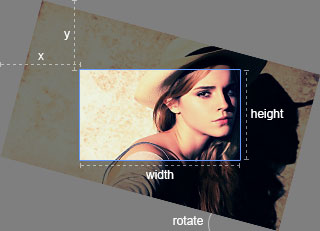
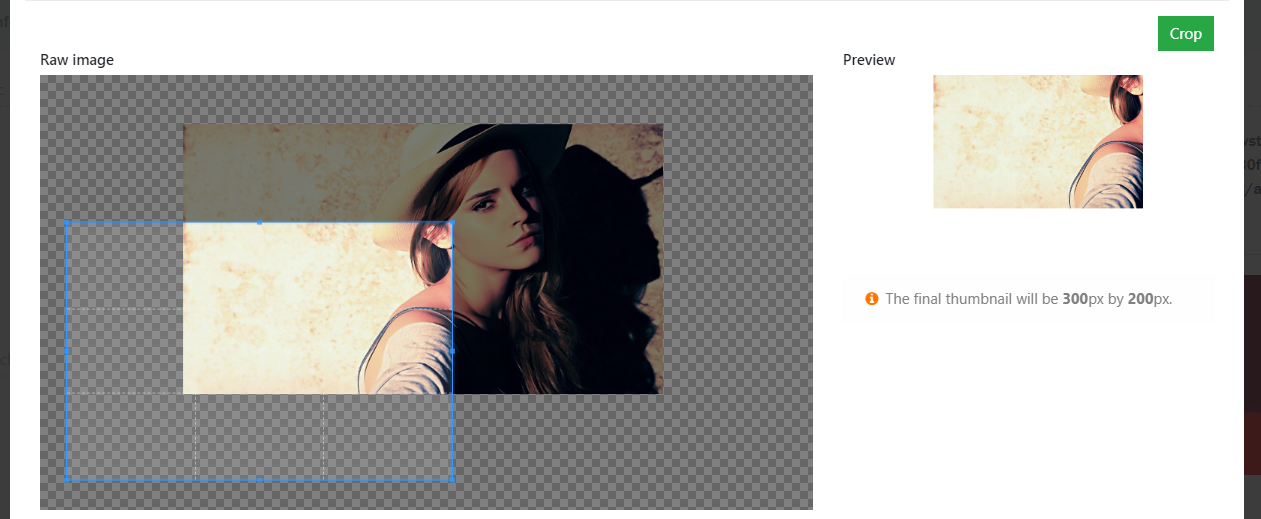
I also have an UI that allows the logged in user to upload a source image, crops the source image and then saves it. All uploaded images and final resized images are saved to Azure Blob storage. The cropping UI uses a jQuery library called jquery-cropper. Its coordinate system is that the origin(0,0) is the top left corner of the container, positive x to its right, positive y to its bottom:
When the customer just needs to crop a portion of the source image, which means the offsetX and offsetY are positive, the following code worked perfectly:
```c#
using SixLabors.ImageSharp;
using SixLabors.ImageSharp.Formats;
using SixLabors.ImageSharp.Processing;
using SixLabors.ImageSharp.Processing.Transforms;
using SixLabors.Primitives;
using System.IO;
namespace DL.WBS.Services.ImageProcessing.ImageSharp
{
public class ImageSharpImageProcessingService : IImageProcessingService
{
public byte[] CropAndResize(byte[] imageBytes, int offsetX, int offsetY,
int widthToCrop, int heightToCrop, int finalWidth, int finalHeight)
{
IImageFormat format;
using (var image = Image.Load(imageBytes, out format))
{
image.Mutate(x => x
.Crop(new Rectangle(offsetX, offsetY, widthToCrop, heightToCrop))
.Resize(finalWidth, finalHeight));
            using (var ms = new MemoryStream())
            {
                image.Save(ms, format);

                return ms.ToArray();
            }
        }
    }
}
}
Trouble comes when the customer sometimes really wants to capture the entire source image. The source image often comes in a large size, but our final dimension for resized images is in small size with the fixed ratio 3:2. In order to achieve that, the UI allows zooming on the source image, like this:
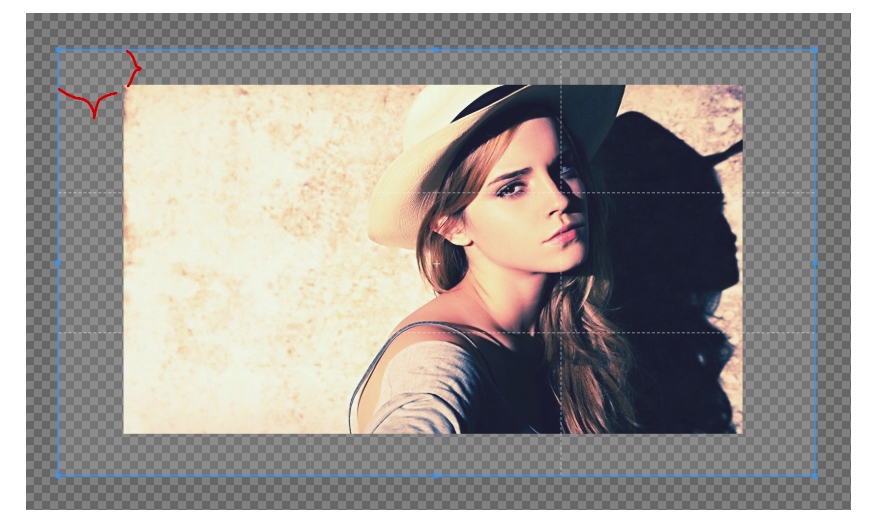
This is when the `offsetX` and `offsetY` comes in as negative values. Also we want the gaps between the cropped container and the source image to be transparent. That's why the code has to be changed like this:
```c#
using SixLabors.ImageSharp;
using SixLabors.ImageSharp.Formats;
using SixLabors.ImageSharp.Processing;
using SixLabors.ImageSharp.Processing.Transforms;
using SixLabors.Primitives;
using System.IO;
namespace DL.WBS.Services.ImageProcessing.ImageSharp
{
public class ImageSharpImageProcessingService : IImageProcessingService
{
public byte[] CropAndResize(byte[] imageBytes, int offsetX, int offsetY,
int widthToCrop, int heightToCrop, int finalWidth, int finalHeight)
{
// No need to get format as the final image has to be PNG to support
// transparent background
// IImageFormat format;
using (var image = Image.Load(imageBytes))
{
image.Mutate(x => x
// offsetX and offsetY come in as negative in this case
.Crop(new Rectangle(offsetX, offsetY, widthToCrop, heightToCrop))
.Resize(finalWidth, finalHeight));
using (var ms = new MemoryStream())
{
// Need to save as PNG to support transparent background
image.SaveAsPng(ms);
return ms.ToArray();
}
}
}
}
}
The code works but the final image with transparent background always shifts to the top left, as if the transparent background on the left and top are ignored:
Cropping UI
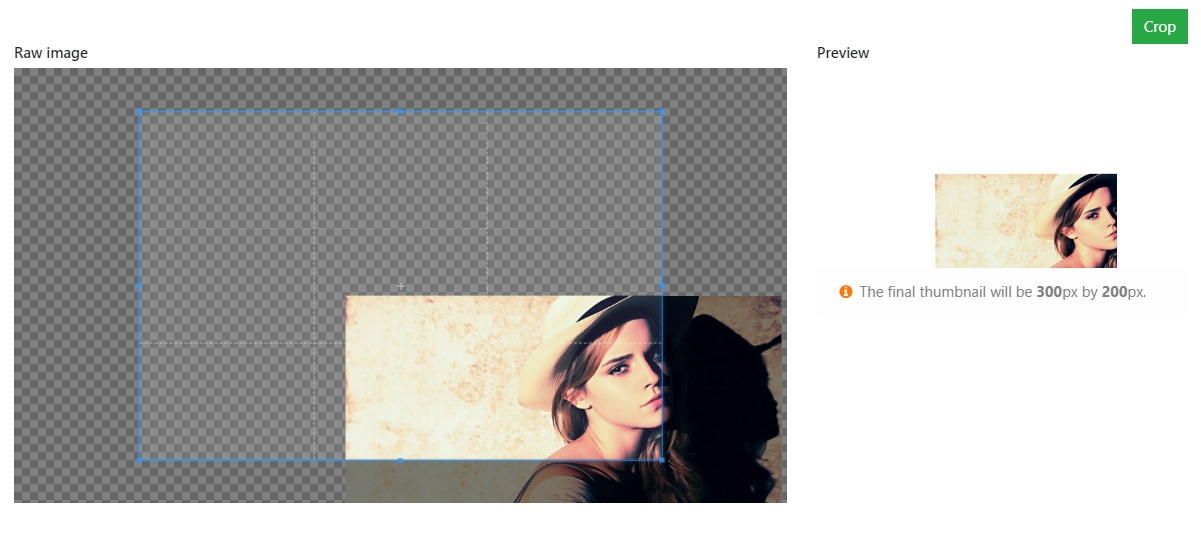
After resized
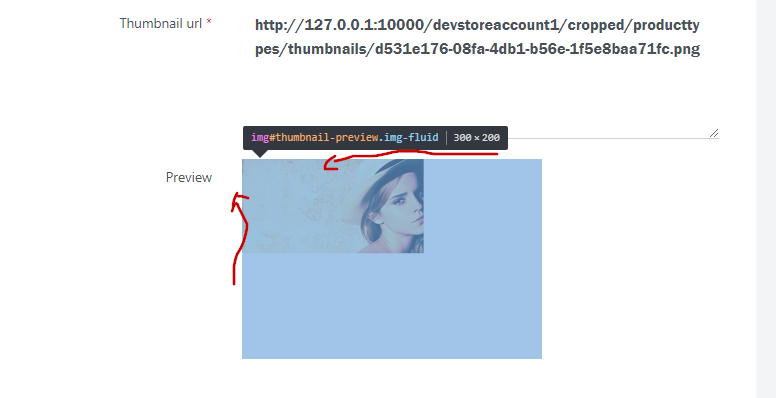
You can see the cropping worked as expected, but the transparent background on the left and top are missing!
Steps to Reproduce
- Source image I used:

- You can use the demo of
jquery-cropperlibrary to see the values ofx,y,widthandheight: https://fengyuanchen.github.io/jquery-cropper/:
x->offsetXy->offsetYwidth->widthToCropheight->heightToCrop
System Configuration
- ImageSharp version: v1.0.0-dev001425
- Other ImageSharp packages and versions: SixLabors.ImageSharp.Drawing (v1.0.0-dev001425)
- Environment (Operating system, version and so on): Windows 10 Pro, v1803, OS build 17134.48
- .NET Framework version: .Net Core 2.0
- Additional information:
- jquery v3.3.1
- cropperjs v1.4.0
- jquery-cropper v1.0.0
- Microsoft.AspNetCore.All v2.1.0
- WindowsAzure.Storage v9.2.0
- Visual Studio Community 2017 v15.7.3
 davidliang2008
All 15 comments
HI @davidliang2008
Thanks for filling out such a complete issue. It's really great to see! 👍
It looks to me like the crop method is working as expected, a negative crop is technically is not a crop, it's a pad.
It looks to me, in your second example, like you need to use the Resize method passing the ResizeOptions. With that you can choose ResizeMode.BoxPad combined with the appropriate AnchorPosition to preserve the crop but pad out the image to the expected size.
Does that make sense?
Cheers
James
 JimBobSquarePants
on 6 Jun 2018
JimBobSquarePants
on 6 Jun 2018
Thanks for your quick reply @JimBobSquarePants ! Yes I had noticed I can pass in ResizeOptions and I've been reading those docs all day yesterday trying to figure out what those options do and what the defaults are but I think the docs are still unclear about that.
For example, if I just call .Resize(finalWidth, finalHeight), does it create ResizeOptions internally? If yes, I wonder what the defaults are.
Back to your suggestion, I have tried to set the mode to BoxPad and set all the positions on anchor position. The resized image is still shifting to the top left.
c#
    .Resize(new ResizeOptions
    {
        Mode = ResizeMode.BoxPad,
        Position = AnchorPositionMode.Center,
        Size = new Size(finalWidth, finalHeight)
    }));
By the way, I see CenterCoordinates property from ResizeOptions. What does it do? It doesn't say in the doc.
Thanks again,
David Liang
davidliang2008
on 6 Jun 2018
I'm planning on writing a full tutorial on resizing images to accompany the API documentation to make it all very clear. It's just a matter of getting the time together though. 🙁
Would it be possible for you to provide the actual parameter values you are passing to the methods so I can recreate locally? Expected result images would be really useful also. I should be able to piece you together a solution then and tweak the code if need be.
Those centre coordinates are used when using ResizeMode.Crop to shift the center point when cropping pixels that fall outwith the aspect ratio. All the default values can be found by looking at the source code for now.
JimBobSquarePants
on 7 Jun 2018
The source code link is very helpful to see the default values! I deeply appreciate you and your team already for the efforts of making this awesome library! It would be more awesome if there is tutorial too!! Can't wait!
I will give you couple screenshots with all the parameter values tomorrow! Thanks again!!
davidliang2008
on 7 Jun 2018
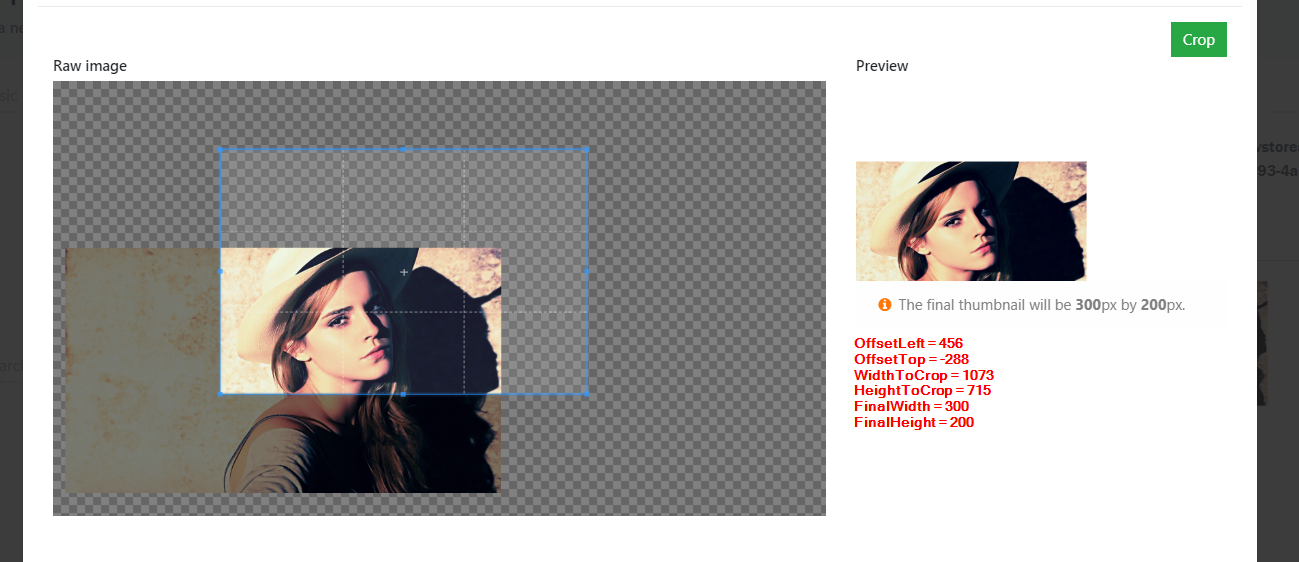
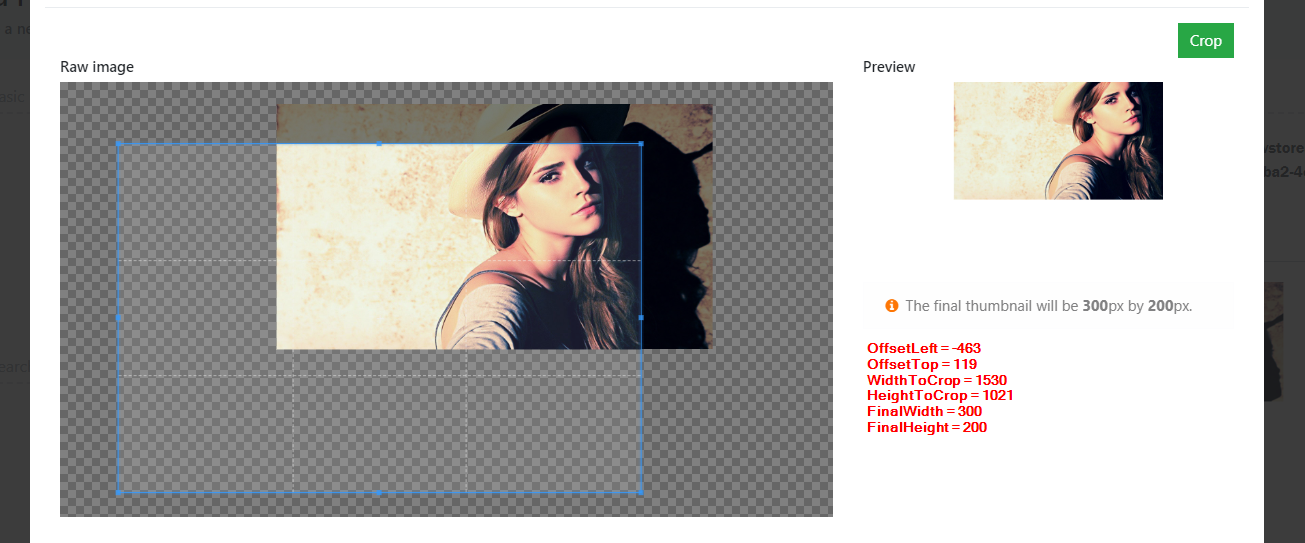
@JimBobSquarePants : The source image for testing is the one in Steps to reproduce section. Its dimension is 1280 x 720. I put the actual parameter values on each screenshot below. Let me know if you want me to type them out as text.
You can kind of see the expected result images on the preview section of each screenshot. Basically I expect if the source image has been zoomed in and the cropped area is bigger than the source image, the empty space will be preserved and transparent at the end (that's why I purposely save uploaded images to .png, even they're .jpg from the beginning).
The current result is, the final png will be always shifted to the top left, even I have spaces on the left and top when I crop it.
Run 1

Run 2
Run 3
davidliang2008
on 8 Jun 2018
Thanks for the extra info, I'm going to run some tests ASAP.
In the interim it might be an idea for you to have a look at the DrawImage API. Looking at your expected output this looks like the most appropriate tool to me.
You should be able to crop your image then place it wherever you like on the canvas.
JimBobSquarePants
on 10 Jun 2018
Thanks @JimBobSquarePants ! Although I feel like it's a hack rather than a fix, I managed to use DrawImage API to get what I want.
Here is the code:
```c#
using SixLabors.ImageSharp;
using SixLabors.ImageSharp.Formats;
using SixLabors.ImageSharp.PixelFormats;
using SixLabors.ImageSharp.Processing;
using SixLabors.ImageSharp.Processing.Drawing;
using SixLabors.ImageSharp.Processing.Transforms;
using SixLabors.Primitives;
using System;
using System.IO;
namespace DL.WBS.Services.ImageProcessing.ImageSharp
{
public class ImageSharpImageProcessingService : IImageProcessingService
{
public byte[] CropAndResize(byte[] imageBytes, int offsetX, int offsetY,
int widthToCrop, int heightToCrop, int finalWidth, int finalHeight)
{
IImageFormat format;
using (var image = Image.Load(imageBytes, out format))
{
image.Mutate(x => x
.Crop(new Rectangle(offsetX, offsetY, widthToCrop, heightToCrop))
);
            // Create an image with white background
            var backgroundImage = new Image<Rgba32>(Configuration.Default,
                croppedWidth, croppedHeight, Rgba32.White);

            // Need to calculate the new Point where we start drawing the cropped
            // image on the image with white background
            int newPositionX = 0,
                newPositionY = 0;

            // This is case 2 in the following example
            if (offsetX < 0 && offsetY < 0)
            {
                newPositionX = Math.Abs(offsetX);
                newPositionY = Math.Abs(offsetY);
            }
           // This is case 1 in the following example
            else if (offsetX > 0 && offsetY > 0)
            {
                newPositionX = 0;
                newPositionY = 0;
            }
            // This is case 4 in the following example
            else if (offsetX < 0 && offsetY > 0)
            {
                newPositionX = Math.Abs(offsetX);
                newPositionY = 0;
            }
            // This is case 3 in the following example
            else
            {
                newPositionX = 0;
                newPositionY = Math.Abs(offsetY);
            }

            backgroundImage.Mutate(bg => bg
                // Need to make the opacity 100%
                .DrawImage(image, 1, new Point(newPositionX, newPositionY))
                .Resize(finalWidth, finalHeight)
            );

            using (var ms = new MemoryStream())
            {
                backgroundImage.Save(ms, format);

                return ms.ToArray();
            }
        }
    }
}
}
```
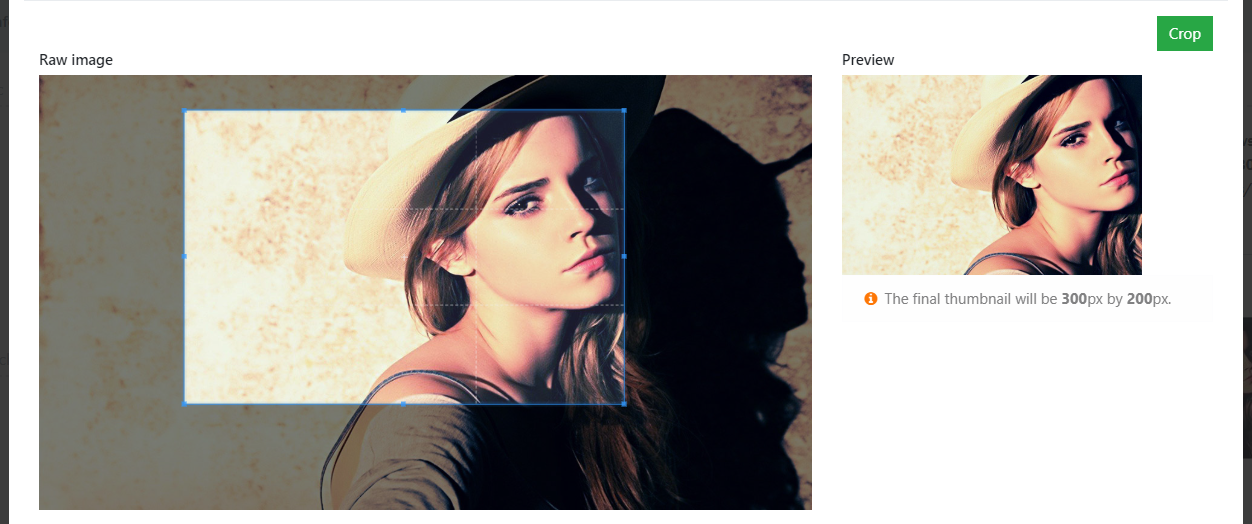
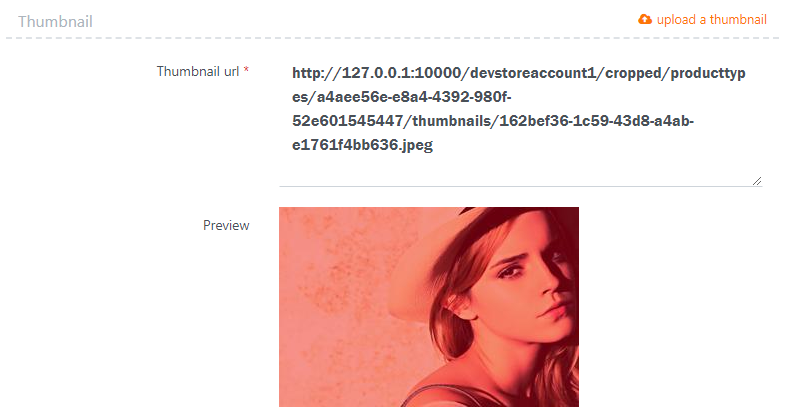
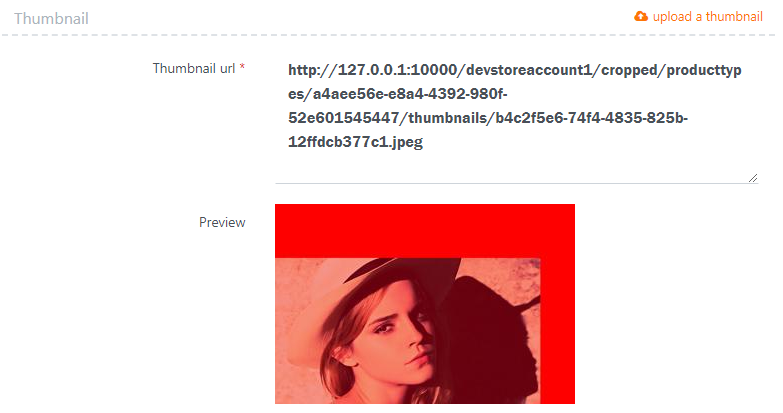
Here are the results for those 4 situations. I purposely set the background color to red with 60% opacity so that you can see it's working!
Case 1: offsetX = 241, offsetY = 59, widthToCrop = 727, heightToCrop = 484
Before:
After:
Case 2: offsetX = -529, offsetY = -135, widthToCrop = 1531, heightToCrop = 1021
Before:
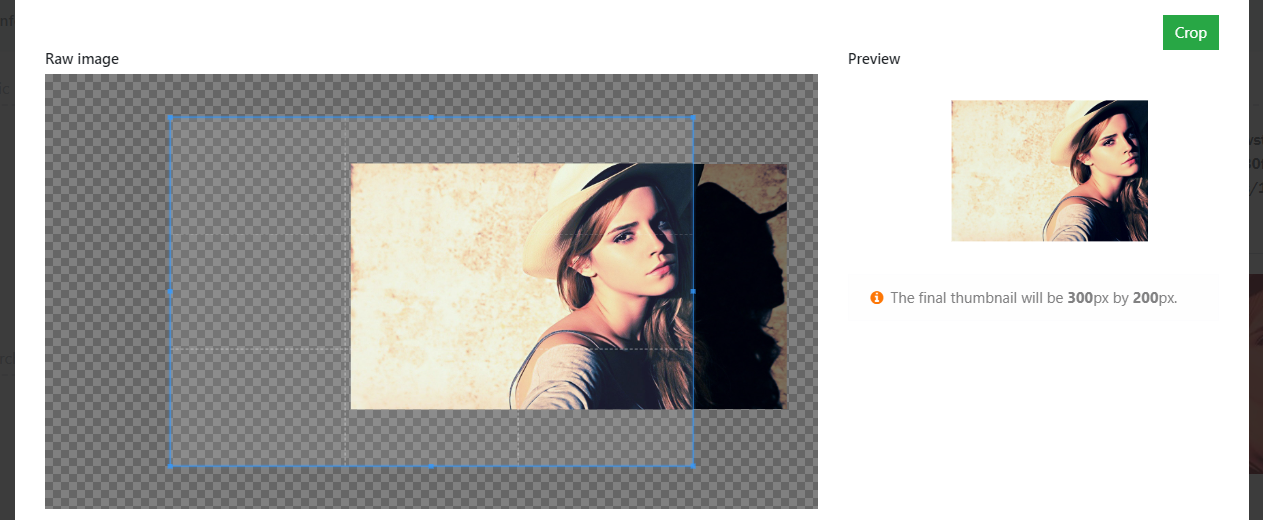
After:
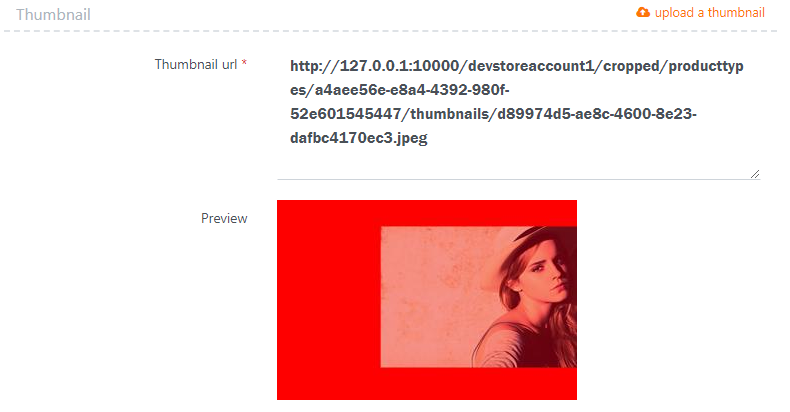
Case 3: offsetX = 468, offsetY = -165, widthToCrop = 918, heightToCrop = 612
Before:
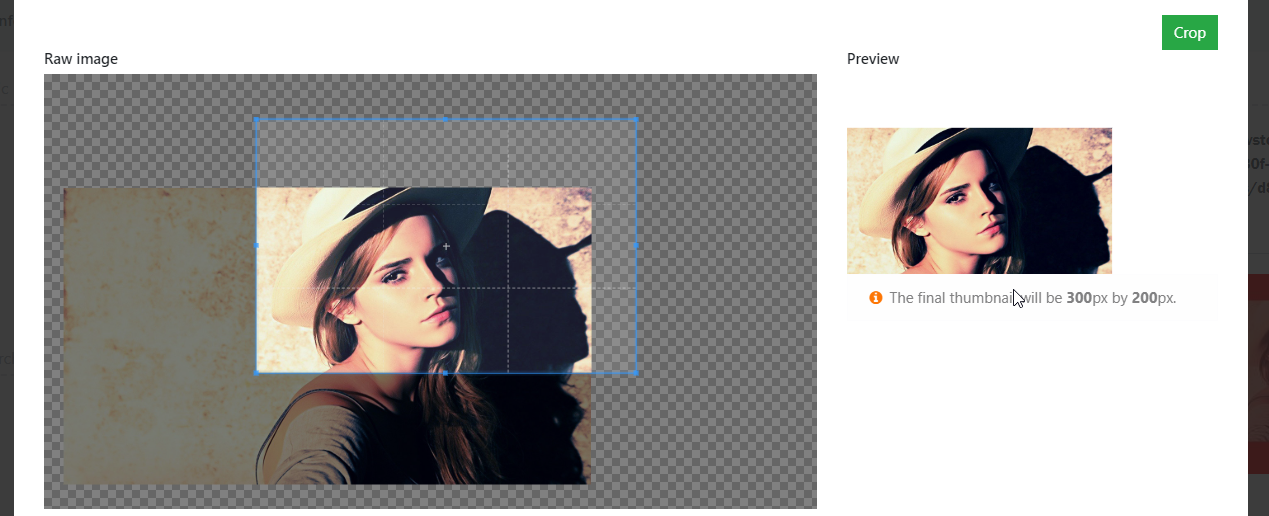
After:
Case 4: offsetX = -310, offsetY = 262, widthToCrop = 1028, heightToCrop = 685
Before:
After:

With DrawImage API, it seems like I can hack around and get what I want. But I would love to see changes in .Resize() call so that the gaps on the left and top are preserved @JimBobSquarePants 👍 .
davidliang2008
on 12 Jun 2018
With DrawImage API, it seems like I can hack around and get what I want. But I would love to see changes in .Resize() call so that the gaps on the left and top are preserved @JimBobSquarePants 👍 .
Then we would be misappropriating Resize(). It's a scaling operation only and always should be.
Same with Crop(). I'll be changing the method to throw an ArgumentOutOfRangeException if the coordinates are negative.
DrawImage() is the correct API to use. You're arbitrarily positioning the cropped image on the location of a canvas. That's exactly what the method is for.
Think about it, all the System.Drawing methods are actually DrawImage under the surface.
Anyway, glad you got it sorted and were able to build what you wanted, it looks really neat! 👍
I'll keep this open while I make my sanitation changes.
JimBobSquarePants
on 12 Jun 2018
@JimBobSquarePants : Thanks!
Actually I should backup myself a little bit and shouldn't say I would love to see changes in .Resize(). Resize() works flawlessly and as expected!
The only change I would love to have maybe an additional argument passed in .Crop(), which indicates whether or not to preserve spaces out of the source image?
Anyway, I am glad I can get what I want. And once again, thanks @JimBobSquarePants and others for making this awesome library :) 💯
davidliang2008
on 12 Jun 2018
The ArgumentOutOfRangeException is thrown on negative coordinates but shouldn't this exception then also be thrown when a positive right/bottom margin would exceed the image-canvas? Let's say my image is 400x300 and I request image.jpg?crop=0,0,1000,2000 I happily receive an image that is 400x300.
And of course thanks for this awesome library. Keep up the good work!
 saefren
on 5 Oct 2018
saefren
on 5 Oct 2018
@saefren
I can’t possibly imagine where you get the idea that this library aims to be an alternative to either of the mentioned libraries. It’s unfathomable, quite an extraordinary leap.
Ask yourself this. How would you do that operation in System.Drawing or in SkiaSharp? Would you expect them to do all the work for you?
ImageSharp is a 2D graphics API that offers low level functionality. It’s used as a basis for algorithms. That means you have to do some work yourself.
Crop is crop is crop. We cut off the parts you don’t want.
You’re right about the dimensions though, we should be throwing in both.
JimBobSquarePants
on 5 Oct 2018
Well no, I would not expect System.Drawing to do this but this library is not on the same 'level'?
Which library are you referring to now? If ImageSharp then yes, it is the equivalent of System.Drawing.
Why are you commenting on a repository about a completely unrelated library?
JimBobSquarePants
on 5 Oct 2018
You are the creator of both libraries and the issue is exactly the same. It seems they use the same code. I suggested to create a new issue on github/ImageProcessor (see e-mail messages) but found out the project is in maintenance mode and no new features will be added.
saefren
on 6 Oct 2018
Theres a native C# method from the Rectangle class that calculates the intersection between two rectangle areas (wich will be helpful to prevent cropping out of bounds) : https://docs.microsoft.com/pt-br/dotnet/api/system.drawing.rectangle.intersect?view=netframework-4.8
 solenark
on 18 Oct 2019
solenark
on 18 Oct 2019
@solenark Thanks yeah, we have our own equivalent.
We're explicitly throwing here by choice rather than silently producing incorrect results.
JimBobSquarePants
on 19 Oct 2019
Related issues
 antonfirsov
·
79Comments
JimBobSquarePants
·
30Comments
antonfirsov
·
79Comments
JimBobSquarePants
·
30Comments
 peter-bozovic
·
47Comments
JimBobSquarePants
·
36Comments
peter-bozovic
·
47Comments
JimBobSquarePants
·
36Comments
 MaddoScientisto
·
28Comments
MaddoScientisto
·
28Comments
Most helpful comment
I'm planning on writing a full tutorial on resizing images to accompany the API documentation to make it all very clear. It's just a matter of getting the time together though. 🙁
Would it be possible for you to provide the actual parameter values you are passing to the methods so I can recreate locally? Expected result images would be really useful also. I should be able to piece you together a solution then and tweak the code if need be.
Those centre coordinates are used when using
ResizeMode.Cropto shift the center point when cropping pixels that fall outwith the aspect ratio. All the default values can be found by looking at the source code for now.