Hydrogen: Hydrogen not able to run code - "The system cannot find the path specified"
Description:
Hydrogen fails to run Python code, although it is able to start a Python kernel giving the message "Hydrogen kernels updated - Python 3". Other compiler packages like Script are able to run the code.
[Description of the issue]
Steps to Reproduce:
What I do:
- [First Step] Open atom through command or application.
- [Second Step] Execute a code.
Versions:
Which OS and which version of Hydrogen and Atom are you running?
OS: Windows 10
Atom : 1.31.0
Electron: 2.0.7
Chrome : 61.0.3163.100
Node : 8.9.3
You can get this information from copy and pasting the output of atom --version from the command line.
Logs:

Please post any error logs and the output of the developer tools as described in our Debugging Guide.
 mariogarcc
All 17 comments
Can you show the code you tried to run?
 kylebarron
on 1 Oct 2018
kylebarron
on 1 Oct 2018
I tried the basic "print("Hello world")" after the code I was working with a couple months ago couldn't run.
mariogarcc
on 1 Oct 2018
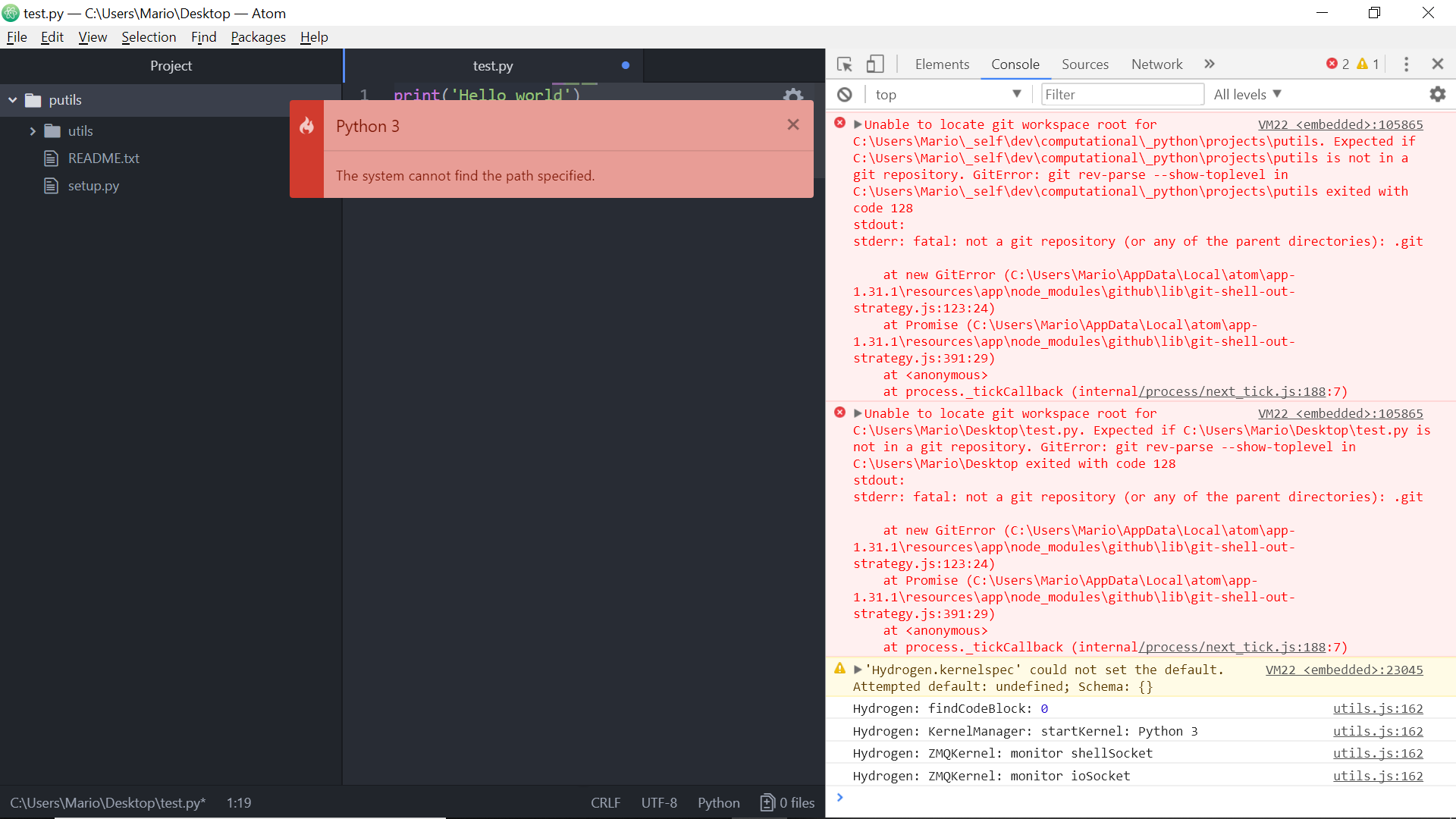
Can you show the code you tried to run?
mariogarcc
on 1 Oct 2018
Have you installed ipykernel?
python -m pip install ipykernel
python -m ipykernel install
Yes, sir. For the first installation method it prompted "requirement already satisfied" for a lot of paths. For the second one it printed Installed kernelspec python3 in C:\ProgramData\jupyter\kernels\python3
, so I tried running the code again but it gave the same errors - in the dev console aswell.
Maybe that python3 kernel should be located in another place? I have no idea.
mariogarcc
on 1 Oct 2018
If you're in the command window, and you type ipython, it should enter the IPython terminal. Does that work for you?
Assuming it does, can you try opening Atom from the command line, by typing atom . into that same command window?
kylebarron
on 1 Oct 2018
If you're in the command window, and you type
ipython, it should enter the IPython terminal. Does that work for you?
It works perfectly, running simple code, too.
Assuming it does, can you try opening Atom from the command line, by typing
atom .into that same command window?
It opened atom succesfully, having C:\Users\myuser as a project folder.
mariogarcc
on 1 Oct 2018
What I meant to ask is if after you open Atom with atom ., then Hydrogen works?
kylebarron
on 1 Oct 2018
Created another test file with the same code and it gives the same error (in the dev console aswell). :(
mariogarcc
on 1 Oct 2018
The error in the dev console isn't from Hydrogen; that's from the Github package, and Hydrogen isn't producing an error there.
kylebarron
on 1 Oct 2018
Well, I don't really know how it works. I posted in the official atom issues page and they told me this was a Hydrogen problem (probably since the script package is able to run the code). They also said the git error was a problem but had nothing to do with my issue. Thank you for your continued help anyway!
mariogarcc
on 1 Oct 2018
Sorry, I didn't mean to say that the pop-up error wasn't Hydrogen's fault. I only meant to say that the dev window didn't show any Hydrogen errors.
I'm not too knowledgeable about Windows-specific problems, so I'll let someone else add their thoughts.
kylebarron
on 1 Oct 2018
Worry not, I didn't mean it like that. I'm quite new to programming and have absolutely no idea about software or hardware so I'm as blind as a mole in these questions. I really appreciate anyone's help!
mariogarcc
on 1 Oct 2018
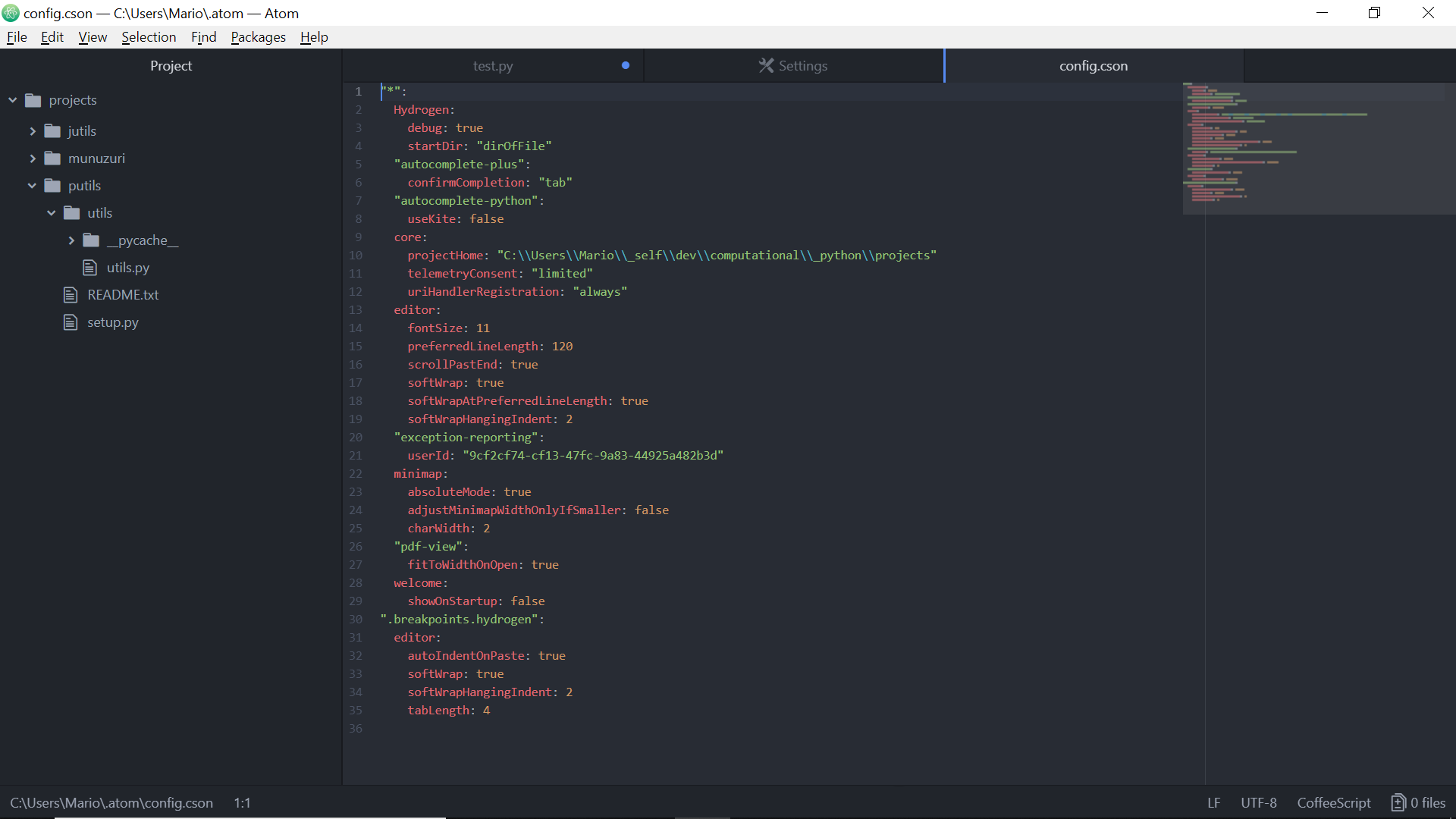
Can you check your config and see if you have any startup code running for that python kernel? The path not found error looks like it's coming from python, but a print statement like your example wouldn't throw this.
 BenRussert
on 2 Oct 2018
BenRussert
on 2 Oct 2018
If you are referring to the "Startup Code" section of settings, it's on the default {}, with the settings above also being on default. If you're referring to config.cson, this is what I have (I haven't changed anything manually on this file, only through the settings view through atom):
mariogarcc
on 2 Oct 2018
Hi @mariogarcc. I had the same problem, but I was able to solve it. As you see in the dev console, the yellow part says the problem is related to a kernel spec. This is a kernel.json file located in _C:\Users\[username]\AppData\Roaming\jupyter\kernels\python3_ that pulls a python.exe in the "argv" argument. I use Anaconda, so when I first install it I didn't use the default path. The problem is that the .json file pulls the python.exe assuming you previously use the default installation directory. My solution was to change the path from _"C:\ProgramData\Anaconda3\python.exe"_ to _"C:\Users\anaconda\Anaconda3\python.exe"_ where I install Anaconda. Now, it works like a charm!

I hope this will help you.
 davidbarraza
on 7 Oct 2018
davidbarraza
on 7 Oct 2018
Hey! The issue was definetely there. I didn't have the default path installed, I actually had the same I'm using now but the "anaconda" folder was written with lowercase letters, with the actual folder starting with an uppercase "A".
So I changed that and now it works fine.
Thank you very much to everybody who helped!

mariogarcc
on 8 Oct 2018
Related issues
 Mike-MU10
·
4Comments
Mike-MU10
·
4Comments
 Mungoid
·
4Comments
Mungoid
·
4Comments
 mda6
·
3Comments
mda6
·
3Comments
 olegantonyan
·
3Comments
olegantonyan
·
3Comments
 homocomputeris
·
4Comments
homocomputeris
·
4Comments
Most helpful comment
Hi @mariogarcc. I had the same problem, but I was able to solve it. As you see in the dev console, the yellow part says the problem is related to a kernel spec. This is a

kernel.jsonfile located in _C:\Users\[username]\AppData\Roaming\jupyter\kernels\python3_ that pulls apython.exein the"argv"argument. I use Anaconda, so when I first install it I didn't use the default path. The problem is that the.jsonfile pulls thepython.exeassuming you previously use the default installation directory. My solution was to change the path from _"C:\ProgramData\Anaconda3\python.exe"_ to _"C:\Users\anaconda\Anaconda3\python.exe"_ where I install Anaconda. Now, it works like a charm!I hope this will help you.