Hangfire: Recurring job executing 12 hours later
I have a job scheduled to execute at night Cron = 55 23 * * * - TimeZoneId = UTC, which translates to 7:55PM problem is that it is being executed 7:55AM.
Interesting to note that on the hangfire dashboard the "Next execution" is calculating it correctly.
I tried scheduling the opposite time, but this time it works as set (in the morning), so I can't figure why the night schedule is executed in the morning.
 eziel
eziel
All 19 comments
0 comments?
eziel
on 28 May 2017
@eziel, that's very strange, so I have some questions. What version of Hangfire are you using, and what storage? Are your clocks synchronized? Or maybe your background processing server was started at 7:55 AM and ran previously skipped job? Could you repeat this behavior with plain NCrontab library? That's one of the simplest CRON expressions.
 odinserj
on 29 May 2017
odinserj
on 29 May 2017
Version 1.6.12.0
Storage: Sql Server Azure.
Windows Server time is EDT
Sql server time is UTC (that's unchangeable due to an Azure limitation).
Yesterday I scheduled a job to run 2AM EDT, it executed 8AM EDT... no clue how this is calculated.
I haven't tried that Ncrontab yet.
eziel
on 29 May 2017
Any chance your application was idle since 2AM till 8AM? Have you configured the "Always On" feature in Azure?
odinserj
on 29 May 2017
Very possible, it makes sense because, in the daytime when there's always action, it runs on schedule with no problem.. how can I make sure it runs at all times? is that on the sqlserver end? [the application runs on a virtual private server (not azure) just the database is on Azure.
eziel
on 29 May 2017
Here is the article: http://docs.hangfire.io/en/latest/deployment-to-production/making-aspnet-app-always-running.html
odinserj
on 29 May 2017
Thank you very much. I'll check it out.
eziel
on 29 May 2017
My application is built using .net core 1.0, does this article still apply?
eziel
on 29 May 2017
No, that's for classic .NET Framework. Basically, there's a separate process when running ASP.NET Core with IIS, and it should be running all the time, unless IIS pauses it somehow. Don't know the details yet. What configuration options can we pass to IIS via web.config when using .NET Core?
odinserj
on 29 May 2017
As a workaround, you can set a monitoring tool (updown.io for example) to
prevent IIS from idling an application. But we should investigate what
exactly happens, and what is the timeout value.
пн, 29 мая 2017 г. в 19:21, eziel notifications@github.com:
My application is built using .net core 1.0, does this article still apply?
—
You are receiving this because you commented.Reply to this email directly, view it on GitHub
https://github.com/HangfireIO/Hangfire/issues/899#issuecomment-304695931,
or mute the thread
https://github.com/notifications/unsubscribe-auth/ABB1vt81yTYoYumpNM7MGCEfHjaOdwEVks5r-vClgaJpZM4NldbR
.>
Kind regards, Sergey Odinokov,
Founder/developer @ http://hangfire.io
Contacts:
Email: [email protected]
Skype: odinserj
odinserj
on 29 May 2017
Great. I signed up for updown.io will see what happens this night.
eziel
on 29 May 2017
Okay, I've digged a bit into the issue. ASP.NET Core support (from IIS side) is implemented as a native module for IIS. This means automatic recycling on regular time intervals (enabled by default) will stop your application, so your background processing will be paused. To remove auto recycle feature, set the corresponding setting to zero:

And looks like all the startup code in ASP.NET Core will run immediately after starting up an application pool. Unlike in traditional ASP.NET, where the whole application will be started only on the first HTTP request, unless we enable auto-start providers as written in the article above.
So theoretically, the only thing you should do in ASP.NET Core + IIS to enable the always running mode, is to disable automatic recycle. However, I haven't tested this and may be wrong. Please confirm if it works fine (don't forget to remove the check from updown.io), I'll update the article.
odinserj
on 30 May 2017
Thanks a lot will try after changing that setting.
BTW this night it ran on schedule after enabling updown.io to keep the site awake.
eziel
on 30 May 2017
Not a problem, at least I know now how the IIS integration for ASP.NET Core is working. So will wait for your feedback regarding that setting!
odinserj
on 30 May 2017
This setting didn't really do the trick... I'm still monitoring it to see maybe it was just one day...
eziel
on 5 Jun 2017
Update: this setting does not help. any other suggestions?
eziel
on 6 Jun 2017
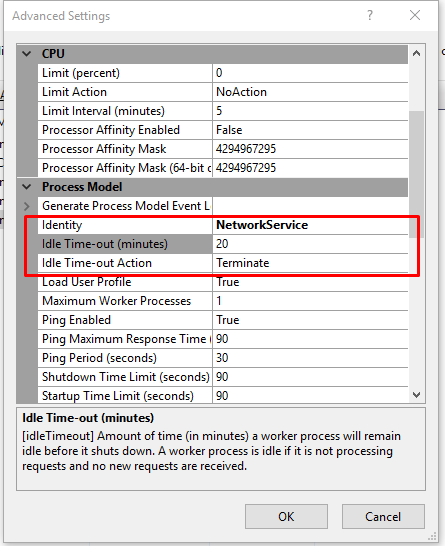
@eziel, there is also Idle Timeout setting, try turning it off:
odinserj
on 13 Jun 2017
I just set it to off. will report if it worked tomorrow.
eziel
on 13 Jun 2017
It did work this morning. Thanks a bunch.
eziel
on 14 Jun 2017
Related issues
 JvanderStad
·
3Comments
JvanderStad
·
3Comments
 thurfir
·
4Comments
thurfir
·
4Comments
 dgaspar
·
4Comments
dgaspar
·
4Comments
 tompazourek
·
3Comments
tompazourek
·
3Comments
 jeffsugden
·
4Comments
jeffsugden
·
4Comments
Most helpful comment
@eziel, there is also Idle Timeout setting, try turning it off: