Gui.cs: Question: ScollViewer ContentSize / Width / Height confusion
Sorry for poor title, I really don't know how to word this. I'm trying to design a 'Scroll Dialog', that I can use when I have a list of items to show the user. An example of this is when I have user select a folder, my program scans folder for usable files, and then displays a dialog showing what was used. In some cases this can be a long list so using normal messagebox.query() just results in huge wall of text and you can't see the buttons. Essentially I want this functionality, but I want it to be able to scroll if it's bigger.
I am having a very difficult time with ScrollView, looking at the documentation and at UICatalog code/examples I'm not really sure about:
- Don't show scroll bars if not necessary (AutoHideScrollBars = true). I am often seeing no scroll bars show up, mainly because I don't really understand how ScrollViewer knows if it has more to scroll
- What is the different between ContentSize, Width, Height of a scroll viewer? What should the delta between W/H and ContentSize be to ensure scrollbars can be shown, if any?
This is probably really poor design (I have no idea what I'm doing here), but using a dialog class like this:
public class ScrollDialog : Dialog
{
    public ScrollDialog(string title, string topMessage, string bottommessage, View scrollableContent, params Button[] buttons) : base(title, buttons)
    {
        Height = 20; //dialog height
        Width = 50; //dialog width

        Add(new Label(topMessage)
        {
            X = 0,
            Y = 0,
            Width = Dim.Fill(),
            Height = 2
        });

        var scrollView = new ScrollView()
        {
           Y = 2,
            ContentSize = new Size(28, 10), //No idea what these actually seem to do
            ShowVerticalScrollIndicator = true,
            ShowHorizontalScrollIndicator = true,
            //AutoHideScrollBars = true,
            Width = 50,
            Height = 12, //how much actually seems to be shown in below picture
        };
        scrollView.Add(scrollableContent);


        Add(scrollView);

        Add(new Label(bottommessage)
        {
            X = 0,
            Y = Pos.Bottom(this) - 5, //This never seems to be reliable, maybe cause object isn't fully initialized yet
            Width = Dim.Fill(),
            Height = 1
        });
    }
}
and using the following call to setup the dialog
            View scrollableContent = new View()
            {
                Width = 40,
                Height = 45,
            };
            for (int i = 0; i < 45; i++)
            {
                scrollableContent.Add(new Label("I AM LINE " + i)
                {
                    X = 0,
                    Y = i,
                    Width = Dim.Fill()
                });
            }

            ScrollDialog sd = new ScrollDialog("Scroll dialog", "This is top message", "This is bottom message", scrollableContent,  new Button("OK")
            {
                Clicked = Application.RequestStop
            });
            Application.Run(sd);
yields a dialog like this:

The dialog scrolls if i hold the down or up arrow, depending on where there current scroll position is. You can also scroll to the right a pretty long ways, even though there's nothing to see there.
I know the scrollbars work, as I have seen it in the UICatalog, where I copied this code from and began playing with. At one point I had working scrollbars, but I wanted to remove horizontal, where I then found AutoHideScrollBars, but now I don't have any and I've been fooling around with scrollviewer, becoming frustrated after about an hour of working on it.
As far as I understand,
Width: Width of the ScrollViewer control
Height: Height of the ScrollViewer control
ContentSize: ... the viewport size of the subcontrol...? Why would this not match the Width/Height (and maybe -1 for scrollbars)? I can't think of scenario where, for example on windows UI design, I would have a scrollviewer that has scrollbars that are not directly attached to the edges of the control, which are then directly next to the content itself.
The documentation says: The subviews that are added to this ScrollView are offset by the ContentOffset property. The view itself is a window into the space represented by the ContentSize. I'm not sure how ContentSize relates to the positioning of the scrollbars. Do I need to make this smaller than the Height/Width of ScrollViewer View itself?
 Mgamerz
All 25 comments
The Widthand Heightare related to the ScrollViewsize on the screen. The ContentSizeis related to the size of the added viewport. In this case you only need to set his value to the size of the viewport. There are some cases where the ContentSizeare dinamically added to the ScrollViewand you need to update it by overriden the Redrawmethod. See the class Fillersample where the GetContentSizemethod is called by the DrawContentevent of the ScrollView to update his ContentSizethat was calculated in the Redrawmethod of the Fillerclass.
scrollView2.DrawContent = (r) => {
    scrollView2.ContentSize = filler.GetContentSize ();
};
 BDisp
on 11 Aug 2020
BDisp
on 11 Aug 2020
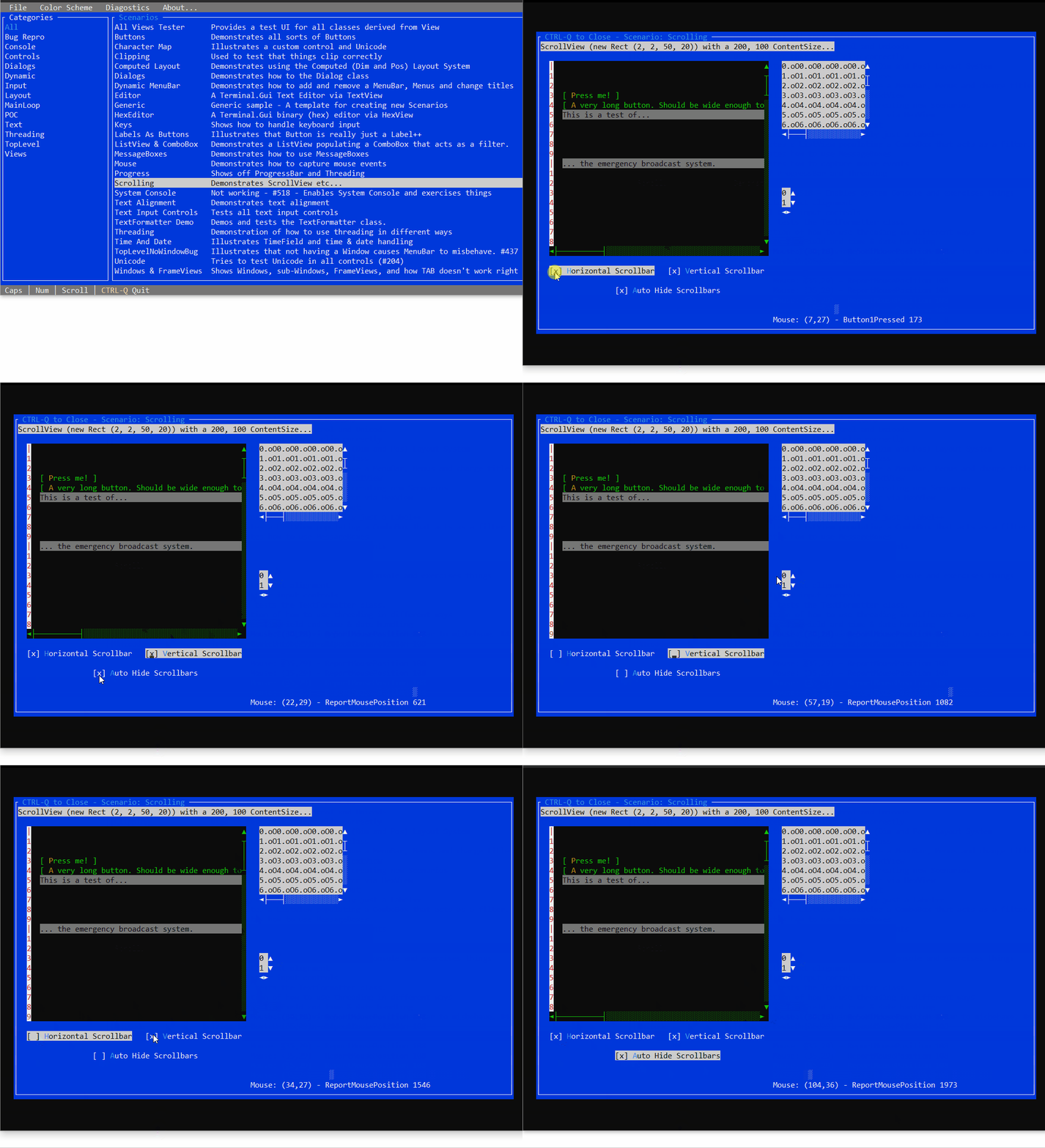
To personalize the horizontal and vertical scroll indicator see this video sample from the UICatalog.
BDisp
on 11 Aug 2020
I guess I'm still not understanding. I am getting strange overscrolling on the scroll bars, for example:
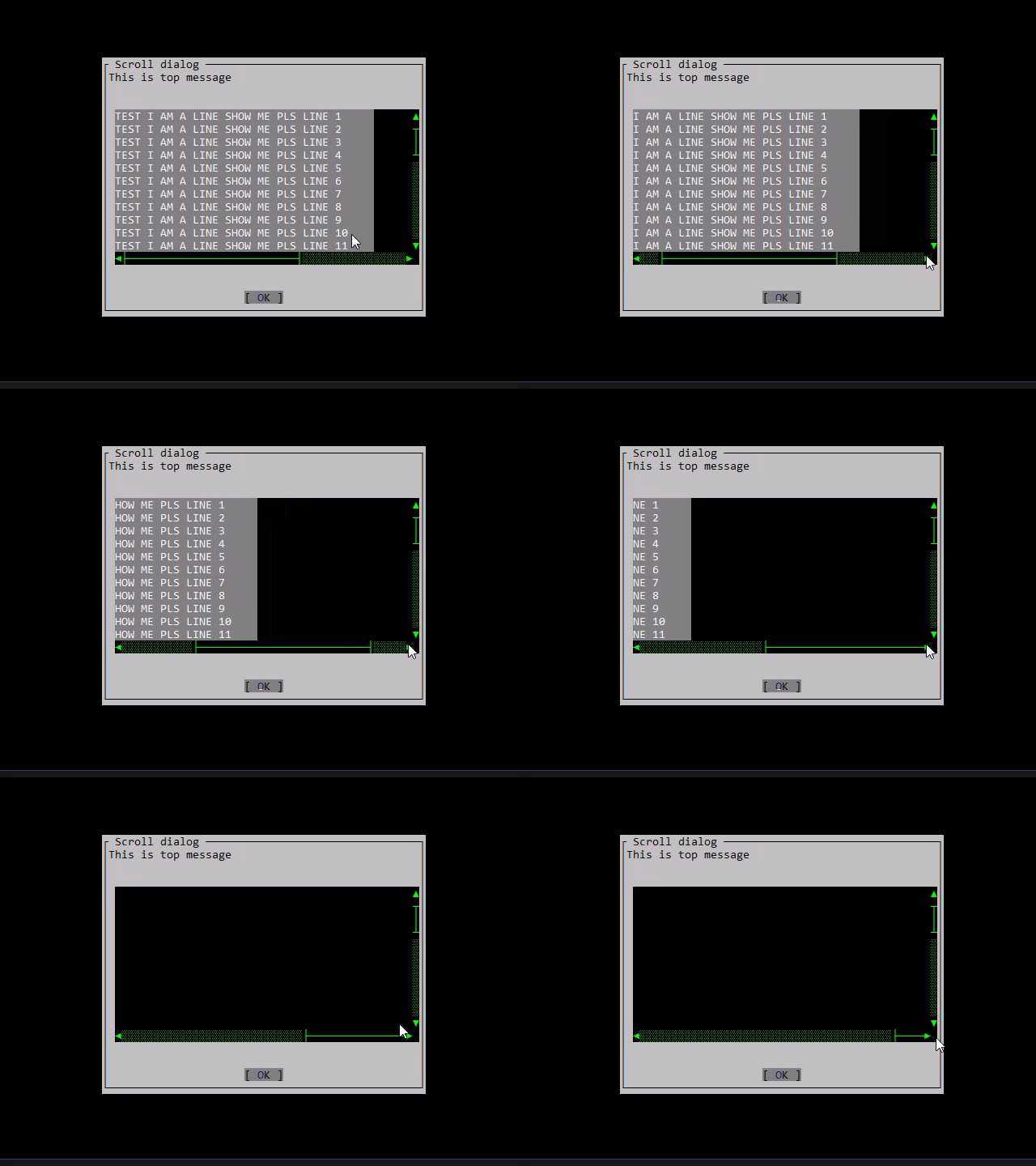
I played with contentsize a bit. Setting the values to 0 makes nothing appear. Making both 1 makes it the size of the scroll viewer, and adding more values seems to determine how much can be scrolled in either direction.
The API documentation for ScrollView seems to be missing some information that is only present in the UICatalog app. This seems to be related to https://github.com/migueldeicaza/gui.cs/issues/758, but documentation does not seem to indicate that changing these values doesn't do anything unless you also turn this property off.
The above gif was done by this:
public class ScrollDialog : Dialog
{
    public ScrollDialog(string title, string topMessage, string bottommessage, View scrollableContent, int cWidth, int cHeight, params Button[] buttons) : base(title, buttons)
    {
        Height = 20;
        Width = 50;

        Add(new Label(topMessage)
        {
            X = 0,
            Y = 0,
            //Width = 15,
            Height = 2
        });

        var scrollView = new ScrollView(new Rect(1, 3, 47, 12))
        {
            Y = 2,
            ContentSize = new Size(cWidth + 35, cHeight),
            //ContentOffset = new Point (0, 0),
            //ShowVerticalScrollIndicator = true,
            //ShowHorizontalScrollIndicator = true,
            AutoHideScrollBars = true,
            ColorScheme = Colors.TopLevel,

        };
        scrollView.Add(scrollableContent);

        Add(scrollView);

        //Add(new Label(bottommessage)
        //{
        //    X = 0,
        //    Y = Pos.Bottom(this) - 5,
        //    Width = Dim.Fill(),
        //    Height = 1
        //});
    }
}
called by
 View scrollableContent = new View()
            {
                Width = 40,
                Height = 45,
            };


            int maxW = 0;
            int maxH = 0;
            for (int i = 0; i < 45; i++)
            {
                var str = "TEST I AM A LINE SHOW ME PLS LINE " + i;
                scrollableContent.Add(new Label(str)
                {
                    X = 0,
                    Y = i,
                    Width = 40,
                    ColorScheme = Colors.Menu
                });
                maxW = Math.Max(maxW, str.Length);
                maxH++;
            }

            ScrollDialog sd = new ScrollDialog("Scroll dialog", "This is top message", "This is bottom message", scrollableContent, maxW, maxH, new Button("OK")
            {
                Clicked = Application.RequestStop
            });
            Application.Run(sd);
I don't really see where I'm doing anything wrong here. I looked at UICatalog's Scrolling.cs and it shows a content width of 200. I tweaked it a bit and it is correctly showing the scrollbars for it, but I can't figure out why when I make mine smaller the scrollbars just kind of do whatever they want.
In the above code, where I do cWidth + 35, I was testing what makes scrollbar show up. If I remove this +35 it still scrolls like 45 items to the right, but there is no horizontal scrollbar (even though I can scroll, but there's nothing there). I'm not sure if this is a bug or something in smaller scrollviewers or something.
Edit: Following up on the cWidth +
Mgamerz
on 11 Aug 2020
You are using the Fillerclass sample for a use case of adding view Labels with Width = 40 and this is what you must pass to the ContentSize. In this case the ContentSizemust be updated to have a Width=40 and a Heigth=total-of-labels-heigth. The Fillerclass is only a Viewthat has a for loop to write runes and the width is the max of runes length. In your case you are using labels with the same width. If that width is bigger than the maxWit will scroll outside.
BDisp
on 11 Aug 2020
Replace with this code and you see that the horizontal scroll won't go outside the last Label width. What you are doing is adding more 35 wide and it only have a black background and you think it scrolling without needed.
            for (int i = 0; i < 45; i++) {
                var str = "TEST I AM A LINE SHOW ME PLS LINE " + i;
                int w = 40;
                if (i == 44) {
                    str += str;
                    w = str.Length;
                }
                scrollableContent.Add (new Label (str) {
                    X = 0,
                    Y = i,
                    Width = w,
                    ColorScheme = Colors.Menu
                });
                maxW = Math.Max (maxW, str.Length);
                maxH++;
            }
I used your code but it still behaves this way. The horizontal scrollbar appears as it should, because the content is wider than the Width of the ScrollViewer. However it stills scrolls way beyond the actual content, in both dimensions, even though the content size matches what the actual content size (scrollablecontent) is.
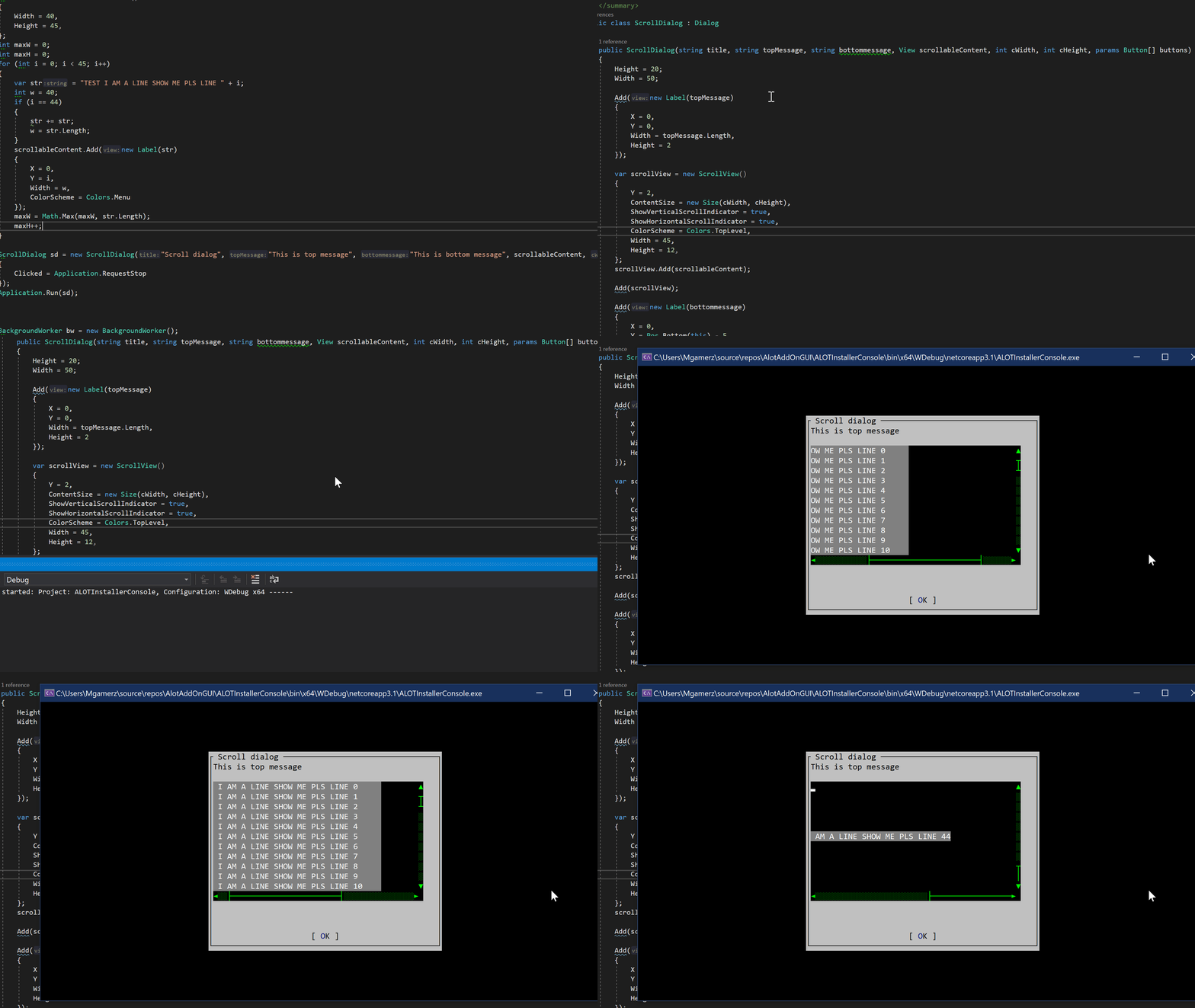
I'm on the latest master branch code. If I set content size to 1 for width, I can scroll 1 point to the right. If I pick 2, I can scroll 2 points to the right - even if the content already fit in the viewport. If the content is 1 unit wide, and 1 unit tall, and my scrollview is say 27x12, it shouldn't need to scroll at all, right?
It seems like ContentSize behaves like how much you can scroll, rather than being used to calculate how much you can - it's like the width of the scrollviewer is not taken into account. Edit: I'm dumb, I only made scrollable content's height 45. So this actually seems to fix the overscrolling issue.
Mgamerz
on 12 Aug 2020
ContentSizecannot be larger than the maximum size of the largest viewport. Otherwise, you will no longer be able to see the viewports. The keyboard navigation, namely the right and down keys, were working poorly so I already submitted a PR #861 to correct it. The maximum size for AutoHideScrollBars to function properly and not have scroll bars is as follows:
            for (int i = 0; i < 12; i++) { // 45
                var str = "TEST I AM A LINE SHOW ME PLS LINE " + i;
                int w = 47;
                //if (i == 44) {
                //  str += str;
                //  w = str.Length;
                //}
                scrollableContent.Add (new Label (str) {
                    X = 0,
                    Y = i,
                    Width = w,
                    ColorScheme = Colors.Menu
                });
                //maxW = Math.Max (maxW, str.Length);
                maxW = Math.Max (maxW, w);
                maxH++;
            }
I checked out the PR locally and tested it, it didn't seem to change the behavior of overscrolling. I looked at the method for scroll that you changed:
public bool ScrollDown (int lines)
        {
            var ny = Math.Max (-contentSize.Height, contentOffset.Y - lines);
            if (-contentSize.Height < ny) {
                ContentOffset = new Point (contentOffset.X, ny);
                return true;
            }
            return false;
        }
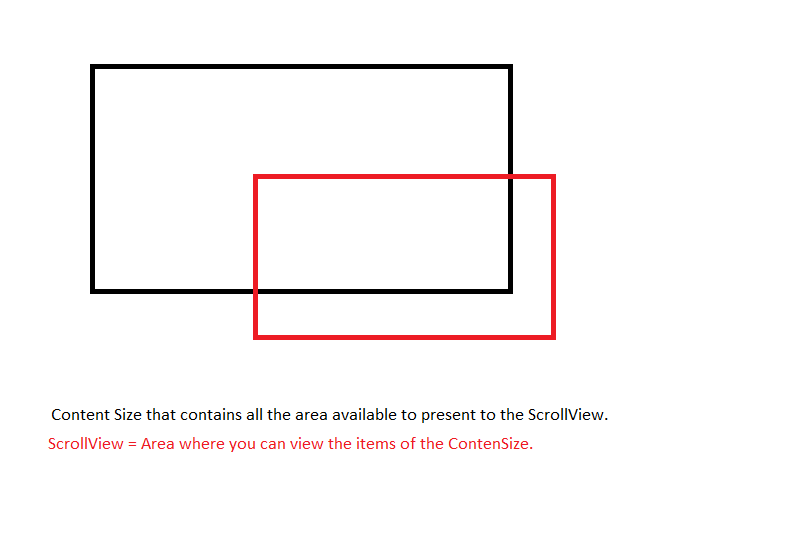
I know I keep mentioning I don't really understand ContentSize, sorry if I'm beating dead horse. It is my current understanding that ScrollView Width and Height determine the 'viewport', which is like a sliding glass pane over a (most times larger) piece another view that is of size ContentSize. When the height of the scrollview > content size height it should not be able scroll down/up (this is ignoring if horizontal scrollbar covers something) since the entire content height could be displayed.
However in this scroll down methtod I don't see it ever checking the height of the scrollviewer. I will write out how method is running it seems:
If I have:
ContentSize Height = 12
ScrollViewer Height = 12 (ignore the horizontal scrollbar in this example)
Scrolling down by 1 line
ContentOffset is 0,0 (since we haven't scrolled anything yet)
var ny = Math.Max(-12, 0 - 1); // -1 will be ny
if (-12 < -1){ //true
   ContentOffset = new Point(0, -1); // We have moved panel down even though the whole thing fits on the screen and shouldn't be scrollable
   return true;
}
return false;
I don't see the size of the 'viewport (sliding glass pane size that I, the human, can see and scroll around the underlying area)' ever being factored into this.
I edited it to this:
        /// <summary>
        /// Scrolls the view down.
        /// </summary>
        /// <returns><c>true</c>, if down was scrolled, <c>false</c> otherwise.</returns>
        /// <param name="lines">Number of lines to scroll.</param>
        public bool ScrollDown (int lines)
        {
            var ny = Math.Max (-contentSize.Height, contentOffset.Y - lines - Bounds.Height);
            if (-contentSize.Height < ny) {
                ContentOffset = new Point (contentOffset.X, contentOffset.Y - lines);
                return true;
            }
            return false;
        }
And it works better (it doesn't overscroll the content size).
I have 50 lines in this example I did locally (so up to 'line 49' should be visible):
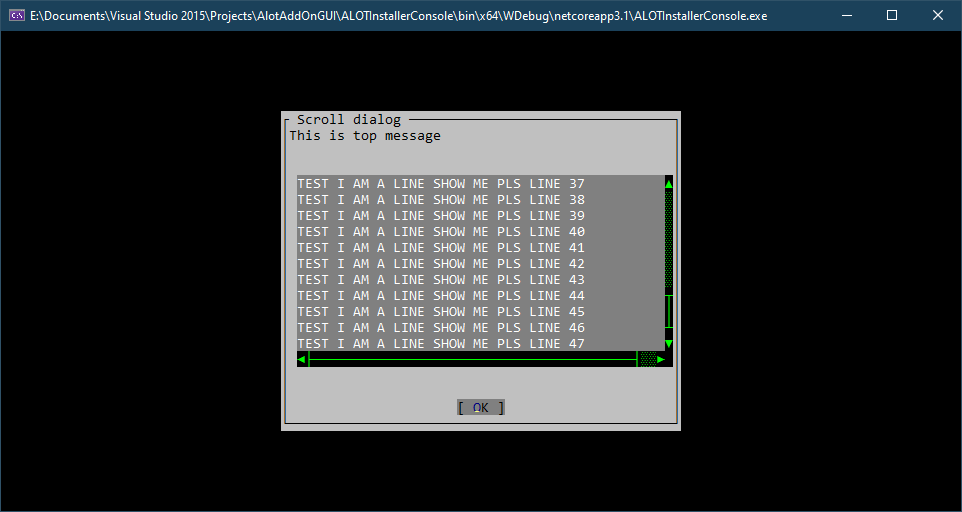
As you can see vertical scrollbar also is mostly proper now. I can't scroll down farther. It seems to be off by 1 + the 1 that is occupied by the horizontal scrollbar being on screen. However the scrollbar's still don't work. I can still overscroll on them. Debugger shows ScrollDown() from ScrollViewer isn't being called so it's doing it somewhere else. I don't see it doing it in ScrolBarView.
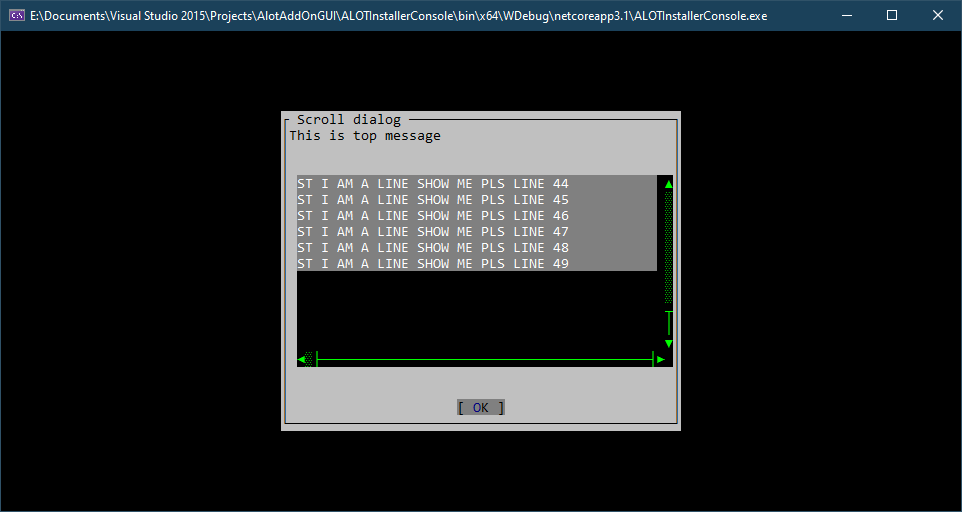
Mgamerz
on 12 Aug 2020
Only to explain what is ContentSize.
BDisp
on 12 Aug 2020
That is how I also interpreted it. It seems the scrollview is able to scroll outside of the content's rectangles, however. In my above code it's partially fixed. In other UI frameworks you can't scroll beyond the size of the internal content of the scrollviewer.
Mgamerz
on 12 Aug 2020
@Mgamerz with my PR the ScrollViewdon't scroll outside of the content's size rect. It maintain at least the right bottom corner visible even with mouse or keyboard. Of course in the first sample I put here the ContentSizewas irregular and the smallers lables scroll outside but not the last one thas was bigger.
BDisp
on 12 Aug 2020
What can be discussed is how far it can scroll vertically and horizontally and I am open to that. But the important thing is that in a regular rectangle it doesn't scroll out.
BDisp
on 12 Aug 2020
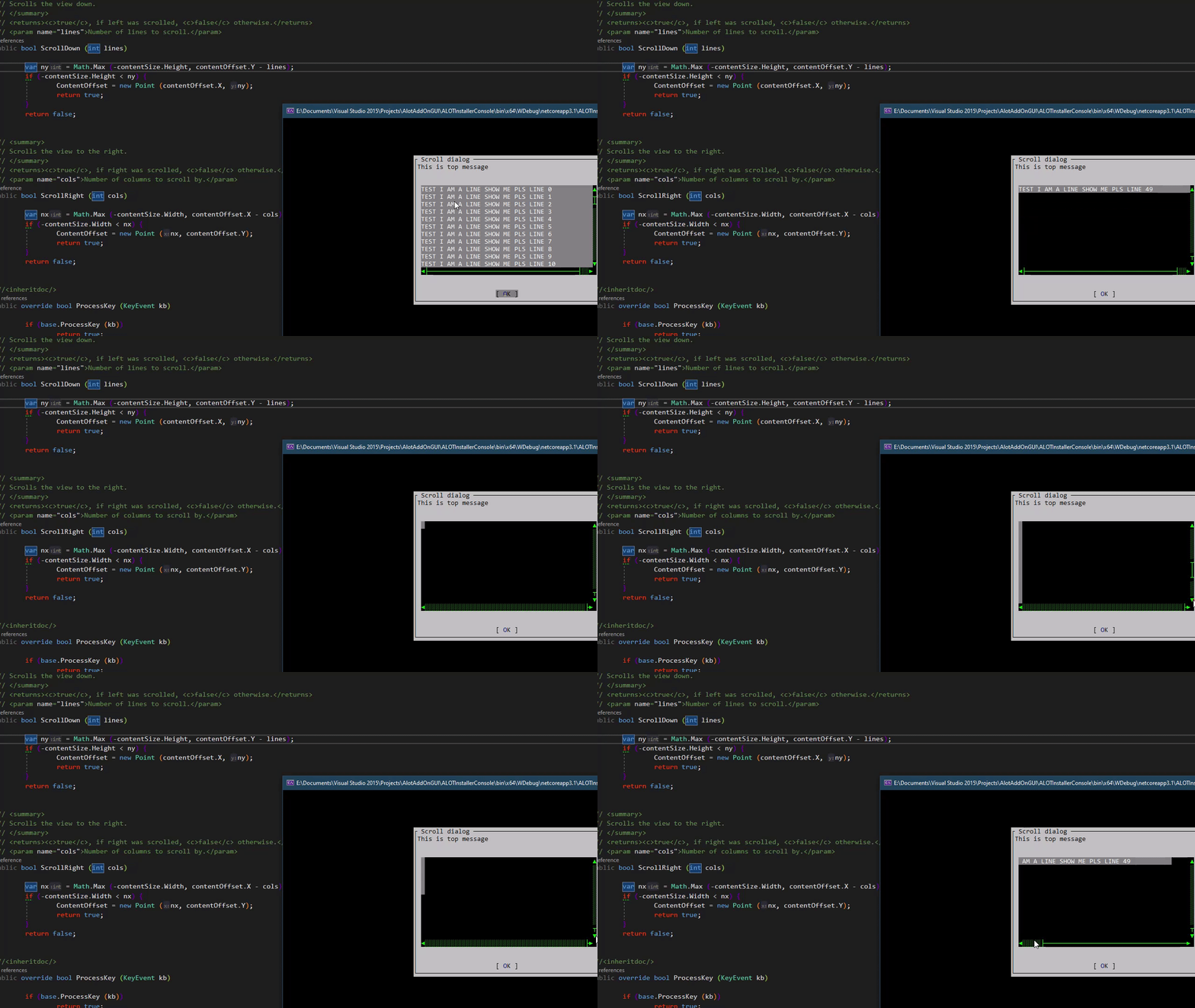
The above pictures are with your PR that I checked out. I pulled your changes and it didn't seem to change behavior. Starting from https://github.com/migueldeicaza/gui.cs/issues/859#issuecomment-672972311 is from your PR branch.
:\Documents\Visual Studio 2015\Projects\AlotAddOnGUI\gui.cs>git status
On branch scrollview-keys-fix
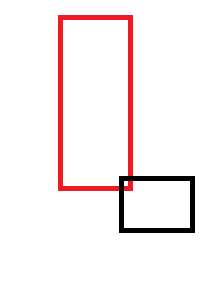
Content Height is 50 and Content Width is 47, which is the width of the labels. It's not taking into account the size of the viewport, which is why I can scroll until there's only 1 'pixel' still on screen. I don't know on any other UI framework where you can scroll and see outside the content in a scrollviewer. I guess you could for things like image editing, but this doesn't really feel like it works as advertised, I certainly would never think that a scrollviewer should scroll outside it's contents. Like I can't scroll a web page outside of the web page's contents.
Mgamerz
on 12 Aug 2020
That the way I fixed it. But it could be changed. It must not have a col or row outsided?
BDisp
on 12 Aug 2020
On Windows for example, in both winforms and WPF, scrollviewers don't scroll beyond their content, as there is no real point to showing where there would be no content. I can see a use case where maybe the user is doing image editing, and wants to physically move the object to a more accessible area of the screen, but I don't think there's much image editing going on in the terminal.
For example there is no reason for me to be able to scroll beyond the list of files in my project's folder
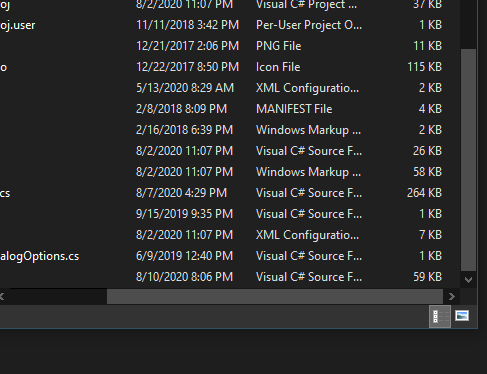
The one issue I see is if the scrollviewer's viewport is bigger than the content itself. In the case, it shouldn't be able to scroll at all (at least in that dimension). But the check I think would also account for that. Your code is nearly correct for this, it just needs to take the viewport size into account, maybe through a variable that could be set if you didn't want to break things? (like KeepContentAlwaysInViewport = true?).
I guess I misunderstood what your PR did, it makes sure at least 1 pixel of the content is still on screen. I was thinking it was trying to always have boundaries of the viewport on screen (if viewport was smaller than content). I am not sure how to handle the object not being big enough for scrollviewer though, e.g. what would the background draw be? In my dialog example it doesn't draw the dialog background, it draws toplevel background.
Mgamerz
on 12 Aug 2020
I would make a property to allow both options.
BDisp
on 12 Aug 2020
@Mgamerz it's done. Please check it it's all right.
BDisp
on 14 Aug 2020
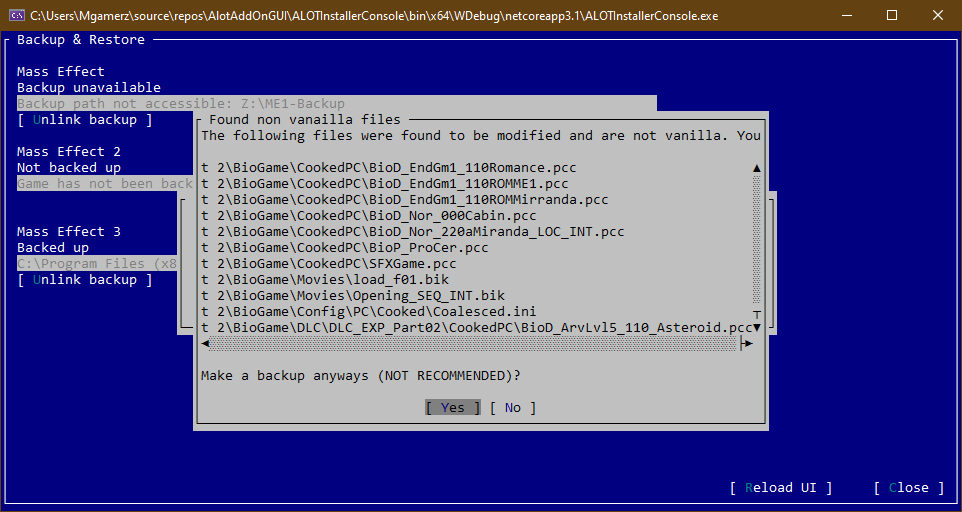
Seems to now keep the content in the view, which is exactly what I wanted. The only issue I see is the scrollbars are really messed up still. In this pic I am scrolled to the very bottom right corner, but the scrollbars don't look right. The horizontal scrollbar has moved almost entirely off to the right hand side of the scrollbar. The vertical one also seems to do this. However, it won't let me scroll farther, so it's just some oddity with how the positioning seems to be calculated.
Mgamerz
on 14 Aug 2020
The scrollbars have that behavior indeed. But in your image there are no more anything to show isn't? If there is so you are calculating wrongly the ContenSize.
BDisp
on 14 Aug 2020
The viewport is working great, exactly how I expect it to now in regards to not letting me scroll out of bounds content onto the viewport. Once the scrollbars gets fixed up it'll be fully fixed/improved :)
Mgamerz
on 14 Aug 2020
To scroll out set the KeepContentAlwaysInViewport to false.
BDisp
on 14 Aug 2020
Once the scrollbars gets fixed up it'll be fully fixed/improved :)
I'll try to improve his behavior. I really don't like it too.
BDisp
on 14 Aug 2020
This is awesome stuff, both of you. Thanks for digging into into it!
 tig
on 15 Aug 2020
tig
on 15 Aug 2020
It seems is all done.
BDisp
on 15 Aug 2020
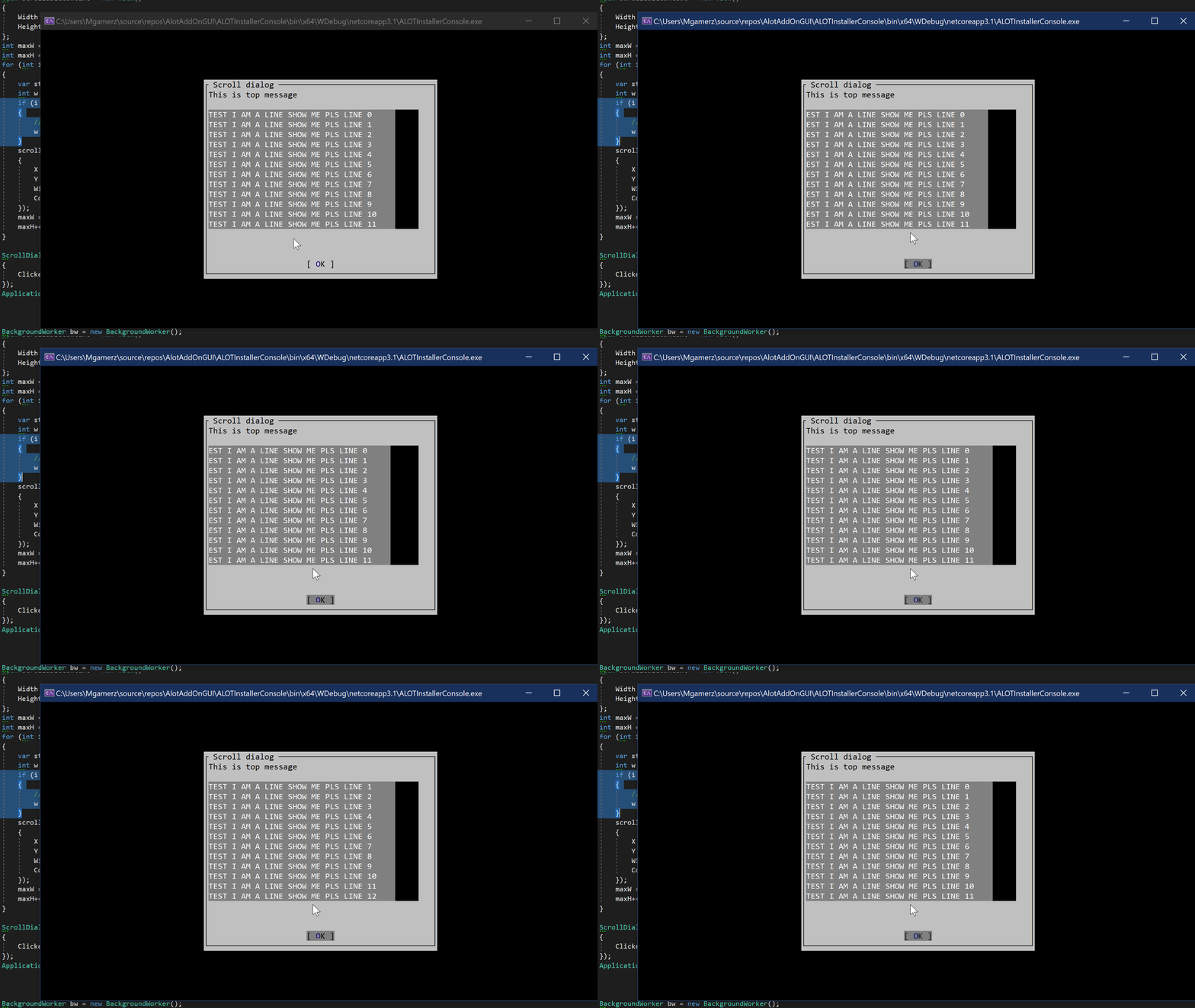
Sorry, didn't have time to test this yesterday. Pulled msater this morning and everything works, I now have a scroll dialog :)


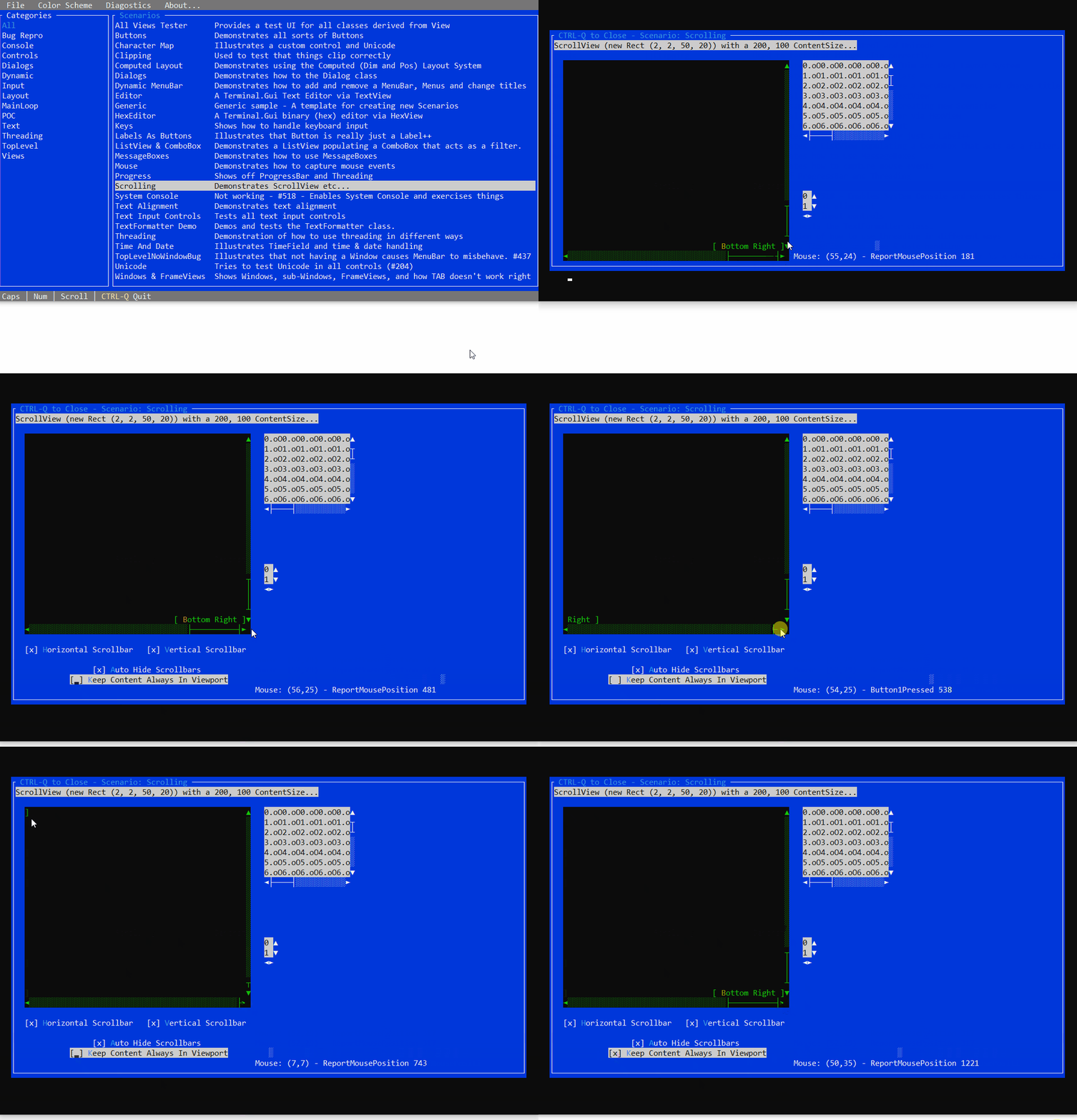
It even shrinks the width if it's smaller than the max dialog width, accounting for a buffer (in this pic, 5), and uses the max size of the contentsize width, title, top and bottom messages :)
Mgamerz
on 16 Aug 2020
Related issues
Mgamerz
·
6Comments
tig
·
3Comments
tig
·
3Comments
 stevozilik
·
8Comments
stevozilik
·
8Comments
 migueldeicaza
·
8Comments
migueldeicaza
·
8Comments
Most helpful comment
Sorry, didn't have time to test this yesterday. Pulled msater this morning and everything works, I now have a scroll dialog :)
It even shrinks the width if it's smaller than the max dialog width, accounting for a buffer (in this pic, 5), and uses the max size of the contentsize width, title, top and bottom messages :)