Grapesjs: How to add a custom button with custom command in default panel of grapesjs
I have integrated grapesjs with angular6.
and i am getting a default panel with a select box appearing at top of screen;
i want a custom button with my own custom command on the default panel.
i want to add a button looks like below marked by red color.

i want to when i click on the button then an alert box should be displayed on the screen with hello world message.
please let me know how can i add my custom button on default panel
 himanshubudhlakoti
All 8 comments
This is well documented at https://grapesjs.com/docs/getting-started.html#panels-buttons. You have two methods to add a panel with buttons: (1) When initializing GrapesJS, (2) After GrapesJS was initialized with addPanel.
Please note that this is for a panel that you have defined with <div id='basic-actions'></div>.
GrapesJS.init()
this.editor = grapesjs.init({
container: '#gjs',
fromElement: false,/* https://github.com/artf/grapesjs#usage */
addBasicStyle: true,
height: '800px',
width: 'auto',
panels: {
id: 'basic-actions',
el: '.panel__basic-actions',
buttons: [
{
id: 'alert-button',
className: 'btn-alert-button',
label: 'Click my butt(on)',
command(editor) { alert('Hello World'); }
}
]
},
...});
After GrapesJS was initialized
editor.Panels.addPanel({
id: 'basic-actions',
el: '.panel__basic-actions',
buttons: [
{
id: 'alert-button',
className: 'btn-alert-button',
label: 'Click my butt(on)',
command(editor) { alert('Hello World'); }
}
]
});
 mararn1618
on 12 Oct 2018
mararn1618
on 12 Oct 2018
thanks @mararn1618 for sharing the code
i want to add a button on default panel of grapesjs.
means i do not want to create a new panel for adding a new button.
in the code shared by you will add a button on a new panel not in the default panel of grapesjs.
as i am getting we need change id and el for adding button on default panel as marked on below snapshot.
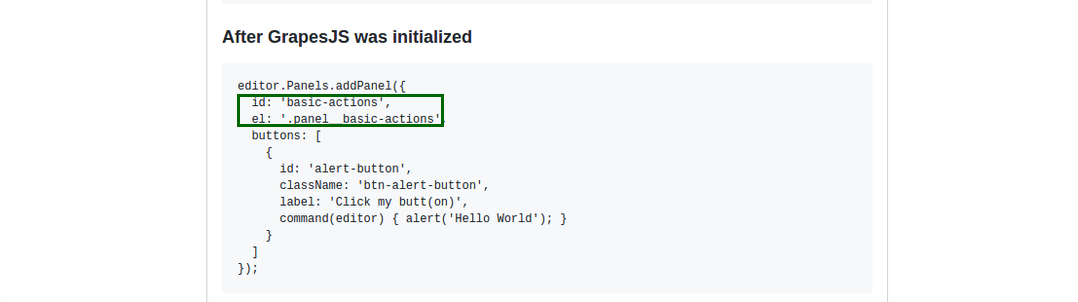
am i thinking right please suggest me
himanshubudhlakoti
on 12 Oct 2018
Hello All,
can anyone tell me that what should be value of id and el when i want to add a new button on default panel as mentioned on above snapshot.
please let me know as soon as possible
himanshubudhlakoti
on 12 Oct 2018
Use editor.Panels.getPanels() to get all the available panels and then use addButtons method shown below.Here 'options' is the panel name
editor.Panels.addButton('options', [
        {
          id: 'save',
          className: 'fa fa-floppy-o icon-blank',
          command: function(editor1, sender) {
            alert('Hello World')
          },
          attributes: { title: 'Save Template' }
        },
      ]);
 mcsekar12
on 12 Oct 2018
mcsekar12
on 12 Oct 2018
thanks @mcsekar12 .
i am using code for getting the available panels name editor.Panels.getPanels()
and when i am displaying its output using
console.log("panels name>>>",editor.Panels.getPanels())
i am getting output as mentioned on below snapshot

in output i am getting object i am not getting that where is panels name which are available.
please let me know how can i get panels name from that object for adding button on default panel.
himanshubudhlakoti
on 15 Oct 2018
@himanshubudhlakoti editor.Panels.getPanels().forEach(item => console.log(item.get('id')))
in output i am getting object i am not getting that where is panels name which are available.
You can open that object and explore it all by yourself, try to be a bit more proactive instead of being pushed step by step
 artf
on 19 Oct 2018
artf
on 19 Oct 2018
You can use the following code to add custom buttons....
insert this code after GrapesJS was initialized
editor.getConfig().showDevices = 0;

editor.Panels.addPanel({ id: "devices-c" }).get("buttons").add([
    { id: "set-device-desktop", command: function(e) { return e.setDevice("Desktop") }, className: "fa fa-desktop", active: 1 },
    { id: "set-device-tablet", command: function(e) { return e.setDevice("Tablet") }, className: "fa fa-tablet" },
    { id: "set-device-mobile", command: function(e) { return e.setDevice("Mobile portrait") }, className: "fa fa-mobile" },
    { id: "block-editor", command: function(e) { alert("hello world ") }, className: "fa fa-book" }
]);
 johnroid
on 27 May 2019
johnroid
on 27 May 2019
I also had trouble with that when had tried to button to Panel.
So, I used the following way:
`
editor.Panels.addButton('#target panel id#',
{
id: 'alert-button',
className: 'btn-alert-button',
label: 'Click my butt(on)',
command(editor) { alert('Hello World'); }
active: true
});
`
However, the panel and button were displayed.
It turns on it needs to use the render method to rerender Panel manager object. I can't find information about it into docs. So, decided this note here:
editor.Panels.render();
After that, the button and panel are displayed.
 TemaMix
on 27 Aug 2019
TemaMix
on 27 Aug 2019
Related issues
 TrungPham383
·
21Comments
artf
·
48Comments
TrungPham383
·
21Comments
artf
·
48Comments
 Geczy
·
22Comments
Geczy
·
22Comments
 pierreozoux
·
27Comments
pierreozoux
·
27Comments
 tristanMatthias
·
24Comments
tristanMatthias
·
24Comments
Most helpful comment
Use
editor.Panels.getPanels()to get all the available panels and then use addButtons method shown below.Here 'options' is the panel nameeditor.Panels.addButton('options', [ { id: 'save', className: 'fa fa-floppy-o icon-blank', command: function(editor1, sender) { alert('Hello World') }, attributes: { title: 'Save Template' } }, ]);