Godot: Stretch shrink messes up the ui
Godot version:
3.2.1 stable
OS/device including version:
Windows 10
Issue description:
From the docs I get, that using scale shrink can be used to get a performance boost, by lowering the 3d resolution.
If Stretch Mode is set to something other than Disabled, the size of
the root viewport is scaled down by the Shrink factor, and pixels in
the output are scaled up by the same amount. This is rarely useful for
2D games, but can be used to increase performance in 3D games by
rendering them at a lower resolution.
https://docs.godotengine.org/de/stable/tutorials/viewports/multiple_resolutions.html#stretch-shrink
Using the shrink is not just scaling the 3d rendering, but also the ui rendering.
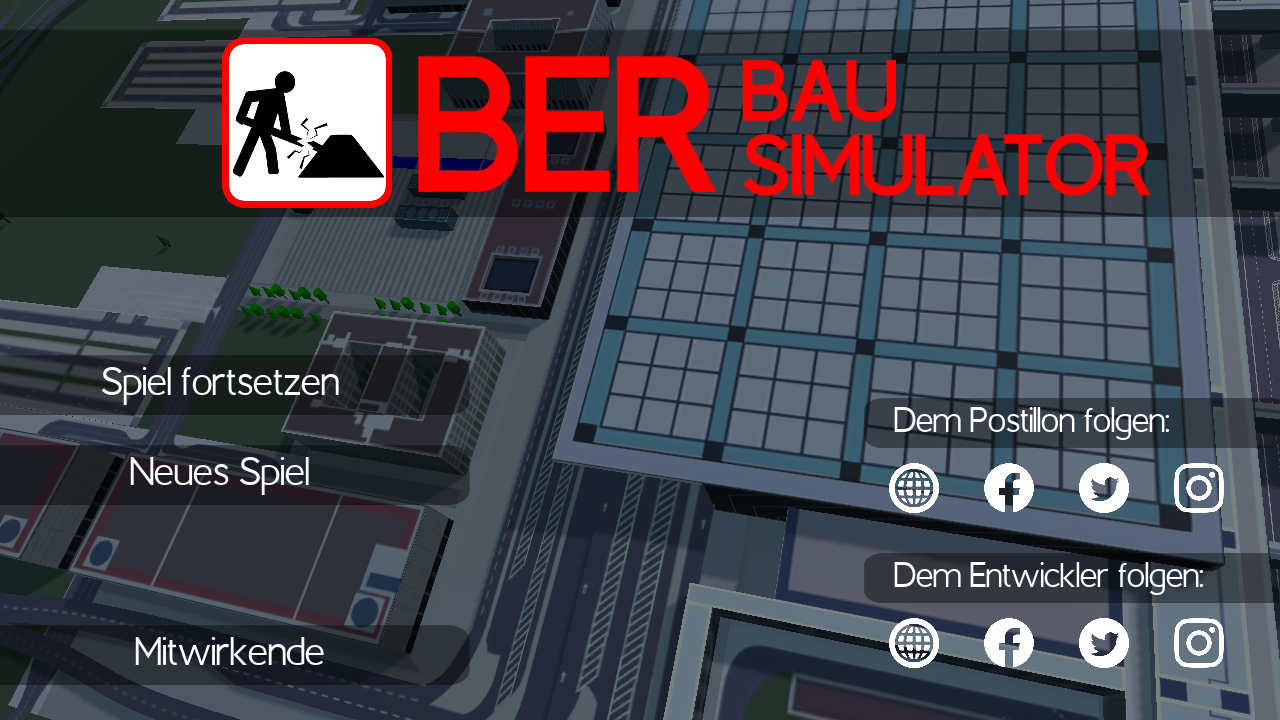
This is how my main menu looks with shrink = 1:
This is how it looks with shrink = 5:
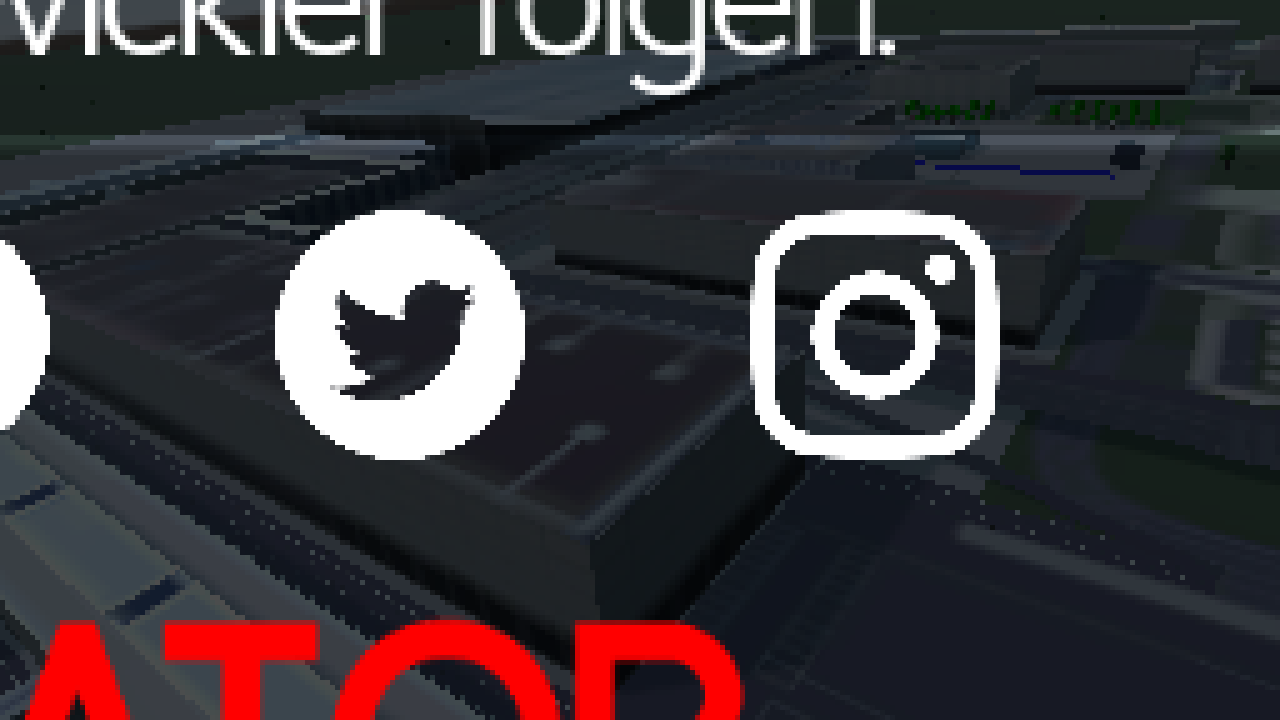
The 3d rendering is lowered as intended, but the game can't be played anymore because of the ui scaling.
I've set my stretch mode to "2d" and the aspect to "expand" in the project settings.
 Tobi-La
All 3 comments
This happens because that option affects the root viewport, which contains every single visible object, including UIs. To achieve what you want, you need to create another viewport, and scale that instead, something like this:
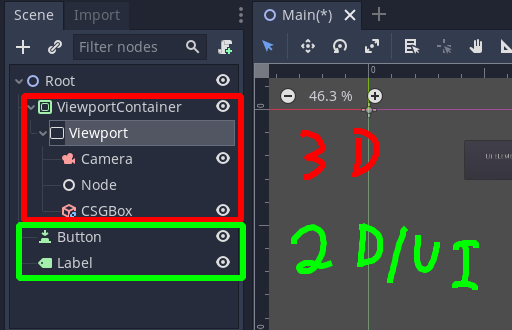
I do agree though that this option is generally used for reducing 2D/3D objects rendering time, and leaving the UI elements at full scale; so if that was the reason this option was introduced, then it is not working as it should.
 Ev1lbl0w
on 19 May 2020
Ev1lbl0w
on 19 May 2020
See the answer I posted on the Godot Q&A: https://godotengine.org/qa/71239/lower-3d-resolutions-without-messing-up-ui#a71243
 Calinou
on 19 May 2020
Calinou
on 19 May 2020
I think the info in Calinou's QA answer and Ev1lbl0w's comment should be added to docs at least.
We can either add it directly to Stretch Mode's doc page or just link it to a separate page that has this info.
 Anutrix
on 20 May 2020
Anutrix
on 20 May 2020
Related issues
 testman42
·
3Comments
testman42
·
3Comments
 nunodonato
·
3Comments
nunodonato
·
3Comments
 SleepProgger
·
3Comments
SleepProgger
·
3Comments
 ivanskodje
·
3Comments
ivanskodje
·
3Comments
 timoschwarzer
·
3Comments
timoschwarzer
·
3Comments
Most helpful comment
I think the info in Calinou's QA answer and Ev1lbl0w's comment should be added to docs at least.
We can either add it directly to Stretch Mode's doc page or just link it to a separate page that has this info.