Godot-proposals: Improve Default 3D Lighting & World Environment
Issue Tracker
This section summarizes and tracks progress on this proposal. Detail follows.
Merged:
n/a
Issue/PR Created:
- [X] Tonemap/Filmic, White: 6. PR 34798
- [X] ProceduralSky Sun - Combine with a directional light or calculate shadows. PR 37179
Discussed Topics:
- [ ] New 3D Scene Button - Add Light/World/Camera/Cube.
Per Calinou/reduz: we could have a default DirectionalLight in Environment...
reduz@IRC chat: there will be an editor setting that will enable/disable default DL - [ ] Default Environment Settings:
- DirectionalLight
Color: White, Energy: 2, Shadow Enabled. Shadow Color: value 60 - Ambient Light
Color value 50, Energy: 3, Sky Contrib: 0.3 - ProceduralSky
Sky Color: #36508d, Horizon: #8bafcf, Curve: 0.13
Sun: Latitude: 50, Angle max 30 Energy 30.
Ground: both colors = Sky Horizon color
- DirectionalLight
Minor/No Discussion:
- [ ] ProceduralSky Sun - Decouple power output from visual size.
- [ ] ProceduralSky Sun - Increase energy scale 20x (or equal to DirectionalLight)
- [ ] "New scene" templates for Blank Scene or scene w/ included default items (probably moot)
- [ ] PanoramaSky - Embed a directional light along with the hottest point on the HDR. (nice to have)
- [ ] PanoramaSky - Embed a shadow projection plane. (nice to have)
The Issue
Describe the problem or limitation you are having in your project:
The default lighting environment is extremely unattractive. Unaware devs use the defaults, which detracts from their demos, as well as makes Godot look bad. For comparison, UE4 has a great lighting setup by default - no configuration is necessary.
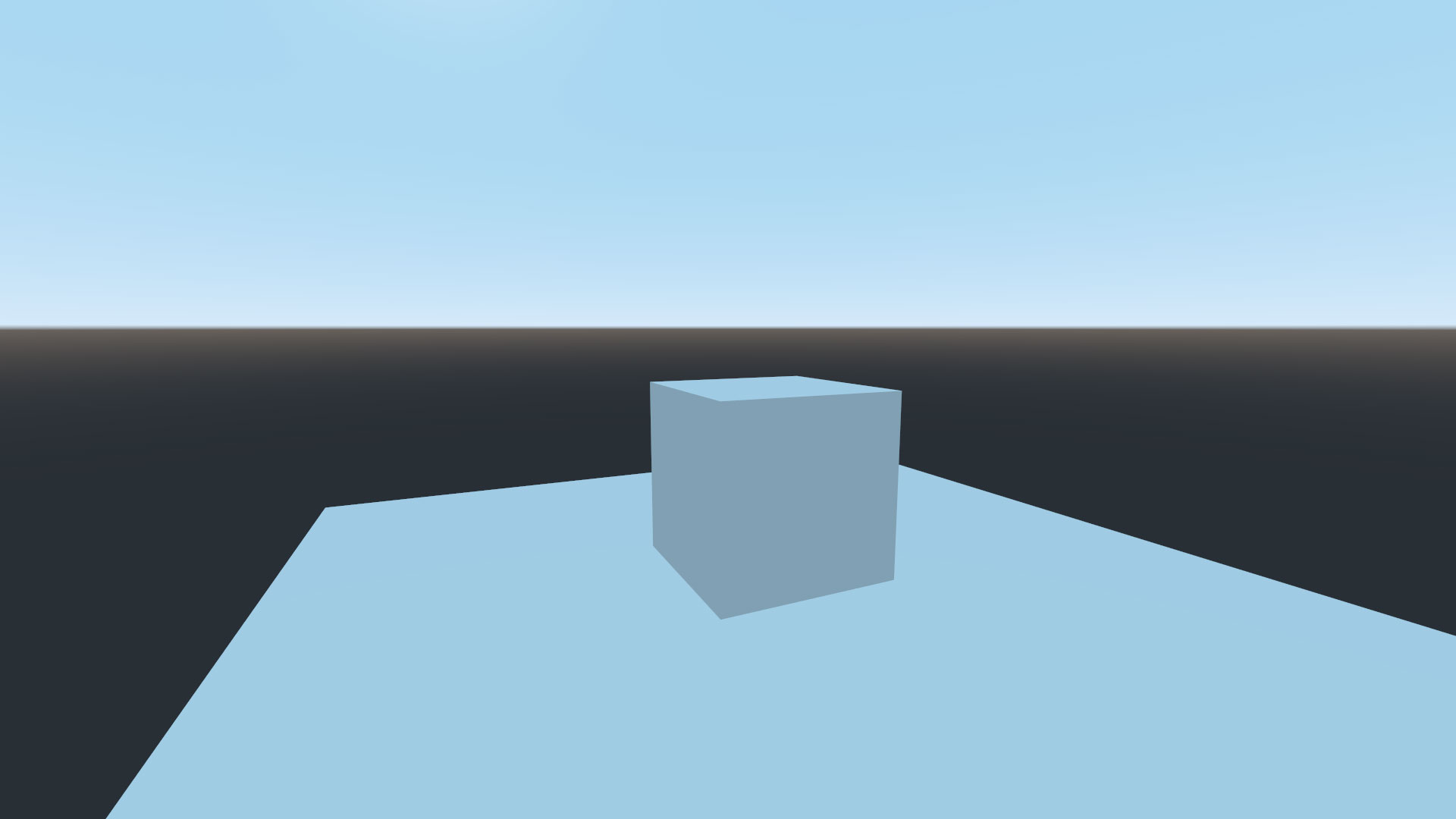
These objects are white, but appear blue:
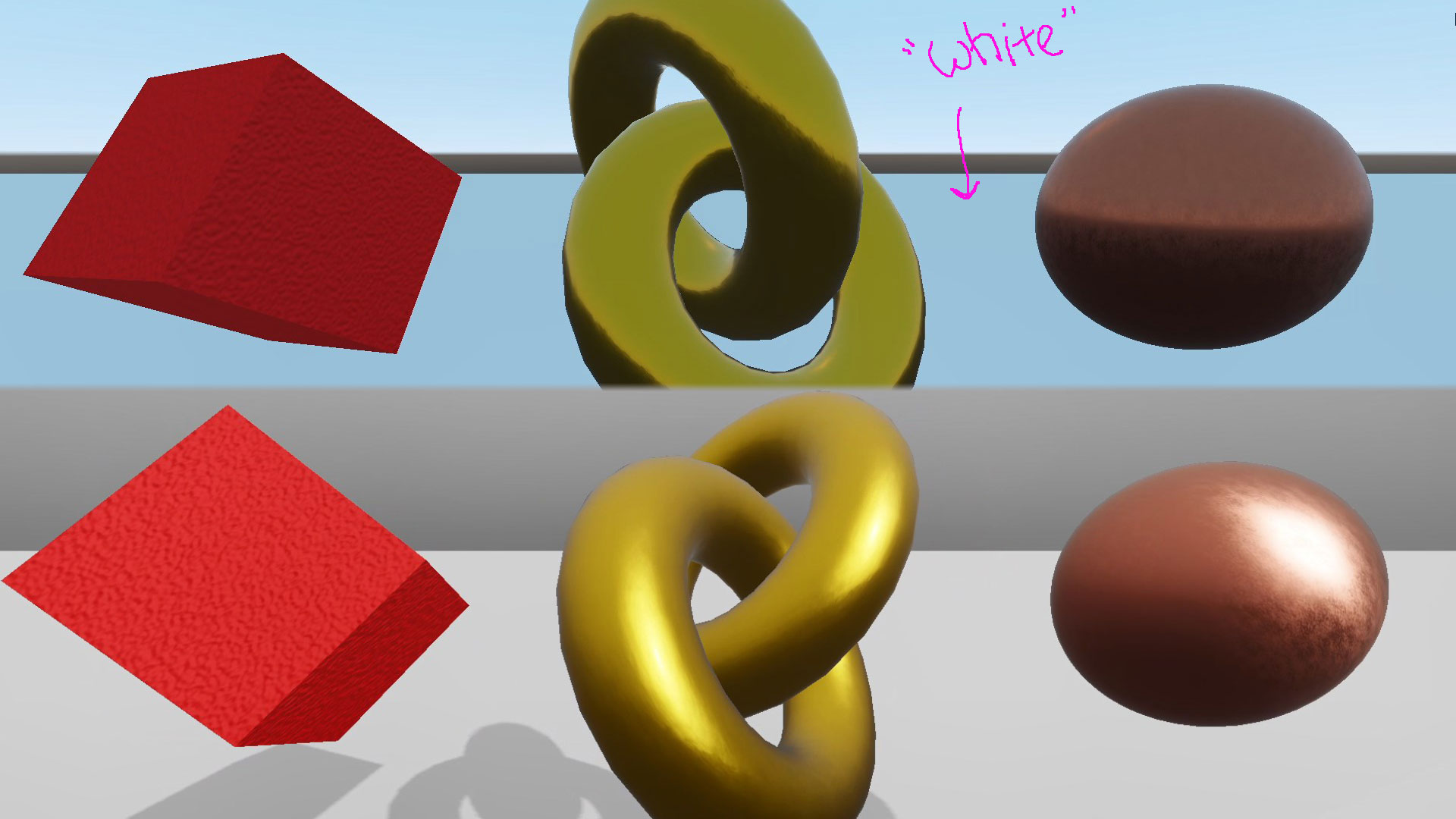
Materials look terrible by default:
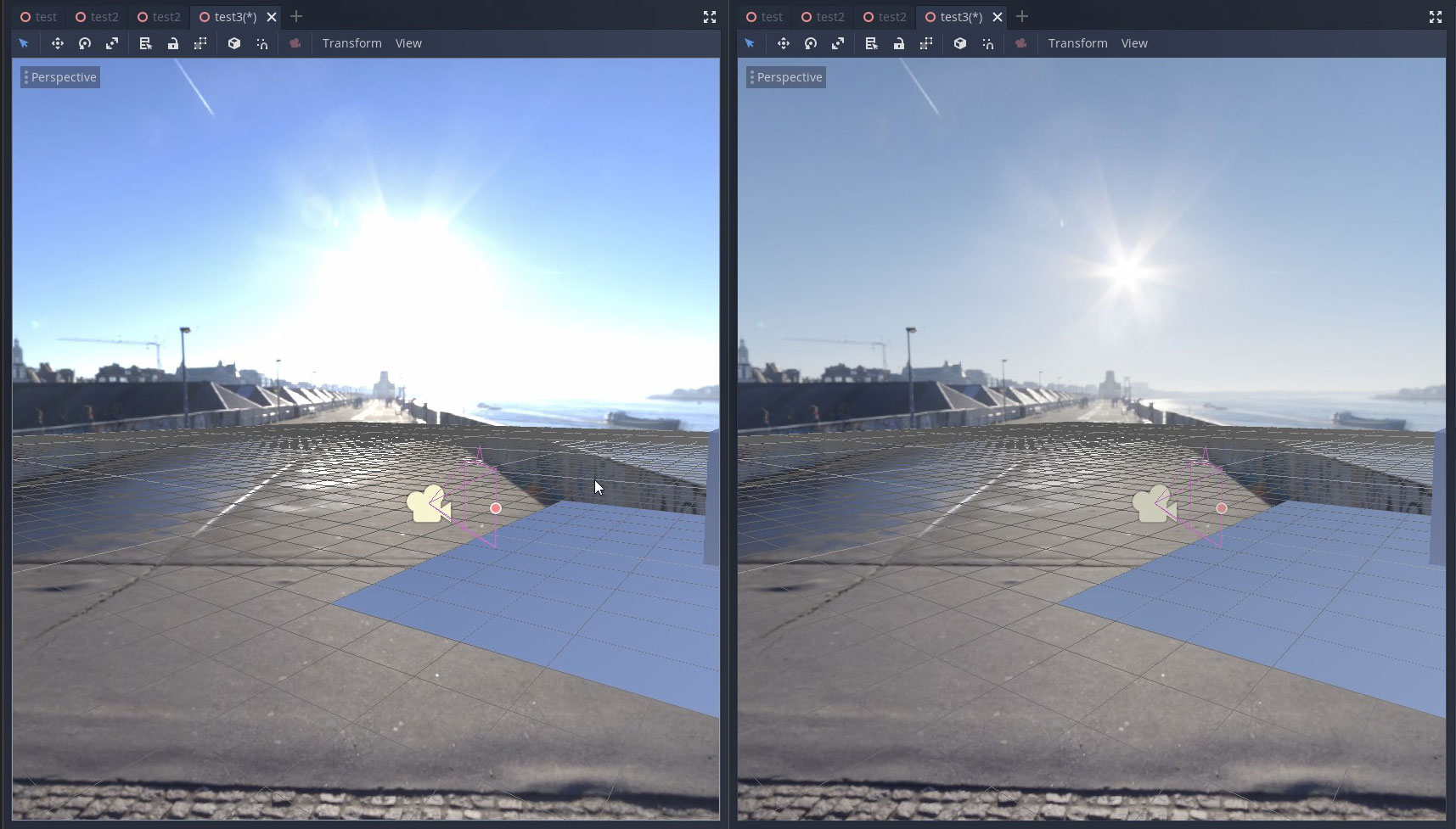
Highlights are blown out by default, which also makes HDRIs unattractive:
Is this a real problem for people?
Look on facebook, twitter, youtube, or reddit for 3D demos from devs. Many of them use the default lighting and their demos look bad.
Examples. All of these have a heavy blue cast and muted colors, even if they've added a light:
https://twitter.com/dalton8000/status/1208794768337190912
https://twitter.com/m4gr3d/status/1210249791017570304
https://twitter.com/nightblade99/status/1209324080907857925
https://twitter.com/skooterkurt/status/1210625650807263233
https://www.facebook.com/groups/godotengine/permalink/1764599440343309/
https://www.facebook.com/buzzmandt/posts/10216181547837595
https://www.reddit.com/r/godot/comments/eiv38x/getting_better_at_working_with_vehiclebodykinda/
https://www.reddit.com/r/godot/comments/eik633/20_days_with_godot_so_much_fun/
Further, this twitter thread was very popular and seemed to hit a nerve with people:
https://twitter.com/TokisanGames/status/1210610419556999168
"it's not easy to get lighting right in Godot"
"I'm really looking forward to that, the unnatural blue hue and lost contrast has been a big problem in a project I'm working on!"
"I agree. The default environment make anything bluish."
Referenced tickets showing its a continuing issue:
30
https://github.com/godotengine/godot/issues/18226
https://github.com/godotengine/godot/pull/20786 (It was really bad before this, now it is only bad)
https://github.com/godotengine/godot/issues/10451
Users should not have to hunt to find an obscure Sky Contribution setting just to remove the blue cast. Or even know they need a light before their materials will look good. The first brand new scene should just look good by default.
Other Template Questions
Describe how this feature / enhancement will help you overcome this problem or limitation:
Anyone can work around the issue now. However, most don't because the knowledge of how to do it takes months of using Godot and trial and error to learn how.
Describe the project you are working on:
Voxel Tools demos, YT Tutorials, prototypes w/ voxels.
If this enhancement will not be used often, can it be worked around with a few lines of script?:
It will be used by everyone. A script is insufficient.
Is there a reason why this should be core and not an add-on in the asset library?:
ProceduralSky and WorldEnvironment are in core.
My Proposal
Show a mock up screenshots/video or a flow diagram explaining how your proposal will work:
I made a 30 minute tutorial video showing devs how to work around all the limitations and setup a good scene. It also illustrates the issues highlighted in this proposal. TLDR - here is where the issues are demonstrated:
It would be ideal if the default environment was just set up as I show in the video. Some suggestions require code changes.
Describe implementation detail for your proposal (in code), if possible:
Here is my proposal, but these points and values are open to discussion on how best to achieve an attractive default lighting setup. I've created the settings based on a decently calibrated monitor, and comparing and tuning settings with white materials, grass/rock materials in my own prototypes, and all the materials in the 3D materials demo. This took me about 5 weeks of testing and retesting. I had to make my video 3 times as I tweaked my settings.
Once there is a consensus as to the best way forward, I can create individual issues if desired.
Tonemap
* Mode: Filmic (like Blender; UE4 uses ACES, but I think it's too contrasty for a default). I can't think of any reason why we'd leave this at Linear. PR
* White: 6 (at least 4, up to 16. 4-8 allows the very center of the sun to blow out, giving it the effect of a ball with a coronoa. The ball is also visible in reflections. See the white plastic in material demo.) PR
Ambient Light
- Color: value 50 (128,128,128)
- Energy: 3
- Sky contribution: 0.3
At 1, procedural sky is unnaturally blue. It appears far stronger than it is with HDRIs - maybe reduce the ProcSky scale to 1/3rd. Some HDRIs look fine at 1. So I'd either default the settings for both at 3/0.3, or reduce the internal ProcSky Sky Contrib scale down to 33-50% of what it is now, and boost energy x3, then you could leave both HDRI Sky Contrib and ProcSky Sky Contrib at 1 and 1.
Procedural Sky
- Sky
- Color: #36508d
- Horizon: #8bafcf
- Curve: 0.13
Colors were chosen under filmic, based on my reference photos below. I recently took these here in the Philippines. The air has very little pollution and it's an equatorial sky, so perhaps it's the ideal reference sky. The deepest part of the sky has a hue of 219-222.


Ground
- Do we even need a ground? Won't every dev put in their own plane/level/landscape? UE4 has no ground, just sky underneath. I recommend that it is removed entirely, or it's set to the sky horizon color by default to hide it.
Decouple it from shadows and shaded faces on objects. Energy/color of the ground should not affect the lighting on objects!- Edit: apparently the sky works like an HDR, wholly illuminating the scene, so this isn't a problem anymore.
Sun
- Latitude: 50 (just so it's not so late afternoon as 35)
- The size of the sun as it currently appears with Angle max: 30, Energy: 30.
- Decouple angle/curve/energy from size. Let us control image and power independently.
- Increase energy scale 10x, minimum. Maybe 12-20x so we have some headroom. The sun needs an energy level of at least 640 just to start being in the range of properly exposing a scene (it's about the equivalent of a directional light at around 1.5-2), but then the size takes up half the sky.
Nice to have: Embed a directional light in with the sun, matching the angle so we can get shadows (but only one energy setting). Or just automatically calculate shadows directly from the procedural sun. There's no reason to have the procedural sun emit light unless it can also cast a shadow. If it won't, then for all games that need shadows, it only makes sense to disable the sun energy effect, use a directional light, then manually align it with the sun. Why not just embed all of that together?PR
PanoramaSky (HDRI/Shader)
Nice to have:
- Detect the hottest point of the HDR and embed a directional light there, just like with the ProceduralSky. Or we can set its position manually.
- Provide a ground shadow projection plane. UE4 seems to do some trickery with the HDRI, adding a virtual ground plane to catch the shadow. But it's not clear if they require a light to do this. I haven't experimented with HDRIs in UE4 in a while, but I seem to recall that a lot of it is automagical.
Directional Light
- Energy: 2
- Shadow enabled
- Shadow Color: value 60 (153,153,153)
New Scenes

- I recommend that the new 3D Scene button only (the one visible when starting a new project, "Create Root Node") sets up a white directional light with shadow enabled, and maybe a cube and a camera pointing at it (like in blender), and a WorldEnvironment node. All other new scenes are created empty.
- Also maybe we use scene templates, like with new scripts where you can specify a script with comments, or blank. Maybe 'give me a scene with stuff in it', or a blank scene.
Sample Project & Summary
Project file
Here is a sample project. Start by downloading the 3d materials demo. Then drop these files inside. Load cory_scene.tscn which should load cory_procsky_env.tres, and you can view the white cube with all the other materials.
You can also switch to cory_hdr_env.tres. But note, that all of the HDRIs included in the demo are 50% the brightness they should be. So adjust Tonemap/Exposure to 2. People should use properly exposed HDRIs, so this setting should default to 1.
 tinmanjuggernaut
All 45 comments
I think a change to the default one is very welcome
 Norrox
on 3 Jan 2020
Norrox
on 3 Jan 2020
I agree the default looks rather ugly and some of the changes here would be absolutely amazing defaults.
 Sevensidedmarble
on 3 Jan 2020
Sevensidedmarble
on 3 Jan 2020
New defaults and a tutorial on good practices in the docs would be nice (I didn't see one at least).
 fakedeltatime
on 3 Jan 2020
fakedeltatime
on 3 Jan 2020
Shadow Color: value 60 (153,153,153)
Won't this cause shadows to not fully darken things when you use GIProbe or BakedLightmap?
 Calinou
on 3 Jan 2020
Calinou
on 3 Jan 2020
Shadow Color: value 60 (153,153,153)
Won't this cause shadows to not fully darken things when you use GIProbe or BakedLightmap?
I'm not sure. I didn't test these settings against GI/BL. The high Ambient Light is also likely to cause issues with GI/BL as well. My tutorial and resulting proposal was all geared toward a non GI/BL environment, since it's the default and seems to be what most people use for demos/tutorials/prototypes.
So assuming there will be an issue, what is better?
- To provide a good looking default environment that is set up with GI/BL? (UE4 does this and has baking lights as part of the workflow).
- Or to provide a good looking non-GI/BL environment. (which is Godot's current setup, except it doesn't look good.)
As far as all my settings, Shadow Color is one of the least critical. However without it, black shadows do look unusually dark in a non-GI/BL environment once materials are applied.
tinmanjuggernaut
on 3 Jan 2020
As far as all my settings, Shadow Color is one of the least critical. However without it, black shadows do look unusually dark in a non-GI/BL environment once materials are applied.
Maybe that could be compensated by increasing the sky contribution with a procedural sky (while leaving it below 1)?
Either way, it's quite important to have a way to set up a good-looking GIProbe without having to tweak shadow colors. Maybe the shadow color could be adjusted automatically in areas not affected by a GIProbe…
Calinou
on 3 Jan 2020
Sky Contribution makes everything blue. It's the primary thing that gives everyone the issues demonstrated here and prompted me to create this video and proprosal.
Sky Contribution is part of ambient light. My settings essentially shift the luminance from AL/sky contribution over to AL color/energy so it retains luminance but not color cast.
So yes it could be compensated by increasing ambient light color &/or energy, which lightens up both the shadows and shaded faces. However in my experience this doesn't look good. Shadow gives an object dimension, and if AL is too high, it will cause objects to look flat as they aren't shaded properly.
Since DL/Shadow Color affects only shadows and not shadowed faces, it fills in the gap by lightening up the shadows only. It's not technically correct, because mathematically the scene is only lit by a directional light, not a sky. But it's artistically correct as if the sky were lightening up shadows. AL and DL/Shadow Color are both used to provide fake bounce lighting.
I suppose we need to do more testing to see how the lights respond under a GI probe.
tinmanjuggernaut
on 3 Jan 2020
This is my default setting, maybe it will help
It would be a good idea to add a directional light when the 3d Scene button is pressed
 ghost
on 4 Jan 2020
ghost
on 4 Jan 2020
Definitely worth looking into it.
Now I'm getting why all my objects look blueish with the default environment.
 davthedev
on 4 Jan 2020
davthedev
on 4 Jan 2020
'These are white materials, and these object should be white' - while you do know the color theory and how light works, you don't really mention this in the video, I think this should be stated here so there is no misinformation: White materials in real life are blueish under a diffuse lighting from the sky, since the atmosphere scatters blue light more, and so the sky 'emits' blue light. You can see it in this hdr:

Godot's base scene setup doesn't have the sun as the light source, while having a lit unclouded sky, a scenario that does not happen in real life, which makes it look unnaturally blue.
Adding the light back in, by using a directional warm light for instance, brings the scene back to looking more natural:

Switching to Filmic makes it more natural still.

I'm guessing the developers (@reduz?) left those kinds of decisions (how to add the sun light etc) to the user, and just set up a blank canvas in default_env.
There may be a bit too much sky contribution because as you said, the warm light from the sun is not properly bounced around and mixed back in into the blueish light.
Do we even need a ground?
Procedural Sky works just like an hdr in the end, and hdr give light from all directions, including from below, to give that natural lighting.
Now, the Sun option in Procedural Sky in straight out broken as you mention in the video. The energy is far too low, and is not really helpful if it can't cast shadows.
For the defaults I would go with a bit less sky contribution, and a warm properly working sun with enough Energy, preferably that can give shadows like a directional light. Also maybe Filmic on, unless there are arguments against that.
 PLyczkowski
on 4 Jan 2020
PLyczkowski
on 4 Jan 2020
Do we also want a directional light added automatically by default, at the right default translation Transform, if the user creates a new scene with Procedural Sky?
Personally I would vote yes. I would also like a cube in a default new scene. Things like these are easy to delete (or to turn off in the preferences) but tedious to set up every time and complicated for the uninformed newcomer to get right.
It's always easier to return to the defaults that look good after fiddling with the settings to find out why they look good, than to tiring to make defaults that don't look good, to look right.
 golddotasksquestions
on 4 Jan 2020
golddotasksquestions
on 4 Jan 2020
I think I saw an issue or a comment that suggests a directional light being added automatically to 3D scenes. Extending that to having a directional light automatic with proc sky is a good idea. That way the proc sky sun doesn't have to be extended to casting shadows.
BTW the only thing that dir light needs is rotation, not translation.
 Zireael07
on 4 Jan 2020
Zireael07
on 4 Jan 2020
@reduz said we could have a default DirectionalLight in Environment that would be removed automatically as soon as you add a DirectionalLight node to the scene. Its angle could match the sun angle automatically when using a ProceduralSky. This way, you can get good-looking lighting out of the box without having to add a node to every scene.
Calinou
on 4 Jan 2020
Aaa, my bad. Still, an extremely good idea.
Zireael07
on 4 Jan 2020
I really like that idea, but it may seem unintuitive to new users to have
a node/light source disappear when you manually add one in for the first
time.
On Sat, Jan 4, 2020 at 10:46 AM Zireael07 notifications@github.com wrote:
Aaa, my bad. Still, an extremely good idea.
—
You are receiving this because you are subscribed to this thread.
Reply to this email directly, view it on GitHub
https://github.com/godotengine/godot-proposals/issues/348?email_source=notifications&email_token=ABBEIS2SJUXAE3EVRL242ADQ4C4NLA5CNFSM4KCONBH2YY3PNVWWK3TUL52HS4DFVREXG43VMVBW63LNMVXHJKTDN5WW2ZLOORPWSZGOEIC3ROA#issuecomment-570800312,
or unsubscribe
https://github.com/notifications/unsubscribe-auth/ABBEIS7XMJIV6P24FO6BQX3Q4C4NLANCNFSM4KCONBHQ
.
 Two-Tone
on 4 Jan 2020
Two-Tone
on 4 Jan 2020
@Two-Tone Maybe we could have the DirectionalLight node display a configuration warning when it's newly added. This could be done by checking for its property values and checking whether they all match the default – it's very unlikely that you'll use a DirectionalLight that points straight towards a wall.
While we're at it, we could also make DirectionalLight point straight down when it's newly added. However, there's a slight chance you may actually use this direction in a real project, so this would conflict with the aforementioned warning.
Calinou
on 4 Jan 2020
I think the least confusing is to add a "3d Scene With Lighting" button, just like "3D Scene" but with a directional light set as sun.
ghost
on 4 Jan 2020
@Simiopsis The issue is that if someone instances such a scene into another scene, they'll end up with multiple directional lights. This may not be obvious to a beginner, especially if the directional lights have the same angle.
Calinou
on 4 Jan 2020
@Calinou I think what @Simiopsis means to have an additional button next to 3D Scene:

golddotasksquestions
on 4 Jan 2020
@golddotasksquestions I understood that, but the concern I raised still stands :slightly_smiling_face:
Calinou
on 5 Jan 2020
Can you explain why? I would assume if someone intentionally creates a scene with Lights, instead the basic one without, they would delete the directional light once they instance that particular scene into another, or not click the button in the first place.
golddotasksquestions
on 5 Jan 2020
The simplest thing that comes to mind is the following.
Pressing 3D Scene adds a directional light marked as editor only.
The editor only mode, should throw a warning icon.
The editor mode should only deactivate the light when the scene is the daughter of another.
ghost
on 5 Jan 2020
Pressing 3D Scene adds a directional light marked as editor only.
This means you lose the advantages of the default light when you run the project. Moreover, this will also confuse a lot of people out there :slightly_frowning_face:
We had an editor-only default light in Godot 2.x; many people wondered why the running project was darker compared to the view in the editor.
Calinou
on 5 Jan 2020
@Calinou I think what @reduz mentions is more appropriate, but instead of destroying the directional light by adding another, the directional light generated by the world environment must be able to be configured in the world environment, allowing this light to be activated and deactivated.
for example
Sunlight
Enabled: this bool would generate the light and destroy it.
On: just turn the light on and off.
ghost
on 5 Jan 2020
I would go with fixing Procedural Sky so that it's sun can give light like a directional light, like proper hdr's do, and adding a Shadow option to the Sun, that can work like a shadow from a directional light placed at the Suns angle.
This makes everything work like before, no extra objects added, but sun and shadow can be set in the default_env then.
PLyczkowski
on 5 Jan 2020
I have updated the top of the proposal with an issue tracker as there are a lot of threads here. I'll provide my responses on separate messages so people can thumbs up or down on individual ideas.
@Calinou I'm still going to get back to you on GI + Shadow color.
@Eko7 I'll get back to you after looking at your repo as well.
ProceduralSky Ground
@tinmanjuggernaut: Decouple the ground energy from shadows and shaded faces on objects.
@PLyczkowski: Procedural Sky works just like an hdr in the end, and hdr give light from all directions, including from below, to give that natural lighting.
I played with it more, rotated my cube, and I get it now. It's a little odd because the light is not occluded by other objects. But I think the biggest problem is that Sky Contribution is so strong that it didn't appear to behave like HDRIs. When SC is reduced it doesn't seem as odd. Ok, no need to do anything here. I have removed this point.
Do we even need a ground?
However, this is still an open question. IMO, having an HDRI/ProcSky ground is ugly and something most devs would try to hide in their games. UE4 devs apparently agree since they have only sky below the horizon.
I discuss having no ground in my video and show examples with an HDRI 14:29 and ProcSky 19:37.
What do you guys think about hiding the ground by default as per my settings?
Thumbs up for yay (ground colors=sky horizon color), down for nay (no change).
tinmanjuggernaut
on 7 Jan 2020
Regarding the blue tint of the white objects see this tweet: https://twitter.com/matkovskid/status/1214561009794347009?s=20
In nature, shaded objects appear very blue, due to the sky accounting for most of their light. Whereas it is only within direct sunlight that they appear their proper color. Similarly here, when a direct light is applied, whites appear properly white.
 clayjohn
on 7 Jan 2020
clayjohn
on 7 Jan 2020
Color of Included Directional Light
@PLyczkowski suggested including a warm directional light. In my video I brought up this point as not recommended.
To you and and @Calinou, there's no disagreement that the sky casts blue light on objects and that the sun is yellow in real life. But in photography, we white balance for the primary light.
If we were in a GI environment, light bounces around and does all sorts of different stuff from hard to soft shadows, lighter blues as it mixes with sunlight, to stronger blues as it is farther away from bounced sun.
This shot is raytraced from blender. The portion of the cube reflecting direct sunlight is white (since the HDRI is properly white balanced), while everything else is mostly lit from the sky and is blue. Still, this is not a good environment for working with materials because it's so blue. It would be better to have a shot from midday, or even better, a cloudy sky or white studio lighting so you can see what your materials truly look like.

In our default, non-GI world, none of this fancy light stuff happens. Lights and shadows are loose approximations with harsh distinctions. IMO, this does not look attractive. It's not white balanced. The blue shadows are too strong, the yellow makes white look jaundiced. Both will have a negative impact when working on materials as you'll over correct your colors since your camera does not appear white balanced. Bbut it's not the camera, it's the light.
For individual scenes, devs can obviously color grade or setup artistic colored lights (such as sunrise/sunset/fire) as they see fit.
But for a univeral, godot default lighting environment, I strongly recommend that we provide a properly white balanced setup with as neutral lighting as possible.
That means a white primary light, with a very subtle sky contribution. 0.3 puts ProcSky influence intensity on par with HDRIs.
Unless you guys want to go with GI on by default, then by all means we can match real life. But we still need white balance.
Do you agree we should have a white default light?
Thumbs up for yay, thumbs down for a warm light.
tinmanjuggernaut
on 7 Jan 2020
New Scene discussion
Currently, when you make a scene there already is a WorldEnvironment. But it's hidden. That's one reason why this proposal exists, because it can take a long while for people to figure out where those hidden default environment settings are.
The Create Root Node options only appear on a new project. So I thought that would be a good place to instantiate a WorldEnvironment/Light/Camera/Cube.
This won't cause people to have duplicate junk as they create new scenes or nest scenes if it's only included in the first scene for a project. Including worldenvironment means a new user can see right away where the sky and light are coming from, as well as provide the necessary camera and something to look at.
Next, having two separate buttons on the Create Root Node screen is fine also. It's similar to my idea of "scene templates". Just as there are "new script" templates whenever you click the new 3D scene button, or from the menu create a new scene, it could bring up a dialog box with options.
Regarding having unnecessary, duplicate lights, currently if you bring in two worldenvironment nodes, whether in the same scene, or one in a nested scene, you get a warning. With the light being embedded into ProcSky this existing warning already addresses the concern.
I don't think we should provide any editor only objects/lights by default.
Overall, I'm not partial as to how this gets implemented. Any of the ideas I and others have floated can work. I just think it's very important for new people that the aspects that make up the initial scene are readily accessible, as they aren't now.
tinmanjuggernaut
on 7 Jan 2020
Yeah, white default main light seems the way to go then. Also thanks, I learned some things from your posts and the video.
PLyczkowski
on 7 Jan 2020
Shadow Color: value 60 (153,153,153)
Won't this cause shadows to not fully darken things when you use GIProbe or BakedLightmap?
@Calinou I had a chance to look at these settings under GI.
This image shows the GI probe on the left, and non-GI on right. The dark strip is the border of the GI probe. I just added the node, baked it, and ran the demo.

The shadow color looks fine to me. The GI lighting is a little hot, so I'd probably reduce Ambient Light Energy down to 1 if anything. But it's within the realm of acceptability.
Here's with a black shadow color. Hardly any difference in GI, but a huge difference for non-GI.

Also if I turn off the directional light, then the GI environment looks as terrible as the original setup.
tinmanjuggernaut
on 10 Jan 2020
@Ekho7
This is my default setting, maybe it will help
Repo
Thanks for this, I checked it out. These are attractive scenes for sure. For your repo, here's my feedback:
- I would align the light with the sun a little closer (I show how in my video)
- I'd adjust the sun angle max and energy so you have more of a ball in the sky as I did.
- The top of the sky color looks way too light. You can see in my reference photos or in schelde.hdr how deep blue the zenith of the sky looks.
As for whether the other settings are right for Godot defaults, I think this is a reasonable alternative, but I still recommend against colored lights as I did above. Your materials here look light brown and dark brown, and blue in the shadows. But they are actually white and grey. The GI on the rightlooks OK, but the non-GI on the left has a lot of extra color.

This could be a lovely setup for a game. But I maintain the opinion that the default environment should be:
- very neutral (white lights) so that devs can see what their materials truly look like,
- and a reasonably attractive starting point so devs who do nothing with their lighting have a good setup.
Then from there, they can take their lighting into artistic realms once they're ready to learn about the lighting tools available.
tinmanjuggernaut
on 10 Jan 2020
@tinmanjuggernaut I have improved the configuration a bit. but I'm not sure with the sun, I gave a configuration similar to Henyeygreenstein a g value = 0.85. - 0.90
Edit: the zenith of the sky in real life is a bit darker, but the procedural sky has only 2 colors.
ghost
on 11 Jan 2020
I think this should be fixed before Godot 4.0 is released as that release aims to improve the rendering, and seeing the current default lighting does not give a good first impression.
 nikhilCad
on 14 Feb 2020
nikhilCad
on 14 Feb 2020
I have another suggestion, maybe make it so, under default conditions, if you import a flat ground plane texture, from MS Paint, that the pixel colors match 100 %, right now when I import a flat ground that is green ( 134 green in MS Paint ), sampling the texture with a screenshot, it is 124, in Godot . . It would be nice if the textures one makes in paint programs by default were color matched, so a 134 value green in MS Paint ( any program ) is 134 on a flat plane, with that texture, in Godot . . <3 Maybe it's been mentioned, it would help artists a lot, and wouldn't get in the way, of coders, programmers . . .
 jasperbrooks79
on 2 Mar 2020
jasperbrooks79
on 2 Mar 2020
@jasperbrooks79 If you want that to happen, you need to enable the Unshaded flag on the mesh's SpatialMaterial. I don't think 1:1 color mapping should be a goal for the default environment settings.
Calinou
on 2 Mar 2020
No, I want it to have shadows, but in the default layout, a flat plane, with a texture, should be a direct match . . but, if there are added like a directional sun, so on, it should change, so it becomes as it should look . . Maybe that's dumb, it's nice when what one does makes sense . . I mean, if you put a rock on it, there should be a darker shadow, from the rock, I don't mean no shading, but a 1-to-1 continuity, on a flat texture, in default view mode, opening Godot . .
jasperbrooks79
on 2 Mar 2020
@jasperbrooks79 Accurate color fidelity of materials in the default setup is already a primary component of this proposal and discussion. That's achieved through defaults that provide a pure white light and a background that doesn't influence the colors. You don't need this proposal to achieve it now, just follow my tutorial video linked in the first post.
However, you cannot compare a texture map to a rendered image and expect colors to match 1:1. If you want to verify your texture is read accurately, then load the texture map in the Godot inspector and compare it with your paint program. Those should match. If not then either your import settings are wrong, or you've found a bug which can be reported in the main repo.
Once you put a texture in a rendered environment, the colors are going to change due to the way the light, camera, renderer, background, and environment impact it. It's your job as a 3D artist to learn about all of those settings and configure them for the best possible art.
tinmanjuggernaut
on 2 Mar 2020
I've seen your video, you're a god, you're right, I will master Godot settings, instead of asking for easy things . . I hope your proposal gets accepted, we need a better standard set-up, in Godot, for lighting, it's crazy . . . ;)
Maybe the devs knew the sky is part of color, naturally, it was probably physically accurate, but it's a problem that the game can't make a ' white color ' as it should, right now, everything is blue, tinted, no matter what under standard settings, it is difficult, for noobs, has taken me three months to find the correct tutorial, now it pops, just set Sky contribution to zero, and filmic space, like you say <3 :D Godot devs will fix this, noobs need it, even if it is more ' scientifically ' correct to include sky contributions, or they could make it white, so we can have white objects, right away <3 :D Can't wait, good proposal <3 The engine should be good for making games, textures, graphics, not physically accurate when it works against game makers, even if it is probably the CORRECT way, to simulate a sky, in real world . . We need the colors to match, as much as possible . . <3 :D
Saw your tutorial, made this sky-box, looks like heaven . . <3


You have made the BEST suggestions, are an EXPERT, please Godot, listen, and fix this <3
jasperbrooks79
on 3 Mar 2020
@clayjohn Has been doing some incredible work on sky shaders for Godot 4 here: https://github.com/godotengine/godot/pull/37179
tinmanjuggernaut
on 20 Mar 2020
If Vulcan is not going to work for html5 and mobiles, then we need better defaults for GLES2. I've been trying for hours and it still looks weird and procedural sky doesn't affect box shades differently too.
 nezvers
on 21 Mar 2020
nezvers
on 21 Mar 2020
@tinmanjuggernaut and others interested. I would just like to summarize what I am seeing arising from this post and what I think are the most important things to implement in time for 4.0.
First off, with the recent addition of Sky Shaders, many of the above points are no longer relevant as some of the restrictions of the ProceduralSky have been lifted. Most notably, the Sun(s) in the ProceduralSky now take their properties from the DirectionalLight(s) in the scene. So shadows now line up with the sky fine.
The two highest priority issues I see discussed here are the awkward colors of the default sky, and the lack of DirectionalLight in default scenes.
Awkward sky colors
I tweaked the default sky colors when adding Sky Shaders, however, it is difficult to balance a HDR/Vulkan workflow with a non-HDR/GLES2 workflow. The default settings should work well for both. So currently (and in 3.2) the ProceduralSky generates a sky of LDR values resulting in way too much blue color. In real life the brightness of the sun more than makes up for the blue of the sky.
Regarding the ground, I personally like the look of having the sky continue all around. The issue with that is that the sky is used for radiance reflections. So if sky went all the way around, objects would reflect the sky even on the bottoms and it would look awkward. The best approach is to set ground color the same as the ground in your level so that radiance reflections look approximately okay.
Default DirectionalLight
Adding a DirectionalLight to every new scene is out of the question because of the scenes-as-nodes structure of Godot.
One other option is to have a "Sun" property in the Sky/Environment that is treated as another DirectionalLight under the hood.
The solution reduz prefers (and we will likely go ahead with) is having a default DirectionalLight in the editor. This will go along with reworking the default environment. The editor will provide a default environment and a default DirectionalLight. If a WorldEnvironment or a DirectionalLight is added, then the corresponding default will go away. There will also be a button in the UI to add the environment to the scene as nodes if you want (so that you can tweak them).
In my opinion, these two changes should be enough to address most issues. The default DirectionalLight on its own should address the issues users have with over-blue environments as the light will wash out the blueness. (I also expect many users will choose to use the PhysicalSky, which suffers from being whiter than the real sky 😛, so problem may solve itself)
Other defaults
Default GIProbe and tonemapping
This won't work on GLES2 and so won't be included as defaults
Ambient settings
Personally, I am uncomfortable moving away from the PBR workflow for default settings. IMO our default should stick to a full PBR workflow and then allow users to tweak away from it in there personal projects. I think having a good sky with a proper luminance balance will remove the need to tweak the ambient lighting sky contribution.
clayjohn
on 27 Mar 2020
Okay, you are all very smart, I guess it won't be fixed until Godot 4.0, then the new sun and sky setup will fix it, but I do wish the ' skycontribution ' was set to zero, for Ambient Light in the default environment file made, simply because the engine looks prettier, and if one wants a bluish light on everything, it could just be set, people looking for that would know they needed to change it themselves, but for a new user, figuring this out is just trouble . . It took me 6 months, almost, and I had to google around for it, heard in a video tutorial by accident, someone told me how to change it there, but it was an accident . . . It made no sense, also yea . . . I think everyone would benefit from the default skycontribution to zero, as far as I can see it doesn't change the looks of the standard viewport, at least in my simple games . . . But, I don't know . . . . :( <3
jasperbrooks79
on 27 Mar 2020
All that time I thought I was making a mistake, importing things wrong, or using the engine wrong, at least for new users this is confusing, and people looking for a red color, or blue color on everything can just set the sun color to ' blue ', or ' green ', that makes more sense, if not strictly in 100 % PBR world, I guess . . . Thanks, my two cents, nothing more . .
jasperbrooks79
on 27 Mar 2020
For situations like the first image in the OP, perhaps the sky itself shouldn't be blue unless there is also a sun. The blue light coming from the sky only looks natural if you have a DirectionalLight for a sun.
This would be equivalent to overcast weather in real life, where the sky is covered with clouds and the sun is not visible, but the environment is still well lit. In overcast weather, the sky being covered in clouds makes the ambient skylight a white color.
 aaronfranke
on 6 Jul 2020
aaronfranke
on 6 Jul 2020
Related issues
 wijat
·
3Comments
wijat
·
3Comments
 SpyrexDE
·
3Comments
SpyrexDE
·
3Comments
 SleepProgger
·
3Comments
SleepProgger
·
3Comments
 IllusiveS
·
3Comments
PLyczkowski
·
3Comments
IllusiveS
·
3Comments
PLyczkowski
·
3Comments
Most helpful comment
@reduz said we could have a default DirectionalLight in Environment that would be removed automatically as soon as you add a DirectionalLight node to the scene. Its angle could match the sun angle automatically when using a ProceduralSky. This way, you can get good-looking lighting out of the box without having to add a node to every scene.