Gatsby: Why is my gatsby-image blurred on smaller screen sizes?
I'm using gatsby-image to serve a background image in my header. The image quality is fine on larger screen sizes such as desktops but when the screen gets narrow the quality of the image drops:
Normal quality:
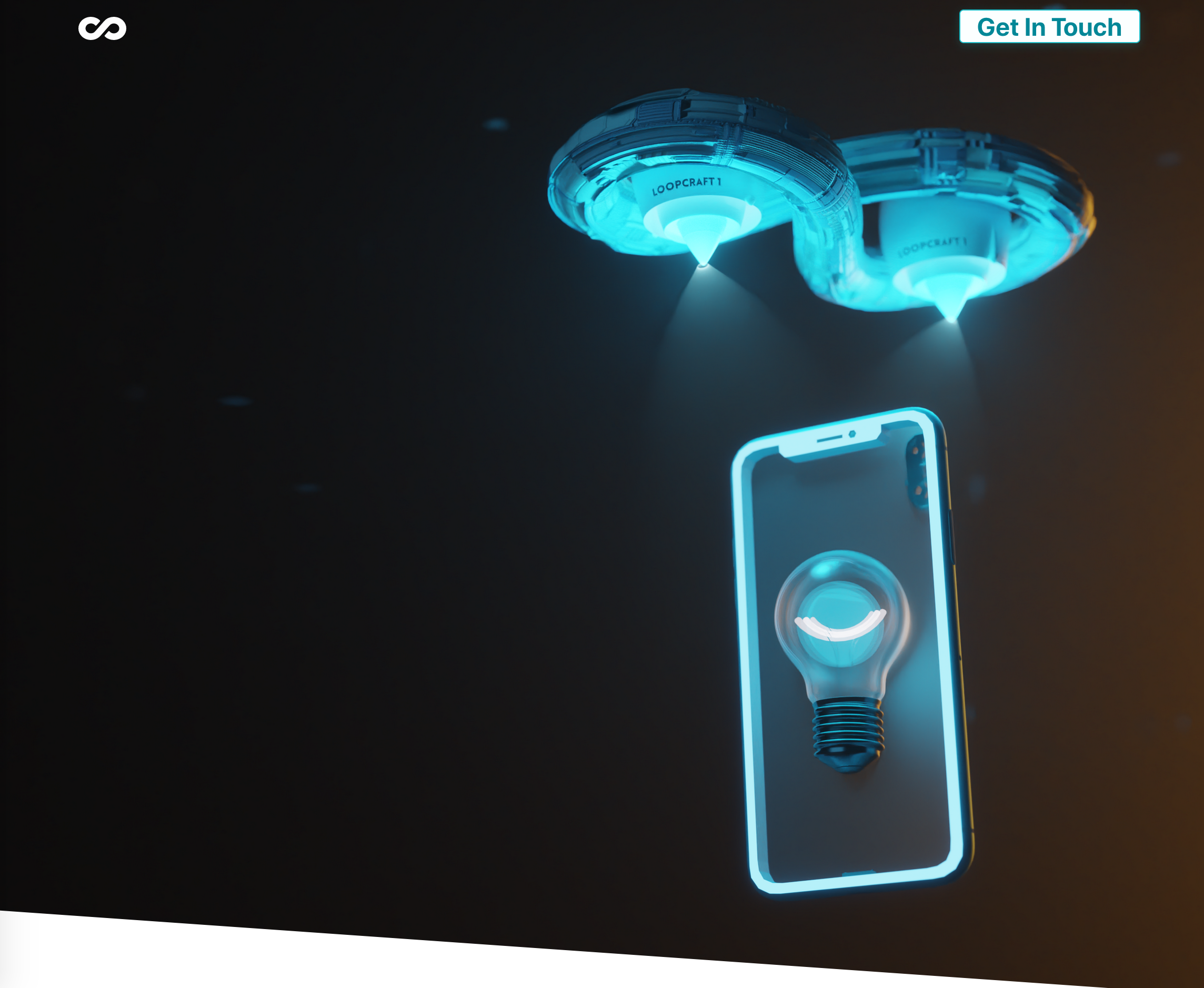
Poor quality:

This would be fine since most people don't put their browser windows that narrow but it affects mobile screens too:
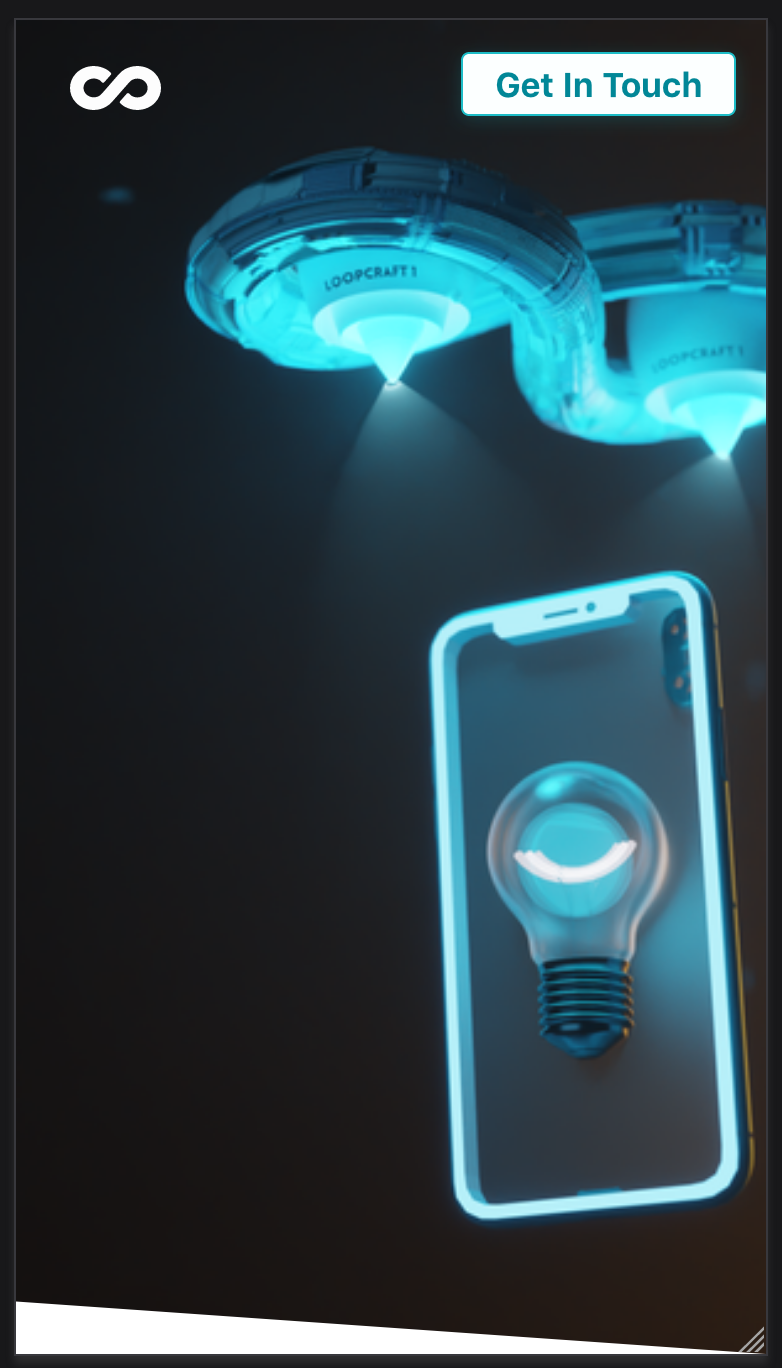
I understand that gatsby-image is supposed to serve the right size image for the screen size and so it makes sense that it would serve a smaller image on a smaller screen but the height in the first two images above is exactly the same; when the image has an object-fit of cover then shouldn't the image be the same quality? Is it only basing the quality on the width and not the height even though it's set to cover?
My image has this style applied to it:
.background {
    position: absolute !important;
    top: 0;
    right: 0;
    bottom: 0;
    left: 0;
    z-index: -1;
}
The query (though i've played around with multiple combinations of maxWidth and maxHeight):
query {
    file(relativePath: { eq: "home.png" }) {
        childImageSharp {
            fluid(maxWidth: 1920, maxHeight: 1080, quality: 100) {
                ...GatsbyImageSharpFluid
            }
        }
    }
}
 jamesalester
All 3 comments
maxWidth sets the 1x size for fluid images "width"(w) descriptors or the scale factor for fixed images. sharp will process based on that value(or when maxHeight is provided instead, it'll assign a w value of the width for each height scaled image). Default image sizes generated is 25% 50% 100% 150% 200%.
The media condition default is to use 100vw until your 100% value and then it would remain at that. For width descriptors, the w value reflects the true pixels width of the image, whereas the media condition px(which 100vw will convert to px) represents CSS pixels, these are 96px == 1 physical inch (96 DPI). If your display/device has a different DPI, your px value will be normalized to choose the appropriate image by w. On a high DPI display, such as a mobile device, that means the 2x / 200% w size might be preferred vs 50% or 100% for the same viewport width that the desktop might choose.
If you want to, you could use a different media condition to sample the px value based on viewport height, but that would not match the w values well. As it's like media queries, it's viewport dimensions, not the images display dimension like one might think that get sampled.
object-fit will allow for cropping the visibility of your image, depending how your fluid container sizes itself, that may result in the image being "zoomed" / stretched to fit. Thus if your image that was loaded was too small it will lose quality from being enlarged like that. As explained the media condition is using the viewport width to select the image(it rounds up in selection, so if the value is 305 and you have 300w and 600w to choose from, 600w will be selected), it unfortunately can't reference the image elements width/height, but you can modify the media condition or instruct sharp to create different(or no additional) sizes.
childImageSharp {
        fluid(
          srcSetBreakpoints: [ 180, 256, 360, 540, 800, 1080 ],
I think you can also provided a sizes arg in the query, I haven't done that before but have modified the resulting fixed/fluid data object sizes property that you'd pass to gatsby-image:
const widthSingleV = `
(min-width: 1200px) 360px,
(min-width: 960px) 25vw,
(min-width: 640px) 33vw,
(min-width: 320px) 50vw, 100vw
`
This is like specifying a list of media queries for which condition to use, and then how to get a px value that will be converted to real pixels to match w values(the srcSetBreakpoints), the last value is a fallback for when no media conditions are valid, in the example I use min-width so it applies for anything below 320px. The snippet is from a column based layout and matches media queries for when I increase column count, keeping the size fairly consistent, above 1200px I expect it to always be 360px(which will select 360w on desktop, but 720w or 1080w on mobile or Macs for example).
TL;DR
You need to adjust your image sizes that sharp is handling for you by default, or modify your sizes in the fluid object to select a larger image (w).
 polarathene
on 21 Jul 2020
polarathene
on 21 Jul 2020
Couldn't have answered this better than @polarathene 🎉
 sidharthachatterjee
on 21 Jul 2020
sidharthachatterjee
on 21 Jul 2020
Thanks @polarathene! I really appreciate you taking the time to write that up, very useful!
jamesalester
on 21 Jul 2020
Related issues
 ghost
·
3Comments
ghost
·
3Comments
 KyleAMathews
·
3Comments
KyleAMathews
·
3Comments
 theduke
·
3Comments
theduke
·
3Comments
 benstr
·
3Comments
benstr
·
3Comments
 brandonmp
·
3Comments
brandonmp
·
3Comments