Fontforge: Export all glyphs as individual SVGs to a specific location
Is there any way to export all glyphs from a font as individual SVGs to a specific location in Windows 10?
 zcraber
All 4 comments
I'm not positive but I'm pretty sure you need a python script for this
 ctrlcctrlv
on 1 Oct 2020
ctrlcctrlv
on 1 Oct 2020
I'm not positive but I'm pretty sure you need a python script for this
I found this from Stack Overflow: SelectWorthOutputting(); foreach Export("svg"); endloop;
But SVGs are getting saved to a default location. Also, some glyphs are not getting saved. For e.g., small letters. I don't have experience in coding. So, any help would be appreciated. Thanks in advance.
zcraber
on 1 Oct 2020
1) Do some copy of your SFD file, because for correct output you need unlink references in the glyphs.
2) Do some subdirectory in the directory where you have SFD file
-for example your SFD file is in d:\myfonts\myfont.sfd, so do subdirectory d:\myfonts\svg for script output, this subdirectory you will need put to the script
3) Open your SFD file - you have two choices, better is first
a) by doubleclick from some File manager or Windows Explorer
b) From FontForge menu: File/ Open
4) Use File/ Execute script, check radiobox FF, and put there:
SelectAll()
UnlinkReference()
Export("svg/%n-%e.svg")

This FontForge script select all glyphs, then unlink references in glyphs, and then export glyphs to the SVG subdirectory. %n means the file name will be the glyph name, and %e adds glyph encoding to the file name -> it is important, if you don't use %e then glyphs with the same names differs only with lowercase/uppercase will be rewrites only to one file. For example if you have glyphs "a" and "A", then Export only with %n do only one file -> "a.svg". Export with %n-%e will do correctly two files, for example something like "a-12.svg" and "A-38.svg".
If you opened your SFD file from File menu, you must add path to the Export command like: Export("d:/myfonts/svg/%n-%e.svg") else you will see message "Save failed".
When i tried this script, FontForge exported some glyphs with limited viewbox, there is examples for arabic letter Ha'.
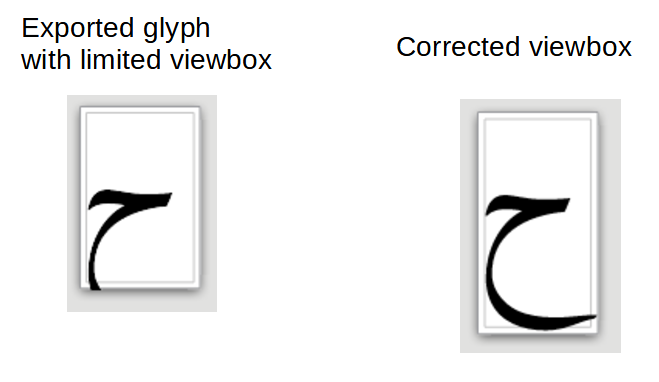
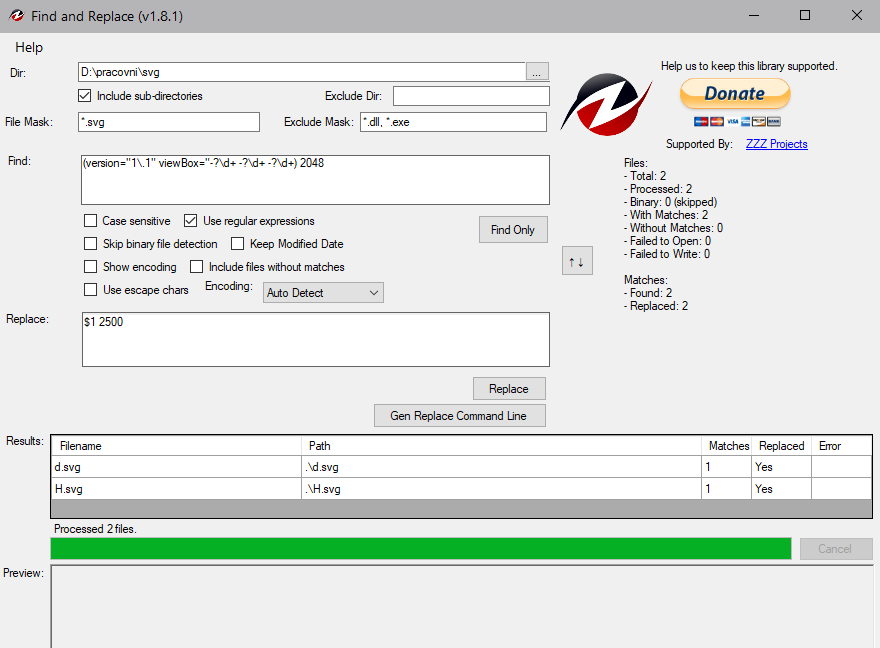
It is possible to correct viewbox for example in InkScape, but batch process is better. I use program Find and Replace http://findandreplace.io for batch replacing by regular expressions in the files. I had viebow in exported files 2048px high

so I changed it with Find and Replace to the 2500px:
 KamilLanda
on 1 Oct 2020
KamilLanda
on 1 Oct 2020
@KamilLanda It worked! Thanks a lot for this detailed explanation. Learned a lot today. Thanks again.
zcraber
on 1 Oct 2020
Related issues
 ilius
·
9Comments
ilius
·
9Comments
 dimitre
·
7Comments
dimitre
·
7Comments
 typedesigner
·
5Comments
typedesigner
·
5Comments
 zoghal
·
9Comments
zoghal
·
9Comments
 Shawali
·
3Comments
Shawali
·
3Comments
Most helpful comment
1) Do some copy of your SFD file, because for correct output you need unlink references in the glyphs.
2) Do some subdirectory in the directory where you have SFD file
-for example your SFD file is in d:\myfonts\myfont.sfd, so do subdirectory d:\myfonts\svg for script output, this subdirectory you will need put to the script
3) Open your SFD file - you have two choices, better is first
a) by doubleclick from some File manager or Windows Explorer
b) From FontForge menu: File/ Open
4) Use File/ Execute script, check radiobox FF, and put there:
SelectAll()

UnlinkReference()
Export("svg/%n-%e.svg")
This FontForge script select all glyphs, then unlink references in glyphs, and then export glyphs to the SVG subdirectory. %n means the file name will be the glyph name, and %e adds glyph encoding to the file name -> it is important, if you don't use %e then glyphs with the same names differs only with lowercase/uppercase will be rewrites only to one file. For example if you have glyphs "a" and "A", then Export only with %n do only one file -> "a.svg". Export with %n-%e will do correctly two files, for example something like "a-12.svg" and "A-38.svg".
If you opened your SFD file from File menu, you must add path to the Export command like: Export("d:/myfonts/svg/%n-%e.svg") else you will see message "Save failed".
When i tried this script, FontForge exported some glyphs with limited viewbox, there is examples for arabic letter Ha'.

It is possible to correct viewbox for example in InkScape, but batch process is better. I use program Find and Replace http://findandreplace.io for batch replacing by regular expressions in the files. I had viebow in exported files 2048px high

so I changed it with Find and Replace to the 2500px:
