Running Linux Mint, is there a way to either set a hotkey to take a screenshot, or a way to create a custom keyboard shortcut that points to the screenshot function? Sadly any applications that run in fullscreen modes make this application redundant.
 ghost
ghost
All 18 comments
I'm running Cinnamon on Manjaro, so I hope this applies 100% to Linux Mint.
What I did, because I wanted to use the 'prtscr' key to launch Flameshot is:
1) Open System Settings
2) Open Keyboard Settings (under Hardware)
3) Select the 'Shortcuts' tab
4) Under Categories open System > Screenshots and Recordings
5) Check to which action the 'prtscr' key is bound (likely to Take a screenshot of an area or Take a screenshot... I had messed with this setting before, so I'm not quite sure)
6) Open Custom Shortcuts
7) Click Add custom shortcut
8) Type 'Flameshot' in the Name field and 'flameshot gui' in the Command field (both without the enclosing apostrophies)
9) Click Add
10) That's it, hopefully.
 fschaap
on 14 May 2018
fschaap
on 14 May 2018
I tried the same thing on Manjaro Cinnamon, but it doesn't work for some reason. Running flameshot gui from the terminal with or without Flameshot running works,however.
 yochananmarqos
on 12 Aug 2018
yochananmarqos
on 12 Aug 2018
@yochananmarqos its cause DE use print screen key for default progam... try change the key printscreen in "global" put something random (link ctrl + 3 +4) , and try make what @fschaap say
im using manjaro kde and work fine

 luucasalvesss
on 13 Aug 2018
luucasalvesss
on 13 Aug 2018
@luucasalvesss I tried that, but it made no difference. Also I noticed none of the default keyboard shortcuts work; i.e., Alt + Print when Print is assigned to anything other than default.


yochananmarqos
on 13 Aug 2018
I'm not sure why it is not working for you.
I would advise trying the following:
- check if the command for your keyboard shortcut is 'flameshot gui' (without the single quotes)
- add a random unused keyboard binding, like: ctrl+shift+7
- test if Flameshot launches when you use that shortcut
- if not, make the command for the shortcut '/usr/bin/flameshot' (without the single quotes)
- if Flameshot is still not launching from the shortcut, I suppose something else is wrong on your system
However, if Flameshot is properly launching from this before unused shortcut, then you can start to get it connected to the Print-screen key. The point is, this is a bit finicky. What I have done:
- in the above screenshot, under System > Screenshots and Recording remove all the shortcut bindings that have the 'Print' key in it
- you can do this by double-clicking the keyboard binding
- the keyboard-binding is now active and high-lighted
- press the backspace key
- the keyboard-binding now says 'unassigned'
- doublecheck if the 'Print' button is assigned in any of the other categories
- now go back to the Custom shortcut for Flameshot, double-click the keyboard-binding and hit the 'Print' key
I admit it is a bit finicky that you first have to unassign the other keyboard shortcuts, but this is what works for me.
fschaap
on 27 Aug 2018
I'm running Cinnamon on Manjaro, so I hope this applies 100% to Linux Mint.
What I did, because I wanted to use the 'prtscr' key to launch Flameshot is:
- Open System Settings
- Open Keyboard Settings (under Hardware)
- Select the 'Shortcuts' tab
- Under Categories open System > Screenshots and Recordings
- Check to which action the 'prtscr' key is bound (likely to Take a screenshot of an area or Take a screenshot... I had messed with this setting before, so I'm not quite sure)
- Open Custom Shortcuts
- Click Add custom shortcut
- Type 'Flameshot' in the Name field and 'flameshot gui' in the Command field (both without the enclosing apostrophies)
- Click Add
- That's it, hopefully.
Following the steps from @fschaap works for me (Linux Mint 19):

 maksha
on 22 Nov 2018
maksha
on 22 Nov 2018
I have same issue on Ubuntu 19.04 Beta. I tried workaround, but the Gnome extension is already installed.
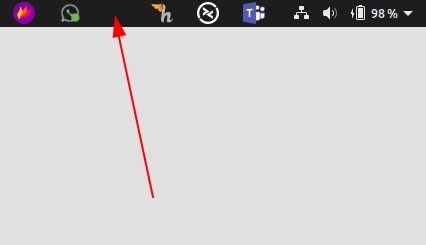
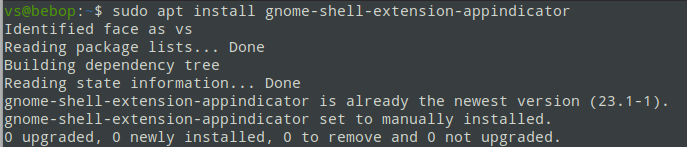
 Faults
on 9 Apr 2019
Faults
on 9 Apr 2019
fschaap solution works perfectly, thanks!
 kamalhm
on 11 Jul 2019
kamalhm
on 11 Jul 2019
If anyone is looking for a way to do this on Ubuntu (tested on Ubuntu 19.04), here's the way that worked for me:
- Release the
PrtScrbinding by this command
gsettings set org.gnome.settings-daemon.plugins.media-keys screenshot '' - Go to Settings -> Devices -> Keyboard and scroll to the end. Press
+and you will create custom shortcut.
- Enter name: "flameshot", command:
/usr/bin/flameshot gui(or wherever flameshot is, usewhich flameshotto see where it is) - Set shortcut to PrtScr (print).
- Enter name: "flameshot", command:
That is it. Next time you push PrtScr flameshot will be launched.
Source: https://askubuntu.com/a/1039949
 osagga
on 30 Jul 2019
osagga
on 30 Jul 2019
I am on Mint 19.2 Cinnamon. All that was necessary for me to get Flameshot to take a screenshot, whether Flameshot is running or not, was to tell Cinnamon to bind flameshot gui to a key. However, including the 'gui' bit - that is not going to occur to most people. EDIT: I find that this no longer works, at least if one tries to bind not simply PrintScrn but that key with any modifier. Please see my comment below.
 LinuxOnTheDesktop
on 15 Nov 2019
LinuxOnTheDesktop
on 15 Nov 2019
For Xubuntu users (Xfce), you can configure the Print Screen key as a Flameshot shortcut like this:
- Via GUI: application "Keyboard" in the main menu, then tab "Application Shortcuts", where you edit the shortcut "Print" to bind it to the command
flameshot gui. - Alternatively, via command line:
bash
xfconf-query --channel xfce4-keyboard-shortcuts \
--property /commands/custom/Print \
--create --set 'flameshot gui' --type string
I use the latter to configure my Xubuntu 18.04.3 LTS machine via Ansible.
 evolutics
on 29 Dec 2019
evolutics
on 29 Dec 2019
There is a bug in Cinnamon that is causing at least most of the problem here. See here.
LinuxOnTheDesktop
on 6 Feb 2020
Hi, I am using the Snap version of Flameshot, could you please help me find the right command to add in Keyboards settings?
Thanks!
 riadhtaihi
on 15 Jun 2020
riadhtaihi
on 15 Jun 2020
I'm running Cinnamon on Manjaro, so I hope this applies 100% to Linux Mint.
What I did, because I wanted to use the 'prtscr' key to launch Flameshot is:
- Open System Settings
- Open Keyboard Settings (under Hardware)
- Select the 'Shortcuts' tab
- Under Categories open System > Screenshots and Recordings
- Check to which action the 'prtscr' key is bound (likely to Take a screenshot of an area or Take a screenshot... I had messed with this setting before, so I'm not quite sure)
- Open Custom Shortcuts
- Click Add custom shortcut
- Type 'Flameshot' in the Name field and 'flameshot gui' in the Command field (both without the enclosing apostrophies)
- Click Add
- That's it, hopefully.
This worked perfect for me. Is it possible to skip the step where it asks "Select area with the mouse or press exit... " and have immediately the window with the area selected?
Edit1: Fixed, by uncheck the options in general "Show help message"
 hyuma78
on 15 Jun 2020
hyuma78
on 15 Jun 2020
People who have contributed to this thread may want to head over to the Cinnamon bug report that I mentioned above and give that issue a '+1'.
LinuxOnTheDesktop
on 15 Jun 2020
Guys, any ideas on setting it on lubuntu?!
 CowlingBanana
on 20 Aug 2020
CowlingBanana
on 20 Aug 2020
perfect it work for me
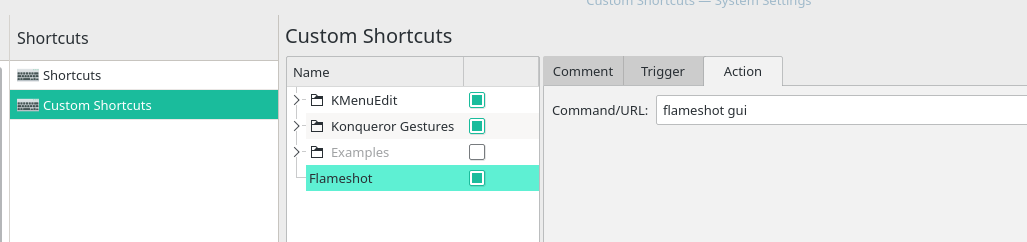
 UgoTran
on 9 Nov 2020
UgoTran
on 9 Nov 2020
I'm using linux mint and i find a solution by installing flameshot via using terminal (sudo apt install flameshot) now it works properly by using prtsctrn bind
 Dincer24
on 17 Nov 2020
Dincer24
on 17 Nov 2020
Related issues
 kylewill
·
4Comments
kylewill
·
4Comments
 mrinvisible0
·
4Comments
mrinvisible0
·
4Comments
 hosiet
·
4Comments
hosiet
·
4Comments
 thiswillbeyourgithub
·
3Comments
thiswillbeyourgithub
·
3Comments
 sephore
·
3Comments
sephore
·
3Comments
Most helpful comment
I'm running Cinnamon on Manjaro, so I hope this applies 100% to Linux Mint.
What I did, because I wanted to use the 'prtscr' key to launch Flameshot is:
1) Open System Settings
2) Open Keyboard Settings (under Hardware)
3) Select the 'Shortcuts' tab
4) Under Categories open System > Screenshots and Recordings
5) Check to which action the 'prtscr' key is bound (likely to Take a screenshot of an area or Take a screenshot... I had messed with this setting before, so I'm not quite sure)
6) Open Custom Shortcuts
7) Click Add custom shortcut
8) Type 'Flameshot' in the Name field and 'flameshot gui' in the Command field (both without the enclosing apostrophies)
9) Click Add
10) That's it, hopefully.