Dietpi: Upgrade to .17 wipes wifi settings on RPi 3
Creating a bug report/issue:
Required Information:
- DietPi version |
cat /DietPi/dietpi/.version - Distro version |
echo $G_DISTRO_NAMEorcat /etc/debian_version - Kernel version |
uname -a - SBC device |
echo $G_HW_MODEL_DESCRIPTIONor (EG: RPi3) - Power supply used | (EG: 5V 1A RAVpower)
- SDcard used | (EG: SanDisk ultra)
Additional Information (if applicable):
- Software title | (EG: Nextcloud)
- Was the software title installed freshly or updated/migrated?
- Can this issue be replicated on a fresh installation of DietPi?
dietpi-bugreportID
Steps to reproduce:
- ...
- ...
Expected behaviour:
- ...
Actual behaviour:
- ...
Extra details:
- ...
 GrahamGIGA
All 11 comments
Upgrading via dietpi-update appears to wipe existing wi-fi settings out.
Using the network configurator shows the (correct) entered settings for SSID and Password, but the default IP is assigned, despite DietPi claiming to be connected to the corrct SSID.
Mounting the card on MacOS, this is the dietpi.txt file that is extant (after the upgrade and after setting the SSID and password via the configurator:
"#Modifications to /boot/* files, will not be saved when powered on.
#Please ensure you edit from the DietPi-RamDisk location /DietPi/*

#NB: This is intended for advanced users, unless you know what you are doing, do not edit this file. Please use the DietPi programs instead.
#NB: Do not remove uncommented lines, as the items are scraped by DietPi programs, on demand.

#------------------------------------------------------------------------------------------------------
# DietPi-Automation
# All settings below will be applied on the 1st boot of DietPi, ONCE.
#------------------------------------------------------------------------------------------------------

##### Networking Options #####

#   If both Ethernet and Wifi are enabled, Wifi will take priority and Ethernet will be disabled.
#       1=enabled
AUTO_SETUP_NET_ETHERNET_ENABLED=1
AUTO_SETUP_NET_WIFI_ENABLED=0

#   Enter your Wifi details below, if applicable (Case Sensitive).
AUTO_SETUP_NET_WIFI_SSID=MySuperDooperWiFi
AUTO_SETUP_NET_WIFI_KEY=0123456789
#   available | WPA-PSK / WPA-EAP / NONE | WEP=No longer supported
AUTO_SETUP_NET_WIFI_KEYMGR=WPA-PSK

#  For WPA2 Enterprise uncomment the following entries and set accordingly
#AUTO_SETUP_NET_WIFI_PROTO=RSN
#AUTO_SETUP_NET_WIFI_PAIRWISE=CCMP
#AUTO_SETUP_NET_WIFI_AUTH_ALG=OPEN
#AUTO_SETUP_NET_WIFI_EAP=PEAP
#AUTO_SETUP_NET_WIFI_IDENTITY=<userid>
#AUTO_SETUP_NET_WIFI_PASSWORD=<userpassword>
#
# If your WPA2 Enterprise requries a certificate copy the cert to this /boot directory and enter the name on the following line
#AUTO_SETUP_NET_WIFI_CERT=wpa2ent_cert.cer
# Uncomment either or both lines below and set accordingly for your WPA2 Enterprise needs.
#AUTO_SETUP_NET_WIFI_PHASE1=
#AUTO_SETUP_NET_WIFI_PHASE2=auth=MSCHAPV2

#   Enter your Static Network details below, if applicable.
AUTO_SETUP_NET_USESTATIC=0
AUTO_SETUP_NET_STATIC_IP=192.168.0.100
AUTO_SETUP_NET_STATIC_MASK=255.255.255.0
AUTO_SETUP_NET_STATIC_GATEWAY=192.168.0.1
AUTO_SETUP_NET_STATIC_DNS=8.8.8.8

#   Hostname
AUTO_SETUP_NET_HOSTNAME=DietPi

#   Force ethernet speeds
#       NB: This is mainly aimed towards Pine A64's which may have a HW issue that causes unstable 1Gbit link.
#       0=automatic speed | 10 = 10mbit, 100 = 100mbit etc
AUTO_SETUP_NET_ETH_FORCE_SPEED=0

##### Misc Options #####

#   Size of swapfile to generate (MB)
#       0=Disabled | 1=auto (2GB-RAM = size) | 2+=manual
AUTO_SETUP_SWAPFILE_SIZE=1072
#       Optional swapfile location
AUTO_SETUP_SWAPFILE_LOCATION=/var/swap

# Unmask (enable) systemd-logind service, which is masked by default on DietPi
AUTO_UNMASK_LOGIND=0

##### Software Automation Options #####

#   Fully automate installation
#       1=Automated installation with no user inputs.
#       It is HIGHLY recommended to also set CONFIG_BOOT_WAIT_FOR_NETWORK=2, to force infinite wait for network connection during boot, preventing no connection errors due to timeout.
AUTO_SETUP_AUTOMATED=0

#   Global Password to be applied for the system
#       Requires AUTO_SETUP_AUTOMATED=1
#       Affects user "root" and "dietpi" login passwords, and, all software installed by dietpi-software, that requires a password
#       eg: MySQL, Transmission, Deluge etc.
#       WARN: Passwords with the any of the following characters are not supported: \"$
#       WARN: Do NOT change this entry after 1st run setup of DietPi has been completed. It is always scraped by dietpi-software.
AUTO_SETUP_GLOBAL_PASSWORD=Password has been encrypted and secured on rootFS

#   DietPi-Software to automatically install. | requires AUTO_SETUP_AUTOMATED=1
#   For a list of software index's (ID's), run '/DietPi/dietpi/dietpi-software list'
#   No limit on number entries, add as many as you need and uncomment the line.
#   DietPi will automatically install all pre-reqs (eg: ALSA/XSERVER for desktops etc)
#   - Examples:
#AUTO_SETUP_INSTALL_SOFTWARE_ID=23  #will install Desktop LXDE
#AUTO_SETUP_INSTALL_SOFTWARE_ID=74  #will install LAMP webserver stack
#AUTO_SETUP_INSTALL_SOFTWARE_ID=44  #will install Bittorrent transmission

#   DietPi-Software Choice System
#   SSH Server Selection:
#       0=none
#       -1=dropbear
#       -2=opensshserver
AUTO_SETUP_SSH_SERVER_INDEX=-1

#   File Server Selection:
#       0=none/manual
#       -1=proftp
#       -2=samba
AUTO_SETUP_FILE_SERVER_INDEX=0

#   Logging Mode Selection:
#       0=none/manual
#       -1=ramlog 1h clear
#       -2=ramlog 1h save clear
#       -3=logrotate + rsyslog
AUTO_SETUP_LOGGING_INDEX=-1
#   RAMlog max tmpfs size (MB). 50MB should be fine for single use. 200MB+ for heavy webserver and access log use etc.
AUTO_SETUP_RAMLOG_MAXSIZE=50

#   Webserver Preference Selection:
#   NB: This will get ignored, if you have manually selected any WEBSERVER_Stack.
#       0=Apache2
#       -1=Nginx
#       -2=Lighttpd
AUTO_SETUP_WEB_SERVER_INDEX=-2

#   DietPi-Autostart | Requires AUTO_SETUP_AUTOMATED=1
#   After installation is completed, which program should the system boot to?
#       0=Console 7=Console+auto root login | 1=Kodi 2=Desktops (LXDE/MATE etc) 5=DietPi-Cloudshell 6=Uae4ARM (Fastboot) 8=Uae4ARM (standard boot) 9=dxx-rebirth
AUTO_SETUP_AUTOSTART_TARGET_INDEX=0

#   Language/Regional settings | Requires AUTO_SETUP_AUTOMATED=1
#       Timezone eg: Europe/London America/New_York | Full list (TZ*): https://en.wikipedia.org/wiki/List_of_tz_database_time_zones
AUTO_SETUP_TIMEZONE=Europe/London
#       Locale eg: en_GB.UTF-8 / en_US.UTF-8 etc. One entry ONLY.
AUTO_SETUP_LOCALE=en_US.UTF-8
#       Keyboard Layout eg: gb us de fr
AUTO_SETUP_KEYBOARD_LAYOUT=gb

#   Custom Script | Requires AUTO_SETUP_AUTOMATED=1
#       Allows you to automatically execute a custom script at the end of DietPi installation.
#       Option 1 = Copy your script to /boot/Automation_Custom_Script.sh and it will be executed automatically.
#       Option 2 = Host your script online, then use AUTO_SETUP_CUSTOM_SCRIPT_EXEC=http://myweb.com/myscript.sh , it will be downloaded and executed automatically. | 0=disabled
#       NB: Executed script log /var/tmp/dietpi/logs/dietpi-automation_custom_script.log
AUTO_SETUP_CUSTOM_SCRIPT_EXEC=0

#------------------------------------------------------------------------------------------------------
# D I E T - P I
# DietPi-Config settings.
#------------------------------------------------------------------------------------------------------
#RPi Hdmi output (if 0, sets tvservice -o and framebuffer 16x 16y 8z on boot, headless)
CONFIG_HDMI_OUTPUT=1

#Cpu Governor | ondemand | powersave | performance | conservative
CONFIG_CPU_GOVERNOR=ondemand
CONFIG_CPU_USAGE_THROTTLE_UP=50

#Limit the max cpu frequency (Mhz) for all cores. | Disabled=disabled | Useful for lowering temp/power usage on your device.
CONFIG_CPU_MAX_FREQ=Disabled

#Limit the min cpu frequency (Mhz) for all cores. | Disabled=disabled | Useful for 1-wire correct support (eg. 480Mhz).
CONFIG_CPU_MIN_FREQ=Disabled

#Min value 10000 microseconds (10ms)
CONFIG_CPU_ONDEMAND_SAMPLE_RATE=25000

#sampling rate * down factor / 1000 = Milliseconds (40 = 1000ms when sampling rate is 25000)
CONFIG_CPU_ONDEMAND_SAMPLE_DOWNFACTOR=80

#Proxy settings | System-wide proxy settings. Use dietpi-config > networking options to apply.
#   NB: Do not modify, you must use dietpi-config to configure/set options
CONFIG_PROXY_ENABLED=0
CONFIG_PROXY_ADDRESS=MyProxyServer.com
CONFIG_PROXY_PORT=8080
CONFIG_PROXY_USERNAME=
CONFIG_PROXY_PASSWORD=

#Delay boot until network is established: 0=disabled | 1=10 second wait max (default) | 2=infinite wait
CONFIG_BOOT_WAIT_FOR_NETWORK=1

#DietPi check for updates (allows dietpi to check for updates on a daily basis and boot using a <1kb file download.)
CONFIG_CHECK_DIETPI_UPDATES=1

#NTPD Update Mode: 0=disabled | 1=boot only | 2=boot + daily | 3=boot + hourly | 4=Daemon + Drift
CONFIG_NTP_MODE=2

#WiFi country code. 2 character value (eg GB US DE JP): https://en.wikipedia.org/wiki/ISO_3166-1_alpha-2
CONFIG_WIFI_COUNTRY_CODE=US

#Serial Console: Set to 1 if you require a serial console.
#   NB: Serial console is always enabled by default for 1st run setup, then disabled afterwards, unless set below.
CONFIG_SERIAL_CONSOLE_ENABLE=0

#Soundcard
CONFIG_SOUNDCARD=iqaudio-dacplus

#LCD Panel addon
#   NB: Do not modify, you must use dietpi-config to configure/set options
CONFIG_LCDPANEL=none


#Apt mirrors which are applied to /etc/apt/sources.list | Values here will also be applied during 1st run setup
#   Raspbian = https://www.raspbian.org/RaspbianMirrors
#   Debian = https://www.debian.org/mirror/official#list
CONFIG_APT_RASPBIAN_MIRROR=http://raspbian.raspberrypi.org/raspbian
CONFIG_APT_DEBIAN_MIRROR=https://deb.debian.org/debian/

#NTPD mirror, applied to /etc/ntp.conf
#   For a full list, please see http://www.pool.ntp.org
#   Please remove the initial interger and full stop from the value (removing 0.). eg: debian.pool.ntp.org
CONFIG_NTP_MIRROR=debian.pool.ntp.org

#------------------------------------------------------------------------------------------------------
# D I E T - P I
# DietPi-Software settings.
#------------------------------------------------------------------------------------------------------
#Enter your EmonCMS.org write API key here. It will be applied automatically during EmonPi/Hub installation.
#   eg: SOFTWARE_EMONHUB_APIKEY=b4dfmk2o203mmxx93a
SOFTWARE_EMONHUB_APIKEY=

#VNC Server Options
SOFTWARE_VNCSERVER_WIDTH=1280
SOFTWARE_VNCSERVER_HEIGHT=720
SOFTWARE_VNCSERVER_DEPTH=16
SOFTWARE_VNCSERVER_DISPLAY_INDEX=1
SOFTWARE_VNCSERVER_SHARE_DESKTOP=0

#Optional username for ownCloud/Nextcloud admin account, default is 'admin'. Applied during installation.
SOFTWARE_OWNCLOUD_NEXTCLOUD_USERNAME=admin

#Optional data directory for ownCloud, default is '/mnt/dietpi_userdata/owncloud_data'. Applied during installation.
#   This option is for advanced users. For full compatibility, please keep this options defaults, and, use dietpi-drive_manager to move the DietPi user data location.
SOFTWARE_OWNCLOUD_DATADIR=/mnt/dietpi_userdata/owncloud_data

#Optional data directory for Nextcloud, default is '/mnt/dietpi_userdata/nextcloud_data'. Applied during installation.
#   This option is for advanced users. For full compatibility, please keep this options defaults, and, use dietpi-drive_manager to move the DietPi user data location.
SOFTWARE_NEXTCLOUD_DATADIR=/mnt/dietpi_userdata/nextcloud_data

#Wifi Hotspot
SOFTWARE_WIFI_HOTSPOT_SSID=DietPi-HotSpot
#   minimum of 8 characters
SOFTWARE_WIFI_HOTSPOT_KEY=dietpihotspot
SOFTWARE_WIFI_HOTSPOT_CHANNEL=3

#------------------------------------------------------------------------------------------------------
# D I E T - P I
# Dev settings
#------------------------------------------------------------------------------------------------------
DEV_GITBRANCH=master
DEV_GITOWNER=Fourdee
CONFIG_CPU_DISABLE_TURBO=0
CONFIG_ENABLE_IPV6=1
CONFIG_PREFER_IPV4=1
SOFTWARE_XORG_DPI=96
SOFTWARE_CHROMIUM_RES_X=1280
SOFTWARE_CHROMIUM_RES_Y=720
SOFTWARE_CHROMIUM_AUTOSTART_URL=https://google.com"
Changing the dietpi.txt file to the correct settings does NOT result in correction of the issue.
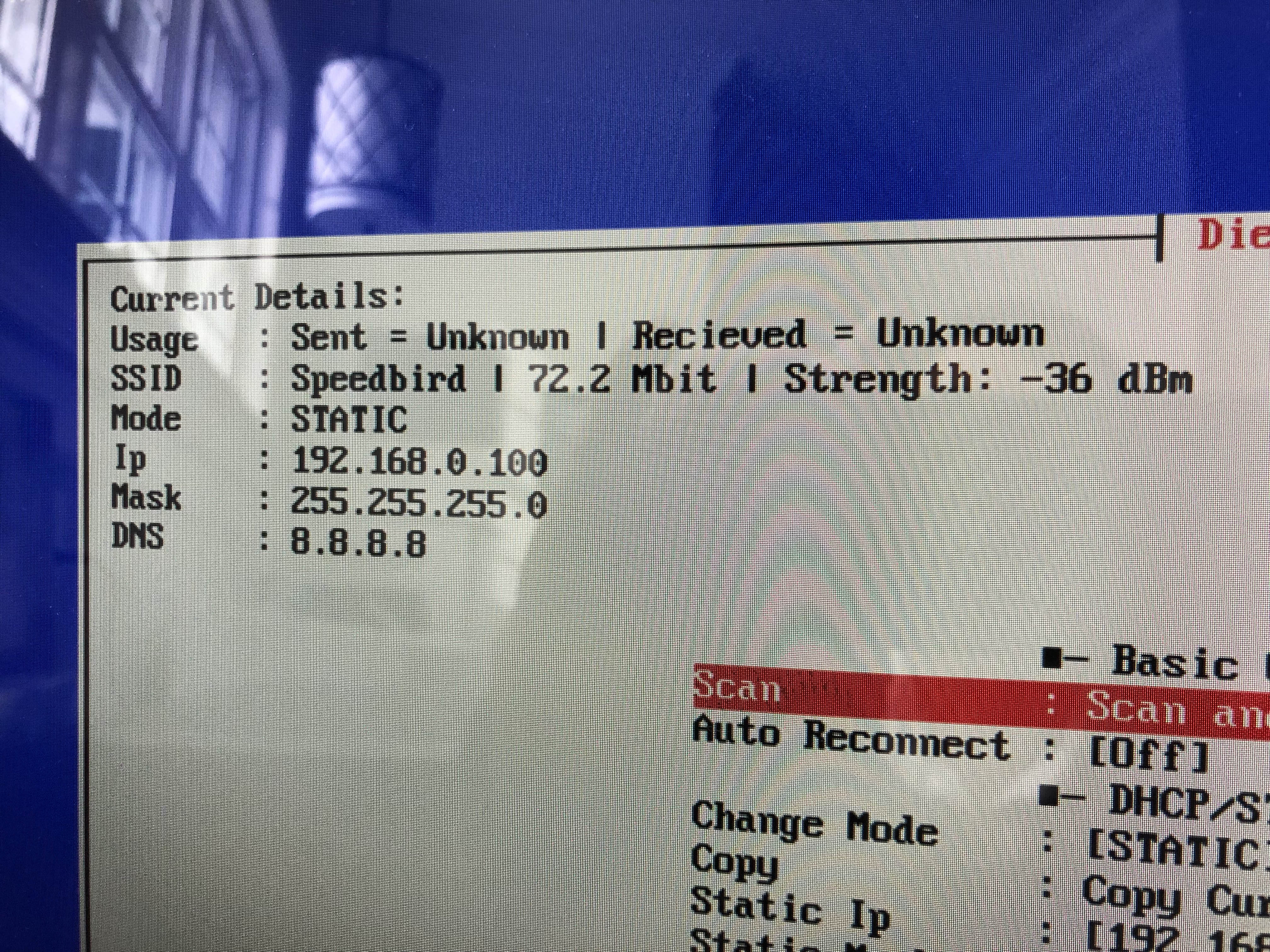
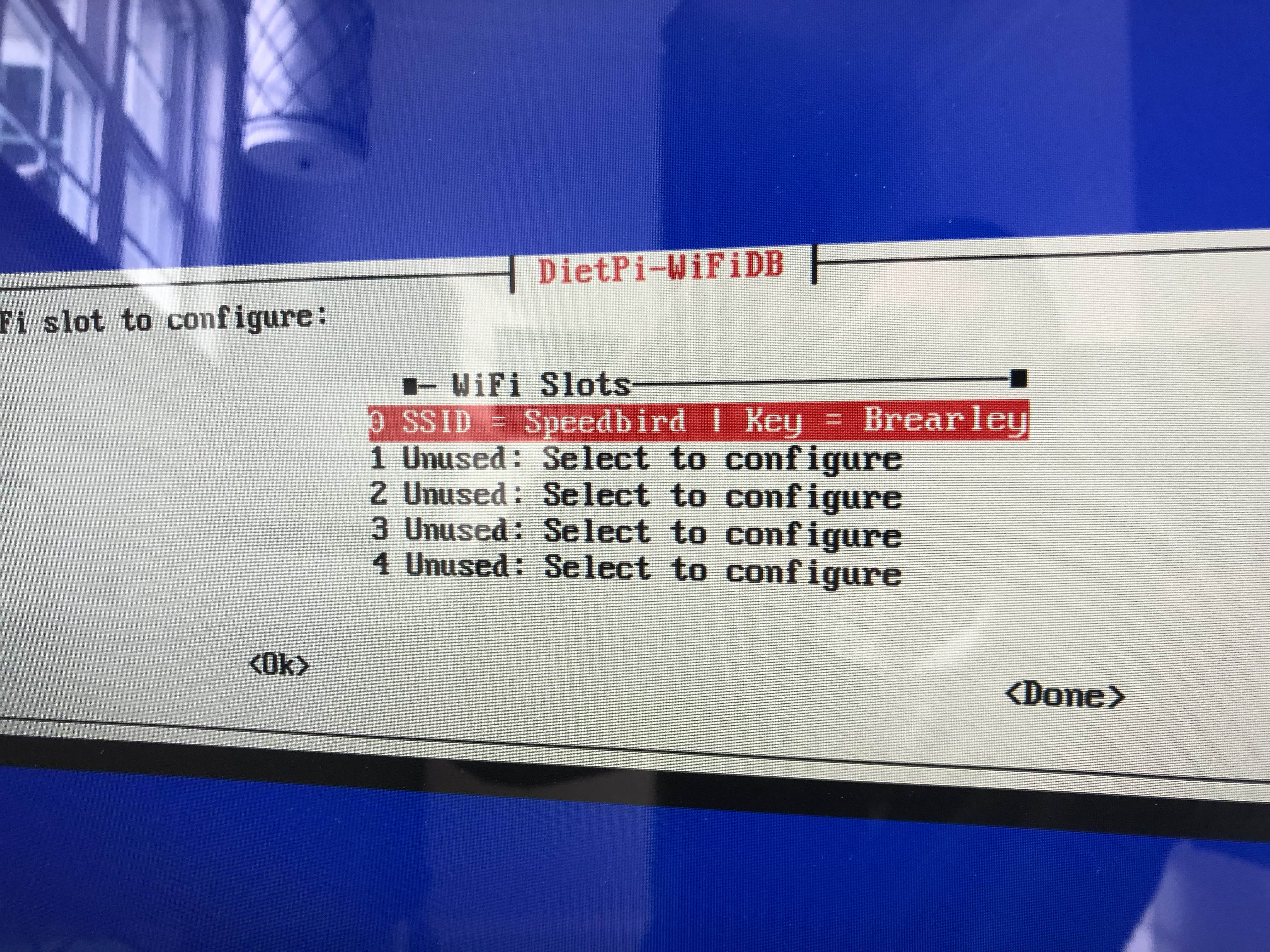
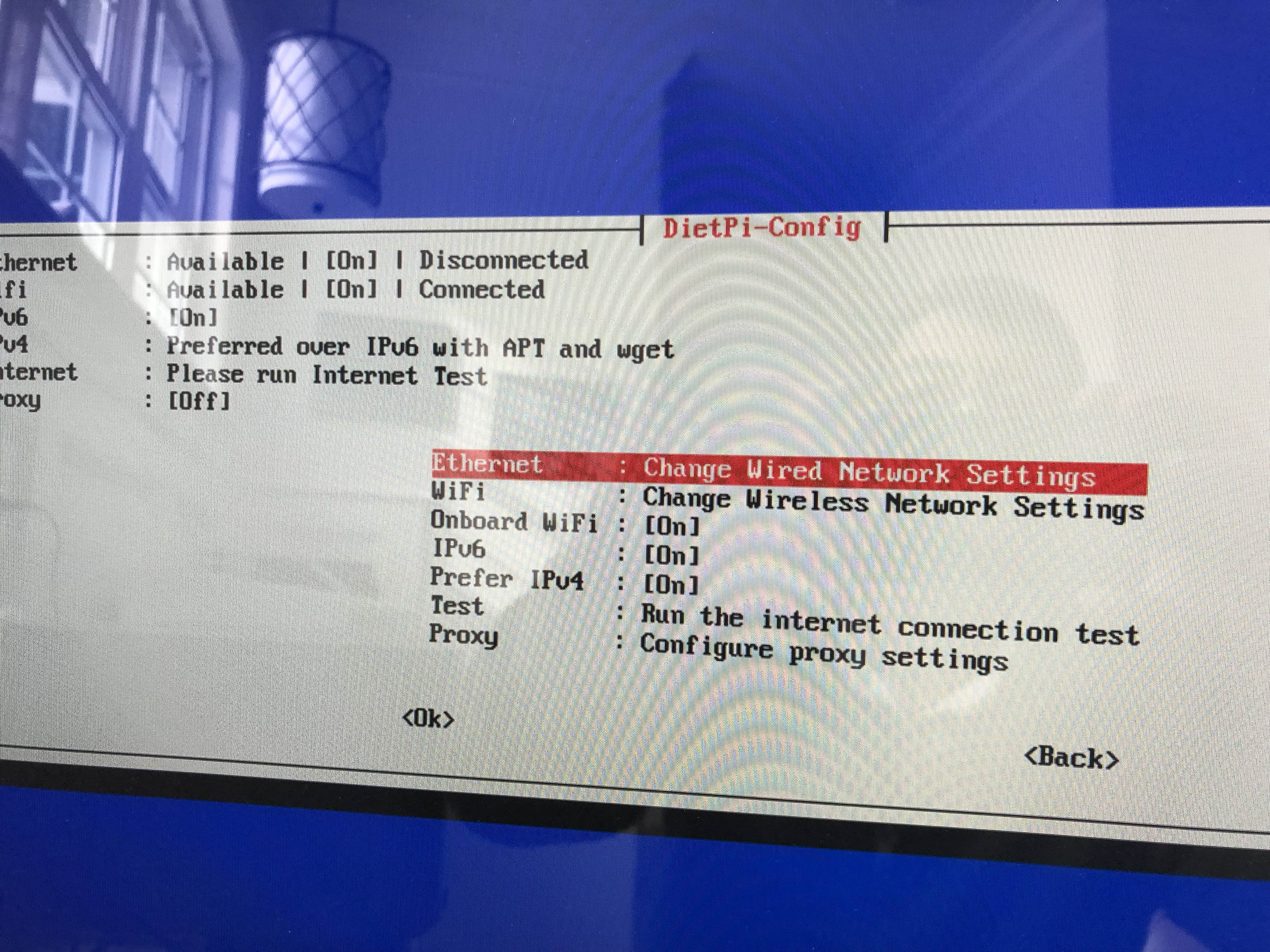
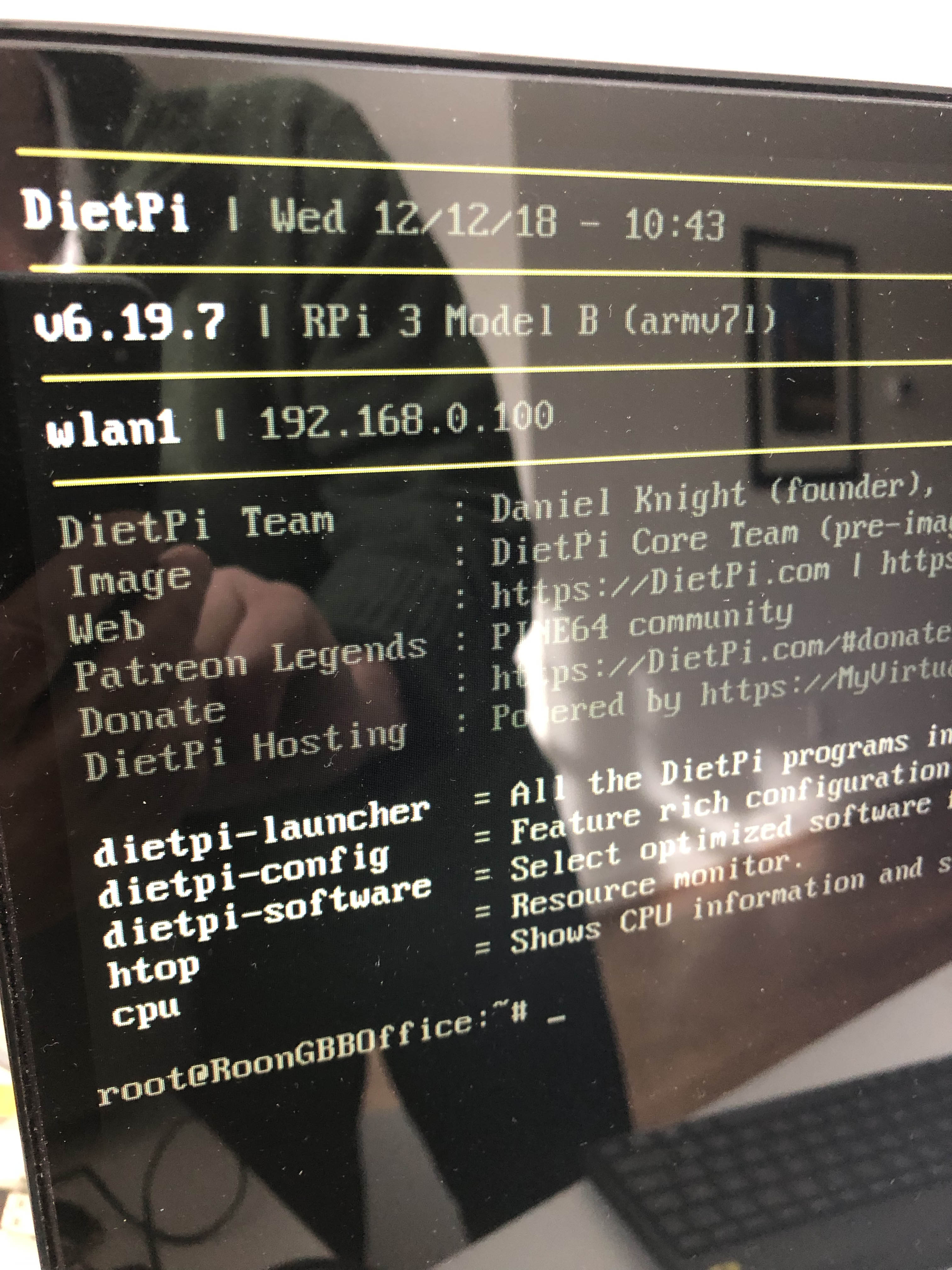
GrahamGIGA
on 12 Dec 2018
@GrahamGIGA
Hi Graham,
Many thanks for the report 👍
In dietpi-config under WiFi options, please can you toggle:
Change Mode: DHCPSave changes
Once completed, WiFi should now be connected to network, at which point please can you send me a bugreport:
Also, can you remember which version of DietPi you were running, prior to the update?
The dietpi.txt options are only used on 1st run, after which point dietpi-config must be used to make any changes.
Very strange this has switched to STATIC IP during the update. I can only suspect $G_DIETPI_INSTALL_STAGE was not updated to 1 during your 1st run, however AUTO_SETUP_NET_USESTATIC=0 and only triggered during 1st run in pre-boot. Regardless, i'll do some local testing and see if we can replicate.
 Fourdee
on 13 Dec 2018
Fourdee
on 13 Dec 2018
@GrahamGIGA
Thanks for your detailed report.
€: Lol same time answer :smile:
Note that we changed where to set WiFi SSID and credentials to dietpi-wifi.txt on first boot. I have to check whether we correctly port existing settings from dietpi.txt on update.
If you set WiFi settings afterwards and you don't choose DHCP, but static IP, use the "copy" option to copy currently applied IP and such into static settings. Usually DHCP is what you want (first) to get correct IP range, mask, gateway and DNS server from AP (router), then copy the applied settings to static IP, if you don't want the DHCP server from then on.
 MichaIng
on 13 Dec 2018
MichaIng
on 13 Dec 2018
Hi Dan,
I had missed the change to static - thanks.
There is something very odd going on here. I now have the Pi working again, with an assigned IP of .252, which is fine EXCEPT that the DHCP server [should] allocates a predefined IP based on the device. The setting in the server appeared to be correct, but was ignored.
I'll run the pi as is for a couple of days.
You have bug report: Bug report sent, reference code: a1fceb05-eda7-4eaf-9b99-38e5d4cfc4ad
To your question of prior version, I am unsure but THINK it was .14. I have two that updated fine (from .16) and two that have not - they are both older versions.
I do find that the wifi setup and settings (UI) are poorer than they used to be and it is much easier to make a change that is not intended.
One final thing: during the changing of wireless ettings, after one reboot the system insisted that I must Sudo dietpi-config. Only the once, the next time it worked as expected, i.e. from the command line.
Cheers
GrahamGIGA
on 13 Dec 2018
One final, final (?) comment on wireless. On the 3B there is an on card wireless and I have a Rosewill USB dongle plugged in. This is for reliability, the onboard was (is?) poor in earleir versions. When I diasble onboard wifi what am I disabling - the built in or all?
The dongle isn't distnguished in the setup menu.
Cheers
GrahamGIGA
on 13 Dec 2018
@GrahamGIGA
Hi,
IP of .252, which is fine EXCEPT that the DHCP server [should] allocates a predefined IP based on the device
You'll need to verify the MAC address of the USB WiFi device matches .252 in the router control panel. Failing that, i'am unsure as router setup varies.
One final thing: during the changing of wireless ettings, after one reboot the system insisted that I must Sudo dietpi-config.
Sudo is only required if logged in with the dietpi user dietpi. If you login as root, sudo is not required.
This is for reliability, the onboard was (is?) poor in earleir versions.
Onboard WiFi on the RPi is not as good as some USB dongles, however, as long as the range is acceptable, onboard WiFi is stable.
When you disable onboard WiFi in dietpi-config, this will disable the onboard RPi brcm module from loading. Essentially preventing it from being available.
Once disabled, you will need to re-setup WiFi in dietpi-config as the USB wlan adapter will change to wlan0.
I believe the main issue here is confusion in the dietpi-config UI for WiFi network setup, as I'am unable to see any bugs our end at the moment.
Fourdee
on 13 Dec 2018
Current image is v6.17 and that is all I have on backup at the moment, so unable to test v6.14 or lower images with this.
However, I did extensive testing with the wifi-db switch prior to release and everything passed. RPi image was then updated at v6.17 and includes the new wifi-db system.
The v6.15 patch to wifi-db only sets the db, not static IP. And it does appear to have worked as existing WiFi creds are visible in this image:
https://user-images.githubusercontent.com/6692257/49882367-83d38c80-fdfe-11e8-9c88-12839bd95352.jpg
Fourdee
on 13 Dec 2018
Hi Dan,
Well the system definitely changed the DHCP setting to "static" AND headless during the update :-)
GrahamGIGA
on 14 Dec 2018
@GrahamGIGA
Is this the same system, PSU and SD card as: https://github.com/Fourdee/DietPi/issues/2353?
If not, please can you list the above for this system also?
Fourdee
on 15 Dec 2018
No, this is a differemt system. Now working fine after the "fix" to the static IP and headless settings.
GrahamGIGA
on 15 Dec 2018
@GrahamGIGA
Unable to replicate this in our local testing.
I believe this is now resolved? I'll mark as closed. If problems persist, please reopen.
Fourdee
on 28 Jan 2019
Related issues
 bhaveshgohel
·
3Comments
Fourdee
·
3Comments
Fourdee
·
3Comments
Fourdee
·
3Comments
MichaIng
·
3Comments
bhaveshgohel
·
3Comments
Fourdee
·
3Comments
Fourdee
·
3Comments
Fourdee
·
3Comments
MichaIng
·
3Comments