Desktop: Missing overlay icons in fresh Windows 10
Hey guys, i have installed the nextcloud client version 2.5.1 on two Windows Machines and cant see any overlay icons in the windows explorer.
I even tried it with a fresh installed Windows 10 Pro x64 Version in a virtual Machine! No icons.

Tried a couple of things from this thread: https://help.nextcloud.com/t/missing-sync-icons-in-windows-explorer/6610
But its not working.
The command:
regsvr32.exe “C:\Program Files (x86)\Nextcloud\shellext\OCOverlays_x64.dll”
throws an "file not found" error, but the file is available in this directory.
The registry folder: (HKLM\SOFTWARE\Microsoft\WindowsCurrentVersion\Explorer\ShellIconOverlayIdentifiers) also does not contain any OC Keys:
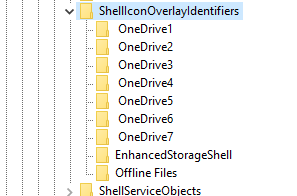
The command
reg delete "HKEY_CLASSES_ROOT\CLSID\{0960F090-F328-48A3-B746-276B1E3C3722}" /f
also throws an key not found error.
Uninstalling Microsoft One Drive and deleting the keys in the above picture didnt bring any help.
Regarding Dependency Walker, there are a lot of dependencys missing?:
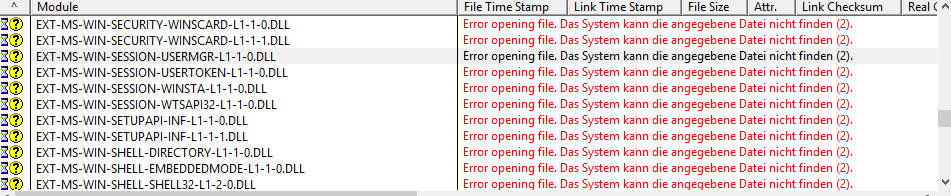
Any ideas ?
 unix0r
All 43 comments
I'm also having this issue.

I would expect it to look like this, which is working correctly on my work PC with a synced folder I have there called "nextcloud"

 Valiantiam
on 28 Dec 2018
Valiantiam
on 28 Dec 2018
Checked the dependency of the overlay.dll with https://github.com/lucasg/Dependencies
and it says
MSVCP120.dll
MSVCR120.dll
are missing.
Installing/Updating the visual c++ Microsoft Visual C++ Redistributable für Visual Studio 2017 in x86 and x64 didnt bring any help.
unix0r
on 7 Jan 2019
Same issue here. The client installs without any error messages but apparently fails to check whether all DLLs it depends on are actually installed.
For me not only the overlay icons are missing but the whole file manager integration, i.e. there is no nextcloud item in the context menu.
 svenb1234
on 9 Jan 2019
svenb1234
on 9 Jan 2019
For me not only the overlay icons are missing but the whole file manager integration, i.e. there is no nextcloud item in the context menu.
On the fresh Windows 10 Installation in a virtual machine, the file manager integration (Right Click Context Menu) is also not available.
Either is the Nextcloud Shortcout in the favorites of the Windows Explorer installed.
But on another client computer, the Context Menu is available and Nextcloud is also registered as a shortcut in favorites of the windows explorer. But the overlay icons are missing!
Looking forward for some reaction of the devs.
unix0r
on 15 Jan 2019
In fact, the icons appear to be available only if the 2.3.3.1 client has been previously installed. As soon as I have installed the old client and restarted the Windows 10 machine, the icons are displayed. An update to 2.5.1 was possible without the symbols disappearing again.
 brunt82
on 1 Feb 2019
brunt82
on 1 Feb 2019
Just tested it with the older installations for windows, but the icons were still missing for me.
But, installed the owncloud client and the icons appeared also for the nextcloud folder!
Maybe, because the nextcloud client is more or less new, most users are upgrading from the owncloud client to the nextcloud client. And not that many new installations with the nextcloud client are happening directly. So there are not so many users getting this issue with missing icons, because of another installed software (nextcloud/owncloud client) that provides the icons.
Maybe some issues in the installer packaging process for windows?
unix0r
on 1 Feb 2019
I'm suffering the same problem too...Thanks for any help.
 jstdoit
on 22 Feb 2019
jstdoit
on 22 Feb 2019
I can't trigger this on a clean VM. But I do not have a proper windows test setup to verify more in depth.
@camilasan can you have a look? Or @juliushaertl ?
 rullzer
on 25 Feb 2019
rullzer
on 25 Feb 2019
I cannot reproduce this on my running vm either, I'll try to setup a clean one.
 juliushaertl
on 26 Feb 2019
juliushaertl
on 26 Feb 2019
Hi! Did you reboot the machine after installing/updating the desktop client?
 camilasan
on 27 Feb 2019
camilasan
on 27 Feb 2019
@camilasan Of course
unix0r
on 27 Feb 2019
just install Microsoft Visual C++ Redistributable saved me.
jstdoit
on 6 Mar 2019
@jstdoit What exact version did you install?
On my VM these versions were installed:
Microsoft Visual C++ 2013 Redistributable (x64) - 12.0.30501
Microsoft Visual C++ 2017 Redistributable (x64) - 14.14.26406
Just removed them, installed nextcloud-desktop-client.2.5.1 version and got
Microsoft Visual C++ 2017 Redistributable (x64) - 14.14.26406.
But no icons.
Updated to
Microsoft Visual C++ 2017 Redistributable (x64) - 14.16.27027
and still no icons after reboot.
Also tried it with Microsoft Visual C++ 2015 Redistributable (x64) - 14.0.23026, but still nothing happend.
unix0r
on 6 Mar 2019
I forgot the version, after add the VC++ support, then run these commands in cmd.exe:
regsvr32 "C:\Program Files (x86)\NextCloud\shellext\OCOverlays_x64.dll"
taskkill /f /im explorer.exe
start explorer.exe
remember to replace the exact OCOverlays_x64.dll's path for your own installation directory
Just have a try.
jstdoit
on 6 Mar 2019
Well, just installed
Microsoft Visual C++ 2017 Redistributable (x64) - 14.16.27027 and
Microsoft Visual C++ 2017 Redistributable (x86) - 14.16.27027.
Trying to register the dll fails with:

I'm running a x64 version of windows.
Edit:
But i managed to register the OCOverlays_x64.dll from the owncloud installation and that worked. The icons are shown and everything is fine.
There are also some differences in the size of the dll files:
The nextcloud OCOverlays_x64.dll 171kB
The owncloud OCOverlays_x64.dll 1765 kB
unix0r
on 6 Mar 2019
congrats! maybe the nextcloud's win installation package should notify user to install Microsoft Visual C++ Redistributable though. @unix0r
jstdoit
on 6 Mar 2019
@jstdoit the thing is, our installer is supposed to install it for you, it is embedded in it. Clearly, I will have to review that...
camilasan
on 6 Mar 2019
I also have this issue.
Even on a clean VM, the icons and context menus don't show up.
Running regsvr32.exe “C:\Program Files (x86)\Nextcloud\shellext\OCOverlays_x64.dll” yields the error bellow even though the file is present in the folder.
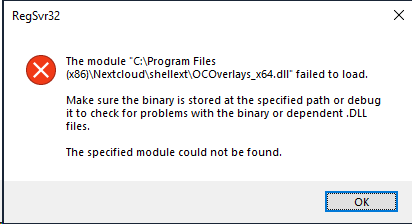
 nfp0
on 9 Mar 2019
nfp0
on 9 Mar 2019
I've reinstalled the Nextcloud desktop app and after rebooting Windows, the icons and menus are back!
nfp0
on 10 Mar 2019
I am using a Windows 10 Pro 64bit and I am missing the icons, too. I did a fresh install of the Client (Version 2.5.1final (build 20181204).) several times and several reboots, but it did not help.
 stebo23
on 15 Mar 2019
stebo23
on 15 Mar 2019
Solved: Windows 10, fresh install, Nexcloud client 2.5.2, icons and context menu missing
Instaled ownCloud-2.5.4.11654.11466 client on the same machine. Restart. Did not start ownCloud client, but icons & context menu for Nextcloud appear.
 zfernezir
on 13 Apr 2019
zfernezir
on 13 Apr 2019
I had the same issue. Installing vcredist 2013 solved it, and enabled to properly register the shell extensions. I can see the icons now.
vcredist 2013 can coexist with 2017.
 rkohser
on 10 May 2019
rkohser
on 10 May 2019
@nfp0 @stebo23 @zfernezir @camilasan @unix0r @Valiantiam @svenb1234 @jstdoit @rullzer
I found that @rkohser worked for me. So I first followed @jstdoit by installing VC 2017:
- Microsoft Visual C++ 2017 Redistributable (x64) - 14.16.27027 and that didn't workk.....
So I followed @rkohser instruction by installing VC 2013:
YAY!! I got my icons and shell back!!! WOOT!! My machine is brand-new windows, didn't have VC 2013.
 rwat1
on 31 May 2019
rwat1
on 31 May 2019
I just followed the track started by @unix0r, writing that MSVCP120.dll was missing.
VS2013 was supplying MSVC 12.0 compiler, so i tried its redist package.
Happy that it worked out for you.
rkohser
on 31 May 2019
I hope everyone can also check out my new Wikipedia page on Shell Overlay Icons.
https://en.wikipedia.org/wiki/List_of_Shell_Icon_Overlay_Identifiers
There is only 15 overlay icons (4 are reserved by Windows), so effectively 11 overlay icon spaces. I made a list for everyone so they can choose which ones are most important to them.
rwat1
on 31 May 2019
Windows handles only the first 15 overlay extension entrys. If the Registration in an admin prompt with
regsvr32.exe “C:\Program Files (x86)\Nextcloud\shellext\OCOverlays_x64.dll”
was successful and the Icons does not appear after an restart of Explorer.exe, consider that you have more than 15 Icons registered.
You Fan find an how to in this blog post
 tux1337
on 3 Jun 2019
tux1337
on 3 Jun 2019
@tux1337 Windows OS itself reserves 4 icon overlays, so effectively it's 11 overlay icons available for other programs. (15-4=11). Source
rwat1
on 3 Jun 2019
this is somehow crazy... :dizzy_face:
on a Win10x64 Pro testing VM (which never got in touch with dropbox or any other cloud-/sync-software) i installed the nextcloud-client 2.5.2.5231 (via chocolatey.org) and neither the overlay icons nor the context menu were there. :disappointed: exacly as @svenb1234 described at https://github.com/nextcloud/desktop/issues/978#issuecomment-452582418.
- installing a bunch of different Visual C++ Redistributable packages didn't change anything.
EDIT: it seems that installing Visual C++ 2013 Redistributable before the nextcloud-client (or reinstalling it afterwards) does the trick. - after registering the dll manually, described at https://github.com/nextcloud/desktop/issues/978#issuecomment-470078088, at least the overlay icons showed up.
- but then after installing
owncloud-client2.5.4.11415 (via chocolatey.org), as mentioned at https://github.com/nextcloud/desktop/issues/978#issuecomment-459704912, also the nextcloud context menu appeared, even without a reboot or starting the owncloud-client even once.
btw:
- yes, i rebooted the system after every change/install/setting/etc.
- after uninstalling the owncloud-client, even without
revo-uninstaller, the context menu and overlay icons vanished again! - and thanks @unix0r for investigating so much and summarizing your findings for all of us!
so IMHO here are at least 2 issues mixed:
- the overlay dropbox-topic which is really stupid (thanks MS and dropbox! :angry:)...
but i have no idea how it should/can be solved on the nexcloud side.
EDIT: just a wild guess, but after looking into the registry it seems to be solved like described at https://help.nextcloud.com/t/missing-sync-icons-in-windows-explorer/6610/33 (no idea if this also applies for updating existing installs.) - but if you are "Missing overlay icons and the context menu in a fresh Windows 10", it is an integration-issue where you can't blame dropbox.
so please @camilasan, have a look at the owncloud-client and why it makes the nextcloud-client work as it is supposed to work, without a 2nd client i don't use/need.
EDIT: as you can see in the next 2 comments by @rkohser and me, it seems that the Visual C++ 2013 Redistributable is missing in the nextcloud-client installer.
but as a not-windows-expert i stop my guesses and assumptions now and continue to work with my :penguin:. :heart:
 DJCrashdummy
on 9 Jul 2019
DJCrashdummy
on 9 Jul 2019
From the global README build instructions, it seems the client is compiled with the "Visual Studio 15 2017 Win64" cmake generator.
But I assume from this line
https://github.com/nextcloud/desktop/blob/v2.5.2/shell_integration/windows/OCShellExtensions.sln#L3
that the Shell Extensions are build with Visual Studio 2013, so that's why you need Microsoft Visual C++ 2013 Redistributable (x64) to make it run.
That's why the nextcloud client needs both 2017 and 2013 redistributables. That's weird.
rkohser
on 9 Jul 2019
@rkohser i was tempted to write that this does not solve the problem... but indeed it seems to do so, if you install the Visual C++ 2013 Redistributable before installing the nextcloud-client! :tada:
so perhaps the owncloud-client installer doesn't do it any better... just the nextcloud-client installer (or even both) are handling it's dependencies not correctly.
but after a little bit more fiddling around, it seems to me, that the owncloud-client installer brings all its dependencies and nextcloud-client does not... that is why the 2nd workaround is to install both clients.
--> the only thing i still don't get, is: why is after installing Visual C++ 2013 Redistributable a reinstall of the nextcloud-client necessary to make all work, but after installing owncloud-client not... :confused: :question:
DJCrashdummy
on 9 Jul 2019
I could try to install older versions, edit registers, whatever. But when I simply rebooted the computer the icons appeared and the issue was gone.
 arenaq
on 12 Oct 2019
arenaq
on 12 Oct 2019
Just an update, the issue is still present when installing the 2.6.0 version on a fresh windows 10 pro 64 bits.
To be fair the "Shortcuts"/"Quick Launch Shortcut (N/A)" choice is greyed at componnent choice during the installation ... so the installer seems to know their is an issue 😄
 MatthieuPERIN
on 15 Oct 2019
MatthieuPERIN
on 15 Oct 2019
A fresh install of Version 2.6.4stable-Win64 (build 20200303) has still the same problem. No overlay icons are shown.
 mr-manuel
on 4 Mar 2020
mr-manuel
on 4 Mar 2020
I've just installed 2.6.4 and the icons show. I don't know what causes this.
nfp0
on 5 Mar 2020
Tried with win10 with nextclud-2.6.4 ; the way to make it work for me was to open at least one time the left pane explorer icon of nextcloud expanding the tree, then icons appeared and remains either after reboot
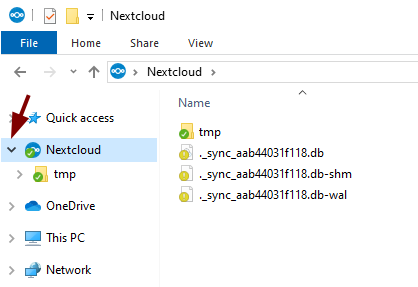
 devel0
on 30 Apr 2020
devel0
on 30 Apr 2020
@everyone
If you are experiencing issues with your shell overlay icons missing, it might be due to the fact that Windows can only support 11 shell overlay icons at a time (15 icons overall, but OS reserves 4 icons for itself). So with only 11 shell icons, you need to prioritize if you have OneDrive, DropBox, GoogleDrive, TortiseSVN, etc...
I created a Wikipedia page that lists out what Shell Icons's names, their function, for each of the services.
https://en.wikipedia.org/wiki/List_of_Shell_Icon_Overlay_Identifiers
I was able to have Shell Icons for NextCloud, OneDrive, DropBox, and Google Drive, so it fits under the 11 shell icon limit.
rwat1
on 30 Apr 2020
[Solved]
I had the same problem all the time. I don´t know how or why my solution worked, but it did.
- Download ShellExView v2.01 - Shell Extensions Manager by Nirsoft
- Search for "ownCloud overlay handler" and "OCContextMenuHandler Class" (in case context menu is missing too like it was for me)
- Make sure all of the six (in my case) entries have the switch on "Diabled" -> "No"
- Restart Computer

For some reason the switches were on "Disabled" -> "Yes" on my computer, so switching them on "No" and restarting the computer made the overlay icons and the context menu visible.
Hope this helps for some of you.
 kermit-frog
on 5 Jun 2020
kermit-frog
on 5 Jun 2020
@kermit-frog Just tried your solution with a fresh installed Windows 10 2004 in a virtualbox.
After the installation of nextcloud, the extensions mentioned in your post were already set to "Disabled" "No".
But the problem is still there, no icons, even on a fresh installed Windows System.
unix0r
on 11 Jun 2020
Could you try one of our recent daily builds?
https://download.nextcloud.com/desktop/daily/Windows/nextcloud-2.7.0.15523-daily-20200611-Release.exe
I've upgraded our build system this week to use Visual Studio 2019 and now we ship the newer Visual Studio 2015-2019 combined runtime.
While debugging I noticed that this could be somehow related to the old 2017-only VC runtime.
 misch7
on 11 Jun 2020
misch7
on 11 Jun 2020
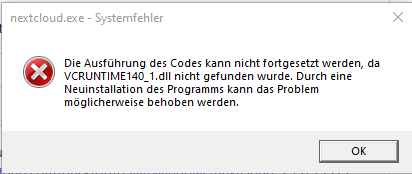
Just tried the daily build and starting nextcloud brings this error.
unix0r
on 11 Jun 2020
Just tried the daily build and starting nextcloud brings this error.
That's weird, thanks for reporting. Guess I'll try to reproduce this on a fresh Win 10 VM too.
misch7
on 11 Jun 2020
@unix0r It's the installer, failing to install the VC Runtime and then also failing to register the shell extension DLL responsible for handling the overlay icons.
Below are details how to manually fix it but I've already updated our installer and did a rebuild of our last daily, it worked on a fresh Win 10 VM and the overlay icons were shown after a reboot:
https://download.nextcloud.com/desktop/daily/Windows/nextcloud-2.7.0.15525-daily-20200613-Release.exe
What I did to fix it:
- After installation I did a reboot, nothing changed.
- Manually installed the VC Runtime from the NC folder:
C:\Program Files\Nextcloud\vc_redist.x64.exe - NC works but overlay icons are still not shown (reboot doesn't help)
- Manually registered the DLL:
Runcmdas Administrator inC:\Program Files\Nextcloud\shellext:
regsvr32 OCOverlays.dll
Of course this is just a manual workaround and not to be the usual handwork ;-)
I've changed our installer script, noticed that MS changed their Runtime's filenames, like:
vcredist_x64.exe -> vc_redist.x64.exe
misch7
on 13 Jun 2020
The new installer is working.
The icons are displayed after a reboot.
After the reboot there is a cmd window opening and its not closing itself. But the icons are there.
Thank you :-)
Closed.
unix0r
on 15 Jun 2020
Related issues
 kaysond
·
3Comments
kaysond
·
3Comments
 Linuxfabrik
·
3Comments
Linuxfabrik
·
3Comments
 Ich5003
·
3Comments
Ich5003
·
3Comments
 AndreyNazarchuk
·
4Comments
AndreyNazarchuk
·
4Comments
 nilsbecker
·
3Comments
nilsbecker
·
3Comments
Most helpful comment
@nfp0 @stebo23 @zfernezir @camilasan @unix0r @Valiantiam @svenb1234 @jstdoit @rullzer
I found that @rkohser worked for me. So I first followed @jstdoit by installing VC 2017:
So I followed @rkohser instruction by installing VC 2013:
YAY!! I got my icons and shell back!!! WOOT!! My machine is brand-new windows, didn't have VC 2013.