Desktop: Search/Highlight text within note
Is there a way we could add support to search or highlight text within a note? Right now searching will come up with a note that contains the text, but there is no cue within the GUI showing where the text is located.
 k-antonius
All 16 comments
Ok reading this now I understand you may have meant just standard Chrome-style search, which the desktop app does not have. This is reasonable - will need to find ways to add it.
 mobitar
on 1 Mar 2017
mobitar
on 1 Mar 2017
Yes that's what I meant. Specifically, I was thinking that when the editing window has focus searching for a substring of the text appearing in the editor would be highlighted.
k-antonius
on 1 Mar 2017
See: https://electronjs.org/docs/api/web-contents#contentsfindinpagetext-options
http://stackoverflow.com/questions/40987229/ddg#40987432
or
https://ourcodeworld.com/articles/read/486/how-to-enable-the-search-menu-to-quickly-find-a-word-or-phrase-in-the-application-in-electron-framework
 aaronraimist
on 29 Apr 2018
aaronraimist
on 29 Apr 2018
This has already been added in the latest desktop version. Press enter after searching in desktop to trigger highlighting.
mobitar
on 29 Apr 2018
Oh well I'd still like it to at least scroll to the highlights and have a CTRL-F like bar to go from highlight to highlight
aaronraimist
on 29 Apr 2018
I would also like to press crtl+f, type a search and hit next to see each time the search is mentioned in a note
 regulator-g
on 20 Aug 2018
regulator-g
on 20 Aug 2018
Hopefully we'll get around to building this :) A little bit tricky because of the external editors. Would probably be a plain editor only feature.
mobitar
on 21 Aug 2018
Would probably be a plain editor only feature.
How difficult do you think it would be to make it work with external editors as well? Could it work with at least the markdown-type editors?
Sorry for pushing for features, but this would be crucial for using my notes and it's one of the very few things that keeps me from migrating to SN.
 leafcutterant
on 1 Jan 2019
leafcutterant
on 1 Jan 2019
The Minimal Markdown Editor now actually has this feature. You can press Ctrl/Cmd + F to search within the note. Works really well.
mobitar
on 2 Jan 2019
This issue thread is about two related but distinct features, and I think that causes the misunderstanding.
In-note highlighting. All instances of an arbitrary string become highlighted in a note. This is somewhat useful to have when searching for something, but it's not search per se. Indeed, as you said, Minimal Markdown Editor has this.
In-note search (also called Chrome-style search). All instances of an arbitrary string become highlighted in a note (so nr. 1 is a pre-requisite), the user can jump from instance to instance, and the selected instance is highlighted in distinct color.
Just think up a general use case -- nr. 2 is needed to make highlighting truly worthy to have. Unless the whole note in question fits onto the screen, the user will be left scrolling, seeking for the highlights visually. This is not only inconvenient, but also straining. And, in either case, the search position will not be indicated by the application, so the user needs to expend mental resources to either carefully (not) scroll, or to memorize their position in the note.
My need for nr. 2 is even greater because the in Folders extension I can't collapse items into their parents, so I'm biased towards creating fewer but longer notes.
leafcutterant
on 2 Jan 2019
So the only difference between the two is navigating between highlight results? You can press Cmd/Ctrl + G in Minimal Markdown to go to next search result.
mobitar
on 3 Jan 2019
So the only difference between the two is navigating between highlight results?
Well, essentially. It would make it more effective it you could also see how many hits are there and where you are in the navigation (e.g. a semi-persistent horizontal bar with the input field, two navigation buttons and displaying something like "M of N matches").
You can press Cmd/Ctrl + G in Minimal Markdown to go to next search result.
This is good to know, thank you! There was no indication that this feature was there, just as with the Cmd/Ctrl + F search. Is there also a way to go the the previous result?
leafcutterant
on 3 Jan 2019
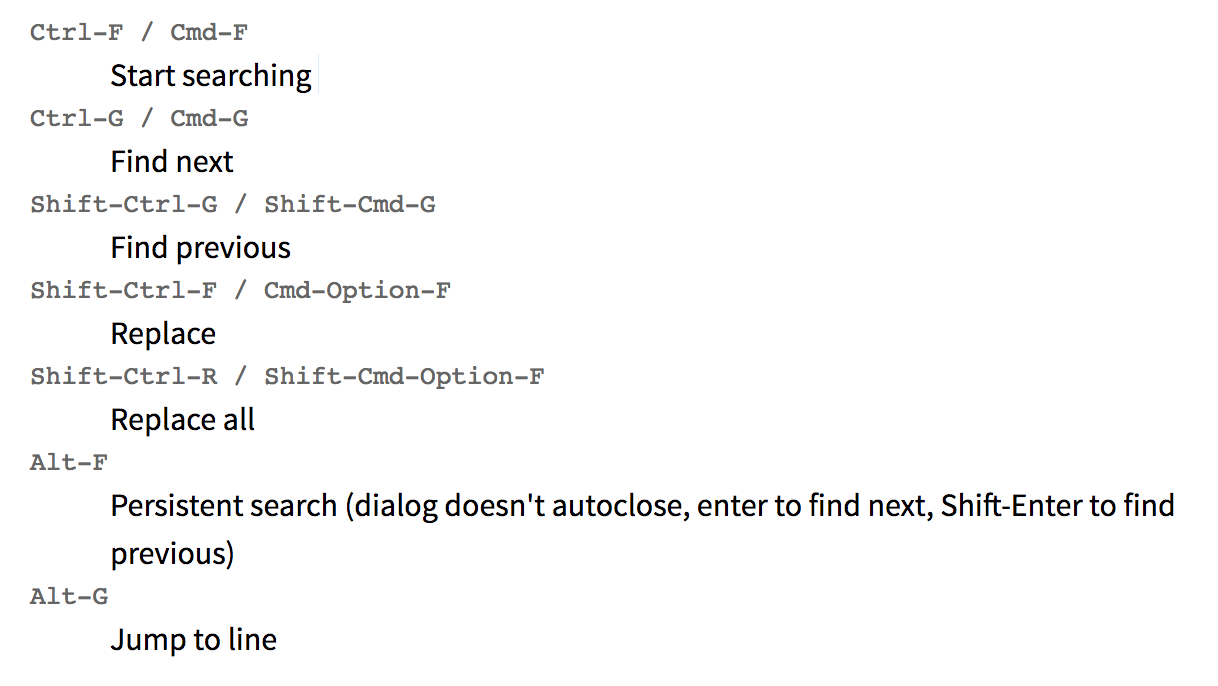 mobitar
on 4 Jan 2019
mobitar
on 4 Jan 2019
(I don't think the persistent search option works though. Was unable to get it to do so.)
mobitar
on 4 Jan 2019
These are useful to know, thank you.
Tested it all on Windows, apart from the "Jump to line" shortcut they all worked.
Some interesting bits about the functions available, right below the shortcuts on that page:
Searching is enabled by including addon/search/search.js and addon/search/searchcursor.js. Jump to line - including addon/search/jump-to-line.js.
For good-looking input dialogs, you also want to include addon/dialog/dialog.js and addon/dialog/dialog.css.
leafcutterant
on 4 Jan 2019
Ah, yeah, the jump to line might make sense in the Code Editor, since that one displays line numbers.
mobitar
on 6 Jan 2019
Related issues
 quirkyheadband
·
3Comments
quirkyheadband
·
3Comments
 dymdipi
·
5Comments
dymdipi
·
5Comments
 ErikBjare
·
5Comments
ErikBjare
·
5Comments
 dergigi
·
4Comments
dergigi
·
4Comments
 derkommandant
·
5Comments
derkommandant
·
5Comments
Most helpful comment
Oh well I'd still like it to at least scroll to the highlights and have a CTRL-F like bar to go from highlight to highlight