Deconz-rest-plugin: Not showing the Phoscon App -> Menu -> Settings -> Gateway
As described in the title, it's not showing the page. As in: A blank page, with no content. The Conbee 2 stick seems to be working fine for the rest. In the deConz app I can inspect the whole network which is operating fine:

The Conbee 2 stick is running the latest firmware, updated manually just now to be sure:

Only when I go to Menu -> Settings -> Gateway I get a grey screen:
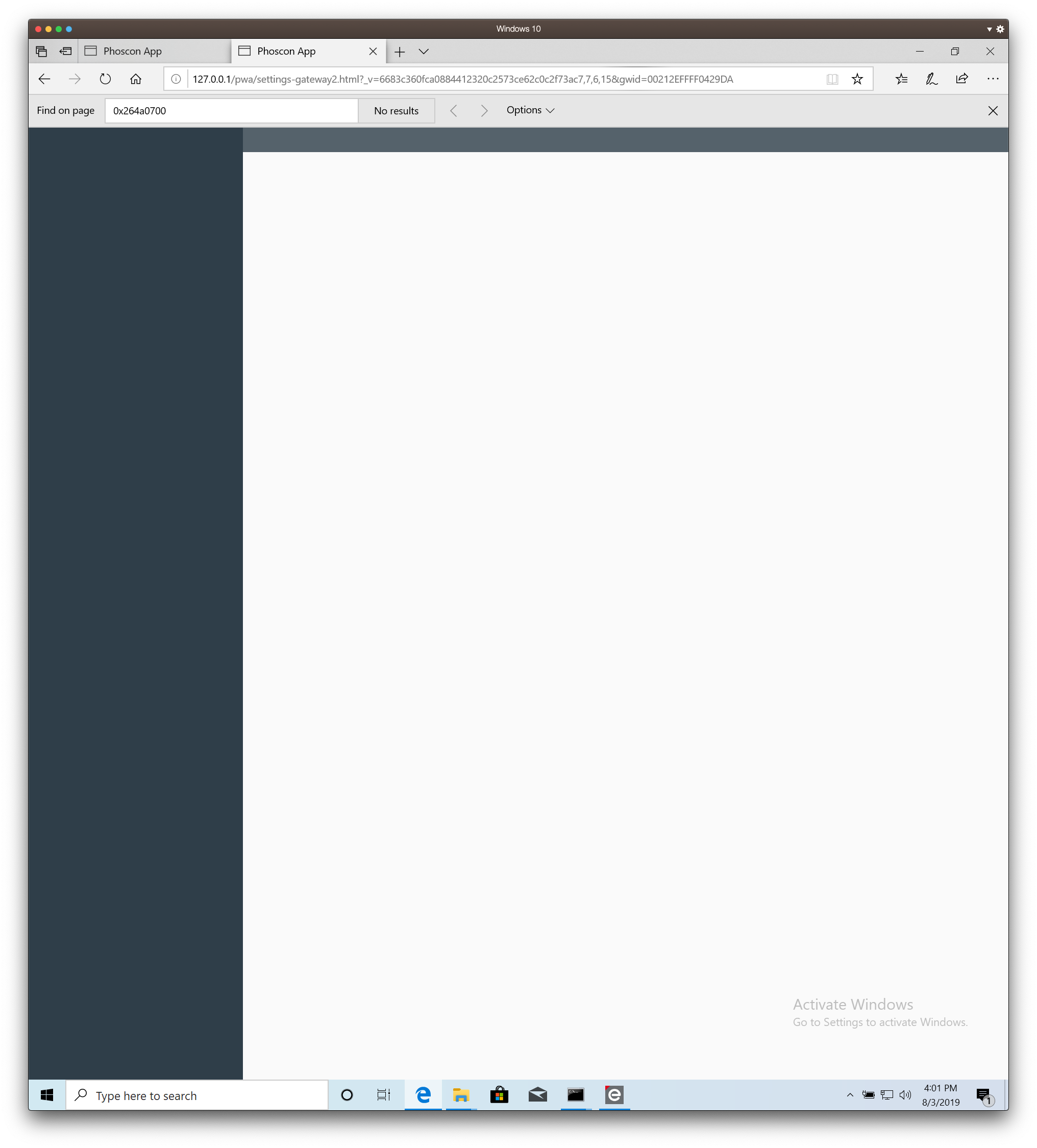
I want to change the channel, so any idea what can be causing this issue?
 Zjaaspoer
All 13 comments
Seems to be the problem discussed in #1630 .
A workaround (deleting the "2" after "...-gateway" in the browser address-field) is described in #1572 .
My system (Microsoft Edge on Windows 10 1809) is affected too. (Gateway-page completely empty except for frames like in Your screenshot)
I am waiting patiently for 2.05.67.
Learning about the workaround was very helpful and is ok for the moment for me.
 TilBumble
on 4 Aug 2019
TilBumble
on 4 Aug 2019
This issue has been automatically marked as stale because it has not had recent activity. It will be closed if no further activity occurs. Thank you for your contributions.
![stale[bot] picture](https://avatars3.githubusercontent.com/in/1724?v=4&s=40) stale[bot]
on 2 Dec 2019
stale[bot]
on 2 Dec 2019
Hi, ive got the same problem. Gateway is not showing up. Anything else is working. Im using a RPi 4.
 Ergerbolt
on 23 Dec 2019
Ergerbolt
on 23 Dec 2019
Hello,
Have you tried with another browser ? (To check cache problem)
 Smanar
on 23 Dec 2019
Smanar
on 23 Dec 2019
I have the same problem with the safari browser. The chrome browser is working.
Is there a fix already available?
 Krocko
on 17 Feb 2020
Krocko
on 17 Feb 2020
Same here, safari on iOS ans MacOS is not working...
 chadderksen
on 3 Mar 2020
chadderksen
on 3 Mar 2020
Same here. Why is this issue closed? :(
 MickL
on 13 Apr 2020
MickL
on 13 Apr 2020
It‘s really annoying.
 markus-fischbacher
on 13 Apr 2020
markus-fischbacher
on 13 Apr 2020
same issue.. tried with different browsers
 enno42
on 27 Apr 2020
enno42
on 27 Apr 2020
Had the same problem with Safari but Chrome worked as should
 bramschats
on 16 May 2020
bramschats
on 16 May 2020
Same problem occurs for me in Safari, however Chrome is fine
 crixyd
on 17 Jun 2020
crixyd
on 17 Jun 2020
I had the same problem in Firefox but fixed it by clearing all data for the phoscon site.
In Firefox:
- Click the lock next to the URL in the address bar
- Click "Clear Cookies and Site Data"
 Raniz85
on 27 Jun 2020
Raniz85
on 27 Jun 2020
Same fix for me; flushed cache in Chrome and it's now back in business.
 arevinje
on 30 Jun 2020
arevinje
on 30 Jun 2020
Related issues
 lynix
·
4Comments
lynix
·
4Comments
 mvasicek
·
4Comments
mvasicek
·
4Comments
 qm3ster
·
3Comments
qm3ster
·
3Comments
 felixstorm
·
4Comments
felixstorm
·
4Comments
 tenholde
·
3Comments
tenholde
·
3Comments
Most helpful comment
Same here. Why is this issue closed? :(