Darknet: Request for All Windows 10 installation package file
I want all your installation file, that you are build success.
I must make sure that I can build it successfully.
I am using the following things:
**1. Windows 10
- GeForce GT 710
- (OpenCV 3.4.0, cuDNN 7, CUDA 9, Visual Studio 2015)**
but there are too many dependencies software version are not match
I have too much bug to solve when build the darknet.sln or others visual studio project
Please, I have been use a month to try to build this project, but the build is always fail.
reinstall any thing and try many times and buy many types of Hardware, but not working.
Can you tell us your software install information about:
**1. Graphic Card Full Version
- NVIDIA Driver Full Version (include 8xx.xxx.xxx.xxx)
- Visual Studio Full Version (include v14.xx.xx.xx)
- CUDA Full Version (include xxx.xxx.xxx)
- cuDNN Full Version (include xxx.xxx.xxx)**
Also, I need the exactly version that you are using, and the installation order, then give me the exactly download url.
I must complete the project that the company request me to do.
Please, tell me the detail if you are use it without bugs and problem.
If you can help me, Thank you very much!
 leekwunfung817
All 8 comments
GPU nVidia GeForce GTX 970 (Maxwell)
Windows 7 x64
nVidia driver version (nvidia-smi): 388.19
MSVS 2015: 14.0.25431.01 Update 3 https://go.microsoft.com/fwlink/?LinkId=532606&clcid=0x409
OpenCV 3.3.0 https://sourceforge.net/projects/opencvlibrary/files/opencv-win/3.3.0/opencv-3.3.0-vc14.exe/download
CUDA 9.0 https://developer.nvidia.com/compute/cuda/9.0/Prod/local_installers/cuda_9.0.176_windows-exe
cuDNN 7.1.3 for CUDA 9.0: https://developer.nvidia.com/compute/machine-learning/cudnn/secure/v7.1.3/prod/9.0_20180414/cudnn-9.0-windows7-x64-v7.1
Can you build
darknet_no_gpu.slnsuccessfully?What error do you get when you build
darknet.sln?
 AlexeyAB
on 20 Aug 2018
AlexeyAB
on 20 Aug 2018
I don't know, but googling for the error message msb3721 gives some good hints: https://stackoverflow.com/questions/42600823/msb3721-error-exited-with-code-1
 PeterQuinn925
on 25 Aug 2018
PeterQuinn925
on 25 Aug 2018
@leekwunfung817
- Show the fullscreen screenshot of this error
- What errors do prior to VS reporting the MSB3721 error?
- Can you compile any other CUDA applications?
- Can you build
darknet_no_gpu.slnsuccessfully? - Do you try to compile default
darknet.slnor did you make your custom sln-file? - How many MSVS are installed on your computer, and what are installed?
Also read: https://devtalk.nvidia.com/default/topic/989584/how-to-fix-error-msb3721/
AlexeyAB
on 26 Aug 2018
With NVIDIA GPU
- Windows 10
- GPU NVIDIA GeForce GT 710
Install Step (by Order):
1. install Visual Studio 2015 Update 3
- [ ] https://download.microsoft.com/download/4/8/f/48f0645f-51b6-4733-b808-63e640cddaec/vs2015.3.exe
- download OpenCV 3.4.0
[ ] https://nchc.dl.sourceforge.net/project/opencvlibrary/opencv-win/3.4.0/opencv-3.4.0-vc14_vc15.exe
install NVIDIA Cuda 9.1
download NVIDIA CuDNN 7
- [ ] https://developer.download.nvidia.com/compute/machine-learning/cudnn/secure/v7.0.5/prod/9.1_20171129/cudnn-9.1-windows10-x64-v7.zip?gLSaZu2MVANj6BmRhbWbgraHeB4D67aB_223v2QqgdM60BxkRCpWK5wmi2TE8-3FjaTdIxJwabY_wakOSogwnRZIcS5dcnG3T0SZ3GnbKR7Rc_VlLmaU792mgc7d4t6ro0_4OZiVqeysiKOeNLv8_LjC9B7-kwl8sISwXgVpp23qr80UdZ-wpDPhU7txxQhW2sh1A8FFJhdxbYX9
Complie Step:
put CuDNN to NVIDIA GPU Computing Toolkit
setup the darknet.sln properties
- [ ] (cudnn-9.1-windows10-x64-v7\cuda\bin\cudnn64_7.dll) to (C:\Program Files\NVIDIA GPU Computing Toolkit\CUDA\v9.1\bin)
[ ] (cudnn-9.1-windows10-x64-v7\cuda\lib\x64\cudnn.lib) to (C:\Program Files\NVIDIA GPU Computing Toolkit\CUDA\v9.1\lib\x64)
[ ] (cudnn-9.1-windows10-x64-v7\cuda\include\cudnn.h) to (C:\Program Files\NVIDIA GPU Computing Toolkit\CUDA\v9.1\include)
- Set project
- [ ] Release
- [ ] x64
(Right click darknet project) > (Click Properties)
- Configuration Properties > C/C++ > Additional include Directories
add - [ ] D:\opencv_3.4.0\build\include
- [ ] D:\opencv_3.4.0\build\include\opencv
[ ] D:\opencv_3.4.0\build\include\opencv2
Configuration Properties > Linker > Input > Additional Dependencies
add- [ ] D:\opencv_3.4.0\build\x64\vc14\lib\opencv_world340.lib
[ ] D:\opencv_3.4.0\build\x64\vc14\lib\opencv_world340d.lib
Configuration Properties > CUDA C/C++ > CUDA Toolkit Custom Dir
add- [ ] C:\Program Files\NVIDIA GPU Computing Toolkit\CUDA
Please use in the MS-DOS command
darknet-master\build\darknet\x64\darknet.exe
1. GPU (darknet.sln)
Finally Build Success
But two warnings

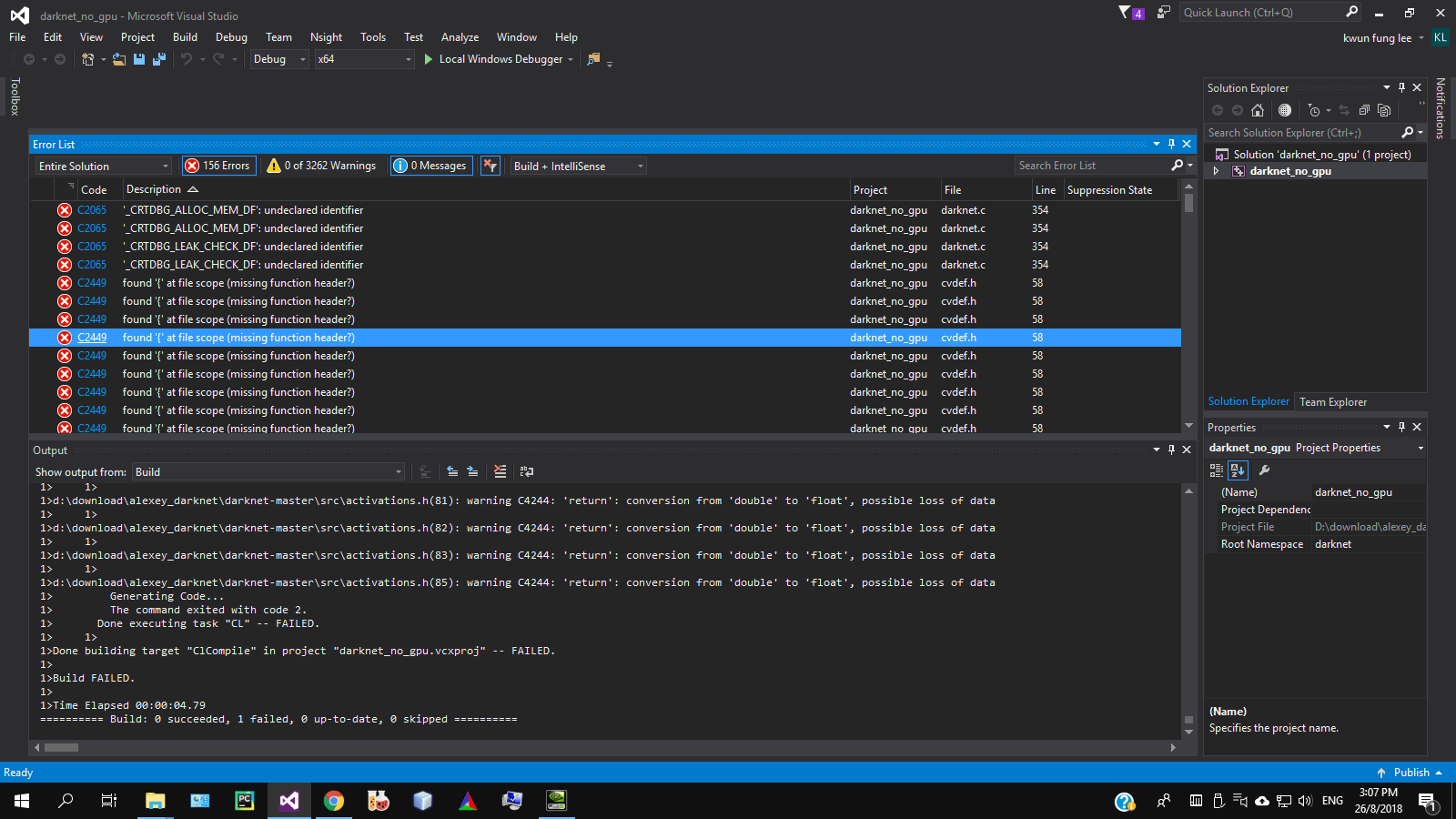
2. No GPU (darknet_no_gpu.sln)
156 Errors 1400 Warning
I need this No GPU darknet.exe because sometime I need to use in the CPU only computer.
leekwunfung817
on 26 Aug 2018
@leekwunfung817
- GPU (darknet.sln)
Finally Build Success
Good.
- No GPU (darknet_no_gpu.sln)
156 Errors 1400 Warning
Try to build as Release
Try to use OpenCV 3.3.0: https://sourceforge.net/projects/opencvlibrary/files/opencv-win/3.3.0/opencv-3.3.0-vc14.exe/download
There was C API bug in the latest OpenCV-versions.
AlexeyAB
on 26 Aug 2018
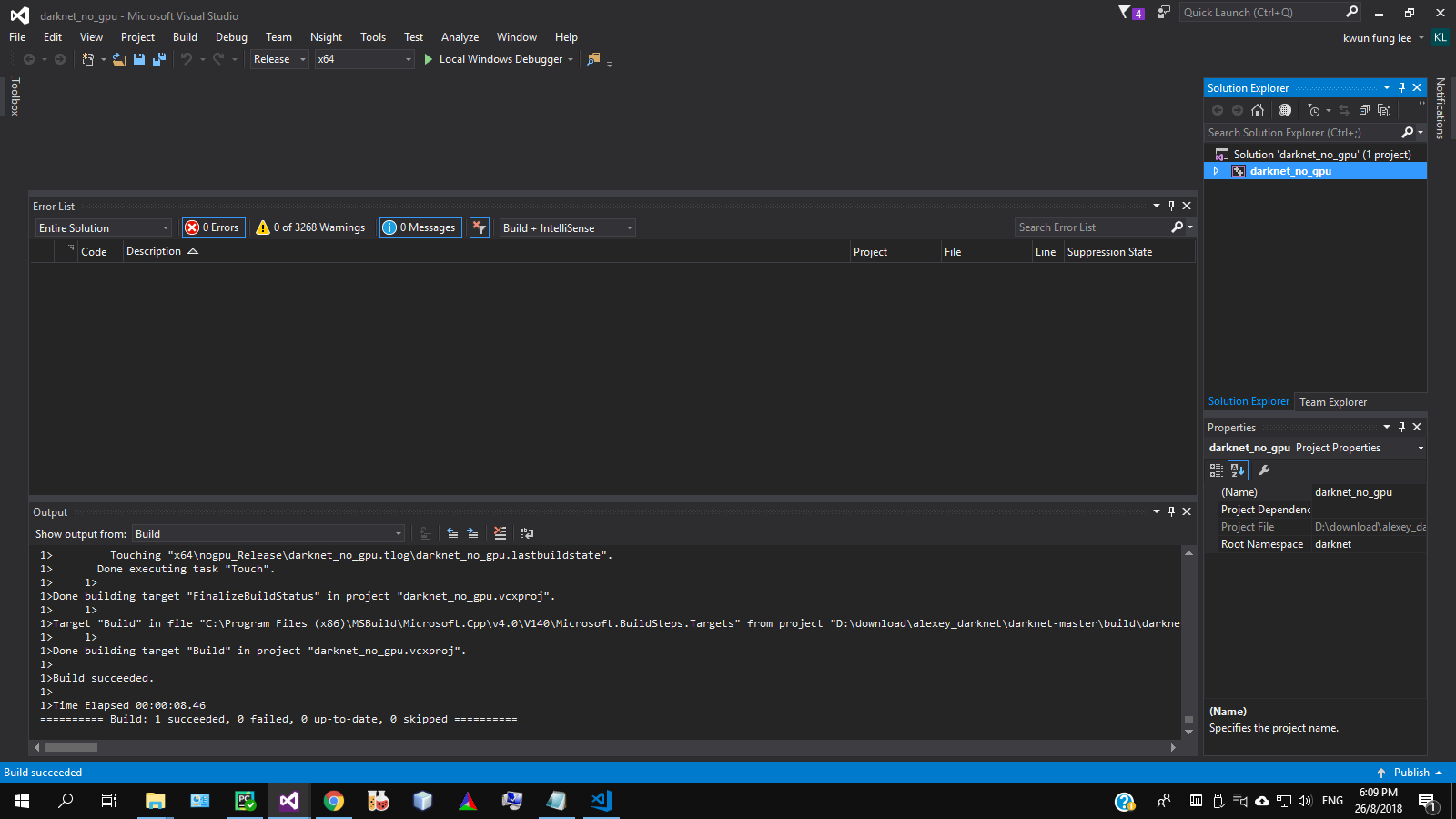
Without GPU
- Windows 10
Install Step (by Order):
1. install Visual Studio 2015 Update 3
- [ ] https://download.microsoft.com/download/4/8/f/48f0645f-51b6-4733-b808-63e640cddaec/vs2015.3.exe
- download OpenCV 3.3.0
- [ ] https://nchc.dl.sourceforge.net/project/opencvlibrary/opencv-win/3.3.0/opencv-3.3.0-vc14.exe
Complie Step:
- Set project
- [ ] Release
- [ ] x64
(Right click darknet_no_gpu project) > (Click Properties)
2. Configuration Properties > C/C++ > Additional include Directories
add
- [ ] D:\opencv_3.3.0\build\include
- [ ] D:\opencv_3.3.0\build\include\opencv
- [ ] D:\opencv_3.3.0\build\include\opencv2
- Configuration Properties > Linker > Input > Additional Dependencies
add - [ ] D:\opencv_3.3.0\build\x64\vc14\lib\opencv_world330.lib
- [ ] D:\opencv_3.3.0\build\x64\vc14\lib\opencv_world330d.lib
Please use in the MS-DOS command
darknet-master\build\darknet\x64\darknet_no_gpu.exe
Build Success
leekwunfung817
on 26 Aug 2018
@leekwunfung817
Without GPU
Build Success
Excellent!
AlexeyAB
on 26 Aug 2018
I may share the Windows 10 installation step to another people, avoid the other to waste time.
With NVIDIA GPU
- Windows 10
- GPU NVIDIA GeForce GT 710
Install Step (by Order):
1. install Visual Studio 2015 Update 3
- [ ] https://download.microsoft.com/download/4/8/f/48f0645f-51b6-4733-b808-63e640cddaec/vs2015.3.exe
- download OpenCV 3.4.0
[ ] https://nchc.dl.sourceforge.net/project/opencvlibrary/opencv-win/3.4.0/opencv-3.4.0-vc14_vc15.exe
install NVIDIA Cuda 9.1
download NVIDIA CuDNN 7
- [ ] https://developer.download.nvidia.com/compute/machine-learning/cudnn/secure/v7.0.5/prod/9.1_20171129/cudnn-9.1-windows10-x64-v7.zip?gLSaZu2MVANj6BmRhbWbgraHeB4D67aB_223v2QqgdM60BxkRCpWK5wmi2TE8-3FjaTdIxJwabY_wakOSogwnRZIcS5dcnG3T0SZ3GnbKR7Rc_VlLmaU792mgc7d4t6ro0_4OZiVqeysiKOeNLv8_LjC9B7-kwl8sISwXgVpp23qr80UdZ-wpDPhU7txxQhW2sh1A8FFJhdxbYX9
Complie Step:
put CuDNN to NVIDIA GPU Computing Toolkit
setup the darknet.sln properties
- [ ] (cudnn-9.1-windows10-x64-v7\cuda\bin\cudnn64_7.dll) to (C:\Program Files\NVIDIA GPU Computing Toolkit\CUDA\v9.1\bin)
[ ] (cudnn-9.1-windows10-x64-v7\cuda\lib\x64\cudnn.lib) to (C:\Program Files\NVIDIA GPU Computing Toolkit\CUDA\v9.1\lib\x64)
[ ] (cudnn-9.1-windows10-x64-v7\cuda\include\cudnn.h) to (C:\Program Files\NVIDIA GPU Computing Toolkit\CUDA\v9.1\include)
- Set project
- [ ] Release
- [ ] x64

(Right click darknet project) > (Click Properties)
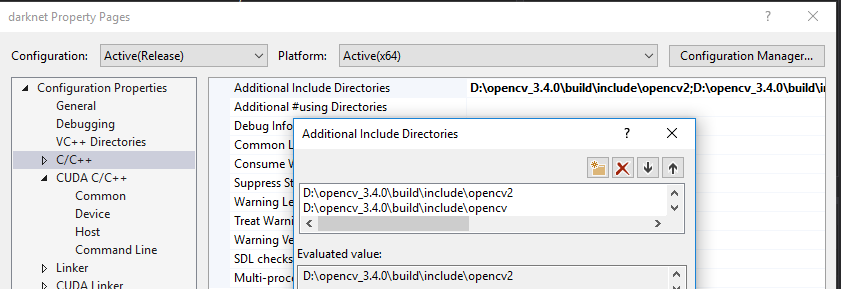
- Configuration Properties > C/C++ > Additional include Directories
add - [ ] D:\opencv_3.4.0\build\include
- [ ] D:\opencv_3.4.0\build\include\opencv
[ ] D:\opencv_3.4.0\build\include\opencv2
Configuration Properties > Linker > Input > Additional Dependencies
add- [ ] D:\opencv_3.4.0\build\x64\vc14\lib\opencv_world340.lib
[ ] D:\opencv_3.4.0\build\x64\vc14\lib\opencv_world340d.lib

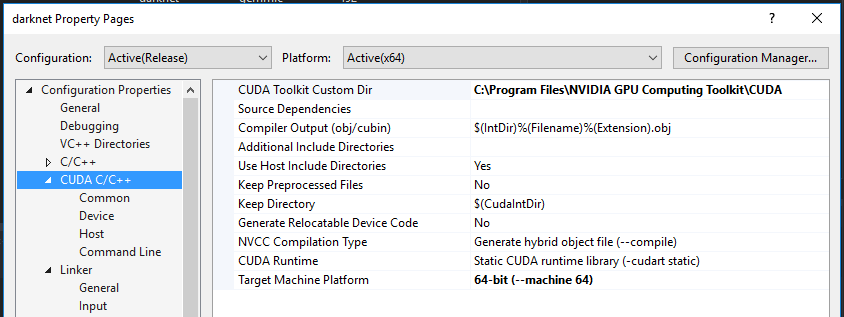
Configuration Properties > CUDA C/C++ > CUDA Toolkit Custom Dir
add- [ ] C:\Program Files\NVIDIA GPU Computing Toolkit\CUDA
Please use in the MS-DOS command
darknet-master\build\darknet\x64\darknet.exe
1. GPU (darknet.sln)
Finally Build Success
But two warnings
Without GPU
- Windows 10
Install Step (by Order):
1. install Visual Studio 2015 Update 3
- [ ] https://download.microsoft.com/download/4/8/f/48f0645f-51b6-4733-b808-63e640cddaec/vs2015.3.exe
- download OpenCV 3.3.0
- [ ] https://nchc.dl.sourceforge.net/project/opencvlibrary/opencv-win/3.3.0/opencv-3.3.0-vc14.exe
Complie Step:
- Set project
- [ ] Release
- [ ] x64
(Right click darknet_no_gpu project) > (Click Properties)
2. Configuration Properties > C/C++ > Additional include Directories
add
- [ ] D:\opencv_3.3.0\build\include
- [ ] D:\opencv_3.3.0\build\include\opencv
- [ ] D:\opencv_3.3.0\build\include\opencv2

- Configuration Properties > Linker > Input > Additional Dependencies
add - [ ] D:\opencv_3.3.0\build\x64\vc14\lib\opencv_world330.lib
- [ ] D:\opencv_3.3.0\build\x64\vc14\lib\opencv_world330d.lib

Please use in the MS-DOS command
darknet-master\build\darknet\x64\darknet_no_gpu.exe
Build Success
leekwunfung817
on 26 Aug 2018
Related issues
 siddharth2395
·
3Comments
siddharth2395
·
3Comments
 louisondumont
·
3Comments
louisondumont
·
3Comments
 Jacky3213
·
3Comments
Jacky3213
·
3Comments
 Yumin-Sun-00
·
3Comments
Yumin-Sun-00
·
3Comments
 hemp110
·
3Comments
hemp110
·
3Comments
Most helpful comment
GPU nVidia GeForce GTX 970 (Maxwell)
Windows 7 x64
nVidia driver version (nvidia-smi): 388.19
MSVS 2015: 14.0.25431.01 Update 3 https://go.microsoft.com/fwlink/?LinkId=532606&clcid=0x409
OpenCV 3.3.0 https://sourceforge.net/projects/opencvlibrary/files/opencv-win/3.3.0/opencv-3.3.0-vc14.exe/download
CUDA 9.0 https://developer.nvidia.com/compute/cuda/9.0/Prod/local_installers/cuda_9.0.176_windows-exe
cuDNN 7.1.3 for CUDA 9.0: https://developer.nvidia.com/compute/machine-learning/cudnn/secure/v7.1.3/prod/9.0_20180414/cudnn-9.0-windows7-x64-v7.1
Can you build
darknet_no_gpu.slnsuccessfully?What error do you get when you build
darknet.sln?