Hi there,
Great plugin fengyuanchen!
I was wondering if anybody in the community has managed to get cropper working with the caman.js filters library? It relies on a
 goneale
All 21 comments
After call the getCroppedCanvas method, you will get a canvas, then use CamanJS on the canvas.
 fengyuanchen
on 14 Jan 2016
fengyuanchen
on 14 Jan 2016
If you want to use CamanJS when cropping, you can try this:
<canvas id="canvas"></canvas>
var $canvas = $('#canvas');
var caman = Caman('#canvas');
var options = {
crop: function (e) {
console.log(e);
}
};
// Start Cropper
$canvas.cropper(options);
// Listen process event
Caman.Event.listen(caman, 'processComplete', function () {
// Restart Cropper after processed
$canvas.cropper('destroy').cropper(options);
});
Hi Fengyuan,
Could you get this online with your sample code?
http://codepen.io/goneale/pen/QyqXGv?editors=101
goneale
on 18 Jan 2016
How can you apply Canvas API on an image!
fengyuanchen
on 18 Jan 2016
I figured cropper would convert it to a canvas, like it does in every other example.
If I make this a <canvas> element, how do I specify the image cropper should use then? You haven't gave example of that.
goneale
on 18 Jan 2016
Here is basic example for anyone who want to use Cropper with CamanJS.
Online Demo: http://codepen.io/cfy/pen/wMrVQY
<!doctype html>
<html lang="en">
<head>
<meta charset="utf-8">
<meta http-equiv="x-ua-compatible" content="ie=edge">
<meta name="viewport" content="width=device-width, initial-scale=1">
<title>Cropper</title>
<!-- Styles -->
<link rel="stylesheet" href="https://maxcdn.bootstrapcdn.com/bootstrap/3.3.6/css/bootstrap.min.css">
<link rel="stylesheet" href="https://cdnjs.cloudflare.com/ajax/libs/cropper/2.2.4/cropper.min.css">
</head>
<body>
<!-- Content -->
<div class="container">
<h1 class="page-header">Use Cropper with CamanJS</h1>
<p id="upload">
<input id="file" type="file">
</p>
<p id="handle" style="display:none">
<button class="btn btn-primary" id="brightness">Brightness</button>
<button class="btn btn-primary" id="contrast">Contrast</button>
</p>
<p>
<canvas id="canvas" style="max-width:100%;"></canvas>
</p>
</div>
<!-- Scripts -->
<script src="https://code.jquery.com/jquery-1.11.3.min.js"></script>
<script src="https://maxcdn.bootstrapcdn.com/bootstrap/3.3.6/js/bootstrap.min.js"></script>
<script src="https://cdnjs.cloudflare.com/ajax/libs/camanjs/4.1.2/caman.full.min.js"></script>
<script src="https://cdnjs.cloudflare.com/ajax/libs/cropper/2.2.4/cropper.min.js"></script>
<script>
$(function () {
var URL = window.URL || window.webkitURL;
var $upload = $('#upload');
var $handle = $('#handle');
var $file = $('#file');
var $file = $('#file');
var $canvas = $('#canvas');
var caman;
function startCropper() {
// Destroy if already initialized
if ($canvas.data('cropper')) {
$canvas.cropper('destroy');
}
// Initialize a new cropper
$canvas.cropper({
crop: function (e) {
console.log(e);
}
});
}
function startCaman(url) {
caman = Caman('#canvas', url, function () {
URL.revokeObjectURL(url);
$upload.hide();
$handle.show();
startCropper();
});
}
$handle.hide();
if (URL) {
$file.change(function () {
var files = this.files;
var file;
if (files && files.length) {
file = files[0];
if (/^image\/\w+$/.test(file.type)) {
startCaman(URL.createObjectURL(file));
} else {
window.alert('Please choose an image file.');
}
}
});
} else {
$file.prop('disabled', true);
}
$('#brightness').on('click', function () {
if (caman) {
caman.brightness(20).render(startCropper);
}
});
$('#contrast').on('click', function () {
if (caman) {
caman.contrast(10).render(startCropper);
}
});
});
</script>
</body>
</html>
Thanks for that. Big help.
goneale
on 18 Jan 2016
UPDATE and I'll post here for future visitors.
The mistake I was making was trying to crowbar Caman library into my original Cropper code that did not use a canvas element.
This code is no where near final but it might help future devs.
HTML
<div class="wrapper-primary-edit-cropperjs1">
<img id="primary-image-edit-cropperjs" src="storage/mailscanner/image.jpg" style="display:none"/>
</div>
<div><canvas id="primary-image-edit-cropperjscanvas" style="max-width:100%;"></canvas></div>
JS
$(document).ready(function () {
"use strict";
var $cropThis = $('#primary-image-edit-cropperjs');
var croppedImageHeight = 400;
var croppedImageWidth = 600;
var $download = $('#download');
var $dataX = $('#dataX');
var $dataY = $('#dataY');
var $dataHeight = $('#dataHeight');
var $dataWidth = $('#dataWidth');
var $dataRotate = $('#dataRotate');
var $dataScaleX = $('#dataScaleX');
var $dataScaleY = $('#dataScaleY');
var options = {
aspectRatio: 6 / 4,
minContainerWidth: 600,
minContainerHeight: 400,
preview: ".cropper-img-preview",
crop: function (e) {
$dataX.val(Math.round(e.x));
$dataY.val(Math.round(e.y));
$dataHeight.val(Math.round(e.height));
$dataWidth.val(Math.round(e.width));
$dataRotate.val(e.rotate);
$dataScaleX.val(e.scaleX);
$dataScaleY.val(e.scaleY);
console.log(e.x);
console.log(e.y);
console.log(e.width);
console.log(e.height);
console.log(e.rotate);
console.log(e.scaleX);
console.log(e.scaleY);
}
};
var caman;
function startCropper() {
// Destroy if already initialized
if ($canvas.data('cropper')) {
croppedImageHeight = $canvas.data("cropped-height");
croppedImageWidth = $canvas.data("cropped-width");
var cropBoxData = $canvas.cropper('getCropBoxData');
var canvasData = $canvas.cropper('getCanvasData');
options.built = function () {
$canvas.cropper('setCropBoxData', cropBoxData);
$canvas.cropper('setCanvasData', canvasData);
};
options['aspectRatio'] = croppedImageWidth / croppedImageHeight;
$canvas.cropper('destroy').cropper(options);
console.log("aspect " + $this.val());
}
// Initialize a new cropper
$canvas.cropper({
crop: function (e) {
console.log(e);
}
});
}
function startCaman() {
caman = Caman('#primary-image-edit-cropperjscanvas', function () {
startCropper();
});
}
var $canvas = $('#primary-image-edit-cropperjscanvas');
var $image = $('#primary-image-edit-cropperjs');
var image = $image[0];
function start() {
var width = $(this).width();
var height = $(this).height();
var canvas = $canvas[0];
var cropper;
canvas.width = width;
canvas.height = height;
canvas.getContext('2d').drawImage(
this,
0, 0, this.naturalWidth, this.naturalHeight,
0, 0, width, height
);
$canvas.cropper();
startCaman();
}
if (image.complete) {
start.call(image);
} else {
$image.one('load', start);
}
$("#cropThis").click(function () {
var result = $canvas.cropper('getCroppedCanvas', {
width: croppedImageWidth,
height: croppedImageHeight,
fillColor: "#ffffff"
}).toDataURL();
$('#croppedCanvasModal').find('.cropped-image-wrapper').html("<img src=" + result + ">");
});
$(".change-crop-size").click(function () {
var $this = $(this);
$this.parent().parent().find(".change-crop-size").removeClass("active");
$this.addClass("active");
croppedImageHeight = $this.data("cropped-height");
croppedImageWidth = $this.data("cropped-width");
var cropBoxData = $canvas.cropper('getCropBoxData');
var canvasData = $canvas.cropper('getCanvasData');
options.built = function () {
$canvas.cropper('setCropBoxData', cropBoxData);
$canvas.cropper('setCanvasData', canvasData);
};
options['aspectRatio'] = croppedImageWidth / croppedImageHeight;
$canvas.cropper('destroy').cropper(options);
console.log("aspect " + $this.val());
});
$("#refreshCropWrapper").click(function () {
$canvas.cropper('reset');
});
$("#rotateRightCropWrapper").click(function () {
$canvas.cropper('rotate', 90);
});
$("#rotateLeftCropWrapper").click(function () {
$canvas.cropper('rotate', -90);
});
/**
* Functions to handle image manipulation
*/
$('#brightness').click(function (e) {
if (caman) {
caman.brightness(20).render(startCropper);
}
e.preventDefault();
});
$('#contrast').on('click', function (e) {
if (caman) {
caman.contrast(20).render(startCropper);
}
e.preventDefault();
});
});
ORIGINAL POST:
In your example you're loading an image from a file and unfortunately I cannot get it to work with an image that already exists. I have spent many many hours over a few days in the dark and I obviously need to study JavaScript more.
Could you please hint how to add Caman functionality to cropper with the code below?
Thank you for your amazing library, it has made our projects so much easier to handle.
<script>
$(document).ready(function () {
"use strict";
var $cropThis = $('#primary-image-edit-cropperjs');
var croppedImageHeight = 400;
var croppedImageWidth = 600;
var $download = $('#download');
var $dataX = $('#dataX');
var $dataY = $('#dataY');
var $dataHeight = $('#dataHeight');
var $dataWidth = $('#dataWidth');
var $dataRotate = $('#dataRotate');
var $dataScaleX = $('#dataScaleX');
var $dataScaleY = $('#dataScaleY');
var options = {
aspectRatio: 6 / 4,
minContainerWidth: 600,
minContainerHeight: 400,
preview: ".cropper-img-preview",
crop: function (e) {
$dataX.val(Math.round(e.x));
$dataY.val(Math.round(e.y));
$dataHeight.val(Math.round(e.height));
$dataWidth.val(Math.round(e.width));
$dataRotate.val(e.rotate);
$dataScaleX.val(e.scaleX);
$dataScaleY.val(e.scaleY);
console.log(e.x);
console.log(e.y);
console.log(e.width);
console.log(e.height);
console.log(e.rotate);
console.log(e.scaleX);
console.log(e.scaleY);
}
};
$cropThis.cropper(options);
$("#cropThis").click(function () {
var result = $cropThis.cropper('getCroppedCanvas', {
width: croppedImageWidth,
height: croppedImageHeight,
fillColor: "#ffffff"
}).toDataURL();
$('#croppedCanvasModal').find('.cropped-image-wrapper').html("<img src=" + result + ">");
});
$(".change-crop-size").click(function () {
var $this = $(this);
$this.parent().parent().find(".change-crop-size").removeClass("active");
$this.addClass("active");
croppedImageHeight = $this.data("cropped-height");
croppedImageWidth = $this.data("cropped-width");
var cropBoxData = $cropThis.cropper('getCropBoxData');
var canvasData = $cropThis.cropper('getCanvasData');
options.built = function () {
$cropThis.cropper('setCropBoxData', cropBoxData);
$cropThis.cropper('setCanvasData', canvasData);
};
options['aspectRatio'] = croppedImageWidth / croppedImageHeight;
$cropThis.cropper('destroy').cropper(options);
console.log("aspect " + $this.val());
});
$("#download-cropped-jpeg").click(function () {
var croppedFileName = $(".cropper-img-preview").data("cropped-image-name");
var imageData = $cropThis.cropper('getCroppedCanvas', {
width: croppedImageWidth,
height: croppedImageHeight,
fillColor: "#ffffff",
}).toDataURL('image/jpeg');
var a = $("<a>").attr("href", imageData)
.attr("download", croppedFileName)
.appendTo("body");
a[0].click();
a.remove();
$('#croppedCanvasModal').modal('toggle');
});
$("#download-cropped-png").click(function () {
var croppedFileName = $(".cropper-img-preview").data("cropped-image-name");
var imageData = $cropThis.cropper('getCroppedCanvas', {
width: croppedImageWidth,
height: croppedImageHeight,
fillColor: "#ffffff",
}).toDataURL();
var a = $("<a>").attr("href", imageData)
.attr("download", croppedFileName)
.appendTo("body");
a[0].click();
a.remove();
$('#croppedCanvasModal').modal('toggle');
});
$('#croppedCanvasModal').on('show', function () {
$('.modal-body', this).css({width: 'auto', height: 'auto', 'max-height': '100%'});
});
$("#refreshCropWrapper").click(function () {
$cropThis.cropper('reset');
});
$("#rotateRightCropWrapper").click(function () {
$cropThis.cropper('rotate', 90);
});
$("#rotateLeftCropWrapper").click(function () {
$cropThis.cropper('rotate', -90);
});
var $inputImage = $('#inputImage');
var URL = window.URL || window.webkitURL;
var blobURL;
if (URL) {
$inputImage.change(function () {
var files = this.files;
var file;
if (!$cropThis.data('cropper')) {
return;
}
if (files && files.length) {
file = files[0];
if (/^image\/\w+$/.test(file.type)) {
blobURL = URL.createObjectURL(file);
$cropThis.one('built.cropper', function () {
// Revoke when load complete
URL.revokeObjectURL(blobURL);
}).cropper('reset').cropper('replace', blobURL);
$inputImage.val('');
} else {
window.alert('Please choose an image file.');
}
}
});
} else {
$inputImage.prop('disabled', true).parent().addClass('disabled');
}
/**
* Functions to handle image manipulation
*/
$('#brightness').on('click', function () {
e.preventDefault();
if (caman) {
caman.brightness(20).render(startCropper);
}
});
});
</script>
 chrisloughnane
on 15 Apr 2017
chrisloughnane
on 15 Apr 2017
Here is a solution without flickering (without reinit):
https://codepen.io/anon/pen/oeoNLx
<!doctype html>
<html lang="en">
<head>
  <meta charset="utf-8">
  <meta http-equiv="x-ua-compatible" content="ie=edge">
  <meta name="viewport" content="width=device-width, initial-scale=1">
  <title>Cropper</title>
  <!-- Styles -->
  <link rel="stylesheet" href="//maxcdn.bootstrapcdn.com/bootstrap/3.3.6/css/bootstrap.min.css">
  <link rel="stylesheet" href="//cdnjs.cloudflare.com/ajax/libs/cropper/3.0.0-rc.3/cropper.min.css">
  <style>
    #handle {
      display: none;
    }
  </style>
</head>
<body>
  <!-- Content -->
  <div class="container">
    <h1 class="page-header">Use Cropper with CamanJS</h1>
    <p id="upload">
      <input id="file" type="file">
    </p>
    <p id="handle" style="display:none">
      <button class="btn btn-primary" id="brightness">Brightness</button>
      <button class="btn btn-primary" id="contrast">Contrast</button>
    </p>
    <p>
      <canvas id="canvas" style="max-width:100%;"></canvas>
    </p>
  </div>

  <!-- Scripts -->
  <script src="//code.jquery.com/jquery-1.11.3.min.js"></script>
  <script src="//maxcdn.bootstrapcdn.com/bootstrap/3.3.6/js/bootstrap.min.js"></script>
  <script src="//cdnjs.cloudflare.com/ajax/libs/camanjs/4.1.2/caman.full.min.js"></script>
  <script src="//cdnjs.cloudflare.com/ajax/libs/cropper/3.0.0-rc.3/cropper.min.js"></script>
  <script>
    $(function() {
      var URL = window.URL || window.webkitURL;
      var cropper;
      var caman;

      if (URL) {
        $("#file").change(function() {
          var files = this.files;
          var file;
          if (files && files.length) {
            file = files[0];
            if (/^image\/\w+$/.test(file.type)) {
              var url = URL.createObjectURL(file);
              caman = Caman("#canvas", url, function() {
                URL.revokeObjectURL(url);
                $("#upload").hide();
                $("#handle").show();
                cropper = $("#canvas").cropper().data("cropper");
              });
            } else {
              window.alert("Please choose an image file.");
            }
          }
        });
      } else {
        $("#file").prop("disabled", true);
      }

      $("#brightness, #contrast").on("click", function() {
        if (!caman) return;
        switch ($(this).attr("id")) {
          case "brightness":
            caman.brightness(20);
            break;
          case "contrast":
            caman.contrast(10);
            break;
        }
        caman.render(function() {
          cropper.replace(this.toBase64(), true);
        });
      });
    });
  </script>
</body>
</html>
 NePheus
on 15 Aug 2017
NePheus
on 15 Aug 2017
Hi,
I am using Cropper + Camanjs in angular2.
Cropper is using for crop, zoom and rotation and Camanjs is using for color filter as well as water-mark. But facing issue with merging the Cropper into camanjs, need to create reusable class where want use that class instance in overall module.
waiting for reply.
Big thanks in advance.
 zakir-hussain
on 16 Jul 2018
zakir-hussain
on 16 Jul 2018
Cropper image is saturated when its come from camanjs to cropperjs.
zakir-hussain
on 26 Jul 2018
@zakir-hussain can u add an example image with the diff ?
 ctf0
on 3 Sep 2018
ctf0
on 3 Sep 2018
@NePheus
I really like your solution, but I would love to use it along with the main.js implementation as can be found here:
https://github.com/fengyuanchen/cropper/blob/master/docs/js/main.js
Do you think there is any way to make it work?
I am sitting for hours and trying it myself, but only thing I figured is that my JS skills may need some improvement.
For any hints on how to implement it so the CamanJS could be used on preload images aswell many many thanks in advance!
Kind regards,
Chris
 WebDesignWorx
on 11 Sep 2018
WebDesignWorx
on 11 Sep 2018
@WebDesignWorx
With main.js you mean your application looks like the main demo of the cropper like here https://fengyuanchen.github.io/cropper/? The technical implementation is always the same.
- First part is always the trigger of the new uploaded file, in my case the $("#file").change(function() {
- Now you have to overwrite the global variable caman with a new Caman instance caman = Caman("#canvas", url, function() {, so we can access this variable later to get our new image when we edit the uploaded image with Caman filters.
- Last step is the click on a Caman filter button, in my example $("#brightness, #contrast").on("click", function() {. Here we can call our Caman api methods like .brightness( or .contrast( on the Caman object. After these methods, the image isn't replaced directly, so we have to call the render method on the caman object and inside the callback (the function() {}) we can replace the visible cropper image with the image data of the generate Caman image.
These steps should be appliable to each demo, also to your case. If you have any further problems, you should create a live demo (like on codepen).
NePheus
on 12 Sep 2018
Thank you, @NePheus. Right, I am trying to implement it with the code of the main demo.
The difference to your example is, that the demo comes with a preload/preselected image and the JS code referes to this preselected image from the getgo.
I worked yesterday for some more hours on this and got it working, however I am not 100% satisfied with the result.
I will try to set it up on codepen and will post it here.
I think others can benefit from it aswell.
Thank you again for your efforts to help and share your experience.
Kind regards,
Chris
WebDesignWorx
on 12 Sep 2018
You could try to take my version and replace
var caman;
with
var caman = Caman("#canvas", url, function() {
                URL.revokeObjectURL(url);
                $("#upload").hide();
                $("#handle").show();
                cropper = $("#canvas").cropper().data("cropper");
              });
Its important to tell caman which image it should use. So with the new code you add the current image directly to the caman variable and then the filters should work.
NePheus
on 12 Sep 2018
Hello @NePheus,
I tried to set it up on Codepen, but I don't seem to be able make it work over there. The issue is the image I use. The code does not work with external URLs.
However, here is the pen on Codepen:
https://codepen.io/Stefanek/pen/NLMXeQ
I also implemented some of the code found on this demo page:
http://zaak.github.io/CamanJS-demo/
It all seems to work locally with a local image.
The only issue I still have is that the changes I apply to the canvas using the presets and adjustments (CamanJS) have a significant time-lag (it takes long until the changes appear).
Kind regards,
Chris
WebDesignWorx
on 12 Sep 2018
The delay maybe relates to the image resolution. Or don't you have the delay in my example with the same image?
NePheus
on 13 Sep 2018
Yes, you're absolutely right, @NePheus. I tested it with a small image of 30kB now and it was very fast, while large images >2MB take like forever.
Best wishes and thanks for your help!
Chris
WebDesignWorx
on 13 Sep 2018
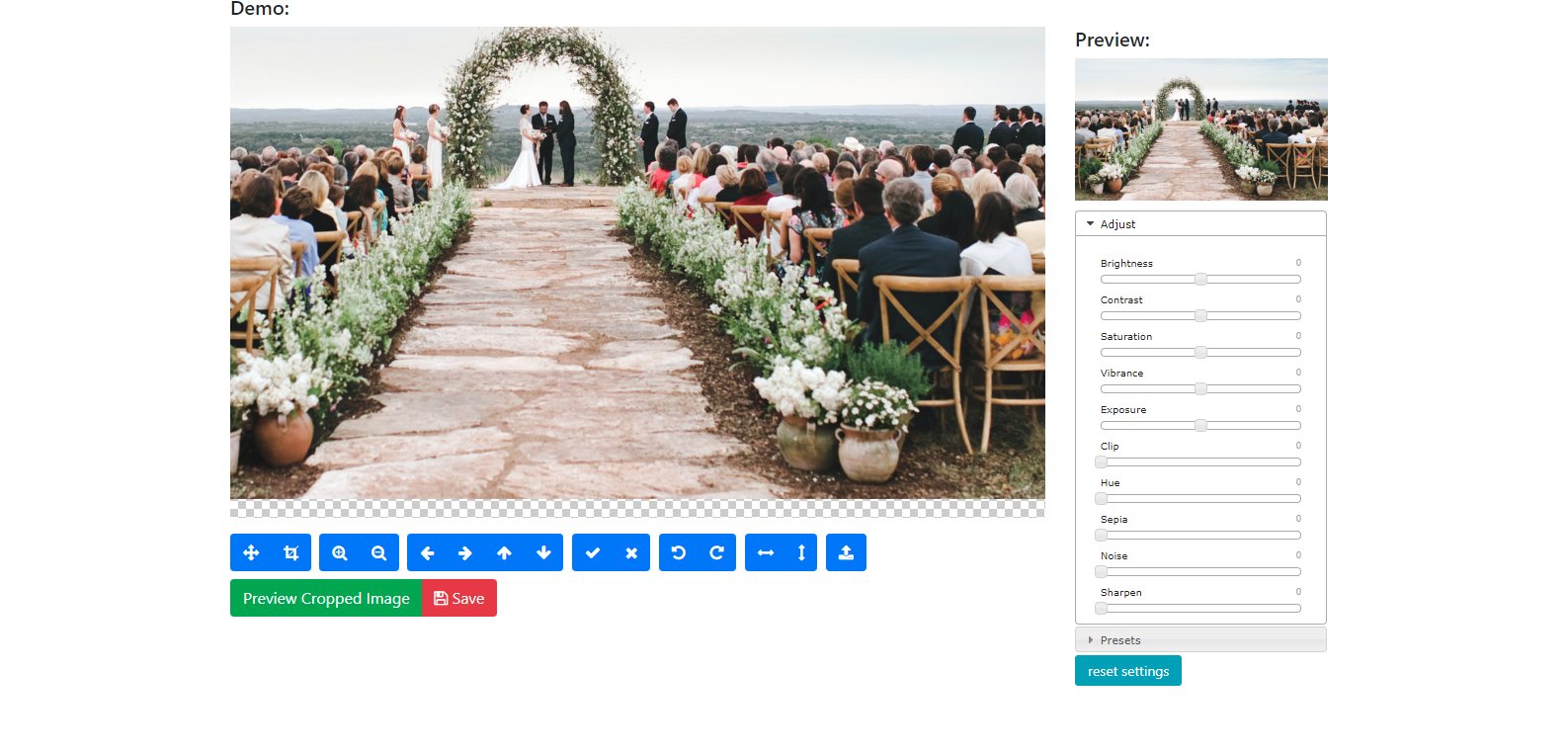
Hi,
How can i use cropper js along with caman? I m troubling to work both together.
I want something like this,
 kaushikponkiya2611
on 26 Jul 2019
kaushikponkiya2611
on 26 Jul 2019
Hi Fengyuan,
Could you get this online with your sample code?
http://codepen.io/goneale/pen/QyqXGv?editors=101
In completed
kaushikponkiya2611
on 26 Jul 2019
Related issues
 jloguercio
·
6Comments
jloguercio
·
6Comments
 airtwister
·
7Comments
airtwister
·
7Comments
 WillJW
·
3Comments
WillJW
·
3Comments
 Mafial
·
8Comments
Mafial
·
8Comments
 richdenis86
·
8Comments
richdenis86
·
8Comments
Most helpful comment
Here is a solution without flickering (without reinit):
https://codepen.io/anon/pen/oeoNLx