Cordova-plugin-googlemaps: Custom marker icon link does not work
Hello !
I saved a custom marker image in my www/assets/icon directory.
When using : <img src="./assets/icon/custom_marker_32.png"/> it shows correctly.
But when I'm using the same link in an "addMarker" :
this.map.addMarker({
      position: new GoogleMapsLatLng(item.geocode_lat_GPS, item.geocode_lng_GPS),
      icon: {
        url: "./assets/icon/custom_marker_32.png"
      },
      markerClick: () => {
        this.showDetails(item, false)
      }
    })
or even :
this.map.addMarker({
      position: new GoogleMapsLatLng(item.geocode_lat_GPS, item.geocode_lng_GPS),
      icon: "./assets/icon/custom_marker_32.png",
      markerClick: () => {
        this.showDetails(item, false)
      }
    })
None of both works.
It only works with an HTTP link but i cannot use it like this in my project.
I saw this issue : https://github.com/mapsplugin/cordova-plugin-googlemaps/issues/1342
But none of the solutions work.
I'm using Google Maps Cordova in Ionic 2 framework on iOS 10 (iPhone 7) (simulating with IonicView app).
Does anyone successed to use local url ?
Thanks.
 Julieng50
All 39 comments
I have the same issue, could someone please help us?
I tried using a random icon using https and that works fine but not with my local icons.
in the url parameter I tried with this:
- '/assets/icons/marker.png'
- '../assets/icons/marker.png'
- './assets/icons/marker.png'
Thanks!
 SoldierCorp
on 6 Apr 2017
SoldierCorp
on 6 Apr 2017
Where is index.html?
 wf9a5m75
on 6 Apr 2017
SoldierCorp
on 6 Apr 2017
wf9a5m75
on 6 Apr 2017
SoldierCorp
on 6 Apr 2017
Does your app really contain icons/marker.png in assets folder? Did you confirm with chrome dev tool?
wf9a5m75
on 6 Apr 2017
The path seems good to me :

_Yes the name of my marker is gn_marker and not custom_marker as mentioned above, it's normal._
Julieng50
on 6 Apr 2017
We both have our icons in the folder
SoldierCorp
on 6 Apr 2017
Thanks. But I need to hear more information.
Please try this:
(1) Make an <img> tag.
<img src="./assets/icon/gn_marker_32.png">
(2) then using Chrome dev tools, get the actual url of the image.
Should be http://localhost:8100/assets/icon/gn_marker_32.png
(3) If so, try to specify the URL as marker icon
map.addMarker({
  icon : "http://localhost:8100/assets/icon/gn_marker_32.png"
});
While "./assets/icon/gn_marker_32.png" shows nothing, "http://localhost:8100/assets/icon/gn_marker_32.png" shows the default red marker, any idea ?
Julieng50
on 6 Apr 2017
I have no idea.
wf9a5m75
on 6 Apr 2017
I just fixed, I inspected the img in Chrome and I extracted the url of the assets and I got something like this
file:///android_asset/www/assets/marker/user.png
@Julieng50 please try.
SoldierCorp
on 6 Apr 2017
I'm not on android so it wont work
Julieng50
on 6 Apr 2017
@Julieng50 How about www/assets/marker/user.png?
wf9a5m75
on 6 Apr 2017
www/assets/icon/gn_marker_32.png shows nothing
./assets/gn_marker_32.png show nothing
www/assets/gn_marker_32.png shows nothing
www/assets/marker/gn_marker_32.png shows nothing
http://localhost:8100/www/assets/icon/gn_marker_32.png shows default red marker icon
http://localhost:8100/assets/icon/gn_marker_32.png shows default red marker icon
Julieng50
on 6 Apr 2017
How about http://localhost:8100/assets/icon/gn_marker_32.png?
Can you see your image with <img src="http://localhost:8100/assets/icon/gn_marker_32.png">?
wf9a5m75
on 6 Apr 2017
I updated my post above,
<img src="http://localhost:8100/assets/icon/gn_marker_32.png"> does not work (empty square).
Julieng50
on 6 Apr 2017
<img src="http://localhost:8100/assets/icon/gn_marker_32.png">does not work (empty square)
It means there is no icon file under the url.
You need to find actual url.
wf9a5m75
on 6 Apr 2017
Yes but.... is there a way to find the host in ionic view ?
Julieng50
on 6 Apr 2017
Unfortunately, I'm not familiar with ionic. But lots of ionic developers use this plugin. The plugin should work.
wf9a5m75
on 6 Apr 2017
@Julieng50 I'll try with iOS today later and If I find the solution, I'll write here for you.
Because I'm actually working with Ionic 2
SoldierCorp
on 6 Apr 2017
Thanks @wf9a5m75 and @SoldierCorp.
Hope some iOS user will see this issue and help :)
Still searching on my side.
Julieng50
on 6 Apr 2017
@Julieng50 Did you solve your issue?
wf9a5m75
on 10 Apr 2017
Still searching for a solution, I tried many things and I don't know why this is not working.
Even in the Objective-C but this language is not familiar to me.
I'll try to search some free project using this plugin to see how they did it.
Julieng50
on 10 Apr 2017
Hmm, please create a simple project without any other plugins, and try with small code.
wf9a5m75
on 10 Apr 2017
Well, I started a new project with 2 pages only, the first with a button launching the second one.
I tried many different way to show the marker icon, none of them work (except the last default one).
You can see the repo here :https://bitbucket.org/Julieng50/testgmc/src/3373eb0a0714ff5205cf33f890100d2c1eb3bfb2?at=master
Julieng50
on 11 Apr 2017
I'm not sure how ionic framework displays these pages, but if pages/map/map.html displays as http://localhost:8100/map/map.html, image files should be in the same folder as map.html
wf9a5m75
on 11 Apr 2017
I tried to put images in map folder, and in almost every other folders (I removed this before pushing), added some new marker url but still not working :/
I updated the repo
Julieng50
on 11 Apr 2017
This two ones should be displayed.
      map.addMarker({
        position: new LatLng(46.6,2.5),
        icon: {
          url: "custom_gn_marker_512.png",
          size: this.size
        }
      });
      map.addMarker({
        position: new LatLng(46.7,2.4),
        icon: {
          url: "./custom_pn_marker_512.png",
          size: this.size
        }
      });
And I noticed that your image files are too large.
wf9a5m75
on 11 Apr 2017
They are not showing
And I resized it before :
size = {
    width: 32,
    height: 32
  };
Or maybe you mean too much bytes ?
Julieng50
on 11 Apr 2017
maybe you mean too much bytes ?
yes. try to make a small image file such as 32x32 (for test).
And also please make an Android apk.
wf9a5m75
on 11 Apr 2017
Still not working, no need an Android apk, using IonicView app on Android (or iOS), you can see the app with the id : f4b98a09
Julieng50
on 11 Apr 2017
Unfortunately I'm really not familiar with ionic. What is the IonicView app?
wf9a5m75
on 11 Apr 2017
@Julieng50 I fixed the issue related to the iOS path, you can use this line if you want
this.assetsPath = this.platform.is('ios') ? 'www/assets/' : 'file:///android_asset/www/assets/';
@wf9a5m75 IonicView app allow you to see an Ionic App from an ID. So you can see how it will works on a device. This is a kind of simulator but on your device.
@SoldierCorp Can you show me your code ? Where did you put images ? Because this line means to use "www/assets/" on iOS, and i already tried this.
Julieng50
on 12 Apr 2017
I'm using Ionic as usual and this is my folder structure:
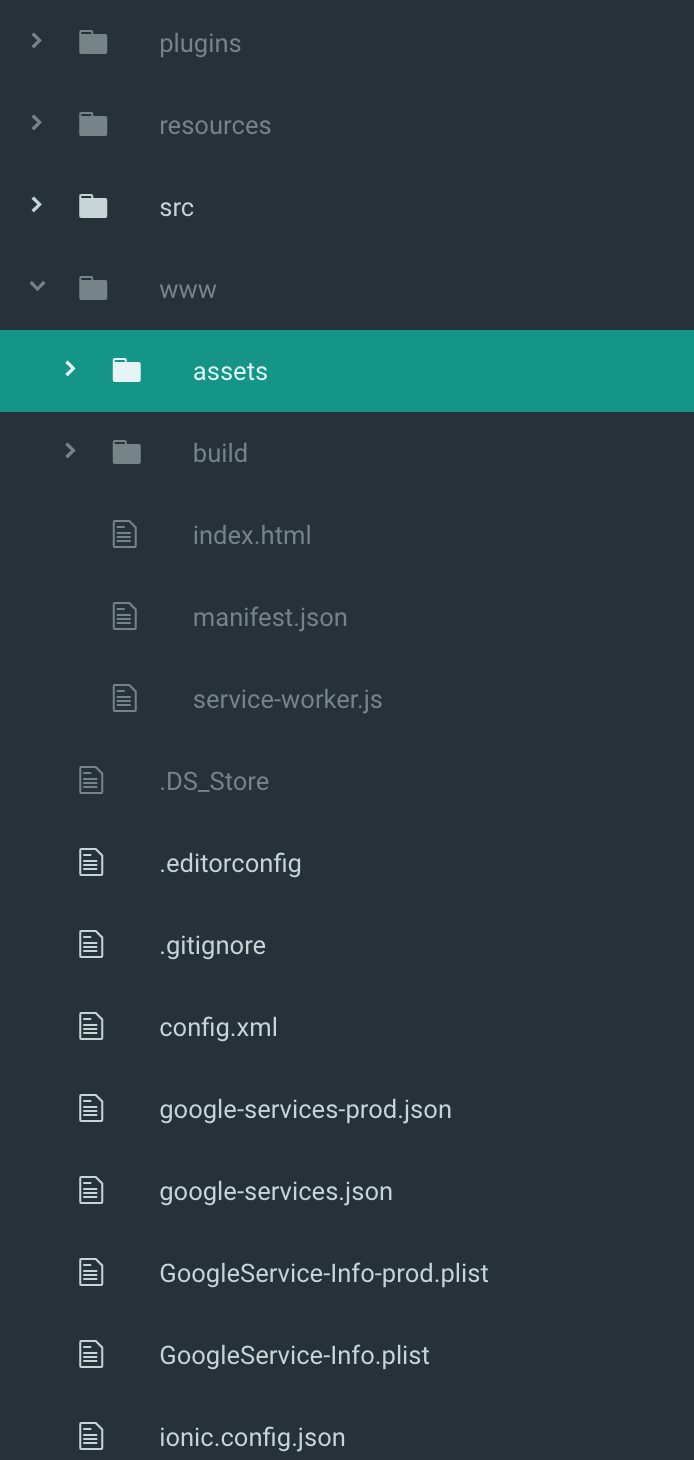
SoldierCorp
on 12 Apr 2017
I am able to import a KML file in the map using this "assets/data/my-kml.kml".
Only marker icon does not work. Sad thing, I think I will continue to use base64 format for my markers.
I have found no solution for image file.
@SoldierCorp I have the same project structure
Julieng50
on 12 Apr 2017
@Julieng50 How can you see? I'm so busy (and I'm not interested in ionic), please describe how I can see your app with steps.
And simulator or others cause unknown error sometimes because these ones replace image (or anchor) paths internally.
I strongly recommend developing with real device.
wf9a5m75
on 12 Apr 2017
I understand @wf9a5m75.
On google play for Android or Appstore for iOS, dowload "IonicView". You need to create a simple account to login. Once logged, Load the app by entering this id : f4b98a09.
That's what i thought "simulator maybe change my image location". But why is this display correctly in html:
<img src="assets/image/my-image.png" />.
I have no macbook to develop on :/
Julieng50
on 12 Apr 2017
<img src="assets/image/my-image.png" /> is HTML element.
map is not HTML element.
And you may not know that VisualStudio (has cordova internally) supports Android and iOS.
So you can build your app only on Windows.
Some people uses this plugin on Windows for both Android and iOS.
(Don't ask me how to do it, I'm not Windows user)
Anyway, even you have only Android, you should develop with real device, not simulator or something. I strongly recommend it.
wf9a5m75
on 12 Apr 2017
let markerOption: MarkerOptions = {
                        position: position,
                        title: vehicleDetail,
                        icon: {
                            url:"./assets/img/icons/car.png",
                            size: {
                                width: 25,
                                height: 30
                            }
                        }
                    };
                    this.map.addMarker(markerOption);
./ before assets will work for local image rendering on map,,,
try, this should work....peaceout
 JayanthkumarJK
on 9 Feb 2018
JayanthkumarJK
on 9 Feb 2018
Related issues
 djett41
·
3Comments
djett41
·
3Comments
 christoph-puppe
·
5Comments
wf9a5m75
·
5Comments
christoph-puppe
·
5Comments
wf9a5m75
·
5Comments
 melkir
·
5Comments
melkir
·
5Comments
 ahmadkam72
·
3Comments
ahmadkam72
·
3Comments
Most helpful comment
@Julieng50 I fixed the issue related to the iOS path, you can use this line if you want