Exactly that question, I'm looking for functionality that will allow me to quickly look through my clipboard history without having to use the mouse and set the clipboard to whatever item I choose as I scroll through my history.
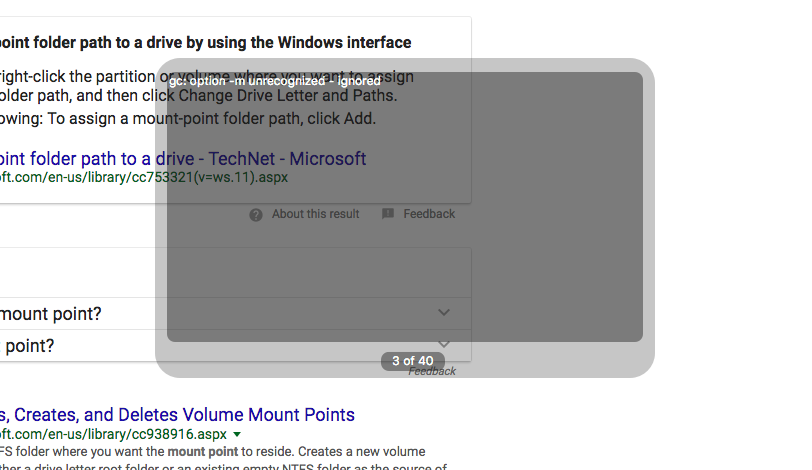
Note this screenshot from flycut on my mac where I can type ctrl + shift + v and use the arrow keys to go through history. Ideally if this was possible in copyq I'd be happy to add some docs on it.
Thank you in advance for your help! Great project!
 davidawad
All 9 comments
You can assign shortcuts to copy next/previous item in CopyQ.
- Open Commands dialog (F6 shortcut),
- click "Add" button,
- select "Copy next item" and "Copy previous item" commands and click OK dialog button,
- select shortcuts for the new commands,
- click OK to save the commands.
Alternatively you can add following command (copy the code below and click "Paste Commands" in Commands dialog). This allows to select an item to paste though it more or less emulates behavior of the main window or tray menu.
[Command]
Command="
    copyq:
    var maxItemCount = 40
    var title = 'Paste Item'
    var width = 320
    var height = 460

    var itemCount = Math.min(maxItemCount, count())
    if (itemCount == 0) {
      popup('No items to paste')
      abort()
    }

    var list = []
    for (var i = 0; i < itemCount; ++i)
      list.push(read(i))

    var i = dialog(
      '.title', title,
      '.width', width,
      '.height', height,
      '.list:Paste', list)
    if (i == undefined)
      abort()

    var text = list[i]
    copy(text)
    copySelection(text)
    paste()"
GlobalShortcut=ctrl+shift+v
Icon=\xf0ea
Name=Select and Paste
BTW, in next versions the documentation will be hosted here. Source is in this repository which can be edited directly on github (similar to wiki) and using pull requests.
 hluk
on 14 Jun 2017
hluk
on 14 Jun 2017
thank you so much @hluk you'll see a PR from me on the docs repo when I've set this up!
davidawad
on 14 Jun 2017
@hluk
The documentation page looks great, thanks.
 smaragdus
on 14 Jun 2017
smaragdus
on 14 Jun 2017
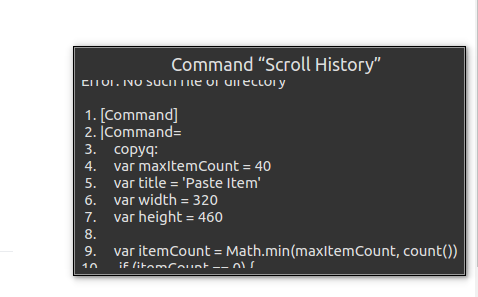
@hluk I'm sorry to bother you but this code snippet doesn't allow me to cycle through the clipboard history. It looks like it just renders a window, but complains about trying to access a file or directory that doesn't exist.
What's the best way to debug custom commands? Thanks.
davidawad
on 20 Jun 2017
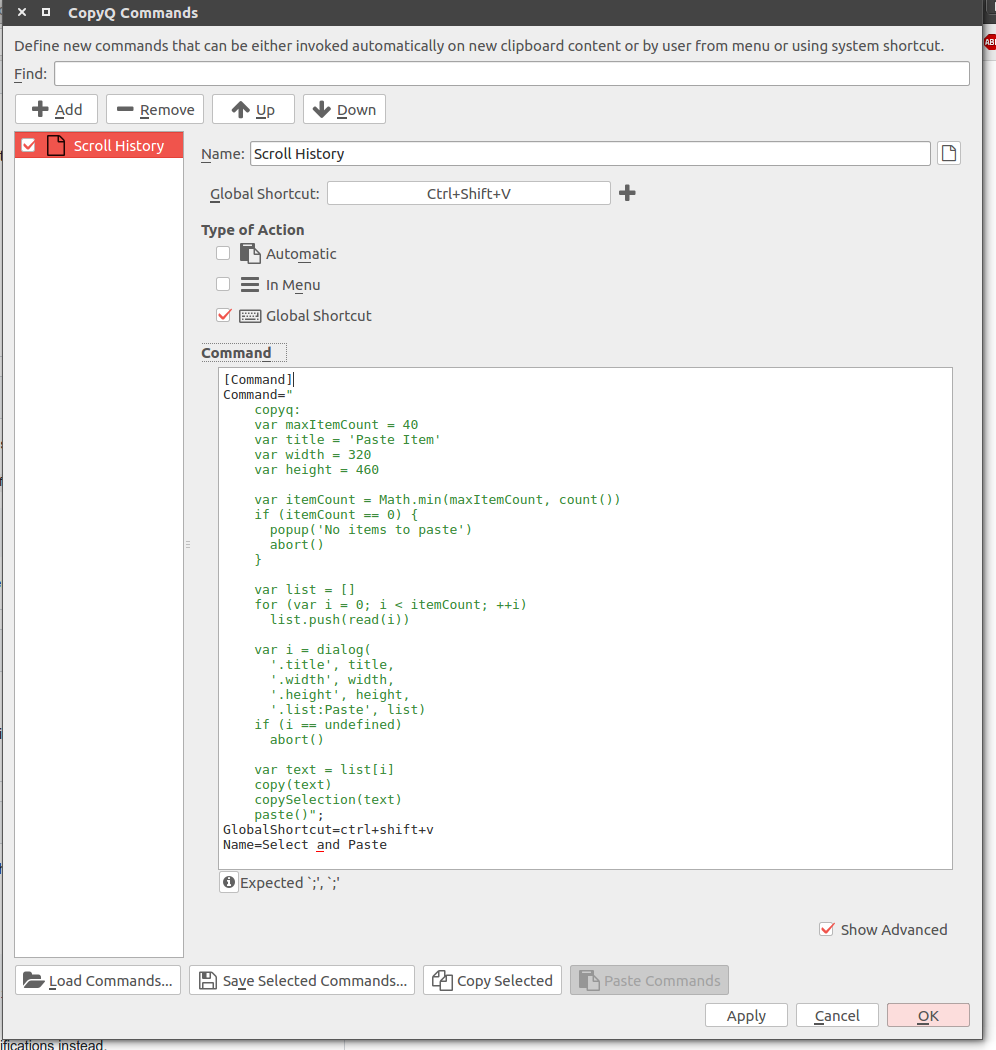
This is my current custom task :
davidawad
on 20 Jun 2017
is there a debug log or a line number so I can better understand what Expected ';',`;' means?
davidawad
on 20 Jun 2017
@DavidAwad Stuff starting with [Command] should be pasted into the command list on the left side (not the Command text entry which usually includes copyq: ....). You can use the "Paste Commands" button when something like that is copied to clipboard.
hluk
on 23 Jun 2017
Here's the cycling behavior I'm looking for from flycut:
- I press Ctrl+Shift+V
- A window opens showing the last thing on my clipboard
- Letting go at this point will paste the text that was showing
- Hitting 'V' instead of letting go will cycle to the next thing on the clipboard. It will be shown on the screen and letting go at this point will paste that text.
Is this possible with copyq? The code above is alright, but flycut's workflow is much faster in my opinion.
 gsingh93
on 20 Aug 2017
gsingh93
on 20 Aug 2017
@gsingh93 Looks like a nice feature to have.
For this I needed to implemented a function that checks if keyboard modifiers like Ctrl or Shift are still pressed (1dc46892b9fd77a337d0b409a65712b608f259d3). The following command can work as you described but currently, you need development version of CopyQ (recent development version for Windows).
[Command]
Command="
    copyq:
    var previousKey = 'f'
    var imageFormat = 'image/png'
    var imageWidth = 200
    var configName = 'current-paste-item'

    function cancel()
    {
      settings(configName, undefined)
      notification('.id', configName, '.time', 0)
    }

    function itemOrClipboard(current)
    {
      if (current >= 0)
        return getItem(current)

      var result = {}
      result[mimeText] = read(mimeText)
      return result
    }

    function notificationTextOrImage(item)
    {
      var text = item[mimeText]
      if (text != undefined)
        return str(text)

      var imageData = toBase64(item[imageFormat])
      return '<img width=\"' + imageWidth
             + '\" src=\"data:' + imageFormat + ';base64,'
             + imageData + '\"/>'
    }

    var shortcut = str(data(mimeShortcut))
    if (shortcut.match(/esc$/)) {
      cancel()
      abort()
    }

    var current = parseInt(settings(configName))
    var itemCount = count()
    var item = {}
    if (isNaN(current)) {
      current = -1
      item = itemOrClipboard(current)
    } else {
      item = itemOrClipboard(current)
      while (true) {
        if (shortcut[shortcut.length-1] == previousKey)
          --current
        else
          ++current

        if (current < -1 || current >= itemCount) {
          notification(
            '.message', 'No more items.',
            '.time', 2000)
          abort()
        }

        var newItem = itemOrClipboard(current)
        if (current == -1 || notificationTextOrImage(newItem) != notificationTextOrImage(item)) {
          item = newItem
          break
        }
      }
    }
    settings(configName, current)

    notification(
      '.title', 'Paste? (ESC to cancel)',
      '.message', notificationTextOrImage(item),
      '.id', configName)

    // Wait for all keyboard modifiers to be released.
    while (queryKeyboardModifiers().length && settings(configName) == current)
      sleep(200);

    if (settings(configName) == current) {
      cancel()
      if (current != -1) {
        var item = pack(item)
        copy(mimeItems, item)
        copySelection(mimeItems, item)
      }
      paste()
    }"
GlobalShortcut=ctrl+shift+v, ctrl+shift+f, ctrl+shift+esc
Icon=\xf0ea
Name=Select and Paste
Related issues
 lepalmtree
·
7Comments
lepalmtree
·
7Comments
 aksr
·
9Comments
aksr
·
9Comments
 gatopeich
·
3Comments
gatopeich
·
3Comments
 maricn
·
3Comments
maricn
·
3Comments
 nmat
·
6Comments
nmat
·
6Comments
Most helpful comment
You can assign shortcuts to copy next/previous item in CopyQ.
Alternatively you can add following command (copy the code below and click "Paste Commands" in Commands dialog). This allows to select an item to paste though it more or less emulates behavior of the main window or tray menu.
BTW, in next versions the documentation will be hosted here. Source is in this repository which can be edited directly on github (similar to wiki) and using pull requests.