Conda: CondaHTTPError: HTTP 000 CONNECTION FAILED for url <https://repo.anaconda.com/pkgs/main/win-64/current_repodata.json> Elapsed: -
Hello i am facing this issue since few day. I read few posts and tried to workaround but nothing seems to work. Can someone please help me fix this. I am unable to update anything . I am copy pasting the error i get:
(base) C:\Users\avnis>conda update conda
Collecting package metadata (current_repodata.json): failed
CondaHTTPError: HTTP 000 CONNECTION FAILED for url https://repo.anaconda.com/pkgs/main/win-64/current_repodata.json
Elapsed: -
An HTTP error occurred when trying to retrieve this URL.
HTTP errors are often intermittent, and a simple retry will get you on your way.
If your current network has https://www.anaconda.com blocked, please file
a support request with your network engineering team.
ConnectTimeout(MaxRetryError("HTTPSConnectionPool(host='repo.anaconda.com', port=443): Max retries exceeded with url: /pkgs/main/win-64/current_repodata.json (Caused by ConnectTimeoutError(
 12avnisharma
All 72 comments
Have you tried the steps outlined here? https://docs.conda.io/projects/conda/en/latest/user-guide/troubleshooting.html#ssl-connection-errors
 forrestwaters
on 11 Mar 2020
forrestwaters
on 11 Mar 2020
Same error for me. Not SSL error. I see that https://repo.anaconda.com/pkgs/main/win-64 has repodata.json however anaconda update is looking for current_repodata.json
The link forrestwaters shared does not have a solution for this :-(
 vraghuvamshi
on 20 Apr 2020
vraghuvamshi
on 20 Apr 2020
Never mind. I found the solution in another thread. Copying here so it helps anyone else who lands up here:
D:\Anaconda3\DLLs_ssl.pyd search for the OpenSSL DLLs but in the wrong/current location!
As they are not found the search goes to C:\Windows\System32 where we have the same DLLs, installed by an other application, but with a different version. :-(
The DLLs delivered by Anaconda3 are located here:
D:\Anaconda3\Library\bin
My workaround:
I have copied the following files
libcrypto-1_1-x64.*
libssl-1_1-x64.*
from D:\Anaconda3\Library\bin to D:\Anaconda3\DLLs.
And it works as a charm!
vraghuvamshi
on 20 Apr 2020
Never mind. I found the solution in another thread. Copying here so it helps anyone else who lands up here:
D:\Anaconda3\DLLs_ssl.pyd search for the OpenSSL DLLs but in the wrong/current location!
As they are not found the search goes to C:\Windows\System32 where we have the same DLLs, installed by an other application, but with a different version. :-(The DLLs delivered by Anaconda3 are located here:
D:\Anaconda3\Library\binMy workaround:
I have copied the following fileslibcrypto-1_1-x64.*
libssl-1_1-x64.*
from D:\Anaconda3\Library\bin to D:\Anaconda3\DLLs.And it works as a charm!
This man deserves a medal
 aleeminati
on 21 Apr 2020
aleeminati
on 21 Apr 2020
Never mind. I found the solution in another thread. Copying here so it helps anyone else who lands up here:
D:\Anaconda3\DLLs_ssl.pyd search for the OpenSSL DLLs but in the wrong/current location!
As they are not found the search goes to C:\Windows\System32 where we have the same DLLs, installed by an other application, but with a different version. :-(The DLLs delivered by Anaconda3 are located here:
D:\Anaconda3\Library\binMy workaround:
I have copied the following fileslibcrypto-1_1-x64.*
libssl-1_1-x64.*
from D:\Anaconda3\Library\bin to D:\Anaconda3\DLLs.And it works as a charm!
yes it worked for me...
 uttamkumar41
on 19 May 2020
uttamkumar41
on 19 May 2020
Never mind. I found the solution in another thread. Copying here so it helps anyone else who lands up here:
D:\Anaconda3\DLLs_ssl.pyd search for the OpenSSL DLLs but in the wrong/current location!
As they are not found the search goes to C:\Windows\System32 where we have the same DLLs, installed by an other application, but with a different version. :-(The DLLs delivered by Anaconda3 are located here:
D:\Anaconda3\Library\binMy workaround:
I have copied the following fileslibcrypto-1_1-x64.*
libssl-1_1-x64.*
from D:\Anaconda3\Library\bin to D:\Anaconda3\DLLs.And it works as a charm!
thanks
 mehakmittal1234
on 25 May 2020
mehakmittal1234
on 25 May 2020
Never mind. I found the solution in another thread. Copying here so it helps anyone else who lands up here:
D:\Anaconda3\DLLs_ssl.pyd search for the OpenSSL DLLs but in the wrong/current location!
As they are not found the search goes to C:\Windows\System32 where we have the same DLLs, installed by an other application, but with a different version. :-(The DLLs delivered by Anaconda3 are located here:
D:\Anaconda3\Library\binMy workaround:
I have copied the following fileslibcrypto-1_1-x64.*
libssl-1_1-x64.*
from D:\Anaconda3\Library\bin to D:\Anaconda3\DLLs.And it works as a charm!
Thanks bro , this works
 Sharath-Jayagopal
on 30 May 2020
Sharath-Jayagopal
on 30 May 2020
Awesome, worked great!
 ThomasOtt314
on 1 Jun 2020
ThomasOtt314
on 1 Jun 2020
This doesn't work for Miniconda3 after copying the following files from
libcrypto-1_1-x64.*
libssl-1_1-x64.*
from D:\Miniconda3\Library\bin to D:\Miniconda3\DLLs.
(base) {ninja}~XXXXXXX(λ): conda update conda
Collecting package metadata (current_repodata.json): failed
CondaHTTPError: HTTP 000 CONNECTION FAILED for url https://repo.anaconda.com/pkgs/main/win-64/current_repodata.json
Elapsed: -
An HTTP error occurred when trying to retrieve this URL.
HTTP errors are often intermittent, and a simple retry will get you on your way.
If your current network has https://www.anaconda.com blocked, please file
a support request with your network engineering team.
'https://repo.anaconda.com/pkgs/main/win-64'
What worked for me is
conda config --set ssl_verify False
and then I run conda update conda
and it run without any error.
 Sangram1987
on 3 Jun 2020
Sangram1987
on 3 Jun 2020
Never mind. I found the solution in another thread. Copying here so it helps anyone else who lands up here:
D:\Anaconda3\DLLs_ssl.pyd search for the OpenSSL DLLs but in the wrong/current location!
As they are not found the search goes to C:\Windows\System32 where we have the same DLLs, installed by an other application, but with a different version. :-(The DLLs delivered by Anaconda3 are located here:
D:\Anaconda3\Library\binMy workaround:
I have copied the following fileslibcrypto-1_1-x64.*
libssl-1_1-x64.*
from D:\Anaconda3\Library\bin to D:\Anaconda3\DLLs.And it works as a charm!
Thank you very much
 aviyankh
on 11 Jun 2020
aviyankh
on 11 Jun 2020
Never mind. I found the solution in another thread. Copying here so it helps anyone else who lands up here:
D:\Anaconda3\DLLs_ssl.pyd search for the OpenSSL DLLs but in the wrong/current location!
As they are not found the search goes to C:\Windows\System32 where we have the same DLLs, installed by an other application, but with a different version. :-(The DLLs delivered by Anaconda3 are located here:
D:\Anaconda3\Library\binMy workaround:
I have copied the following fileslibcrypto-1_1-x64.*
libssl-1_1-x64.*
from D:\Anaconda3\Library\bin to D:\Anaconda3\DLLs.And it works as a charm!
It really did work like a charm. Thank you.
 sashank411
on 13 Jun 2020
sashank411
on 13 Jun 2020
Never mind. I found the solution in another thread. Copying here so it helps anyone else who lands up here:
D:\Anaconda3\DLLs_ssl.pyd search for the OpenSSL DLLs but in the wrong/current location!
As they are not found the search goes to C:\Windows\System32 where we have the same DLLs, installed by an other application, but with a different version. :-(The DLLs delivered by Anaconda3 are located here:
D:\Anaconda3\Library\binMy workaround:
I have copied the following fileslibcrypto-1_1-x64.*
libssl-1_1-x64.*
from D:\Anaconda3\Library\bin to D:\Anaconda3\DLLs.And it works as a charm!
It works like a charm! Thank you for saving my ass
 Chuukwudi
on 17 Jun 2020
Chuukwudi
on 17 Jun 2020
Never mind. I found the solution in another thread. Copying here so it helps anyone else who lands up here:
D:\Anaconda3\DLLs_ssl.pyd search for the OpenSSL DLLs but in the wrong/current location!
As they are not found the search goes to C:\Windows\System32 where we have the same DLLs, installed by an other application, but with a different version. :-(The DLLs delivered by Anaconda3 are located here:
D:\Anaconda3\Library\binMy workaround:
I have copied the following fileslibcrypto-1_1-x64.*
libssl-1_1-x64.*
from D:\Anaconda3\Library\bin to D:\Anaconda3\DLLs.And it works as a charm!
WOW!!!Thank you!!
 321Rain
on 17 Jun 2020
321Rain
on 17 Jun 2020
Never mind. I found the solution in another thread. Copying here so it helps anyone else who lands up here:
D:\Anaconda3\DLLs_ssl.pyd search for the OpenSSL DLLs but in the wrong/current location!
As they are not found the search goes to C:\Windows\System32 where we have the same DLLs, installed by an other application, but with a different version. :-(The DLLs delivered by Anaconda3 are located here:
D:\Anaconda3\Library\binMy workaround:
I have copied the following fileslibcrypto-1_1-x64.*
libssl-1_1-x64.*
from D:\Anaconda3\Library\bin to D:\Anaconda3\DLLs.And it works as a charm!
you are awsm !
 Dhyani01
on 21 Jun 2020
Dhyani01
on 21 Jun 2020
----This is what worked for me
What worked for me is
conda config --set ssl_verify False
and then I runconda update condaand it run without any error.
Thanks @Sangram1987
 Vivek8612
on 22 Jun 2020
Vivek8612
on 22 Jun 2020
Never mind. I found the solution in another thread. Copying here so it helps anyone else who lands up here:
D:\Anaconda3\DLLs_ssl.pyd search for the OpenSSL DLLs but in the wrong/current location!
As they are not found the search goes to C:\Windows\System32 where we have the same DLLs, installed by an other application, but with a different version. :-(The DLLs delivered by Anaconda3 are located here:
D:\Anaconda3\Library\binMy workaround:
I have copied the following fileslibcrypto-1_1-x64.*
libssl-1_1-x64.*
from D:\Anaconda3\Library\bin to D:\Anaconda3\DLLs.And it works as a charm!
Hi everyone.
@vraghuvamshi I tried your solution but the problem continues in my case.
I'm trying to create a new environment and installing the packages that I need.
I'm launching the anaconda power shell, directly from anaconda navigator, so I'm here
(base) C:\Users\myuser>
I'm typing:
conda create -n myname_env python=3.7
I have the same error message than @12avnisharma
Also I tried to install a library on the base environment
python -m pip install opencv-python
and this appears (repeated 5 times)
WARNING: Retrying (Retry(total=4, connect=None, read=None, redirect=None, status=None)) after connection broken by 'NewConnectionError('
ERROR: Could not find a version that satisfies the requirement opencv-python (from versions: none)
ERROR: No matching distribution found for opencv-python
I don't know what to do.
I checked the URL on a web browser (https://repo.anaconda.com/pkgs/main/win-64/current_repodata.json) and I have no problem.
I have to say that I'm working on a server, I installed Anaconda con a Windows server 2019 machine
 carlosesfra
on 1 Jul 2020
carlosesfra
on 1 Jul 2020
This doesn't work for Miniconda3 after copying the following files from
libcrypto-1_1-x64.*
libssl-1_1-x64.*
from D:\Miniconda3\Library\bin to D:\Miniconda3\DLLs.(base) {ninja}~XXXXXXX(λ): conda update conda
Collecting package metadata (current_repodata.json): failedWhat worked for me is
conda config --set ssl_verify False
and then I runconda update condaand it run without any error.
Hi Everyone
@Sangram1987 I tried your solution too, but the issue was not solved.
(base) C:\Users\myUser>conda config --set ssl_verify False
(base) C:\Users\myUser>conda update conda
Collecting package metadata (current_repodata.json): failed
CondaHTTPError: HTTP 000 CONNECTION FAILED for url https://repo.anaconda.com/pkgs/main/win-64/current_repodata.json
Elapsed: -
An HTTP error occurred when trying to retrieve this URL.
HTTP errors are often intermittent, and a simple retry will get you on your way.
If your current network has https://www.anaconda.com blocked, please file
a support request with your network engineering team.
'https://repo.anaconda.com/pkgs/main/win-64'
I have to say that I'm working on a server, I installed Anaconda con a Windows server 2019 machine
carlosesfra
on 1 Jul 2020
Never mind. I found the solution in another thread. Copying here so it helps anyone else who lands up here:
D:\Anaconda3\DLLs_ssl.pyd search for the OpenSSL DLLs but in the wrong/current location!
As they are not found the search goes to C:\Windows\System32 where we have the same DLLs, installed by an other application, but with a different version. :-(The DLLs delivered by Anaconda3 are located here:
D:\Anaconda3\Library\binMy workaround:
I have copied the following fileslibcrypto-1_1-x64.*
libssl-1_1-x64.*
from D:\Anaconda3\Library\bin to D:\Anaconda3\DLLs.And it works as a charm!
Thank Bother you saved me from another day of trouble . ❤️
 BirajCoder
on 5 Jul 2020
BirajCoder
on 5 Jul 2020
I have copied the following files
libcrypto-1_1-x64.*
libssl-1_1-x64.*
from D:\Anaconda3\Library\bin to D:\Anaconda3\DLLs.
Perfect! Thank you very much
 kryztoval
on 13 Jul 2020
kryztoval
on 13 Jul 2020
When setting the PATH, use D:\anaconda3\Library\bin , don't use D:\anaconda3\Scripts . And it works well.
 blueskea
on 16 Jul 2020
blueskea
on 16 Jul 2020
This doesn't work for Miniconda3 after copying the following files from
libcrypto-1_1-x64.*
libssl-1_1-x64.*
from D:\Miniconda3\Library\bin to D:\Miniconda3\DLLs.
(base) {ninja}~XXXXXXX(λ): conda update conda
Collecting package metadata (current_repodata.json): failed
What worked for me is
conda config --set ssl_verify False
and then I runconda update conda
and it run without any error.Hi Everyone
@Sangram1987 I tried your solution too, but the issue was not solved.(base) C:\Users\myUser>conda config --set ssl_verify False
(base) C:\Users\myUser>conda update conda
Collecting package metadata (current_repodata.json): failedCondaHTTPError: HTTP 000 CONNECTION FAILED for url https://repo.anaconda.com/pkgs/main/win-64/current_repodata.json
Elapsed: -An HTTP error occurred when trying to retrieve this URL.
HTTP errors are often intermittent, and a simple retry will get you on your way.If your current network has https://www.anaconda.com blocked, please file
a support request with your network engineering team.'https://repo.anaconda.com/pkgs/main/win-64'
I have to say that I'm working on a server, I installed Anaconda con a Windows server 2019 machine
This solution works for me. Thanks Mate.
But I am working in RStudio. and facing the below error related with Keras & Tensorflow.
Error: Python module tensorflow.keras was not found.
Detected Python configuration:
python: C:/Users/AppData/Local/r-miniconda/envs/r-reticulate/python.exe
libpython: C:/Users/AppData/Local/r-miniconda/envs/r-reticulate/python36.dll
pythonhome: C:/Users/AppData/Local/r-miniconda/envs/r-reticulate
version: 3.6.10 |Anaconda, Inc.| (default, May 7 2020, 19:46:08) [MSC v.1916 64 bit (AMD64)]
Architecture: 64bit
numpy: C:/Users/AppData/Local/r-miniconda/envs/r-reticulate/Lib/site-packages/numpy
numpy_version: 1.18.5
Any help on this is very appreciable.
 kapilg007
on 16 Jul 2020
kapilg007
on 16 Jul 2020
For windows10 m/c If you are having this error , I recommend using the Anaconda/Miniconda Command promt that you can find under start->Anaconda->Anaconda promt . It makes it easy for handling conda packages . It truly worked for me and it is much more simpler solution also .
here is the reason - https://docs.conda.io/projects/conda/en/latest/user-guide/troubleshooting.html#condahttperror-http-000-connection-failed . Read the cause part .
Thank you .
 LordSomen
on 18 Jul 2020
LordSomen
on 18 Jul 2020
Hello i am facing this issue since few day. I read few posts and tried to workaround but nothing seems to work. Can someone please help me fix this. I am unable to update anything . I am copy pasting the error i get:
(base) C:\Users\avnis>conda update conda
Collecting package metadata (current_repodata.json): failedCondaHTTPError: HTTP 000 CONNECTION FAILED for url https://repo.anaconda.com/pkgs/main/win-64/current_repodata.json
Elapsed: -An HTTP error occurred when trying to retrieve this URL.
HTTP errors are often intermittent, and a simple retry will get you on your way.If your current network has https://www.anaconda.com blocked, please file
a support request with your network engineering team.ConnectTimeout(MaxRetryError("HTTPSConnectionPool(host='repo.anaconda.com', port=443): Max retries exceeded with url: /pkgs/main/win-64/current_repodata.json (Caused by ConnectTimeoutError(
, 'Connection to repo.anaconda.com timed out. (connect timeout=9.15)'))"))
I had the same problem and just run ¨anaconda prompt (anaconda3)¨.
 007oscar
on 21 Jul 2020
007oscar
on 21 Jul 2020
Never mind. I found the solution in another thread. Copying here so it helps anyone else who lands up here:
D:\Anaconda3\DLLs_ssl.pyd search for the OpenSSL DLLs but in the wrong/current location!
As they are not found the search goes to C:\Windows\System32 where we have the same DLLs, installed by an other application, but with a different version. :-(The DLLs delivered by Anaconda3 are located here:
D:\Anaconda3\Library\binMy workaround:
I have copied the following fileslibcrypto-1_1-x64.*
libssl-1_1-x64.*
from D:\Anaconda3\Library\bin to D:\Anaconda3\DLLs.And it works as a charm!
THANK YOU!!!!
 aaaaaaaaaron
on 21 Jul 2020
aaaaaaaaaron
on 21 Jul 2020
I have tried the below solution as well i.e. copying from bin to DLLs
folder but it still didn't work.
Thanks,
Kapil
On Wed, Jul 22, 2020, 02:38 Aaron Gould notifications@github.com wrote:
Never mind. I found the solution in another thread. Copying here so it
helps anyone else who lands up here:D:\Anaconda3\DLLs_ssl.pyd search for the OpenSSL DLLs but in the
wrong/current location!
As they are not found the search goes to C:\Windows\System32 where we have
the same DLLs, installed by an other application, but with a different
version. :-(The DLLs delivered by Anaconda3 are located here:
D:\Anaconda3\Library\binMy workaround:
I have copied the following fileslibcrypto-1_1-x64.*
libssl-1_1-x64.*
from D:\Anaconda3\Library\bin to D:\Anaconda3\DLLs.And it works as a charm!
THANK YOU!!!!
—
You are receiving this because you commented.
Reply to this email directly, view it on GitHub
https://github.com/conda/conda/issues/9746#issuecomment-662107268, or
unsubscribe
https://github.com/notifications/unsubscribe-auth/AP5BXW67AEJE4RRBBX3Y4JLR4X7UXANCNFSM4LFGW2SA
.
kapilg007
on 22 Jul 2020
I had faced the same issue, on windows 10.
(base) D:\anaconda3>conda update conda
Collecting package metadata (current_repodata.json): failed
CondaHTTPError: HTTP 000 CONNECTION FAILED for url https://repo.anaconda.com/pkgs/main/win-64/current_repodata.json
Elapsed: -
An HTTP error occurred when trying to retrieve this URL.
HTTP errors are often intermittent, and a simple retry will get you on your way.
If your current network has https://www.anaconda.com blocked, please file
a support request with your network engineering team.
'https://repo.anaconda.com/pkgs/main/win-64'
None of the above solutions worked in my case.
I was going to uninstall the Anaconda but as a final solution, I took a look at .condarc file (it is located at C:\Users\username).
In that file, I removed the line channel_priority: strict and reopened Anaconda prompt, and it really did work as a charm.
 zahta
on 2 Aug 2020
zahta
on 2 Aug 2020
Never mind. I found the solution in another thread. Copying here so it helps anyone else who lands up here:
D:\Anaconda3\DLLs_ssl.pyd search for the OpenSSL DLLs but in the wrong/current location!
As they are not found the search goes to C:\Windows\System32 where we have the same DLLs, installed by an other application, but with a different version. :-(The DLLs delivered by Anaconda3 are located here:
D:\Anaconda3\Library\binMy workaround:
I have copied the following fileslibcrypto-1_1-x64.*
libssl-1_1-x64.*
from D:\Anaconda3\Library\bin to D:\Anaconda3\DLLs.And it works as a charm!
Thank you !!!
 diegocor
on 2 Aug 2020
diegocor
on 2 Aug 2020
Thanks bro :-) it works for me too
 Lizard0011
on 4 Aug 2020
Lizard0011
on 4 Aug 2020
Never mind. I found the solution in another thread. Copying here so it helps anyone else who lands up here:
D:\Anaconda3\DLLs_ssl.pyd search for the OpenSSL DLLs but in the wrong/current location!
As they are not found the search goes to C:\Windows\System32 where we have the same DLLs, installed by an other application, but with a different version. :-(The DLLs delivered by Anaconda3 are located here:
D:\Anaconda3\Library\binMy workaround:
I have copied the following fileslibcrypto-1_1-x64.*
libssl-1_1-x64.*
from D:\Anaconda3\Library\bin to D:\Anaconda3\DLLs.And it works as a charm!
Finally this helped after working on the problem for a couple of hours.
 Saikato9
on 8 Aug 2020
Saikato9
on 8 Aug 2020
Never mind. I found the solution in another thread. Copying here so it helps anyone else who lands up here:
D:\Anaconda3\DLLs_ssl.pyd search for the OpenSSL DLLs but in the wrong/current location!
As they are not found the search goes to C:\Windows\System32 where we have the same DLLs, installed by an other application, but with a different version. :-(The DLLs delivered by Anaconda3 are located here:
D:\Anaconda3\Library\binMy workaround:
I have copied the following fileslibcrypto-1_1-x64.*
libssl-1_1-x64.*
from D:\Anaconda3\Library\bin to D:\Anaconda3\DLLs.And it works as a charm!
You're the life-saver! Thank you so much!!!
 KrishJee
on 10 Aug 2020
KrishJee
on 10 Aug 2020
This doesn't work for Miniconda3 after copying the following files from
libcrypto-1_1-x64.*
libssl-1_1-x64.*
from D:\Miniconda3\Library\bin to D:\Miniconda3\DLLs.(base) {ninja}~XXXXXXX(λ): conda update conda
Collecting package metadata (current_repodata.json): failedCondaHTTPError: HTTP 000 CONNECTION FAILED for url https://repo.anaconda.com/pkgs/main/win-64/current_repodata.json
Elapsed: -An HTTP error occurred when trying to retrieve this URL.
HTTP errors are often intermittent, and a simple retry will get you on your way.If your current network has https://www.anaconda.com blocked, please file
a support request with your network engineering team.'https://repo.anaconda.com/pkgs/main/win-64'
What worked for me is
conda config --set ssl_verify False
and then I runconda update condaand it run without any error.
This worked for me too. Apparently, it's not enough to change your env variables, you should also update conda so it takes into account the change
 gerileka
on 10 Aug 2020
gerileka
on 10 Aug 2020
Never mind. I found the solution in another thread. Copying here so it helps anyone else who lands up here:
D:\Anaconda3\DLLs_ssl.pyd search for the OpenSSL DLLs but in the wrong/current location!
As they are not found the search goes to C:\Windows\System32 where we have the same DLLs, installed by an other application, but with a different version. :-(
The DLLs delivered by Anaconda3 are located here:
D:\Anaconda3\Library\bin
My workaround:
I have copied the following files
libcrypto-1_1-x64.*
libssl-1_1-x64.*
from D:\Anaconda3\Library\bin to D:\Anaconda3\DLLs.
And it works as a charm!
you must be a guru! santi sana
 BonnieLaGeekNerd
on 11 Aug 2020
BonnieLaGeekNerd
on 11 Aug 2020
This doesn't work for Miniconda3 after copying the following files from
libcrypto-1_1-x64.*
libssl-1_1-x64.*
from D:\Miniconda3\Library\bin to D:\Miniconda3\DLLs.(base) {ninja}~XXXXXXX(λ): conda update conda
Collecting package metadata (current_repodata.json): failedCondaHTTPError: HTTP 000 CONNECTION FAILED for url https://repo.anaconda.com/pkgs/main/win-64/current_repodata.json
Elapsed: -An HTTP error occurred when trying to retrieve this URL.
HTTP errors are often intermittent, and a simple retry will get you on your way.If your current network has https://www.anaconda.com blocked, please file
a support request with your network engineering team.'https://repo.anaconda.com/pkgs/main/win-64'
What worked for me is
conda config --set ssl_verify False
and then I runconda update condaand it run without any error.
Thanks a lot!
 antoponselvan
on 13 Aug 2020
antoponselvan
on 13 Aug 2020
Never mind. I found the solution in another thread. Copying here so it helps anyone else who lands up here:
D:\Anaconda3\DLLs_ssl.pyd search for the OpenSSL DLLs but in the wrong/current location!
As they are not found the search goes to C:\Windows\System32 where we have the same DLLs, installed by an other application, but with a different version. :-(The DLLs delivered by Anaconda3 are located here:
D:\Anaconda3\Library\binMy workaround:
I have copied the following fileslibcrypto-1_1-x64.*
libssl-1_1-x64.*
from D:\Anaconda3\Library\bin to D:\Anaconda3\DLLs.And it works as a charm!
You're a Hero Bro
 bicmicky
on 14 Aug 2020
bicmicky
on 14 Aug 2020
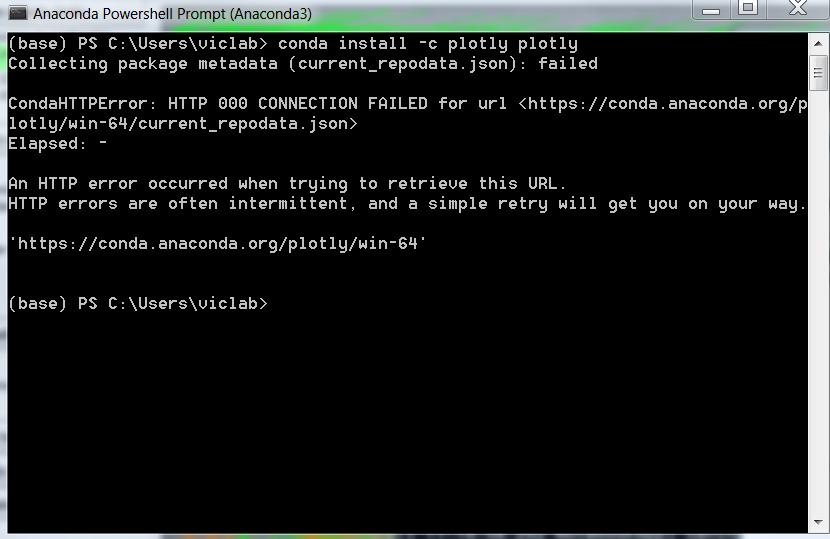
I have the following issue. can anybody fix this ?
 mvku
on 19 Aug 2020
mvku
on 19 Aug 2020
I've tried the aforementioned solution to copy the 4 files respectively. Unfortunately, this doesn't solve the issue for me. I've tried to set the ssl-verifcation to false as well. Same result. I'm new to Anaconda so it would be great if someone could point me into the right direction. Here is my config setup if this adds anything. Note that I can reach the website, i.e. its not blocked at all
(base) PS C:\> conda config --show
add_anaconda_token: True
add_pip_as_python_dependency: True
aggressive_update_packages:
  - ca-certificates
  - certifi
  - openssl
allow_conda_downgrades: False
allow_cycles: True
allow_non_channel_urls: False
allow_softlinks: False
always_copy: False
always_softlink: False
always_yes: None
anaconda_upload: None
auto_activate_base: True
auto_stack: 0
auto_update_conda: True
bld_path:
changeps1: True
channel_alias: https://conda.anaconda.org
channel_priority: flexible
channels:
  - defaults
client_ssl_cert: None
client_ssl_cert_key: None
clobber: False
conda_build: {}
create_default_packages: []
croot: C:\Users\cani\Anaconda3\conda-bld
custom_channels:
  pkgs/main: https://repo.anaconda.com
  pkgs/r: https://repo.anaconda.com
  pkgs/msys2: https://repo.anaconda.com
  pkgs/pro: https://repo.anaconda.com
custom_multichannels:
  defaults:
    - https://repo.anaconda.com/pkgs/main
    - https://repo.anaconda.com/pkgs/r
    - https://repo.anaconda.com/pkgs/msys2
  local:
debug: False
default_channels:
  - https://repo.anaconda.com/pkgs/main
  - https://repo.anaconda.com/pkgs/r
  - https://repo.anaconda.com/pkgs/msys2
default_python: 3.8
default_threads: None
deps_modifier: not_set
dev: False
disallowed_packages: []
download_only: False
dry_run: False
enable_private_envs: False
env_prompt: ({default_env})
envs_dirs:
  - C:\Users\cani\Anaconda3\envs
  - C:\Users\cani\.conda\envs
  - C:\Users\cani\AppData\Local\conda\conda\envs
error_upload_url: https://conda.io/conda-post/unexpected-error
execute_threads: 1
extra_safety_checks: False
force: False
force_32bit: False
force_reinstall: False
force_remove: False
ignore_pinned: False
json: False
local_repodata_ttl: 1
migrated_channel_aliases: []
migrated_custom_channels: {}
non_admin_enabled: True
notify_outdated_conda: True
offline: False
override_channels_enabled: True
path_conflict: clobber
pinned_packages: []
pip_interop_enabled: False
pkgs_dirs:
  - C:\Users\cani\Anaconda3\pkgs
  - C:\Users\cani\.conda\pkgs
  - C:\Users\cani\AppData\Local\conda\conda\pkgs
proxy_servers: {}
quiet: False
remote_backoff_factor: 1
remote_connect_timeout_secs: 9.15
remote_max_retries: 3
remote_read_timeout_secs: 60.0
repodata_fns:
  - current_repodata.json
  - repodata.json
repodata_threads: None
report_errors: None
restore_free_channel: False
rollback_enabled: True
root_prefix: C:\Users\cani\Anaconda3
safety_checks: warn
sat_solver: pycosat
separate_format_cache: False
shortcuts: True
show_channel_urls: None
solver_ignore_timestamps: False
ssl_verify: True
subdir: win-64
subdirs:
  - win-64
  - noarch
target_prefix_override:
track_features: []
unsatisfiable_hints: True
unsatisfiable_hints_check_depth: 2
update_modifier: update_specs
use_index_cache: False
use_local: False
use_only_tar_bz2: False
verbosity: 0
verify_threads: 1
whitelist_channels: []
 swissyswiss
on 21 Aug 2020
swissyswiss
on 21 Aug 2020
When setting the PATH, use
D:\anaconda3\Library\bin, don't useD:\anaconda3\Scripts. And it works well.
Adding that to my PATH worked like a charm
 xxJoJoxx
on 26 Aug 2020
xxJoJoxx
on 26 Aug 2020
I've added that one. Still getting the error of elapsed time. Happy to share any additional information which help further
swissyswiss
on 26 Aug 2020
The solutions here did not work for me. Then I disconnected my VPN, and it worked! So, make sure to connect directly and not through a VPN.
 josehoras
on 29 Aug 2020
josehoras
on 29 Aug 2020
thank you!
 Katherine-Gilber
on 10 Sep 2020
Katherine-Gilber
on 10 Sep 2020
Never mind. I found the solution in another thread. Copying here so it helps anyone else who lands up here:
D:\Anaconda3\DLLs_ssl.pyd search for the OpenSSL DLLs but in the wrong/current location!
As they are not found the search goes to C:\Windows\System32 where we have the same DLLs, installed by an other application, but with a different version. :-(
The DLLs delivered by Anaconda3 are located here:
D:\Anaconda3\Library\bin
My workaround:
I have copied the following files
libcrypto-1_1-x64.*
libssl-1_1-x64.*
from D:\Anaconda3\Library\bin to D:\Anaconda3\DLLs.
And it works as a charm!
THIS WORKS LIKE MAGIC....THANKS ALOT MATE
 mcakyerima
on 23 Sep 2020
mcakyerima
on 23 Sep 2020
This doesn't work for Miniconda3 after copying the following files from
libcrypto-1_1-x64.*
libssl-1_1-x64.*
from D:\Miniconda3\Library\bin to D:\Miniconda3\DLLs.(base) {ninja}~XXXXXXX(λ): conda update conda
Collecting package metadata (current_repodata.json): failedCondaHTTPError: HTTP 000 CONNECTION FAILED for url https://repo.anaconda.com/pkgs/main/win-64/current_repodata.json
Elapsed: -An HTTP error occurred when trying to retrieve this URL.
HTTP errors are often intermittent, and a simple retry will get you on your way.If your current network has https://www.anaconda.com blocked, please file
a support request with your network engineering team.'https://repo.anaconda.com/pkgs/main/win-64'
What worked for me is
conda config --set ssl_verify False
and then I runconda update condaand it run without any error.
 SindhuMohana
on 26 Sep 2020
SindhuMohana
on 26 Sep 2020
This worked for me as well !!! Many Thanks
SindhuMohana
on 26 Sep 2020
I tried the solution listed by @vraghuvamshi; it didn't work (but the post was still super helpful) as I saw the DLLS mentioned in that post were from a previous install. (Note that I had used the Windows Uninstall functionality to remove prior version). I consequently uninstalled again (from Windows Control Panel and then ensured that the folder was deleted (I can't remember if it deleted or not). Re-installed and all working okay.
 mlduarte
on 30 Sep 2020
mlduarte
on 30 Sep 2020
Never mind. I found the solution in another thread. Copying here so it helps anyone else who lands up here:
D:\Anaconda3\DLLs_ssl.pyd search for the OpenSSL DLLs but in the wrong/current location!
As they are not found the search goes to C:\Windows\System32 where we have the same DLLs, installed by an other application, but with a different version. :-(The DLLs delivered by Anaconda3 are located here:
D:\Anaconda3\Library\binMy workaround:
I have copied the following fileslibcrypto-1_1-x64.*
libssl-1_1-x64.*
from D:\Anaconda3\Library\bin to D:\Anaconda3\DLLs.And it works as a charm!
Thank you so much
 cinxdy
on 2 Oct 2020
cinxdy
on 2 Oct 2020
Never mind. I found the solution in another thread. Copying here so it helps anyone else who lands up here:
D:\Anaconda3\DLLs_ssl.pyd search for the OpenSSL DLLs but in the wrong/current location!
As they are not found the search goes to C:\Windows\System32 where we have the same DLLs, installed by an other application, but with a different version. :-(
The DLLs delivered by Anaconda3 are located here:
D:\Anaconda3\Library\bin
My workaround:
I have copied the following files
libcrypto-1_1-x64.*
libssl-1_1-x64.*
from D:\Anaconda3\Library\bin to D:\Anaconda3\DLLs.
And it works as a charm!
THANK YOU !!!!
 ttellerx
on 13 Oct 2020
ttellerx
on 13 Oct 2020
Never mind. I found the solution in another thread. Copying here so it helps anyone else who lands up here:
D:\Anaconda3\DLLs_ssl.pyd search for the OpenSSL DLLs but in the wrong/current location!
As they are not found the search goes to C:\Windows\System32 where we have the same DLLs, installed by an other application, but with a different version. :-(The DLLs delivered by Anaconda3 are located here:
D:\Anaconda3\Library\binMy workaround:
I have copied the following fileslibcrypto-1_1-x64.*
libssl-1_1-x64.*
from D:\Anaconda3\Library\bin to D:\Anaconda3\DLLs.And it works as a charm!
YOU LITERALLY SAVED MY LIFE . GIVE THIS MAN A TROPHY <3
 Duffany
on 17 Oct 2020
Duffany
on 17 Oct 2020
Never mind. I found the solution in another thread. Copying here so it helps anyone else who lands up here:
D:\Anaconda3\DLLs_ssl.pyd search for the OpenSSL DLLs but in the wrong/current location!
As they are not found the search goes to C:\Windows\System32 where we have the same DLLs, installed by an other application, but with a different version. :-(The DLLs delivered by Anaconda3 are located here:
D:\Anaconda3\Library\binMy workaround:
I have copied the following fileslibcrypto-1_1-x64.*
libssl-1_1-x64.*
from D:\Anaconda3\Library\bin to D:\Anaconda3\DLLs.And it works as a charm!
It works for me either. Thanks!
 taile2007
on 21 Oct 2020
taile2007
on 21 Oct 2020
Never mind. I found the solution in another thread. Copying here so it helps anyone else who lands up here:
D:\Anaconda3\DLLs_ssl.pyd search for the OpenSSL DLLs but in the wrong/current location!
As they are not found the search goes to C:\Windows\System32 where we have the same DLLs, installed by an other application, but with a different version. :-(The DLLs delivered by Anaconda3 are located here:
D:\Anaconda3\Library\binMy workaround:
I have copied the following fileslibcrypto-1_1-x64.*
libssl-1_1-x64.*
from D:\Anaconda3\Library\bin to D:\Anaconda3\DLLs.And it works as a charm!
Are There Any Oscars Type of thing in our industries??>> If Yes Please give one to this man....
 Hulktrivedi
on 27 Oct 2020
Hulktrivedi
on 27 Oct 2020
Never mind. I found the solution in another thread. Copying here so it helps anyone else who lands up here:
D:\Anaconda3\DLLs_ssl.pyd search for the OpenSSL DLLs but in the wrong/current location!
As they are not found the search goes to C:\Windows\System32 where we have the same DLLs, installed by an other application, but with a different version. :-(The DLLs delivered by Anaconda3 are located here:
D:\Anaconda3\Library\binMy workaround:
I have copied the following fileslibcrypto-1_1-x64.*
libssl-1_1-x64.*
from D:\Anaconda3\Library\bin to D:\Anaconda3\DLLs.And it works as a charm!
This solved my issue, thank you!
 mrodriguezalas
on 28 Oct 2020
mrodriguezalas
on 28 Oct 2020
My workaround:
I have copied the following fileslibcrypto-1_1-x64.*
libssl-1_1-x64.*
from D:\Anaconda3\Library\bin to D:\Anaconda3\DLLs.And it works as a charm!
Applied the recommended steps, anaconda update initiated after disconnecting the machine to the vpn. Thank you very much vraghuvamshi!
 CJ0007
on 5 Nov 2020
CJ0007
on 5 Nov 2020
Seems I am having this issue as well and none of the above work arounds have resolved it.
I have tried on and off my vpn, reinstalled Anaconda.
Weird thing is, i can create an "R" environment, but i cannot create a python environment.
I have another person I work with that's having the same issue. He also tried the above steps and it hasn't resolved the issue.
 rrice2004
on 16 Nov 2020
rrice2004
on 16 Nov 2020
Never mind. I found the solution in another thread. Copying here so it helps anyone else who lands up here:
D:\Anaconda3\DLLs_ssl.pyd search for the OpenSSL DLLs but in the wrong/current location!
As they are not found the search goes to C:\Windows\System32 where we have the same DLLs, installed by an other application, but with a different version. :-(The DLLs delivered by Anaconda3 are located here:
D:\Anaconda3\Library\binMy workaround:
I have copied the following fileslibcrypto-1_1-x64.*
libssl-1_1-x64.*
from D:\Anaconda3\Library\bin to D:\Anaconda3\DLLs.And it works as a charm!
You save my day man
 phytter
on 26 Nov 2020
phytter
on 26 Nov 2020
Never mind. I found the solution in another thread. Copying here so it helps anyone else who lands up here:
D:\Anaconda3\DLLs_ssl.pyd search for the OpenSSL DLLs but in the wrong/current location!
As they are not found the search goes to C:\Windows\System32 where we have the same DLLs, installed by an other application, but with a different version. :-(The DLLs delivered by Anaconda3 are located here:
D:\Anaconda3\Library\binMy workaround:
I have copied the following fileslibcrypto-1_1-x64.*
libssl-1_1-x64.*
from D:\Anaconda3\Library\bin to D:\Anaconda3\DLLs.And it works as a charm!
This is working, thanks mann
 1-mukesh-1
on 28 Nov 2020
1-mukesh-1
on 28 Nov 2020
Never mind. I found the solution in another thread. Copying here so it helps anyone else who lands up here:
D:\Anaconda3\DLLs_ssl.pyd search for the OpenSSL DLLs but in the wrong/current location!
As they are not found the search goes to C:\Windows\System32 where we have the same DLLs, installed by an other application, but with a different version. :-(The DLLs delivered by Anaconda3 are located here:
D:\Anaconda3\Library\binMy workaround:
I have copied the following fileslibcrypto-1_1-x64.*
libssl-1_1-x64.*
from D:\Anaconda3\Library\bin to D:\Anaconda3\DLLs.And it works as a charm!
worked for me. Thanks a ton.
 ssjsatish
on 2 Dec 2020
ssjsatish
on 2 Dec 2020
Never mind. I found the solution in another thread. Copying here so it helps anyone else who lands up here:
D:\Anaconda3\DLLs_ssl.pyd search for the OpenSSL DLLs but in the wrong/current location!
As they are not found the search goes to C:\Windows\System32 where we have the same DLLs, installed by an other application, but with a different version. :-(The DLLs delivered by Anaconda3 are located here:
D:\Anaconda3\Library\binMy workaround:
I have copied the following fileslibcrypto-1_1-x64.*
libssl-1_1-x64.*
from D:\Anaconda3\Library\bin to D:\Anaconda3\DLLs.And it works as a charm!
You are the hero. Thanks a lot!
 tung2389
on 2 Dec 2020
tung2389
on 2 Dec 2020
Never mind. I found the solution in another thread. Copying here so it helps anyone else who lands up here:
D:\Anaconda3\DLLs_ssl.pyd search for the OpenSSL DLLs but in the wrong/current location!
As they are not found the search goes to C:\Windows\System32 where we have the same DLLs, installed by an other application, but with a different version. :-(The DLLs delivered by Anaconda3 are located here:
D:\Anaconda3\Library\binMy workaround:
I have copied the following fileslibcrypto-1_1-x64.*
libssl-1_1-x64.*
from D:\Anaconda3\Library\bin to D:\Anaconda3\DLLs.And it works as a charm!
damm bro it worked. thank you
 SatyaRohith04
on 4 Dec 2020
SatyaRohith04
on 4 Dec 2020
Never mind. I found the solution in another thread. Copying here so it helps anyone else who lands up here:
D:\Anaconda3\DLLs_ssl.pyd search for the OpenSSL DLLs but in the wrong/current location!
As they are not found the search goes to C:\Windows\System32 where we have the same DLLs, installed by an other application, but with a different version. :-(The DLLs delivered by Anaconda3 are located here:
D:\Anaconda3\Library\binMy workaround:
I have copied the following fileslibcrypto-1_1-x64.*
libssl-1_1-x64.*
from D:\Anaconda3\Library\bin to D:\Anaconda3\DLLs.And it works as a charm!
This worked perfectly. Great Solution !
 ptiwari2407
on 8 Dec 2020
ptiwari2407
on 8 Dec 2020
The solutions here did not work for me. Then I disconnected my VPN, and it worked! So, make sure to connect directly and not through a VPN.
The solutions here did not work for me. Then I disconnected my VPN, and it worked! So, make sure to connect directly and not through a VPN.
Thank you!!! Disconnecting from VPN did the trick for me as well.
 vharotoonian
on 16 Dec 2020
vharotoonian
on 16 Dec 2020
The solutions here did not work for me. Then I disconnected my VPN, and it worked! So, make sure to connect directly and not through a VPN.
The solutions here did not work for me. Then I disconnected my VPN, and it worked! So, make sure to connect directly and not through a VPN.
Thank you!!! Disconnecting from VPN did the trick for me as well.
Disconnecting from VPN helped me too!
 morgansobol
on 20 Dec 2020
morgansobol
on 20 Dec 2020
Hello i am facing this issue since few day. I read few posts and tried to workaround but nothing seems to work. Can someone please help me fix this. I am unable to update anything . I am copy pasting the error i get:
(base) C:\Users\avnis>conda update conda
Collecting package metadata (current_repodata.json): failedCondaHTTPError: HTTP 000 CONNECTION FAILED for url https://repo.anaconda.com/pkgs/main/win-64/current_repodata.json
Elapsed: -An HTTP error occurred when trying to retrieve this URL.
HTTP errors are often intermittent, and a simple retry will get you on your way.If your current network has https://www.anaconda.com blocked, please file
a support request with your network engineering team.ConnectTimeout(MaxRetryError("HTTPSConnectionPool(host='repo.anaconda.com', port=443): Max retries exceeded with url: /pkgs/main/win-64/current_repodata.json (Caused by ConnectTimeoutError(
, 'Connection to repo.anaconda.com timed out. (connect timeout=9.15)'))"))
Great thanks
 cncoksoyler
on 28 Dec 2020
cncoksoyler
on 28 Dec 2020
try disconnecting your vpn and try again.
Best Regards,+Vinayak On Monday, December 28, 2020, 12:51:00 PM PST, cncoksoyler notifications@github.com wrote:
Hello i am facing this issue since few day. I read few posts and tried to workaround but nothing seems to work. Can someone please help me fix this. I am unable to update anything . I am copy pasting the error i get:
(base) C:\Users\avnis>conda update conda
Collecting package metadata (current_repodata.json): failed
CondaHTTPError: HTTP 000 CONNECTION FAILED for url https://repo.anaconda.com/pkgs/main/win-64/current_repodata.json
Elapsed: -
An HTTP error occurred when trying to retrieve this URL.
HTTP errors are often intermittent, and a simple retry will get you on your way.
If your current network has https://www.anaconda.com blocked, please file
a support request with your network engineering team.
ConnectTimeout(MaxRetryError("HTTPSConnectionPool(host='repo.anaconda.com', port=443): Max retries exceeded with url: /pkgs/main/win-64/current_repodata.json (Caused by ConnectTimeoutError(
Great thanks
—
You are receiving this because you were mentioned.
Reply to this email directly, view it on GitHub, or unsubscribe.
vraghuvamshi
on 29 Dec 2020
conda config --set ssl_verify false
worked for me.
I was trying to set up a new environment..
 neeleshneelesh
on 31 Dec 2020
neeleshneelesh
on 31 Dec 2020
Try to find
libcrypto-1_1-x64.dll
libssl-1_1-x64.dll
these two file in
C:\Users\Admin\anaconda3\pkgs\openssl-1.1.1g-he774522_0\Library\bin
then copy it and paste it into
C:\Users\Admin\anaconda3\DLLs
it will work
libcrypto-1_1-x64.dll
libssl-1_1-x64.dll
 Amit998
on 7 Jan 2021
Amit998
on 7 Jan 2021
Never mind. I found the solution in another thread. Copying here so it helps anyone else who lands up here:
D:\Anaconda3\DLLs_ssl.pyd search for the OpenSSL DLLs but in the wrong/current location!
As they are not found the search goes to C:\Windows\System32 where we have the same DLLs, installed by an other application, but with a different version. :-(The DLLs delivered by Anaconda3 are located here:
D:\Anaconda3\Library\binMy workaround:
I have copied the following fileslibcrypto-1_1-x64.*
libssl-1_1-x64.*
from D:\Anaconda3\Library\bin to D:\Anaconda3\DLLs.And it works as a charm!
This works. Legendary stuff.
 wandabwa2004
on 12 Jan 2021
wandabwa2004
on 12 Jan 2021
Never mind. I found the solution in another thread. Copying here so it helps anyone else who lands up here:
D:\Anaconda3\DLLs_ssl.pyd search for the OpenSSL DLLs but in the wrong/current location!
As they are not found the search goes to C:\Windows\System32 where we have the same DLLs, installed by an other application, but with a different version. :-(The DLLs delivered by Anaconda3 are located here:
D:\Anaconda3\Library\binMy workaround:
I have copied the following fileslibcrypto-1_1-x64.*
libssl-1_1-x64.*
from D:\Anaconda3\Library\bin to D:\Anaconda3\DLLs.And it works as a charm!
excellent
 ZhangQi-HUST
on 18 Jan 2021
ZhangQi-HUST
on 18 Jan 2021
Hello i am facing this issue since few day. I read few posts and tried to workaround but nothing seems to work. Can someone please help me fix this. I am unable to update anything . I am copy pasting the error i get:
(base) C:\Users\avnis>conda update conda
Collecting package metadata (current_repodata.json): failedCondaHTTPError: HTTP 000 CONNECTION FAILED for url https://repo.anaconda.com/pkgs/main/win-64/current_repodata.json
Elapsed: -An HTTP error occurred when trying to retrieve this URL.
HTTP errors are often intermittent, and a simple retry will get you on your way.If your current network has https://www.anaconda.com blocked, please file
a support request with your network engineering team.ConnectTimeout(MaxRetryError("HTTPSConnectionPool(host='repo.anaconda.com', port=443): Max retries exceeded with url: /pkgs/main/win-64/current_repodata.json (Caused by ConnectTimeoutError(
, 'Connection to repo.anaconda.com timed out. (connect timeout=9.15)'))"))
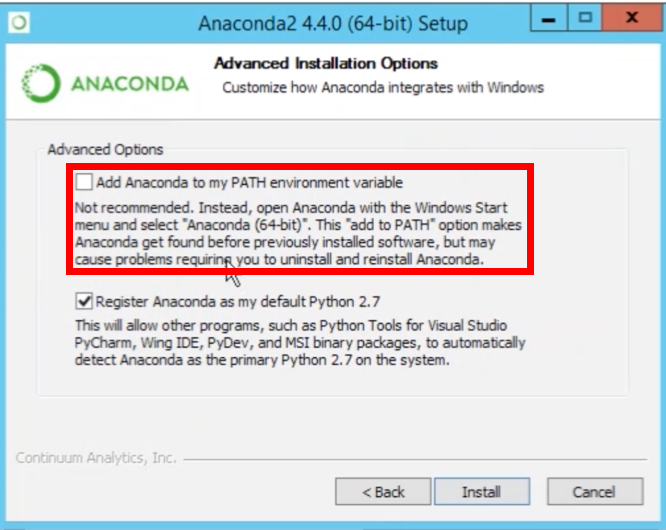
just click on check while installing can also solve this problem
 PramodBadugu
on 22 Jan 2021
PramodBadugu
on 22 Jan 2021
Check if the following folders are inside $PATH:
- C:\ProgramData\Anaconda3
- C:\ProgramData\Anaconda3\Scripts
- C:\ProgramData\Anaconda3\Library\bin
Obs: My Anaconda are installed in C:\ProgramData\Anaconda3
 tentativafc
on 23 Jan 2021
tentativafc
on 23 Jan 2021
Hi Everyone, i had received this error after installing Anaconda3 and installing RStudio (for that matter any packages). copying the following files didnt work for me.
_libcrypto-1_1-x64.*
libssl-1_1-x64.*
from D:\Anaconda3\Library\bin to D:\Anaconda3\DLLs._
I was verifying the current status of SSL :
_>conda config --describe ssl_verify
-## ssl_verify (bool, str)
-## aliases: verify_ssl
-## Conda verifies SSL certificates for HTTPS requests, just like a web
-## browser. By default, SSL verification is enabled, and conda operations
-## will fail if a required url's certificate cannot be verified. Setting
-## ssl_verify to False disables certification verification. The value for
-## ssl_verify can also be (1) a path to a CA bundle file, or (2) a path
-## to a directory containing certificates of trusted CA.
-##
-## ssl_verify: true_
Then ran
_>conda config --set ssl_verify false_ (_after reading thoroughly the note from https://docs.conda.io/projects/conda/en/latest/user-guide/troubleshooting.html#condahttperror-http-000-connection-failed_)
Post this i was able to do
_>>conda update conda
Collecting package metadata (current_repodata.json): done
Solving environment: done
-## Package Plan ##
environment location: C:\Users\sg09621\Anaconda3
added / updated specs:
- conda
The following packages will be downloaded:
package | build
---------------------------|-----------------
backports.functools_lru_cache-1.6.1| pyhd3eb1b0_0 12 KB
backports.tempfile-1.0 | pyhd3eb1b0_1 11 KB
------------------------------------------------------------
Total: 23 KB
The following packages will be DOWNGRADED:
backports.functoo~ 1.6.1-py_0 --> 1.6.1-pyhd3eb1b0_0
backports.tempfile 1.0-py_1 --> 1.0-pyhd3eb1b0_1
Proceed ([y]/n)? y
Downloading and Extracting Packages
backports.tempfile-1 | 11 KB | ############################################################################ | 100%
backports.functools_ | 12 KB | ############################################################################ | 100%
Preparing transaction: done
Verifying transaction: done
Executing transaction: done_
Note: At this stage I wasn't worried much of what I was going to lose, someone with a greater understanding please enlighten me what happens due to downgrade .
Post the above steps, I was able to install R Packages with no issues.
~ Why this would happen : my reasons for it is that I am using a work laptop + single user installation which doesn't require Admin privileges, and usually all SSL ports are blocked / certificates not installed. This did the trick.
 sunnygud
on 23 Jan 2021
sunnygud
on 23 Jan 2021
What worked for me is
conda config --set ssl_verify False
and then I runconda update condaand it run without any error.
same here but it that can happen, when you are behind a proxy server etc., e.g. see #6007.
Eventually, I found https://stackoverflow.com/a/35804869/4442591 plus https://stackoverflow.com/questions/61635505/installing-zscaler-certificate-to-anaconda3
Some more input is https://docs.conda.io/projects/conda/en/latest/user-guide/troubleshooting.html#ssl-certificate-errors as well.
 PackElend
on 25 Jan 2021
PackElend
on 25 Jan 2021
Never mind. I found the solution in another thread. Copying here so it helps anyone else who lands up here:
D:\Anaconda3\DLLs_ssl.pyd search for the OpenSSL DLLs but in the wrong/current location!
As they are not found the search goes to C:\Windows\System32 where we have the same DLLs, installed by an other application, but with a different version. :-(The DLLs delivered by Anaconda3 are located here:
D:\Anaconda3\Library\binMy workaround:
I have copied the following fileslibcrypto-1_1-x64.*
libssl-1_1-x64.*
from D:\Anaconda3\Library\bin to D:\Anaconda3\DLLs.And it works as a charm!
You are amazing, Kudos to you
 TahaAlamin
on 26 Jan 2021
TahaAlamin
on 26 Jan 2021
Never mind. I found the solution in another thread. Copying here so it helps anyone else who lands up here:
D:\Anaconda3\DLLs_ssl.pyd search for the OpenSSL DLLs but in the wrong/current location!
As they are not found the search goes to C:\Windows\System32 where we have the same DLLs, installed by an other application, but with a different version. :-(The DLLs delivered by Anaconda3 are located here:
D:\Anaconda3\Library\binMy workaround:
I have copied the following fileslibcrypto-1_1-x64.*
libssl-1_1-x64.*
from D:\Anaconda3\Library\bin to D:\Anaconda3\DLLs.And it works as a charm!
God, please. T
Never mind. I found the solution in another thread. Copying here so it helps anyone else who lands up here:
D:\Anaconda3\DLLs_ssl.pyd search for the OpenSSL DLLs but in the wrong/current location!
As they are not found the search goes to C:\Windows\System32 where we have the same DLLs, installed by an other application, but with a different version. :-(The DLLs delivered by Anaconda3 are located here:
D:\Anaconda3\Library\binMy workaround:
I have copied the following fileslibcrypto-1_1-x64.*
libssl-1_1-x64.*
from D:\Anaconda3\Library\bin to D:\Anaconda3\DLLs.And it works as a charm!
God, please. That works for me.
 MitchellX
on 28 Jan 2021
MitchellX
on 28 Jan 2021
Related issues
 kalefranz
·
50Comments
kalefranz
·
50Comments
 Chaztikov
·
114Comments
Chaztikov
·
114Comments
 abhinavankur
·
50Comments
abhinavankur
·
50Comments
 jbednar
·
59Comments
jbednar
·
59Comments
 maien85
·
60Comments
maien85
·
60Comments
Most helpful comment
Never mind. I found the solution in another thread. Copying here so it helps anyone else who lands up here:
D:\Anaconda3\DLLs_ssl.pyd search for the OpenSSL DLLs but in the wrong/current location!
As they are not found the search goes to C:\Windows\System32 where we have the same DLLs, installed by an other application, but with a different version. :-(
The DLLs delivered by Anaconda3 are located here:
D:\Anaconda3\Library\bin
My workaround:
I have copied the following files
libcrypto-1_1-x64.*
libssl-1_1-x64.*
from D:\Anaconda3\Library\bin to D:\Anaconda3\DLLs.
And it works as a charm!