Community-edition: I have problems when i try to login in Microsoft teams and Microsoft outlook since around 1 week
<!-- Please describe here your issue and steps to reproduce it. -->
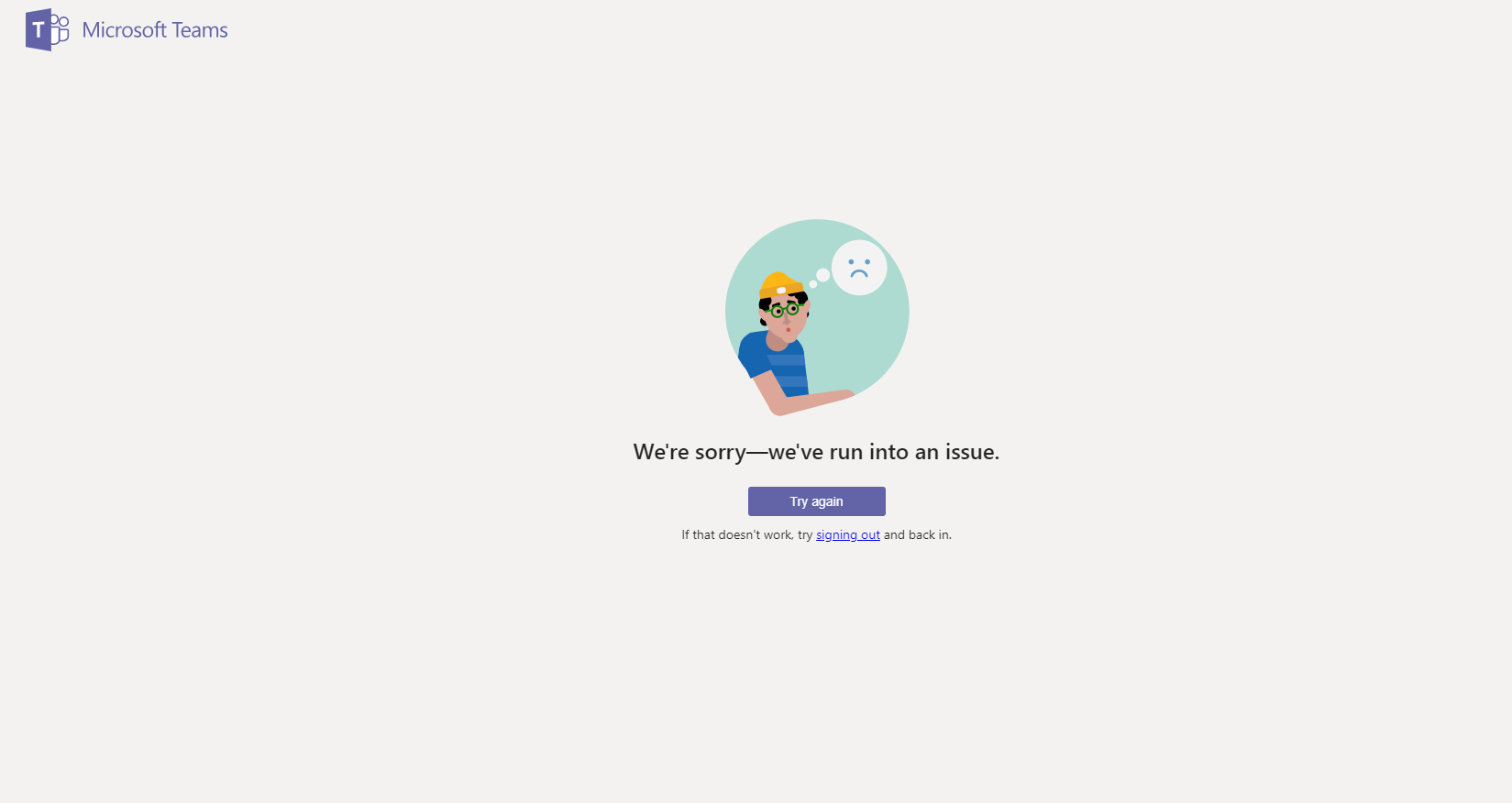
When i try login in Microsoft teams and Microsoft outlook i only show this errors

<!-- DON'T REMOVE THE FOLLOWING LINES -->
-
> Rambox 0.6.9
> Electron 4.1.4
> win32 x64 10.0.17134
 jonayGodoy
All 20 comments
Thanks for opening your first issue here! Be sure to follow the issue template!
![welcome[bot] picture](https://avatars0.githubusercontent.com/in/4141?v=4&s=40) welcome[bot]
on 14 Aug 2019
welcome[bot]
on 14 Aug 2019
I can confirm that this is an issue for me as well. I noticed it when I came back to work on Monday. Teams will not work anymore. I've tried clearing cache and local storage, even reinstalling Rambox CE. Loading Teams up the first time will give a login box, but after logging in the page goes blank. About 60 seconds or so later it shows a message that says "We're sorry—we've run into an issue." I've tried numerous times to get it and I can only get that. However, Teams in Chrome works fine (I prefer the separate app).
 howardtopher
on 14 Aug 2019
howardtopher
on 14 Aug 2019
Same here. Dead in the water on Teams.
 robross0606
on 14 Aug 2019
robross0606
on 14 Aug 2019
I did some digging. Actually found a workaround on the "teams-for-linux" github. It only works one time, after a restart you have to do it again. So while it's not a fix that should be considered ok, it should get your app working for now.
Note I'm using the snap package, so this could be a little different for you, but the basic idea should still work.
- Close out Rambox
- Go to ~/snap/rambox/current/.config/Rambox/Partitions/teams_1/ (the number 1 might be different for you)
- Delete the "Service Worker" folder
- Delete the "Application Cache" folder
- Start Rambox
howardtopher
on 15 Aug 2019
Same issue here. Needless to say, this is an utter and total showstopper bug.
 orende
on 15 Aug 2019
orende
on 15 Aug 2019
FYI, when using the AppImage version (Ubuntu 18.04), this seems to work as well. For step 2, use the ~/.config/Rambox/Partitions/teams_## folder.
 mroeling
on 15 Aug 2019
mroeling
on 15 Aug 2019
Its only the Application Cache folder. Workaround w/o repeating it after every exit is to remove the folder and deny user access, eg. (close rambox first):
$ cd ~/.config/Rambox/Partitions/teams_X
$ rm -fr "Application Cache"
$ sudo mkdir "Application Cache" && sudo chmod 700 "Applciation Cache"
 sebaranowski
on 15 Aug 2019
sebaranowski
on 15 Aug 2019
All of these solutions are great for *nix platforms. What about on Windows? These solutions don't seem to work at all. I get nothing but a blank white window for Teams on Rambox.
robross0606
on 15 Aug 2019
All of these solutions are great for *nix platforms. What about on Windows?
Should be similar: search for the folder after entering %appdata% in your File Explorer address bar, remove all its content and make it write protected (and maybe change user permissions to Admin only). And make sure you did it in the right "teams_X" folder..
sebaranowski
on 15 Aug 2019
This does not work. I already found the folder(s) under %appdata%\Roaming\Rambox\Partitions\teams_## and did exactly that. Same plain white box.
robross0606
on 15 Aug 2019
If it helps. developer console shows the following error(s) on Rambox Teams tab:
Uncaught IPC object is null
angular.min.js:112 Error: Action with name notificationsService_startup already exists
    at r.registerAction (https://statics.teams.microsoft.com/hashedjs/3.1-app.min-c183a110.js:2019:5777)
    at new n (https://statics.teams.microsoft.com/hashedjs/4-app.desktop.min-cb39f420.js:9:1263)
    at Object.instantiate (https://statics.teams.microsoft.com/hashedjs/0-angular-jquery.min-8200dd6f.js:37:491)
    at Object.<anonymous> (https://statics.teams.microsoft.com/hashedjs/0-angular-jquery.min-8200dd6f.js:38:260)
    at Object.invoke (https://statics.teams.microsoft.com/hashedjs/0-angular-jquery.min-8200dd6f.js:37:390)
    at Object.$get (https://statics.teams.microsoft.com/hashedjs/0-angular-jquery.min-8200dd6f.js:35:71)
    at Object.invoke (https://statics.teams.microsoft.com/hashedjs/0-angular-jquery.min-8200dd6f.js:37:390)
    at https://statics.teams.microsoft.com/hashedjs/0-angular-jquery.min-8200dd6f.js:39:175
    at d (https://statics.teams.microsoft.com/hashedjs/0-angular-jquery.min-8200dd6f.js:36:369)
    at e (https://statics.teams.microsoft.com/hashedjs/0-angular-jquery.min-8200dd6f.js:37:96) undefined
The Content-Security-Policy directive 'prefetch-src' is implemented behind a flag which is currently disabled.
_#/conversations/Gen…skype&ctx=channel:1 The Content-Security-Policy directive 'prefetch-src' is implemented behind a flag which is currently disabled.
3.2-app.min-0418013d.js:4 Cleaned the join location
Just noticed the protected folder is removed again after starting Rambox again (why is this even possible? rambox shouldn't be allowed to write / remove this?). Now same behaviour: white page
Sorry @robross0606 I think we need a real fix (0.6.0?) for this...
sebaranowski
on 15 Aug 2019
MacOS users can run this command (Rambox should not be running). It's based on @sebaranowski's findings.
find ~/Library/Application\ Support/Rambox/Partitions -name teams_* -exec rm -rf {}/Application\ Cache \; -exec mkdir {}/Application\ Cache \; -exec chmod 700 {}/Application\ Cache \;
 noxer
on 19 Aug 2019
noxer
on 19 Aug 2019
For our Windows friends, this batch script deletes the Cache & Service Worker folders from your Rambox profile - you have to run this before starting Rambox:
@ECHO OFF
cd "%APPDATA%\Rambox\Partitions\"
for /D %%d in (teams_*) do (
  rmdir /s/q "%%d\Cache" 2>nul
  rmdir /s/q "%%d\Service Worker" 2>nul
)
You could also integrate the startup in this script, just add start C:\Program Files\Rambox\Rambox.exe at the end of the script.
 DennisGaida
on 19 Aug 2019
DennisGaida
on 19 Aug 2019
I can confirm that #2370 works.
noxer
on 19 Aug 2019
The application cache removal workaround seems to have stopped working for me. I've reverted to the web client until this issue gets properly resolved.
orende
on 23 Aug 2019
For MacOS it works by replacing /Applications/Rambox.app/Contents/Resources/app.asar with the file "app.asar" in app.asar.zip.
(only do that if you trust random strangers on the internet!)
It's the default app.asar manually patched with #2370.
edit: Please backup the original app.asar before replacing it!
noxer
on 23 Aug 2019
For our Windows friends, this batch script deletes the Cache & Service Worker folders from your Rambox profile - you have to run this before starting Rambox:
@ECHO OFF
cd "%APPDATA%\Rambox\Partitions\"
for /D %%d in (teams_*) do (
  rmdir /s/q "%%d\Cache" 2>nul
  rmdir /s/q "%%d\Service Worker" 2>nul
)
You could also integrate the startup in this script, just add
start C:\Program Files\Rambox\Rambox.exeat the end of the script.
For me I had to add a /D in the CD line for the script to work
@ECHO OFF
cd /D "%APPDATA%\Rambox\Partitions\"
for /D %%d in (teams_*) do (
  rmdir /s/q "%%d\Cache" 2>nul
  rmdir /s/q "%%d\Service Worker" 2>nul
)
then instead of
start C:\Program Files\Rambox\Rambox.exe
I added
start %systemdrive%%homepath%\AppData\Local\Programs\Rambox\Rambox.exe
at the end of the script, since I had a user only install
Rambox is awesome, except that I need to do this for MS Teams to work
 sngoz
on 28 Sep 2019
sngoz
on 28 Sep 2019
Fixed: https://github.com/ramboxapp/community-edition/commit/2de8e8e41b73ff2492813850b20f4bd5b0b46c3f
 fvulich
on 5 Nov 2019
fvulich
on 5 Nov 2019
This thread has been automatically locked since there has not been any recent activity after it was closed. Please open a new issue for related bugs.
![lock[bot] picture](https://avatars1.githubusercontent.com/in/6672?v=4&s=40) lock[bot]
on 6 Dec 2019
lock[bot]
on 6 Dec 2019
Related issues
 mforcer
·
3Comments
mforcer
·
3Comments
 soulchainer
·
3Comments
soulchainer
·
3Comments
 bnn-y
·
4Comments
bnn-y
·
4Comments
 arnauldb
·
4Comments
arnauldb
·
4Comments
 leif
·
4Comments
leif
·
4Comments
Most helpful comment
MacOS users can run this command (Rambox should not be running). It's based on @sebaranowski's findings.