Code-settings-sync: Sync : Error Logged in Console
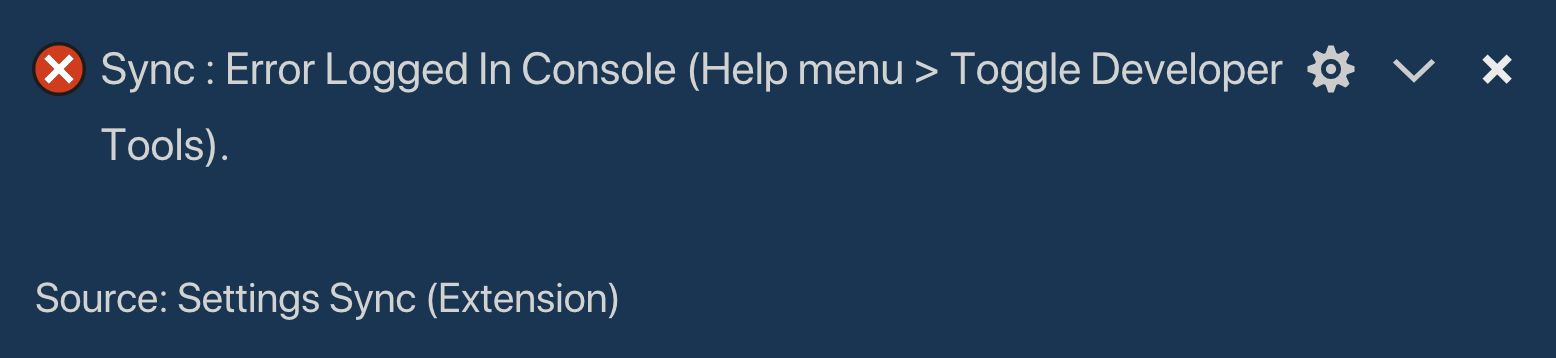
I keep on trying to download a Gist from my GitHub account and when I try it keeps on giving me the error
Sync : Error Logged in Console (Help Menu > Toggle Developer Tools).
Source: Settings Sync (Extension)
I have typed in Alt+Shift+D but it keeps on giving me this error and when I go to my terminal Debugging area nothing is logged. I am at a loss on what to do I have tried deleting and reinstalling Settings Sync and I also tried to go to the command pallet and type in "Sync : Reset Extension Settings" I did and it asks me to put in my Gist Personal Token but it still gives me the same Error... I need some help I am stuck and am at a loss on what to do.
 kevinpleong
All 23 comments
Error Logged in Console (Help Menu > Toggle Developer Tools).
Whats is error logged in developer console.
 shanalikhan
on 17 Dec 2018
shanalikhan
on 17 Dec 2018
I have the same issue. Running it on Ubuntu 18.04. Sync works fine with the same Gist and Token on other Windows machines.
The error log from developer console:

 rajesh-s
on 17 Dec 2018
rajesh-s
on 17 Dec 2018
I don’t know how to look that up I can’t find where that is when I go into
my consol on VS code program using ⌘ ~ it doesn’t show any errors
On Mon, Dec 17, 2018 at 9:54 AM hello-w0r1d notifications@github.com
wrote:
I have the same issue. Running it on Ubuntu 18.04. Sync works fine with
the same Gist and Token on other Windows machines.The error log from developer console:
[image: error]
https://user-images.githubusercontent.com/35628747/50105475-d1168a80-0252-11e9-85b2-4611575e6a56.png—
You are receiving this because you authored the thread.
Reply to this email directly, view it on GitHub
https://github.com/shanalikhan/code-settings-sync/issues/738#issuecomment-447936854,
or mute the thread
https://github.com/notifications/unsubscribe-auth/Al2J38ot_GJspIFaOpB_9mewvTwmI7y7ks5u59pFgaJpZM4ZVwsy
.
kevinpleong
on 17 Dec 2018
@kevinpleong , the console isn't the vscode console but the developer console present under (Help > Toggle Developer Console aka Chrome debugger). When you try to perform any sync operation you'll see the error messages appear there.
rajesh-s
on 18 Dec 2018
Same problem here. Error on Windows 10. on OS-X it's working fine.
 CoonHouse
on 18 Dec 2018
CoonHouse
on 18 Dec 2018
Please read README.md carefully.
First, UPLOAD setttings, only type gist token, it ouput some info which includes gist id
Then, DOWNLOAD on other machines, type gist token and gist id
 bumzy
on 19 Dec 2018
bumzy
on 19 Dec 2018
DID
On Tue, Dec 18, 2018 at 7:29 PM Ming Chen notifications@github.com wrote:
Please read README.md carefully.
First, UPLOAD setttings, only need type gist token, it ouput some info
which includes gist id
Then, DOWNLOAD on other machines, need typing gist token and gist id—
You are receiving this because you were mentioned.
Reply to this email directly, view it on GitHub
https://github.com/shanalikhan/code-settings-sync/issues/738#issuecomment-448457464,
or mute the thread
https://github.com/notifications/unsubscribe-auth/Al2J3zWqrfHkYqflFlNOvINaoLkSL9KMks5u6bKogaJpZM4ZVwsy
.
kevinpleong
on 19 Dec 2018
Same error as @kevinpleong
Did all the things recommended, and even regenerated the gist token.
Still throws that error.
VS Code 1.30.0, Windows 10 Home
 eldark
on 19 Dec 2018
eldark
on 19 Dec 2018
I am having the issue on a Windows 10 machine. I also kept using the personal access token (i.e., gist token) and having issues. Reading through the documentation the key phrase I found was the following:
"Upload your settings automatically and the extension gives you Gist ID in the system message. Gist ID is needed to access the data you have uploaded with your token. Copy this Gist ID in order to download the settings to other machines."
Weeks ago I had already created the personal access token (aka gist token) though didn't copy down the alleged "gist id". I was looking at the output after uploading the setting and saw the following:
Done.CODE SETTINGS SYNC UPLOAD SUMMARY
Version: 3.2.4
--------------------
GitHub Token: xxxxxxxxxxxxxxxxxxxxxxxxxxx
GitHub Gist: yyyyyyyyyyyyyyyyyyyy
GitHub Gist Type: Secret
What the documentation is calling "gist id" is the "GitHub Gist" field which is "yyyyyyyyyyyyyyyyyyyy". In the VSCode that I wanted to download the setting to I need to delete the custom "sync.gist": field then re-init the sync download then supply the "GitHub Gist" value then the sync download worked.
The documentation should show the output of generating the token and other fields so the user knowns exactly what to use. I didn't go through the process of re-generating the token to verify the output actually says "gist id" or "github gist", but if the output of generating the token does not use the language of "gist id" then the documentation is wrong and needs to be updated and clarified.
 EmbeddedBacon
on 21 Dec 2018
EmbeddedBacon
on 21 Dec 2018
I always welcome PR of anything.
If you think the document can be improved ,send me a PR.
If you found a way to solve the error yourself, feel free to post in Wiki Troubleshooting page and add your solution there to assist other users.
shanalikhan
on 21 Dec 2018
@shanaccelirate Certainly, though I will need to go through the process front to back to offer any meaningful suggestion (at least in my mind). ;-)
EmbeddedBacon
on 21 Dec 2018
@EmbeddedBacon @shanaccelirate I'm aware of the Gist ID mechanism. I'm also able to use it across computers running Windows. But this issue still persists on the latest version of VSCode.
rajesh-s
on 21 Dec 2018
@hello-w0r1d Too bad my issue is not the same issue you are seeing which might had offered an easy solution, but alas ....
EmbeddedBacon
on 21 Dec 2018
@shanaccelirate Looks like this issue has something to do with the permissions. I ran vscode with "sudo code --user-data-dir <...>" and I am able to connect to GIST but extensions do not install due to errors like this:
_"/usr/share/code/bin/code" --install-extension eg2.vscode-npm-script
Error: Command failed: "/usr/share/code/bin/code" --install-extension eg2.vscode-npm-script
You are trying to start vscode as a super user which is not recommended. If you really want to, you must specify an alternate user data directory using the --user-data-dir argument._
I installed VSCODE using the deb file on Ubuntu 18.04 and the App Center automatically asks for sudo password. Do you see any issue here?
rajesh-s
on 24 Dec 2018
I have the same error in Ubuntu 18.10. I'll try to upload my settings manually into my gist repository and see if another computer with Windows 10 works, and I'll reinstall VSCode in my Ubuntu machine to see if it works.
 cruizba
on 24 Dec 2018
cruizba
on 24 Dec 2018
Was able to resolve this @shanaccelirate . So recently, I upgraded from 14.04 to 18.04.
I think the reason for these issues is some corruption issue with the user configuration settings. I managed to resolve it by doing the following:
Uninstall vscode (sudo apt remove code)
Reinstall using deb ( sudo apt install ./code.deb)
Remove VSCode settings directory (Ubuntu: ~/.vscode)
Remove Extension Configuration directory (This is the step which I had never done earlier and the one that resolved the issue for me) "rm -rf ~/.config/Code/"
From the documentation the extension data should be in these locations
Windows: %APPDATA%CodeUsersyncLocalSettings.json
Mac: $HOME/Library/Application Support/Code/User/syncLocalSettings.json
Linux: ~/.config/Code/User/settings.jsonUse normal procedure to connect to GIST
rajesh-s
on 24 Dec 2018
@hello-w0r1d your solution works for me :)
cruizba
on 24 Dec 2018
@kevinpleong whats the exception you are getting from the developer console. Please post the image.
See the error message dialog, where it tells its in Help menu > Developer console
shanalikhan
on 27 Dec 2018
@EmbeddedBacon this right
if your system is Win10, you already upload, you have token and gist_id like this
Done.CODE SETTINGS SYNC UPLOAD SUMMARY
Version: 3.2.4
--------------------
GitHub Token: xxxxxxxxxxxxxxxxxxxxxxxxxxx
GitHub Gist: yyyyyyyyyyyyyyyyyyyy
GitHub Gist Type: Secret
you should
- open %APPDATA%CodeUsersettings.json
- change "sync.gist": "yyyyyyyyyyyyyyyyyyyy"
- open %APPDATA%CodeUsersyncLocalSettings.json
- change "token": "xxxxxxxxxxxxxxxxxxxxxxxxxxx"
5. Alt+Shift+D
when remove the 'code-settings-sync' please remove the 'syncLocalSettings.json' file and 'sync.gist'(in settings.json file)
 sz-p
on 3 Jan 2019
sz-p
on 3 Jan 2019
I had the same problem. In my case I was trying to use github token instead of gist id to configure the extension on the new machine. Now it's working
 gustavomrs
on 18 Jun 2019
gustavomrs
on 18 Jun 2019
I keep on trying to download a Gist from my GitHub account and when I try it keeps on giving me the error
Sync : Error Logged in Console (Help Menu > Toggle Developer Tools).
Source: Settings Sync (Extension)
I have typed in Alt+Shift+D but it keeps on giving me this error and when I go to my terminal Debugging area nothing is logged. I am at a loss on what to do I have tried deleting and reinstalling Settings Sync and I also tried to go to the command pallet and type in "Sync : Reset Extension Settings" I did and it asks me to put in my Gist Personal Token but it still gives me the same Error... I need some help I am stuck and am at a loss on what to do.
I keep on trying to download a Gist from my GitHub account and when I try it keeps on giving me the error
Sync : Error Logged in Console (Help Menu > Toggle Developer Tools).
Source: Settings Sync (Extension)
I have typed in Alt+Shift+D but it keeps on giving me this error and when I go to my terminal Debugging area nothing is logged. I am at a loss on what to do I have tried deleting and reinstalling Settings Sync and I also tried to go to the command pallet and type in "Sync : Reset Extension Settings" I did and it asks me to put in my Gist Personal Token but it still gives me the same Error... I need some help I am stuck and am at a loss on what to do.
Hi, i had the same issue, but finally resolved it
in my cases, if you have arround 25 extension or setting, you have to see the output window when Sync is installing the extension one by one, when one of them error, you have to install manually the one that get error with extension window on left side of VSCODE , when done, try to Sync again with Shift + alt + d, then the rest of extension will install automatically, when it's done, vscode will auto restart, and all your extension is loaded perfectly
 ubaidillahSriyudi
on 20 Mar 2020
ubaidillahSriyudi
on 20 Mar 2020
@ubaidillahSriyudi that solved it for me - turns out a developer unpublished their theme from the VS Code Marketplace (monokay-grey). I had to edit the gist in github, removed the offending theme and try again. A check inside sync if the package doesnt exist would be useful :)
 pierrenel
on 10 May 2020
pierrenel
on 10 May 2020
I have all time is messagen, i try sync with my desktop and my laptop and appear this error
 TutoDS
on 13 Jun 2020
TutoDS
on 13 Jun 2020
Related issues
 fdncred
·
3Comments
fdncred
·
3Comments
 UTexas80
·
5Comments
UTexas80
·
5Comments
 OlegChep
·
5Comments
OlegChep
·
5Comments
 marcevrard
·
5Comments
marcevrard
·
5Comments
 mjbvz
·
5Comments
mjbvz
·
5Comments
Most helpful comment
@EmbeddedBacon this right
if your system is Win10, you already upload, you have token and gist_id like this
you should
5. Alt+Shift+D
when remove the 'code-settings-sync' please remove the 'syncLocalSettings.json' file and 'sync.gist'(in settings.json file)