code-serverversion: Code-server:latest (from docker)- OS Version: Debian 9
Description
I have a trouble with docker-powered installation of code-server. After successful login there is white screen. Sorry for inconvenience, but I’m using Safari on iPadOS and I can’t provide browser console log. No output in terminal while these events. Also screenshot of apache config

Steps to Reproduce
- Just login
 lujo777
All 33 comments
This happens due to a self signed certificate. You need a real certificate to work with iPad OS.
 nhooyr
on 19 Feb 2020
nhooyr
on 19 Feb 2020
This happens due to a self signed certificate. You need a real certificate to work with iPad OS.
I’m using code without https. Also without docker it worked
lujo777
on 19 Feb 2020
Trying pulling the latest docker image again.
nhooyr
on 19 Feb 2020
Trying pulling the latest docker image again.
Already up to date
lujo777
on 19 Feb 2020
What happens if you try to directly connect to code-server without apache?
nhooyr
on 19 Feb 2020
What happens if you try to directly connect to code-server without apache?
When I used it on my server-host without proxy, it perfectly worked. But now I need to use it with docker. So now I can’t connect directly without apache
lujo777
on 19 Feb 2020
Use docker run -p 8080:8080 instead docker run -p 127.0.0.1:8080:8080 to forward externally.
nhooyr
on 19 Feb 2020
Login working, white screen not disappeared
lujo777
on 19 Feb 2020
Are you using apache with HTTPS?
nhooyr
on 19 Feb 2020
Without
EDIT:
All of my apache config for code-server is in head of issue
lujo777
on 19 Feb 2020
@lujo777 yea your apache rules are the only problem if you can switch to nginx i'm using these rules
        location / {
                proxy_pass                        http://172.69.0.77:8080;
                proxy_set_header Host             $host;
                proxy_set_header X-Real-IP        $remote_addr;
                proxy_set_header X-Forwarded-For  $proxy_add_x_forwarded_for;
                proxy_http_version                1.1;
                proxy_set_header                  Upgrade $http_upgrade;
                proxy_set_header                  Connection "Upgrade";
                access_log                        off;
        }
i'm here because i had same problem with white screen
i don't use apache so i can't directly help with your problem may someone else help you with apache rules.
 theraw
on 19 Feb 2020
theraw
on 19 Feb 2020
@theraw, I already used apache, but IP there is not docker ip.
bruh I can’t use nginx :(
UPD:
Now I installed nginx, so I‘ll try to configurate it
lujo777
on 19 Feb 2020
nginx its simple idk what distro you're on but just open default config (it may be on /etc/nginx/conf.d/default.conf or /etc/nginx/sites-enabled/default.conf) and replace location / block with the one i gave you and do service nginx restart
theraw
on 19 Feb 2020
nginx its simple idk what distro you're on but just open default config (it may be on
/etc/nginx/conf.d/default.confor/etc/nginx/sites-enabled/default.conf) and replacelocation /block with the one i gave you and doservice nginx restart
Whoa, it’s working!
Thu! ^_^
lujo777
on 19 Feb 2020
Thanks @theraw
nhooyr
on 19 Feb 2020
If anyone trying this with apache, here's my proxy config that took a while to make it work. I'm using a cloudflare cert to make this https
        <VirtualHost  *:80>
                ServerName example.com
                Redirect permanent / https://example.com/
        </VirtualHost>

        <VirtualHost *:443>
                ServerAdmin [email protected]
                ServerName example.com

                ProxyPreserveHost On

                RewriteEngine On
                RewriteCond %{HTTP:UPGRADE} ^WebSocket$ [NC,OR]
                RewriteCond %{HTTP:CONNECTION} ^Upgrade$ [NC]
                RewriteRule .* ws://127.0.0.1:8080%{REQUEST_URI} [P,QSA,L]

                <Location />
                        Require all granted
                        ProxyPass http://127.0.0.1:8080/
                        ProxyPassReverse http://127.0.0.1:8080/
                        ProxyPassReverseCookieDomain 127.0.0.1 example.com
                </Location>

                SSLEngine on
                SSLCertificateFile /etc/cloudflare/example.com.pem
                SSLCertificateKeyFile /etc/cloudflare/example.com.key

        </VirtualHost>
 tmota900
on 29 Feb 2020
tmota900
on 29 Feb 2020
@theraw so were you able to get clipboard working correctly this way? I still see it complaining I’m accessing it insecurely so webviews/clipboard won’t work.
As an aside to the devs, this has been a fucking nightmare just trying to get this to work so I can access a locally non-internet-exposed code-server securely.
 zkghost
on 31 May 2020
zkghost
on 31 May 2020
As an aside to the devs, this has been a fucking nightmare just trying to get this to work so I can access a locally non-internet-exposed code-server securely.
Setting up TLS properly can be a pain. Why don't you just use SSH forwarding?
See https://github.com/cdr/code-server/blob/master/doc/guide.md
nhooyr
on 31 May 2020
@zkghost i did a cm and i deleted thinking i was wrong but no i'm right.
Code-Server will detect your secured or insecured connection even when you're under a reverse proxy so i'm sharing my full setup configuration, this will require a sub-domain or domain
- Create Code-Server container
docker run -it -p 127.0.0.1:8080:8080 \
  -v "$PWD:/home/coder/project" \
  -u "$(id -u):$(id -g)" \
  codercom/code-server:latest

# or start it on screen
screen -d -m docker run -it -p 127.0.0.1:8080:8080 \
  -v "$PWD:/home/coder/project" \
  -u "$(id -u):$(id -g)" \
  codercom/code-server:latest

screen -ls #to find if screen started a session or not
1 install letsencrypt on your HOST/proxy not code docker container
mkdir  /ssl; cd /ssl
git clone https://github.com/letsencrypt/letsencrypt
cd /ssl/letsencrypt; ./letsencrypt-auto --help
curl -s https://raw.githubusercontent.com/theraw/raws/master/static/dh2048.pem > /ssl/dh2048.pem
- Generate a SSL Cert
service nginx stop
/ssl/letsencrypt/letsencrypt-auto certonly --standalone -d example.com -d www.example.com

# If you have more sub-domains
/ssl/letsencrypt/letsencrypt-auto certonly --standalone -d example.com -d www.example.com -d sub1.example.com -d sub2.example.com -d sub3.example.com

# or you can go and install certbot it supports wildcard ssl.
#when done start nginx
service nginx start
create your nginx config default nginx vhost path /etc/nginx/conf.d/ so /etc/nginx/conf.d/example.conf
server {
        # =====================================================================
        listen 80;
        server_name example.com www.example.com;
        access_log off;
        return 301 https://example.com$request_uri;
        # =====================================================================
}
server {
        # =====================================================================
        listen 443 ssl http2;
        server_name example.com www.example.com;
        # =====================================================================
        location / {
                proxy_pass                         http://172.69.0.77:8080;
                proxy_set_header Host             $host;
                proxy_set_header X-Real-IP        $remote_addr;
                proxy_set_header X-Forwarded-For  $proxy_add_x_forwarded_for;
                proxy_http_version                1.1;
                proxy_set_header                  Upgrade $http_upgrade;
                proxy_set_header                  Connection "Upgrade";
        }
        # =====================================================================
        include                 /etc/nginx/config/ssl.conf;
        # =====================================================================
        ssl_certificate         /etc/letsencrypt/live/example.com/fullchain.pem;
        ssl_certificate_key     /etc/letsencrypt/live/example.com/privkey.pem;
        ssl_trusted_certificate /etc/letsencrypt/live/example.com/fullchain.pem;
        # =====================================================================
        access_log              off;
}
mkdir -p /etc/nginx/config/ and create this file /etc/nginx/config/ssl.conf
ssl_protocols             TLSv1 TLSv1.1 TLSv1.2 TLSv1.3;
ssl_prefer_server_ciphers on;
#ssl_ciphers               HIGH:!aNULL:!MD5;
ssl_ciphers               'ECDHE-RSA-AES128-GCM-SHA256:ECDHE-ECDSA-AES128-GCM-SHA256:ECDHE-RSA-AES256-GCM-SHA384:ECDHE-ECDSA-AES256-GCM-SHA384:DHE-RSA-AES128-GCM-SHA256:DHE-DSS-AES128-GCM-SHA256:kEDH+AESGCM:ECDHE-RSA-AES128-SHA256:ECDHE-ECDSA-AES128-SHA256:ECDHE-RSA-AES128-SHA:ECDHE-ECDSA-AES128-SHA:ECDHE-RSA-AES256-SHA384:ECDHE-ECDSA-AES256-SHA384:ECDHE-RSA-AES256-SHA:ECDHE-ECDSA-AES256-SHA:DHE-RSA-AES128-SHA256:DHE-RSA-AES128-SHA:DHE-DSS-AES128-SHA256:DHE-RSA-AES256-SHA256:DHE-DSS-AES256-SHA:DHE-RSA-AES256-SHA:AES128-GCM-SHA256:AES256-GCM-SHA384:AES128-SHA256:AES256-SHA256:AES128-SHA:AES256-SHA:AES:CAMELLIA:DES-CBC3-SHA:!aNULL:!eNULL:!EXPORT:!DES:!RC4:!MD5:!PSK:!aECDH:!EDH-DSS-DES-CBC3-SHA:!EDH-RSA-DES-CBC3-SHA:!KRB5-DES-CBC3-SHA';
ssl_dhparam               /ssl/dh2048.pem;
ssl_session_cache         shared:SSL:5m;
ssl_session_timeout       5m;
service nginx restart
and now try to login on http://172.69.0.77:8080 you'll normally see this alert
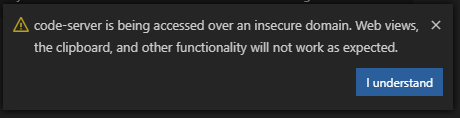
but if you visit https://example.com and login there's no alert.
https://gyazo.com/2930958fb018c261cf8a0b32c1c6583a
theraw
on 31 May 2020
As an aside to the devs, this has been a fucking nightmare just trying to get this to work so I can access a locally non-internet-exposed code-server securely.
Setting up TLS properly can be a pain. Why don't you just use SSH forwarding?
See https://github.com/cdr/code-server/blob/master/doc/guide.md
I’m on an iPad so my plight is limited to these shenanigans 😅 maybe I should have gone with the surface pro X i am not sure. Would it be easy enough to fork this project and mod my fork so it always thinks auth is on?
zkghost
on 31 May 2020
@theraw owe you a drink mate, thank you for taking the time. I’ll take a stab at this and update here if I have any luck. For the domain associated with that cert, do I need to own the domain? Or as long as my local intranet DNS server can resolve it to the right IP, it can be an arbitrary domain? Before I was getting issues with certbot because .local isn’t a valid TLD.
zkghost
on 31 May 2020
@zkghost to generate a ssl cert with letsencrypt you need 2 things
- a domain you own or sub domain ask some friend who has a domain to give you a subdomain (domains .local or those you can put on hosts don't work)
- your domain or sub domain has to resolve your server or computer ip address that means you also need a public ip address
theraw
on 31 May 2020
@theraw I thought I read yesterday you can do a DNS challenge instead of an HTTP challenge or something, where if the server DNS points to replies correctly it passes the challenge or something. Not sure if you’re familiar but is that the case?
Maybe more importantly, because I’m just trying to access code-server running locally within my own network, do I just need to generate my own cert chain? And I should forget letsencrypt altogether? I tried using minica to generate my own ca-cert / local domain cert yesterday also. Didn’t work, though I ~may~ probably borked steps along the way.
Edit: Also side question, what is that dh_2048.pem file you referenced? Is that one of your certs?
Double Edit: I’ve heard for iPad you need a valid cert, can’t make a self-signed work... so maybe the only way I can access it securely is through a public IP? JFC 💫 😵 All I want to do is work on code running on my laptop when I’m on the couch with my wife 😭
zkghost
on 31 May 2020
@zkghost maybe @nhooyr can help you to answer if code can work with self issued cert or not
you can see here https://letsencrypt.org/docs/challenge-types/ all challenge types.
as far as i know and as far as i've generated self ssl browsers will display it as insecure (showing the warning when you visit site) so i don't know what to say or help sorry
theraw
on 1 Jun 2020
no worries, thanks anyways mate. I’ll post here if I ever get a resolution that works 😅
zkghost
on 1 Jun 2020
I DID IT! Finally, JFC. For anyone in my footsteps: apparently trying to issue certs with a .local domain is the issue. I heard somewhere maybe it conflicts with mDNS or something. I switched to .home and the issue seems to have resolved.
Also, Apple/iOS devices have more stringent requirements if you want to enable TLS. I followed this guide and was able to generate a cert without a CA that I could get running/allowed on my ipad.
at least I got pi-hole setup while trying to solve this... and now I can code from the kitchen in peace. 🧑🍳
zkghost
on 1 Jun 2020
Also, Apple/iOS devices have more stringent requirements if you want to enable TLS. I followed this guide and was able to generate a cert without a CA that I could get running/allowed on my iPad.
Awesome thank you! Will add that guide to the FAQ and test myself once my iPad arrives 🎉
For anyone in the future, the main thread for iPad certificate issues is https://github.com/cdr/code-server/issues/1566
nhooyr
on 4 Jun 2020
@zkghost could you please share all the settings, specs and anything that might be helpful?
I have tried with the steps shown in the link you shared with .local first and .home after and didn't work in both cases. Now I get white screen half of the time and the other half I manage to get to the editor only for it to disconnect after a few seconds.
Any help would be appreciated, I have been trying to run this for two months now..
 dreamorosi
on 6 Jun 2020
dreamorosi
on 6 Jun 2020
It worked for me too. The only thing I did different was to use the actual ip address (say 192.168.1.2) of the pc hosting code-server rather than .local or .home when editing line subjectAltName = DNS:
 xytzw
on 17 Jun 2020
xytzw
on 17 Jun 2020
@xytzw thanks for commenting, I have tried this too but still no luck. Any chance you or @zkghost could provide more detailed instructions?
dreamorosi
on 20 Jun 2020
@dreamorosi
This is a walkthrough of the set-up that works for me on the local lan. The cert is created with the actual IP of the code-server hosting computer (a static IP).
sudo apt install nginx
sudo nano /etc/nginx/sites-available/code-server.conf
server {
listen 443 ssl;
server_name 192.168.x.xx; #use IP of the computer hosting code-server

location / {
  proxy_pass http://127.0.0.1:8080/;
  proxy_set_header Host $host;
  proxy_set_header Upgrade $http_upgrade;
  proxy_set_header Connection upgrade;
  access_log off;

ssl_certificate /etc/nginx/ssl/codeserver.crt;
ssl_certificate_key /etc/nginx/ssl/codeserver.key;
}
Save and close file.
sudo ln -s /etc/nginx/sites-available/code-server.conf /etc/nginx/sites-enabled/code-server.conf
sudo nginx -t #checks for errors
sudo systemctl start nginx
sudo mkdir /etc/nginx/ssl
cd ~/
cp /etc/ssl/openssl.cnf template.cnf
nano template.cnf
Find the section labelled v3_ca and add two lines:
subjectAltName = DNS:192.168.x.xx # replace 192.168.x.xx with IP of the computer hosting code-server
extendedKeyUsage = serverAuth
Find this comment and add the following line:
# Extension copying option: use with caution.
copy_extensions = copy
Save and close the template.cnf file.
sudo openssl req -x509 -nodes -days 825 -newkey rsa:2048 -config template.cnf -keyout /etc/nginx/ssl/codeserver.key -out /etc/nginx/ssl/codeserver.crt
answer this line as:
Common Name (e.g. server FQDN or YOUR name) []: 192.168.x.xx # replace 192.168.x.xx with IP of the computer hosting code-server
sudo systemctl reload nginx
On iPad
email (etc.) codeserver.crt
open attached codeserver.crt
go to Settings app --> General --> Profiles and install codeserver cert
go to Settings app --> General --> About --> Certificate Trust Settings --> enable full trust for codeserver cert
In Safari go to https://192.168.x.xx to access code-server.
*Note
code-server is started with --bind-addr 127.0.0.1:8080 or you can pass it via the below config file
~/.config/code-server/config.yaml has the following
bind-addr: 127.0.0.1:8080
auth: none
password: xxx
cert: false
Hope this helps anyone looking into this issue.
xytzw
on 27 Jun 2020
if you enable https (from cloudflare for example) not from the server itself...
you have to tell code-server that it runs without full https.... 🧐
adding these solved it for me in the docker compose file, just add them as params
  - ALLOWHTTP=true
  - ALLOW-HTTP=true
it's still running with CDN's https...
an example docker-compose.yml
just do a docker-compose up
version: "2.1"
services:
code-server:
image: linuxserver/code-server
container_name: code-server
environment:
- PUID=1000
- PGID=1000
- TZ=Europe/London
- PASSWORD=password #optional
- SUDO_PASSWORD=password #optional
- PROXY_DOMAIN=code-server.my.domain #optional
- ALLOWHTTP=true
- ALLOW-HTTP=true
volumes:
- /Users/username/docker/volumes/cs:/config
ports:
- 8443:8443
restart: unless-stopped
 deya-eldeen
on 20 Jul 2020
deya-eldeen
on 20 Jul 2020
We’re making it easier to access your code-server instance securely from any device. We’ve eliminated the need for configuring TLS, domain registration, DNS, DoS protection, and authentication. To gain pre-release access, please consider joining our alpha program
cc @deya-eldeen @dreamorosi @xytzw @theraw
 cmoog
on 14 Oct 2020
cmoog
on 14 Oct 2020
Related issues
 Arsaev
·
3Comments
Arsaev
·
3Comments
 rcarmo
·
3Comments
rcarmo
·
3Comments
 infogulch
·
3Comments
infogulch
·
3Comments
 sa7mon
·
3Comments
sa7mon
·
3Comments
 pchecinski
·
3Comments
pchecinski
·
3Comments
Most helpful comment
Whoa, it’s working!
Thu! ^_^