Cmder: Setting cmder startup directory.
I'm trying to change the directory in which cmder starts up. To do this, I just added the following to the end of my init.bat file:
cd D:/work
d:
Its not very elegant but it works, and it prints some funny message as the first line of text:

Is there a better way to do this? Or at least get rid of the first line message?
 JPNaude
All 32 comments
Looks like you saved the init.bat file as UTF-8 with BOM try to save it without BOM
You could switch in one command with:
cd /d D:work
 Shoozza
on 29 Nov 2013
Shoozza
on 29 Nov 2013
Thanks that fixed it. Not sure why the BOM was saved, I opened in Notepad++ and my settings is set not to save with BOM. However, opening the file in VIM showed the characters.
JPNaude
on 29 Nov 2013
Instructions: Open Cmder -> Settings -> Tasks -> select {cmd::Cmder} (in my case). On the bottom (below textarea) you have button named "Startup dir...", and than select startup directory. Close cmder, and start again. That's it, enjoy
 hmatijevic
on 16 Aug 2016
hmatijevic
on 16 Aug 2016
While hmatijevic's tip was helpful, it took me a while to process as a Cmder noob. In the last step, replace %USERPROFILE% with N: where N: is the drive or location you wish to start in.
 thyme676
on 31 Jan 2017
thyme676
on 31 Jan 2017
@hmatijevic very helpful,thanks!
But one thing must be noticed is that we should delete the default startup directory setting before clicking the "Startup dir..." bottom.
In my case,the default {cmd::Cmder} looks like this:
cmd /k "%ConEmuDir%\..\init.bat" -new_console:d:%USERPROFILE%
Then,i change to this:
cmd /k "%ConEmuDir%\..\init.bat" -new_console:d:G:\myfoldername
It works great :)
 zeakhold
on 7 Jul 2017
zeakhold
on 7 Jul 2017
Click Settings -> Startup -> Tasks
Select the first Predefined task, in my case {Shells::cmd}
On the right, under Task parameters, enter e.g.:
/dir "c:\github"
 tonyleeper
on 12 Sep 2017
tonyleeper
on 12 Sep 2017
Interestingly enough Under "Startup directory for new process:" it still says a different directory than what actually initiates in a new cmder tab...huh oh well
 akinhwan
on 9 Jan 2018
akinhwan
on 9 Jan 2018
@akinhwan can you try the latest master build and tell me if it is better now? https://ci.appveyor.com/project/MartiUK/cmder/build/1.0.521-master/artifacts
 Stanzilla
on 10 Jan 2018
Stanzilla
on 10 Jan 2018
@Stanzilla, in case you were still looking for feedback about your last post: I was running into this issue with 1.3.3, and 1.3.4, but the build you posted above works for me.
 marcbertola
on 17 Jan 2018
marcbertola
on 17 Jan 2018
This doesn't seem to work for me:
cmd /k "%ConEmuDir%\..\init.bat" -new_console:d:C:\foo
It still opens in %USER_PROFILE%. Any suggestions?
 cdtinney
on 26 Jan 2018
cdtinney
on 26 Jan 2018
try this: for bash::Git bash :
Changing program startup folder in settings —> task, choose btn "startup dir..." and placing necessary directory. You can place checkbox "Default task for new console" and put a hotkey. Using this hotkey -
new "bash::Git bash" tab will be opened whis YOUR_PATH .
 MalishenkoDV
on 1 Feb 2018
MalishenkoDV
on 1 Feb 2018
Edit the file: CMDER_DIRECTORYconfiguser-profile.cmd
d:
cd Work
On bellow example, I've changed the directory and created a rotine to start homestead.
:: use this file to run your own startup commands
:: use  in front of the command to prevent printing the command

:: uncomment this to have the ssh agent load when cmder starts
:: call "%GIT_INSTALL_ROOT%/cmd/start-ssh-agent.cmd"

:: uncomment this next two lines to use pageant as the ssh authentication agent
:: SET SSH_AUTH_SOCK=/tmp/.ssh-pageant-auth-sock
:: call "%GIT_INSTALL_ROOT%/cmd/start-ssh-pageant.cmd"

:: you can add your plugins to the cmder path like so
:: set "PATH=%CMDER_ROOT%\vendor\whatever;%PATH%"

e:
cd ../../../../../Homestead

@echo off

:Ask
echo Would you like to start the Homestead?(Y/N)

set INPUT=
set /P INPUT=Yes(y) ou No(n): %=%
If /I "%INPUT%"=="y" goto yes
If /I "%INPUT%"=="Y" goto yes
If /I "%INPUT%"=="n" goto no

cls
echo Invalid option
echo -
echo -
goto Ask

:yes
vagrant up
goto finalMessage

:no
cls
goto finalMessage

:finalMessage
echo Your console is ready Mr. Chapela.
 essemario
on 12 Apr 2018
essemario
on 12 Apr 2018
Instructions: Open Cmder -> Settings -> Tasks -> select {cmd::Cmder} (in my case). On the bottom (below textarea) you have button named "Startup dir...", and than select startup directory. Close cmder, and start again. That's it, enjoy
Too bad this is working, but then the "Open CMDer here" from the context menu (windows) isn't working anymore. It is forced to the startup directory all the time.
I would like to set a default directory to start when not using "Open CMDer here"
 bertoost
on 13 Jan 2019
bertoost
on 13 Jan 2019
@bertoost don't set that setting. Cmder is a package of 4 different products each with its own individual settings that sometimes conflict. Cmder.exe will open in the current working directory or a directory you supply on the command line. If you want cmder to launch from a shortcut in a certain folder every time configure the shortcut start directory instead. Cmder here will continue to work as expected this way.
 daxgames
on 13 Jan 2019
daxgames
on 13 Jan 2019
@daxgames Is there any solutions working both Cmder here and set a default directory to start when not using "Open CMDer here" ?
 GF-Huang
on 5 Apr 2019
GF-Huang
on 5 Apr 2019
Cnder.exe will open in the current
working directory by default or you can 'cmder folder-name'
daxgames
on 5 Apr 2019

I found a way.
GF-Huang
on 5 Apr 2019
Yup that is correct
daxgames
on 5 Apr 2019
Wow, today I learned that Windows shortcuts let you choose where to start a program in them. Setting it to %USERPROFILE% did exactly what I wanted. Thanks!
 TomatoToaster
on 12 Apr 2019
TomatoToaster
on 12 Apr 2019
If you don't want to open a new console, you can do this:
- open cmder settings
- under Startup / Tasks, select you default task (_{cmd::Cmder}_)
- in the "Task parameters", add /dir with you cmder default path:
/dir "C:\CmderDirectory" - Save settings

 SteveLemire
on 27 May 2020
SteveLemire
on 27 May 2020
@SteveLemire that's a bit heavy handed as it will force that task to always open to that folder. Maybe that's what you want but it limits some other functionality.
You could just launch Cmder using a command line argument like cmder [folder path] or use a Windows shortcut and specify a working directory.
daxgames
on 27 May 2020
@SteveLemire nice
 afcanop
on 10 Aug 2020
afcanop
on 10 Aug 2020
Instructions: Open Cmder -> Settings -> Tasks -> select {cmd::Cmder} (in my case). On the bottom (below textarea) you have button named "Startup dir...", and than select startup directory. Close cmder, and start again. That's it, enjoy
Thank you
 briansimiyuj
on 16 Nov 2020
briansimiyuj
on 16 Nov 2020
Instructions: Open Cmder -> Settings -> Tasks -> select {cmd::Cmder} (in my case). On the bottom (below textarea) you have button named "Startup dir...", and than select startup directory. Close cmder, and start again. That's it, enjoy
It does say something about this issue that even after many years I still have to look this comment up to find that button.
 ashnur
on 13 Dec 2020
ashnur
on 13 Dec 2020
I'll say this again. That's a bit heavy handed as it will force all tasks to always open to that folder. Maybe that's what you want but it limits some other functionality.
You could just launch Cmder using a command line argument like cmder [folder path] or use a Windows shortcut and specify a working directory.
daxgames
on 13 Dec 2020
Now if I change the Startup Directory in the shortcut in my taskbar, Cmder will be shown twice and the actual pinned shortcut is never used.
How can I make it use the original shortcut?
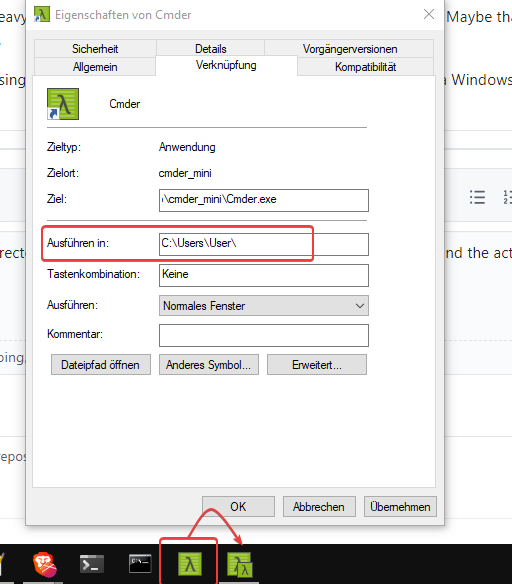
The same happens if I make a shortcut and pin it with the /start parameter appended.
 rndph
on 14 Dec 2020
rndph
on 14 Dec 2020
I'll say this again. That's a bit heavy handed as it will force all tasks to always open to that folder. Maybe that's what you want but it limits some other functionality.
Is this some magic behind the curtains that will break without me noticing or is this something that I can correct once it occurs? Because so far I didn't notice anything.
You could just launch Cmder using a command line argument like
cmder [folder path]or use a Windows shortcut and specify a working directory.
This doesn't help when I use ctrl+t to open a new tab, right?
ashnur
on 14 Dec 2020
Is this some magic behind the curtains that will break without me noticing or is this something that I can correct once it occurs? Because so far I didn't notice anything.
Cmder.exe will open a session in a folder passed on the command line.
It has nothing to do with new tabs or ctrl+t
daxgames
on 14 Dec 2020
Is this some magic behind the curtains that will break without me noticing or is this something that I can correct once it occurs? Because so far I didn't notice anything.
Cmder.exe will open a session in a folder passed on the command line.
It has nothing to do with new tabs or
ctrl+t
Cmder exe is already running, I press ctrl+t and it open in scoop directory where cmder is installed, every damn time. I understand that with arguments or with additional commands, or with a different operating system on a different planet with different problems this would be solved differently. I am not sure about
- your raising awareness comment about vague dangers of setting this setting, how dangerous it actually is, what I am breaking? Is there a place I could read up on this? I don't like to use issues as support mechanism.
- just opening a new tab with a shortcut that is predefined, how to add additional arguments and so forth to that?
ashnur
on 14 Dec 2020
- I don't understand or appreciate the hostility, I do this for free on my free time to help people that like Cmder.
- I never said it was dangerous who said it was dangerous.
- What it breaks: Being able to open a cmder terminal in a designated folder using a command line option or a drive/folder
Open Cmder Herecontext menu. - I just said it was heavy handed and could possibly limit other functionality, see #3, unless you really do want every session to open in a specific folder every time.
Edited: Cmder opens, by default, in the current working directory when
cmder.exeis launched. If cmder is installed in the scoop folder and you are clicking oncmder.exeto launch that explains why subsequent sessions opens to that path.If you create a shortcut and configure the 'Start In' folder as I suggested, shown below, then it becomes the default for
Ctrl+tStart in unless you specify start in as a part of the task using-new_console:d:C:\as suggested in the thread above which overrides everything for that task.
You can also do this from inside cmder to open a new tab in a specific folder
cmder /single c:\windowsunless you specify start in as a part of the task using-new_console:d:C:\.If its what you want do it.
Hopefully I have answered your questions. Let me know if not.
daxgames
on 15 Dec 2020
I am sorry that you feel any kind of hostility, I want to assure you that was not my intent. Many thanks for the detailed answers, your analysis seems fully correct to me. It appears to me that picking any of the alternatives would be orders of magnitude much more work for something I don't use at the moment than what I do currently. I am also sorry about my first comment though, indeed the setting is not for what I thought it was. Should I edit my earlier comments to make this clear?
ashnur
on 15 Dec 2020
No problem. Whatever you want to do, I just wanted to makw syre you had answers to you queations.
daxgames
on 15 Dec 2020
Related issues
 edgariscoding
·
3Comments
edgariscoding
·
3Comments
 jenisys
·
3Comments
jenisys
·
3Comments
 vincentntang
·
3Comments
vincentntang
·
3Comments
 sathishsoundharajan
·
3Comments
sathishsoundharajan
·
3Comments
 isnullxbh
·
3Comments
isnullxbh
·
3Comments
Most helpful comment
Instructions: Open Cmder -> Settings -> Tasks -> select {cmd::Cmder} (in my case). On the bottom (below textarea) you have button named "Startup dir...", and than select startup directory. Close cmder, and start again. That's it, enjoy