Cli: SFDX: Authorize an Org doesn't open browser for OAuth
Summary
I created a new project using the command SFDX: Create Project with Manifest. When I run the command SFDX: Authorize an Org choosing the Sandbox option it doesn't open the browser for OAuth, the banner of the command is still there and the command prompt doesn't show any error.
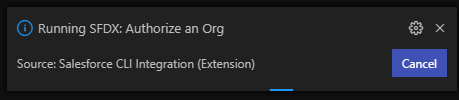
It's not a Java issue, I can use other sfdx commands fine for project already authorized.
It's not a proxy issue, I can open links from command line through VSC.
This problem is very annoying, I can't use VSC for new projects.
Steps To Reproduce:
- Create a new project using the command SFDX: Create Project with Manifest.
- Run the command SFDX: Authorize an Org choosing the Sandbox option.
Expected result
The command should open the default browser for OAuth
Actual result
The command doesn't open the default browser for OAuth
Additional information
VS Code Version:
1.41.1
SFDX CLI Version:
sfdx-cli/7.36.0-b1c4e9c7c8 win32-x64 node-v10.15.3
Salesforce Extension Pack Version:
47.15.0
OS and version:
Windows 10 Enterprise 1903 Build 18362.592
 matteobosc
All 36 comments
Hello,
I have the same problem. Following I report additional informations:
VS Code Version:
1.41.1
SFDX CLI Version:
sfdx-cli/7.42.1-e41dbeb8d9 win32-x64 node-v10.15.3
Salesforce Extension Pack Version:
47.15.0
 skysicilianol
on 21 Jan 2020
skysicilianol
on 21 Jan 2020
Hi @matteobosc & @skysicilianol , I think the issue you are facing is related to the default browser you've configured on your system, same as described in issue forcedotcom/salesforcedx-vscode#1654 . When you run the auth command the extensions use the browser you've added as default at the OS level. It seems that in certain scenarios the default browser is not responding in Windows. Can you try configuring a different browser and see it that unblocks you ?
 lcampos
on 21 Jan 2020
lcampos
on 21 Jan 2020
Hi @lcampos,
thanks for the quick reply, with antoher browser the command runs fine. I'm a bit surprised because for my previous projects I always had Chrome as default browser and the command worked fine... In addition opening a link with the command _explorer "https://google.com"_ from command line in VSC opens Chrome correctly, it would be quite annoying to switch default browser only to authorize an Org.
Switching browser is a simple workaround, but would be great to solve this issue.
Regards
matteobosc
on 21 Jan 2020
@matteobosc I agree with you, I still haven't found what configuration is causing Chrome to fail to open on Windows. Which version of Chrome are you running ?
lcampos
on 22 Jan 2020
This is my current version of Chrome (up to date): Version 79.0.3945.130 (Official Build) (32-bit)
matteobosc
on 22 Jan 2020
I'm facing same issue too...
my version information is follows:
sfdx : sfdx-cli/7.42.1-e41dbeb8d9 win32-x64 node-v10.15.3
chrome : 79.0.3945.130(Official Build) (64-bit)
And, In my case, chrome does not open, after I updated windows 12/27/2019.
windows version is follow:
10.0.18362/18362
 noilco
on 24 Jan 2020
noilco
on 24 Jan 2020
Does authorizing directly with the CLI in terminal/powershell have the same issue?
sfdx force:auth:web:login
 brpowell
on 24 Jan 2020
brpowell
on 24 Jan 2020
Yes. Cmd and powershell have same issue....
noilco
on 24 Jan 2020
Hi @matteobosc & @skysicilianol , I think the issue you are facing is related to the default browser you've configured on your system, same as described in issue forcedotcom/salesforcedx-vscode#1654 . When you run the auth command the extensions use the browser you've added as default at the OS level. It seems that in certain scenarios the default browser is not responding in Windows. Can you try configuring a different browser and see it that unblocks you ?
The workaround works fine.
 abbas133
on 5 Feb 2020
abbas133
on 5 Feb 2020
Nice Thx ,
I solved this !! ^^
 DGomez96
on 11 Feb 2020
DGomez96
on 11 Feb 2020
For the benefit of others: I noticed that a colleague of mine didn't have these issues while running a slightly older version of Windows 10. That made me look for Windows 10 / Chrome issues and I finally stumbled upon the following solution/workaround:
Change Chrome to run in Windows 8 compatibility mode (for all users) and now it will open up when running the sfdx command (either from VS Code or command line).
 jurgenvanwestreenen
on 12 Feb 2020
jurgenvanwestreenen
on 12 Feb 2020
I changed chrome windows 8 compatibility mode, but does not work for me...(power shell, command prompt or vs code, either too...)
noilco
on 14 Feb 2020
There's also mention of turning off "Control Flow Guard" here:
https://support.google.com/chrome/thread/8763029?hl=en
Didn't work for me, but maybe for others it will.
jurgenvanwestreenen
on 14 Feb 2020
I"m having this issue with chrome too. same issue with force:org:open. When i run start chrome from the command prompt and vs code terminal it opens chrome so its the SFDX commands that aren't launching my browser.
i tried the windows 8 compatibility and i didnt have Control Flow Guard available. any updates on how to solve?
 jmejiavazquez2008
on 19 Feb 2020
jmejiavazquez2008
on 19 Feb 2020
I have the same issue. Seems like VS Code is not able to open chrome when it's set as default. May be version incompatibility.
Anyways I solved it by making Microsoft Edge my default browser. Windows 10 ->Search-> Default Apps -> Web Browser -> Microsoft Edge.
I am yet to try if other DX commands work after the initial step of web:auth
 mirchandaniamit
on 4 Mar 2020
mirchandaniamit
on 4 Mar 2020
I too have the same issue with chrome, not other default browser. Workaround for me has been to momentarily set Edge to browser, then back to Chrome. None of the solutions above has worked.
 FinnArild
on 4 Mar 2020
FinnArild
on 4 Mar 2020
@FinnArild Same thing I did as you. It works. After toggling the browser, Issue has fixed.
 dev-mks
on 5 Mar 2020
dev-mks
on 5 Mar 2020
Same. Having Chrome as the default browser in Windows 10 is preventing a browser from opening from SFDX: Authorize an Org. Switching the default browser to something else (in my case, Edge) and then running SFDX: Authorize fixed the issue for me.
 Chris-Synnott
on 10 Mar 2020
Chris-Synnott
on 10 Mar 2020
Changing default browser is hardly a fix though. I don't want to do that everytime. also its not just the authorize. SFDX force:org:open doesnt open in browser either. I use that all the time. Super lame.
jmejiavazquez2008
on 10 Mar 2020
Same happened with me. Changing the default browser worked :)
 DCh2095
on 14 Mar 2020
DCh2095
on 14 Mar 2020
I am also facing the same issue actually two :
every time I run sfdx: authorize and org it shows me 1717 already in use - for this I had to kill process which is always node.js (part of sfdx )
even after killing the process job runs indefinitely, which got fixed by changing default browser.
all these are just hacks but not a solution. Please provide fix around them
OS : Windows 10
 parthpuneet
on 28 Mar 2020
parthpuneet
on 28 Mar 2020
Same issue for every dev in our business (that's 50+ developers across multiple projects)
Chrome: Version 79.0.3945.79 (Official Build) (64-bit)
OS: Win 7 and Win 10
Workaround does work but is far from ideal
 thegogz
on 31 Mar 2020
thegogz
on 31 Mar 2020
Same issue for every dev in our business (that's 50+ developers across multiple projects)
Chrome: Version 79.0.3945.79 (Official Build) (64-bit)
OS: Win 7 and Win 10
Workaround does work but is far from ideal
Hi, the problem is not coming from your browsers. After dealing with this error, I found that we have to add "C:\Windows\System32" path to your environment variables. Remember to restart your Visual Studio Code or your computer if it is still not working. Good luck!
 f1nl0wt3ch
on 9 Apr 2020
f1nl0wt3ch
on 9 Apr 2020
Same issue for every dev in our business (that's 50+ developers across multiple projects)
Chrome: Version 79.0.3945.79 (Official Build) (64-bit)
OS: Win 7 and Win 10
Workaround does work but is far from idealHi, the problem is not coming from your browsers. After dealing with this error, I found that we have to add "C:\Windows\System32" path to your environment variables. Remember to restart your Visual Studio Code or your computer if it is still not working. Good luck!
System32 is already in the PATH on my machine, have tried this with some of the other devs on our team and same result. this does not appear to be the solution.
thegogz
on 18 Apr 2020
I am having the same issue as well. Latest version of SFDX, Chrome, running on WIndows 7
 banderson5144
on 2 Oct 2020
banderson5144
on 2 Oct 2020
I am also facing the same issue with latest version of SFDX on windows 10. Tried all the above solutions but none of them worked.
 PradeepSinghAppirio
on 22 Oct 2020
PradeepSinghAppirio
on 22 Oct 2020
We can't reproduce on Windows 10 enterprise using sfdx-cli/7.80.0-b979aae708 win32-x64 node-v12.18.3. It seems like this is a configuration thing so any additional help in finding out what could cause this to fail would help.
If you run something like Start "https://www.googl.com" in the terminal does it work?
 amphro
on 23 Nov 2020
amphro
on 23 Nov 2020
This issue has been automatically closed because there has been no response to our request for more information from the original author. Currently, there is not enough information provided for us to take action. Please reply and reopen this issue if you need additional assistance.
![no-response[bot] picture](https://avatars.githubusercontent.com/u/26350515?v=4&s=40) no-response[bot]
on 30 Nov 2020
no-response[bot]
on 30 Nov 2020
Me too Facing same issue..
Using sfdx-cli/7.82.0-3d0c527ac6 win32-x64 node-v12.18.3
Default browser is set to edge. Start "https://www.google.com" is opening from VS code terminal.
Trusted domains in VS code is disabled. Its opening all pages.
But still facing this issue.
"sfdx force:auth:web:login --setalias fd --instanceurl https://test.salesforce.com --setdefaultusername" is running, and not opening browser to login.
 murarigokul
on 29 Dec 2020
murarigokul
on 29 Dec 2020
It says the following so I typed 'y' and it launched Chrome. I guess the command no longer works?

 git-training-archie
on 15 Jan 2021
git-training-archie
on 15 Jan 2021
It says the following so I typed 'y' and it launched Chrome. I guess the command no longer works?
Yes, I found that the newest version of Salesforce CLI doesn't have auth commends. As a workaround you should downgrade you Salesforce CLI. It is not easy because I couldn't find old exe file so you have to install node.js then use npm functions:
- Uninstall Salesforce CLI
- Install https://nodejs.org/en/download/
- In command line install one of the previous version( for example:7.82.0) using npm: npm install [email protected] --global
 KosinskiPatrykPG
on 15 Jan 2021
KosinskiPatrykPG
on 15 Jan 2021
Same issue with me! I'm using ubuntu 18.04 OS and whenever I'm trying to run sfdx commands from vs code or my terminal window, it doesn't launch the default browser! I also tried changing the default browser to Firefox but nothing works.
OS: Ubuntu 18.04 (x64)
SFDX Version: sfdx-cli/7.84.2-a2868a68d5 linux-x64 node-v12.18.3
VS Code Version: 1.52.1
Any help would be appreciated.
 NisargSharma
on 28 Jan 2021
NisargSharma
on 28 Jan 2021
two ways you can try:-
1.add 'C:\Windows\System32' to path variable
or
2.
Open sfdx-project.json file and change the sfdcLoginUrl property to https://test.salesforce.com
In the terminal run command :=> sfdx force:auth:device:login
It will give you the code and URL.
Hit the URL in the browser and enter the code.
It will ask credentials. Enter your credentails and complete the process.
You will see Login Successful message in terminal.
set the org as default.
 anirudhbora06
on 29 Jan 2021
anirudhbora06
on 29 Jan 2021
two ways you can try:-
1.add 'C:\Windows\System32' to path variable
or
2.
Open sfdx-project.json file and change the sfdcLoginUrl property to https://test.salesforce.com
In the terminal run command :=> sfdx force:auth:device:login
It will give you the code and URL.
Hit the URL in the browser and enter the code.
It will ask credentials. Enter your credentails and complete the process.
You will see Login Successful message in terminal.
set the org as default.
Thanks a lot for the help @anirudhbora06! It worked for me!
NisargSharma
on 29 Jan 2021
This is happening for me on Big Sur OS
 mitchspano
on 2 Feb 2021
mitchspano
on 2 Feb 2021
2.
Open sfdx-project.json file and change the sfdcLoginUrl property to https://test.salesforce.com
In the terminal run command :=> sfdx force:auth:device:login
It will give you the code and URL.
Hit the URL in the browser and enter the code.
It will ask credentials. Enter your credentails and complete the process.
You will see Login Successful message in terminal.
set the org as default.
Thanks a lot @anirudhbora06!!! Worked for me! (Linux18.04 VSC1.53.2 Chrome)
 ElenaGrigorets
on 1 Mar 2021
ElenaGrigorets
on 1 Mar 2021
Related issues
 pozil
·
3Comments
pozil
·
3Comments
 AllanOricil
·
3Comments
AllanOricil
·
3Comments
 erocheleau
·
4Comments
erocheleau
·
4Comments
 ImJohnMDaniel
·
5Comments
ImJohnMDaniel
·
5Comments
 loganm
·
4Comments
loganm
·
4Comments
Most helpful comment
Hi @matteobosc & @skysicilianol , I think the issue you are facing is related to the default browser you've configured on your system, same as described in issue forcedotcom/salesforcedx-vscode#1654 . When you run the auth command the extensions use the browser you've added as default at the OS level. It seems that in certain scenarios the default browser is not responding in Windows. Can you try configuring a different browser and see it that unblocks you ?