Chart.js: [FEATURE] Allow two series to be on different axes, but have the same scale
Expected Behavior
Allow two series to be on different axes, but have the same scale.
Current Behavior
Scales are auto-computed and are likely different, depending on the data.
Possible Solution
Allow a setting to force a series scale to match the scale of another series.
Context
Consider a stacked bar chart overlayed with an unstacked line chart. The bar chart needs to be stacked while the line series does not. An example is a production facility producing multiple parts where each part is represented by a stacked bar. The facility capacity is represented by an unstacked line (or a stacked line, but stacked separately from the bars). Here we need two y-axes, but we want the same exact scale so that we can display the production quantities vs the production capacity on the same scale.
 JewelsJLF
All 10 comments
@JewelsJLF I think the best way to do this right now would be to manually figure out the data min and max and use the ticks.suggestedMin and ticks.suggestedMax settings
 etimberg
on 14 Mar 2017
etimberg
on 14 Mar 2017
@etimberg the term "suggested" implies that the actual min and max could differ from the suggested values... in this case wouldn't I risk that the two axes have different scales? If that could happen, that would be very bad as it would display misleading data.
JewelsJLF
on 14 Mar 2017
@etimberg Also, I've been attempting to implement the desired behavior as a plugin, but I can't seem to figure out how to get the chart to reset the scales. My goal is to just use the smallest min and largest max and reset all scales to use those.
JewelsJLF
on 14 Mar 2017
@JewelsJLF I apologize for the bad names of those settings. Your intuition about "suggested" is correct. what suggestedMin and suggestedMax do is essentially change the data limits but under the hood the same it runs the same auto fit algorithm so the axis could indeed get bigger.
In pseudo code it looks like
let dataMin = Math.min(actualDataMin, suggestedMin);
let dataMax = Math.max(actualDataMax, suggestedMax);
Are you able to share your plugin code at all? I think if the plugin did something like the following it would work
beforeUpdate: function(chart) {
  < calculate data max and min here>
  for (scaleID in chart.scales) {
    chart.scales[scaleID].options.ticks.min = dataMin;
    chart.scales[scaleID].options.ticks.max = dataMin;
  }
}
If you're using v2.5 you can also update the config options by simply changing parts of chart.options. I think that the following would also work
chart.options.scales.yAxes[0].ticks.min = newMin;
chart.options.scales.yAxes[0].ticks.max = newMax;
chart.update();
@etimberg Yeah, I already have a workaround where I change the ticks.min and ticks.max via the chart options. I just didn't want to have to compute it when Chart.js already does. I thought it would be nice to have an option that forces them to have the same scales.
Another user did point out to me that with the new stack groupings, I can simply group all my bars together and not group the lines and put them on the same axis. This worked for me for my current needs.
Might still be nice to be able to force multiple axes to have the same scale, but this works for now.
JewelsJLF
on 15 Mar 2017
I am having this problem as well: a line chart and a stacked bar chart where the line chart shows the total, but the scales differ. See for instance this image:
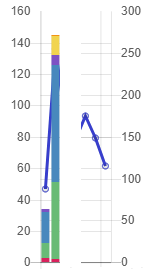
(deleted some data in the middle)
It would be nice if there was a setting that would automatically make both scales the same.
This is my workaround for now:
    $scope.options.scales.yAxes[0].afterDataLimits = (axis) => {
      let maxMax = axis.chart.scales["y-axis-1"].max;
      if (maxMax) {
         axis.chart.scales["y-axis-0"].max = maxMax;
      }
    };
 SanderPs
on 5 Apr 2018
SanderPs
on 5 Apr 2018
Desperately need this feature. Having to calculate the min/max myself makes my code looks unclean.
 jiade
on 1 Sep 2018
jiade
on 1 Sep 2018
For people who don't want to figure out the code for this themselves:
const datasetOne = [1, 2, 3, 4];
const datasetTwo = [6, 4, 3, 1];

function getMaxNumberFromArray(array) {
    return array.reduce((a, b) => Math.max(a, b));
}

const maxYTick = Math.max(
    getMaxNumberFromArray(datasetOne),
    getMaxNumberFromArray(datasetTwo)
);

console.log(maxYTick); // 6
Then set the ticks.max property of both scales to maxYTick
 AdrianMrn
on 27 Mar 2019
AdrianMrn
on 27 Mar 2019
in v3 this a little easier:
afterDataLimits(scale) {
  scale.chart.scales.<the other scale id>.options.suggestedMin = scale.min;
  scale.chart.scales.<the other scale id>.options.suggestedMax = scale.max;
}
 kurkle
on 7 Jun 2020
kurkle
on 7 Jun 2020
Closing as this easy to configure already.
kurkle
on 7 Jun 2020
Related issues
 joebirkin
·
3Comments
joebirkin
·
3Comments
 kennsippell
·
3Comments
JewelsJLF
·
3Comments
kennsippell
·
3Comments
JewelsJLF
·
3Comments
 SylarRuby
·
3Comments
SylarRuby
·
3Comments
 lizbanach
·
3Comments
lizbanach
·
3Comments
Most helpful comment
@etimberg Yeah, I already have a workaround where I change the ticks.min and ticks.max via the chart options. I just didn't want to have to compute it when Chart.js already does. I thought it would be nice to have an option that forces them to have the same scales.
Another user did point out to me that with the new stack groupings, I can simply group all my bars together and not group the lines and put them on the same axis. This worked for me for my current needs.
Might still be nice to be able to force multiple axes to have the same scale, but this works for now.