Carbon: Can't customize DatePicker calendar background-color
I'm using DatePicker widget(from 'carbon-components-react' Carbon X), and I see the calendar part background-color doesn't match with the page background(The page background is white, and the DatePicker is in this page, its background-color shall be grey to have a contrast with the page background color to follow carbon style), while I find calendar css doesn't belong to my css layers, and it is in global part, so I can't change its background-color only in my page.

I tried to set className for the DatePicker in my js, and then set :global .bx--date-picker__calendar {
background-color: #f4f4f4;
} in corresponding less file under the className, however, it doesn't work.
If I change the calendar's background-color directly in global part, it will take effect for all DatePickers calendar used in the product, while in other pages, the background-color for that page's DatePicker calendar may not always be grey the same in my current page.
Could someone help to let me know how to resolve it? Or is it a bug for DatePicker widget? Thanks.
What package(s) are you using?
- [ ]
carbon-components - [ ]
carbon-components-react
Detailed description
Describe in detail the issue you're having.
Is this issue related to a specific component?
What did you expect to happen? What happened instead? What would you like to
see changed?
What browser are you working in?
What version of the Carbon Design System are you using?
What offering/product do you work on? Any pressing ship or release dates we
should be aware of?
Steps to reproduce the issue
- Step one
- Step two
- Step three
- etc.
Please create a reduced test case in CodeSandbox
Additional information
- Screenshots or code
- Notes
 AngelaChenBJ
All 6 comments
Hello there!
You can use appendTo prop for DatePicker to render picker in desired container, not at the bottom of the <body>, and then style picker only inside certain class.
(in this example picker is rendered inside div#root)
https://codesandbox.io/s/unruffled-wildflower-yl7fh?file=/index.html
 jakubfaliszewski
on 9 Apr 2020
jakubfaliszewski
on 9 Apr 2020
Thanks for the quick response! @jakubfaliszewski
Do you mean I can see the calendar part css info under my css layers after adding appendTo for DatePicker widget?
And I tried to add id attribute for the div, and also added appendTo for DatePicker widget, while seems I didn't see calendar part css under my css layers.
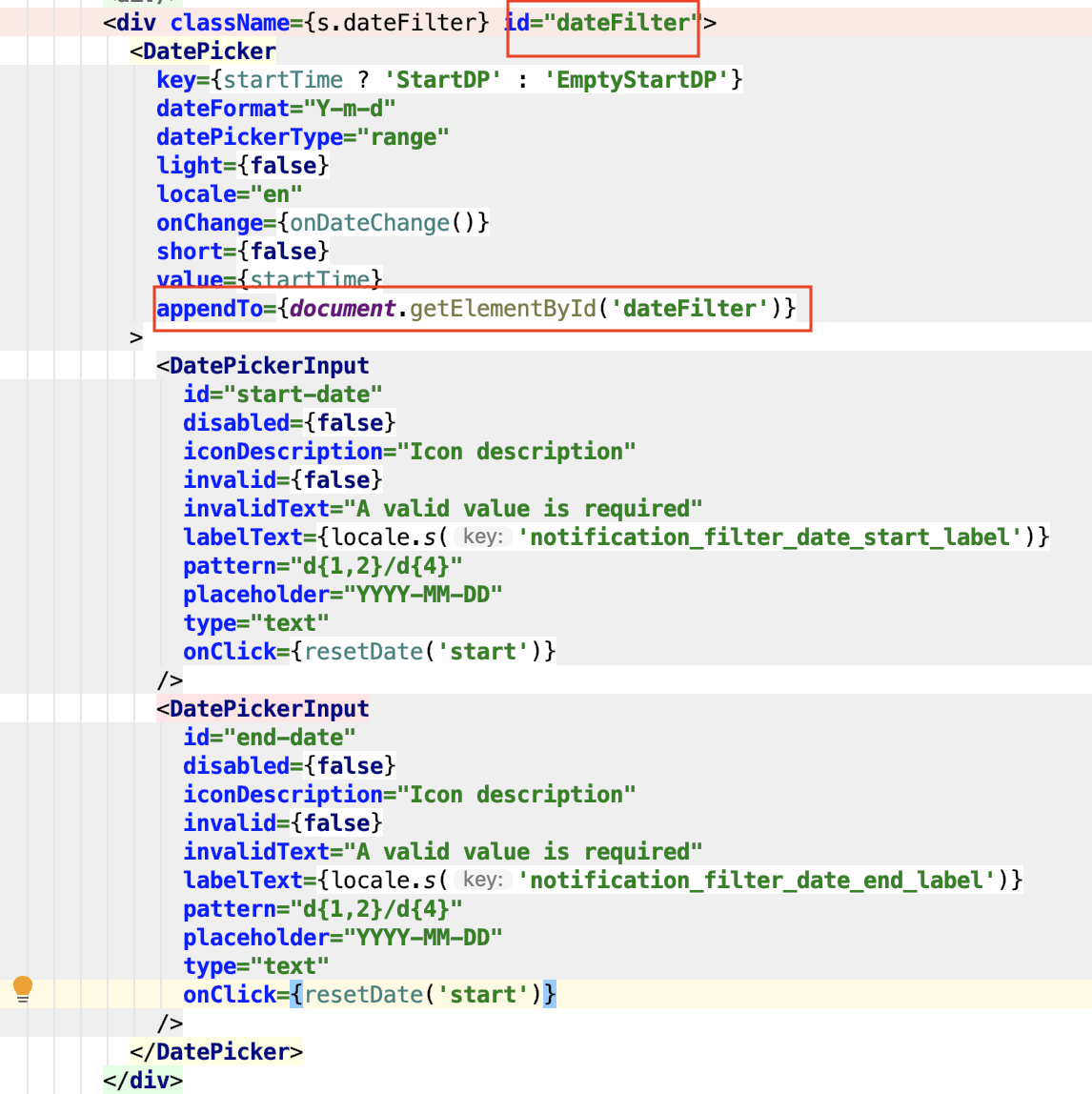

Maybe I add the id in incorrect place? Please guide me. Thanks.
AngelaChenBJ
on 9 Apr 2020
document.querySelector('dateFilter') written in the React markup means doing search in DOM before the DOM element is created (in other words before React renders the JSX into DOM). You can see it by doing appendTo={(console.log(document.querySelector('dateFilter')),document.querySelector('dateFilter'))}.
You can try grabbing DOM element ref via React API and use it for appendTo. Feel free to let us know if you still think there is an issue in our codebase and you have a reduced test case based on our template. Thanks!
 asudoh
on 10 Apr 2020
asudoh
on 10 Apr 2020
Thank you both for the response. @asudoh @jakubfaliszewski
I try again based on your guide, it works, while I encounter an error saying
"Error:Floating menu container must not have position:static".
I check the layers for my css, seems I don't see which layer is set to "position: static", and I see the error may be thrown from this kind of adjustment.
if ((appendTo !== appendTo.ownerDocument.body || containerLeft !== 0 || containerTop !== 0) && appendTo.ownerDocument.defaultView.getComputedStyle(appendTo).getPropertyValue('position') === 'static') {
throw new Error('Floating menu container must not have position:static.');
}
Is it caused by my environment? or maybe it has some extra settings for appending DatePicker calendar style into a container. Would you give me a hint on how to resolve it? Thanks!
AngelaChenBJ
on 10 Apr 2020
static is the default value of positon for most of elements.
Just add position: relative style to the element your'e appeding DatePicker.
For example:
JS
appendTo={document.getElementById("root")}
CSS
#root {
  position: relative;
}
jakubfaliszewski
on 10 Apr 2020
It resolves my problem. Thanks a lot! @jakubfaliszewski
AngelaChenBJ
on 10 Apr 2020
Related issues
 AnthumChris
·
3Comments
AnthumChris
·
3Comments
 laurenmrice
·
3Comments
laurenmrice
·
3Comments
 emyarod
·
3Comments
emyarod
·
3Comments
 joshblack
·
3Comments
joshblack
·
3Comments
 xrissot-ibm
·
3Comments
xrissot-ibm
·
3Comments