Canvasblocker: Unclear: How to restore options that were hidden?
Description
After clicking on an eye icon to hide an option, it should be clear how to restore ("unhide") the option.
Expected Behavior
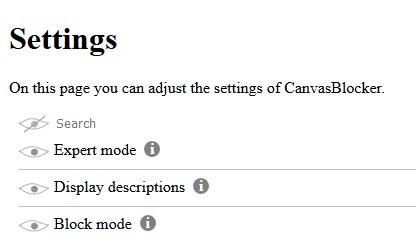
Click on the first eye icon to see hidden option.
Current Behavior
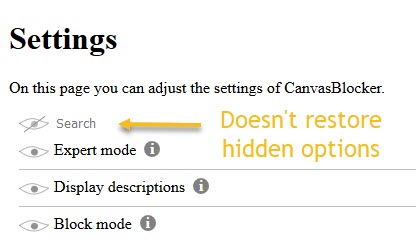
- Clicking on the first eye icon to does NOT restore hidden options
- "Reset Settings" does not restore hidden options
- Reinstall does not restore hidden options
Possible Solution
Make it easy to restore hidden options (or eliminate the possibility of hiding options)
Steps to Reproduce (for bugs)
1.
2.
3.
4.
Context
Your Environment
- CanvasBlocker Version used: 0.57
- Firefox version incl. 32- or 64-bit: 65 64-bit
- Operating System and version (desktop or mobile): Windows 10 desktop
- Installed addons:
Your Settings
{
"logLevel": 1,
"urlSettings": [],
"hiddenSettings": {},
"expandStatus": {
"blockMode": false
},
"displayHiddenSettings": false,
"whiteList": "",
"sessionWhiteList": "",
"blackList": "",
"blockMode": "fake",
"protectedCanvasPart": "readout",
"minFakeSize": 1,
"maxFakeSize": 0,
"rng": "nonPersistent",
"protectedAPIFeatures": {},
"useCanvasCache": true,
"ignoreFrequentColors": 0,
"minColors": 0,
"fakeAlphaChannel": false,
"persistentRndStorage": "",
"persistentIncognitoRndStorage": "",
"storePersistentRnd": false,
"persistentRndClearIntervalValue": 0,
"persistentRndClearIntervalUnit": "days",
"lastPersistentRndClearing": 0,
"sharePersistentRndBetweenDomains": false,
"askOnlyOnce": "individual",
"askDenyMode": "block",
"showCanvasWhileAsking": true,
"showNotifications": true,
"highlightPageAction": "none",
"highlightBrowserAction": "color",
"displayBadge": true,
"storeNotificationData": false,
"storeImageForInspection": false,
"ignoreList": "",
"ignoredAPIs": {},
"showCallingFile": false,
"showCompleteCallingStack": false,
"enableStackList": false,
"stackList": "",
"protectAudio": true,
"audioFakeRate": "100",
"audioNoiseLevel": "minimal",
"useAudioCache": true,
"audioUseFixedIndices": true,
"audioFixedIndices": "16",
"historyLengthThreshold": 2,
"protectWindow": false,
"protectDOMRect": true,
"domRectIntegerFactor": 4,
"blockDataURLs": true,
"displayAdvancedSettings": false,
"displayDescriptions": false,
"theme": "default",
"dontShowOptionsOnUpdate": false,
"isStillDefault": false,
"storageVersion": 0.5
 powyncify
All 12 comments
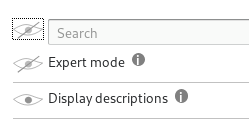
If you click on the first eye the hidden settings are displayed (with a crossed eye) and you can then click the eye again to unhide them:
"Reset settings" does restore the hidden settings, but there is a bug that you have to reload the settings page (F5) - I will address that.
Reinstalling does not change any settings as Firefox keeps them on your drive.
 kkapsner
on 5 Feb 2019
kkapsner
on 5 Feb 2019
First, thanks for your work on this important extension. I'm glad if I can contribute something.
So, I know that clicking on the eye _should_ reveal hidden options. But it doesn't on my version. Also, reset doesn't restore the hidden options.
I even created a completely new profile with no other extensions, just Canvas Blocker. Oddly, Canvas Blocker still doesn't show the hidden options, although they were hidden in a different profile.
- Short-term: Is there a way to restore a hidden option by editing the setting files directly? I need the whitelist option urgently.
- Long-term: Let me know if I can help in solving this.
Thanks again for your work!
powyncify
on 6 Feb 2019
The whitelist is not hidden by the eye but because you have to enable the expert mode to see it.
But you should be able to accomplish the same result by adding a URL-specific block mode.
kkapsner
on 6 Feb 2019
I understand.
I'd suggest that the white list is a very important function. In some sites, I want to allow fingerprinting. Here's why: For account security, many sites (banks, Amazon) rely on fingerprinting to prevent unauthorized access. Because Canvas Blocker hinders fingerprinting, these sites respond by blocking access. So, I hope for an easy way to exclude some sites.
Thanks a lot for your work on this plugin. It is incredibly important!
powyncify
on 6 Feb 2019
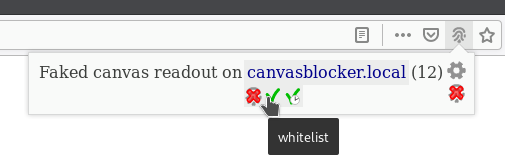
The white list is just for legacy and backward compability there. The way to go is to use URL specific settings. If you want to allow a website you can simply click on the icon in the address bar:
kkapsner
on 7 Feb 2019
Thanks for clarifying. I mistakenly assumed that the options are what is visible when clicking on the green/red icon (the add-in icon). I didn't realize that there're _two_ clickable icons.
Thanks for your patience. I hope that you can make it clearer, so you can spend more time on development and less time explaining to users like me...
powyncify
on 7 Feb 2019
Actually the address bar icon was introduced before the tool bar icon.
I have a screenshot of the dialog of the address bar icon on the page of the addon on AMO. If you know an additional/better place to show it please tell me.
kkapsner
on 7 Feb 2019
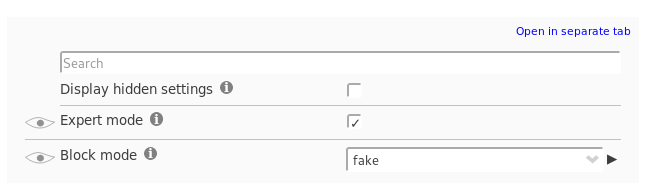
It is NOT clear that the eye in front of the search bar makes all hidden settings visible.
It should be distinguishable from the other eyes since its effect is different from the others.
Especially due to the search bar and the eye being part of the settings table it looks like the search bar itself can be hidden with this eye icon.
I suggest to put the visibility toggle beside the "Settings" title or add a separate checkbox (not the eye icon) underneath "Settings" with "Show hidden settings" written beside it.
The reasoning behind explicitly using a checkbox is that everyone who has ever used the internet before will know what behavior to expect from interacting with it - it is a toggle to switch between two states.
Everyone who sees the eye icons for the first time or who returns back to the settings after a long time will click on an eye to see what it does and then find themselves googling to get the settings back without having to reset all the settings, like I had to just now.
 MaliusArth
on 16 May 2019
MaliusArth
on 16 May 2019
The settings title is not visible if you go to the settings via about:addons.
I think the separate checkbox with a label would be the most intuitive solution. And it should not be too hard to implement.
kkapsner
on 16 May 2019
kkapsner
on 21 May 2019
kkapsner
on 22 May 2019
Release 0.5.9 is published.
kkapsner
on 26 May 2019
Related issues
 spodermenpls
·
4Comments
spodermenpls
·
4Comments
 DRigby26
·
5Comments
kkapsner
·
5Comments
DRigby26
·
5Comments
kkapsner
·
5Comments
 StealthBlackOxide
·
6Comments
StealthBlackOxide
·
6Comments
 scottstensland
·
7Comments
scottstensland
·
7Comments
Most helpful comment
The settings title is not visible if you go to the settings via about:addons.
I think the separate checkbox with a label would be the most intuitive solution. And it should not be too hard to implement.