Boostnote: Some essential functions don't have keyboard shortcut.
I want Boostnote to boost my writing work.
But it does not have keyboard shortcuts just for essential functions.
i.e.:
Buttons on top right:

- Toggle mode
- (Toggle) star
- (Toggle) fullscreen
Tabs on left:
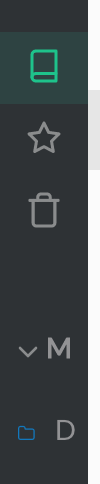
- Show starred
- Show trash
- And, more...
 kyoh86
All 14 comments
The most difficult part of this issue is deciding key combinations for each OS.
So, we need to discuss this before we introduce! Could you give us some examples for each key combination?
 Rokt33r
on 12 Apr 2018
Rokt33r
on 12 Apr 2018
I'll make some stuff up!
For the sidebar...
CMD-B Collapse / expand sidebar (like VSCode)
CMD-F Focus search (oh, I see CTRL-S does this... CTRL is kind of weird in macOS though)
CMD-0 All Notes
CMD-1 Starred
CMD-[2-9] Open the corresponding folder (like Firefox tabs)
(is trash used enough for a shortcut?)
For the top bar...
CMD-. Toggle Mode
CMD-+ Star
CMD-Backspace Trash
CMD-I Info
CMD-T Add tag
 lisdude
on 13 Apr 2018
lisdude
on 13 Apr 2018
Some ideas for linux:
ctrl + b Collapse / Expand sidebar
ctrl + shift + a All notes
ctrl + shift + s Starred
ctrl + pagedown Move to code snippet tab on the right
ctrl + pageup Move to code snippet tab on the left
ctrl + shift + pagedown Move to folder bellow
ctrl + shift + pageup Move to folder above
ctrl + shift + n New Folder
Top bar:
ctrl + m Toggle Mode
ctrl + shift + s Star
ctrl + shift + f Full screen
ctrl + shift + t Add Tag
 ZeroX-DG
on 13 Apr 2018
ZeroX-DG
on 13 Apr 2018
Fullscreen shortcut is happening 👍 https://github.com/BoostIO/Boostnote/pull/1754
With regards to the top bar fullscreen option I agree with @ZeroX-DG for ctrl + shift + f
 yougotwill
on 14 Apr 2018
yougotwill
on 14 Apr 2018
Some suggestions for Mac:
cmd + Forcmd + L(like Chrome going to address bar) for focus searchcmd + option + Ffind and replace (once we have it)cmd + shift + NNew foldercmd + K, BCollapse / expand left sidebar (like Sublime Text)cmd + DMultiple selection (like Sublime Text)cmd + TJump to note (like Sublime Text), but I know this will conflict with adding new tabs in snippetscmd + option + 1Hide markdown preview (intuitively, show 1 column)cmd + option + 2Show markdown preview (intuitively, show 2 columns)
And here are proposed modifications for some existing shortcuts on Mac, just replace ctrl (which feels odd for Mac) with cmd:
cmd + KMove to the note above (instead of the defaultctrl + K)cmd + JMove to the note below (instead of the defaultctrl + J)cmd + deleteDelete the note (instead of the defaultctrl + delete)
For even more flexibility, perhaps in the settings we can set our own keyboard shortcuts for various available actions. Just like any popular text editor (Sublime, VSCode, Atom, etc) has done.
 adlersantos
on 7 Jun 2018
adlersantos
on 7 Jun 2018
Building on what @adlersantos said, the simplest implementation would be to add these options to the hotkeys settings pane but not to choose defaults for some/all of them (i.e. leave them blank by default). Defaults for different OSes could be later added as a separate feature after collecting analytics / user feedback.
 blahah
on 16 Jun 2018
blahah
on 16 Jun 2018
ctrl + pagedown Move to code snippet tab on the right
ctrl + pageup Move to code snippet tab on the left
On Windows, please, or add an option for custom keymaps.
 webcoderkz
on 7 Aug 2018
webcoderkz
on 7 Aug 2018
@adlersantos funded this issue with $10. See it on IssueHunt
 IssueHuntBot
on 1 Nov 2018
IssueHuntBot
on 1 Nov 2018
Just started with a donation to have this under the radar of the contributors. Feel free to add to the funding to encourage development and/or further discussions for this feature. Looking forward!
adlersantos
on 1 Nov 2018
@sheim has funded $10.00 to this issue. See it on IssueHunt
IssueHuntBot
on 7 Feb 2019
Agreed with adlersantos suggestions for macOS. In particular, going to the searchbar with both ctrl+S and cmd+shift+L works if I'm already in the navbar, but not if I'm editing a note. So then I need to first click in the navbar which defeats the purpose of the hotkey...
A quick solution could be to have a hotkey to switch between the editor and navbar (kind of like in a jupyter notebook). Added to funding.
 sheim
on 7 Feb 2019
sheim
on 7 Feb 2019
Move markdown one tab indent and de-indent in accordance to tab width
• cmd + ctrl + tab Indent line one tab
• cmd + ctrl + shift + tab` de-indent line one tab
 hinder90
on 28 Apr 2019
hinder90
on 28 Apr 2019
Assigning this to myself because I will be working on documenting all shortcuts properly.
If certain shortcuts do not exist then don't let my assignment sit in your way.
 Flexo013
on 20 Aug 2019
Flexo013
on 20 Aug 2019
Along with the ones mentioned above:
- A hotkey for focusing the
taginput of a note would be much appreciated:Ctrl+T - As would hotkeys to move between already created folders (from 'Default' folder to 'Notes' folder, etc):
Ctrl+Taband/orCtrl+Shift+Tab
 TDGithubIntegration
on 6 Nov 2019
TDGithubIntegration
on 6 Nov 2019
Related issues
 aurelkurtula
·
3Comments
aurelkurtula
·
3Comments
 cyber-arsenull
·
3Comments
cyber-arsenull
·
3Comments
 Petroochio
·
3Comments
Petroochio
·
3Comments
 N2ITN
·
3Comments
N2ITN
·
3Comments
 NourEldin275
·
3Comments
NourEldin275
·
3Comments
Most helpful comment
Some suggestions for Mac:
cmd + Forcmd + L(like Chrome going to address bar) for focus searchcmd + option + Ffind and replace (once we have it)cmd + shift + NNew foldercmd + K, BCollapse / expand left sidebar (like Sublime Text)cmd + DMultiple selection (like Sublime Text)cmd + TJump to note (like Sublime Text), but I know this will conflict with adding new tabs in snippetscmd + option + 1Hide markdown preview (intuitively, show 1 column)cmd + option + 2Show markdown preview (intuitively, show 2 columns)And here are proposed modifications for some existing shortcuts on Mac, just replace
ctrl(which feels odd for Mac) withcmd:cmd + KMove to the note above (instead of the defaultctrl + K)cmd + JMove to the note below (instead of the defaultctrl + J)cmd + deleteDelete the note (instead of the defaultctrl + delete)For even more flexibility, perhaps in the settings we can set our own keyboard shortcuts for various available actions. Just like any popular text editor (Sublime, VSCode, Atom, etc) has done.