Azure-pipelines-tasks: 200 is not a valid redirect code
Required Information
Entering this information will route you directly to the right team and expedite traction.
Question, Bug, or Feature?
Type: Bug
Enter Task Name: Azure resource group deployment
With Enable prerequisites: Configure WinRM agent.
Task Version 2
Environment
Server - Azure Pipelines
Agent - Hosted: Hosted VS2017
Issue Description
Since last night we receive the following error: HTTP response code: '200' is not a valid redirect status code.
It seems Configure WinRM agent wants to download a powershell script from https://aka.ms/vstsconfigurewinrm. However it is not gettings a valid response.
I am not having any issue when downloading this file from my browser.
(Could this issue be related to the issue's with github yesterday?)
Azure reports the latest deployment of the resource group a succes.
Task logs
2020-04-24T06:17:06.4242828Z ##[debug]Enabling winrm for virtual machine xxxx
2020-04-24T06:17:06.4245766Z ##[debug]Trying to fetch target link from the fwdlink: https://aka.ms/vstsconfigurewinrm
2020-04-24T06:17:06.4246967Z ##[debug][GET]https://aka.ms/vstsconfigurewinrm
2020-04-24T06:17:06.8879319Z ##[debug]Could not parse response: {}
2020-04-24T06:17:06.8881280Z ##[debug]Response: undefined
2020-04-24T06:17:06.8887026Z ##[debug]Failed to add extension to the vms with the exception: Error: The HTTP response code: '200' is not a valid redirect status code.
2020-04-24T06:17:06.8889211Z ##[debug]task result: Failed
2020-04-24T06:17:06.8941169Z ##[error]Error: The HTTP response code: '200' is not a valid redirect status code.
2020-04-24T06:17:06.8959771Z ##[debug]Processed: ##vso[task.issue type=error;]Error: The HTTP response code: '200' is not a valid redirect status code.
2020-04-24T06:17:06.8961573Z ##[debug]Processed: ##vso[task.complete result=Failed;]Error: The HTTP response code: '200' is not a valid redirect status code.
Troubleshooting
Checkout how to troubleshoot failures and collect debug logs: https://docs.microsoft.com/en-us/vsts/build-release/actions/troubleshooting
Error logs
2020-04-24T06:17:06.8961573Z ##[debug]Processed: ##vso[task.complete result=Failed;]Error: The HTTP response code: '200' is not a valid redirect status code.
 CodeGlitcher
All 14 comments
I too been facing this issue.... But there seems to be a catch.
The task fails when the 'Enable Prerequisites' has been set to 'Configure with WinRM' but succeeds when it is set to 'None'.
 dipinbehl
on 24 Apr 2020
dipinbehl
on 24 Apr 2020
Yes but if you set it to none then de WinRM agent wont be deployed.
So unfortunately this is not a options for us.
CodeGlitcher
on 24 Apr 2020
Neither for for us, but that was one difference I noticed which might be useful when debugging or reproducing the error
dipinbehl
on 24 Apr 2020
We too have seen this suddenly starting in the last few hours which has brought everything completely to a halt.
Currently trying to work out if there is some way around it but not confident as we also need the WinRM agent.
 gavinravenlane
on 24 Apr 2020
gavinravenlane
on 24 Apr 2020
My group is facing this issue as well. @gavinravenlane One possible fix might be to install the custom script extension yourself, with something like this.
 NelsonG6
on 24 Apr 2020
NelsonG6
on 24 Apr 2020
We have also installed winrm manually for now.
In addition to the solution @NelsonG6 mentioned
We have to configure the nsg to allow winrm:
    {
                        "name": "allow-winrm",
                        "properties": {
                            "protocol": "*",
                            "sourcePortRange": "*",
                            "destinationPortRange": "5986",
                            "sourceAddressPrefix": "*",
                            "destinationAddressPrefix": "*",
                            "access": "Allow",
                            "priority": 3986,
                            "direction": "Inbound",
                            "sourcePortRanges": [],
                            "destinationPortRanges": [],
                            "sourceAddressPrefixes": [],
                            "destinationAddressPrefixes": []
                        }
                    },
The solution I linked ended up not working for me. I get "cannot resolve raw.githubusercontent.com". The underlying theme seems to be that no matter where the script is hosted, the process cannot seem to resolve the address.
NelsonG6
on 28 Apr 2020
Currently we are working through the various bits of advice above, all of which have been useful. We decided to merge the dsc script content with existing scripts we had, yes we had to open the port, and finally yes we are struggling a bit with getting the certificate/dns/fqdn name relationship correct but it looks as if this will be the answer
gavinravenlane
on 28 Apr 2020
I can confirm that having worked through the certificate/dns/fqdn issue this has now been resolved as a workaround, and as far as we are concerned the broken EnablePrerequisites is now irrelevant.
So the solution, as documented above, was extend VM using powershell script as in the example above, add the nsg rule, and ensure the certificate referred to the full fqdn name
gavinravenlane
on 28 Apr 2020
I was able to get things working, too. I was a little confused by Gavin's post, so here are the specific details of what I have done:
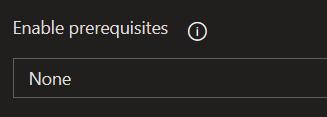
Disable the WinRM prerequisite in your arm template task.
Set your NSG to have open WinRM ports. You can do this in your arm template, as shown by codeglitcher three posts above. You can also test this by leaving your arm template alone at first and changing the NSG after the resources are laid down.

Created an "azure powershell" task in Azure Devops for my pipeline. I followed the examples from these docs: Custom script extension guide (look for the example with the command Set-AzVMExtension) and Set-AzVmExtension

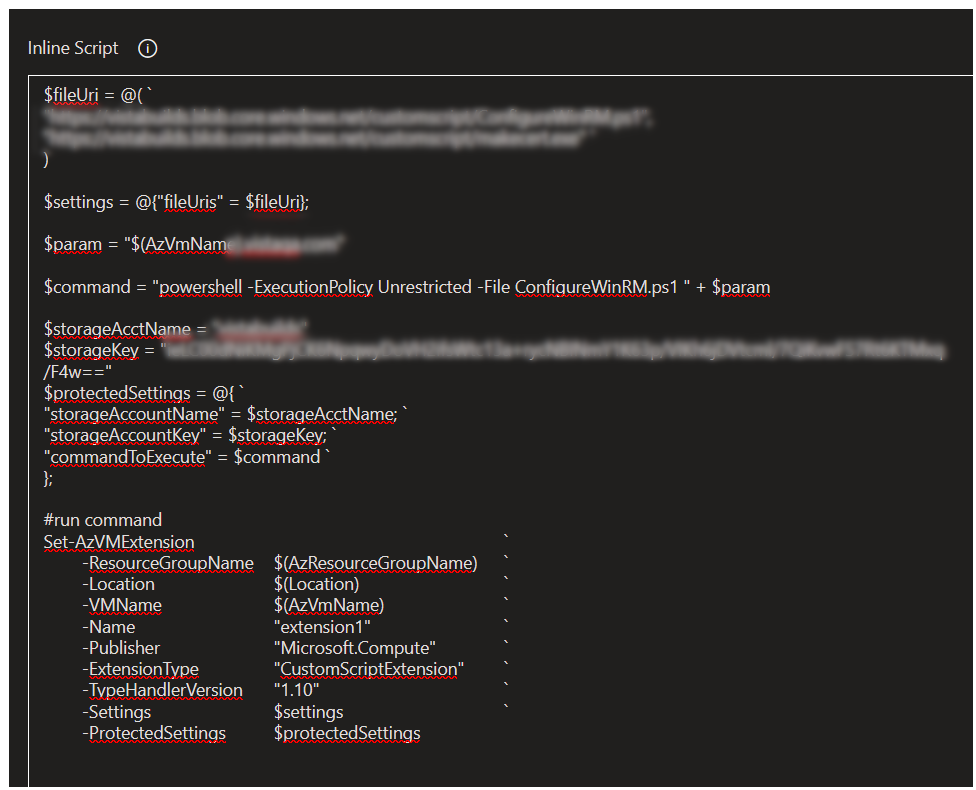
I grabbed the files hosted at:
"https://raw.githubusercontent.com/Azure/azure-quickstart-templates/master/201-vm-winrm-windows/ConfigureWinRM.ps1"
"https://raw.githubusercontent.com/Azure/azure-quickstart-templates/master/201-vm-winrm-windows/makecert.exe"
...and put these into my own storage container. You might have luck just pulling these files from this github location in your azure powershell that installs the custom script, but that's not the steps I followed.Set-AzVMExtensionseems to follow a process that expects a storage container-hosted files.In my case, we're using azure DNS. The DNS entry is created first, then the custom script extension is installed, and from there I can run remote powershell tasks using the DNS FQDN.

Post here if these steps aren't working and I'll try and give some help.
NelsonG6
on 28 Apr 2020
We encountered this issue as well, first time April 20th.
@NelsonG6 can you clarify these elements of your solution:
- Is the arm template run first, then the new powershell script?
- If yes, did you then remove the parts of the arm template making use of the WinRM extensions?
 JakobRahrBorkJensen
on 29 Apr 2020
JakobRahrBorkJensen
on 29 Apr 2020
I did not tought it mattered but we did ending to pass the full fqdn to the ConfigureWinRM script.
We did this by taken the fqdn directly from the public ip adress of our vm.
We are not having any issue's using raw.githubusercontent.com as the file uri's
            "resources": [
                {
                    "type": "Microsoft.Compute/virtualMachines/extensions",
                    "name": "[concat(variables('salvadorVmName'),'/WinRMCustomScriptExtension')]",
                    "apiVersion": "2015-06-15",
                    "location": "[resourceGroup().location]",
                    "dependsOn": [
                        "[concat('Microsoft.Compute/virtualMachines/', variables('myVm'))]"
                    ],
                    "properties": {
                        "publisher": "Microsoft.Compute",
                        "type": "CustomScriptExtension",
                        "typeHandlerVersion": "1.4",
                        "autoUpgradeMinorVersion": true,
                        "settings": {
                            "fileUris": [
                                "https://raw.githubusercontent.com/Azure/azure-quickstart-templates/master/201-vm-winrm-windows/ConfigureWinRM.ps1",
                                "https://raw.githubusercontent.com/Azure/azure-quickstart-templates/master/201-vm-winrm-windows/makecert.exe"
                            ],
                            "commandToExecute": "[concat('powershell -ExecutionPolicy Unrestricted -file ConfigureWinRM.ps1 ', reference(variables('myVmPublicIpAddressName')).dnsSettings.fqdn)]"
                        }
                    }
                }
            ]
We managed to solve our issue simply by disabling the WinRM prerequisite in our template task.
For some reason, we thought WinRM was needed to allow us to use the Custom Script Extension, but even when disabled, the script was still executed and everything works like a charm.
JakobRahrBorkJensen
on 29 Apr 2020
closing the issue as the fix has been rolled out.
 anuragc617
on 22 Jun 2020
anuragc617
on 22 Jun 2020
Related issues
 MikahB
·
3Comments
MikahB
·
3Comments
 yaananth
·
3Comments
yaananth
·
3Comments
 fedemkr
·
3Comments
fedemkr
·
3Comments
 richard-ob
·
3Comments
richard-ob
·
3Comments
 syltaxue
·
3Comments
syltaxue
·
3Comments