Azure-functions-vs-build-sdk: Runtime Exception in 1.0.13 - "Could not find file function.json"
Create an empty function using 1.0.13, and ran it. I has nothing but the defaults set in it...target runtime is ".NET Standard 2.0", which I believe is actually Core.
Visual Studio 2017 immediately reports a file-not-found exception in System.Private.CoreLib.dll , "Could not find the file "...FunctionApp1FunctionApp1binDebugnetstandard2.0binfunction.json".
its looking in the wrong places...the path for function.json file is ".....FunctionApp1FunctionApp1binDebugnetstandard2.0Function1function.json"
 steveng57
All 27 comments
~I deleted my .vs folder + .suo file and it worked again. I think deleting .vs folder was enough.~
I thought that was the solution, it seems to be the Break on All Common language runtime Exceptions was on. @steveng57 Can you confirm this?
 lgoudriaan
on 2 Jul 2018
lgoudriaan
on 2 Jul 2018
Any updates on this? With nothing but the defaults, the following function throws an exception:
using System;
using Microsoft.Azure.WebJobs;
using Microsoft.Azure.WebJobs.Host;

namespace FunctionApp1
{
    public static class Function1
    {
        [FunctionName("Function1")]
        public static void Run([QueueTrigger("myqueue-items", Connection = "AzureWebJobsStorage")]string myQueueItem, TraceWriter log)
        {
            log.Info($"C# Queue trigger function processed: {myQueueItem}");
        }
    }
}
The exception occurs at ScriptHost.cs:1081
System.IO.FileNotFoundException: 'Could not find file 'C:ReposSolution1FunctionApp1binDebugnetstandard2.0binfunction.json'.'
function.json file is actually generated at C:ReposSolution1FunctionApp1binDebugnetstandard2.0Function1function.json
This happens with both versions 1.0.13 and 1.0.14.
 iotalambda
on 12 Jul 2018
iotalambda
on 12 Jul 2018
The workaround for me is to turn off breaking on FileNotFoundException.
 speeddm
on 20 Jul 2018
speeddm
on 20 Jul 2018
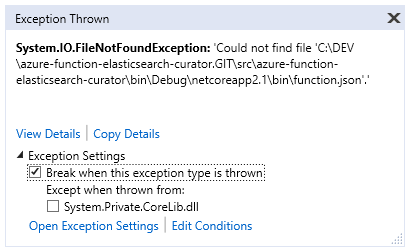
At _Exception Settings_ view, in Visual Studio I presume.
Or uncheck the _Break when this exception type is thrown_ choice in the Exception popup when it appears and press Enter to continue.
 dhabierre
on 9 Nov 2018
dhabierre
on 9 Nov 2018
any news about here it's quite annoying 👎
 davidrevoledo
on 26 Dec 2018
davidrevoledo
on 26 Dec 2018
@dhabierre - Do you have the callstack by any chance? Is this still an issue?
 vijayrkn
on 5 Feb 2019
vijayrkn
on 5 Feb 2019
@dhabierre - Do you have the callstack by any chance? Is this still an issue?
Sorry, I don't have it and I cannot reproduce the error.
dhabierre
on 5 Feb 2019
Thanks for the confirmation. Will close the issue.
vijayrkn
on 5 Feb 2019
I'm getting this as well. Both exactly as the initial comment (looking in main bin instead of subfolder). I was also getting it for a dll in a nuget package that just wasted me about 3 hours. The dll is in the correct place.
Turning off the exception worked but still don't understand why this is happening.
netcoreapp2.2 and Microsoft.NET.Sdk.Functions 1.0.24 on VS 15.9.7
 VividDigital
on 20 Feb 2019
VividDigital
on 20 Feb 2019
still getting this error as well, VS2019, all updates installed as of 03-May-2019, latest of all Azure Function updates etc. Works fine in VSCode
 jonathandbyrd
on 3 May 2019
jonathandbyrd
on 3 May 2019
I have this issue as well with VS 2019 Preview, dotnetcore 3.0 Preview 5 (dotnetcore 2.1 and 2.2 are also installed).
 ghost
on 21 May 2019
ghost
on 21 May 2019
Any update on this issue? I get this same issue when adding a new Azure function to our existing solution but not to a new solution. Is there a way to change where it looks that could be breaking this?
I have the latest of everything as of today.
 wallmat
on 26 Jun 2019
wallmat
on 26 Jun 2019
Not sure how this issue is closed? Today on June 26 - we are still getting this issue.
 pinaki1234
on 27 Jun 2019
pinaki1234
on 27 Jun 2019
I found out this goes away if I use Functions V1 instead of V2
wallmat
on 27 Jun 2019
Functions V1 introduces NewtonSoft Json issue for me - that s the main reason I am shifting to V2.
pinaki1234
on 27 Jun 2019
Hi, I'm having exactly the same problem when trying to debug (locally) an Azure Function project which I just created using VS2017 or VS2019. I haven't changed a single line of code before hitting F5 after VS generated the project.
 bugoutfr
on 7 Aug 2019
bugoutfr
on 7 Aug 2019
@bugoutfr - In your csproj file, what is the version of Functions sdk package?
<PackageReference Include="Microsoft.NET.Sdk.Functions" Version="1.0.29" />
vijayrkn
on 7 Aug 2019
Im not sure if this is the right way to do this but only working fix i found was to follow this if your using 64bit
https://www.henkboelman.com/azure-function-x64-dev-setup/
wallmat
on 7 Aug 2019
@vijayrkn - it's exactly the same reference in my csproj file.
As mentionned before: continuing the debug session actually works (my VS was set to break on any framework generated exception), I added an exception as suggested by @speeddm
bugoutfr
on 7 Aug 2019
@wallmat - We are working on getting the x64 bit dev setup working in VS by default. It should be available soon.
@bugoutfr - What is the exact error?
vijayrkn
on 7 Aug 2019
Also can you check if you have .NET Core 2.1 runtime installed? You can check by running >dotnet --info from the commandline
vijayrkn
on 7 Aug 2019
Everything is installed correctly, I expect I wouldn't have been able to launch a debug session in the first place otherwise. Here's a part of the console output:
.NET Core SDKs installed:
  2.1.202 [C:\Program Files\dotnet\sdk]
  2.1.401 [C:\Program Files\dotnet\sdk]
  2.1.402 [C:\Program Files\dotnet\sdk]
  2.1.403 [C:\Program Files\dotnet\sdk]
  2.1.701 [C:\Program Files\dotnet\sdk]
  2.1.801 [C:\Program Files\dotnet\sdk]
  2.2.301 [C:\Program Files\dotnet\sdk]
@vijayrkn - the exception is the same as the one described: a FileNotFoundException trying to read function.json from the bin folder instead of the Function1/function.json path.
Anyway the workaround seems good enough for me now ;-) Thanks for the help!
bugoutfr
on 7 Aug 2019
oh, you mean this error:
The exception occurs at ScriptHost.cs:1081

System.IO.FileNotFoundException: 'Could not find file 'C:\Repos\Solution1\FunctionApp1\bin\Debug\netstandard2.0\bin\function.json'.'
@soninaren / @fabiocav -Looks like ScriptHost.cs is looking for the file in the wrong location. Is this something you guys can fix?
vijayrkn
on 7 Aug 2019
I have the same issue, this is annoying.
As an SDK consumed by so many users, Shouldn't this kind of issues be addressed with high priority?
 gynet
on 11 Sep 2019
gynet
on 11 Sep 2019
I get this when running a Function App in Azure now. v2
 CrisZis01
on 5 Dec 2019
CrisZis01
on 5 Dec 2019
This issue is sporadic - the Microsoft dev team is not trying to put its due diligence in trying to reproduce the error and then fixing it. For me I recreated (and fixed the issue) the whole file structure by adding these to a blank solution but this shouldn't be the best way around.
pinaki1234
on 5 Dec 2019
Have this same issue, V3 functions, 3.0.11 and it's not finding the function.json file because it is in a subdirectory named with the id of the function so
binDebugnetcoreapp3.1binfunction.json
when it is actually in
binDebugnetcoreapp3.1binnameoffunctionfunction.json
 TNDStudios
on 3 Feb 2021
TNDStudios
on 3 Feb 2021
Related issues
 peterhuene
·
9Comments
peterhuene
·
9Comments
 rupeshtech
·
4Comments
rupeshtech
·
4Comments
 pramod-hegde
·
12Comments
pramod-hegde
·
12Comments
 craig006
·
7Comments
craig006
·
7Comments
 chrisxpr
·
11Comments
chrisxpr
·
11Comments
Most helpful comment
At _Exception Settings_ view, in Visual Studio I presume.
Or uncheck the _Break when this exception type is thrown_ choice in the Exception popup when it appears and press Enter to continue.