Azure-functions-host: Visual Studio Failing to Install Latest CLI runtime
I am busy upgrading my function app to the latest version of the azure function runtime, but get this error when I try to run the function from Visual Studio.
Could not load type 'Microsoft.Azure.WebJobs.ExecutionContext'
Function App Version 2.0
Trying to debug in Visual Studio on Windows Machine
References:
- Microsoft.Azure.WebJobs : 3.0.0
- Microsoft.Azure.WebJobs.Core : 3.0.0
- Microsoft.Azure.WebJobs.Extensions.Storage : 3.0.0
- Microsoft.NET.Sdk.Functions : 1.0.24
Host.json:
{
  "version": "2.0",
  "healthMonitor": {
    "enabled": true,
    "healthCheckInterval": "00:00:10",
    "healthCheckWindow": "00:02:00",
    "healthCheckThreshold": 6,
    "counterThreshold": 0.80
  },
  "logging": {
    "applicationInsights": {
      "sampling": {
        "isEnabled": true,
        "maxTelemetryItemsPerSecond": 5
      },
      "snapshotConfiguration": {
        "isEnabled": false
      },
      "categoryFilter": {
        "defaultLevel": "Information",
        "categoryLevels": {
          "Host.Results": "Error",
          "Function": "Error",
          "Host.Aggregator": "Information"
        }
      }
    }
  },
  "extensions": {
    "queues": {
      "batchSize": 16,
      "visibilityTimeout": "00:00:30",
      "maxDequeueCount": 3
    }
  }}
I also tried installing v 3.0.1 of Microsoft.Azure.WebJobs and the Storage extensions package, but that doesn't seem to work as the functions package is not compatible with that version.
I'm not sure what else there is for me to do, but it is pretty frustrating to try and get this upgrade done. Everything I have found on this error leads to posts and stuff that needs to happen in the Azure Portal - I can't even get it running locally, so that won't help me. In the portal, my function app is currently pinned to the alpha version and urgently need to get it upgraded as there are other fixes that I want to get into production.
 mieliespoor
All 70 comments
There shouldn't be any conflicts with 3.0.1 with the version of the Functions SDK package you're referencing. Can you share more details on that?
Is this issue with the project you're upgrading/migrating? Are you moving from a pre-GA version? Do you see this problem if you create a new functions project as well?
 fabiocav
on 9 Nov 2018
fabiocav
on 9 Nov 2018
@fabiocav I just upgraded the WebJobs reference to 3.0.2 as it was published today and then get this error
System.Private.CoreLib: Could not load file or assembly 'Microsoft.Azure.WebJobs.Host, Version=3.0.2.0, Culture=neutral, PublicKeyToken=31bf3856ad364e35'. Could not find or load a specific file. (Exception from HRESULT: 0x80131621). System.Private.CoreLib: Could not load file or assembly 'Microsoft.Azure.WebJobs.Host, Version=3.0.2.0, Culture=neutral, PublicKeyToken=31bf3856ad364e35'.
This was an old v1 project I upgraded to v2 where I have the app pinned to 2.0.11961-alpha in the portal. I started upgrading to the latest bits when we had to pin it to the alpha version in the portal, but it has since gone GA.
My full project file:
<Project Sdk="Microsoft.NET.Sdk">
  <PropertyGroup>
    <TargetFramework>netstandard2.0</TargetFramework>
    <AssemblyName>Redacted.Namespace.Functions</AssemblyName>
    <RootNamespace>Redacted.Namespace.Functions</RootNamespace>
    <Configurations>Debug;Release;ReleaseBB</Configurations>
    <AzureFunctionsVersion>v2</AzureFunctionsVersion>
  </PropertyGroup>
  <ItemGroup>
    <PackageReference Include="HtmlAgilityPack" Version="1.8.10" />
    <PackageReference Include="Microsoft.Azure.WebJobs" Version="3.0.2" />
    <PackageReference Include="Microsoft.Azure.WebJobs.Core" Version="3.0.2" />
    <PackageReference Include="Microsoft.Azure.WebJobs.Extensions.Storage" Version="3.0.1" />
    <PackageReference Include="Microsoft.NET.Sdk.Functions" Version="1.0.24" />
    <PackageReference Include="Newtonsoft.Json" Version="11.0.2" />
    <PackageReference Include="PostageApp.Net" Version="2.0.1" />
  </ItemGroup>
  <ItemGroup>
    <ProjectReference Include="..\Redacted.Namespace.Entities\Redacted.Namespace.Entities.csproj" />
    <ProjectReference Include="..\Redacted.Namespace.FileHandling\Redacted.Namespace.FileHandling.csproj" />
  </ItemGroup>
  <ItemGroup>
    <None Update="host.json">
      <CopyToOutputDirectory>Always</CopyToOutputDirectory>
    </None>
    <None Update="local.settings.json">
      <CopyToOutputDirectory>PreserveNewest</CopyToOutputDirectory>
    </None>
  </ItemGroup>
</Project>
Odd.. the CLI was published at the same time, so to make sure you were not running against an older, cached version, can you please restart VS and retry this? You should see a dialog downloading the matching version.
fabiocav
on 9 Nov 2018
that's what I did before I ran it to get the log I posted above. I will try and uninstall the cli or is there a way I can get hold of some other logs to possibly see what goes wrong?
mieliespoor
on 9 Nov 2018
Did you see the update? Can you share the output with the CLI version VS is running?
fabiocav
on 9 Nov 2018
For the purpose to get the following and to make sure it downloaded the cli tools, I closed VS, deleted the bin and obj folder. Opened VS again and ran the project. I then got this:
Starting Host (HostId=ryzen-1555184699, InstanceId=d488b052-1416-49d5-a13e-427ebaebd798, Version=2.0.11651.0, ProcessId=27680, AppDomainId=1, Debug=False, ConsecutiveErrors=5, StartupCount=6, FunctionsExtensionVersion=~1)
And yes it seems that the cli version is outdated, which would explain all of this. The main question would then be, how do I force the cli to install if the install on a F5 run doesn't work?
mieliespoor
on 10 Nov 2018
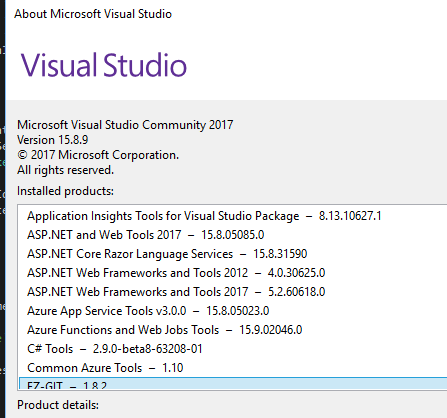
Yeah, this is running against a pretty old version. can you check the VS and the Azure Functions and WebJobs version you're running (under Help -> About Microsoft Visual Studio)? You may need to update the extension to make sure you're getting the latest bits.
fabiocav
on 10 Nov 2018
I updated VS to 15.8.9 earlier tonight before I posted to see if that may make a difference.
Microsoft Visual Studio Professional 2017 (Pro)
Version 15.8.9
VisualStudio.15.Release/15.8.9+28010.2050
Azure Functions and Web Jobs Tools -> 15.10.2046.0
mieliespoor
on 10 Nov 2018
Assuming you've restarted VS, those version should be bringing the right bits down.
Can you delete the contents of %localappdata%\AzureFunctionsTools and retry?
Also, can you please make sure you haven't modified the debug settings of your project? (Project properties -> Debug), please make sure that is just set to launch the project, with no customizations there.
fabiocav
on 10 Nov 2018
I have deleted %localappdata%\AzureFunctionsTools and restarted visual studio. It keeps on installing Version=2.0.11651.0. I also disabled the Azure Functions and Web Job Tools and enabled that again.
From what I can see, there is also no logging happening so I can't see what is going on. It also appears that the cli is being copied from some local cache. Is there no other way in forcing the install the cli tools? Trusting Visual Studio to do it at this point doesn't work.
mieliespoor
on 10 Nov 2018
You should see a dialog downloading the matching version.
the _matching_ version?

Dialog doesn't have any _version_ mentioned in it?
I have deleted %localappdata%AzureFunctionsTools and restarted visual studio. It keeps on installing Version=2.0.11651.0.
Just learnt about this and .. same thing here.
This is what my file system looks like AFTER I deleted the AzureFunctionsTools folder and then hit F5 on my function, to start it, which that dialog (above) popped up for a bit...

Ok, so noticed a few things:
- There's 2x folders under
Releases - One folder is a
BETA 2.0.1-beta.25has files in it2.11.1is newer (following semver) but has _no_ files/folders in it.
[13/11/2018 12:45:51 AM] Starting Host (HostId=purekromepc2-1691422614, InstanceId=b74eeb3b-160d-47ae-baf3-78680d83e45d, Version=2.0.11651.0, ProcessId=2860, AppDomainId=1, Debug=False, ConsecutiveErrors=8, StartupCount=9, FunctionsExtensionVersion=)

 PureKrome
on 13 Nov 2018
PureKrome
on 13 Nov 2018
I have renamed the issue to a more appropriate title.
mieliespoor
on 13 Nov 2018
For clarity, the function runtime version with the latest CLI release is 2.0.11651.0
What you're looking for to validate you're running against the latest is the Core Tools version, which is the first output and should be Azure Functions Core Tools (2.2.32 Commit hash: c5476ae629a0a438d6850e58eae1f5203c896cd6)
Is that what you see?
/cc @soninaren
fabiocav
on 13 Nov 2018
This is the console output when I just ran it a few minutes ago.
              %%%%%%
             %%%%%%
        @   %%%%%%    @
      @@   %%%%%%      @@
   @@@    %%%%%%%%%%%    @@@
 @@      %%%%%%%%%%        @@
   @@         %%%%       @@
     @@      %%%       @@
       @@    %%      @@
            %%
            %

Hosting environment: Production
Content root path: E:\Projects\Functions\bin\Debug\netstandard2.0
Now listening on: http://localhost:7071
Application started. Press Ctrl+C to shut down.
[13/11/2018 19:29:17] Reading host configuration file 'E:\Projects\Functions\bin\Debug\netstandard2.0\host.json'
[13/11/2018 19:29:17] Host configuration file read:
[13/11/2018 19:29:17] {
[13/11/2018 19:29:17]   "healthMonitor": {
[13/11/2018 19:29:17]     "enabled": true,
[13/11/2018 19:29:17]     "healthCheckInterval": "00:00:10",
[13/11/2018 19:29:17]     "healthCheckWindow": "00:02:00",
[13/11/2018 19:29:17]     "healthCheckThreshold": 6,
[13/11/2018 19:29:17]     "counterThreshold": 0.8
[13/11/2018 19:29:17]   }
[13/11/2018 19:29:17] }
[13/11/2018 19:29:17] Starting Host (HostId=ryzen-1555184699, InstanceId=80e8bfe7-b7f5-426e-b58f-09cbcfe4cf5d, Version=2.0.11651.0, ProcessId=2548, AppDomainId=1, Debug=False, ConsecutiveErrors=0, StartupCount=1, FunctionsExtensionVersion=~1)
[13/11/2018 19:29:18] A ScriptHost error has occurred
[13/11/2018 19:29:18] System.Private.CoreLib: Could not load file or assembly 'Microsoft.Extensions.Logging.Abstractions, Version=2.1.0.0, Culture=neutral, PublicKeyToken=adb9793829ddae60'. Could not find or load a specific file. (Exception from HRESULT: 0x80131621). System.Private.CoreLib: Could not load file or assembly 'Microsoft.Extensions.Logging.Abstractions, Version=2.1.0.0, Culture=neutral, PublicKeyToken=adb9793829ddae60'.
[13/11/2018 19:29:18] Stopping Host
My apologies, I misread your version the second time around and gave copied the wrong info. What I initially mentioned is accurate, the version you're running is an old, pre-GA release, hence the message you're seeing. The host version you should see is 2.0.12165.0, with the CLI version I described.
Curious, does this happen on a newly created project? If so, could you share the project you have after a create on GitHub?
Also, can you confirm this is from an F5 run? (as opposed to running func)
fabiocav
on 14 Nov 2018
I confirm that I got the same problem. I'm running on the same version of the CLI as @mieliespoor and my project is new. I've also tried what your mentioned but no chance.
The only thing I saw AzureFunction related is the AzureFunctionsVersion in the .csproj.
 RamenTurismo
on 14 Nov 2018
RamenTurismo
on 14 Nov 2018
@JeremyFerreira can you answer the same questions asked above and perhaps share your project?
fabiocav
on 15 Nov 2018
Also, it would be very helpful if you can capture a Fiddler trace during the VS debug launch. That would help identify any issues communicating with the endpoints we use to update/download the tools.
fabiocav
on 15 Nov 2018
@fabiocav I have now created this project and am seeing the same behaviour. Don't however think it will happen your side. I have also captured a trace in Fiddler and will edit this post with a link to the file as soon as I uploaded it to Onedrive. I can also share my main project privately if needed.
https://github.com/mieliespoor/functionapp
mieliespoor
on 15 Nov 2018
@mieliespoor , Would it also be possible to start and capture fiddler trace from Step 5 through Steps 8 below. This is when VS is forced to connect to endpoints and download the latest CLI.
Steps:
- Make sure the Azure Functions and Web Jobs Tools version is 15.10.2046.
- Close all instances of VS
- Open %localappdata%AzureFunctionsTools
- Rename %localappdata%AzureFunctionsTools to AzureFunctionsTools_bak
- Rename %localappdata%.templateengine to templateengine_bak
- Go to File -> New -> Project -> Azure Functions -> Click OK
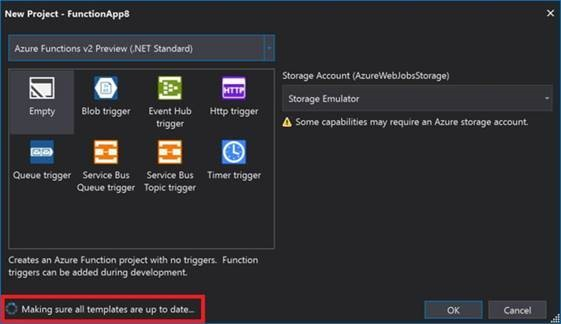
- You should see the New Project dialog box
- Wait for the update to complete
 soninaren
on 15 Nov 2018
soninaren
on 15 Nov 2018
I have done that all.
(There was a typo though... %localappdata%.templateengine ==> %userprofile%.templateengine)
I do think I clicked on OK too fast as the Making sure all templates are up to date... was still showing.
I do however think that the download from https://functionscdn.azureedge.net/public/2.2.32/Azure.Functions.Cli.win-x86.2.2.32.zip was taking too long when starting the project, VS cancelled/timed out and just went ahead with an earlier version of the cli.
My internet connection is very slow at home (Rural Ireland...), so I will upload the file in the morning from the office.
I can however say that I downloaded the Azure.Functions.Cli 2.2.32 zip outside of VS, I just don't know where to extract the contents.
Edit: Links to Fiddler traces:
https://1drv.ms/u/s!At5IbXVxZwGxu-54sZaqObiQo-AC3g
https://1drv.ms/u/s!At5IbXVxZwGxu-55QNXmD4V1gzviPg
mieliespoor
on 16 Nov 2018
@soninaren you had the set of instructions for the manual extraction documented, right? Can you please share that?
fabiocav
on 16 Nov 2018
I have the same issue. I clean the template and tools folders, create a new project, and after F5 the CLI is the older version. The tools folder and project is identical to @mieliespoor
 bbramsted
on 19 Nov 2018
bbramsted
on 19 Nov 2018
@soninaren , can you please share the manual mitigation steps for this issue?
We're investigating this and have identified a couple of issues potentially causing this. Will keep the incident updated as we make progress.
fabiocav
on 19 Nov 2018
@mieliespoor and @bbramsted I have put together an automated script to download the place the relevant artifacts in the correct location. Please find the relevant instructions in this wiki page.
soninaren
on 20 Nov 2018
Thanks @soninaren . I ran the script and made some progress. It seems that %userprofile%.templateengine still doesn't properly update and that pulls in the older project and item templates. This is what I see:
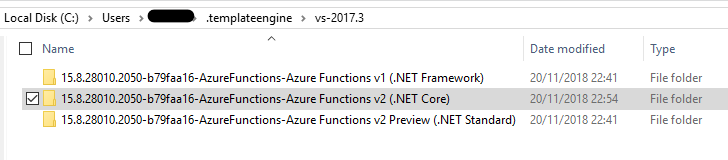

Can we perhaps update the PS script to also force this to update.
I should maybe point out that after I ran it, I didn't see any difference in VS. My PC inexplicably restarted during it all and that made a difference in VS. If the project and item templates would update, it would fix it I think.
mieliespoor
on 21 Nov 2018
@soninaren I tried to run the script, and it downloads the release cli and the AzureFunctionsTools folder looks fine.
I then start VS and open the new project dialog. Now it starts checking for updated templates, and begins to download. This takes ages. It loads the v2 preview templates quickly, and then there is a long period with no network activity and then at some point v1 comes down, and then nothing. After about 25 minutes I canceled.
Then I immediately tried to create a new project again, and now the v2 release templates was shown in the drop-down. However, I think they are actually still the v2 beta templates, because there is no cosmos trigger project, and as you can see on the screenshot, the files in the release folder are the same as in the beta folder.

If i think I'm using the release templates, but it's actually the beta templates, that would explain the issue.
I will try to let the VS template update run during the night, to see if it eventually completes.
bbramsted
on 21 Nov 2018
@mieliespoor beat me by 15 seconds....
bbramsted
on 21 Nov 2018
I should also add. I did all the updates of the packages (of the project I created in Visual Studio) and made sure that it is inline with the newest project templates, hit F5 and it was still using the old cli version as in the earlier comments. I then deleted the
AppData\LocalAzureFunctionsToolsReleases\2.0.1-beta.24 and also 2.0.1-beta.25 folders to think it will force VS to use the latest cli tooling, but it copied the 2.0.1-beta.25 folder back in a matter of milliseconds and continued to use the cli located in 2.0.1-beta.25 to execute the project.
This leads me to believe there is a bug in the VS extension because it doesn't use the latest version of the cli installed on the machine, but rather falls back onto the beta version installed.
Extension Version installed is the latest:
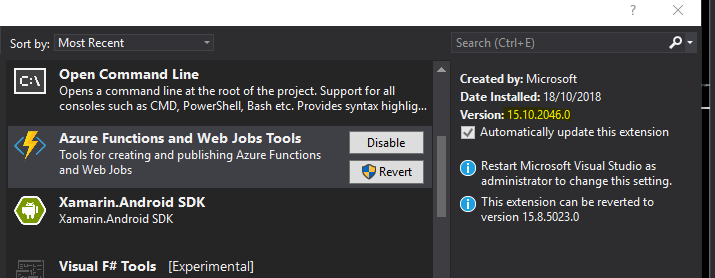
mieliespoor
on 21 Nov 2018
@mieliespoor, the script actually cleans .templateengine up towards the end. I am guessing your PC didn't get to that part. Can you may be try running it again. After running the script it should take only a couple of seconds for the "updating" prompt to finish.
Also i have added a section in the wiki to manually do what script does as well.
https://github.com/Azure/azure-functions-tooling-feed/wiki/Fixing-Azure-Function-Core-Tools-download-issues-for-Visual-Studio#manually-download-and-extract-all-the-artifacts
soninaren
on 21 Nov 2018
@soninaren yes sorry, I see now the script deletes that folder. I saw the message "Deleting template cache ...Done", but wasn't sure what was deleted. I looked at the script now and saw it will delete that folder.
This remains a mystery.
mieliespoor
on 21 Nov 2018
@mieliespoor the .templateengine is created by dotnet using the nuget packages on local machine. You can safely delete it. You wouldn't have to go through the lengthy. "Making sure your are up to date" prompt. Reopening the VS would re-generate it quickly and hopefully you should see the new templates.
@bbramsted, I have uploaded the latest copy of AzureFunctionsTools directory so that VS would not go through the network download scenario. You can get it from here. After that if your run into the same issue, re-running the script should get you to the latest state. Without have to go through that experience. Also make sure you delete .templateengine directory.
soninaren
on 21 Nov 2018
@soninaren Yes, that did the trick, after a bit of fiddling.
First I replaced the AzureFunctionTools folder with the zip file and removed the .templateengine directory. The new project dialog showed just a single project (Empty) and when I tried to use it, gave an error.
Running the script then gave an error:
https://www.nuget.org/api/v2/package/Microsoft.Azure.WebJobs.ItemTemplates/2.0.10321
System.Exception: HTTP status 404: The requested URL does not exist on the server.
I then removed the Azure workload in VS installer, cleaned the two folders, and reinstalled the Azure workload. Then I unzipped the AzureFuntionTools file, before starting VS.
Now the new project dialog again checked for updates, and got the new 2.11.3.
Thanks for the help!
bbramsted
on 21 Nov 2018
@bbramsted sorry you had to go through lot of trouble for just getting the latest core tools. We actually just updated the latest core tools and significantly reduced the download size of Core tools for VS. That should prevent the issue from happening again. For the 404 on script, we also update the source for the templates NuGet packages. Script needs a small update for that. I am going to update and fix the script in place.
soninaren
on 21 Nov 2018
Going to close this issue. Please re-open in case you experience the same issue again.
soninaren
on 21 Nov 2018
Thanks @soninaren . I downloaded the AzureFunctionsTools.zip and all started to work. Thank you everyone who assisted in resolving this!
mieliespoor
on 21 Nov 2018
Just in case anyone is still seeing this, I have updated the PowerShell Script to download and generate all VS related metadata. After running the script VS should skip Making sure all templates are up to date... prompt as it would have the latest Core tools and templates downloaded already.
https://github.com/Azure/azure-functions-tooling-feed/releases/download/2.11.1/GetCoreToolsForVS.ps1
soninaren
on 22 Nov 2018
@soninaren Ok - I'm a bit confused still.
- Is this problem happening across the board for all people?
- Is this a problem only for a small subset of people .. whom .. might have a _particular_ version of
installed?
Basically, I'm worried that I need to download a ps script and run it to fix the issue... which means only a few people might stumble on this GH thread and fix their problems while everyone else are in Tooling-Hell and just give up...
PureKrome
on 22 Nov 2018
The issue only happening for a small set of people for whom the Core tools was not downloading cleanly. We have addressed the underlying issue. So it should auto resolve for everyone. In case somebody is still having issues. The script will bring them to a clean state.
soninaren
on 22 Nov 2018
The issue only happening for a small set of people for whom the Core tools was not downloading cleanly.
Ok.
So it should auto resolve for everyone.
Ok - so how does the issue auto resolve? meaning ... is this is place the issue _should_ resolve ... and if we're still getting errors, it means it _didn't_ resolve and we need to use the script to clean up?
PureKrome
on 22 Nov 2018
If you are not able to get the latest Core Tools version through VS. For some reason you are stuck at the above screen. then you can run the script to get the latest version of Core Tools. It essentially does the same thing VS does. It looks for the latest version of Core tools and related artifacts and downloads it for you.
soninaren
on 22 Nov 2018
It should auto resolve because of the changes we put in place. We have reduced the download size and update the NuGet source for templates for better reliability. Have pushed an update with the above changes so Core tools should download more consistently for users.
In case that fails to address the issue at hand, the PowerShell script should bring you back to a clean state so that VS can start functioning properly again.
soninaren
on 22 Nov 2018
... and that screenshot above ... is the place where the Auto Update kicks off / happens?
PureKrome
on 22 Nov 2018
Yes.
soninaren
on 22 Nov 2018
 JohnReeson
on 30 Nov 2018
JohnReeson
on 30 Nov 2018
thanks @JohnReeson, have fixed the typo / error.
soninaren
on 30 Nov 2018
I encountered this issue today with VS 2017 Pro, on the latest available versions, and had to use the script to get things into a working state. So this is still not auto resolving for everyone.
 IanKemp
on 19 Jul 2019
IanKemp
on 19 Jul 2019
This is happening to one person in our (internal Microsoft) team since we upgraded to Azure Functions v3 and .Net Core 3.1. Whenever they log in to any machine with the same work account and they try to run our code from Visual Studio 2019 16.4.2:
- Tools download prompt shows up
- Code fails to run
- AppData\LocalAzureFunctionsToolsReleases\3.2.0 is completely empty
If I follow the same steps on the same machines it works fine for my own work account. So I am guessing this has something to do with their account?!
Update: He also ran the Powershell script and surprisingly that did not help. Deleting AzureFunctionsTools folder, deleting templateengine, and clearing Visual Studio 2019 settings also does not help.
So, I doubt this problem is resolved and this bug should not be closed.
 zmarty
on 20 Dec 2019
zmarty
on 20 Dec 2019
Reactivating while we work with @zmarty to get to the bottom of what is going on.
 paulbatum
on 21 Dec 2019
paulbatum
on 21 Dec 2019
From 16.4 VS switched to using x64 version of cli. However the x64 version of CLI being used is not minified like x86. The core tools x64 zip file is 140 mb (x64) vs 50 mb (x86) and the same extracted is 350 mb (x64) vs 112 mb (x86). This would be the likely reason for issues.
In the meantime the workaround for this is tedious but should unblock you. Here are the work around steps.
- delete %userprofile%.templateengine
- delete contents of %userprofile%\AppData\LocalAzureFunctionsTools
- download and extract the following zip file into %userprofile%\AppData\LocalAzureFunctionsTools
- The manifest file in the zip points to a different user account. You would have to replace it with the corresponding path.
soninaren
on 21 Dec 2019
@zmarty, The Script does not work because it does not take into account v3 core-tools which was released very recently.
soninaren
on 21 Dec 2019
This issue has been automatically marked as stale because it has been marked as requiring author feedback but has not had any activity for 4 days. It will be closed if no further activity occurs within 3 days of this comment.
![msftbot[bot] picture](https://avatars.githubusercontent.com/in/26612?v=4&s=40) msftbot[bot]
on 3 Jan 2020
msftbot[bot]
on 3 Jan 2020
I think the problem is not yet fixed. I installed the latest azure-functions-core-tools as described here with choco. Since that moment every time I try to locally debug a azure function locally Visual Studio (16.4.4) tries to "download the azure functions cli tools". I unistalled the azure-functions-core-tools and deleted the above mentioned folders. After restarting Visual Studio and starting the function again, it took a while and the following folders are re-created:
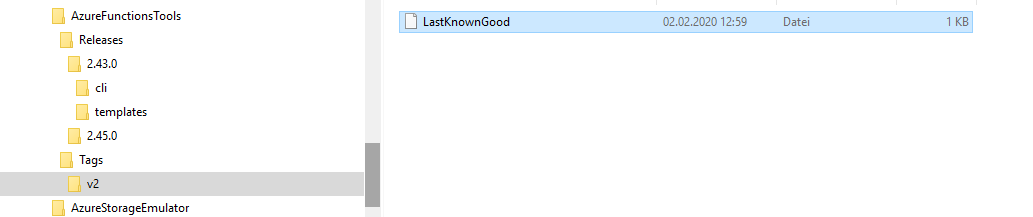
Now every time starting the function from Visual Studio I have to wait again.
 RufusJWB
on 2 Feb 2020
RufusJWB
on 2 Feb 2020
@fabiocav I think, you should reopen this ticket :-(
RufusJWB
on 2 Feb 2020
@RufusJWB I don't think choco install messed up your VS, since VS downloads its own copy of core tools. Re-opening the issue to find the root cause of the issue.
soninaren
on 3 Feb 2020
I double checked this morning in the office again and now I do have both folders 2.43.0 and 2.45.0 with content
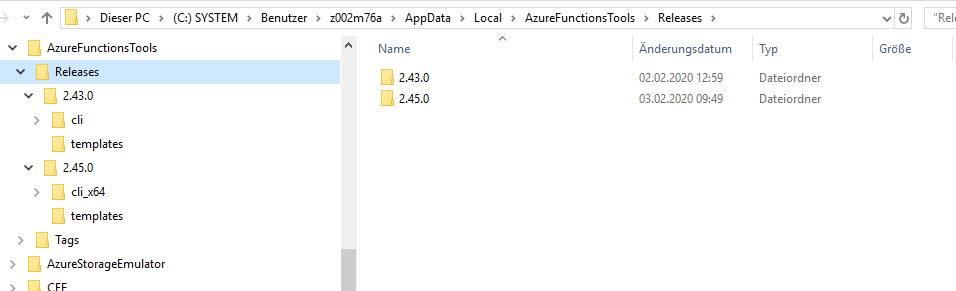
After the initial download VS doesn't repeat the download when debugging the function again. The only difference between yesterday and today is, that I'm today connected to the Active Directory and yesterday not. Maybe it has something to do with access rights?
RufusJWB
on 3 Feb 2020
Even the upgrade to .net core 3.1 did work.
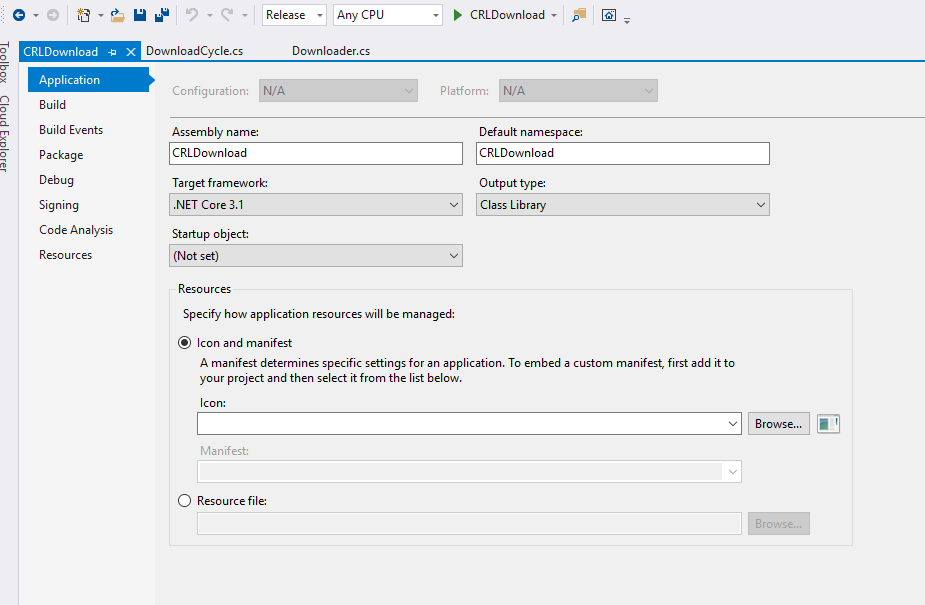 Totally strange.
RufusJWB
on 3 Feb 2020
VS only downloads the CRI once on startup. A new version of core tools was released on 1/31 which prompted the download from vs. When upgrading to NetCoreApp3,1, make sure you change the AzureFunctionsVersion property in .csproj file to v3. Going to close the issue since the download was triggered by CLI release and download was completed as expected. Let me know if the issue is not fixed, we can re-open the issue to investigate.
soninaren
on 3 Feb 2020
@soninaren Please reopen this issue. I'm afraid this is not a random problem.
I initially had this problem downloading v3.1.0 (see https://github.com/Azure/azure-functions-host/issues/5404), and now again with v2.45.0. Strangely, Visual Studio did download v.3.3.0 successfully.
Moreover, this is not just an issue with a single machine. None of my teammates (4 people) are able to download it either. The v2.45.0 folder is created but remains empty.
 f2bo
on 3 Feb 2020
f2bo
on 3 Feb 2020
@f2bo what version of VS are you using?
soninaren
on 3 Feb 2020
I have both VS2019 and VS2017.
f2bo
on 3 Feb 2020
Can you provide a exact version? From the help -> about
soninaren
on 3 Feb 2020
VS 2019 Enterprise - v16.4.3
VS 2017 Enterprise - v15.9.15
f2bo
on 3 Feb 2020
Something else that might be worth mentioning. My AzureFunctionsTools folder has both a feed.json and a feed-v3.json file. I'm not sure how these files are used so this may be expected, but the feed.json file does NOT have a releases entry for v2.45.0 and the "v2" tag points to 2.43.0, which Visual Studio did download.
f2bo
on 3 Feb 2020
@f2bo Can you update to VS 2019 to version v16.4.4? There were some fixes made in this specific area. We are also going to publish other updates before the end of the week that should address the download issues.
soninaren
on 4 Feb 2020
I'm seeing this issue on vs2019 update 5 preview 2
 jabbera
on 4 Feb 2020
jabbera
on 4 Feb 2020
Is there a timeout for how long the download is allowed to take in VS? For some reason the place you guys are hosting this has really bad download speed.
https://functionscdn.azureedge.net/public/3.0.2106/Azure.Functions.Cli.win-x64.3.0.2106.zip
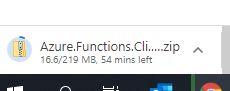

jabbera
on 4 Feb 2020
Looks like it might be our edge. Downloads from home (12 miles away) are fine. Either way the failure mode sucks here. It tries to download every time I start debugging and takes 2+ minutes to try.
jabbera
on 4 Feb 2020
@soninaren We managed to download the v2.45.0 tools eventually, but it's unclear whether the Visual Studio update was the solution.
In a couple of machines, the tools downloaded successfully after installing v16.4.4 and running a solution that contains an Azure Functions project,
However, in one case, a coworker already had v16.4.4 yesterday and had to install the tools manually because they failed to download automatically. Even then, she was still seeing long delays every time she pressed F5 while it seemed that VS attempted to download the tools again until, unexplainably, it started working correctly.
In another case, following the installation of the VS update, the tools wouldn't download when creating a file | new project, but they did when running a solution that already included a Functions project.
f2bo
on 4 Feb 2020
This should be fixed now, We have published an update to significantly reduce the on start up.
Create the following folder structure to reduce the download payload further.
%userprofile%\AppData\Local\AzureFunctionsTools\Releases\2.33.0\<emptyfolder>%userprofile%\AppData\Local\AzureFunctionsTools\Releases\2.36.0\<emptyfolder>%userprofile%\AppData\Local\AzureFunctionsTools\Releases\2.37.0\<emptyfolder>
soninaren
on 7 Feb 2020
Related issues
 svickers
·
3Comments
svickers
·
3Comments
 krillehbg
·
3Comments
krillehbg
·
3Comments
 JasonBSteele
·
3Comments
JasonBSteele
·
3Comments
 mathewc
·
3Comments
mathewc
·
3Comments
 silencev
·
3Comments
silencev
·
3Comments
Most helpful comment
@mieliespoor and @bbramsted I have put together an automated script to download the place the relevant artifacts in the correct location. Please find the relevant instructions in this wiki page.