Azure-docs: Update-AzDataLakeGen2AclRecursive - Problem with “rwx” permission - Mask is not set automatically and user is unable to edit the file
Hi,
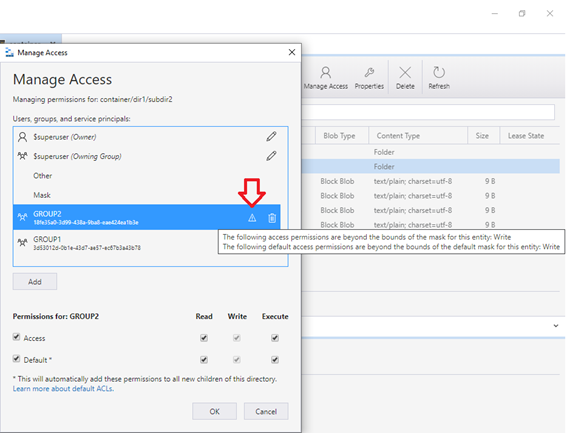
When setting the “rwx” permission for group 2, the message "The following access permissions are bounds of the mask for this entity: Write" is displayed. What does this mean, the mask must be set manually?
`
# 1. Get permissions
$acl = (Get-AzDataLakeGen2Item -Context $Ctx -FileSystem $FileSystemName -Path $Path).ACL

# 2. Set permissions
## a. Set Access
$acl = Set-AzDataLakeGen2ItemAclObject -AccessControlType group -EntityId $GroupId -Permission $DirectoryACL -InputObject $acl

## b. Set Default Access
$acl = Set-AzDataLakeGen2ItemAclObject -AccessControlType group -EntityId $GroupId -Permission $DirectoryACL -InputObject $acl -DefaultScope

# 3. Update permissions
Update-AzDataLakeGen2AclRecursive -Context $Ctx -FileSystem $FileSystemName -Path $Path -Acl $acl
`
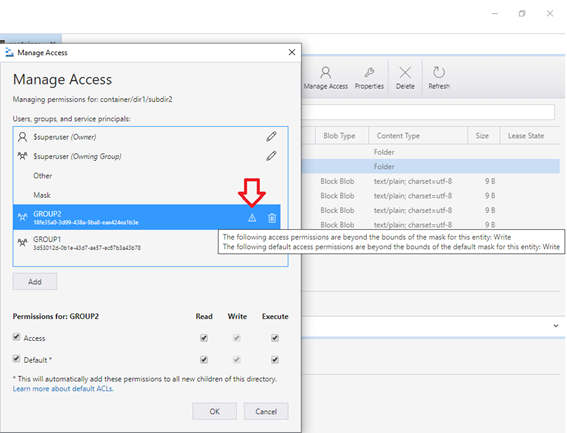
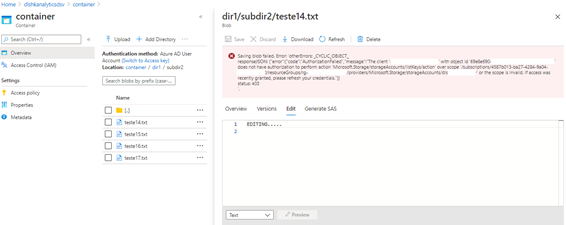
When "rwx" is not set for the mask, it is not possible to change the file:
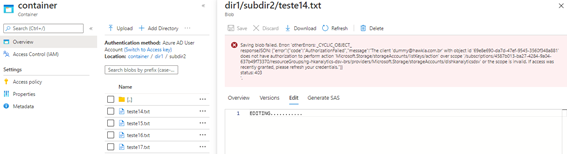
Saving blob failed. Error: 'otherErrors: _CYCLIC_OBJECT_
responseJSON: {"error":{"code":"AuthorizationFailed","message":"The client '[email protected]' with object id '69e8e690-xxxxxxxxxxxxxxxx' does not have authorization to perform action 'Microsoft.Storage/storageAccounts/listKeys/action' over scope '/subscriptions/4587b013-ba27-xxxxxxxxxxx/resourceGroups/rg-xxx/providers/Microsoft.Storage/storageAccounts/dlsxxx' or the scope is invalid. If access was recently granted, please refresh your credentials."}}
status: 403
Below is the step by step, can you check if something is missing, please?
1. Create files and directories
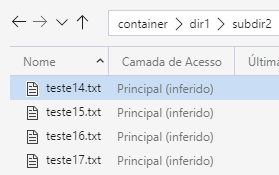
2. Check current permission
No permissions have been set.
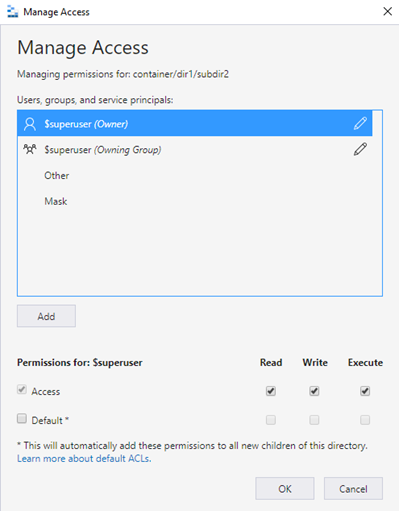
3. Create code to set permissions in the file system, parent directory and directory
`
Set variables
$ResourceGroupName = "rg-xxx"
$DataLakeName = "dlsxxx"
$FileSystemName = "container"
$DirectoryName = "dir1/subdir2"
$FileSystemACL = "r-x"
Get Data Lake context
$dataLakeAccount = Get-AzStorageAccount -ResourceGroupName $ResourceGroupName -Name $DataLakeName
$Ctx = $dataLakeAccount.Context
Create function to set ACL on the file system
function Set-AclFileSystemDataLake {
param (
[Parameter(Mandatory = $true)]
[Microsoft.WindowsAzure.Commands.Common.Storage.LazyAzureStorageContext]$Ctx,
    [Parameter(Mandatory = $true)]
    [string]$FileSystemName,

    [Parameter(Mandatory = $true)]
    [string]$GroupId,

    [Parameter(Mandatory = $true)]
    [string]$FileSystemACL
)

# Get the origin ACL
$acl = (Get-AzDataLakeGen2Item -Context $Ctx -FileSystem $FileSystemName).ACL

# Update permission of a new ACL entry (if ACL entry with same AccessControlType/EntityId/DefaultScope not exist, will add a new ACL entry, else update permission of existing ACL entry)
$acl = Set-AzDataLakeGen2ItemAclObject -AccessControlType group -EntityId $GroupId -Permission $FileSystemACL -InputObject $acl

# Set the new acl to file system
Update-AzDataLakeGen2Item -Context $Ctx -FileSystem $FileSystemName -Acl $acl > $null
}
Create function to set ACL on parent directories
function Set-AclParentDirectoryDataLake {
param (
[Parameter(Mandatory = $true)]
[Microsoft.WindowsAzure.Commands.Common.Storage.LazyAzureStorageContext]$Ctx,
    [Parameter(Mandatory = $true)]
    [string]$FileSystemName,

    [Parameter(Mandatory = $true)]
    [string]$Path,

    [Parameter(Mandatory = $true)]
    [string]$GroupId

)

$parent = Split-Path $Path

if ($parent) {

    Write-Output "Set new acl to the parent directory: $parent`n"

    # Get and set permissions
    $aclParent = (Get-AzDataLakeGen2Item -Context $Ctx -FileSystem $FileSystemName -Path $parent).ACL
    $aclParent = Set-AzDataLakeGen2ItemAclObject -AccessControlType group -EntityId $GroupId -Permission 'r-x' -InputObject $aclParent

    # Set the new acl to the parent directory
    Update-AzDataLakeGen2Item -Context $Ctx -FileSystem $FileSystemName -Path $parent -Acl $aclParent > $null

    # Search for next parent
    Set-AclParentDirectoryDataLake -ctx $Ctx -fileSystemName $FileSystemName -path $parent -GroupId $GroupId

}
}
Create function to set ACL on the directory and its files
function Set-AclDirectoryDataLake {
param (
[Parameter(Mandatory = $true)]
[Microsoft.WindowsAzure.Commands.Common.Storage.LazyAzureStorageContext]$Ctx,
    [Parameter(Mandatory = $true)]
    [string]$FileSystemName,

    [Parameter(Mandatory = $true)]
    [string]$Path,

    [Parameter(Mandatory = $true)]
    [string]$GroupId,

    [Parameter(Mandatory = $true)]
    [string]$DirectoryACL
)

# 1. Get permissions
$acl = (Get-AzDataLakeGen2Item -Context $Ctx -FileSystem $FileSystemName -Path $Path).ACL

# 2. Set permissions
## a. Set Access
$acl = Set-AzDataLakeGen2ItemAclObject -AccessControlType group -EntityId $GroupId -Permission $DirectoryACL -InputObject $acl

## b. Set Default Access
$acl = Set-AzDataLakeGen2ItemAclObject -AccessControlType group -EntityId $GroupId -Permission $DirectoryACL -InputObject $acl -DefaultScope

# 3. Update permissions
Update-AzDataLakeGen2AclRecursive -Context $Ctx -FileSystem $FileSystemName -Path $Path -Acl $acl
}
`
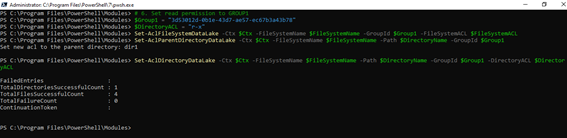
4. Set read permission to GROUP1
Permission has been successfully set
`
$Group1 = "3d53012d-0b1e-43d7-ae57-ec67b3a43b78"
$DirectoryACL = "r-x"
Set-AclFileSystemDataLake -Ctx $Ctx -FileSystemName $FileSystemName -GroupId $Group1 -FileSystemACL $FileSystemACL
Set-AclParentDirectoryDataLake -Ctx $Ctx -FileSystemName $FileSystemName -Path $DirectoryName -GroupId $Group1
Set-AclDirectoryDataLake -Ctx $Ctx -FileSystemName $FileSystemName -Path $DirectoryName -GroupId $Group1 -DirectoryACL $DirectoryACL
`
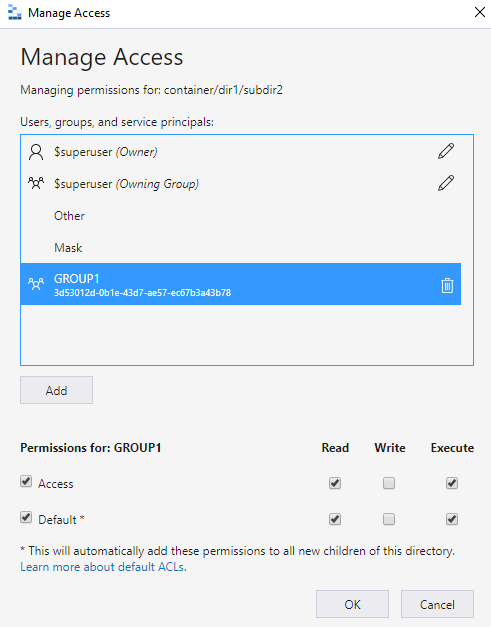
- Group 1 - Ok
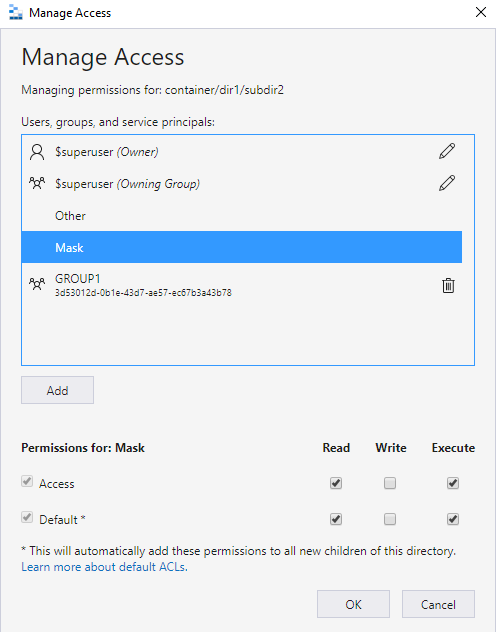
- Mask - Ok
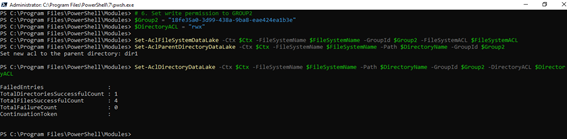
5. Set write permission to GROUP2
`
$Group2 = "18fe35a0-3d99-438a-9ba8-eae424ea1b3e"
$DirectoryACL = "rwx"
Set-AclFileSystemDataLake -Ctx $Ctx -FileSystemName $FileSystemName -GroupId $Group2 -FileSystemACL $FileSystemACL
Set-AclParentDirectoryDataLake -Ctx $Ctx -FileSystemName $FileSystemName -Path $DirectoryName -GroupId $Group2
Set-AclDirectoryDataLake -Ctx $Ctx -FileSystemName $FileSystemName -Path $DirectoryName -GroupId $Group2 -DirectoryACL $DirectoryACL
`
- Group 2 - Warning
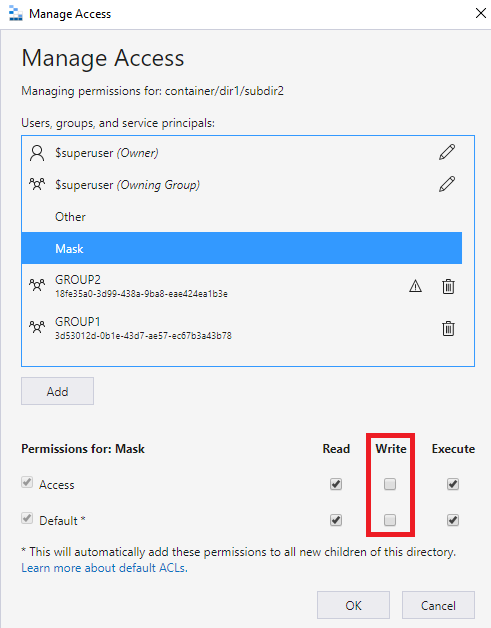
- Mask - No write permissions
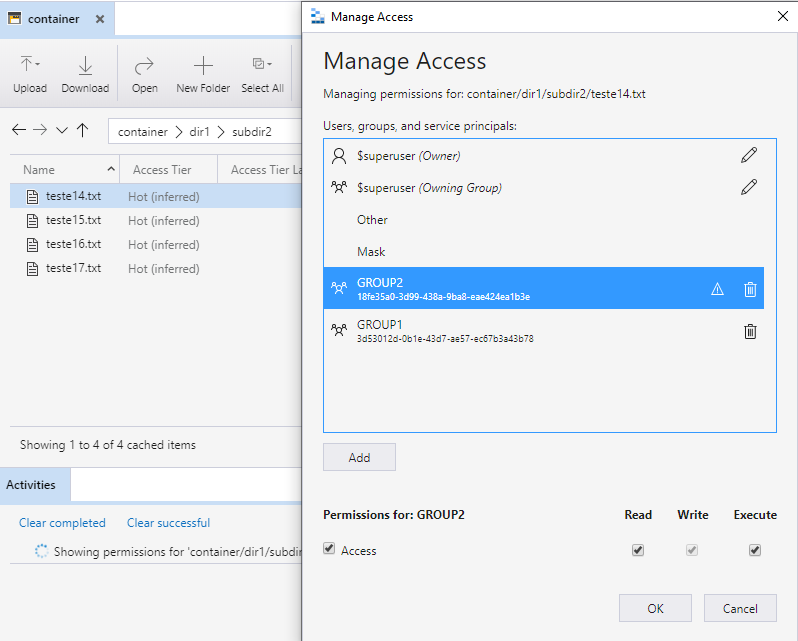
- File - Warning
6. Edit file
Unable to edit the file.
7. Set mask manually
- Directory
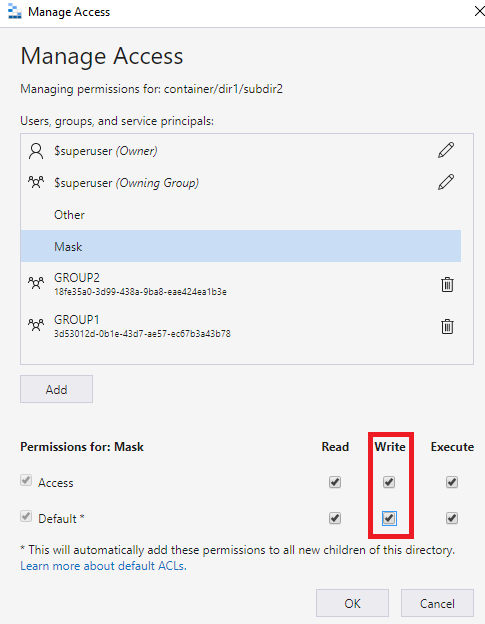
- File
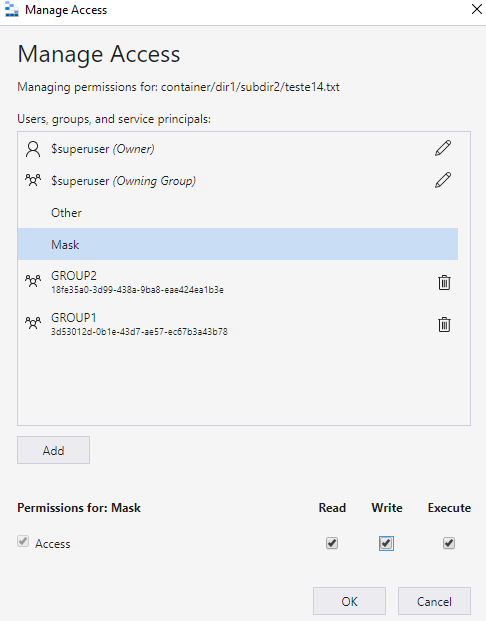
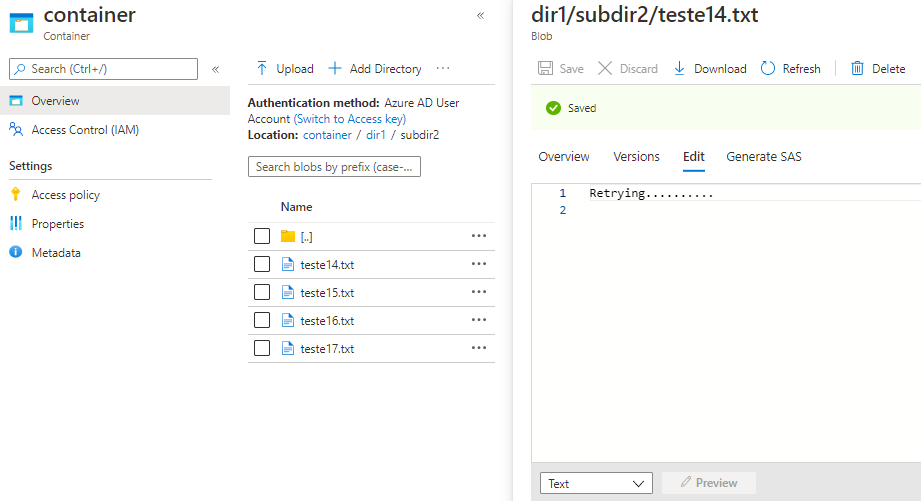
8. Edit file again
After manually changing the directory and file mask, it was possible to edit it.
Best regards,
Cristina
Document Details
⚠ Do not edit this section. It is required for docs.microsoft.com ➟ GitHub issue linking.
- ID: a3aa443a-b30f-2914-5cb8-b032be075c07
- Version Independent ID: ece80543-b5c2-7415-776c-06cdf55d2006
- Content: Set ACLs recursively for Azure Data Lake Storage Gen2
- Content Source: articles/storage/blobs/recursive-access-control-lists.md
- Service: storage
- Sub-service: data-lake-storage-gen2
- GitHub Login: @normesta
- Microsoft Alias: normesta
 crisansou
All 5 comments
@crisansou Thanks for the question! We are investigating and will update you shortly.
 CHEEKATLAPRADEEP-MSFT
on 16 Sep 2020
CHEEKATLAPRADEEP-MSFT
on 16 Sep 2020
Hi @crisansou - thx for reporting! There's a lot of investigation around these issues happening now. I'll post back any doc updates. Thank you!
 normesta
on 23 Sep 2020
normesta
on 23 Sep 2020
Closing issue for now as after some investigation, it appears not to be related to the recursive ACL feature itself. The issue is being investigated and tracked with Azure portal team. Thank you for raising @crisansou!
normesta
on 8 Oct 2020
please-close
normesta
on 8 Oct 2020
Closing issue for now as after some investigation, it appears not to be related to the recursive ACL feature itself. The issue is being investigated and tracked with Azure portal team. Thank you for raising @crisansou!
This isn't really helfpul! Do you have a link to the issue being investigated by the Azure portal team??
 bjh1977
on 15 Oct 2020
bjh1977
on 15 Oct 2020
Related issues
 jharbieh
·
3Comments
jharbieh
·
3Comments
 spottedmahn
·
3Comments
spottedmahn
·
3Comments
 jamesgallagher-ie
·
3Comments
jamesgallagher-ie
·
3Comments
 ianpowell2017
·
3Comments
ianpowell2017
·
3Comments
 JeffLoo-ong
·
3Comments
JeffLoo-ong
·
3Comments