Azure-docs: You do not have permission to view this directory or page
When I attempt to browse my uploaded app after following the steps above, the page has the text "You do not have permission to view this directory or page" on it. Please advise.
Document Details
⚠ Do not edit this section. It is required for docs.microsoft.com ➟ GitHub issue linking.
- ID: 4b0165d7-6462-842c-76ec-1a1f344fa51a
- Version Independent ID: 3b2c77ed-d9eb-cf20-0ace-908b88927e54
- Content: Create Node.js web app - Azure App Service
- Content Source: articles/app-service/app-service-web-get-started-nodejs.md
- Service: app-service-web
- GitHub Login: @cephalin
- Microsoft Alias: cephalin
 mruptown
All 20 comments
@mruptown , Thanks for reaching out to us. We will investigate it further and update you shortly.
 MonikaReddy-MSFT
on 15 Nov 2019
MonikaReddy-MSFT
on 15 Nov 2019
@mruptown, are you deploying to Linux or Windows App Service?
 kyleburnsdev
on 18 Nov 2019
kyleburnsdev
on 18 Nov 2019
Hi Kyle,
Whatever the default is, as I'm not specifying it in my CLI command.
Ultimately, I think you're going to run into a heckuva lot of challenges
with this page, because you're asking the reader to generate the app
natively (thus exposing you to a myriad of local configuration issues),
then upload it manually. For example, I'm generating the app on MacOS
locally, which I doubt has any supported runtime on Azure.
Very difficult to bridge the local environment to managed environment
bridge when deploying software. I'd recommend having the reader use /
leverage Docker both locally and for the deploy. This ensures the behavior
is consistent regardless of deployed environment.
Cheers!
On Mon, Nov 18, 2019 at 2:30 PM Kyle Burns notifications@github.com wrote:
@mruptown https://github.com/mruptown, are you deploying to Linux or
Windows App Service?—
You are receiving this because you were mentioned.
Reply to this email directly, view it on GitHub
https://github.com/MicrosoftDocs/azure-docs/issues/42861?email_source=notifications&email_token=AFPGWI3R2YFSON5GV6O6PMLQULUMRA5CNFSM4JNRSZVKYY3PNVWWK3TUL52HS4DFVREXG43VMVBW63LNMVXHJKTDN5WW2ZLOORPWSZGOEELUAAI#issuecomment-555171841,
or unsubscribe
https://github.com/notifications/unsubscribe-auth/AFPGWI5F3NX37SGTFPWXAYTQULUMRANCNFSM4JNRSZVA
.
mruptown
on 18 Nov 2019
@kraigb Can you take a look at this one?
 cephalin
on 19 Nov 2019
cephalin
on 19 Nov 2019
@mruptown - Assigning it to Doc Author to further assist on this issue.
MonikaReddy-MSFT
on 19 Nov 2019
This sample does not run on Windows App Service. Even I set the right runtime for node by adding WEBSITE_NODE_DEFAULT_VERSION. After the restart, of the web app, the page still displays You do not have permission to view this directory or page.
 VelinGeorgiev
on 24 Nov 2019
VelinGeorgiev
on 24 Nov 2019
I had issues running on Windows App Service as well. No issues with Linux. I went with LTS Node 10
 CoderGregH
on 19 Jan 2020
CoderGregH
on 19 Jan 2020
Having same issue when deploying in windows web apps.
 v-tawe
on 12 Feb 2020
v-tawe
on 12 Feb 2020
I had the same issue, the following approach solved it for me:
Go to https://portal.azure.com > create new resource > web app > make sure to select latest Node version
Add the following web.config file in your node project folder:
(You might have to change "app.js" to "index.js" or whatever your filename is)
https://pastebin.com/6cNS5zgHAlso,make sure to use port 5000 in your app.js file.
In Visual Code, deploy your app to the web app you've created in step 1
 ujlm
on 25 Feb 2020
ujlm
on 25 Feb 2020
@ujlm I've been trying to reproduce your solution here to update the documentation but am not having any success.
Can you confirm that you're still using App Service for Windows? I ask because when changing the Node.js version via the portal to, say, Node 12 LTS (which would be the latest version in the list), the portal automatically switches to Linux. In that case, the web.config file isn't even used.
Also, can you explain why the port needs to be set to 5000?
 kraigb
on 28 Feb 2020
kraigb
on 28 Feb 2020
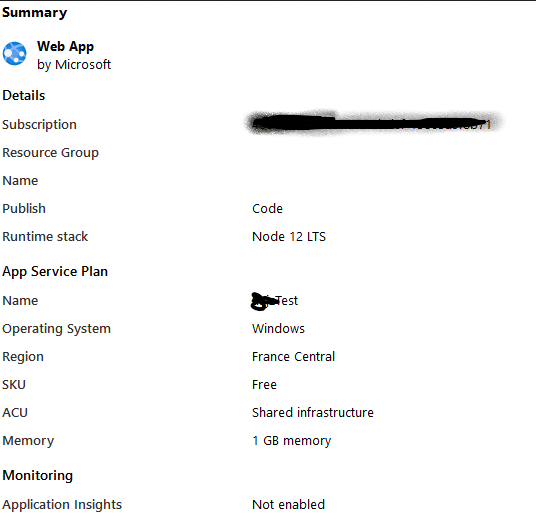
For me, it works by running Node 12 LTS for Windows.
It seems like the port doesn't need to be 5000 tho, my bad.
ujlm
on 1 Mar 2020
I had exactly the same issue when choosing windows. ("You do not have permission to view this directory or page")
However when choosing Linux it worked fine.
 tarvoe
on 3 Mar 2020
tarvoe
on 3 Mar 2020
After investigation, the simplest solution on Windows is as follows:
Add a web.config file, such as https://github.com/Azure-Samples/nodejs-docs-hello-world/blob/master/web.config, to your project. (This file references index.js; if your main file is different, change accordingly.) The one that @ujlm provided, https://pastebin.com/6cNS5zgH, has the file listed as app.js, which is appropriate for Express apps.
Through the portal or VS Code, add a setting named WEBSITE_NODE_DEFAULT_VERSION with a value of an appropriate Node.js version. I tested with the value "10.15.2".
Restart the app service.
Note that if you create a web app through the portal, you can specify the Node.js version initially and Azure automatically creates a web.config file. To change the Node.js version later, though, you must use WEBSITE_NODE_DEFAULT_VERSION.
If the web app is created via the VS Code publish path doesn't have you choose a version directly on Windows, which is why you must create the setting directly to set the version. The VS Code publish also doesn't create a web.config, which is why you must supply one manually.
I'll be making some edits to the quickstart, primarily to use the https://github.com/Azure-Samples/nodejs-docs-hello-world sample directly instead of Express, because otherwise adding instructions to create the web.config file becomes too overbearing for the context of a quickstart.
kraigb
on 4 Mar 2020
Correction: the portal doesn't create a web.config directly, but publishing via git push does. But that won't affect the article.
In the meantime, know that this particular quickstart is eventually going to be changed to be oriented to using the Azure CLI. The VS Code tutorial on https://docs.microsoft.com/en-us/azure/javascript/tutorial-vscode-azure-app-service-node-01 will be updated for Windows.
kraigb
on 4 Mar 2020
Hi there!
I've done all these and now the app service hangs when request and I get an 500 eror. I see that the app is starting, buy i'm getting no anwser from it
 itesainnovation
on 4 Mar 2020
itesainnovation
on 4 Mar 2020
@itesainnovation Double-check that your web.config lists the filename for your app; if there's a mismatch, then you'll see the 500 error.
kraigb
on 4 Mar 2020
@v-albemi why would you close the issue without updating the official docs - https://github.com/Microsoft/azure-docs/blob/master/articles/app-service/app-service-web-get-started-nodejs.md or I am missing something?
Having that gap in the official docs will cause similar issues to be raised over and over. The issue is regarding missing content in the doc :roll_eyes:
VelinGeorgiev
on 5 Mar 2020
It's out practice to close the issue when the associated PR is merged into the master branch of the repo, because the Azure docs get published twice a day. Even so, the Markdown file you link to is the one I just updated, which includes the instructions to set the Node.js version through the application setting.
Is there something still missing from the doc update? Please note that for simplicity we changed this quickstart to use a sample repo instead of an Express app, because the sample includes a web.config file already.
The broader solution for something like an Express app that doesn't include web.config to begin with is to set VS Code up to use git deploy, which is beyond the scope of this quickstart. To cover that scenario, I've updated the multi-step tutorial for Node.js+App Service that's on the JS Dev Center. That PR isn't merged yet but should be later today; watch for changes in https://github.com/MicrosoftDocs/azure-dev-docs/blob/master/javascript/tutorial-vscode-azure-app-service-node-03.md, which will cover both Windows and Linux together with git deploy.
kraigb
on 5 Mar 2020
https://docs.microsoft.com/en-us/azure/javascript/tutorial-vscode-azure-app-service-node-03 is live now, with the full story for deploying to App Service from VS Code using git deploy, which creates web.config for you. It's necessary in this case to create a couple of app settings prior to deployment.
https://docs.microsoft.com/en-us/azure/app-service/app-service-web-get-started-nodejs is also up to date now, and includes the required setting of the Node.js version. In this simpler case, VS Code is using zip deploy and the sample already includes a web.config.
kraigb
on 6 Mar 2020
I was on a mac and was encountering this issue. I used nvm to use 12.0.0 which was the latest LTS version on azure and added web.config file and I am and running.
 Kaleidoscope-io
on 13 May 2020
Kaleidoscope-io
on 13 May 2020
Related issues
 jebeld17
·
3Comments
jebeld17
·
3Comments
 spottedmahn
·
3Comments
spottedmahn
·
3Comments
 behnam89
·
3Comments
behnam89
·
3Comments
 JamesDLD
·
3Comments
JamesDLD
·
3Comments
 varma31
·
3Comments
varma31
·
3Comments
Most helpful comment
This sample does not run on Windows App Service. Even I set the right runtime for node by adding WEBSITE_NODE_DEFAULT_VERSION. After the restart, of the web app, the page still displays
You do not have permission to view this directory or page.