Azure-docs: Completelly missing instructions for installation of Azure Storage Explorer on Linux
I was able to put together some working instructions for Azure Storage Explorer running on Ubuntu 18.04. All the data is below.
Please feel free to review it, correct it (if necessary) and use it. Thank you!
If on a cloud Ubuntu 18.04 VM, install a desktop environment and xrdp to connect to it. If you are on a on-premises machine, you can skip the xrdp part and go directly to the Firewall rules step.
However, please be aware I have no idea if the same instructions will work with other Desktop environments, as I only tested with MATE-Desktop. I see no reason not to, but I had no chance to test this option also.
Prerequisites
sudo apt update
sudo apt install -y ubuntu-mate-desktop
sudo reboot
After reboot:
sudo apt install -y xrdp
sudo sed -e 's/^new_cursors=true/new_cursors=false/g' -i /etc/xrdp/xrdp.ini
sudo systemctl enable xrdp
sudo systemctl restart xrdp
Create ~/.xsession and ~/.xsessionrc
echo "mate-session" > ~/.xsession
XDG_DATA_DIRS=/usr/share/mate:/usr/share/mate:/usr/local/share
XDG_DATA_DIRS=${XDG_DATA_DIRS}:/usr/share:/var/lib/snapd/desktop
cat <<EOF > ~/.xsessionrc
export XDG_SESSION_DESKTOP=mate
export XDG_DATA_DIRS=${XDG_DATA_DIRS}
export XDG_CONFIG_DIRS=/etc/xdg/xdg-mate:/etc/xdg
EOF
Add a NSG rule in Azure portal for the 3389 port and allow the same port in ufw:

And, in the VM terminal:
sudo ufw allow 3389/tcp
Install .NET
# Install .NET prerequisites
sudo  apt install -y  liblttng-ust0 libcurl4 libssl1.0.0 libkrb5-3 zlib1g libicu60

# Set the repositories for .NET packages
curl https://packages.microsoft.com/keys/microsoft.asc  | gpg --dearmor > microsoft.gpg
sudo mv microsoft.gpg /etc/apt/trusted.gpg.d/microsoft.gpg
sudo sh -c 'echo "deb [arch=amd64] https://packages.microsoft.com/repos/microsoft-ubuntu-bionic-prod bionic main" > /etc/apt/sources.list.d/dotnetdev.list'

# Do the install
sudo apt-get install apt-transport-https
sudo apt-get update
sudo apt-get install dotnet-sdk-2.2
Check installed version with:
dotnet --version
Azure Storage Explorer Installation
Install required dependency for Azure Storage Explorer:
sudo apt-get install -y libgconf-2-4 libgnome-keyring-common libgnome-keyring-dev libgconf-2-4
libcanberra-gtk0 libgnome-keyring0
Connect to the VM via RDP with your default username (must be configured with password).
Open a browser and download Azure Storage Explorer binaries from:
https://azure.microsoft.com/en-au/features/storage-explorer/
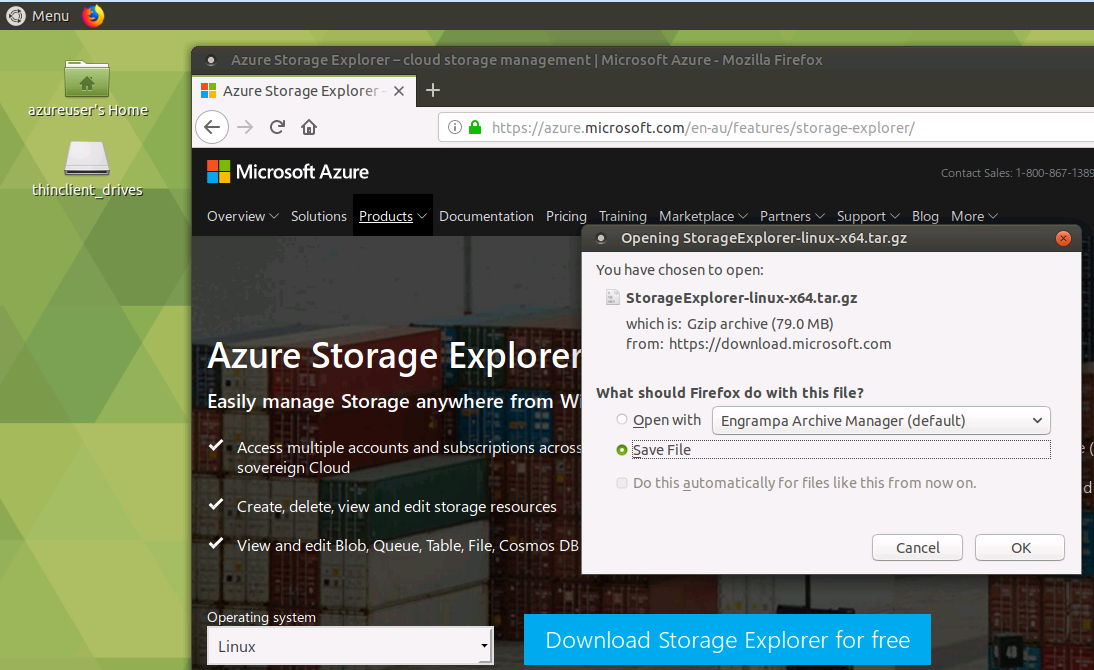
Be sure to select Linux from the drop-down.
The file will be saved by default in your /home/username/Downloads directory, where "username" will correspond to your actual username.

Go back to the SSH terminal and paste the following (as a block of text):
cd ~/Downloads && \
sudo mkdir -p /opt/StorageExplorer-linux-x64 && \
sudo tar -C $_ -zxvf StorageExplorer-linux-x64.tar.gz && \
sudo ln -s /opt/StorageExplorer-linux-x64/StorageExplorer /usr/bin/StorageExplorer
Create Storage Explorer Ubunutu/KDE Desktop Resource (paste again as a block of text):
mkdir -p ~/.local/share/applications && \
cat > ~/.local/share/applications/StorageExplorer.desktop <<EOL
[Desktop Entry]
Encoding=UTF-8
Name=Storage Explorer
Exec=StorageExplorer
Icon=/opt/StorageExplorer-linux-x64/resources/app/out/app/icon.png
Terminal=false
Type=Application
Categories=Development;
EOL
Reboot the VM:
sudo reboot
Back to the xrdp session, start the Azure Storage Explorer.
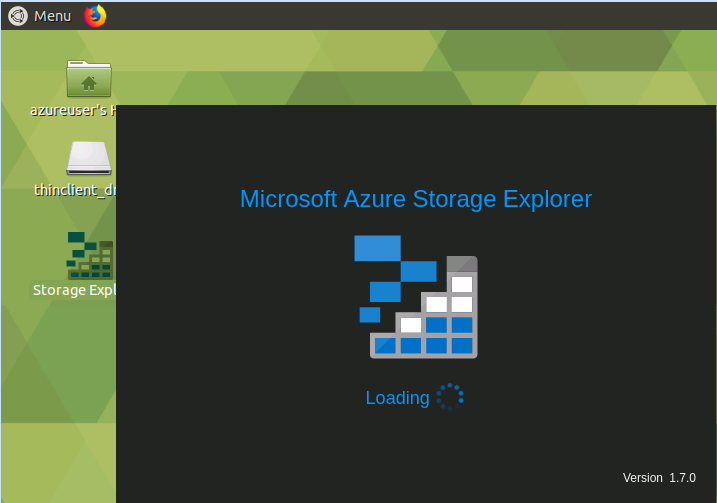
If the Azure Storage Explorer doesn't show up on Desktop, you'll find the startup link under Menu -> Programming. You can further create a Desktop shortcut.

NOTES:
If prompted, anywhere during the above steps to create a keyring password, make sure you use one that you'll remember (you can use the same password as for the username you are logged in with, eventually).

Open Azure Storage Explorer and connect with your account.
Patching Storage Explorer for newer versions of .NET Core
If you have a version of .NET Core greater than 2.0 installed and are running Storage Explorer version 1.7.0 or older, you will most likely need to patch Storage Explorer by completing the following steps:
Download version 1.5.43 of StreamJsonRpc from https://www.nuget.org/packages/StreamJsonRpc/1.5.43 via browser on the Linux machine. Look for the "Download package" link on the right hand side of the page.
After downloading the package, change its file extension from .nupkg to .zip and unzip it:
cd ~/Downloads && \
mv streamjsonrpc.1.5.43.nupkg streamjsonrpc.1.5.43.zip
unzip streamjsonrpc.1.5.43.zip
Copy StreamJsonRpc.dll to the following locations inside the Storage Explorer folder:
cd lib/netstandard1.1/
sudo cp StreamJsonRpc.dll  /opt/StorageExplorer-linux-x64/resources/app/ServiceHub/Services/Microsoft.Developer.IdentityService/
sudo cp StreamJsonRpc.dll  /opt/StorageExplorer-linux-x64/resources/app/ServiceHub/Hosts/ServiceHub.Host.Core.CLR.x64/
Reboot the VM before trying to start Azure Storage explorer again.
This worked for me and I was able to use Azure Storage Explorer without any kind of faults.
Document Details
⚠ Do not edit this section. It is required for docs.microsoft.com ➟ GitHub issue linking.
- ID: 06b6cadc-f93d-75de-7611-b1e3d80917e2
- Version Independent ID: bcf194d8-3442-b284-576f-407af9ca1067
- Content: Azure Storage Explorer troubleshooting guide
- Content Source: articles/storage/common/storage-explorer-troubleshooting.md
- Service: virtual-machines
- GitHub Login: @Deland-Han
- Microsoft Alias: delhan
 marinnedea
All 5 comments
Thanks for the feedback! We are currently investigating and will update you shortly.
 mimckitt
on 25 Apr 2019
mimckitt
on 25 Apr 2019
@marinnedea I will assign this to the content author to review and see about adding more information to the doc
mimckitt
on 25 Apr 2019
Adding @Adam-Smith-MSFT who works with storage explorer as well
mimckitt
on 18 Sep 2019
First off, thank you @marinnedea for such an extensive guide.
--
I followed marinnedea's set-up as I am unable to use snap to install Azure Storage Explorer.
(If you're interested in knowing why did snap not help me, see https://forum.snapcraft.io/t/11209 for details; in my case, I had issue with the home directory being different than what snap expected.)
I have a normal machine, using Ubuntu 18.04, similar to marinnedea.
The only thing missing for me was:
Azure Storage Explorer Installation -> Go back to the SSH terminal and paste the following (as a block of text)
I also had to do:
sudo ln -s /opt/StorageExplorer-linux-x64/StorageExplorerExe /usr/bin/StorageExplorerExe
 alexmalus
on 4 Sep 2020
alexmalus
on 4 Sep 2020
We are currently cleaning up old issues and closing out items that are greater than 90 days old. If an issue is still present, please open a new feedback item on the document so we can prioritize correctly.
please-close
mimckitt
on 9 Oct 2020
Related issues
 jamesgallagher-ie
·
3Comments
jamesgallagher-ie
·
3Comments
 spottedmahn
·
3Comments
spottedmahn
·
3Comments
 Favna
·
3Comments
Favna
·
3Comments
 behnam89
·
3Comments
spottedmahn
·
3Comments
behnam89
·
3Comments
spottedmahn
·
3Comments
Most helpful comment
@marinnedea I will assign this to the content author to review and see about adding more information to the doc